Understanding Status Workflow
In this guide, you will understand the structure of the Status Workflow and learn how to create and manage asset statuses
What is Status Workflow in AssetLoom?
The Status Workflow in AssetLoom defines how assets transition through their lifecycle, ensuring that the management of each asset follows a structured and consistent process.
Instead of manually changing an asset’s status without following a path, AssetLoom ensures each transition follows a defined workflow. This structure not only promotes consistency but also guarantees the right actions are taken at every stage of an asset’s lifecycle.
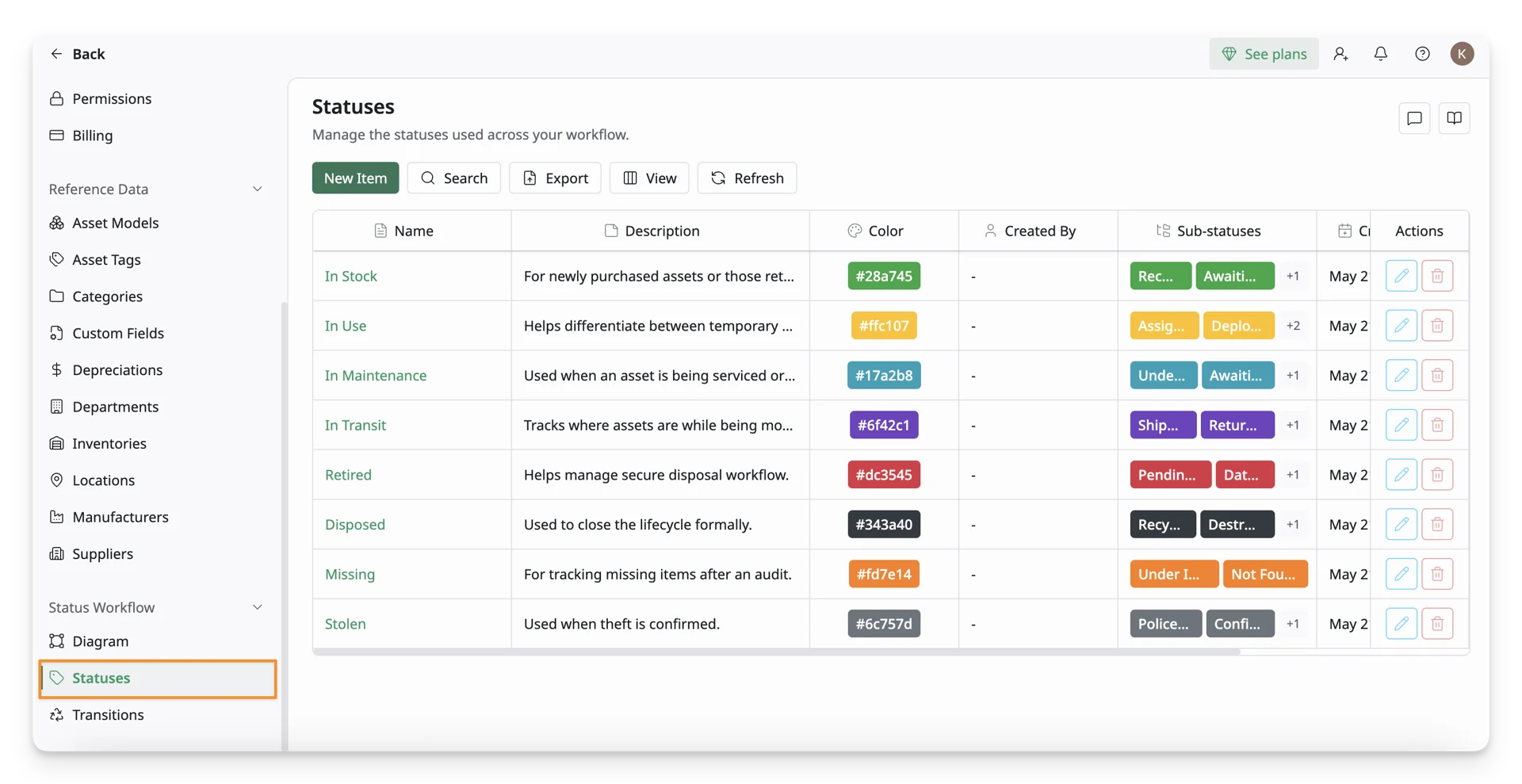
To access Status Workflow setting, go to Settings > Reference Data > Status Workflow.
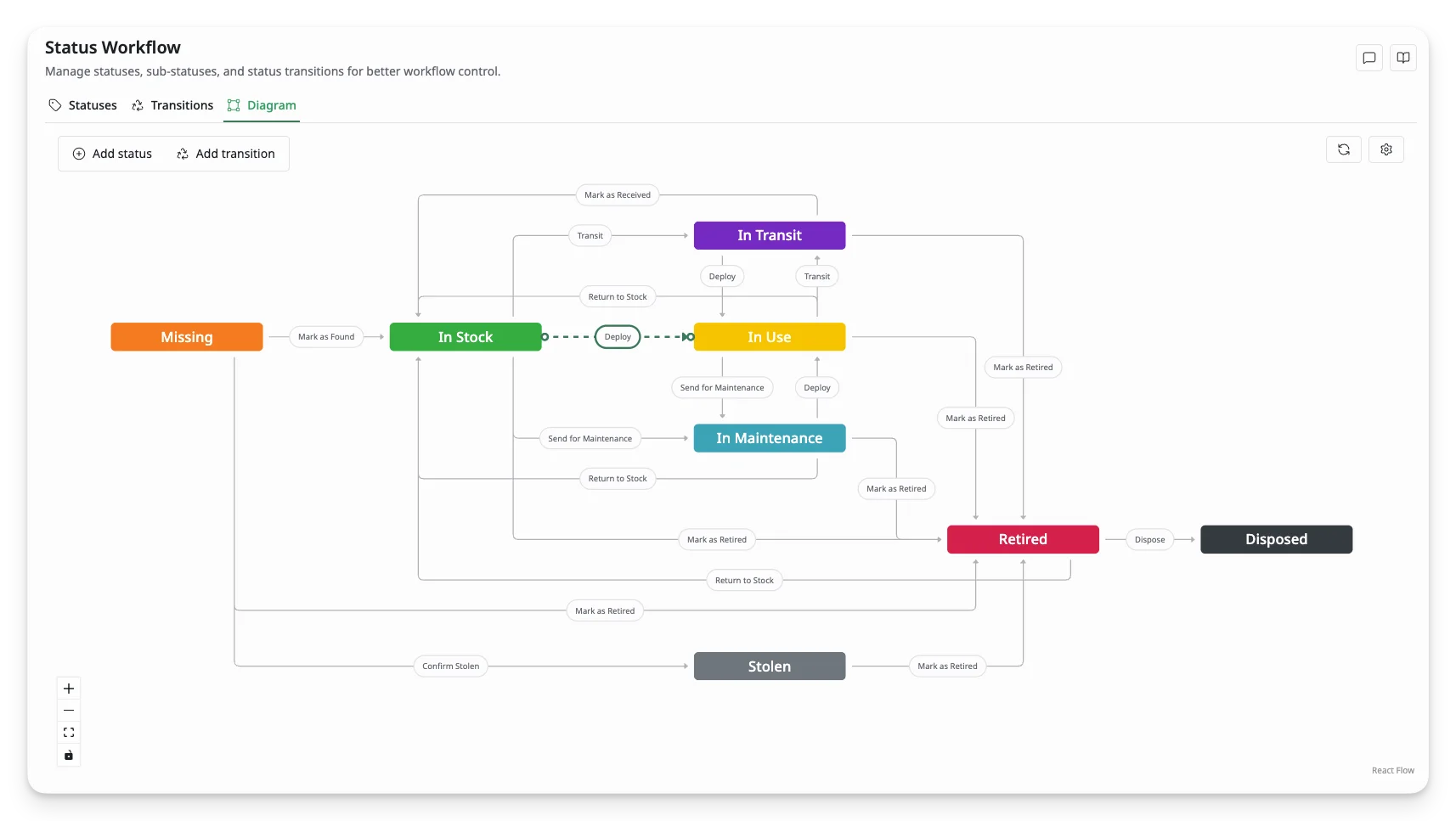
Key Components of the Status Workflow
1. Status
A status represents the current condition or stage of an asset.
Examples:
- In Stock → available for use
- In Use → assigned or deployed
- In Maintenance → under servicing
2. Transition
A transition defines how an asset moves from one status to another. Each transition connects a From status and a To status.
Example:
- From In Stock → In Use
- From In Use → In Maintenance
3. Transition Rules (Actions)
Rules define what action happens automatically during a transition. Available rules include:
- Checkout → assigns the asset to a user, location, or another asset
- Checkin → returns the asset from its current assignment
- Create Maintenance → logs a maintenance record
For example:
- Transition: In Stock → In Use
- Rule: Checkout
➡️ Result: The asset is marked as “In Use,” and the system prompts the user to provide checkout details such as the assignee and checkout date.
Default Workflow in AssetLoom
AssetLoom comes with a set of default statuses, designed to manage assets throughout their lifecycle. These statuses represent the asset’s condition and the potential actions that can be performed at each stage.
Below is a summary of the default status workflow in AssetLoom:
| Status | Transition (From → To) | Transition Rule | Common Use Case |
|---|---|---|---|
| In Stock | In Stock→ In Use | Checkout | A user checks out or deploys an available asset from the inventory to an assignee for active use. |
| In Stock | In Stock → In Transit | - | An asset is being moved to a different location, and its status changes to reflect it being in transit. |
| In Stock | In Stock → In Maintenance | Create Maintenance | The asset is moved away from inventory for scheduled or unscheduled maintenance, such as repairs or servicing. |
| In Stock | In Stock → Retired | - | The asset is no longer needed or has reached the end of its useful life, so it is marked as retired and no longer part of active inventory. |
| In Use | In Use → In Maintenance | Checkin, Create Maintenance | The asset, currently being used, is moved to maintenance for repairs or servicing due to damage or wear during use. |
| In Use | In Use → In Stock | Checkin | The asset is returned from active use back into inventory, often after being returned from a project or job. |
| In Use | In Use → In Transit | Checkin | The asset is being transported from its current usage location to another location, such as moving to a new user or project. |
| In Use | In Use→ Retired | Checkin | The asset has finished its useful life or is no longer needed for its current purpose and is marked as retired. |
| In Maintenance | In Maintenance → In Stock | - | After completing repairs or servicing, the asset is returned to the inventory, ready for deployment again. |
| In Maintenance | In Maintenance → In Use | Checkout | The asset, after being repaired or serviced, is now deployed to the checkout target. |
| In Maintenance | In Maintenance → Retired | - | The asset is not needed anymore, even after maintenance, and is retired from the system, such as when obsolete or damaged beyond repair. |
| In Transit | In Transit → In Stock | - | The asset has arrived at its destination, such as a warehouse, office, or job site, and is now logged back into inventory. |
| In Transit | In Transit → In Use | Checkout | The asset is assigned to a checkout target after transit. |
| In Transit | In Transit → Retired | - | The asset is in transit but is no longer needed or has been deemed obsolete, so it is retired while in transit. |
| Retired | Retired → Disposed | - | The asset is no longer in service and is disposed of, either through sale, donation, or disposal, such as scrapping. |
| Retired | Retired → In Stock | - | A retired asset is reassessed and re-entered into inventory, possibly for reuse or reactivation if still functional. |
| Missing | Missing → In Stock | - | A previously missing asset has been located and is now returned to inventory for active tracking. |
| Missing | Missing → Stolen | - | An asset is confirmed stolen after being reported missing. |
| Stolen | Stolen → Retired | - | A stolen asset is officially retired as it is no longer recoverable or considered part of the active asset pool. |
Customize Status Workflow
You can customize the Status Workflow to better fit your organization’s needs. This allows you to create custom statuses and transitions between those statuses, with the ability to define rules for each transition.
1. Create a Custom Status
A custom status allows you to create new stages in your asset’s lifecycle to better suit your processes.
Steps to create a custom status:
- From the Status Workflow screen, navigate to the Statuses tab and click New Item.
- Enter the following details:
- Name: The name of the status (e.g., Under Review).
- Color: Choose a color to visually represent this status for easy identification.
- Description: Optionally, provide a description of when and why this status is used.
- Transition: Select an existing status as a target transition for this status. Leave this blank if you want to set up the transition for it later.
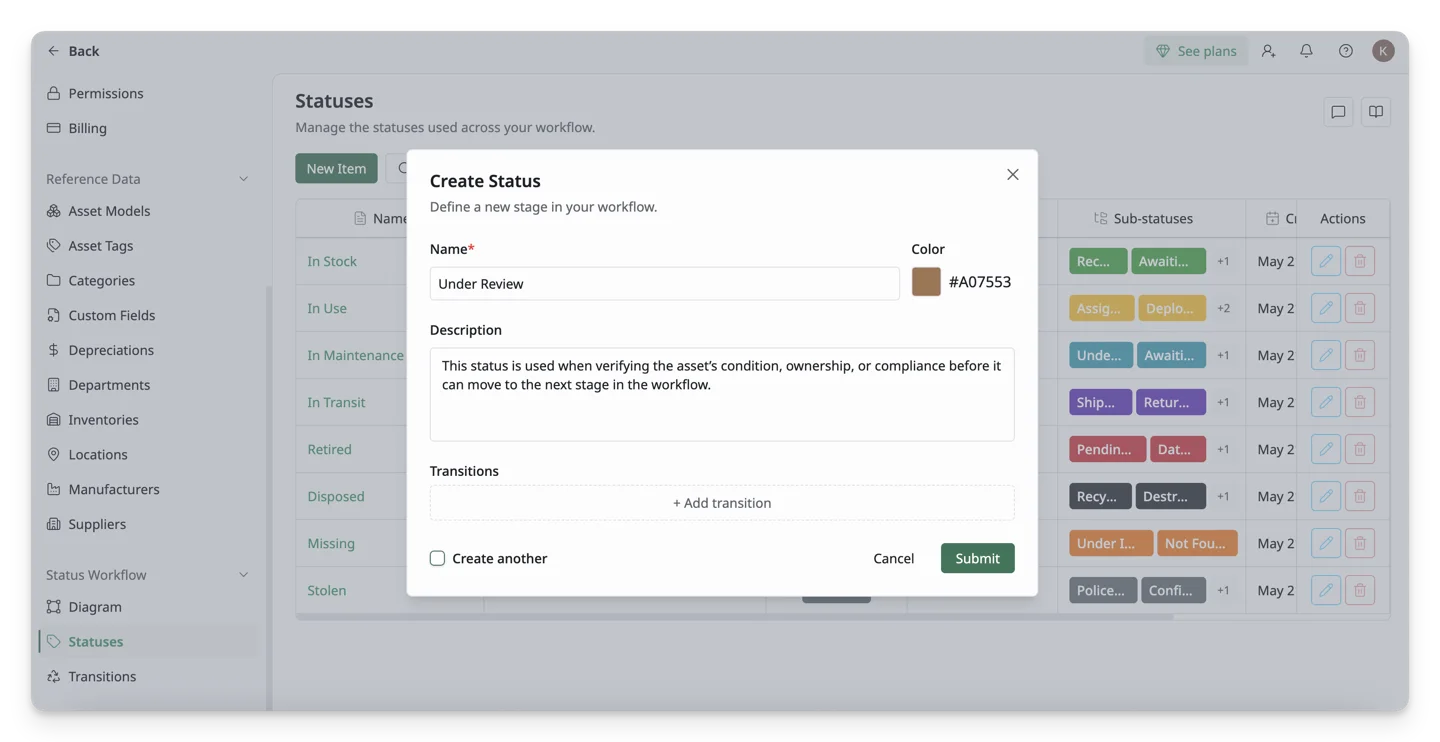
- Click Submit to save the new status.
2. Set Up Transitions for a Custom Status
A status by itself does not define how assets move through it. To make it functional, you need to set up transitions. Transitions define how assets can move to and from that status.
Steps to set up a custom transition:
- After creating the custom status(es), navigate to the Transitions tab in the Status Workflow page. and click New Item.
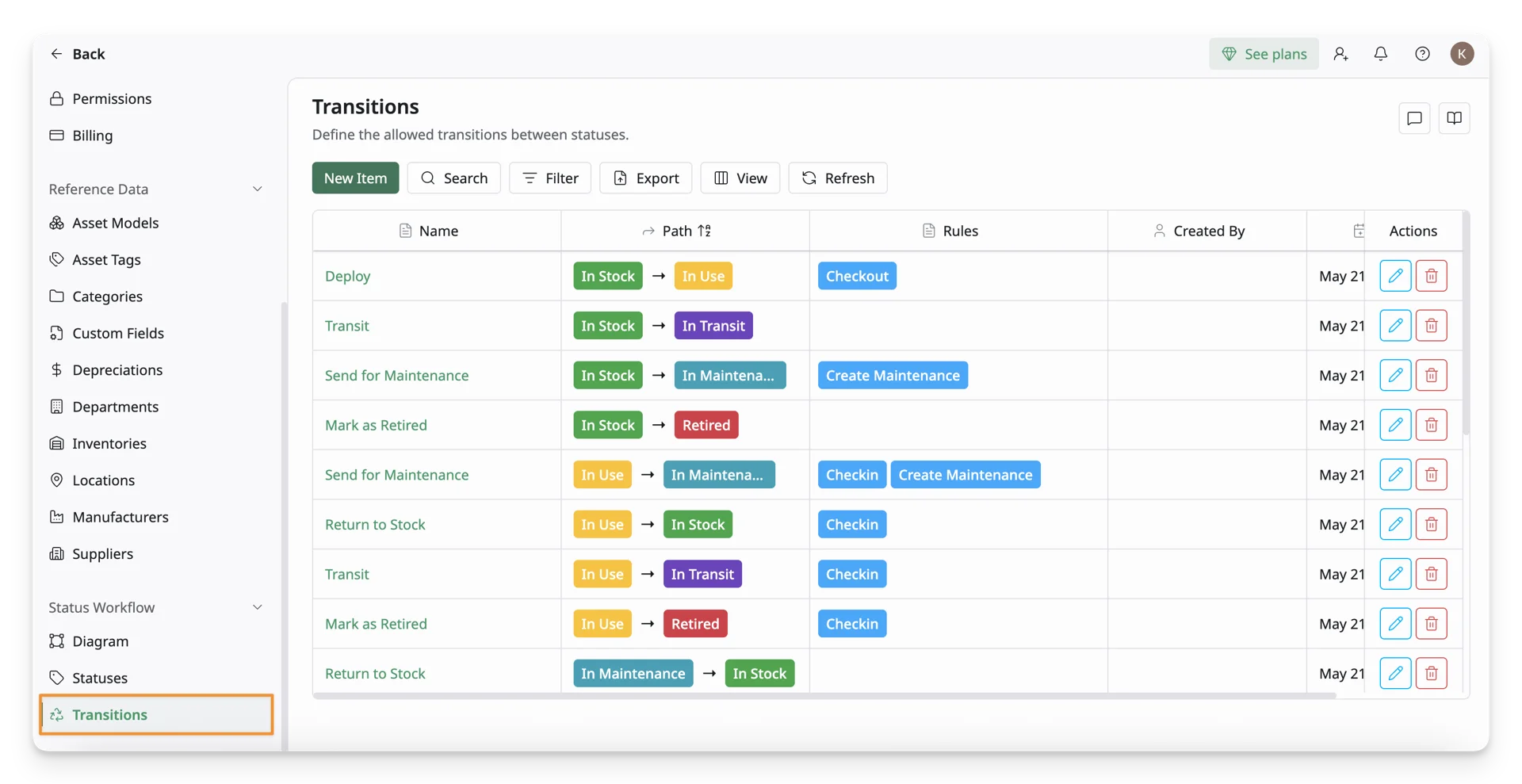
- Define the following details:
- From Status: Choose the status that will be the starting point (e.g., In Review).
- To Status: Select a target status to form the transition (e.g., In Use).
- Transition Name: Give it a descriptive name (e.g. Approve for Use). The Transition Name you choose will appear in the Status Workflow Diagram as well as in the Update Status dialog. It’s important to choose clear and descriptive names so users understand the action being performed.
- Transition Rules (Actions): Select the rule that matches the action you want to happen (e.g., Checkout, Checkin, Create Maintenance).
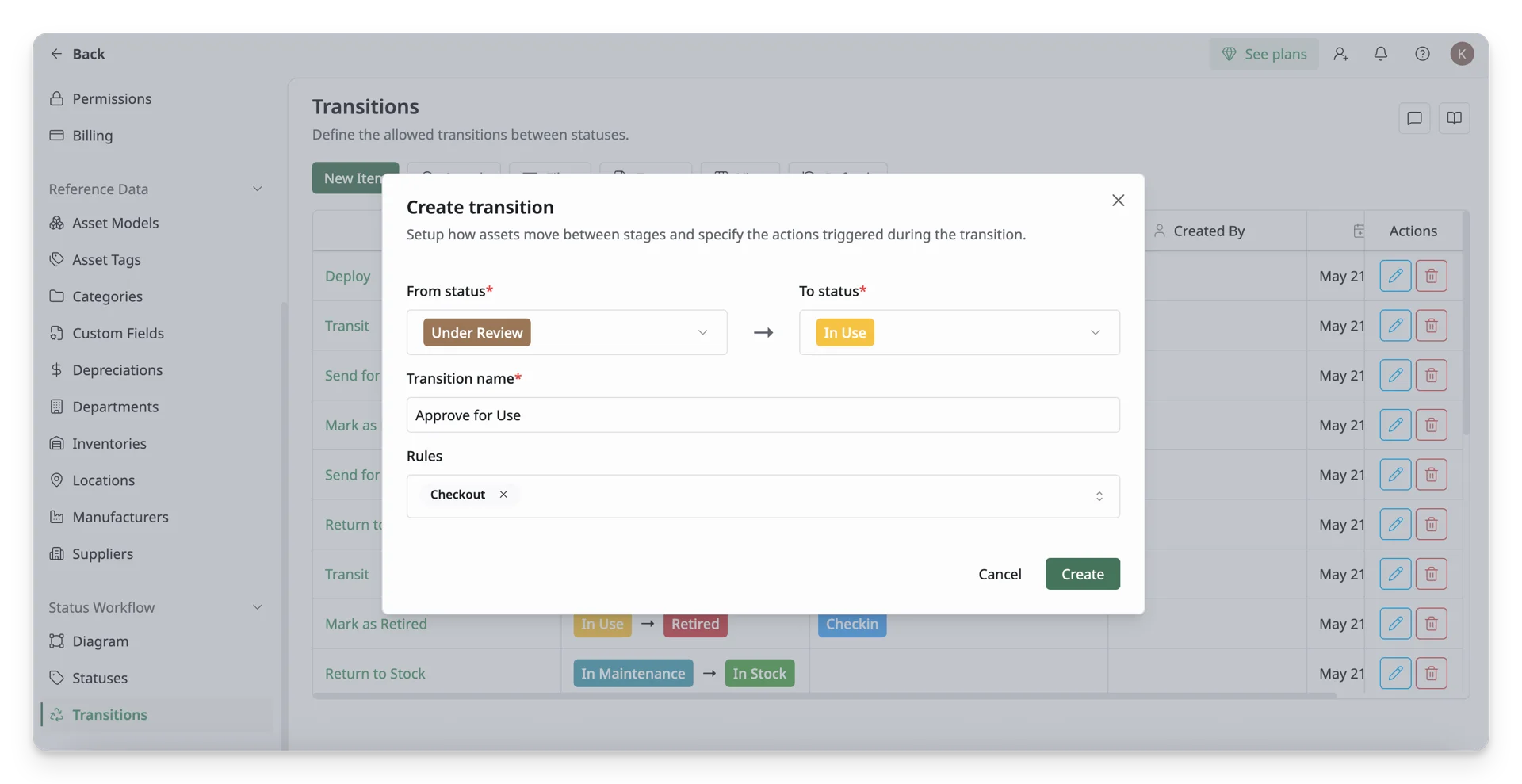
- Click Create to save the transition.
AssetLoom provides a Status Workflow Diagram as a visual representation of how your assets move through statuses. It shows all statuses and transitions in your system, and you can easily make adjustments, including:
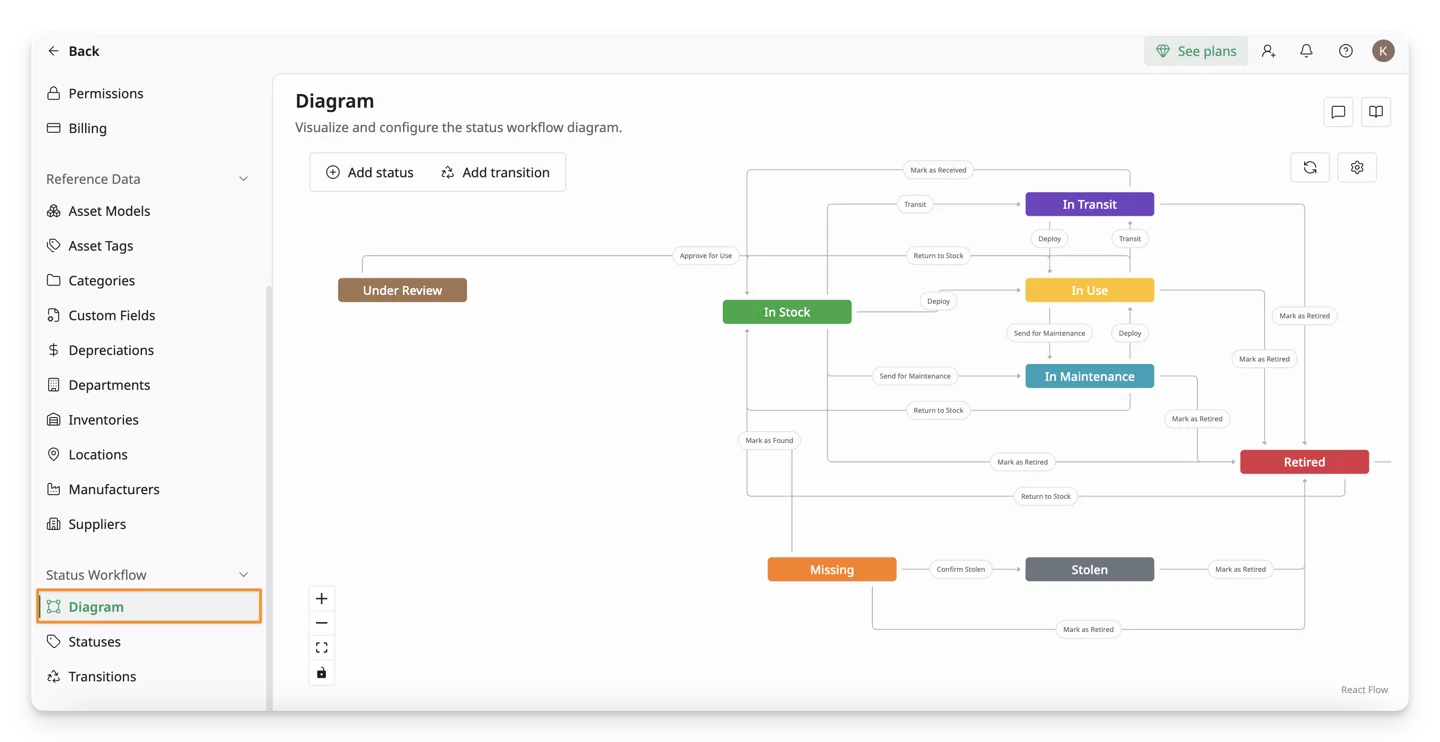
- Adding new statuses directly in the diagram
- Customizing transitions by clicking on any status or transition to edit them
What’s Next?
- Common Actions Upon Transition Rules: Explore the 3 most common actions triggered by transition rules