Quick start for site creators
This guide will walk you through the essential site setup to ensure your first experience with AssetLoom is smooth and effective.
Welcome to AssetLoom! We’re excited to help you set up your asset management system.
In this guide, we will learn:
- About your site.
- Setting up necessary reference data:
- Categories: Classify your assets by usage type or storage category.
- Departments: Group assets by team or business unit.
- Asset Models: Define the types and specifications of your assets.
- Adding your IT resources (Assets, Accessories, Licenses, Components, Consumables).
If you haven’t signed up yet, click here to create your account.
1. What Is a Site?
When you sign up for AssetLoom, the first thing you’ll do is create a site. A Site is a unique, independent workspace within AssetLoom where your data, users, and settings are organized. Each site is represented by a specific URL, typically formatted as your-company.assetloom.app, where your data is stored.
You can use a site to manage a project, company, team, or any other context. Multiple sites can be created to handle different projects or organizational units. Each site has its own user management, permissions, and billing configurations, allowing you to customize access and control over the data and workflows specific to that site.
Managing Your Site
As the Site Creator, you’re in charge of setting up and maintaining your site’s configuration. In the Administration settings, you can:
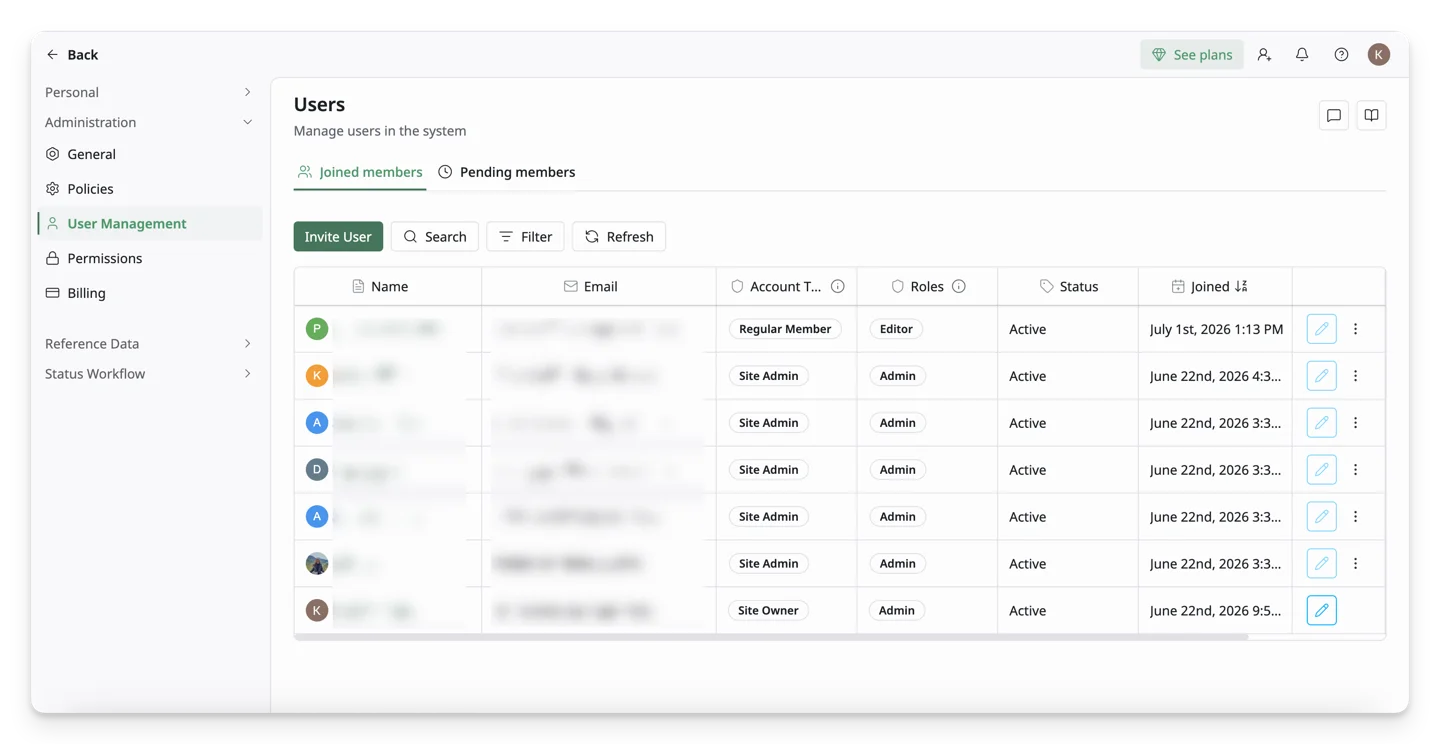
- Add and Manage Members: Invite your team and assign roles.
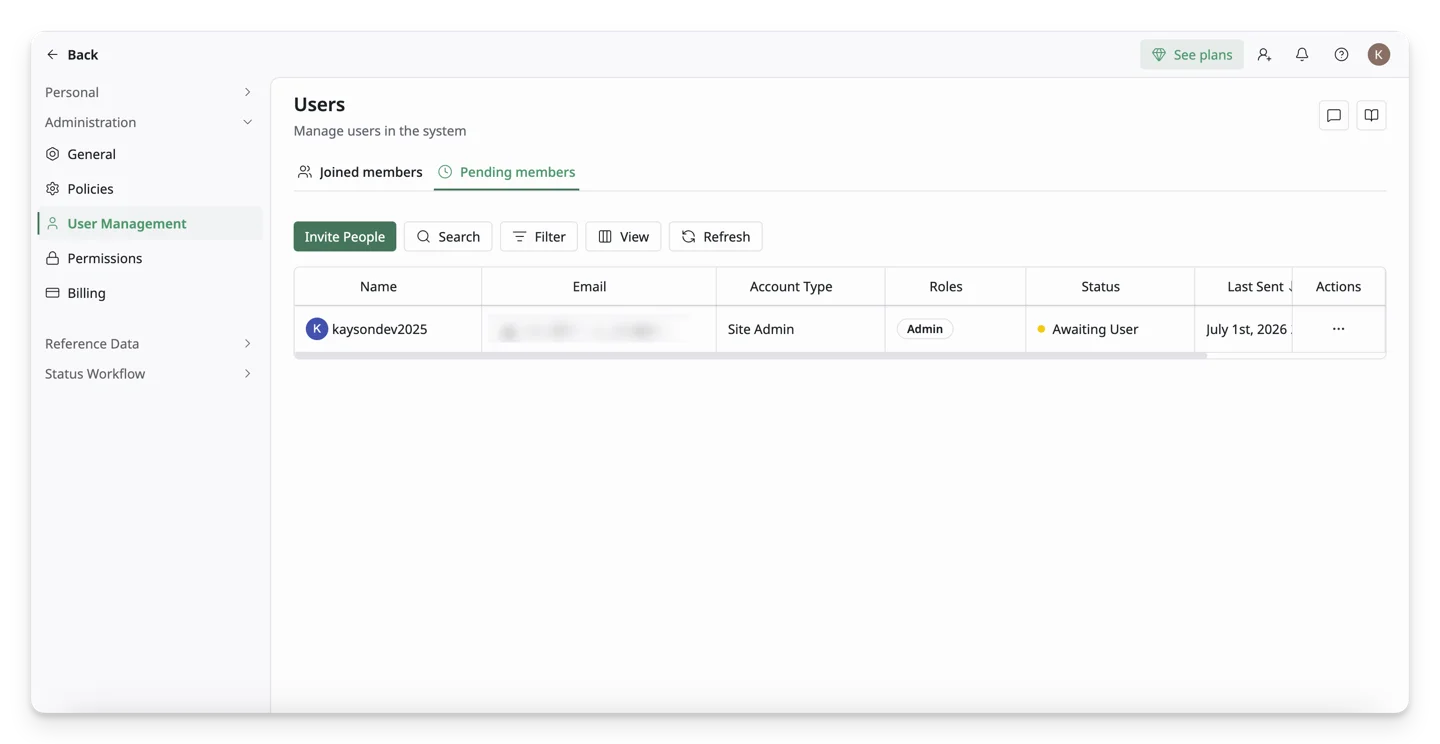
- Review and Manage Invitations: Track who’s been invited to join your site.
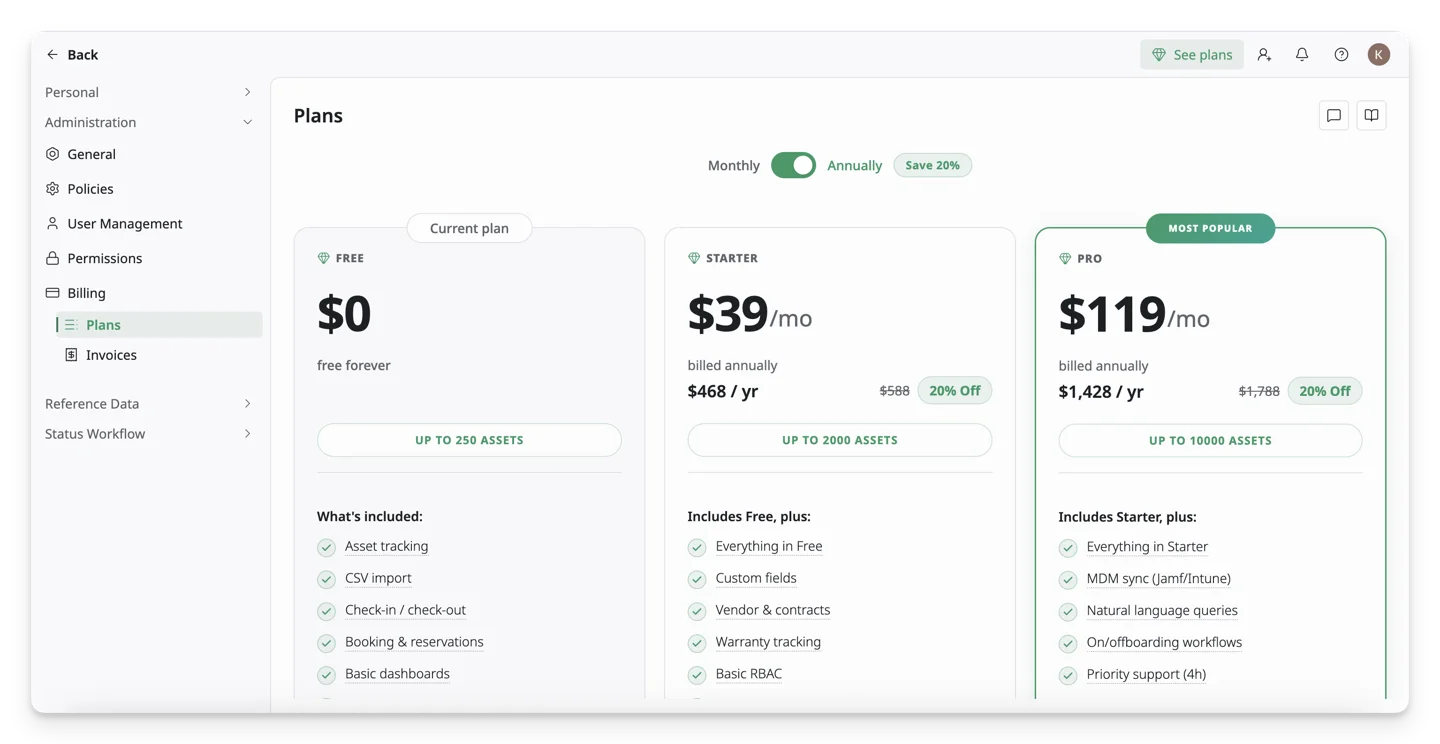
- Billing & Payment: Set up and modify your billing details.
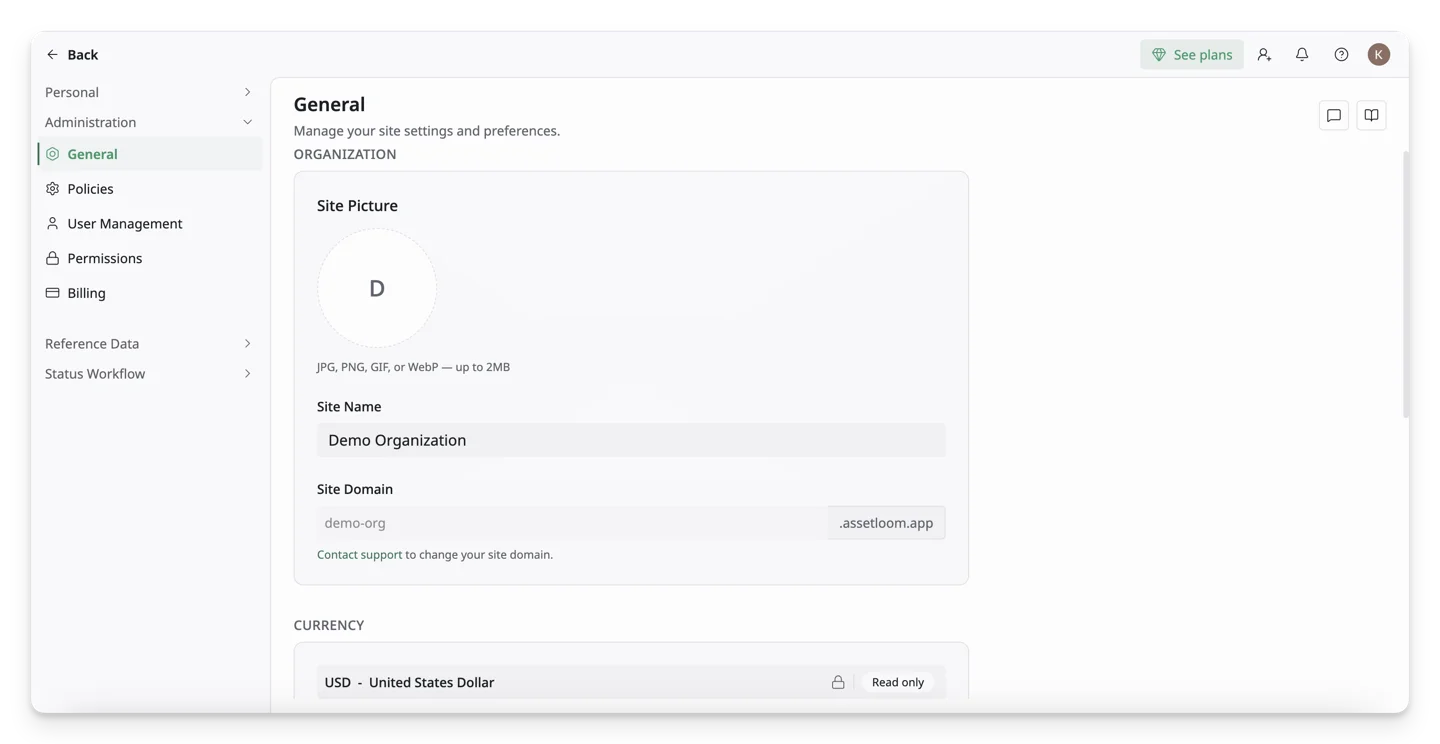
- Site Details: Update your site’s name, logo, or delete a site.
2. Set up Reference Data
To avoid any struggles later, we highly recommend setting up your Categories, Departments, and Asset Models. These steps are not mandatory, but they will make managing assets smoother down the line.
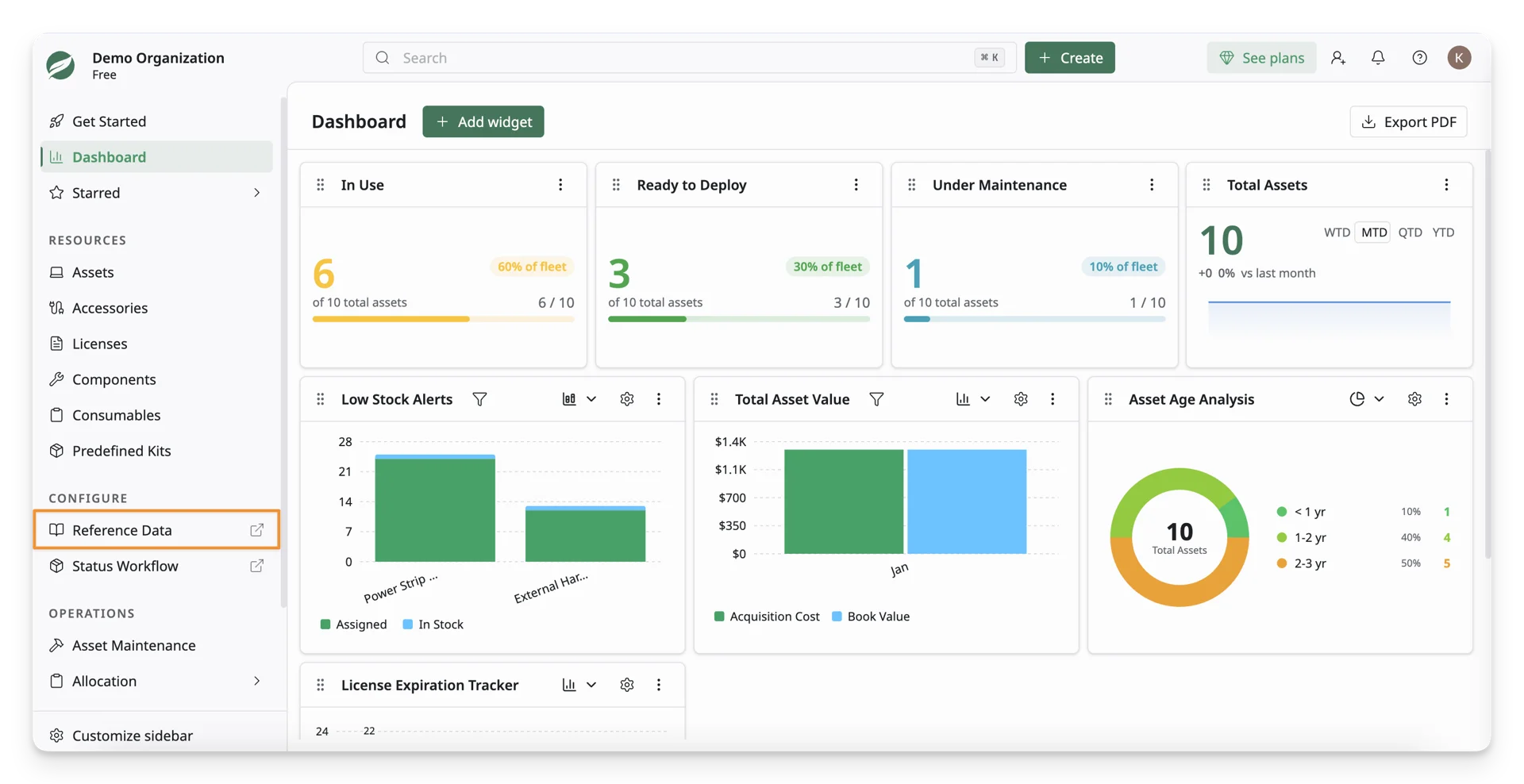
Where to find these reference data?
- In AssetLoom, navigate to Configuration → Reference Data in the left menu sidebar.
How to add Categories, Departments, and Asset Models?
Categories describe the general types of resources in AssetLoom.
For example, if you're managing IT assets, you can create categories like “Laptops” vs. “Desktops” for Assets, or “Wireless Keyboards” vs. “Wired Keyboards” for Accessories.
How to Create a Category:
- Find Categories in the Reference Data list and click the + Add button to create a new category.
- Add details for your new category:
- Enter a Category Name and select the appropriate Category Type, whether it should belong to Asset, Accessory, License, Components, or Consumable.
- Optionally, upload an image for the category (this helps to visually identify it later).
- Once all details are filled in, click Create to save your new category.
Departments help group your IT assets based on teams or business units within your organization.
For example, you might have departments like IT, HR, or Finance, allowing you to track, assign, reallocate assets more efficiently within each team.
How to Create a Department:
- Find Departments from the Reference Data list, and click on the + Add button to create a new department.
- Add details for your new department:
- Enter a Department Name (e.g., "IT Department," "HR Department").
- Optionally, upload an image to visually represent the department.
- Once all details are filled in, click Create to save your new department.
Departments help group your IT assets based on teams or business units within your organization.
For example, you might have departments like IT, HR, or Finance, allowing you to track, assign, reallocate assets more efficiently within each team.
How to Create a Department:
- Find Departments from the Reference Data list, and click on the + Add button to create a new department.
- Add details for your new department:
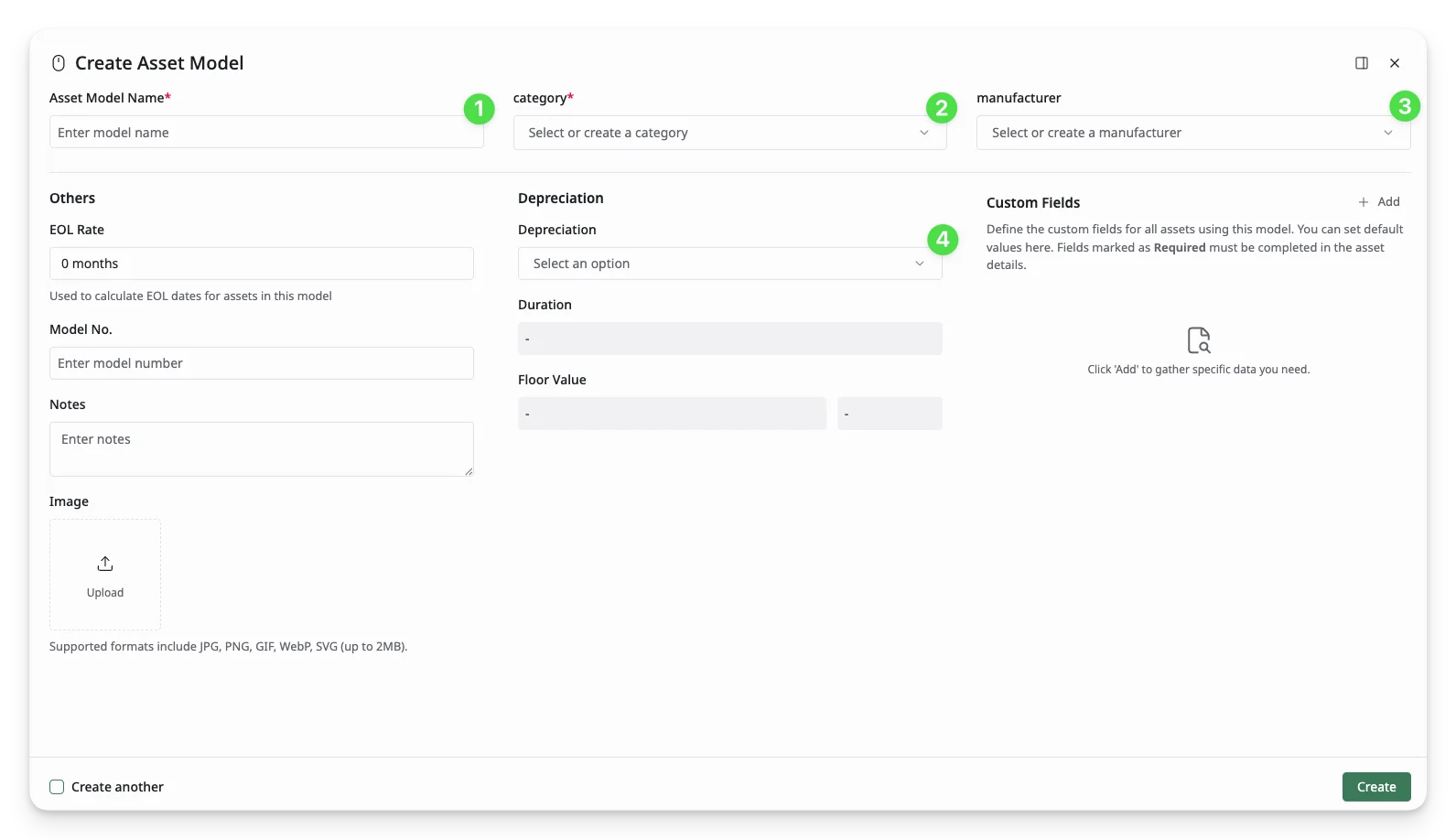
- Enter the Asset Model Name (e.g., "Dell XPS 13" or "HP ProDesk 400").
- Select a Category that corresponds to your asset. If you haven’t created a category yet, you can enter a new name, and the system will automatically create it.
- Select a Manufacturer (e.g., "Apple" or "Dell"). Again, you can create a new manufacturer or select an existing one.
- Depreciation: Depreciation calculates the asset's value over time based on the Duration Rule (by months) and the Floor Value. You can type to create a new depreciation rule for your asset model.
- Given an example, if you set the duration to 12 months, your assets will lose value each month according to the straight-line depreciation formula, starting from the purchase date.
- The default Duration is set to 12 months. You can modify the Duration and Floor Value at anytime in Depreciation Setup.
- Once all details are filled in, click Create to save your asset model.
Type and enter any reference data value on the line, and the system will automatically create it if it doesn't exist.
3. Add IT resources
Once your reference data is ready, you can begin adding IT resources to AssetLoom. AssetLoom organizes IT inventory into five core resource types: Assets, Accessories, Licenses, Components, and Consumables, each designed for a specific use case.
The 5 IT Resource Types in AssetLoom
AssetLoom helps you manage five core types of IT resources. While each serves a different purpose, they all follow a similar setup flow and can be created manually or via import.
| Resource Type | What it’s for | Tracked by |
|---|---|---|
| Assets | Primary, assignable items like laptops, servers, or vehicles | Unique asset tag |
| Accessories | Supporting items such as keyboards, mice, or docking stations | Stock quantity |
| Licenses | Software licenses and subscriptions | Seats, usage, expiration, renewals |
| Components | Hardware parts installed in assets, like RAM or hard drives | Stock quantity |
| Consumables | Items used up over time, such as ink or batteries | Stock quantity |
Basic Creation Flow
All IT resources in AssetLoom—Assets, Accessories, Licenses, Components, and Consumables—follow the same basic creation flow.
You can add resources in two ways: manually or by importing a CSV file. Choose the option that best fits your setup.
Manual creation is the best way to get familiar with AssetLoom, especially when setting things up for the first time.
Basic steps:
- Go to the resource you want to add (Assets, Accessories, Licenses, Components, or Consumables).
- Click + New Item.
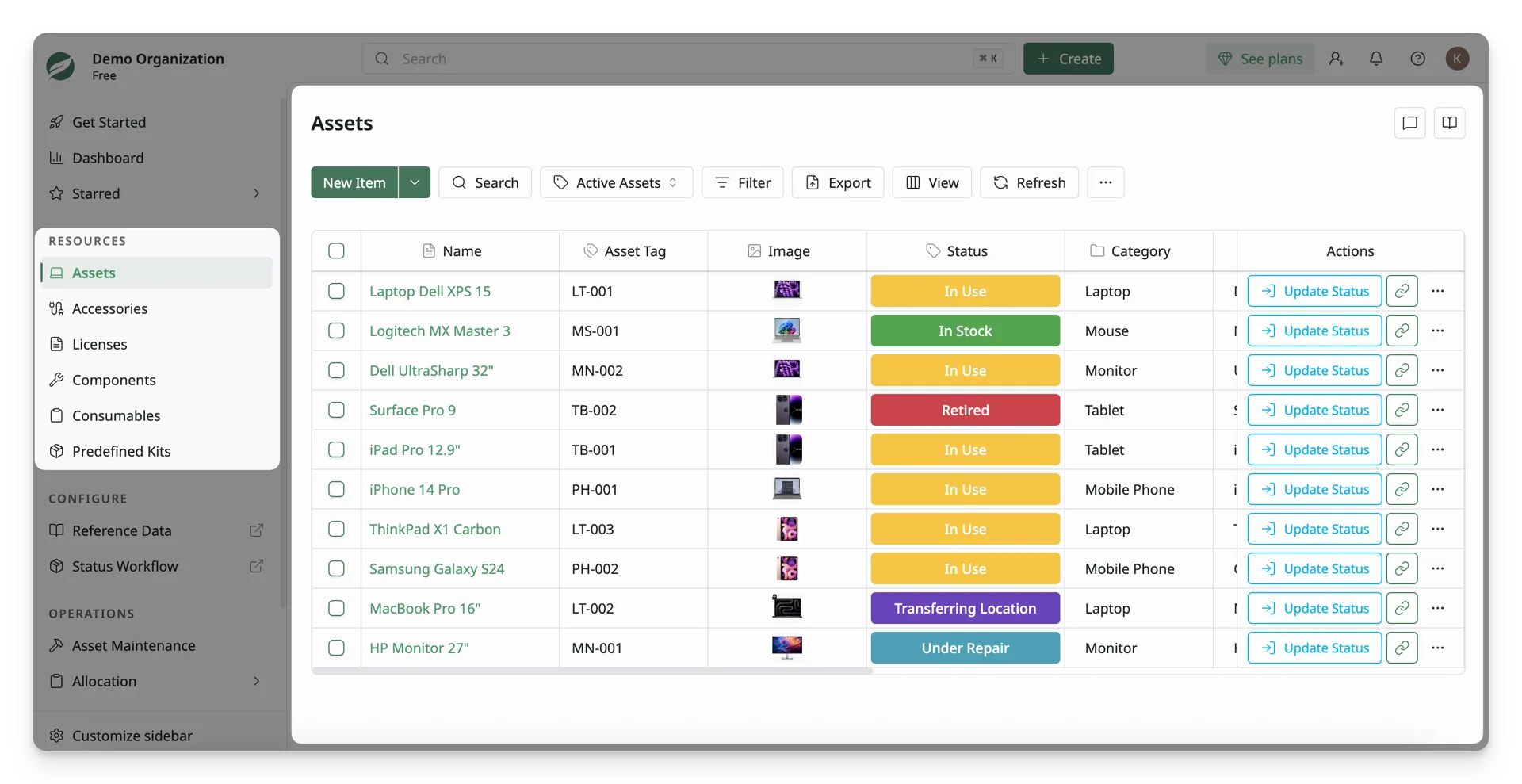
- Fill in the required fields (such as name, category, and inventory details).
- Add optional information like purchase details, location, department, or custom fields.
- Click Create.
That’s it! Your resource is now ready to be assigned, tracked, or managed.
Most dropdown reference data fields let you create values directly, such as categories, manufacturers, departments, or suppliers. Type and enter any reference data value, and the system will create it if it doesn't exist.
Importing is ideal when you’re adding many items at once.
Basic steps:
- Go to the resource you want to import.
- Click the dropdown next to the + New Item button and select Import.
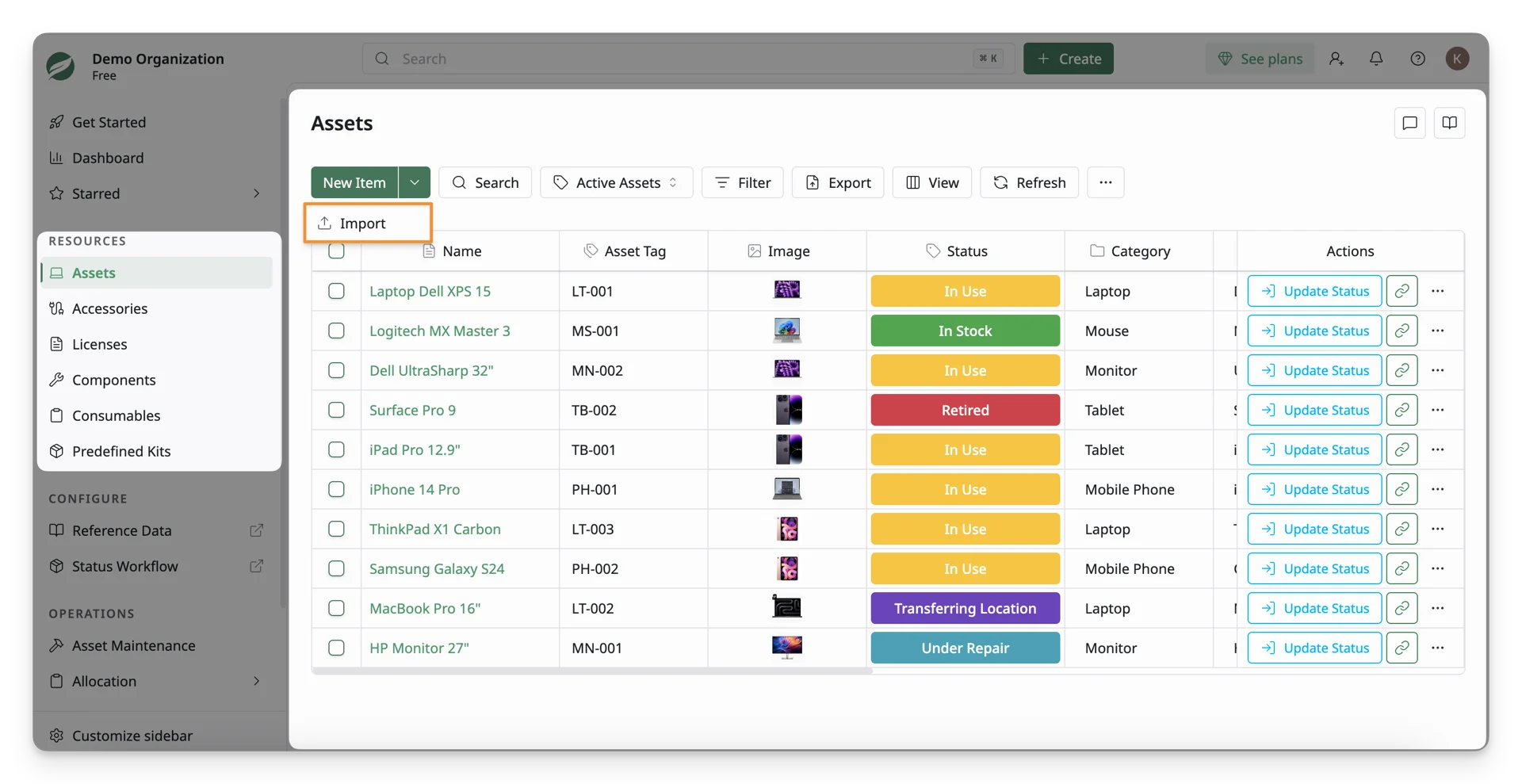
- Download the sample CSV template and prepare your data.
- Upload your completed CSV file.
- Map fields, review the data, and confirm the import.
Start by manually creating one resource first. This helps you understand the required fields and structure before preparing your CSV file for import.
You’re all set with the necessary data for your site 🎉
Learn More Details About Each Resource
Each resource type has specific behaviors and best practices (for example, how licenses expire or how components attach to assets).
For detailed setup and usage, visit the dedicated guides:
What’s Next?
Once your workspace is set up, you’re ready to start managing day-to-day operations in AssetLoom. The following guides walk through the most common admin workflows:
- Invite team members to your site: Send your team members the invitation to join your site.
- Assign an asset to a team member: Learn how to assign an asset from your stock to a team member.
- Create an onboarding kit : Group your onboarding resources into a kit and automatically assign them to new team members.
- Manage access and visibility : Control who can see and manage specific items using roles and permissions.