Manage Asset Details
Learn how to manage asset details
You can view, update, and manage Asset Details in AssetLoom via:
Inline Editing from the Asset List
Use inline editing when you need to update information directly from the Asset List without opening the asset record.
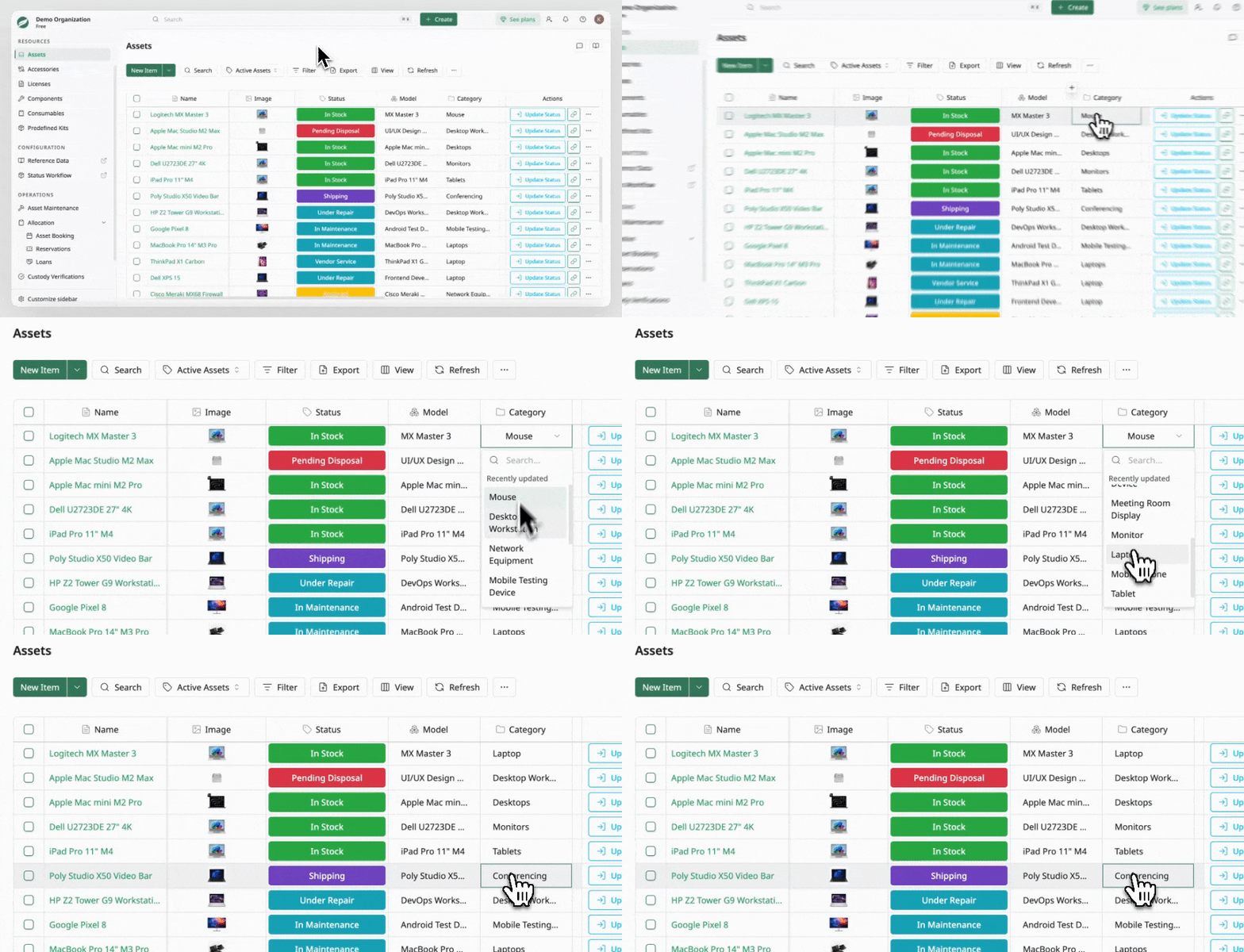
Some data fields, such as Category, Manufacturer, Supplier, Department, Location, and Inventory, let you type to create new data, even during inline editing of asset information.
If the value you want does not yet exist in AssetLoom, simply:
- Click the field.
- Type the new value.
- Select Create.
The new value will be added and selected immediately.
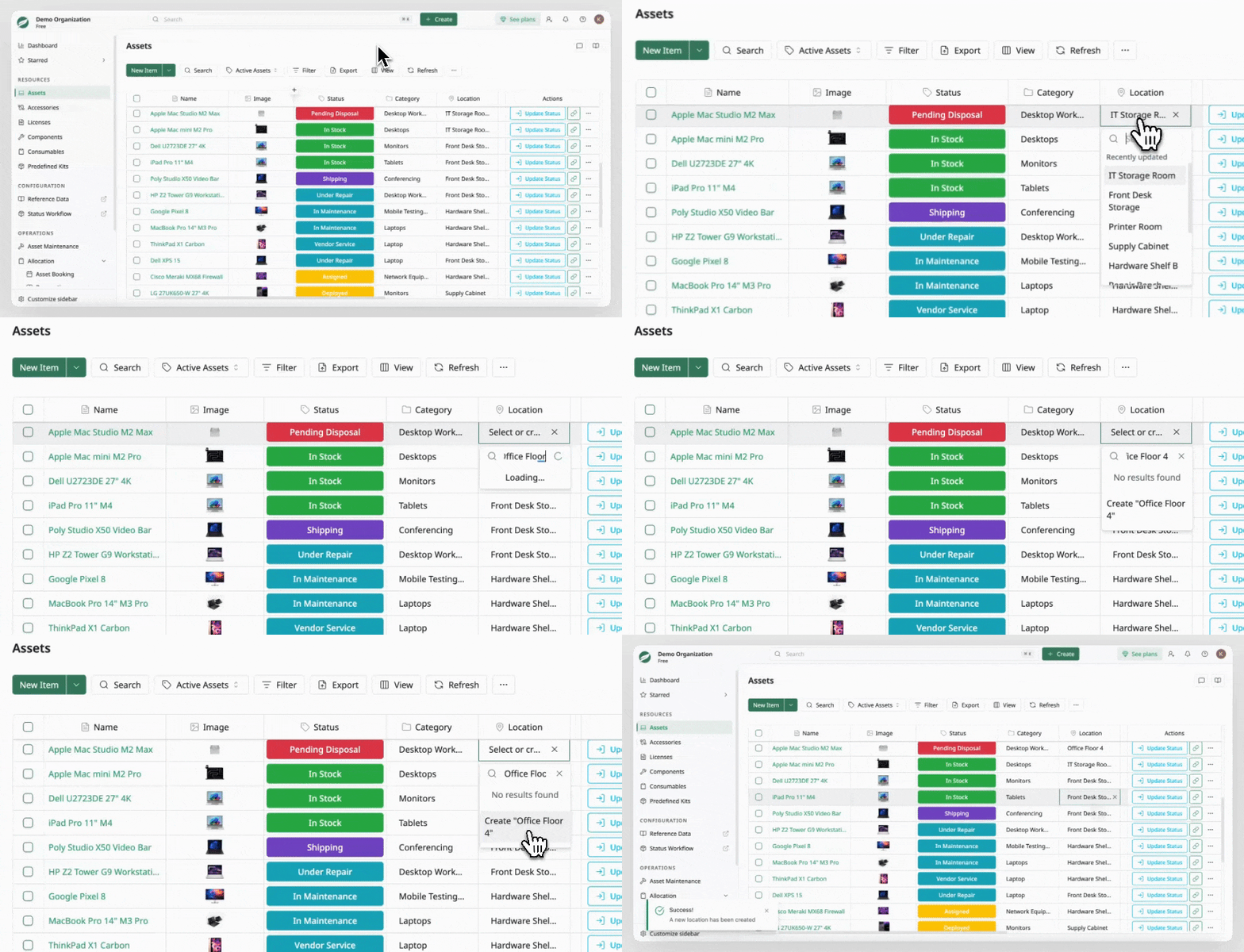
The Asset Details Screen
The Asset Details screen allows you to review full information or manage related records.
Accessing the Asset Details
You can open the screen in two ways:
- Click the asset name from the asset list.
Click the Expand button at the top of the panel to open a larger dialog view.
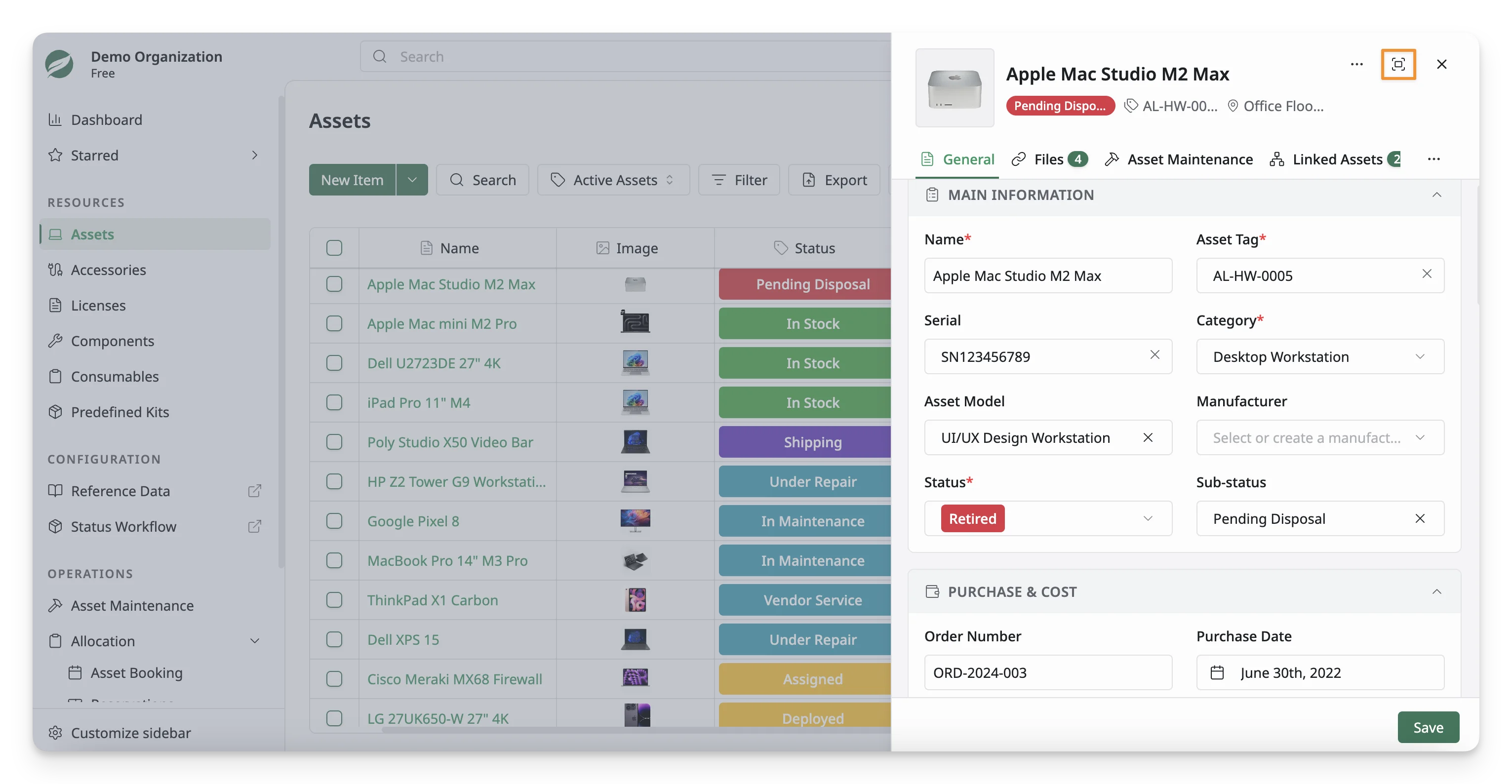
- Click the three dots in the Actions column, then select Edit.
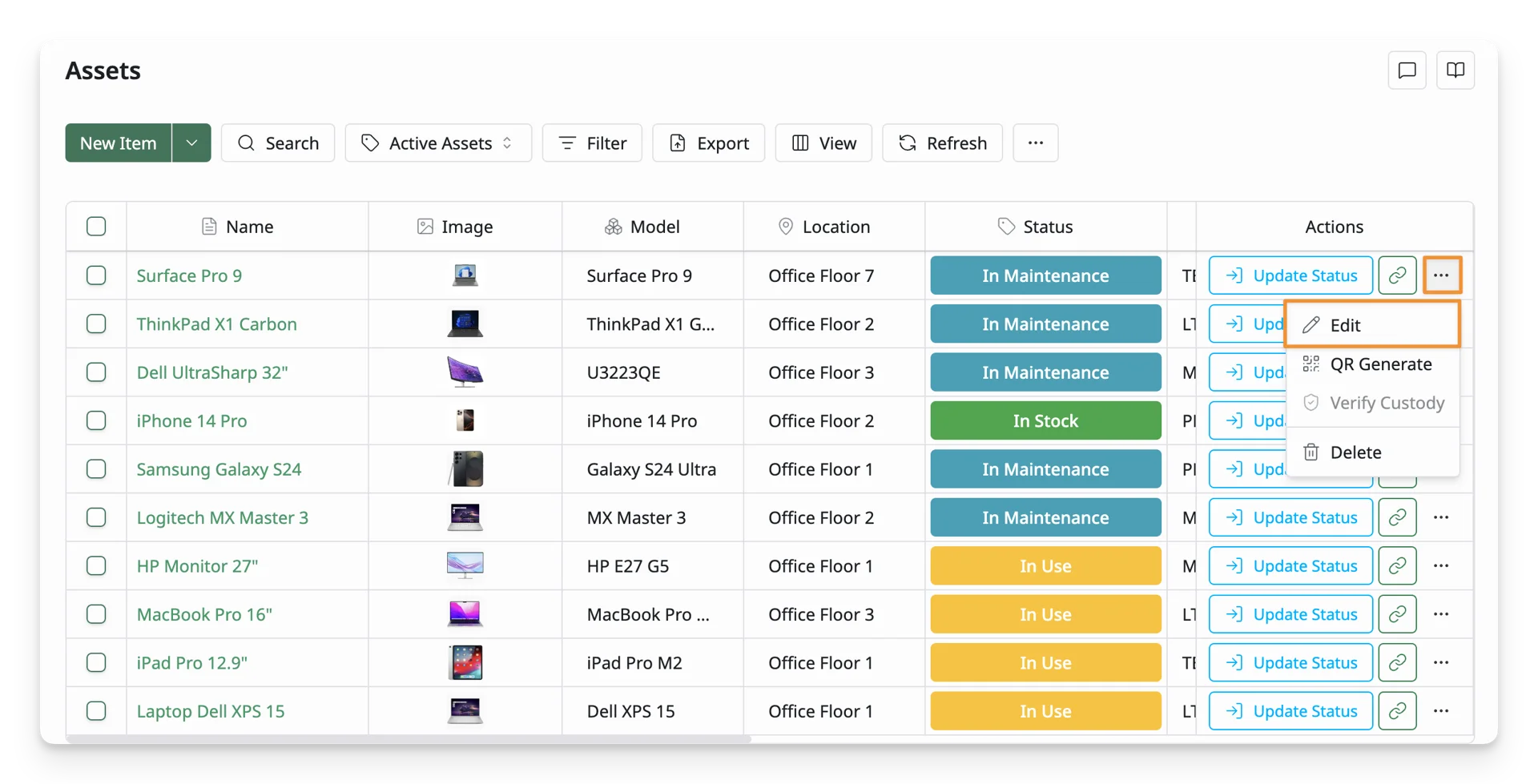
Use Tabs in the Asset Details Screen
The Asset Details screen allows you to view and manage complete information for a selected asset, organizing it into different tabs.
General
The General tab contains the main asset information and is the primary place for reviewing or updating details. It may include key information such as main information, purchase cost, and custom fields.
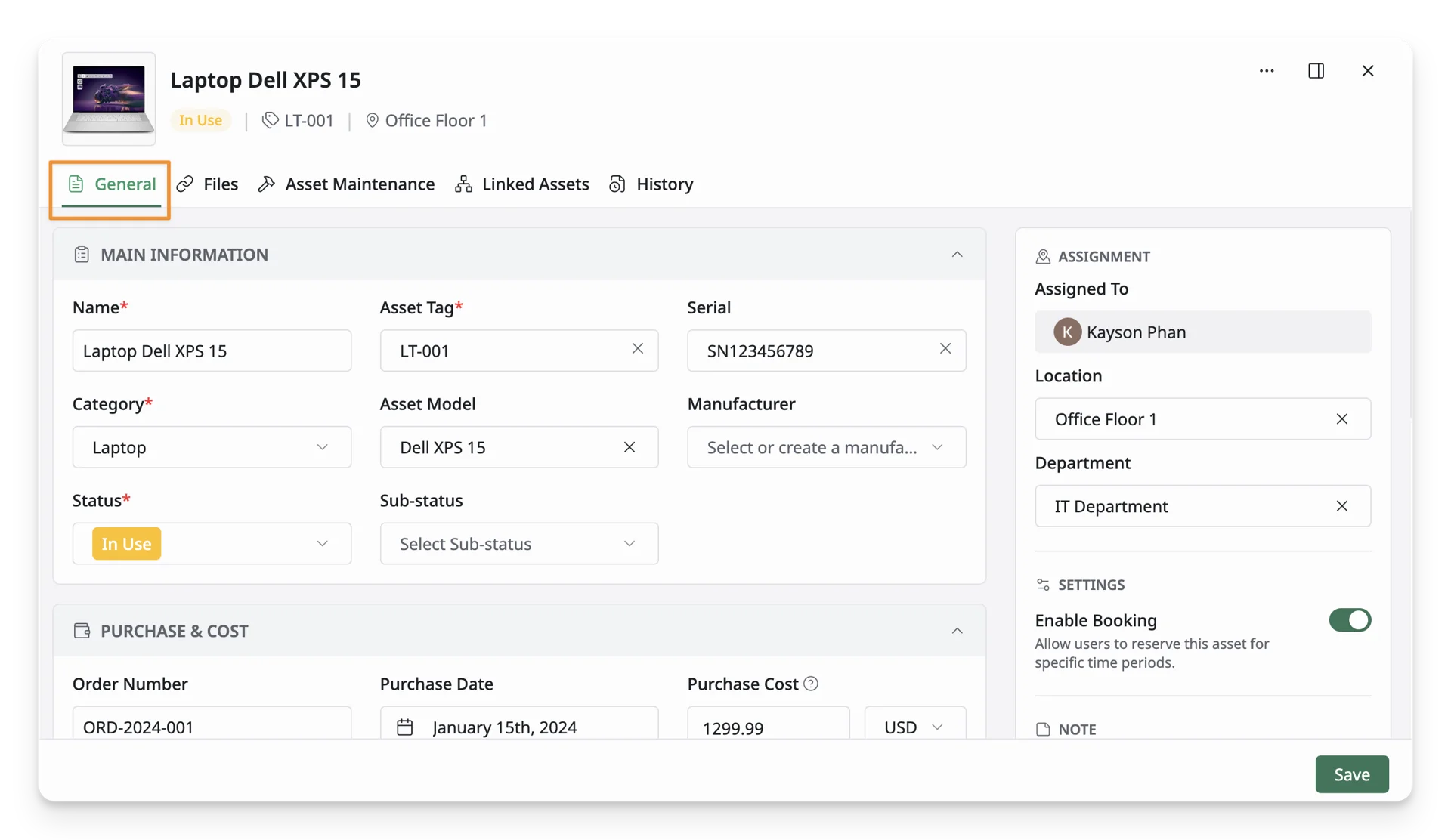
In addition, you can also view the depreciation value of this asset:
To display depreciation information, you need to finish these setups in advance:
- Set the depreciation rule in Settings → Depreciations.
- Select the depreciation rule for each asset via Settings → Asset Models.
- Depreciation Policy: View the depreciation rule applied to this asset model. This determines how the license value decreases over time.
- Method: Specifies the depreciation calculation method used to determine the asset’s value over time. Common methods include:
- Straight-Line, where the value decreases evenly over the useful life
- Double-Declining Balance, where the value decreases more rapidly in the early periods.
- Useful Life: Shows the depreciation period for the selected rule.
- Salvage Value: Displays the minimum value the license should retain after depreciation. The asset value will not depreciate below this amount.
- Current Expense: Shows the license’s estimated depreciation expense for this month
- Residual Value: Shows the total amount that has been depreciated from the original purchase cost.
- Residual Date: Shows the date when the asset will reach its salvage value.
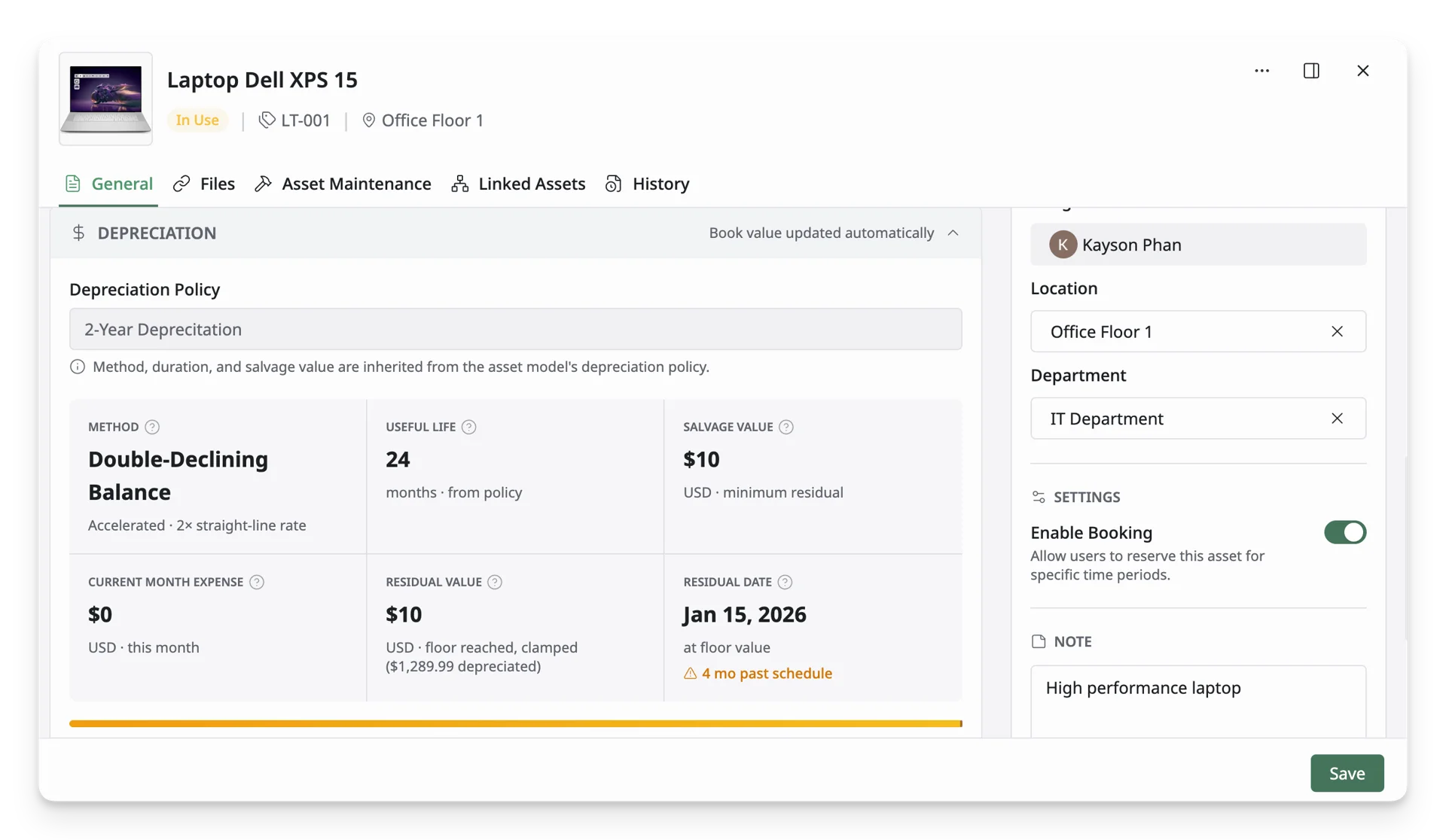
In this tab, you can:
- Review and update the information in the data fields.
- Generate the QR code of this asset by clicking Generate QR Code.

- Request a Custody Verification of this asset by clicking Verify Custody.
File
The File tab lets you:
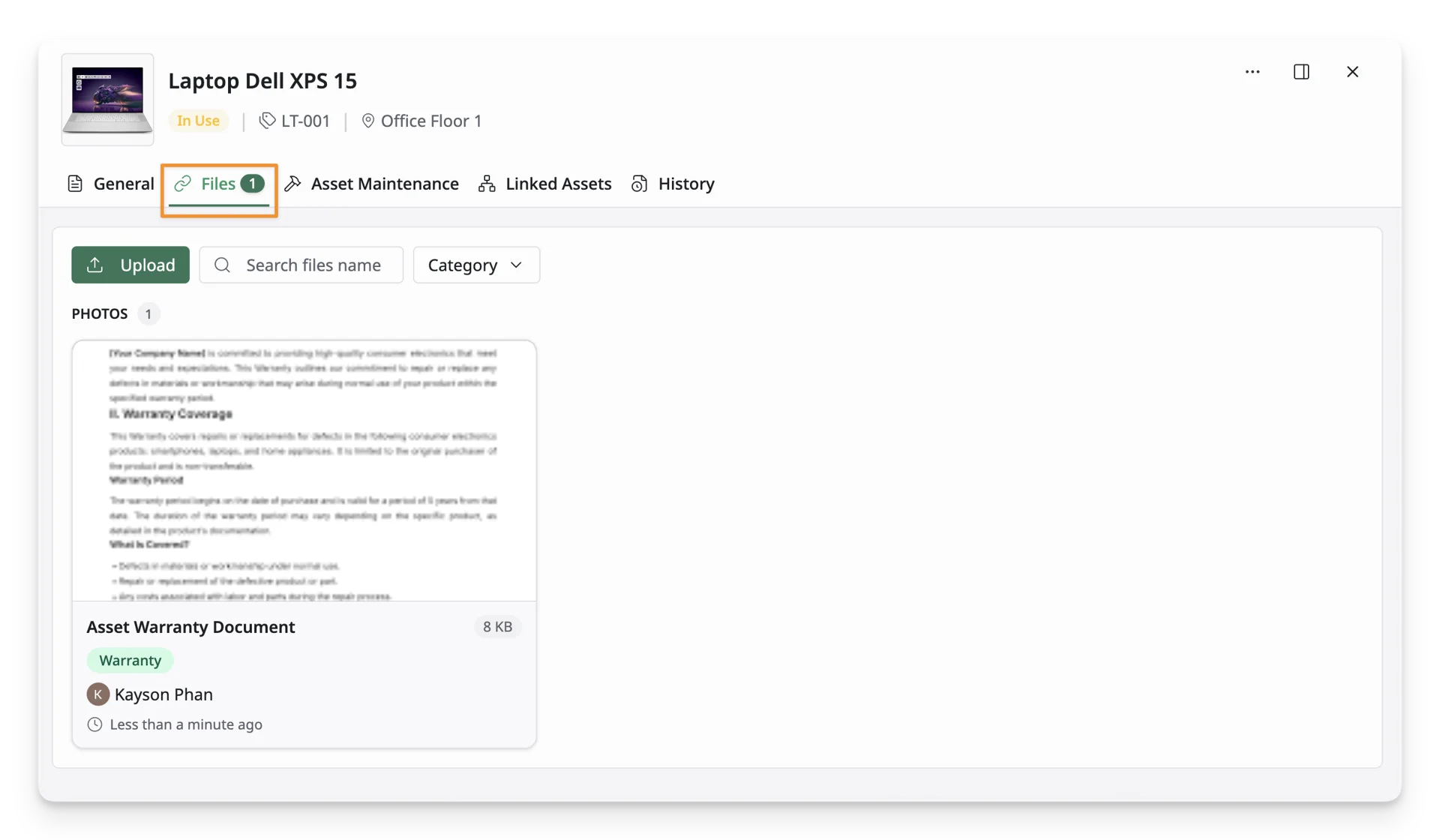
- Upload and manage images for the asset. Use it for product photos, condition checks, or visual identification.
- AssetLoom supports JPEG, PNG, WebP, and GIF images.
- Each file/image can be up to 2 MB, and each asset can have up to 10 files in total.
- Stores files related to the asset, such as invoices, warranty documents, manuals, and other supporting records.
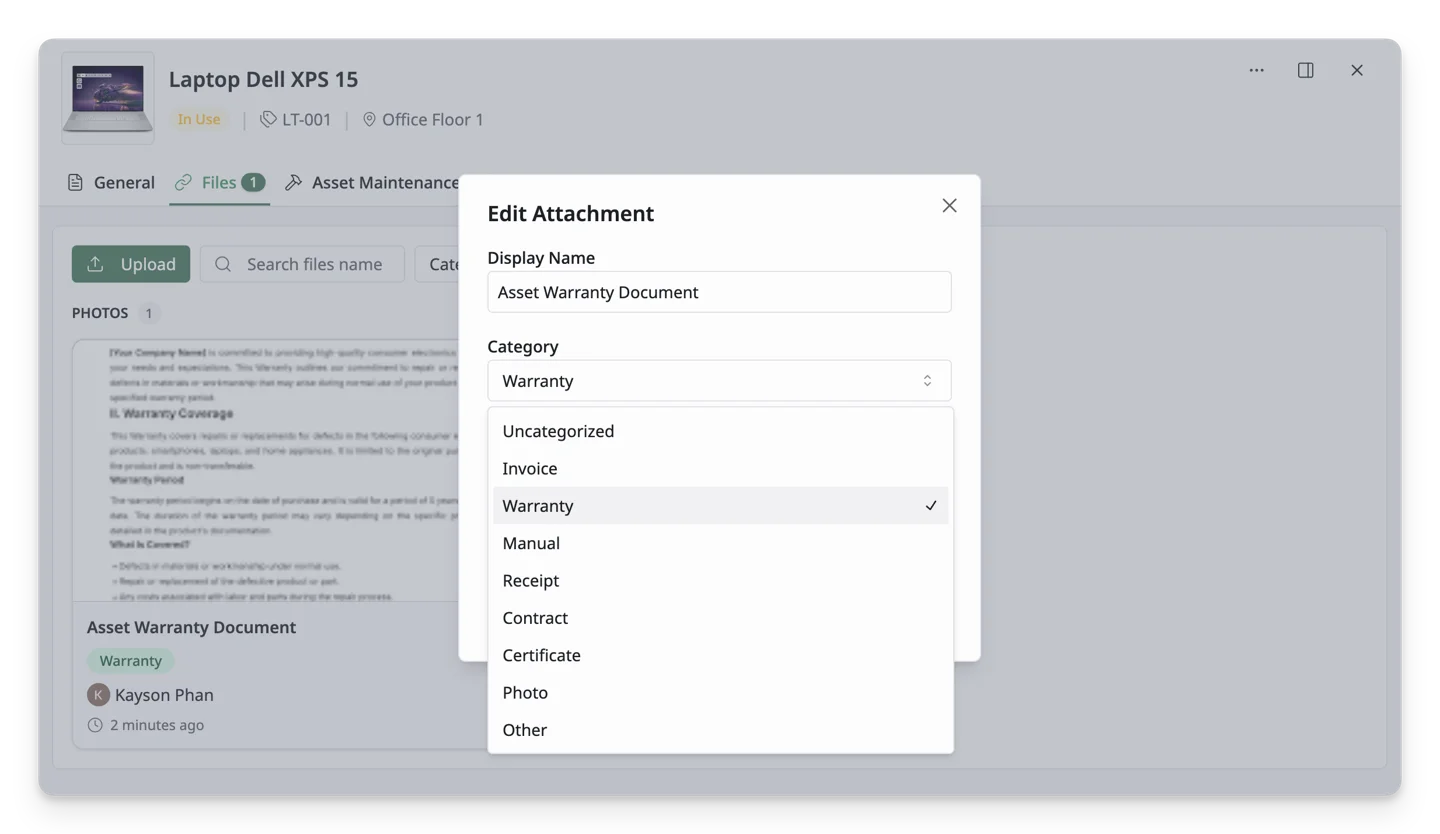
- When uploading a file, you can assign an attachment type for the file. Available types may include Invoice, Warranty, Manual, Receipt, Contract, Certificate, Photo, and Other. You can also filter the attachment list by type to quickly find specific files. AssetLoom supports common file types such as PDF, Word, Excel, ZIP, and CSV.
Asset Maintenance
The Asset Maintenance tab displays maintenance records related to the asset and helps track repairs, servicing, and maintenance activity. You can review previous service history or add the asset to the maintenance list.
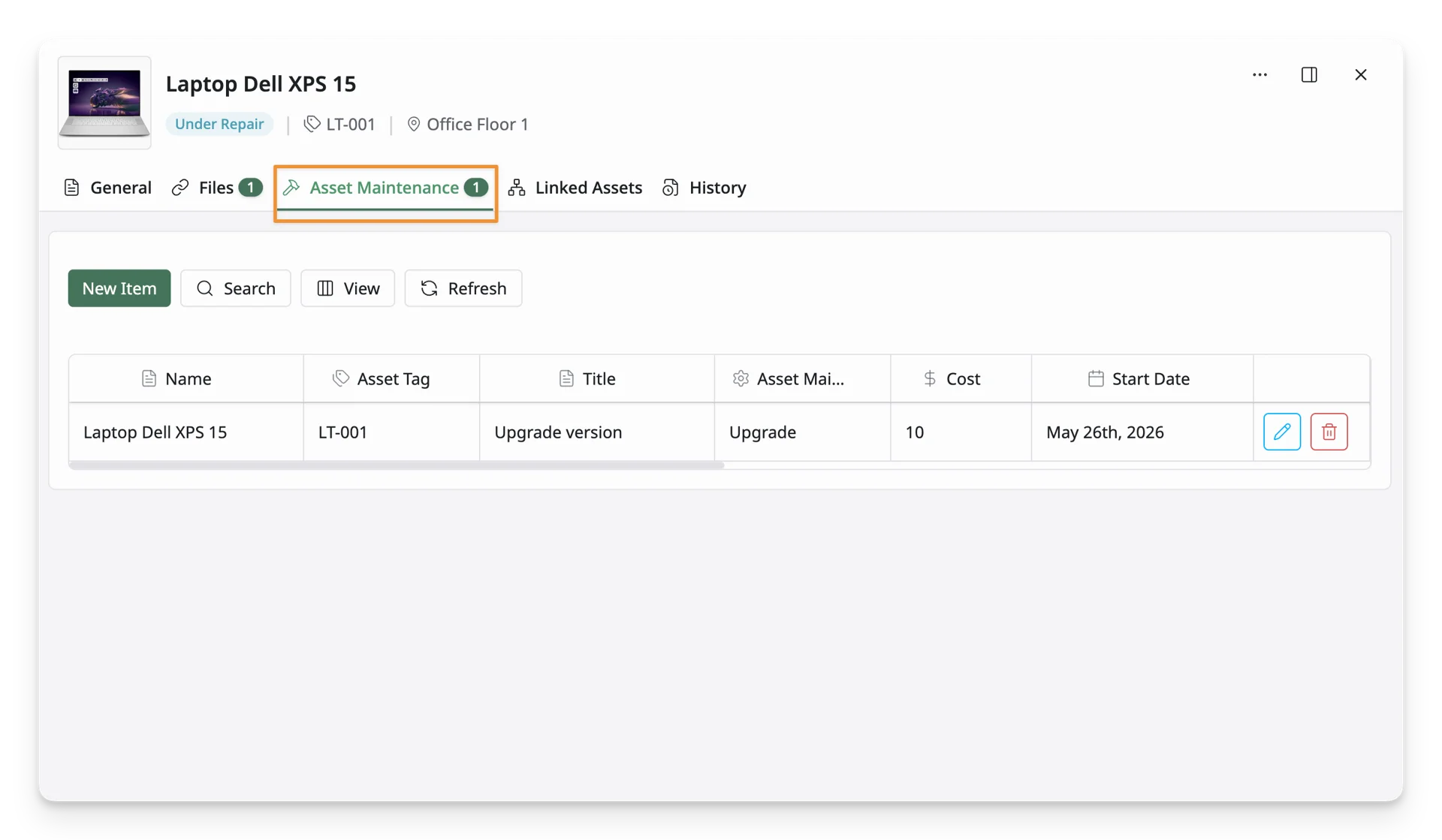
To add an asset to maintenance, the asset must be in a status that has the Create Maintenance transition rule.
By default, only assets in In Stock or In Use statuses can be added to maintenance, as these statuses include the Create Maintenance rule in their transitions. You can adjust which statuses can trigger maintenance in the Status Workflow settings.
Linked Asset
The Linked Asset tab displays a list of assets, accessories, licenses, and components associated with the current asset. You can check those assets back into the inventory from here. 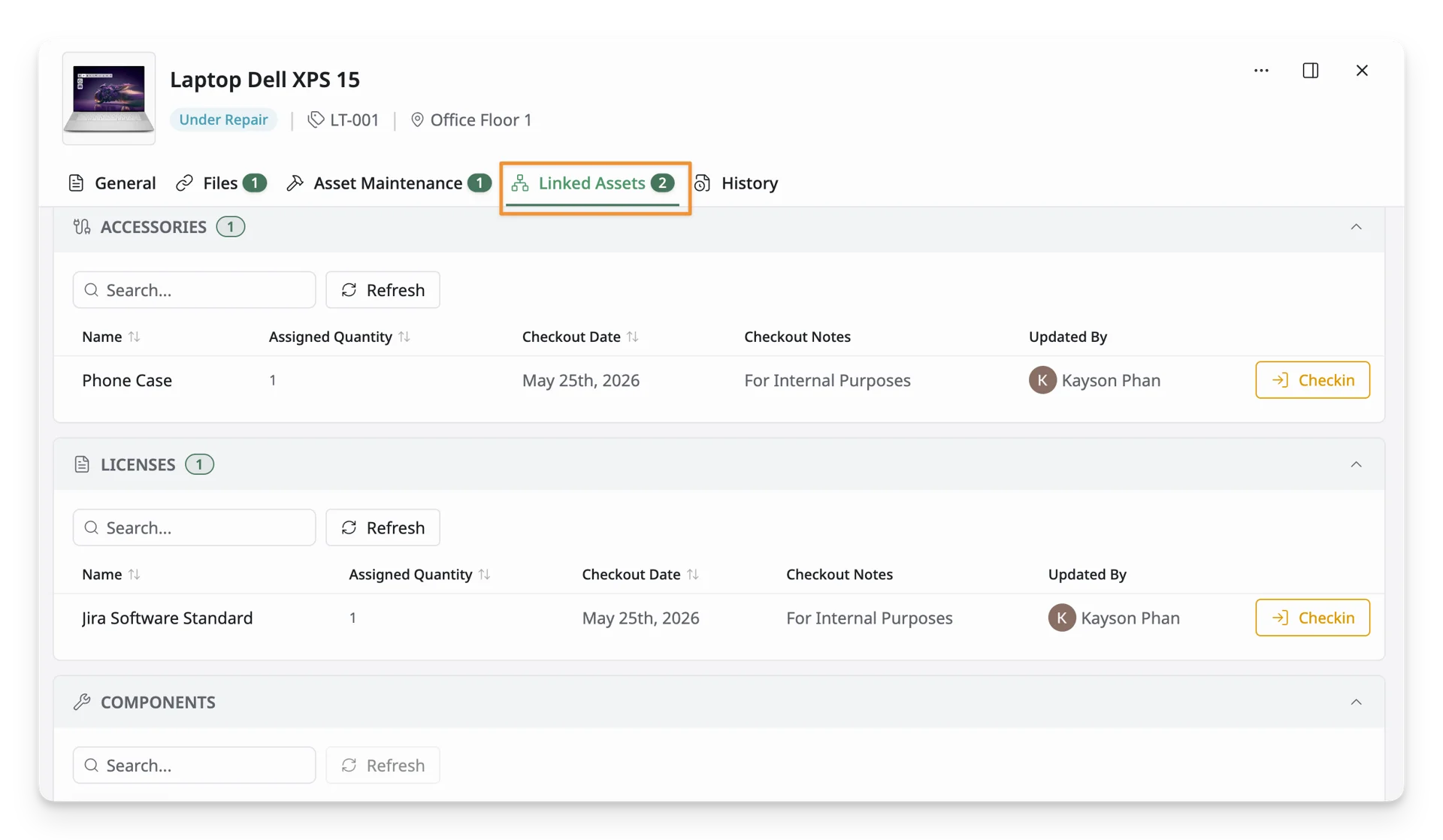
History
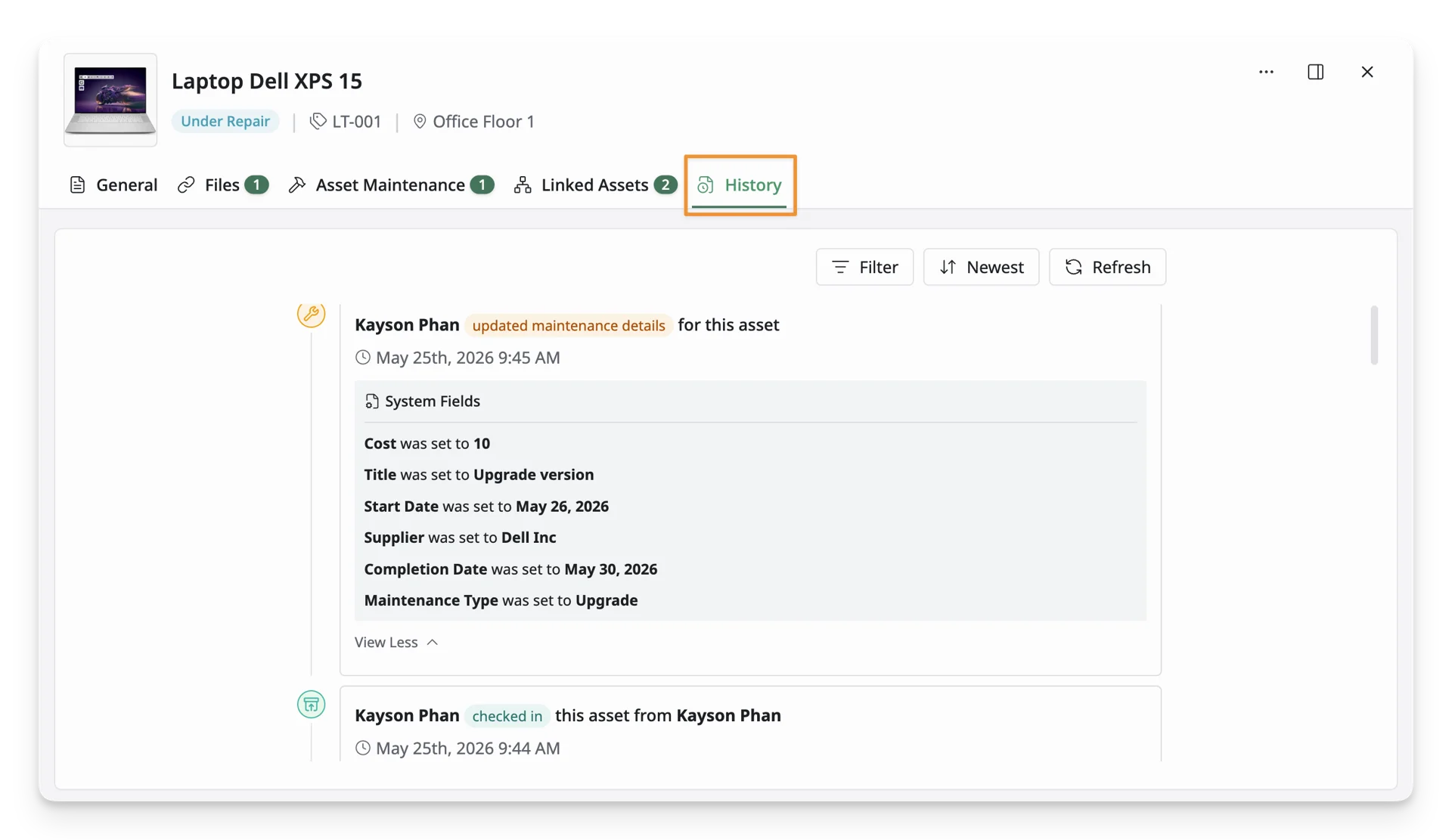
The History tab records actions taken on the asset over time. This may include updates, check-in and check-out activity, assignments, status changes, maintenance actions, and other logs for upload, update, and delete files. Use this tab when reviewing activity records or auditing changes.