Import New Consumables
In this guide, you’ll learn how to bulk import consumables, which is recommended when you need to add multiple consumables efficiently.
AssetLoom allows you to create new consumables in two ways:
- Bulk Import: Upload multiple consumables at once via CSV file.
- Manual Setup: Create consumables individually by filling out the Consumable Creation Form.
- From the left-side menu, go to Resources -> Consumables. This will open the consumables page, where all consumables are listed.
- On the top-left corner of the page, click the New Item dropdown, then select Import from the dropdown menu. This will initiate the bulk import process.
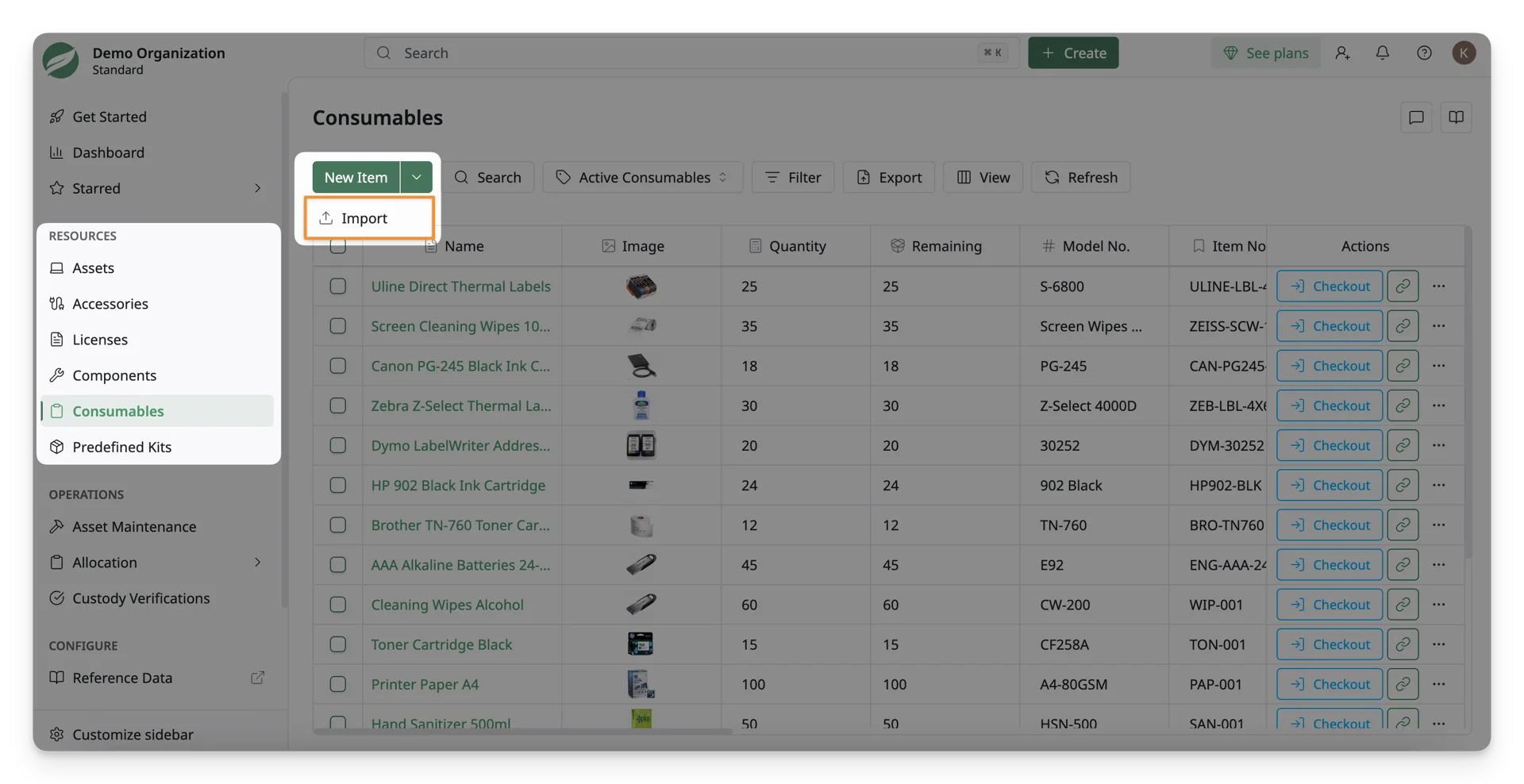
After selecting Import, the Import Data window appears, guiding you through the steps to prepare and validate your data for importing consumables into AssetLoom.
Step 1: Upload File
AssetLoom supports consumable import using a CSV file. 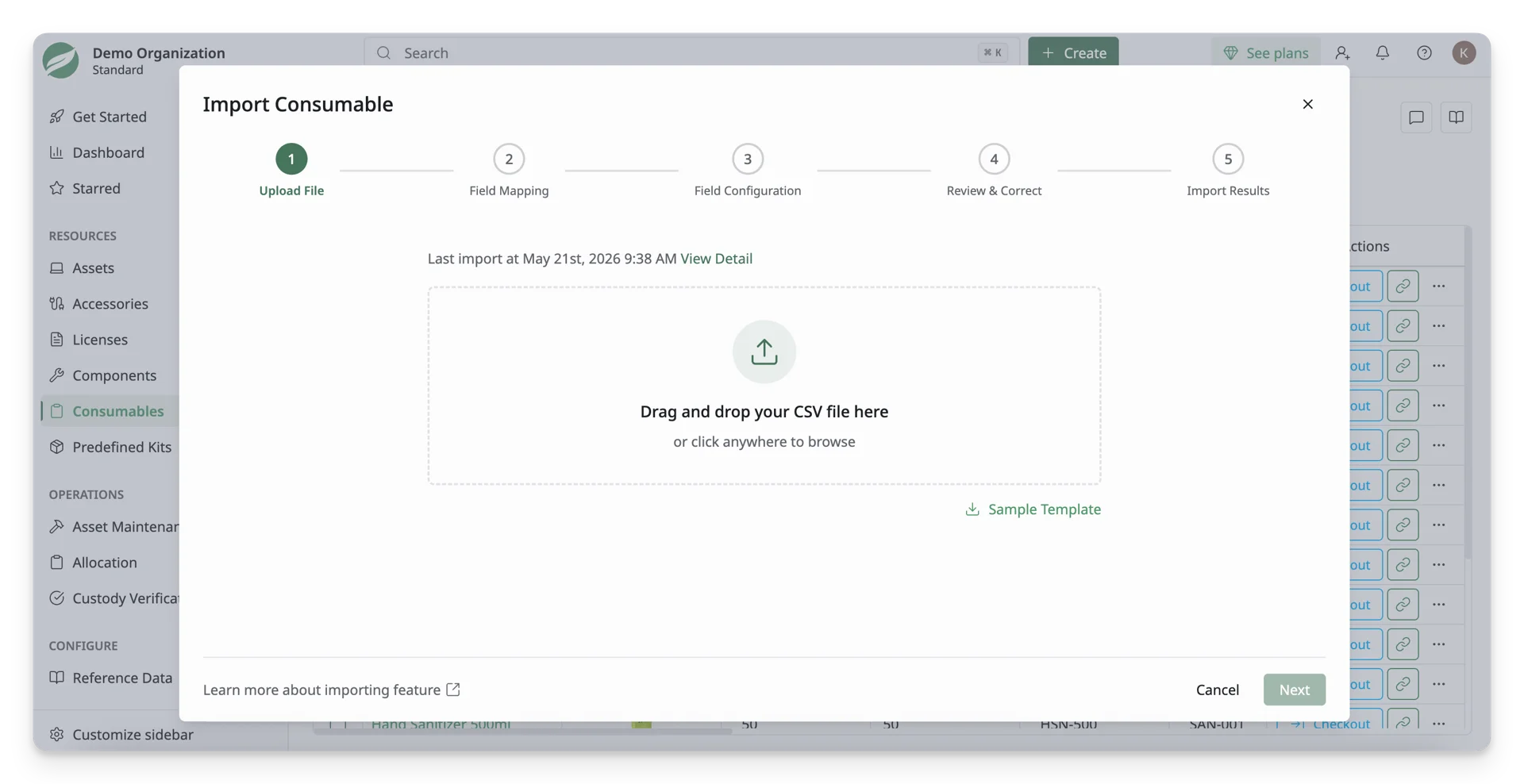
- Upload your file by either:
- Dragging and dropping the CSV file into the upload area, or
- Clicking the upload area to browse and select your file.
- If you do not have a prepared file, click Sample Template to download a reference template. Use this template to understand the required format and structure of the data before importing.
Learn about Data Validation Rules for Consumable Bulk Import
On the Import Data page, the system will display the last import status under the Upload File section.
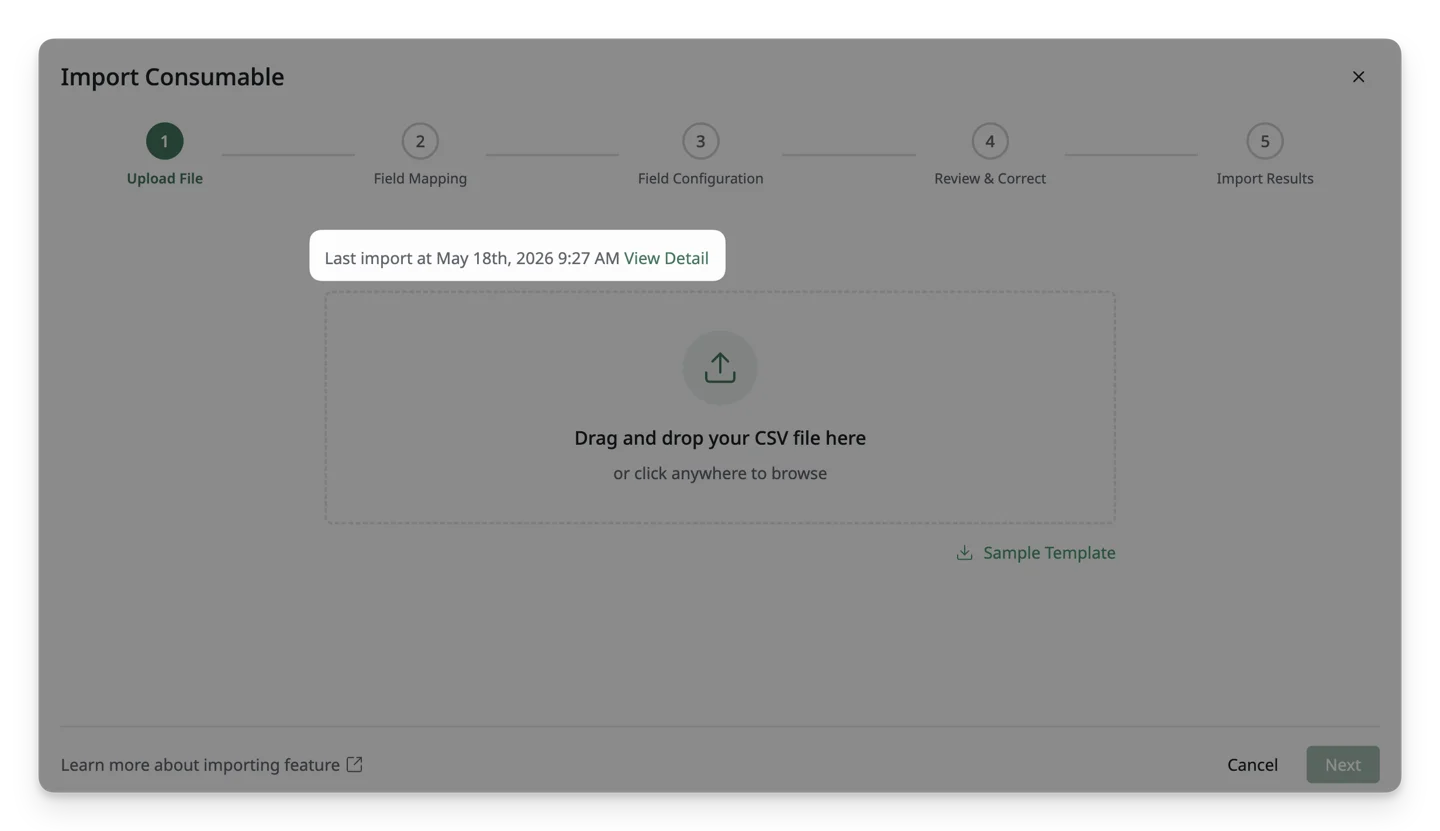
You can also view additional details for the last import by clicking “View Details”, including:
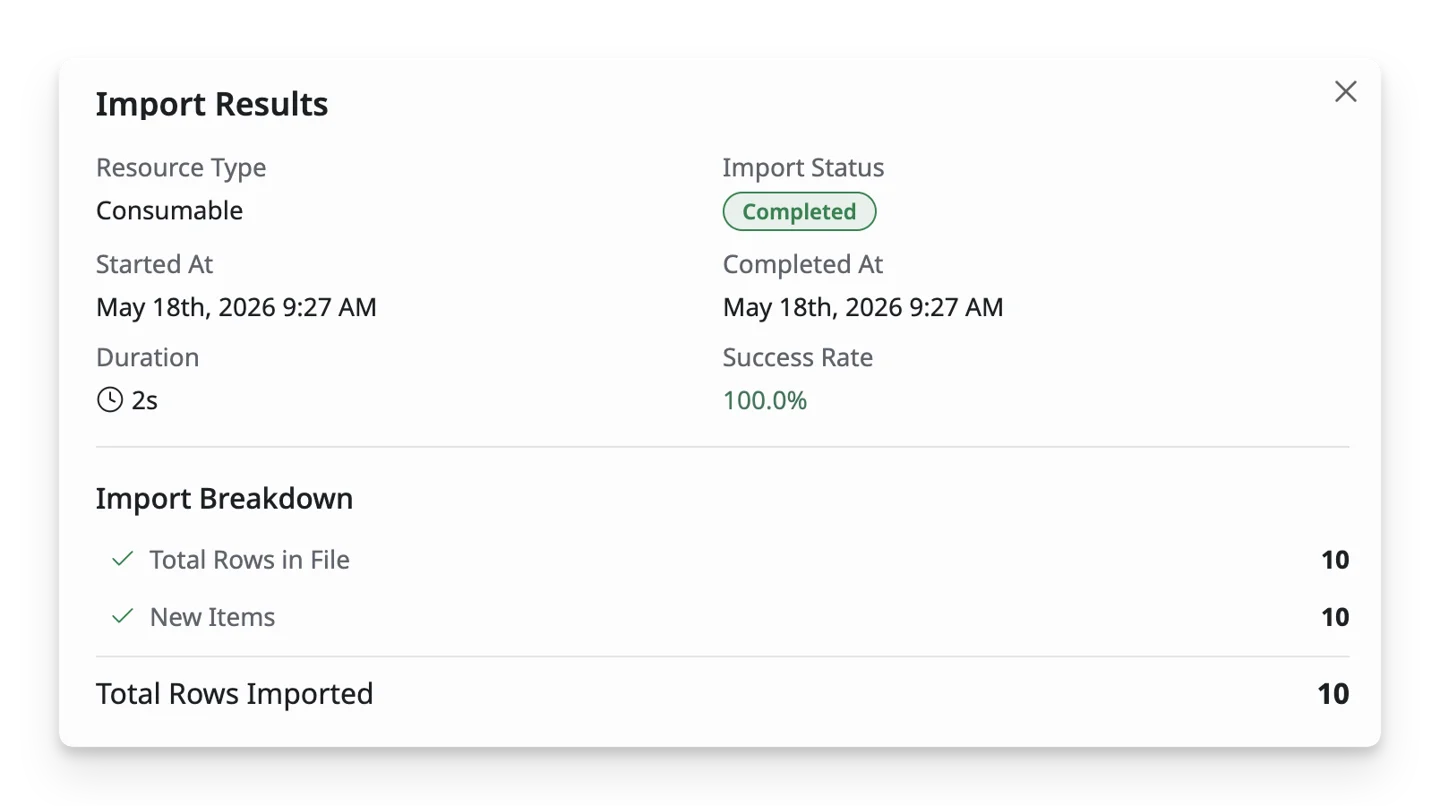
Import Results
- Resource Type: The type of data being imported (e.g., Consumable).
- Import Status: The current state of the import process
- Queued: The import is waiting to start
- Pending: The import is in progress
- Completed: The import finished
- Failed: The import did not complete
- Started At / Completed At: The date and time when the import process began and when it finished.
- Duration: The total time taken to complete the import process.
- Success Rate: The percentage of rows that were successfully imported, which is calculated based on valid rows compared to total rows processed.
Import Breakdown
- Total Rows in File: The total number of rows detected in the uploaded CSV file.
- New Items: The number of new consumables created during the import.
- Updated Items: The number of existing consumables that were updated during the import.
- Total Rows Imported: The total number of rows successfully processed, including both newly created and updated items
Step 2: Field Mapping
In this step, you map the columns from your CSV file to the corresponding fields in AssetLoom.
AssetLoom will attempt to automatically map columns based on matching names. Review these mappings and adjust them if necessary. 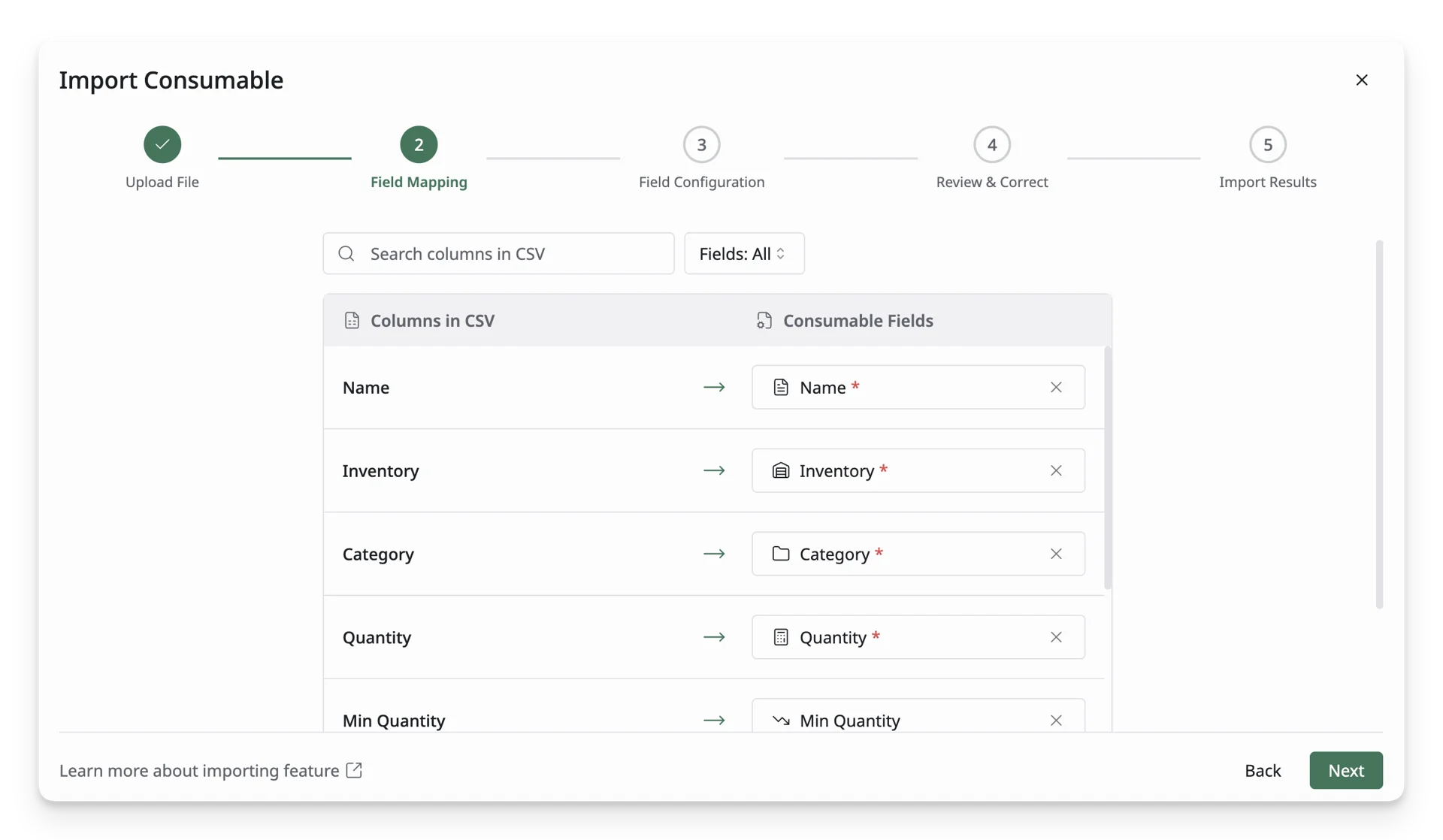
To map fields:
- For each column in your CSV file, select the corresponding AssetLoom field.
- Ensure all required fields are correctly mapped before proceeding.
To assign consumables during import, both of the following fields must be mapped:
- Checkout Type: Specifies the type of assignment target (Category, Quantity, or Location)
- Assigned To: Specifies the name of the assignment target (e.g., category, consumable name, or location name)
Step 3: Data Configuration
In this step, you will configure settings for the imported data. These configurations ensure that AssetLoom applies the correct format and rules to your data before it is processed.
Date Format
Click on the dropdown and select the date format to use for your data. This setting ensures that the dates in your CSV file are interpreted correctly by AssetLoom. 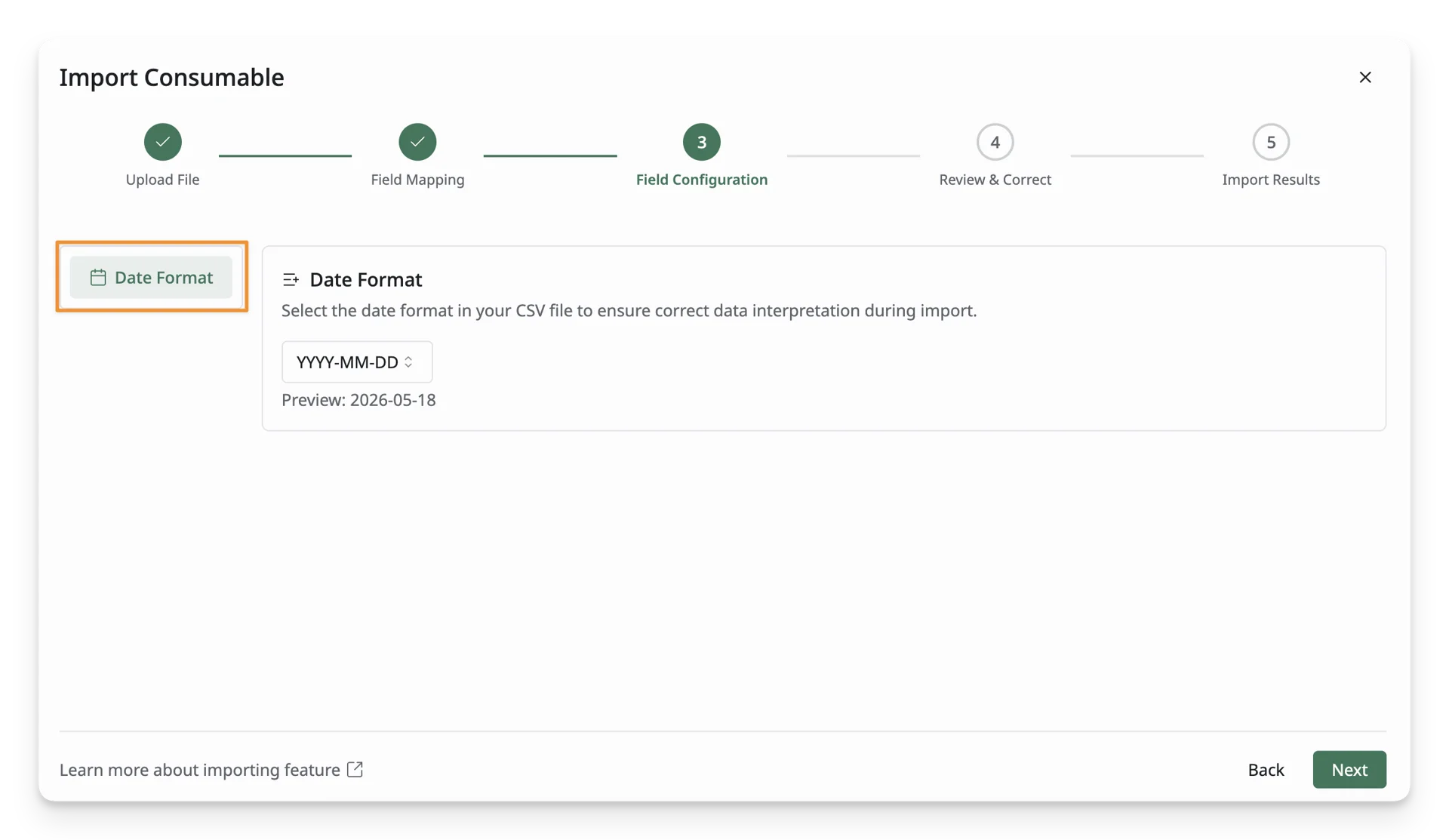
Available Format:
- YYYY-MM-DD (e.g., 2026-04-21)
- MM/DD/YYYY (e.g., 04/21/2026)
- DD/MM/YYYY (e.g., 21/04/2026)
- Month D(th), YYYY (e.g., April 21st, 2026)
- DD-MMM-YYYY (e.g., 21-Apr-2026)
- MM/DD/YY (e.g., 04/21/26)
Step 4: Review & Correct
In this step, you will review the consumables that were imported and correct any errors. 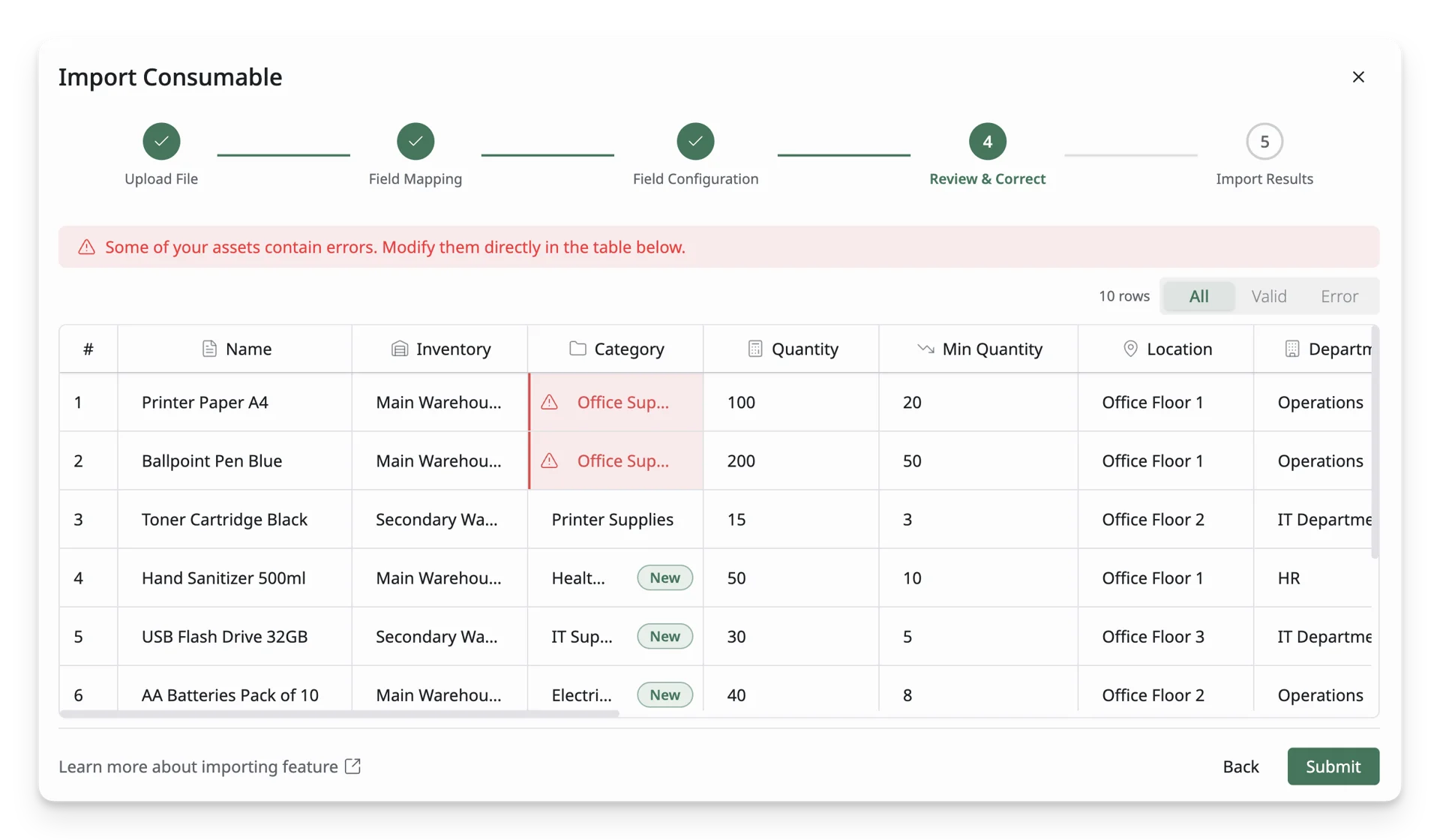
- Error Filtering: You can filter the list to view error or valid consumables. This allows you to focus on the consumables that need attention.
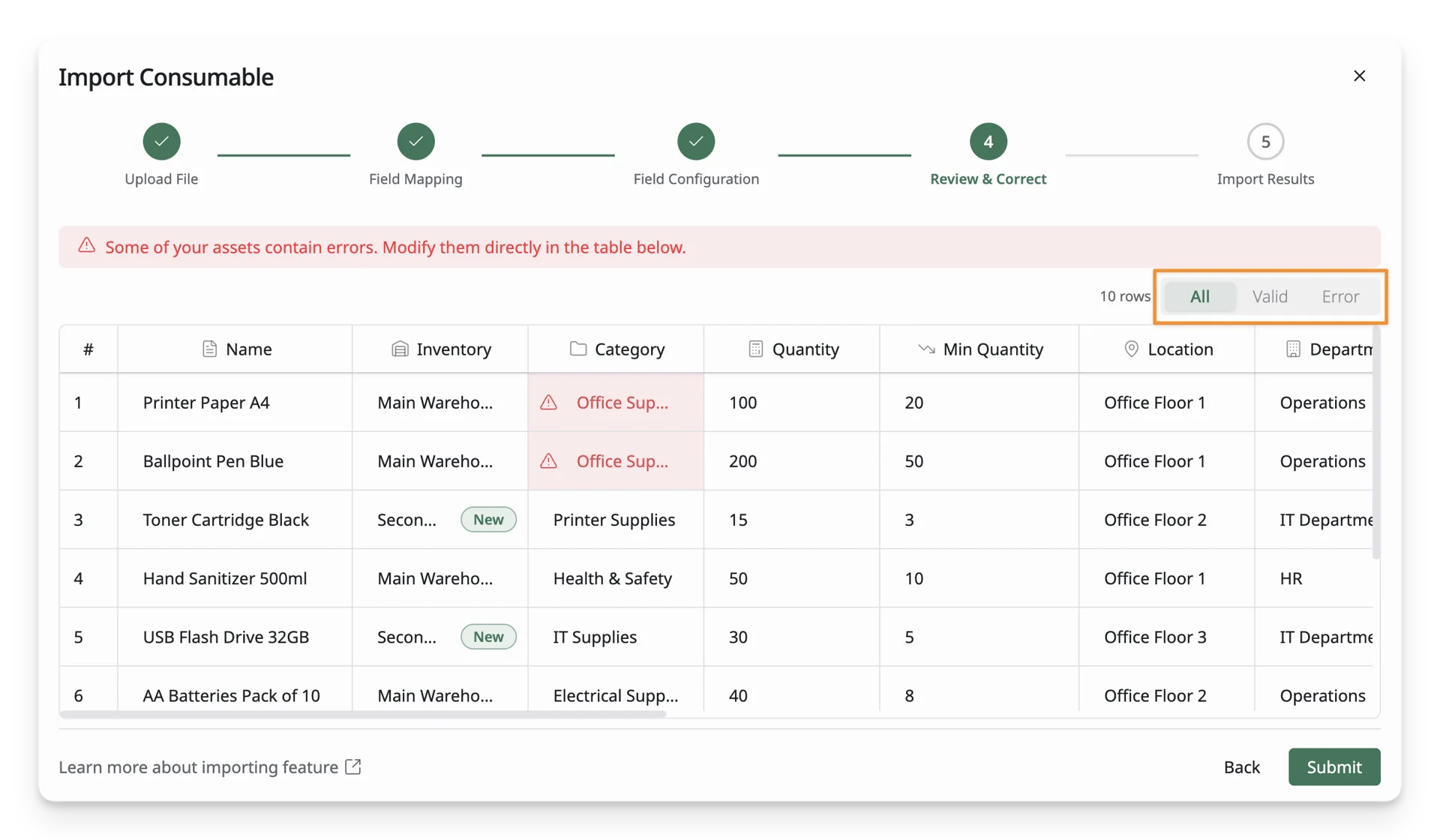
- Error Details: Hover over the error icon to view more details about why the consumable is marked as an error.
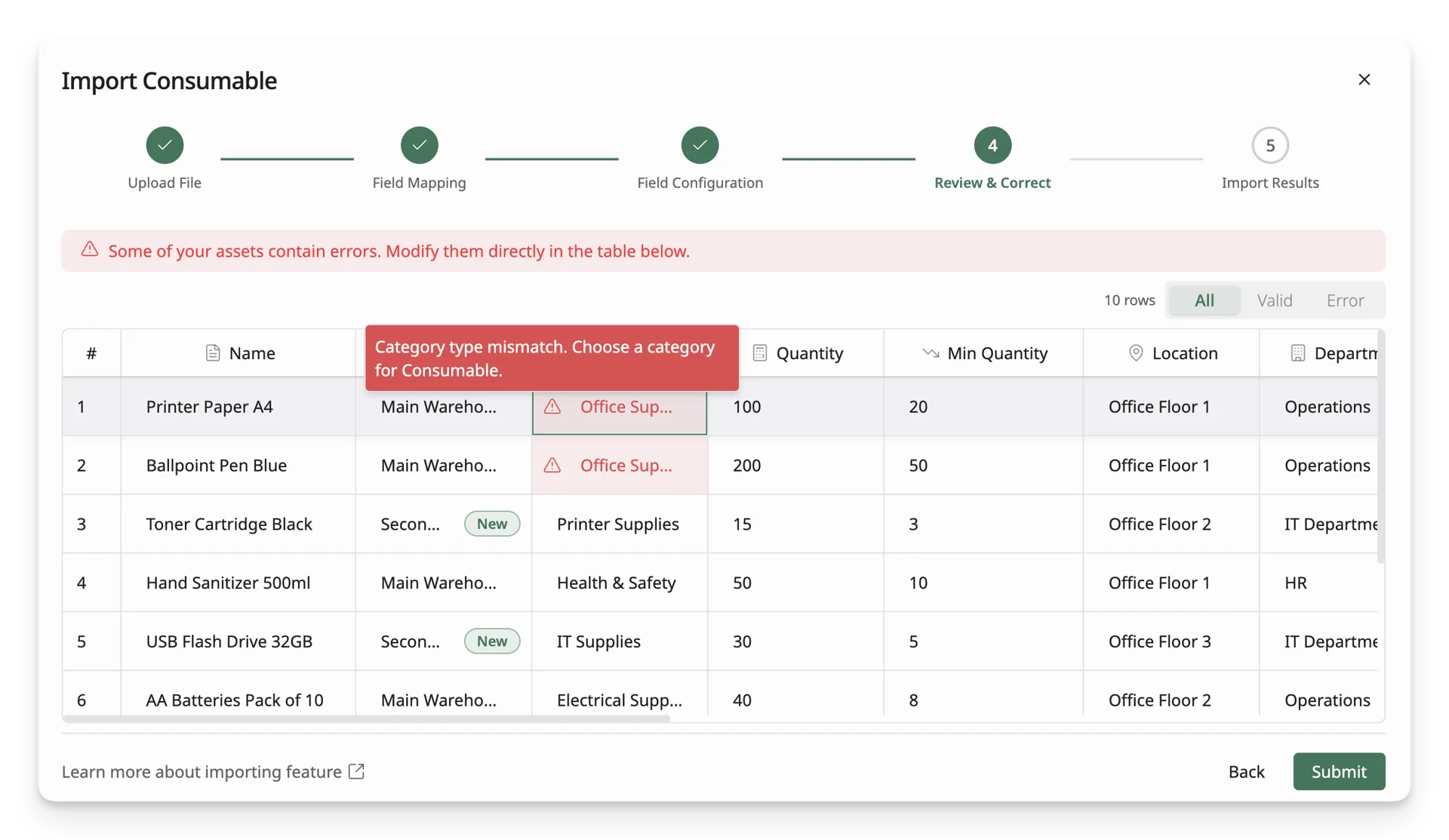
- Edit Values: To correct an error, simply double-click on the value in the cell to modify it. Once you’ve made the necessary changes, the consumable will be re-validated automatically.
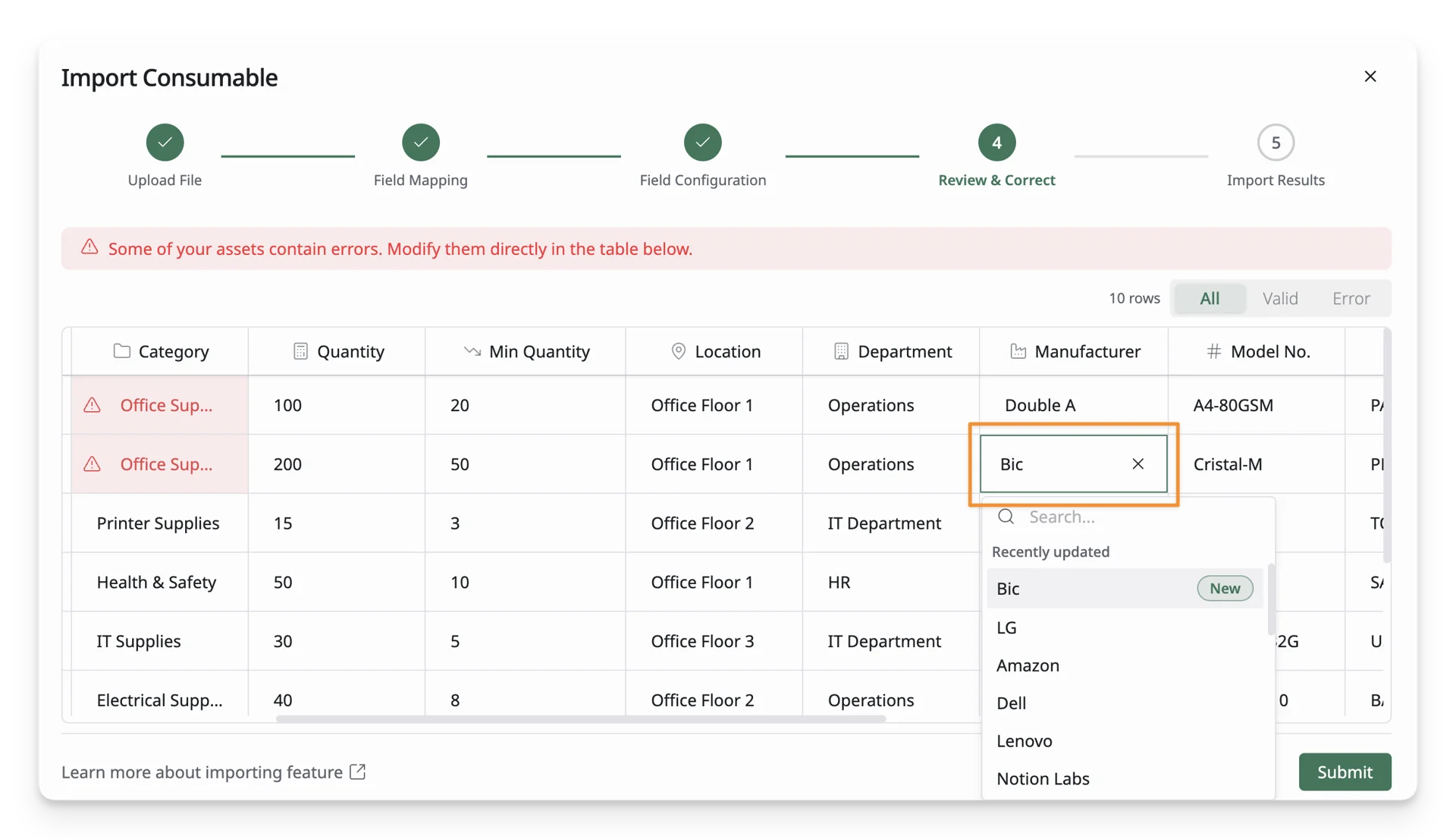
After reviewing and correcting the errors, click Submit to proceed to the final step.
Step 5: Import Results
After submitting the final version of your consumable data, AssetLoom will process the import. The duration will depend on the size of your file. You can close this window and check the status later. 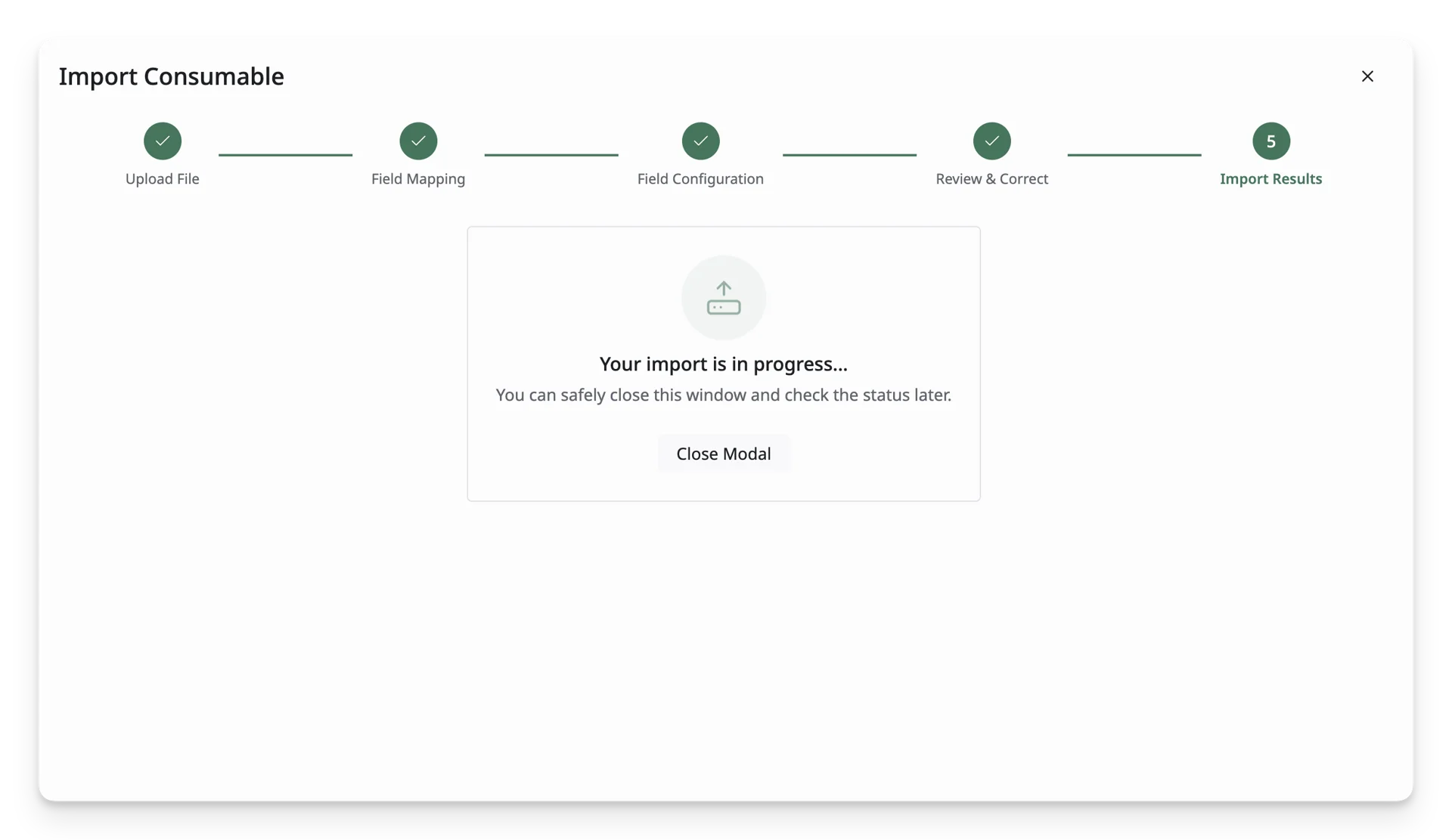
Once the import is complete, you’ll be able to view the results immediately or in the Import Details section (refer to Step 1 for Last Import Results).
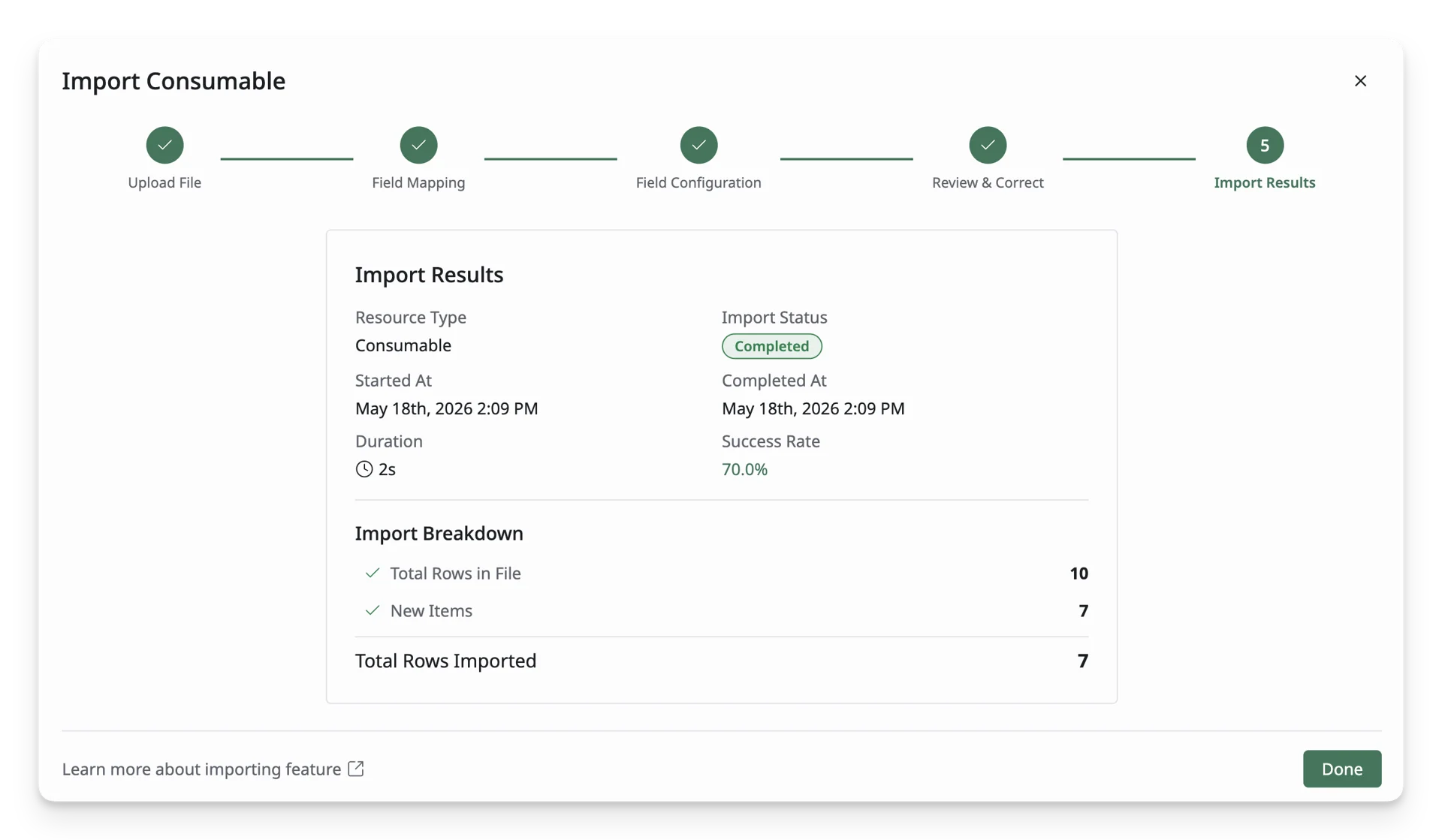
After a successful import, your consumable list will be updated.
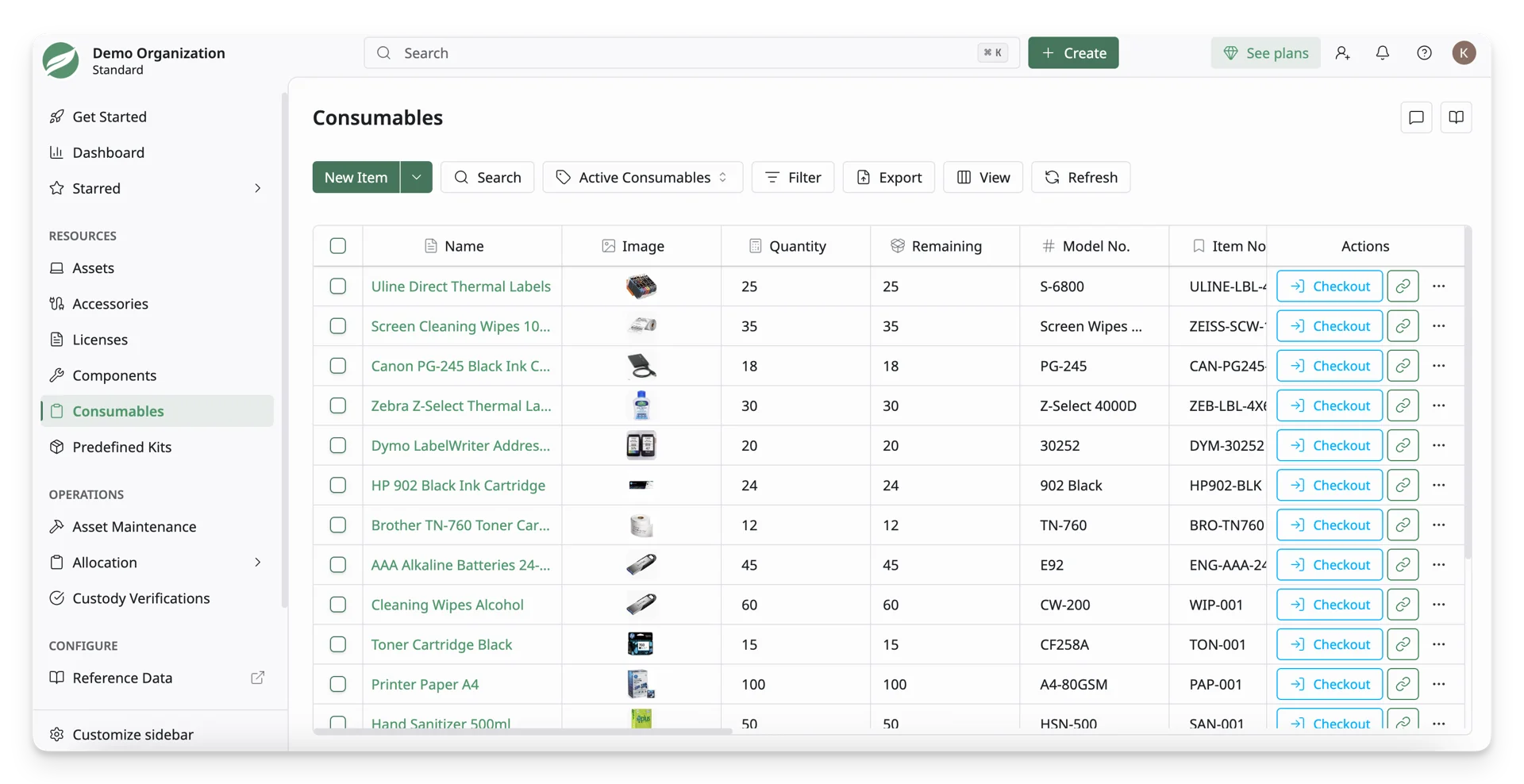
Click Refresh to load the latest data.
What’s Next?
- Data Validation Rules for Consumable Bulk Import: Checkout validation rules for consumable bulk import