Asset Maintenance
Learn how to manage asset maintenance with AssetLoom
1. Understanding Asset Maintenance In AssetLoom
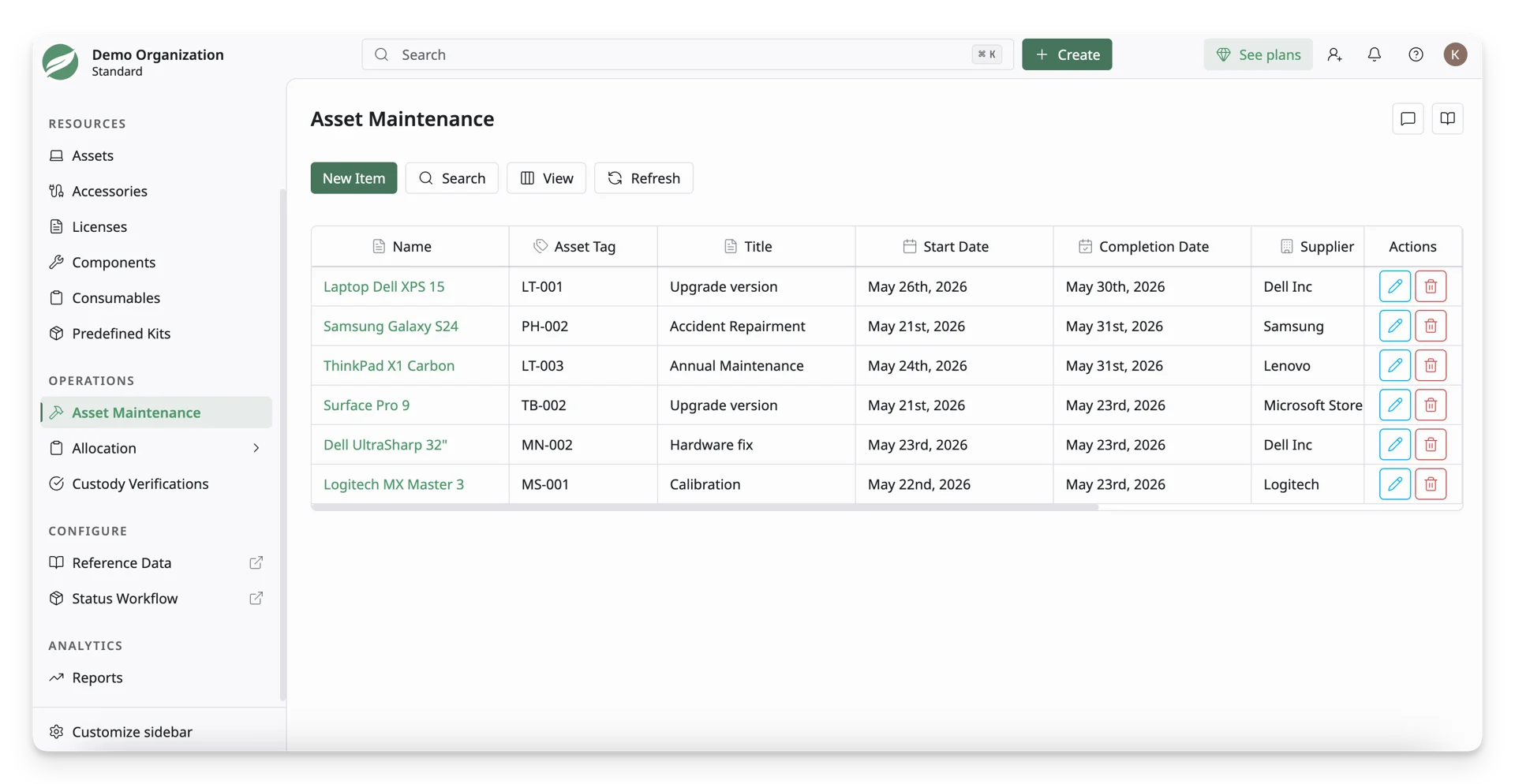
Asset Maintenance in AssetLoom allows you to track assets that require repair, servicing, inspection, warranty handling, or other maintenance activities.
The Asset Maintenance is located under the Operations section in the left sidebar. This page displays all assets that are under maintenance in the system and serves as the central place for managing them.
Maintenance records are created through status workflows. To log an asset for maintenance:
- The asset must move from its current status to a maintenance-related status, such as In Maintenance.
- The status transition must include the Create Maintenance rule.
Learn more about Status Workflow.
When these conditions are met, AssetLoom automatically creates a maintenance record for the asset and adds it to the Asset Maintenance list. With this list, you can:
- View all assets currently under maintenance in one place.
- Track maintenance details, including dates, assigned technicians, and expected completion.
- Ensure assets are properly updated and returned to service once maintenance is complete.
2. How To Add An Asset To The Asset Maintenance
Step 1: Add Asset To The Maintenance Log
You can add an asset to the maintenance log under 3 approaches:
- Update Status in the Asset List
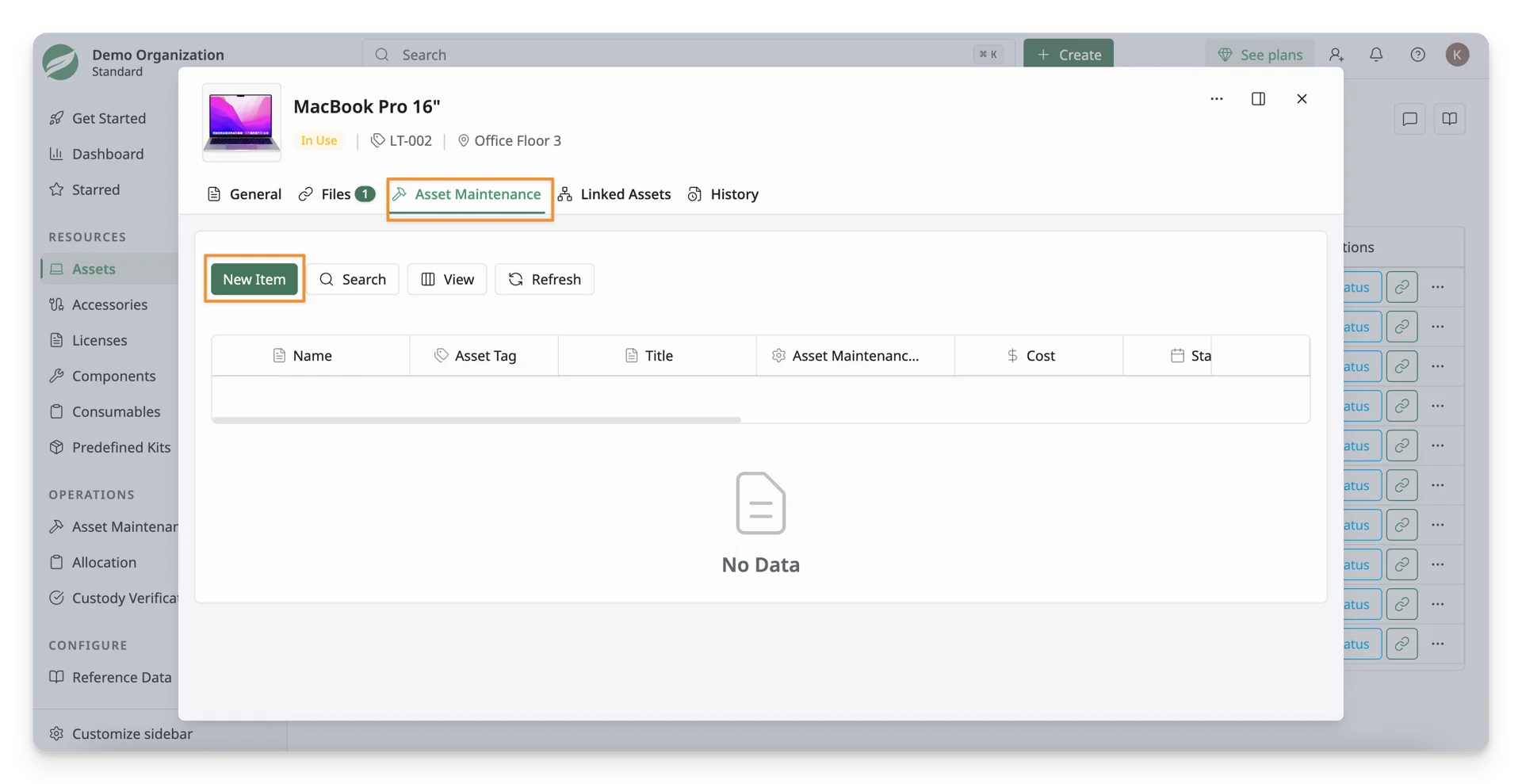
- Add An Asset From The Asset Detail Screen
- Add An Asset in the Asset Maintenance List
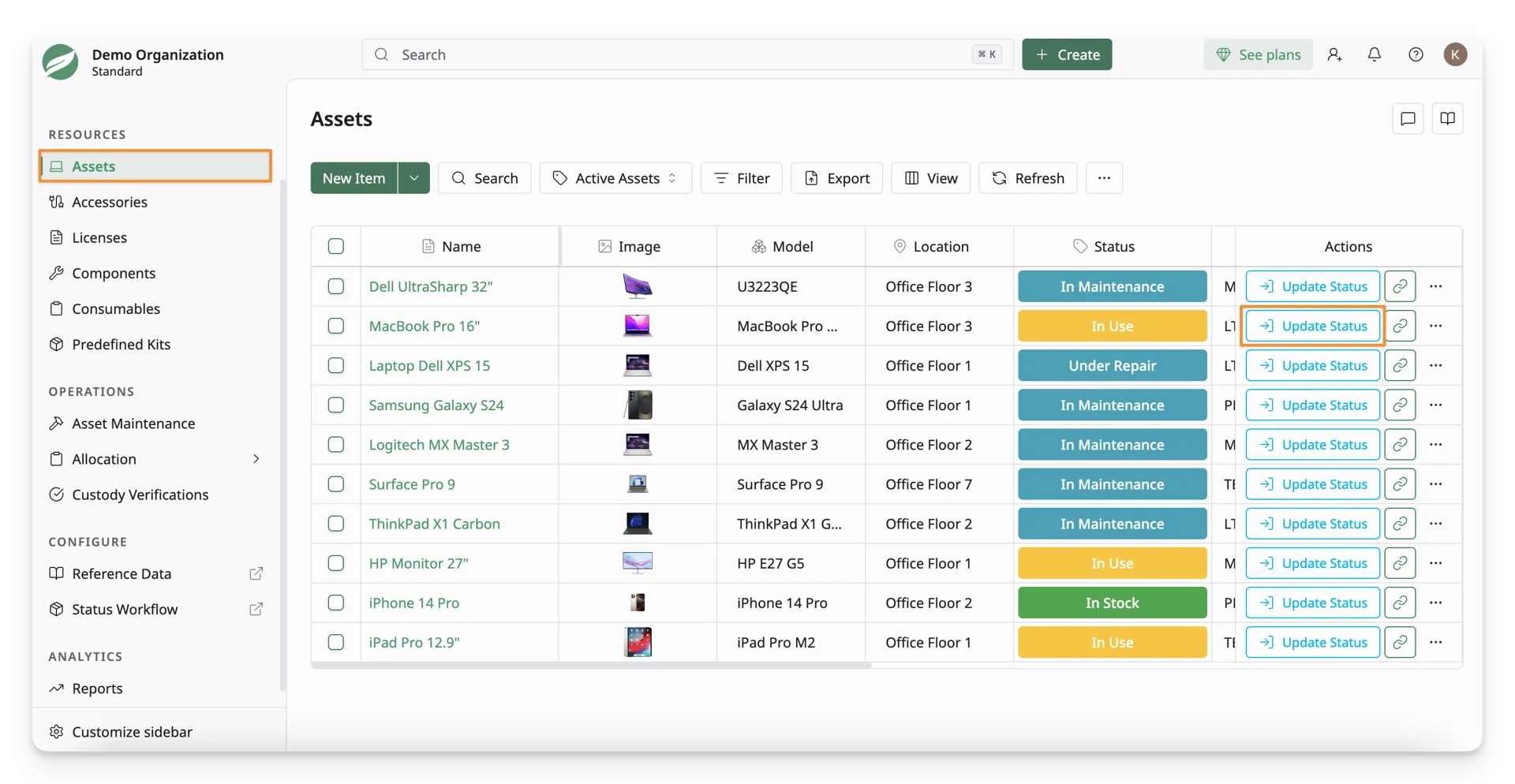
Update Status in the Asset List
Navigate to the Resources → Assets, and you can see the “Update Status” button in the actions column of the asset list.
Add An Asset From The Asset Detail Screen
In the Access List, choose any asset you want to add to the maintenance log. Then, navigate to the Asset Maintenance tab, and you can see the “New” option to add this asset to the log.
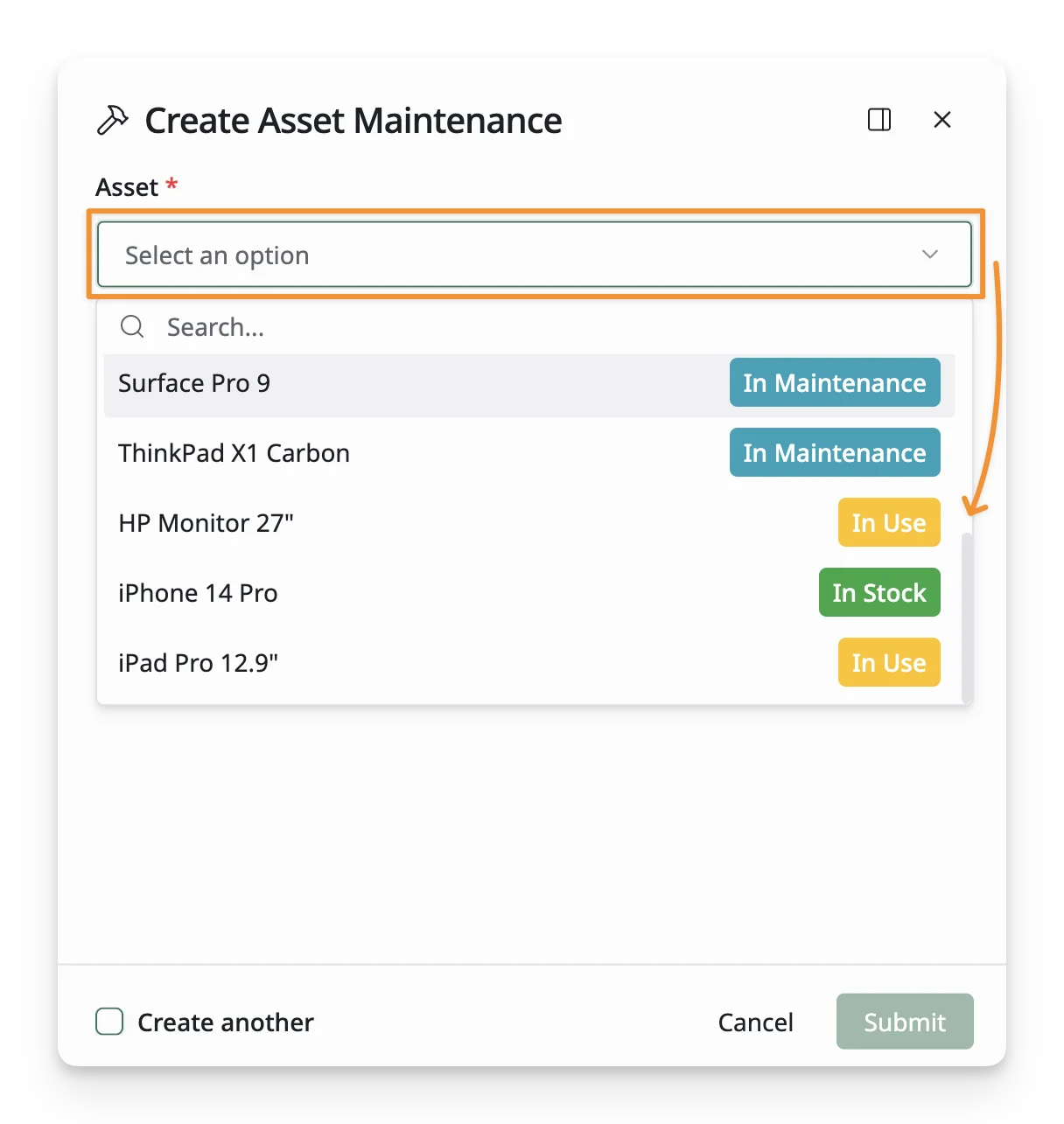
Add A New Asset in the Asset Maintenance Screen
Navigate to the Operations → Asset Maintenance, and you can see the option to add a new asset.
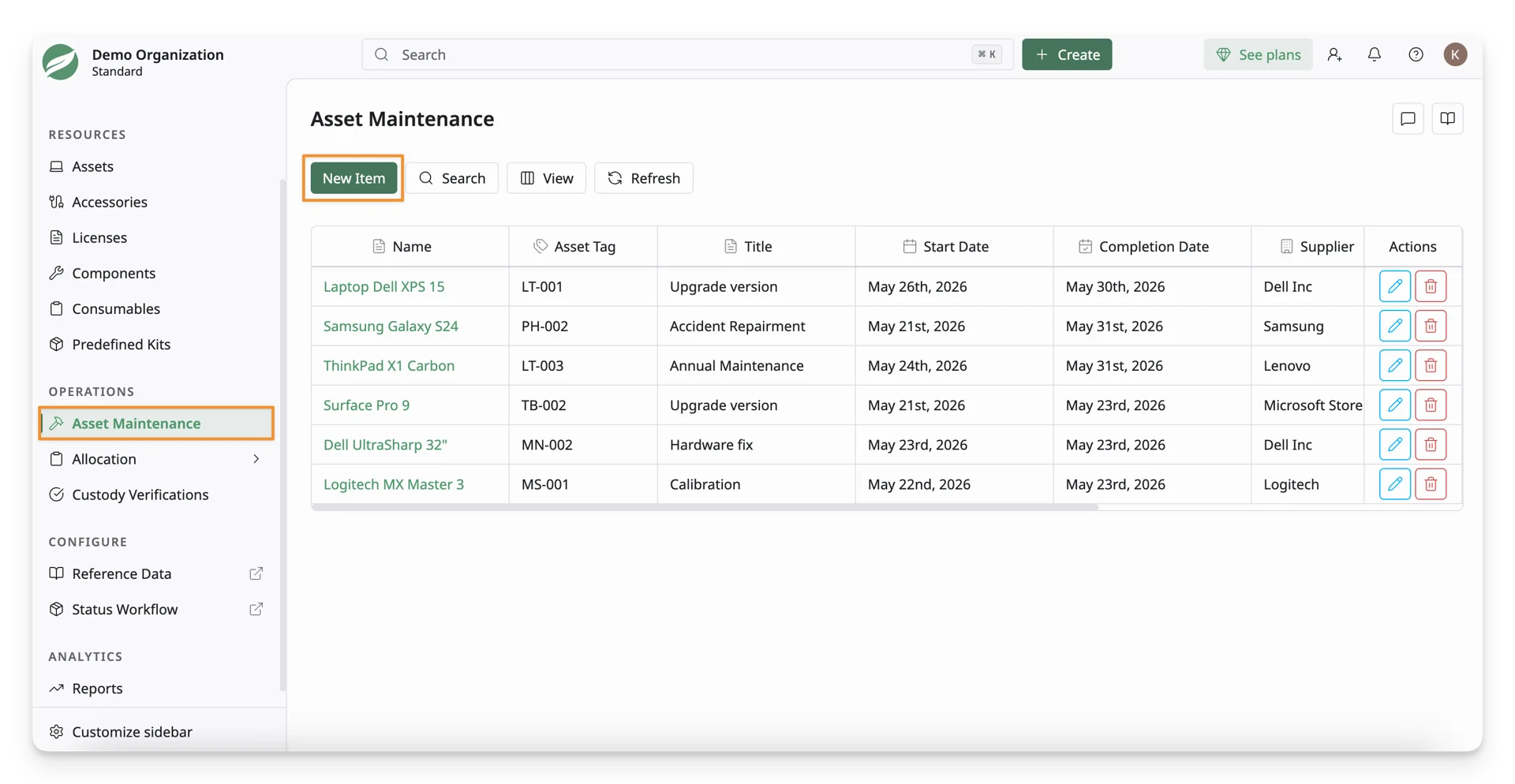
Select the existing assets from the asset list to add.
To be selected, these assets must have status transitions that allow the “Create Maintenance” rule.
Step 2: Fill In The Asset Maintenance Form
After you have selected the proper asset status and sub-status, you can see the maintenance form to fill in the maintenance details.
Maintenance Info
Enter maintenance details for your asset:
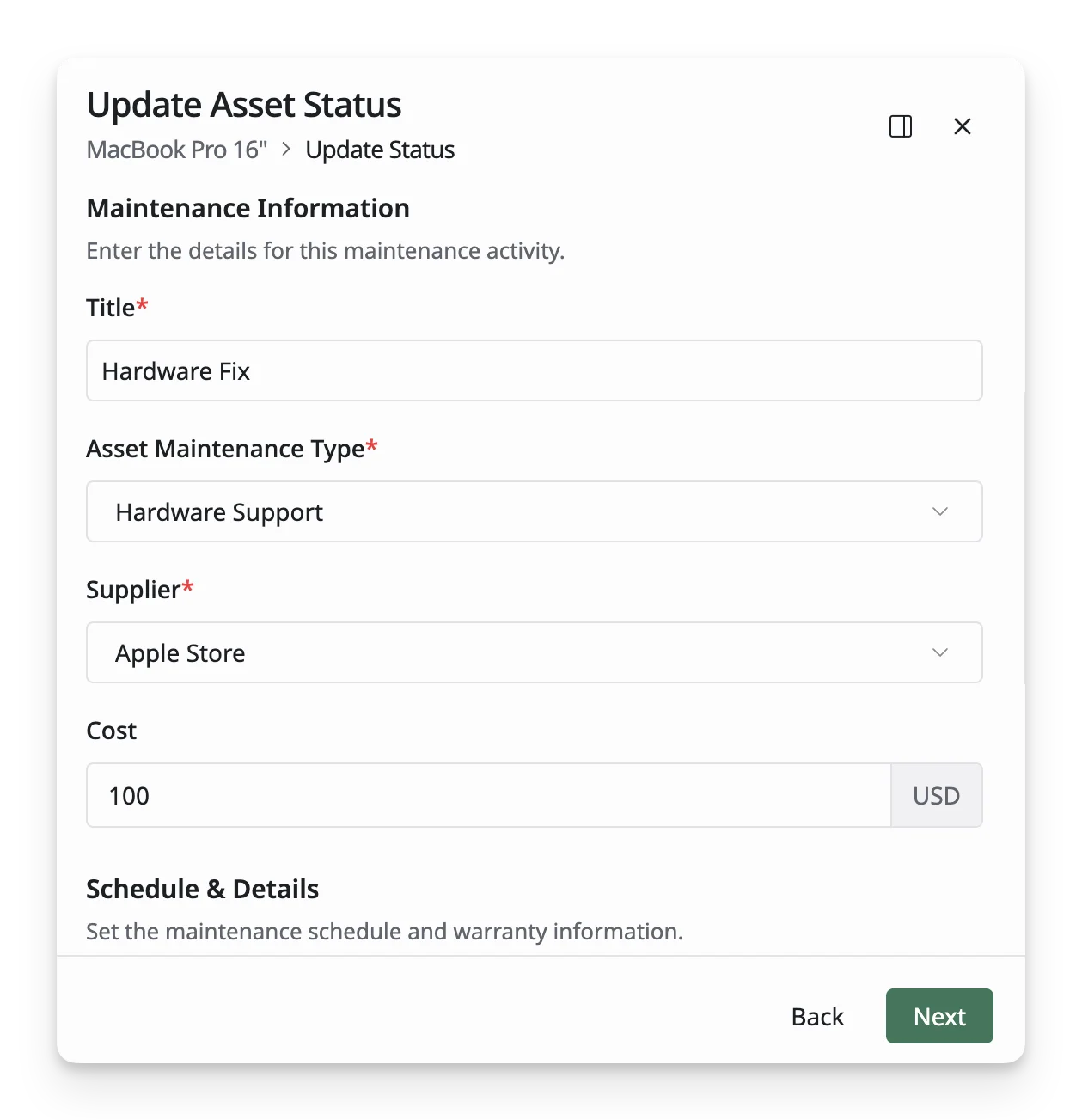
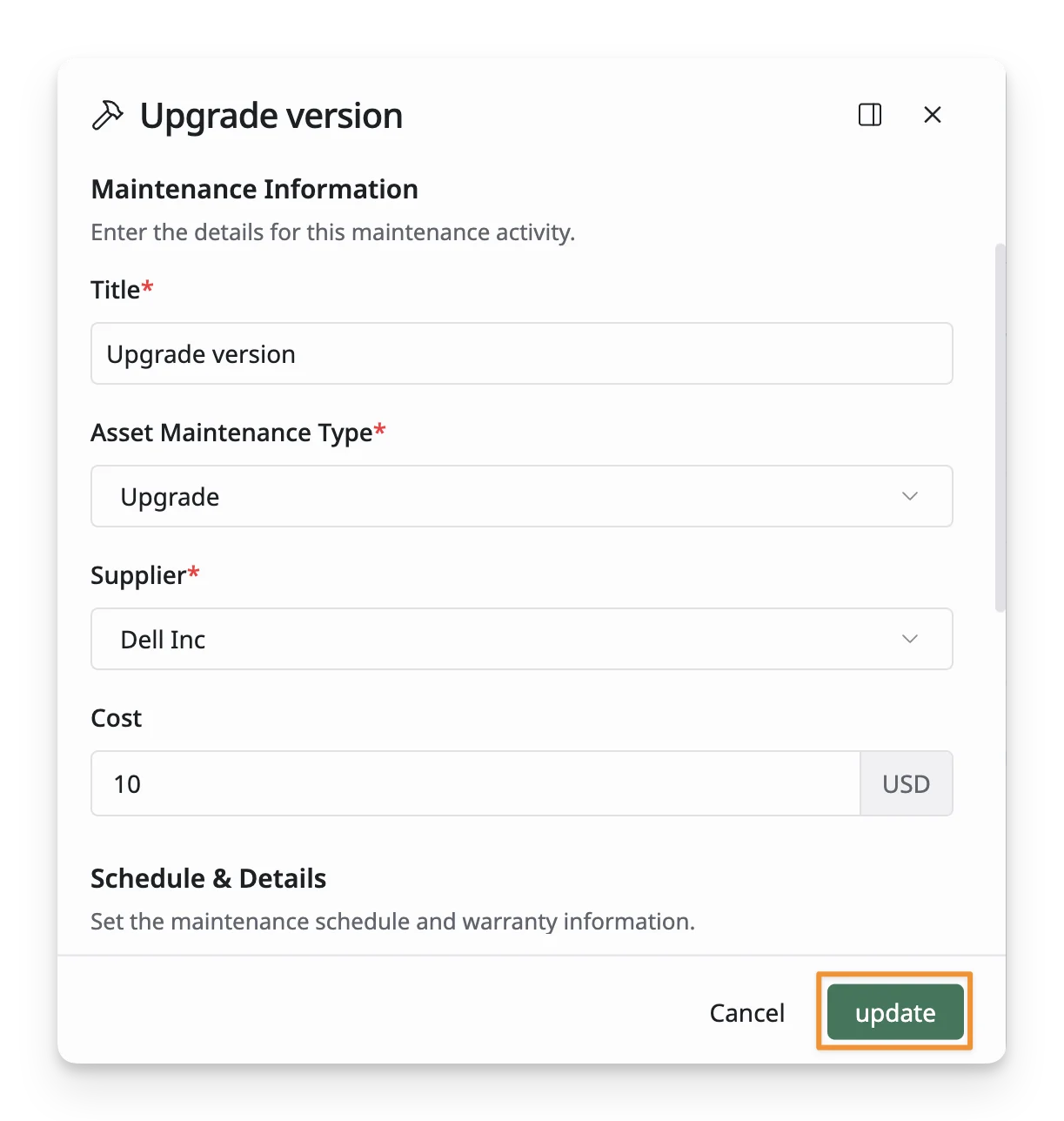
- Title: Enter a descriptive title for the maintenance record.
- Asset Maintenance Type: Select the type of maintenance being performed. Options include:
- Repair: Fixing any issues with the asset.
- Maintenance: Routine checks and servicing.
- Upgrade: Enhancing the asset’s performance.
- Software Support: Resolving software-related issues.
- Hardware Support: Addressing hardware malfunctions.
- Calibration: Ensuring the asset operates within set standards.
- Other: Any other type of maintenance not listed.
- Supplier: Enter the vendor or provider responsible for performing the maintenance.
- Cost: Record the total cost associated with the maintenance activity.
- Start Date: Select the date when maintenance began.
- Completion Date: Select the date when maintenance is expected to be or actually completed.
- Warranty: Tick/leave this box empty if the maintenance activity is covered/uncovered by a warranty.
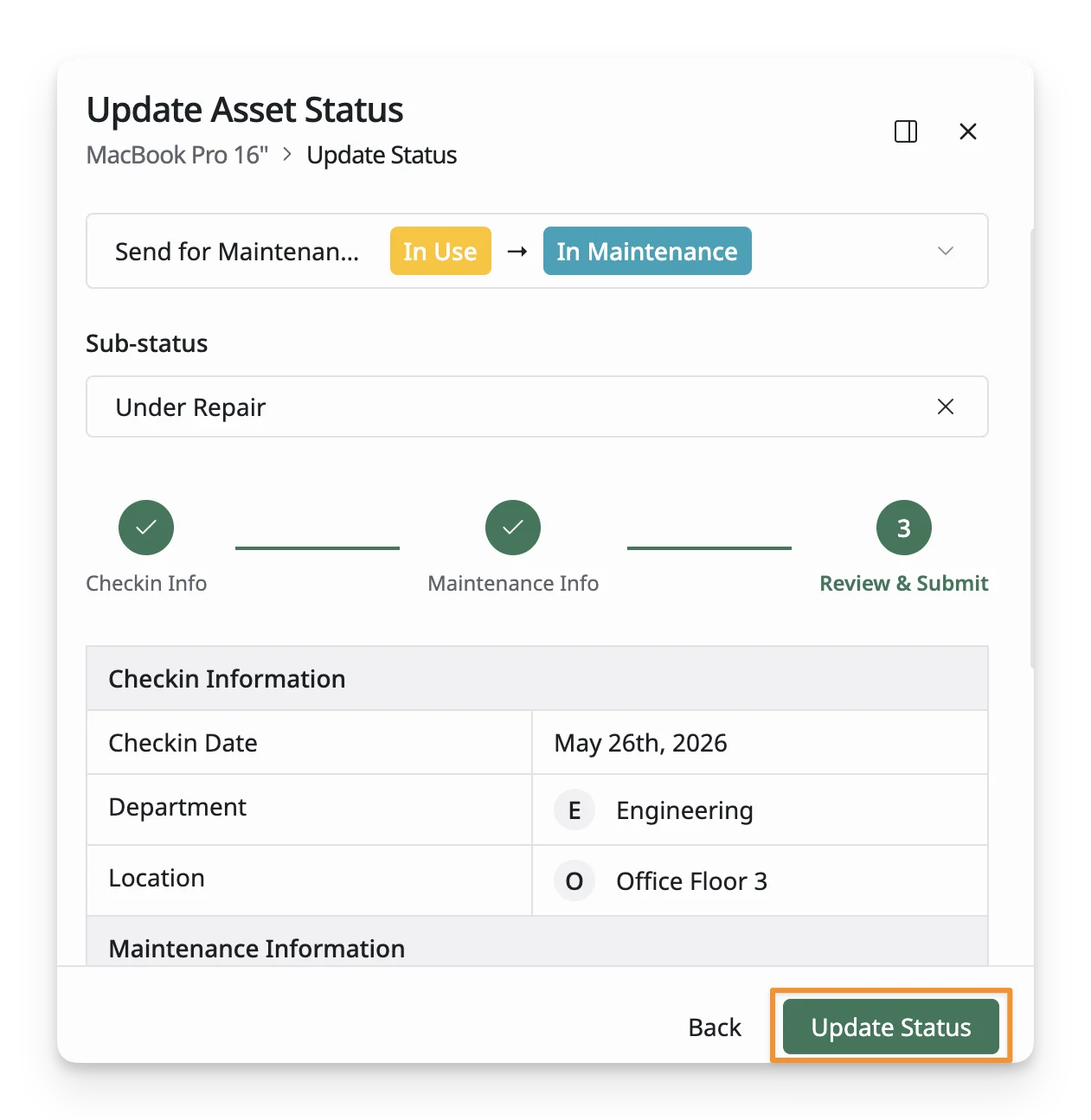
Review & Submit Info:
Review the maintenance information and click the “Update Status” to complete this process.
3. How To Edit An Asset In Asset Maintenance
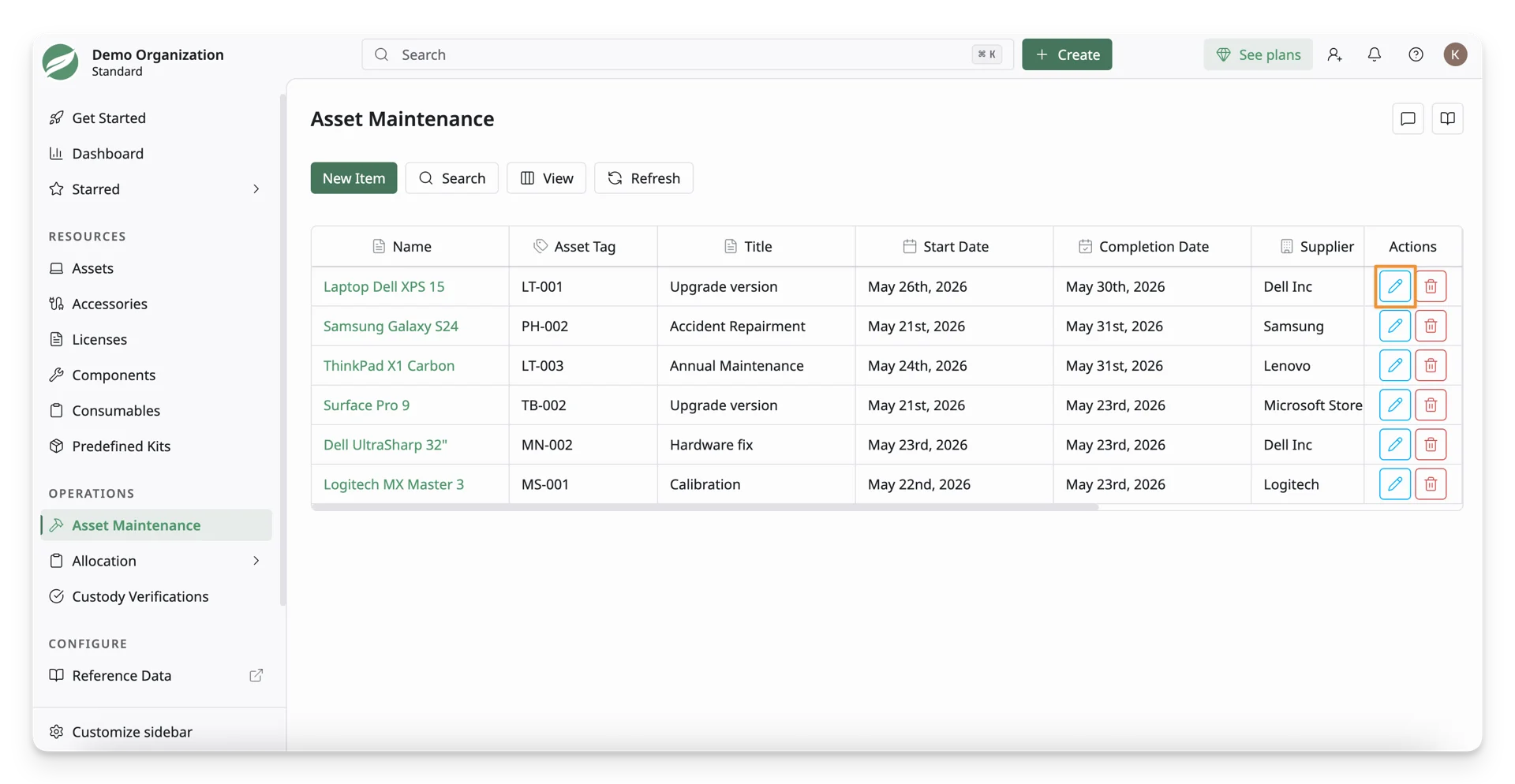
To edit an asset in asset maintenance, click the “Edit” button in the Action column of the Asset Maintenance List.
You can review maintenance information and make your changes. Then, click the “Update” button to finish your changes.
4. How To Delete An Asset In Asset Maintenance
To delete an item in the Asset Maintenance List, you can click on the “Delete” button.
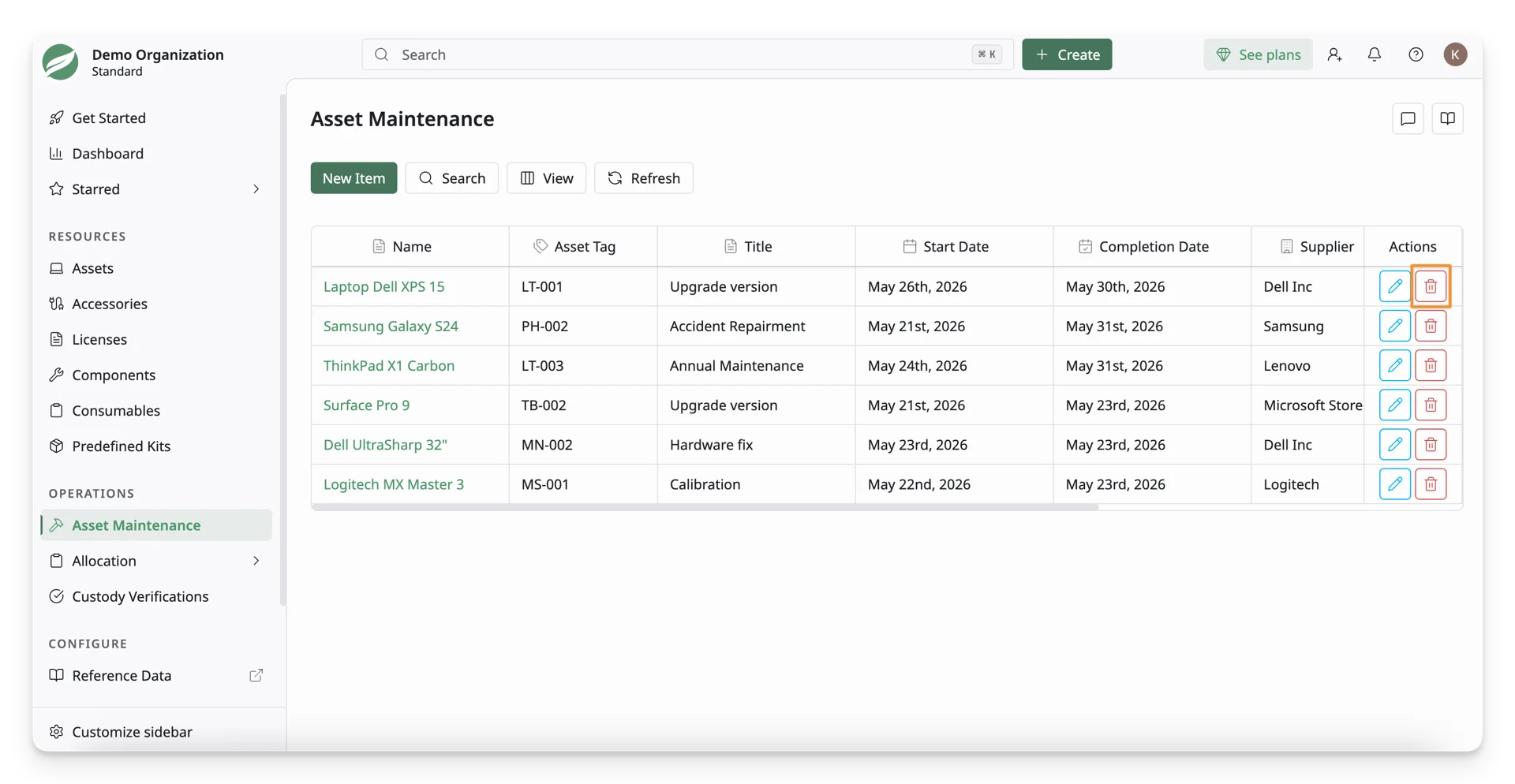
This asset is deleted only in the Asset Maintenance section, but remains in the Asset List.