The Asset List
Explore the AssetLoom Asset List to manage your assets
The Asset List is located under the Resources dropdown in the left sidebar. This page displays all assets in the system and serves as the central place for managing them.
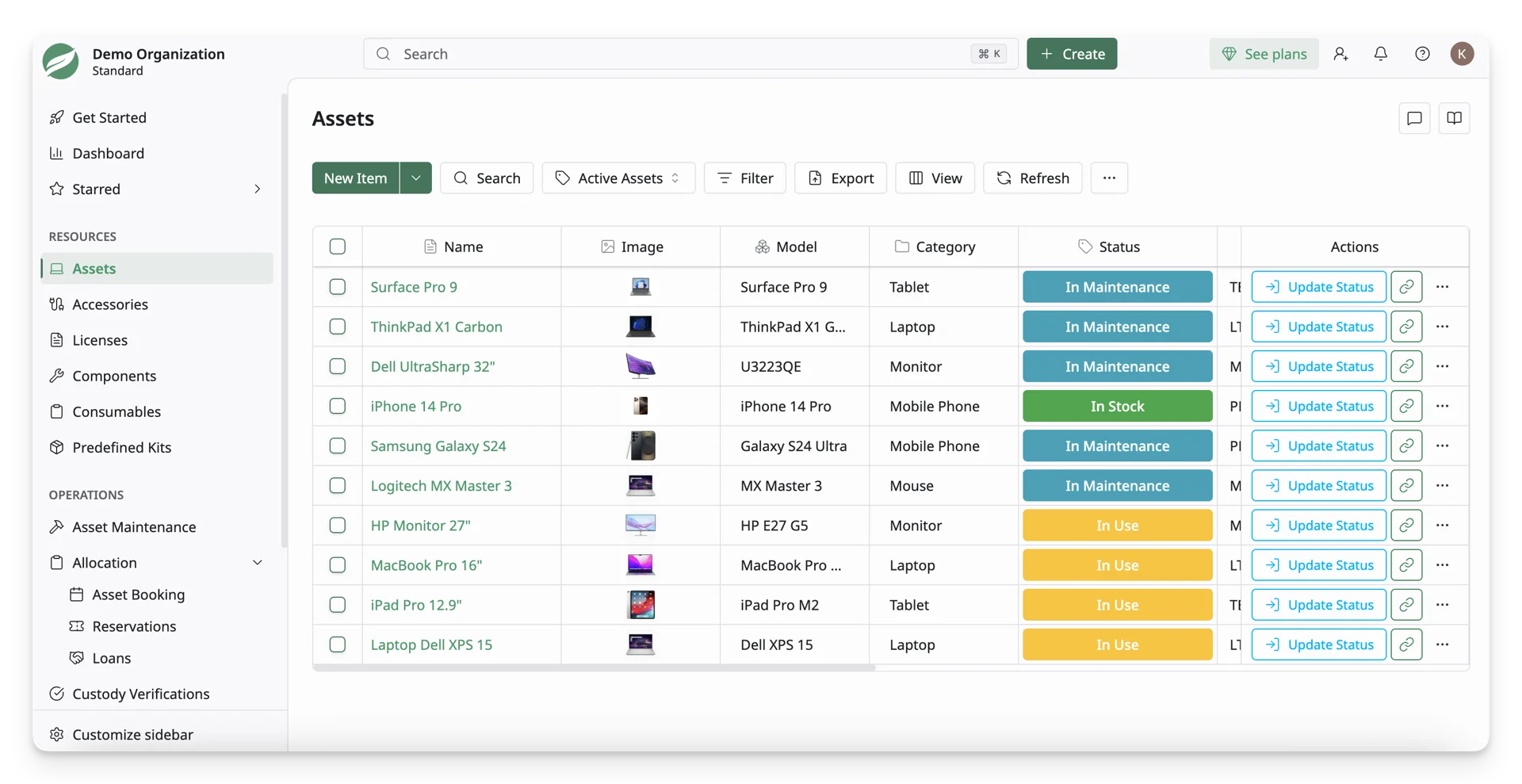
What is an asset? An asset is any object that needs to be tracked, managed, or monitored within your organization. Each asset in AssetLoom is identified by a unique asset tag, which allows it to be uniquely referenced in the system. Assets are also tracked by status, indicating the current state of the asset throughout its lifecycle.
Assets in AssetLoom act as the core entities of AssetLoom. Other resources in the system can be linked to assets, and assets themselves can also be connected to one another when needed.
In This Guide
In this guide, you will learn how to navigate and manage assets using the Asset List page, including:
- The toolbar: Create new assets and use tools such as search, filtering, grouping, exporting, and view customization.
- The asset table: Understand how assets are displayed and how to customize columns, rearrange them, and edit asset information directly in the table.
- Actions on assets: Perform actions on individual assets or apply bulk operations to multiple assets at once.
1. The Toolbar
The toolbar at the top of the page provides quick access to common actions.
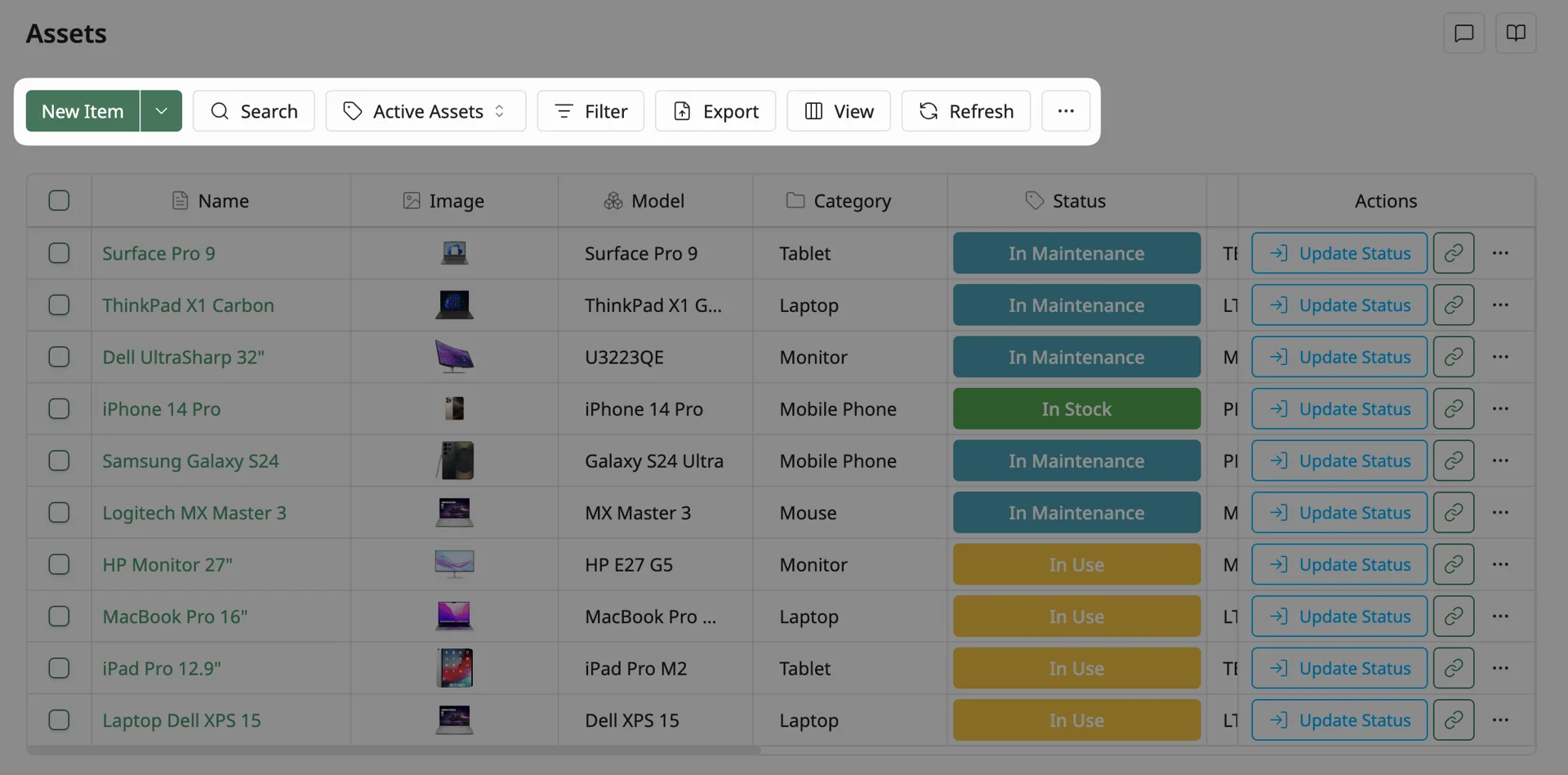
Here’s what you can do with the toolbar:
1.1. Add new assets:
Use the “New Item” feature to create a new asset manually or import multiple assets via a CSV file.
1.2. Search:
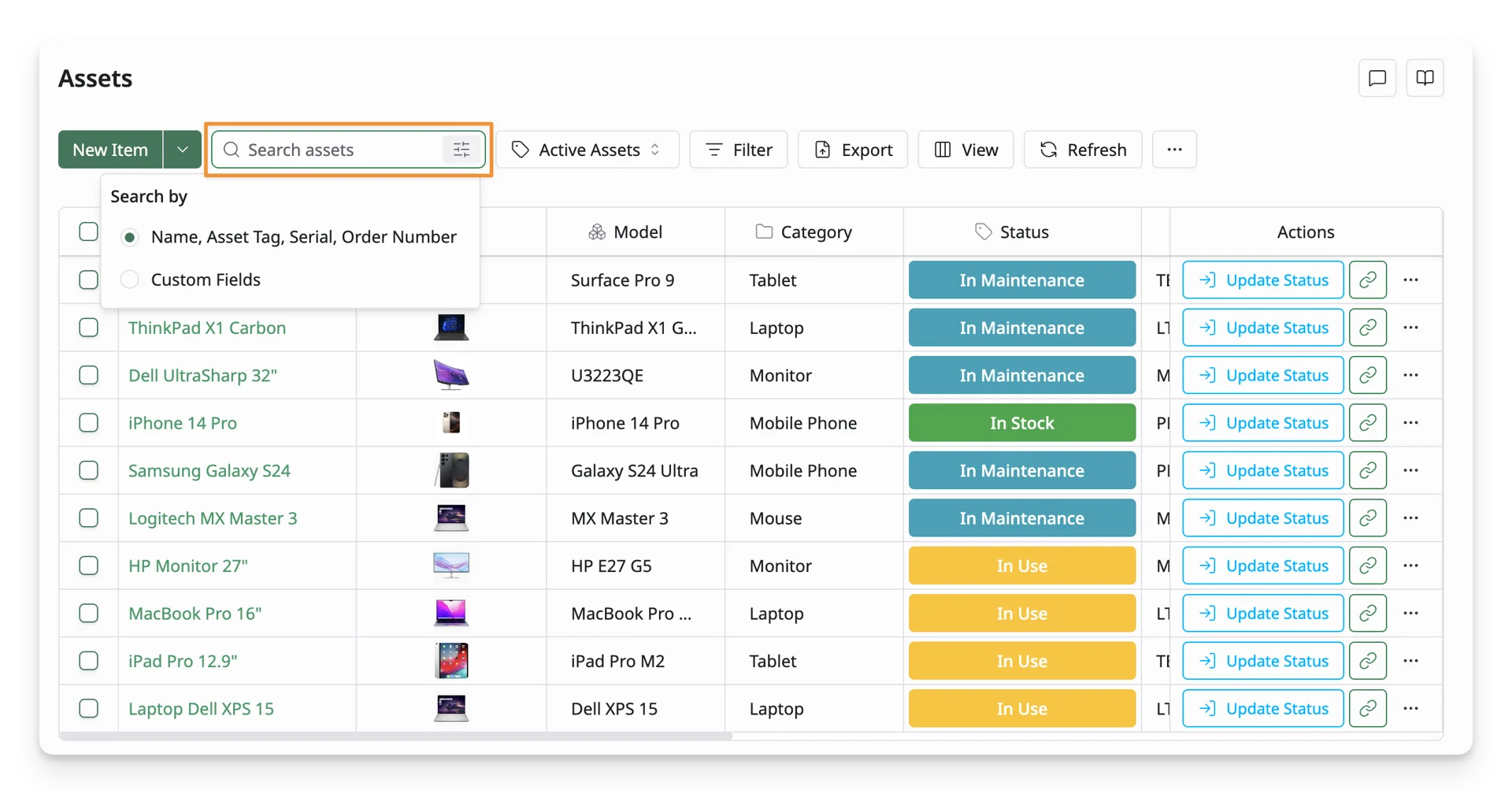
Use the “Search assets” feature to quickly find specific assets in the list. You can choose which columns the search should apply to for different asset attributes, such as Asset name, Asset tag, Serial number, Order number, or Custom Fields.
1.3. Filter
Use the “Filter” function to narrow down the asset list based on specific criteria. This is especially useful when managing a large number of assets.
- Inventory – Show assets belonging to specific inventories
- Status – Filter assets by their current state (e.g., In Stock, In Use, In Transit)
- Category – Filter by asset type such as Laptop, Monitor, or Mobile Phone
- Model – View assets belonging to a specific model
- Department – Show assets assigned to a particular department
- Location – Filter assets by their current location
- Manufacturer – Display assets from a specific manufacturer
- Supplier – Filter assets based on their supplier
- Requestable - Show assets that users can and cannot request.
- Assigned to - Filter by the user the asset is assigned to.
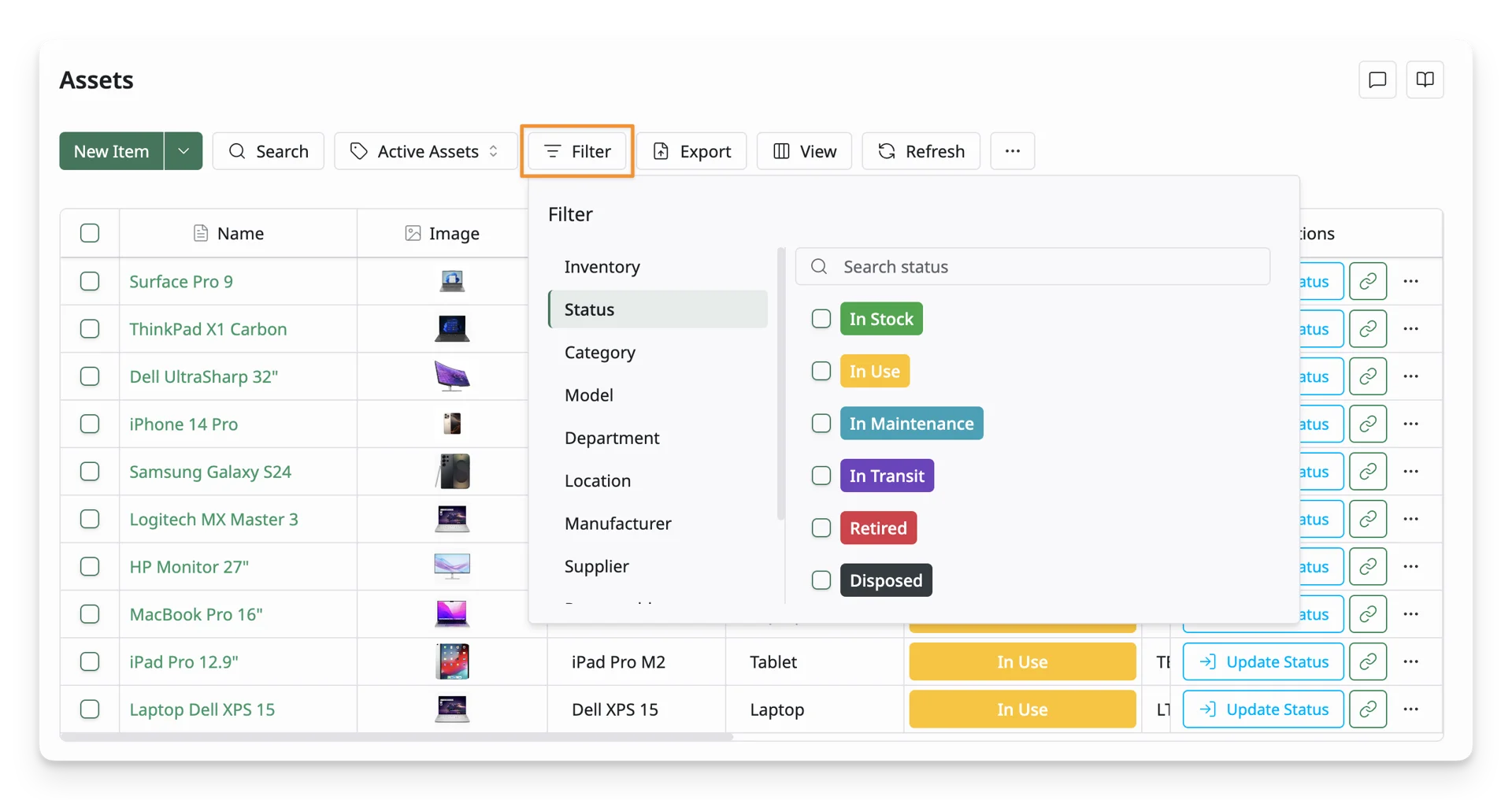
You can apply multiple filters at the same time to further refine the asset list. Active filters are indicated on the Filter button, showing how many filters are currently applied. To remove all filters, click Clear all in the filter panel.
Your column visibility settings are saved automatically. Any columns you hide or show will remain the same when you return to the Asset List.
1.4. Export
Use the “Export” feature to download the asset data displayed in the asset list as CSV or PDF.
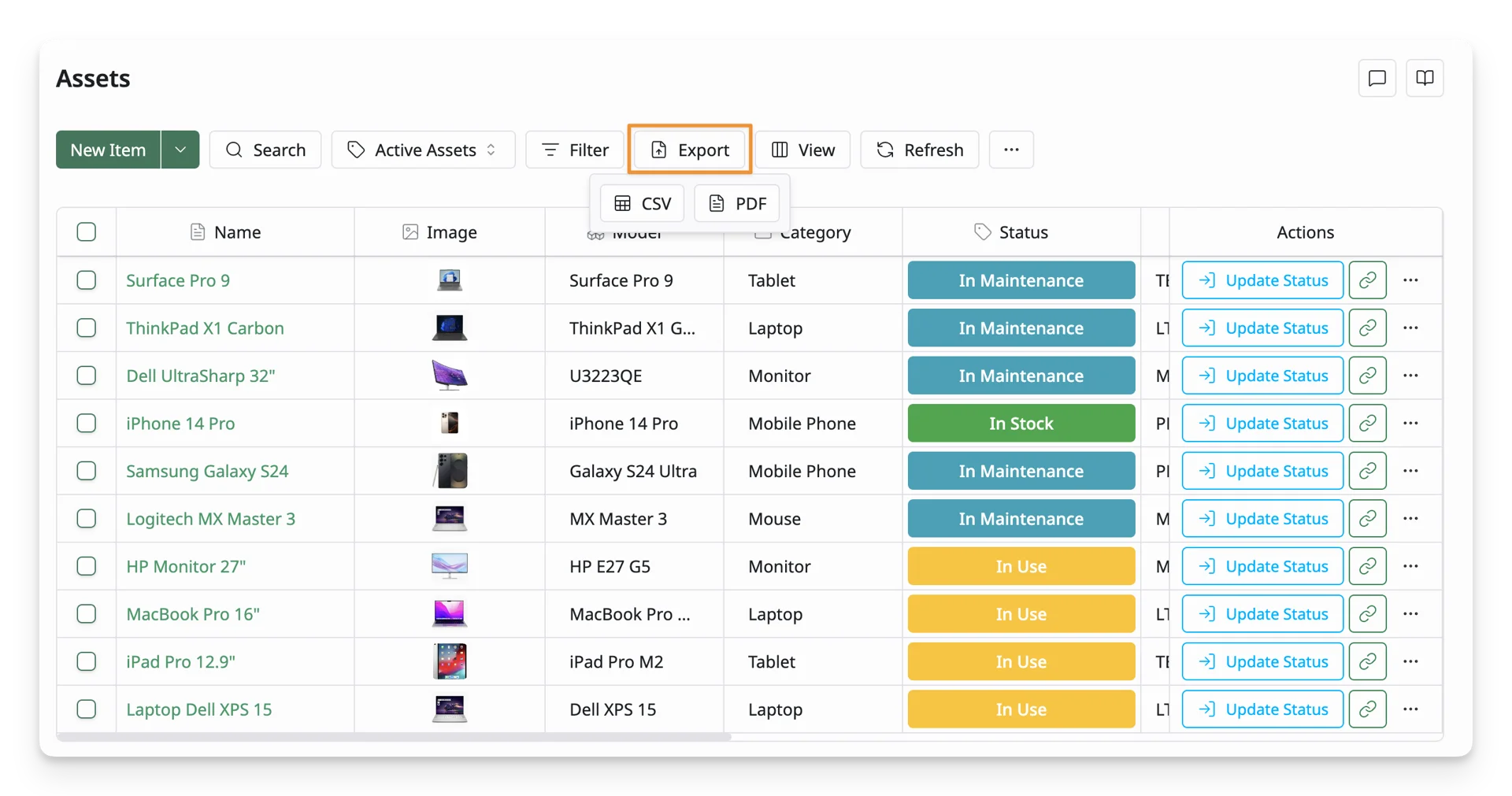
The export reflects your current view. Filters, searches, and visible columns are exported exactly as they appear on the screen.
1.5. View
Use “View” function to customize how asset information is displayed in the asset list. With the View panel, you can:
- Show or hide columns: Toggle columns on or off to control which asset attributes are displayed in the asset list.
- Rearrange columns: Drag and reorder columns to change their position in the table.
- Search for columns: Use the Search columns field to quickly find a specific column when working with many available attributes.
- Add additional columns: You can add more columns from the Available Columns section. These columns correspond to additional asset attributes such as metadata, classifications, financial information, auto-calculated, and custom fields.
The selected Group by setting is saved automatically and will remain the same the next time you return to the Asset List.
1.6. Refresh
Click the “Refresh” function to reload the asset list.
2. The Asset Table
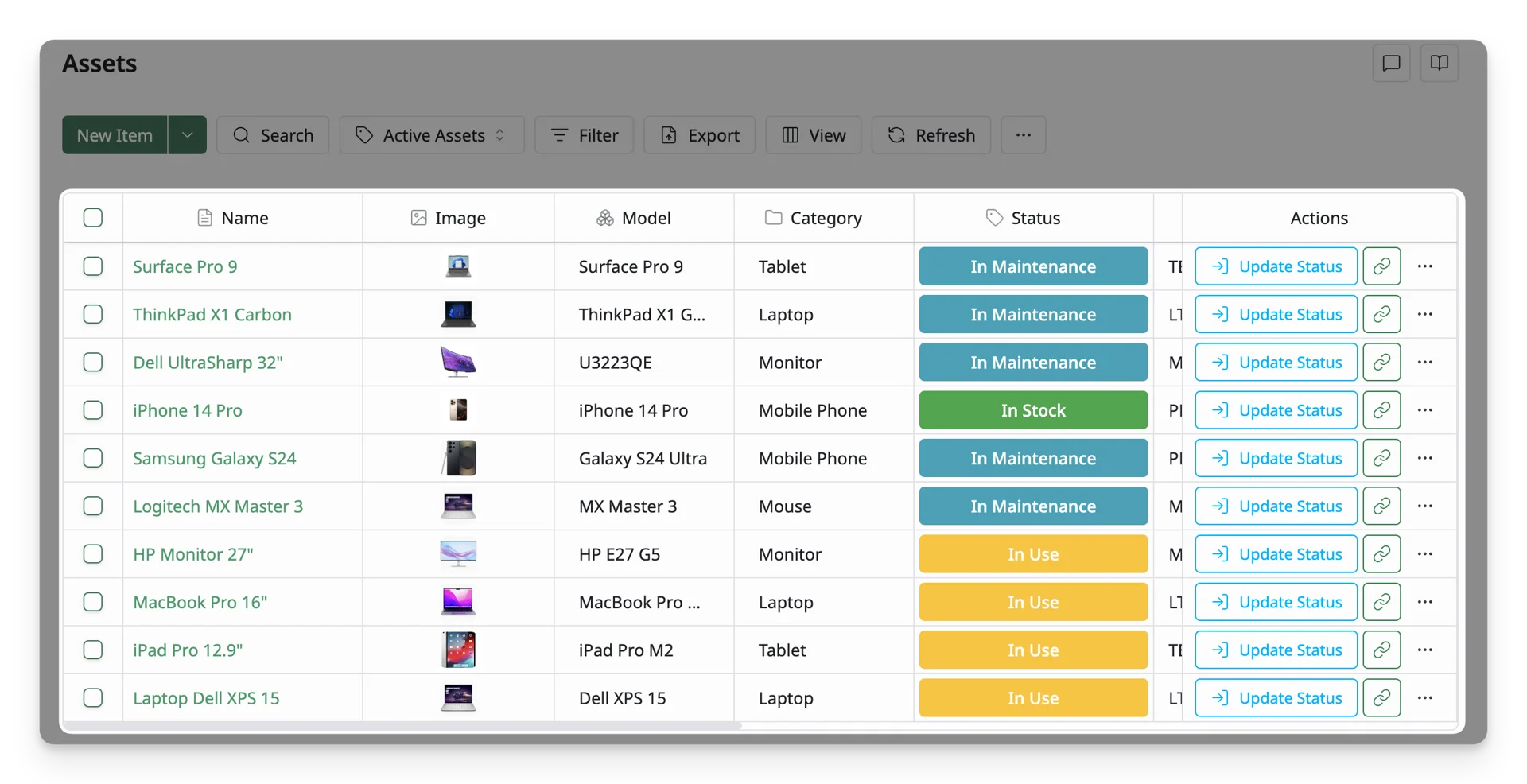
The Asset Table displays all assets that are currently being managed in AssetLoom. Each row represents an individual asset and shows key information such as its name, assignment, category, status, model, location, asset tag, purchase date, and department.
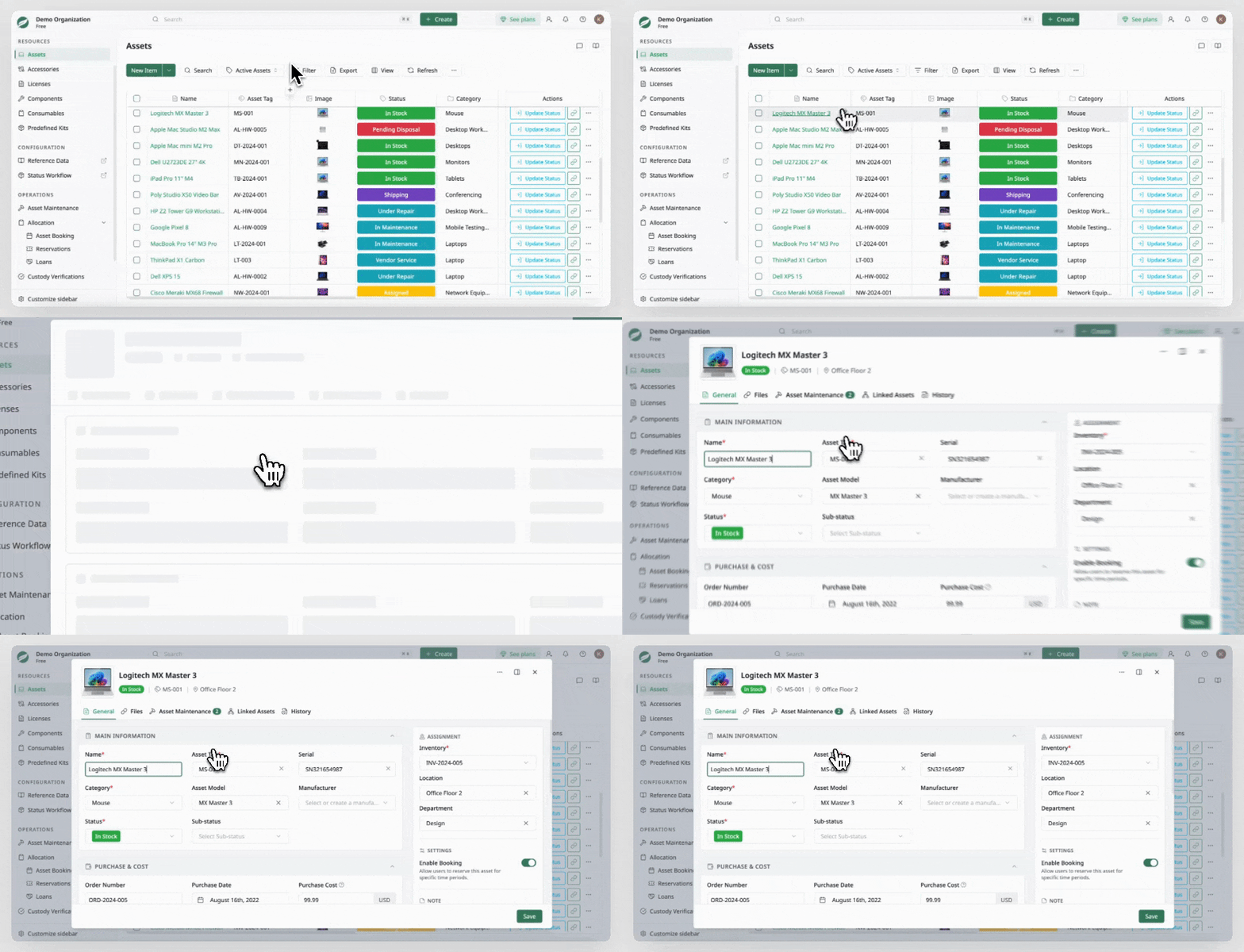
Click on an asset to view its detailed information.
From the Asset Table, you can:
Manage Columns in the Asset Table
You can control which columns are visible and how they are arranged in the table.
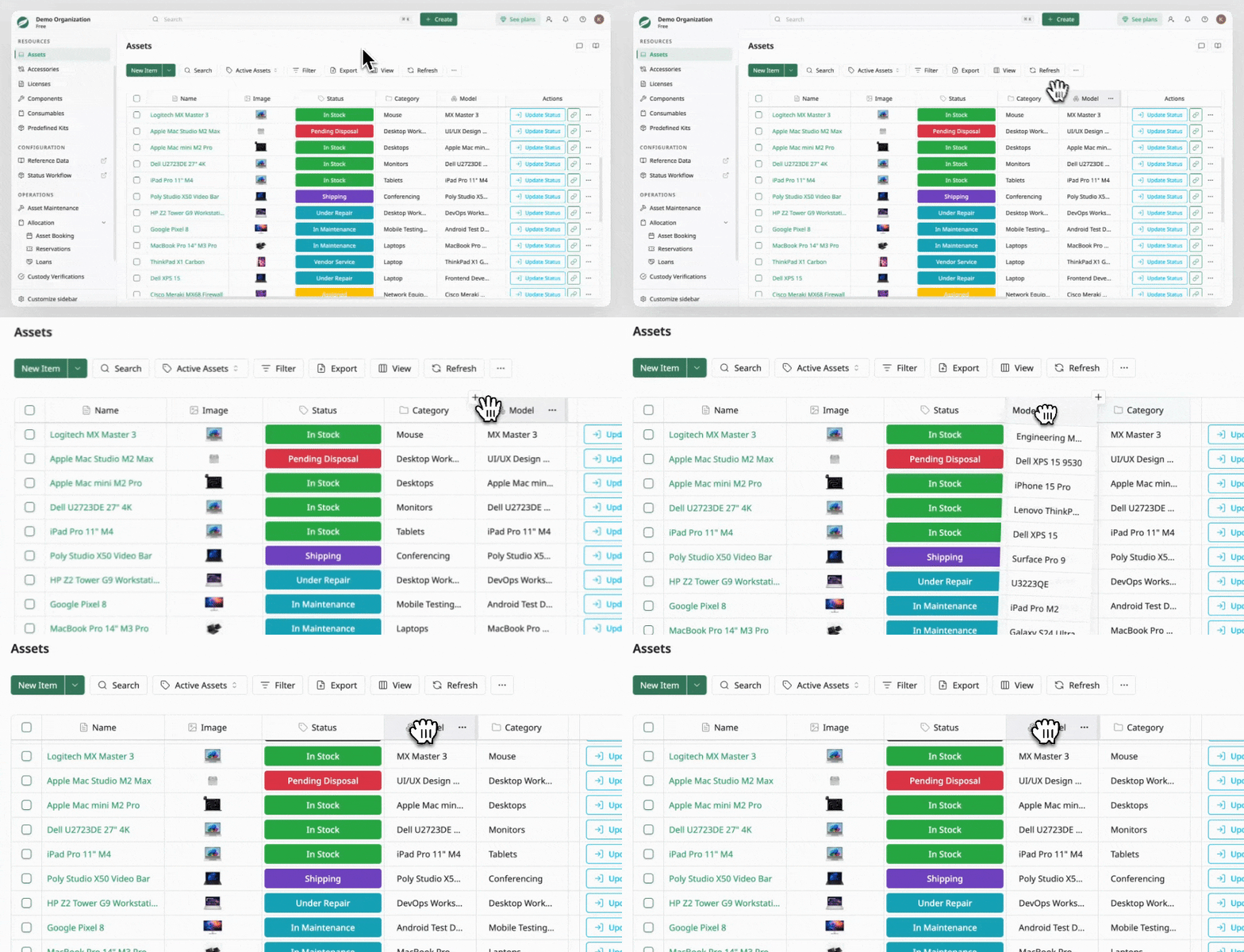
Add hidden columns
Hover over the table header to reveal the + button. Clicking this button opens a list of hidden columns that can be added back to the table. You can search for columns in this panel to quickly locate the one you want to display.
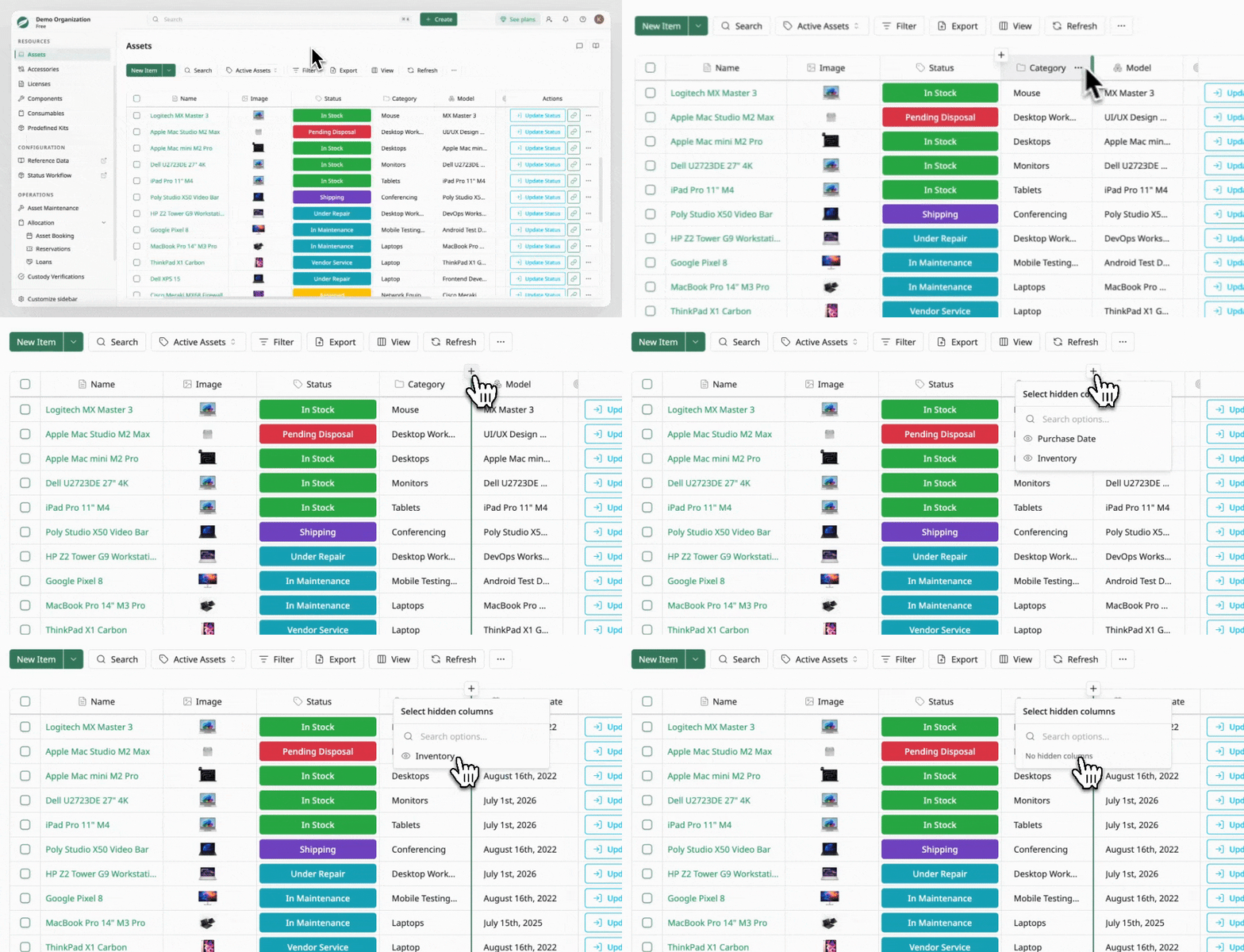
Rearrange columns
Columns can be reordered by dragging and dropping them within the table header. This allows you to organize the table layout based on your preferred workflow.
Column options
Each column header includes a more options menu (⋯) where you can perform additional actions:
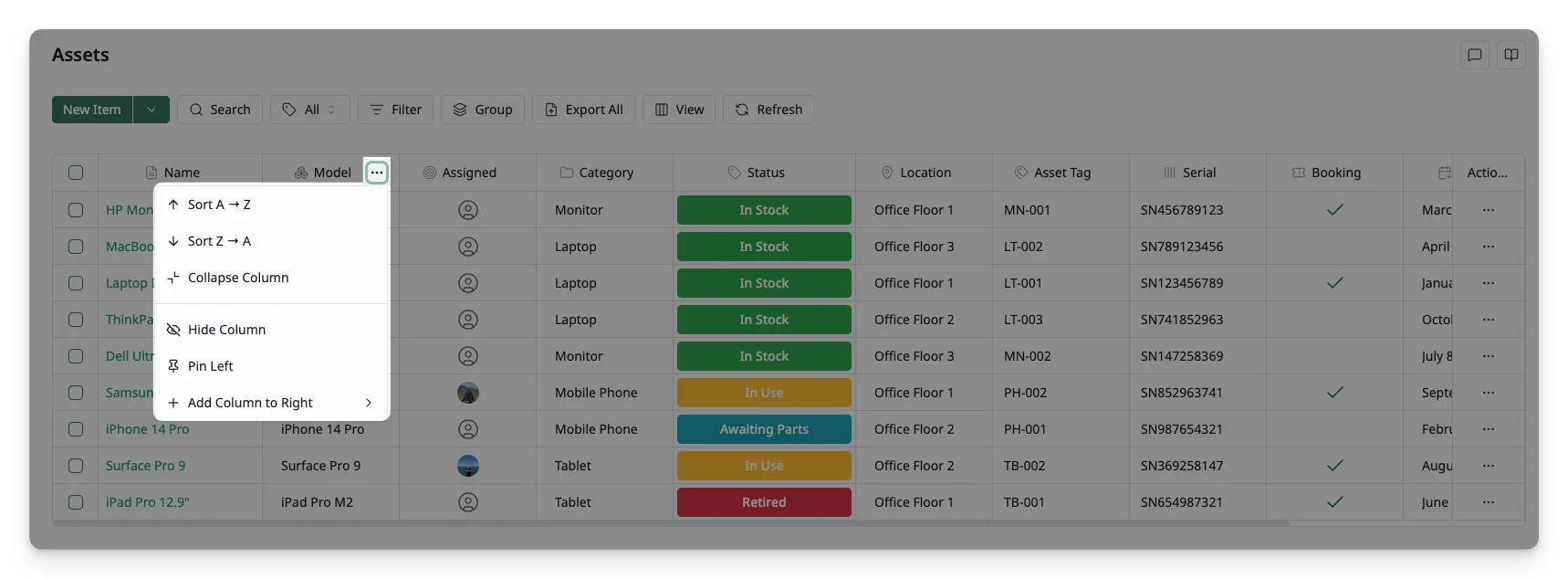
- Sort A → Z: Sort the column values in ascending order
- Sort Z → A: Sort the column values in descending order
- Hide Column: Hide the column from view.
- Expand/collapse Column: Reduce/restore the column width on the table
- Pin Column / Unpin Column: Keep a column fixed in place when scrolling horizontally
- Add Column to Right: Insert a hidden column next to the selected column
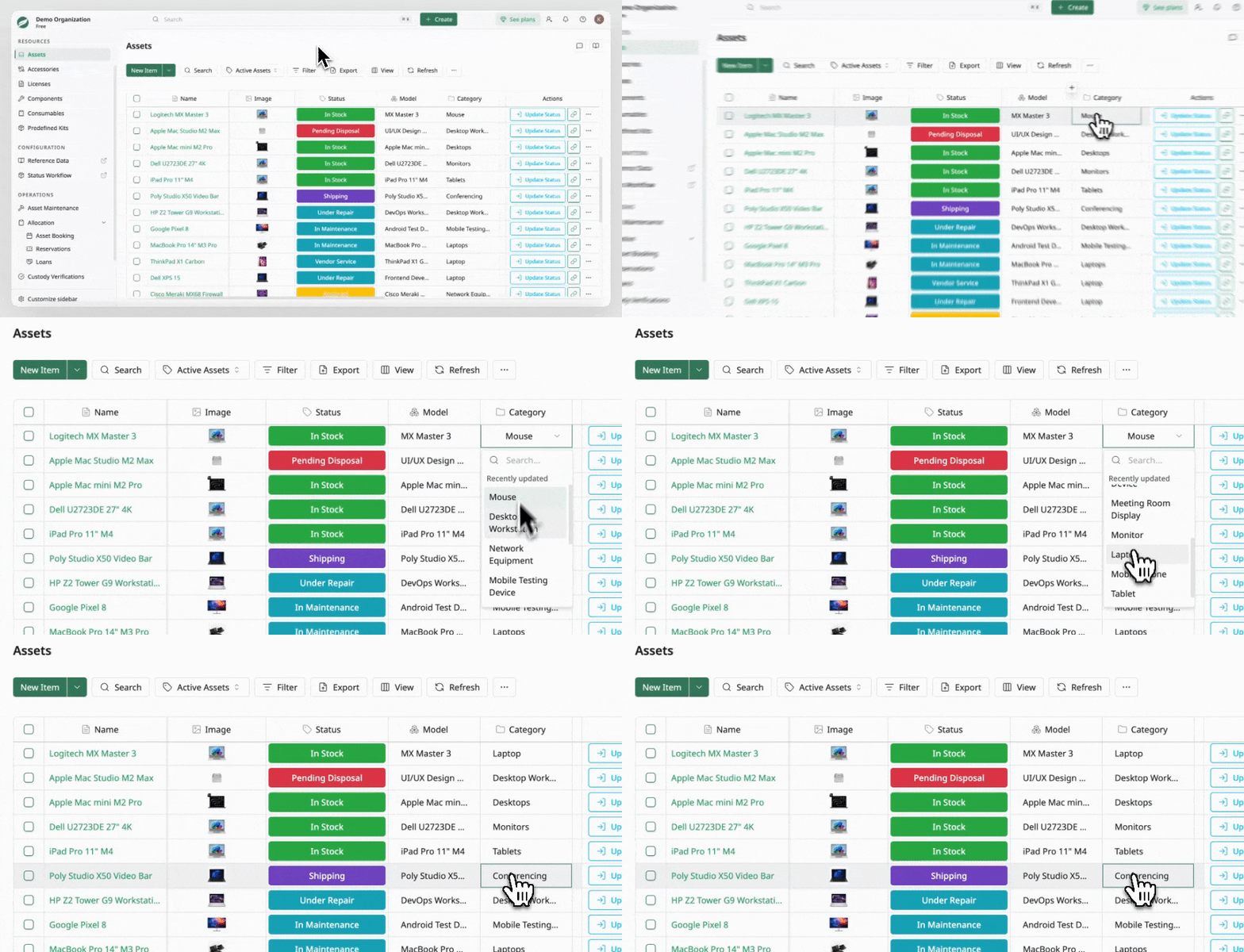
Edit Asset Information Directly on the Asset Table
Asset information can be edited directly within the table. Simply click on a data cell to update its value. This inline editing allows you to quickly update asset details without opening a separate editing page.
3. Asset Actions
AssetLoom allows you to perform actions on either individual assets or multiple assets at once.
Actions on an Individual Asset
Each asset row includes an actions menu that provides operations specific to that asset.
Click the ⋯ button at the end of a row to open the actions menu.
Available actions include:
- Checkout Asset: Assign the asset to a user, another asset, or a location.
- Edit: Open the asset details to update its information.
- Copy Link: Copy a direct link to the asset for quick sharing.
- QR Generate: Generate a QR code for the asset to enable quick scanning and identification.
- Verify Custody: Confirm that the assigned user still has the asset.
- Delete: Remove the asset from the system.
These actions allow you to quickly manage an asset without leaving the asset list.
Bulk Actions
Bulk actions allow you to perform operations on multiple assets at the same time. To select assets, use the checkboxes on the left side of the asset table.
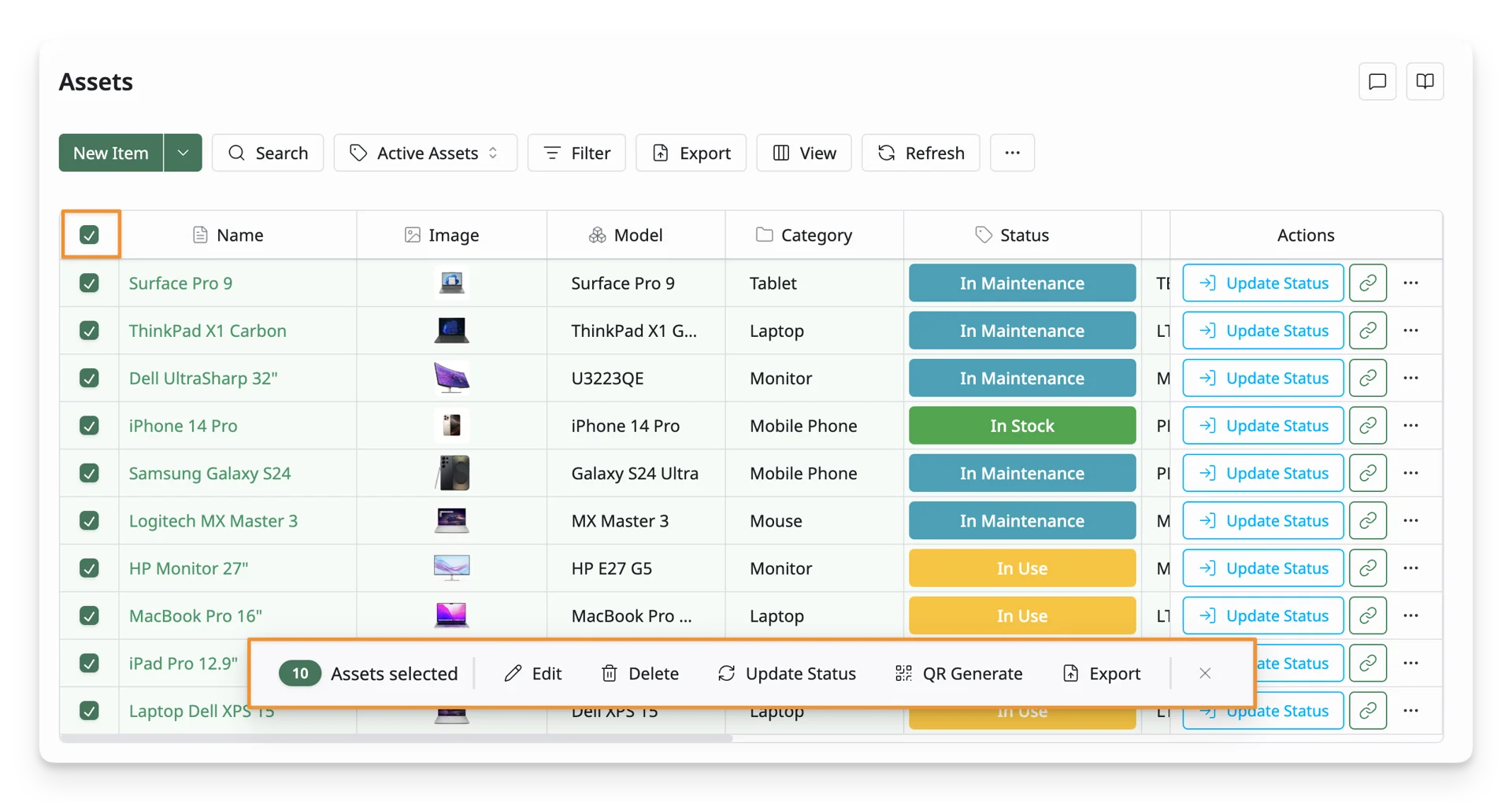
Once one or more assets are selected, a bulk action bar will appear at the bottom of the page showing the number of selected assets. From this bar, you can perform actions on all selected assets at once, including:
- Edit: Modify properties for all selected assets.
- Delete: Remove the selected assets from the asset list.
- Update Status: Change the status of multiple assets at once.
- QR Generate: Generate QR codes for the selected assets.
- Export: Export the selected assets for reporting or external use.
What’s Next?
- Create an Asset Using the Asset Creation Form: Create an asset manually with AssetLoom
- Import New Asset: Import your assets in CSV files to AssetLoom