Create an Asset Using the Asset Creation Form
In this guide, you’ll learn how to manually create an asset by filling out the necessary fields in the Asset Creation Form.
AssetLoom allows you to create new assets in two ways:
- Bulk Import: Upload multiple assets at once via CSV file.
- Manual Setup: Create assets individually by filling out the Asset Creation Form.
In this guide, you’ll learn how to manually create an asset by filling out the necessary fields in the Asset Creation Form.
Step 1: Access the Asset Form
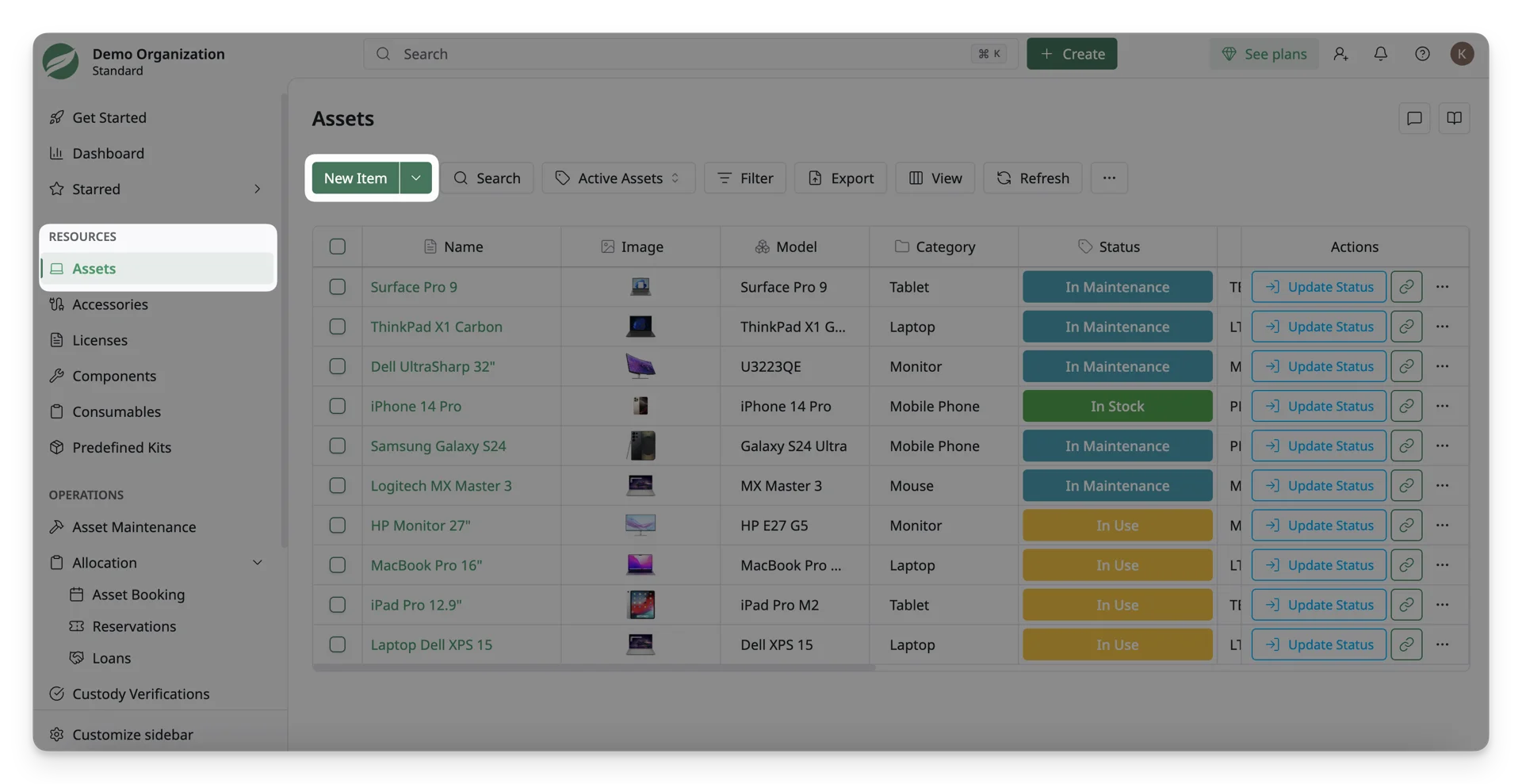
- Navigate to Resources > Assets in the side menu.
- Click on the Create button at the top right of the screen to open the Asset Form.
Step 2: Fill Out the Asset Details
The form consists of several sections that need to be filled out to create the asset.
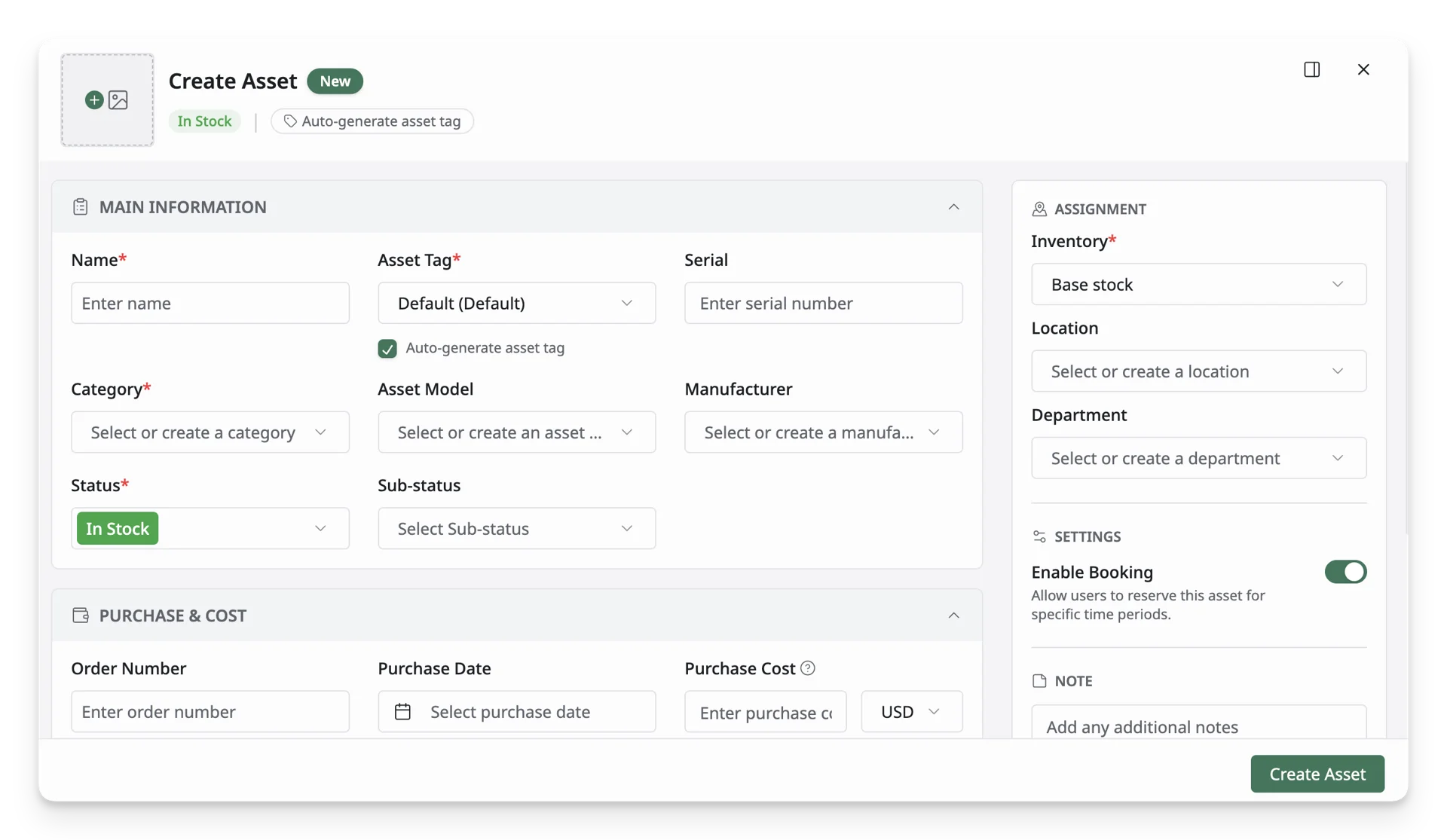
Below is an overview of the key fields:
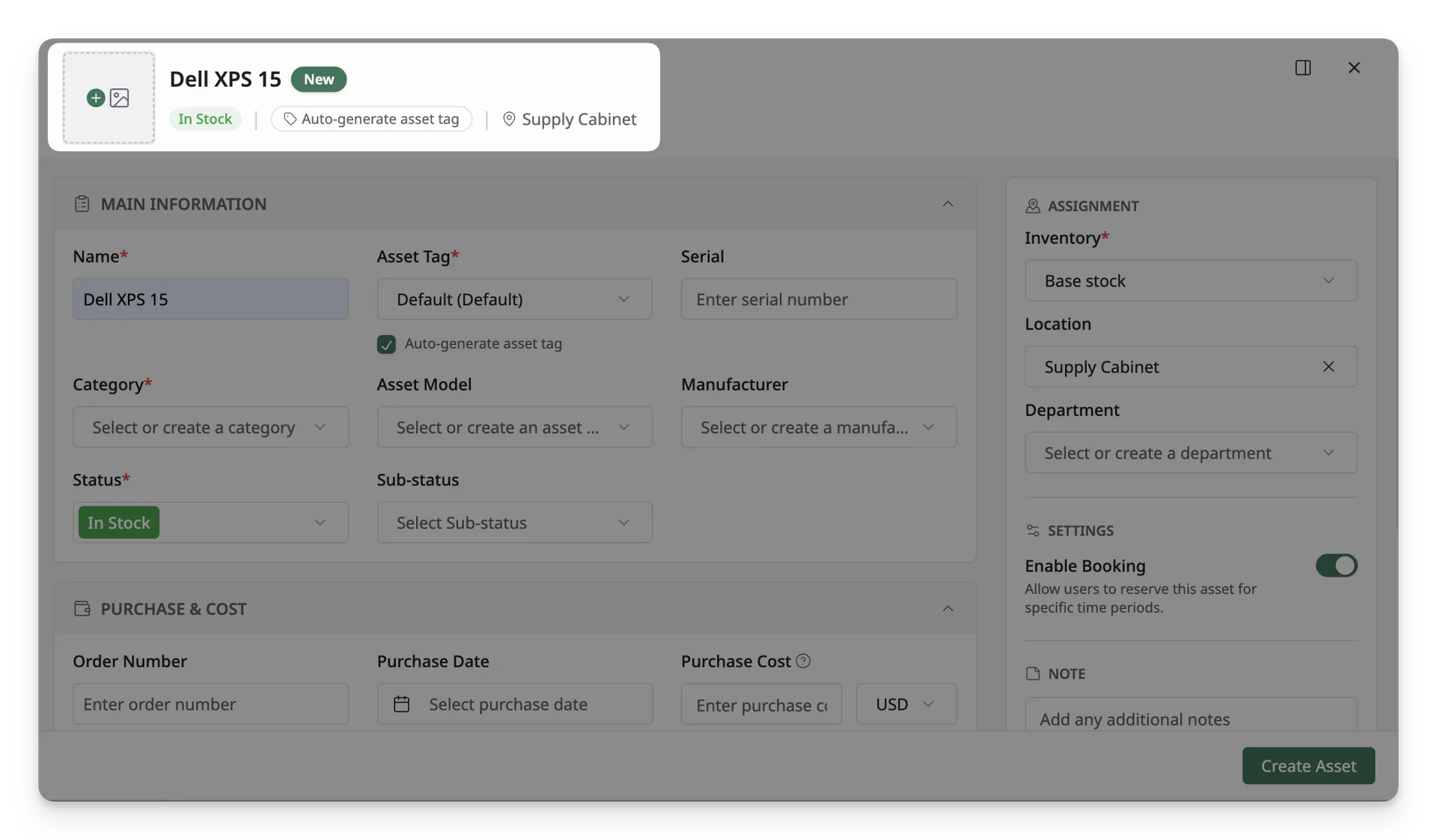
1. Summary
This section summarizes key asset information from other sections and images.
2. Main Information
This section is for the core details that define the asset.
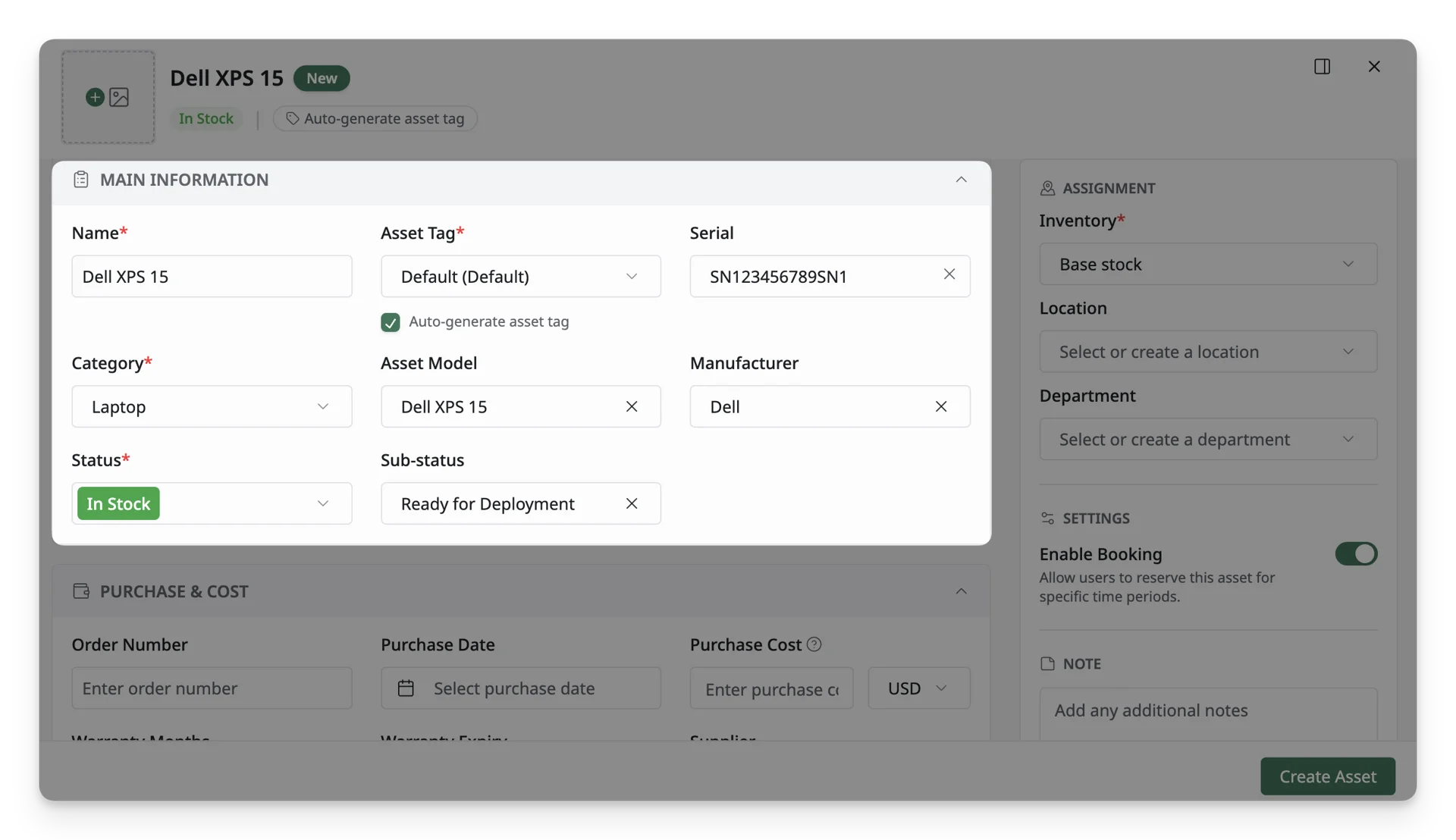
- Name: Enter a name for the asset. (e.g.:
MacBook Pro 2020 16") - Asset Tag: An asset tag represents a unique identity of the asset.
- If you want the system to auto-generate a tag from the Default Tag Format, leave this field as is. What is a Default Asset Tag?
- If you want to specify your own tag, enter it manually.
- Serial: Enter the serial number of the asset, if applicable.
- Asset Model:
- An asset model refers to the specific type or version of the asset. For example, if you’re creating an asset for a laptop, the Asset Model would be the model name or number (e.g.,
MacBook ProorDell XPS 13). - You can select an existing model from the dropdown list or simply type to create a new one if the model is not yet in the system.
- An asset model refers to the specific type or version of the asset. For example, if you’re creating an asset for a laptop, the Asset Model would be the model name or number (e.g.,
- Category: Categories help group your assets for easy management.
- Select a category that best describes the asset, such as
Laptop,Mobile Phone, orMonitor. - Or, simply type to create a new one if the model is not yet in the system.
- Select a category that best describes the asset, such as
- Manufacturer: Manufacturers help identify the manufacturer or brand of the asset (e.g.,
Apple,Dell,Samsung). Select a manufacturer for your asset from the dropdown list or simply type to create a new one if the model is not yet in the system.
Asset Models, Categories, and Manufacturers are interconnected in AssetLoom:
- When you select an Asset Model for an asset, AssetLoom automatically fills in the associated Category and Manufacturer, ensuring that all assets are consistently categorized.
- If you create a new Asset Model, you will also define the Category and Manufacturer for that model, which will automatically be assigned to any future assets using that model.
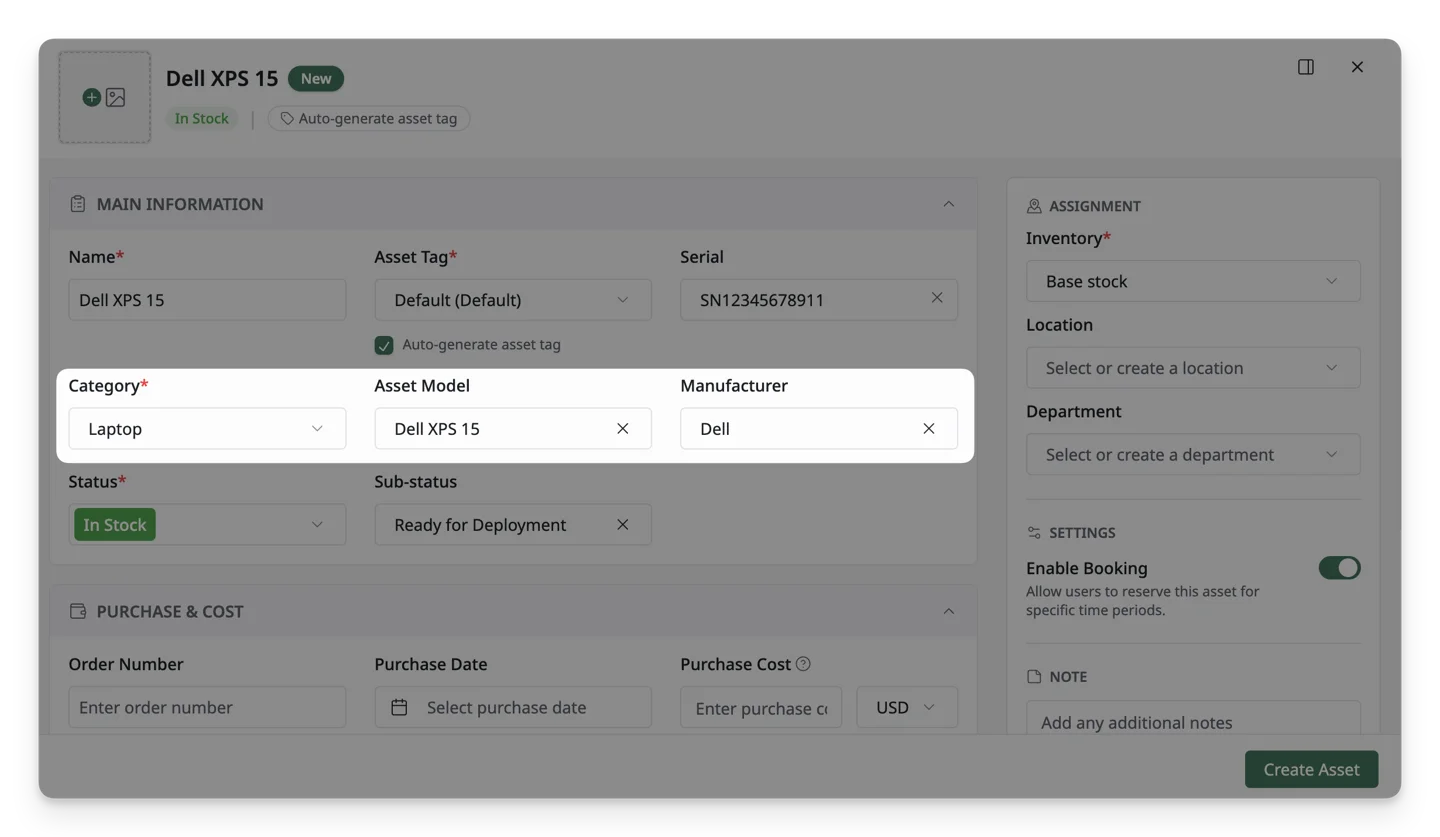
By linking these elements together, AssetLoom ensures that your assets are organized in a way that makes tracking, reporting, and maintenance easier, while also saving time and improving accuracy.
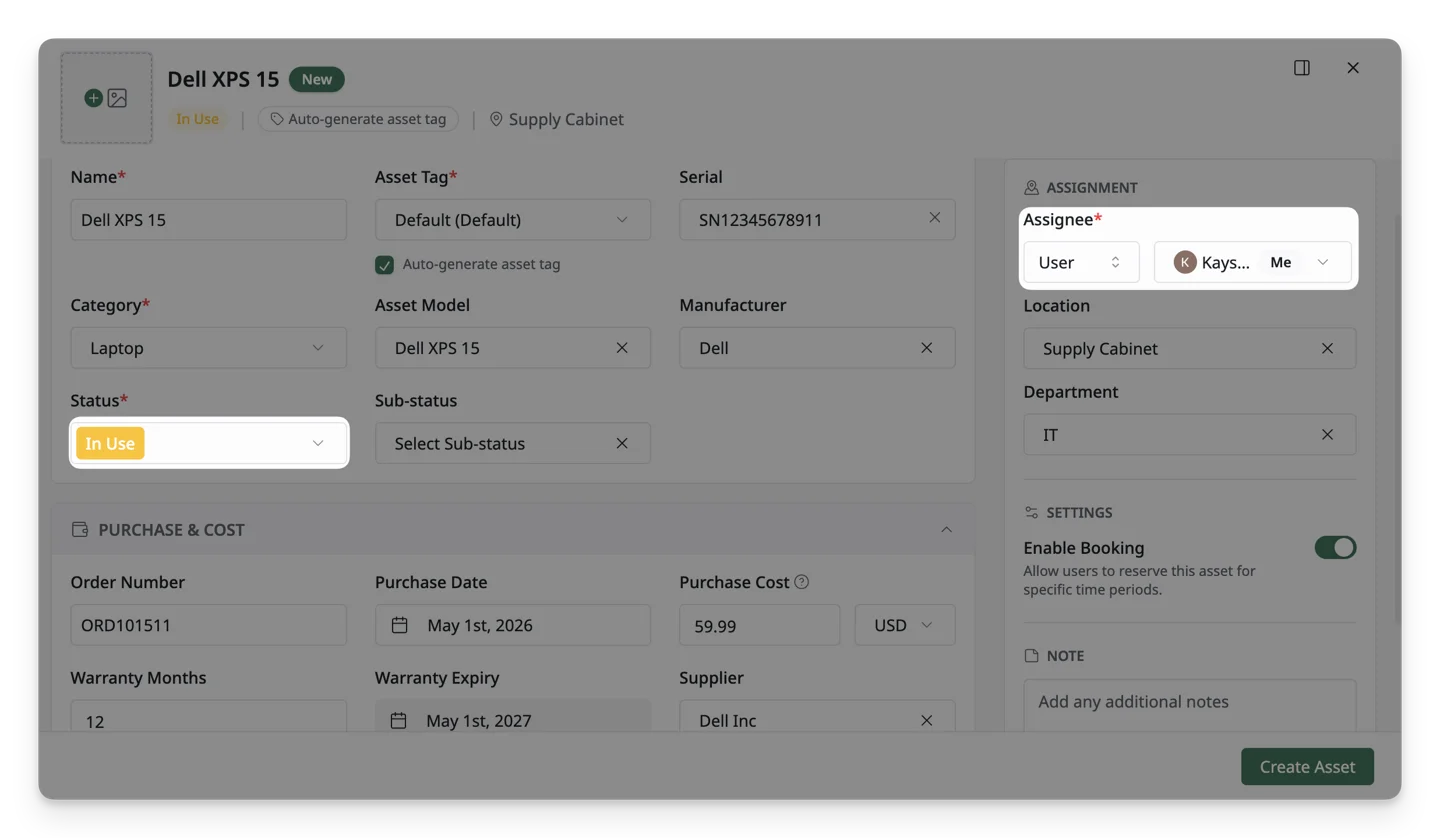
- Status: Status represents the current state of the asset, helping you to keep track of the asset availability.
- You can select In Stock if the asset is available, or In Use if it’s currently assigned.
- You can create additional status types for your organization’s workflow in Status Workflow.
- Sub-status: Sub-status is an additional level of classification that provides more detail on the asset’s current state, based on its main status.
- If the status is In Stock, possible sub-status options could include Received, Awaiting QA, or Ready for Deployment.
- If the status is In Use, possible sub-status options could include Assigned, Deployed, Checked Out, or Loaned.
3. Purchase & Cost Information
This section is essential for tracking the financial details and lifecycle of your asset.
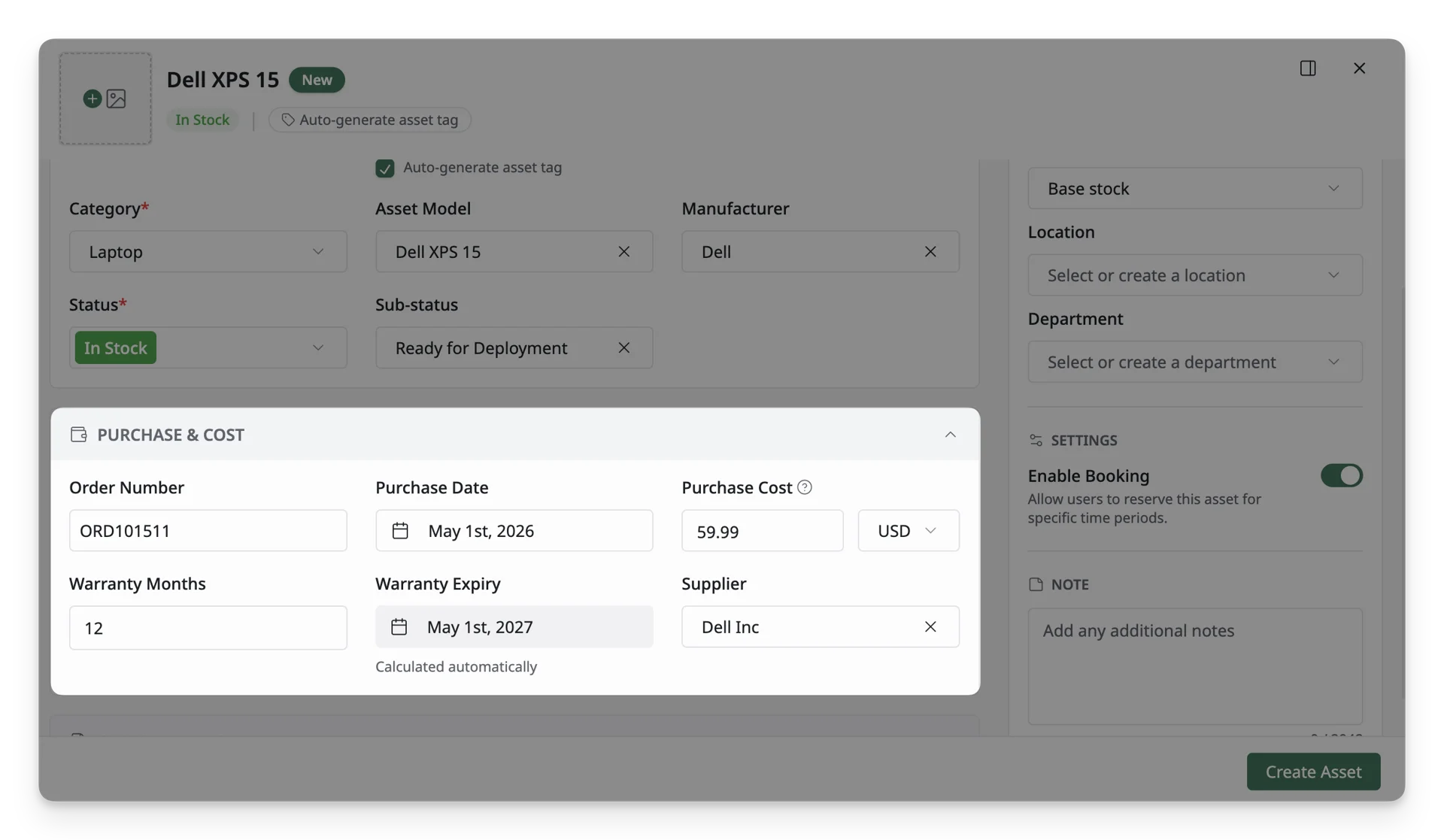
- Order Number: Enter the order number associated with the asset’s purchase.
- Warranty Months: Specify the number of months the asset is covered by warranty.
- Purchase Date: Select the date when the asset was purchased. The purchase date helps track the asset’s lifecycle and plan for replacements or upgrades.
- Purchase Cost: Enter the asset’s purchase cost. This is crucial for AssetLoom to track the asset performance and value over time.
- Warranty Expiry: Automatically calculated based on the purchase date and warranty months.
- Supplier: Enter the supplier or vendor from whom the asset was purchased. This helps manage supplier relationships and procurement history.
4. Other information
This section includes additional details about the asset. You can either select from the dropdown list of existing values or type to create a new one if needed.
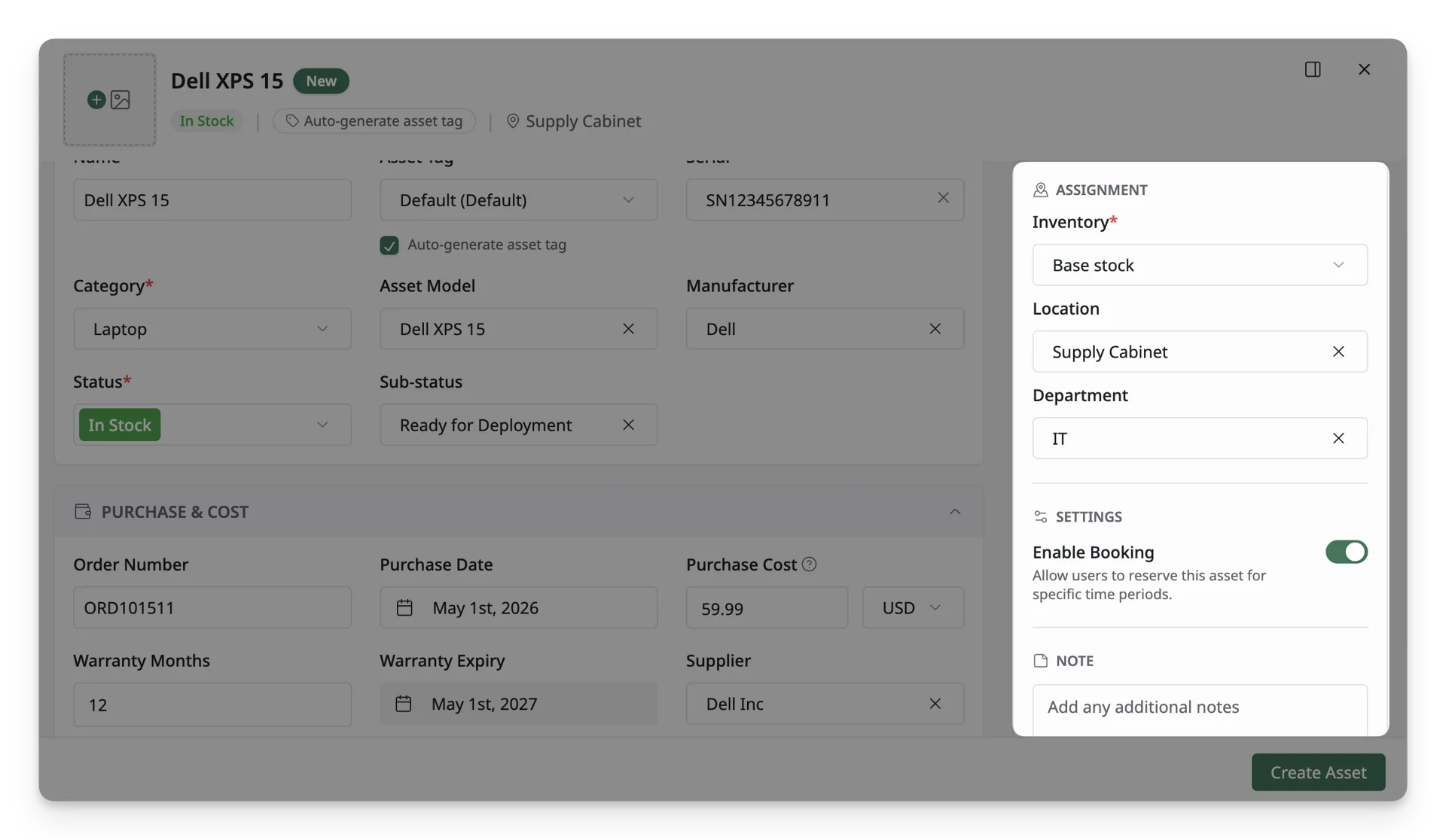
- Location: The geographical location where the asset is deployed or assigned. (e.g.
7th Floor, orServer Room 1). - Department: The department that is responsible for or using the asset (e.g.,
Engineering,Sales). - Enable Booking: Toggle this ON if you want to allow users to reserve this asset for specific time periods via the Asset Booking form.
- Inventory: Inventories track where assets are physically stored when they are available for assignment or not checked out. By default, assets with an In Stock status will belong to the Base Stock inventory. However, you can create and assign a new inventory if the asset is stored elsewhere (e.g.,
HQ Warehouse).
Inventory determines where your asset is stored, and it depends on the asset’s status:
- In Stock: When the asset’s status is In Stock, it is assigned to an Inventory. This can be Base Stock by default, or any custom location you create.
- In Use: When the asset’s status is In Use, it no longer belongs to an inventory. Instead, it is assigned to a checkout target, whether another asset, a location, or a user, reflecting that the asset is actively used or checked out.
- Notes: Add any additional information or remarks related to the accessory ( internal references, conditions, or handling instructions).
5. Custom Fields
If you need to track additional information specific to this asset, click Add to include extra fields for tracking unique data about the asset (e.g., color, version, or any other specific details).
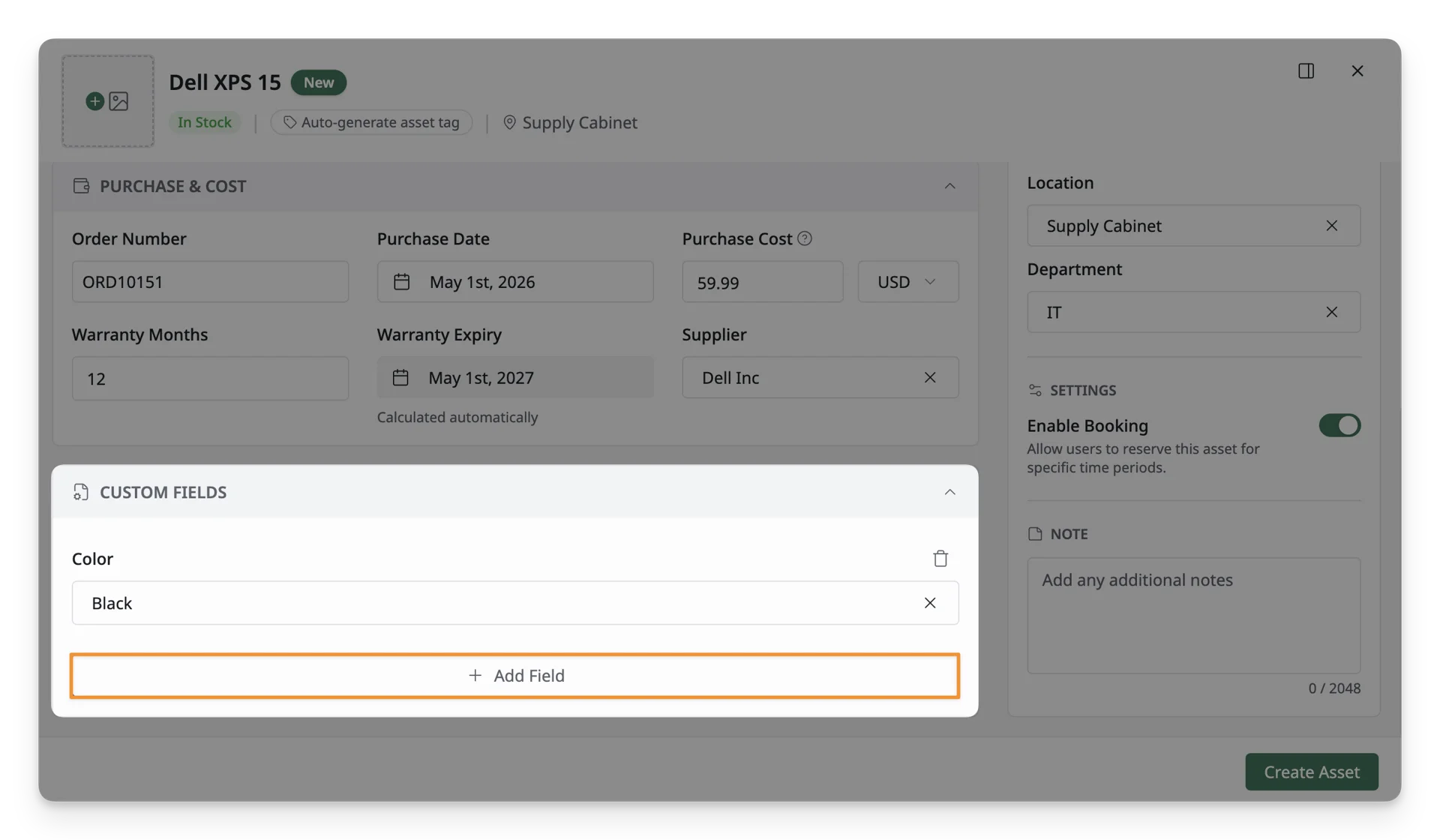
Custom fields must be created in advance in Reference Data > Custom Fields. If no custom fields have been set up, you won’t see any options to add them in this form.
Step 3: Save the Asset
Once all required fields are filled, click the Create button at the bottom of the form to save the asset to the system.
Step 4: Review Your Asset
After creating the asset, you will be redirected to the Asset List, where you can view and manage all your assets. If any information needs to be updated, simply click on the asset and modify the details as needed.
What’s Next?
- Import New Assets: Bulk import assets, which is recommended when you need to add multiple assets to AssetLoom