Generate Asset Barcodes/QR Codes
Learn how to generate Asset barcodes/QR codes with AssetLoom
QR codes and barcodes in AssetLoom offer a fast and efficient way to identify and access asset information by scanning with your phone. QR codes/barcodes can be generated for individual assets or multiple assets at once via bulk actions.
These codes can be downloaded and printed for use as labels on your assets. Once attached to an asset, you can easily scan the code to quickly access detailed asset information, facilitating faster check-outs, updates, and overall management.
To generate a QR code or barcode for your asset in AssetLoom, follow these steps:
1. Locate the Asset
- If you want to generate a QR code or barcode for a single asset:
- Access the details page of the asset
- Look for the More Options button and select Generate QR Code from the menu
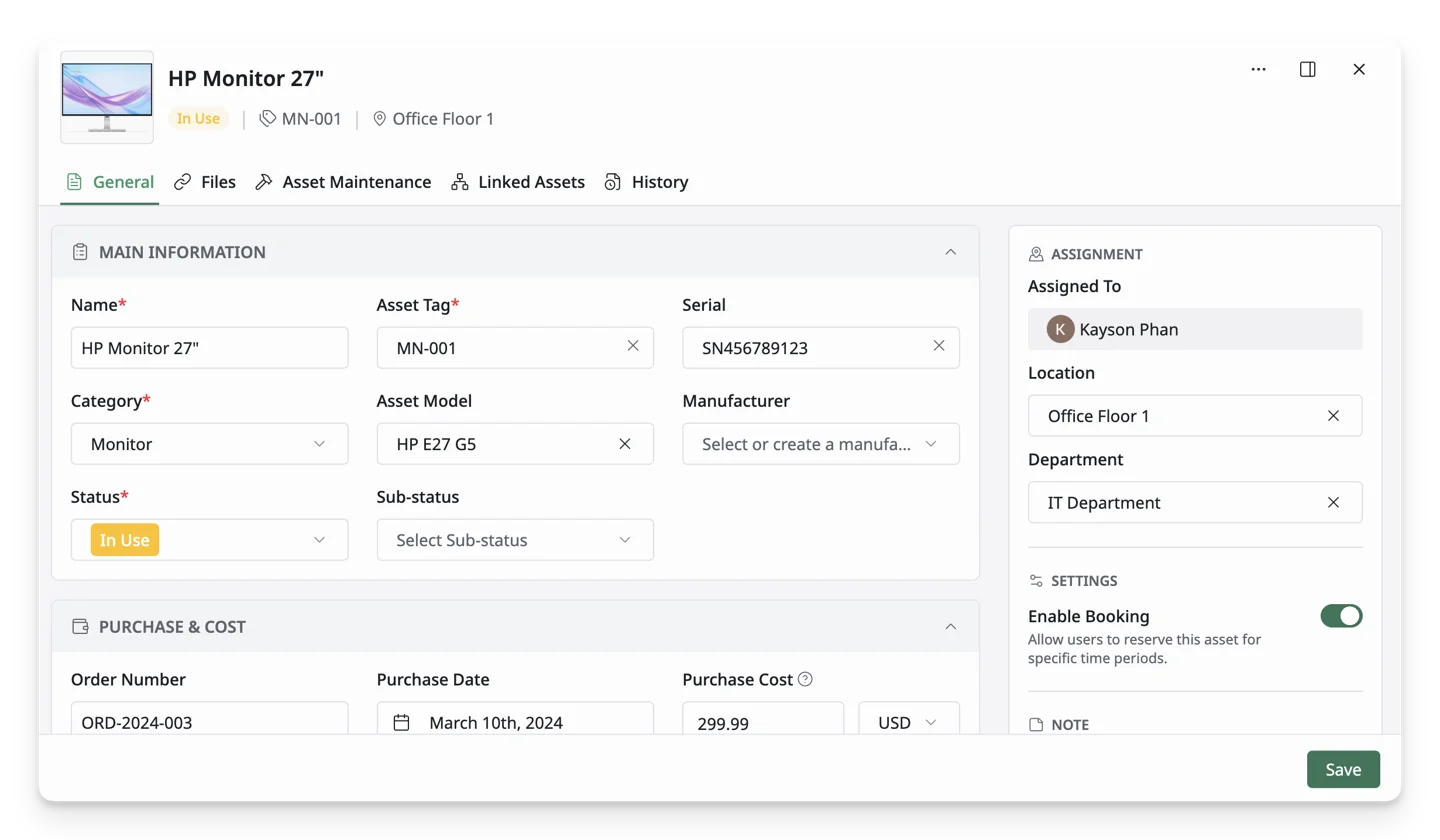
- If you’d like to generate QR codes or barcodes for multiple assets:
- Select the assets you want by ticking the checkboxes next to each asset in the Asset List.
- You should now see the menu of Bulk Actions. Click on the Generate QR Code option in the menu.
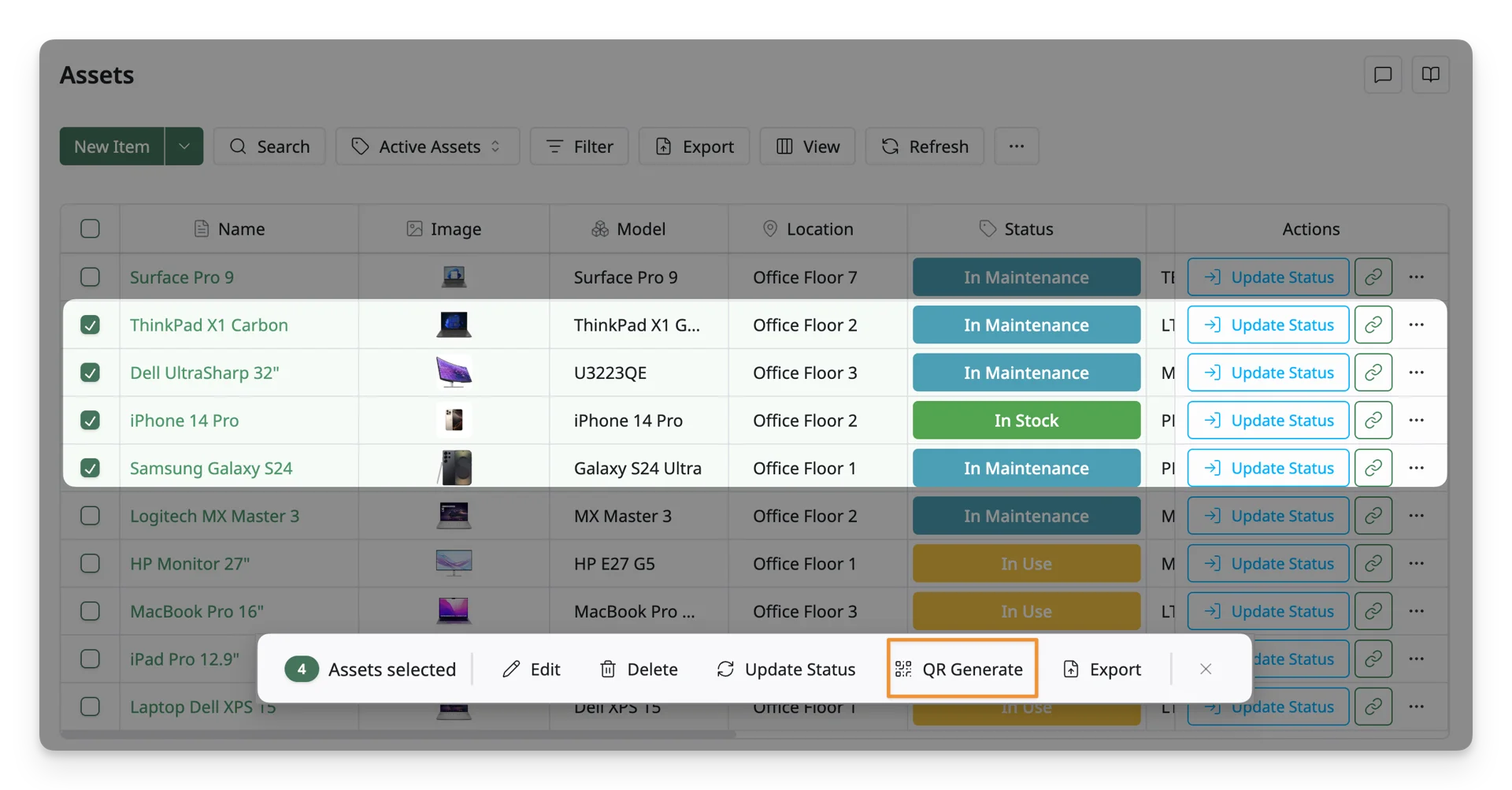
Once you’ve selected your preferred method (single or multiple assets), you’ll be taken to the QR Code/Barcode Customization Screen.
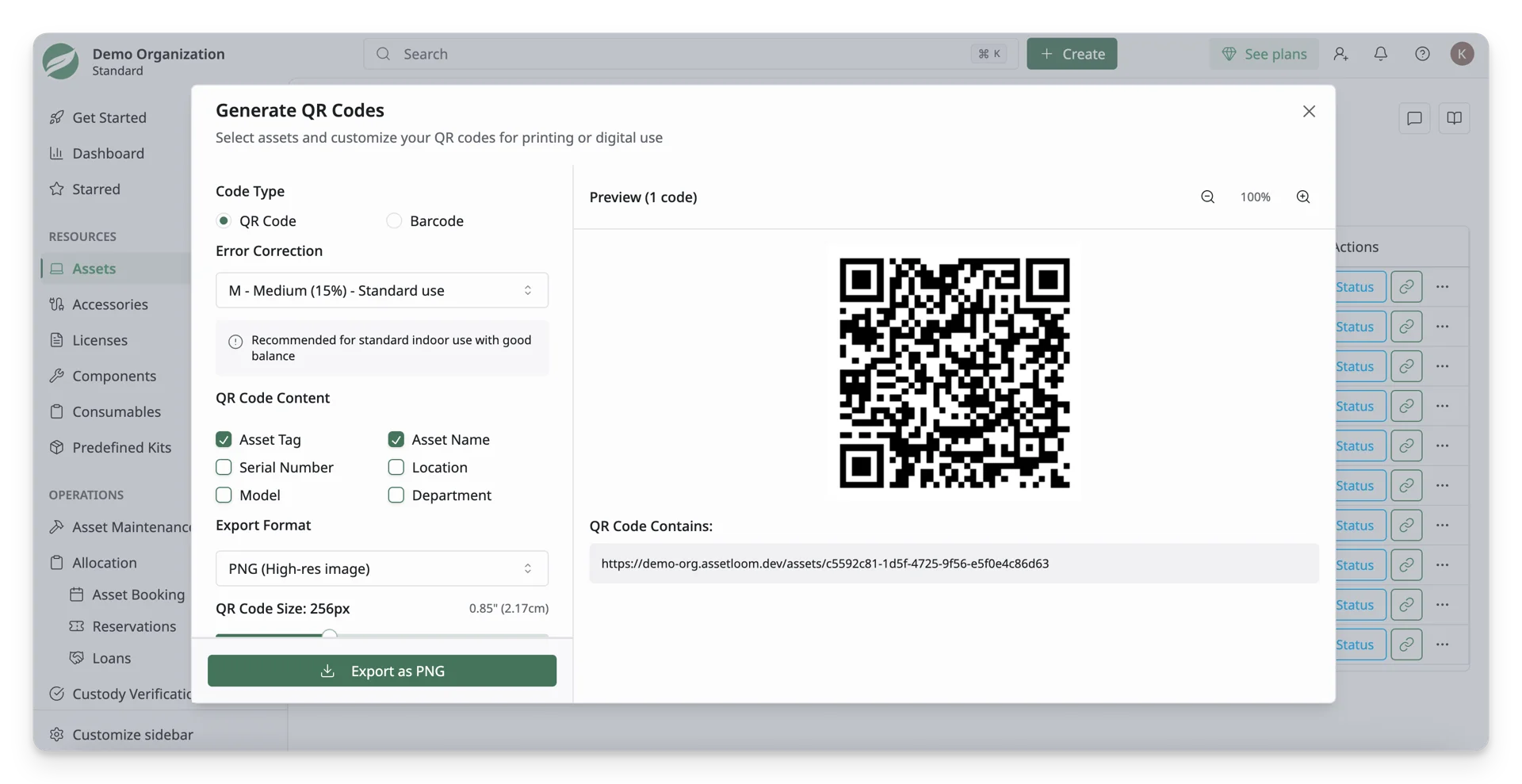
2. Customizing Your QR Code/Barcode
In the QR Code/Barcode Customization screen, you can fine-tune the appearance and content of your QR code or barcode. Here’s what you can customize:
A. Select a Code Type
Choose whether you want to generate a QR Code or a Barcode for the selected asset(s).
B. Choose Barcode Format
This option is available if you choose Barcode.
Choose the format that suits your asset tracking needs.
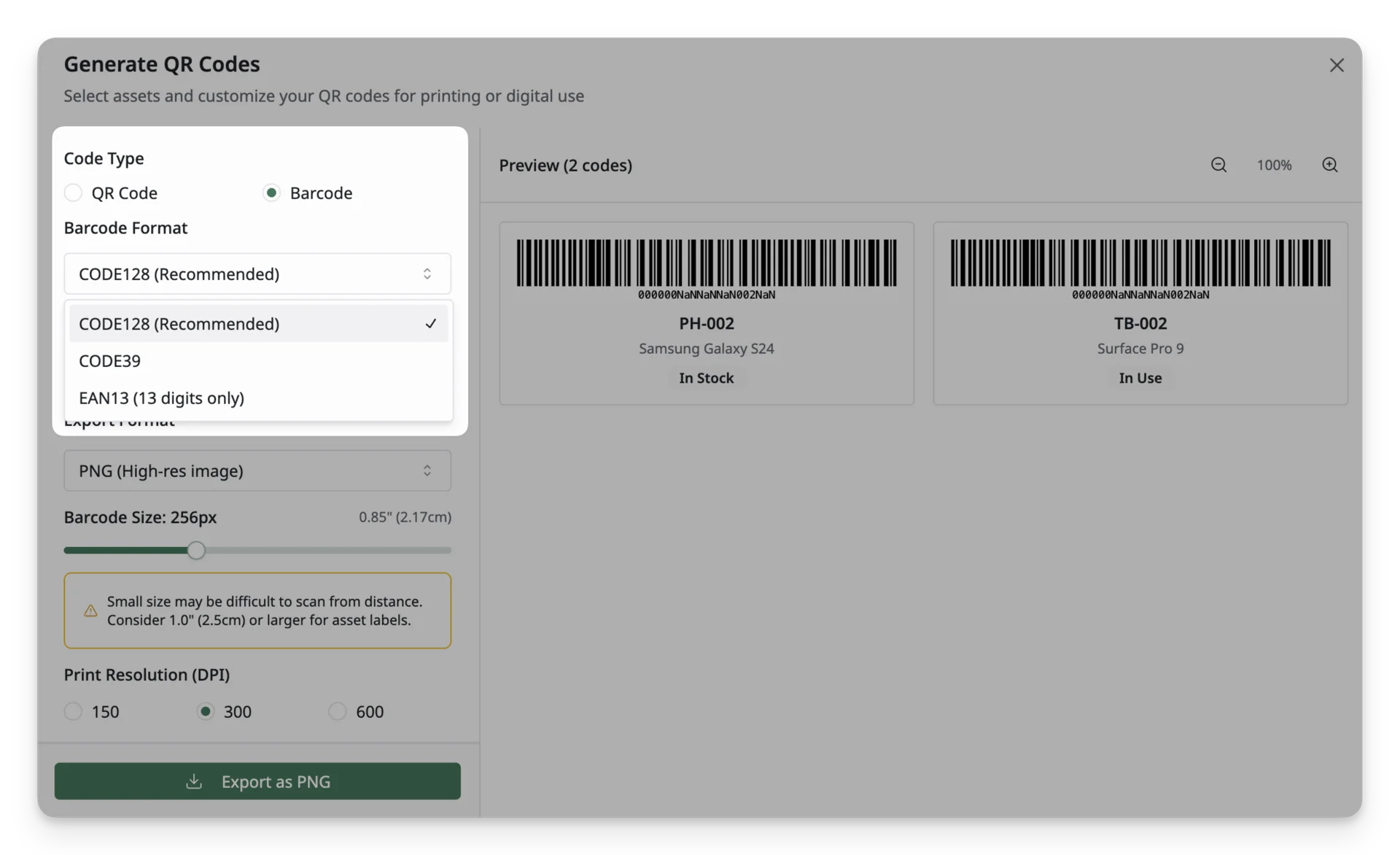
Available options are:
- CODE128 (Recommended): This is the most versatile barcode format and supports both numbers and letters, making it suitable for asset tags. It’s the recommended format for asset management in AssetLoom.
- CODE39: This format is simpler and often used for numeric data. It may not be as efficient for asset tracking that requires alphanumeric data.
- EAN13: This is used mainly for retail products and requires 13 digits. It’s not typically used for asset management unless you need a format compatible with retail systems.
C. Select Error Correction for QR Code
This option is available if you choose QR Code.
The error correction level helps recover data in case the QR code is damaged or partially obscured.
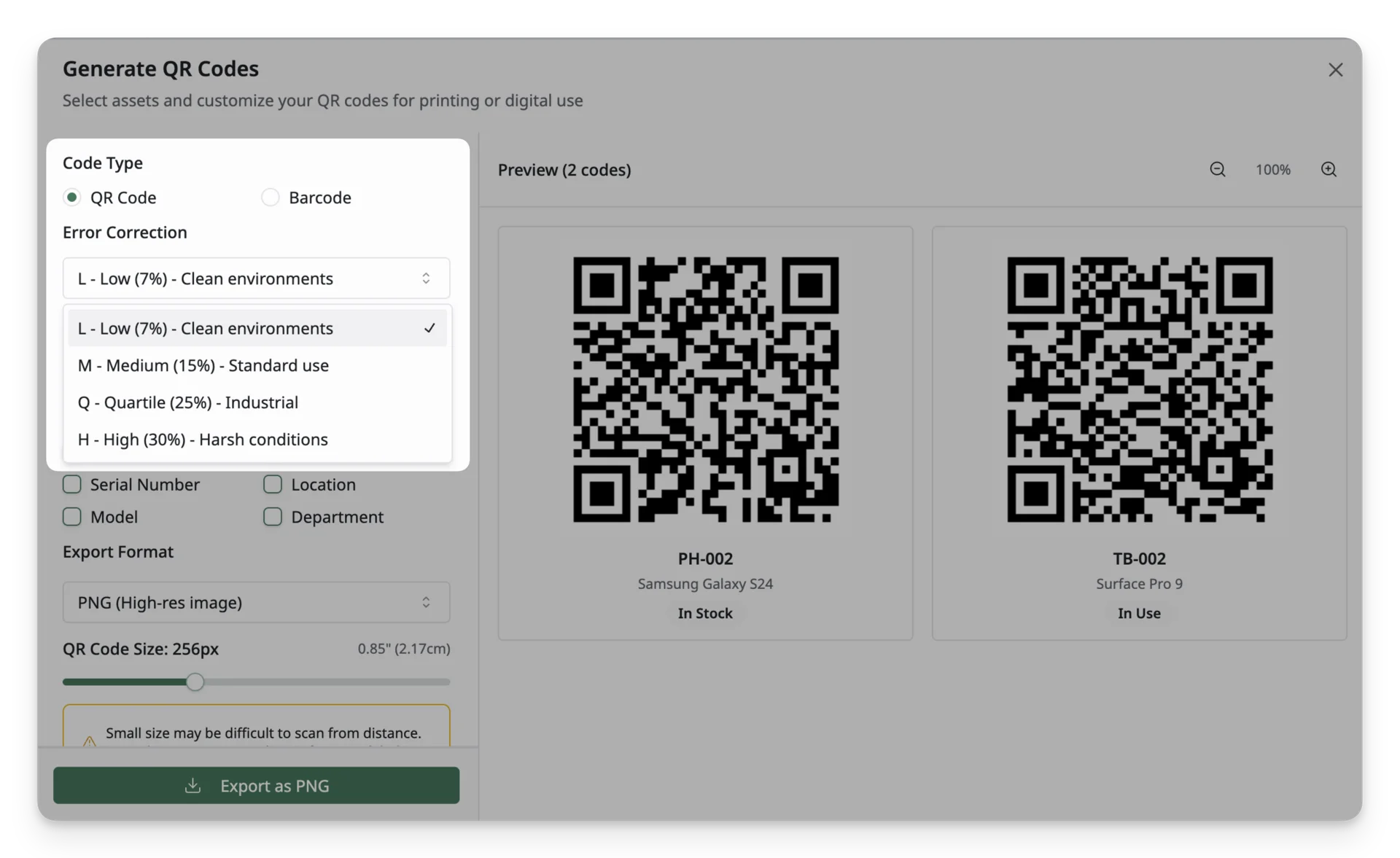
The available levels are:
- L - Low (7%): Best for clean environments where the QR code is unlikely to be damaged. Choose this if you’re confident the code will stay in pristine condition.
- M - Medium (15%): Suitable for standard use cases. This is the most balanced option and works well for most environments. It’s recommended for general asset management tasks.
- Q - Quartile (25%): Ideal for environments where there’s a higher risk of damage, such as industrial settings. This level of error correction ensures that the code can still be read even if a significant portion is damaged.
- H - High (30%): The highest error correction level, perfect for harsh conditions where QR codes may be exposed to significant wear and tear.
D. Choose QR Code Content
This option is available if you choose QR Code.
The QR Code Content section lets you choose which asset details are included in the generated QR code. This helps determine what information will be available when the code is scanned.
By default, Asset Tag and Asset Name are selected. The Asset Tag is especially important because the QR code is generated from the asset tag, which is the unique identifier of each asset in AssetLoom.
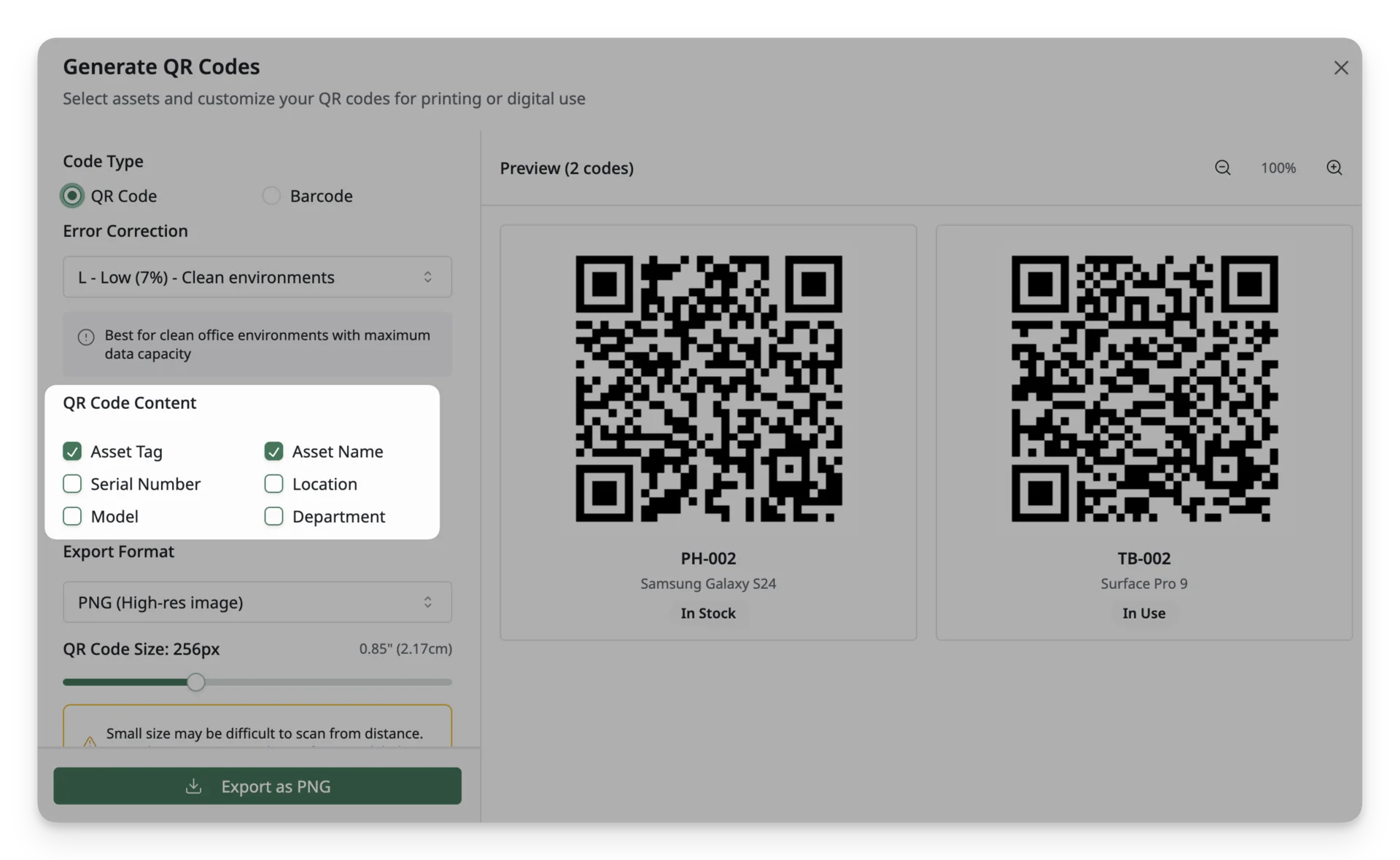
Available content options include:
| Option | Description |
|---|---|
| Asset Tag | Includes the asset’s unique identifier. This is the main value used to generate and identify the code. |
| Asset Name | Includes the asset’s name, making it easier to recognize the item after scanning or printing. |
| Serial Number | Includes the manufacturer or device serial number, useful for IT equipment, electronics, and warranty tracking. |
| Model | Includes the asset model, useful when managing multiple similar assets. |
| Location | Includes the assigned location of the asset, helping users quickly confirm where the asset belongs. |
| Department | Includes the department linked to the asset, useful for organizing assets by team or business unit. |
E. Export Format
The Export Format section lets you choose the file type for the generated QR code or barcode. This determines how the code will be downloaded and used after generation.
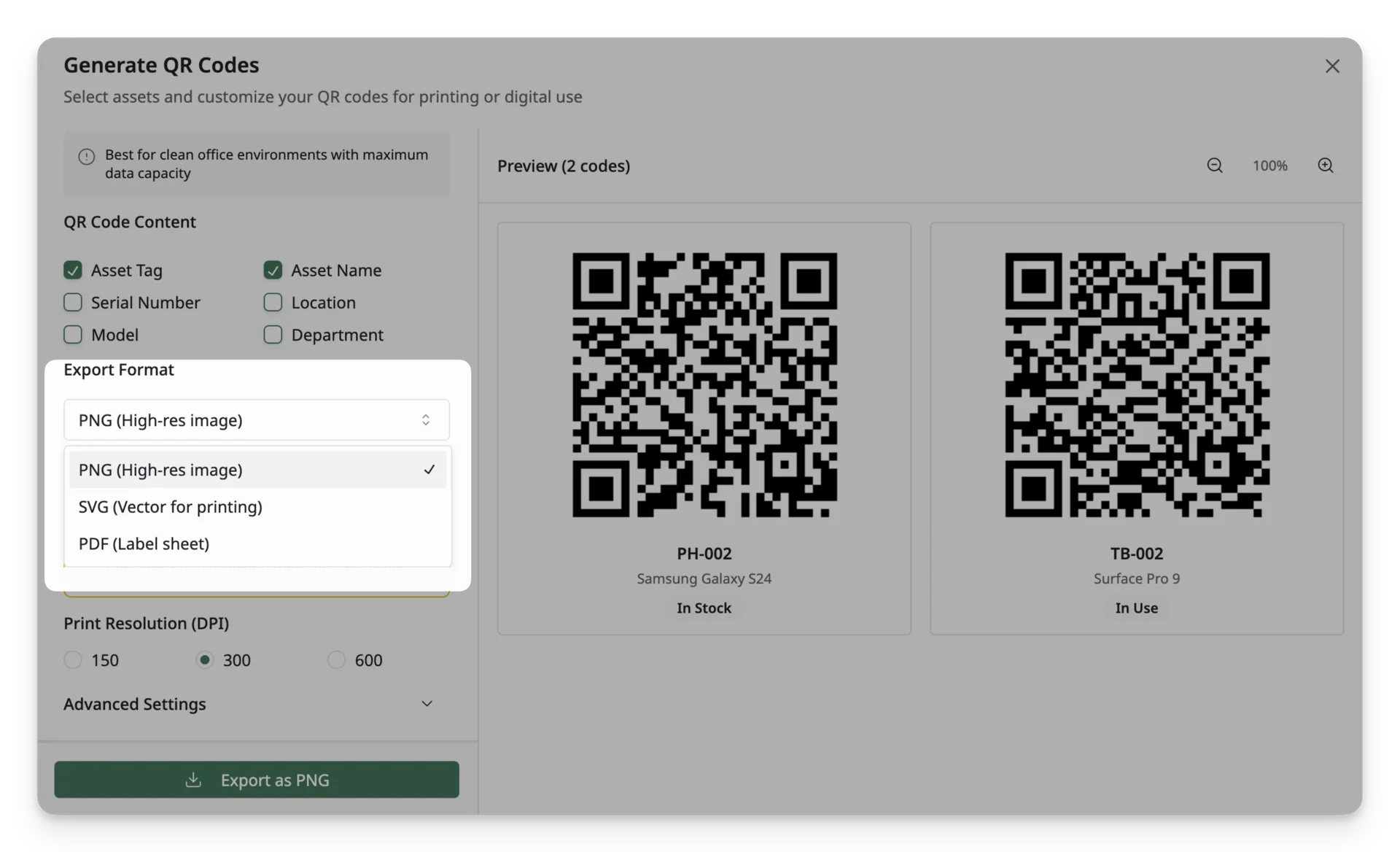
Available export formats include:
| Format | Description | When to use |
|---|---|---|
| PNG (High-res image) | Downloads the code as a high-resolution image file. | Best for general use, digital sharing, or printing a small number of labels. |
| SVG (Vector for printing) | Downloads the code as a scalable vector file that stays sharp at any size. | Best for professional printing, custom label design, or resizing without losing quality. |
| PDF (Label sheet) | Downloads the code as a printable label sheet. | Best when generating and printing labels for multiple assets at once. |
F. QR Code or QR Code Size
The QR Code Size section lets you adjust the physical and visual size of the generated code. AssetLoom shows the size in pixels and also provides an estimated printed size in inches and centimeters.
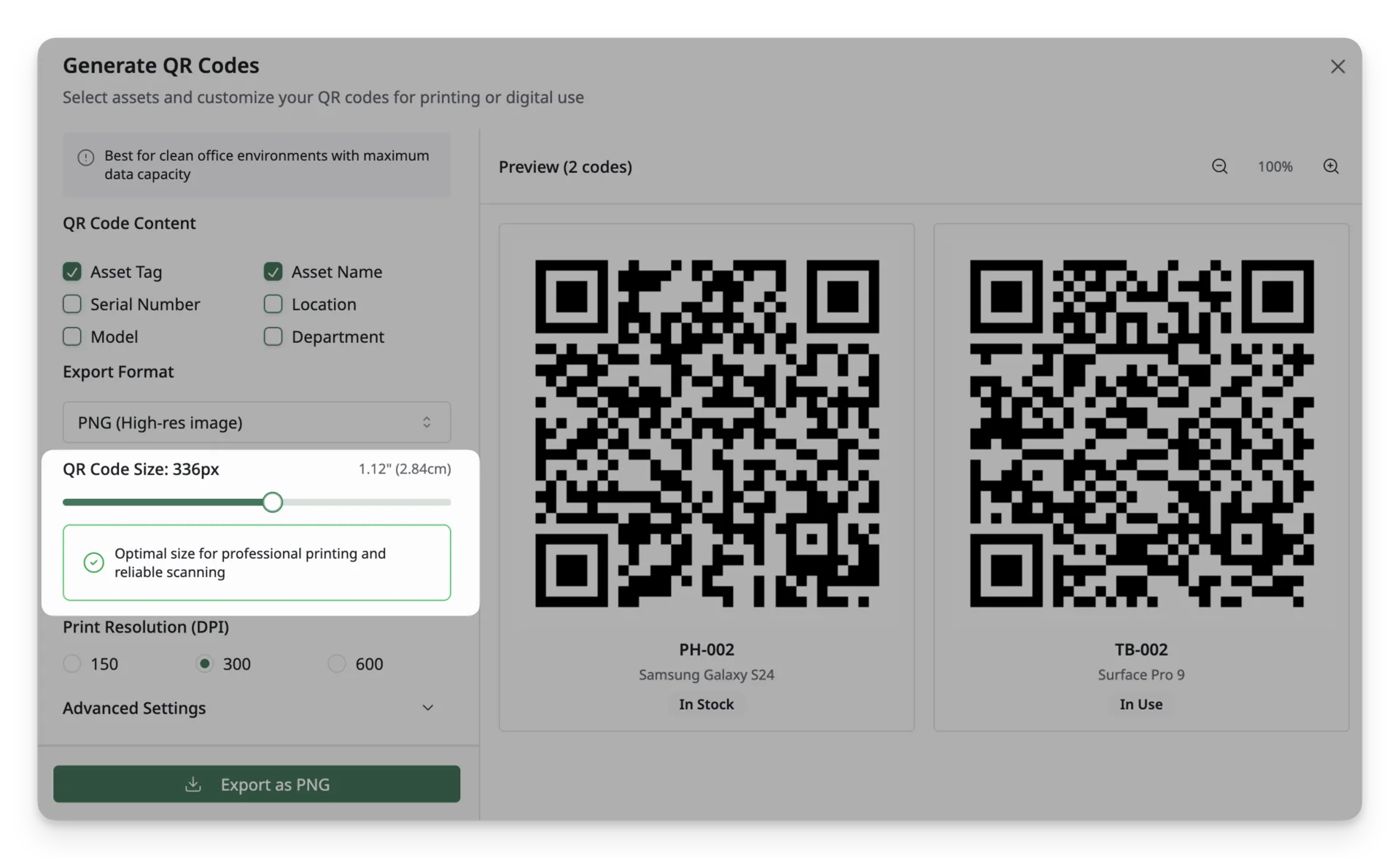
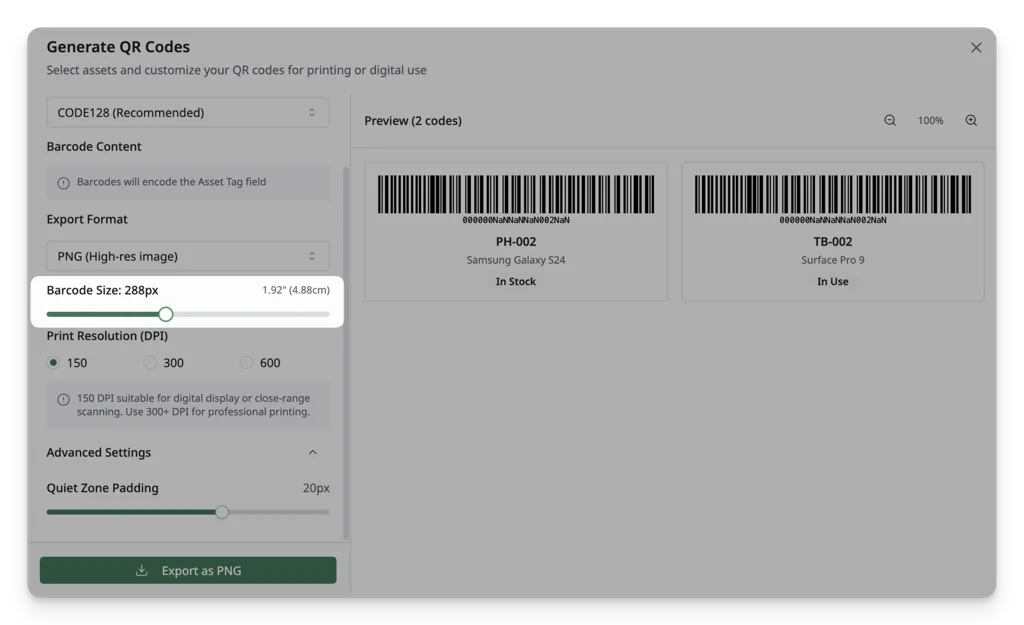
A larger code is usually easier to scan, especially when the asset is scanned from a distance, placed on curved surfaces, or used in areas with lower lighting.
G. Print Resolution (DPI)
The Print Resolution (DPI) section lets you choose the image resolution for the generated QR code or barcode. DPI stands for dots per inch and affects how sharp the code will appear when printed.
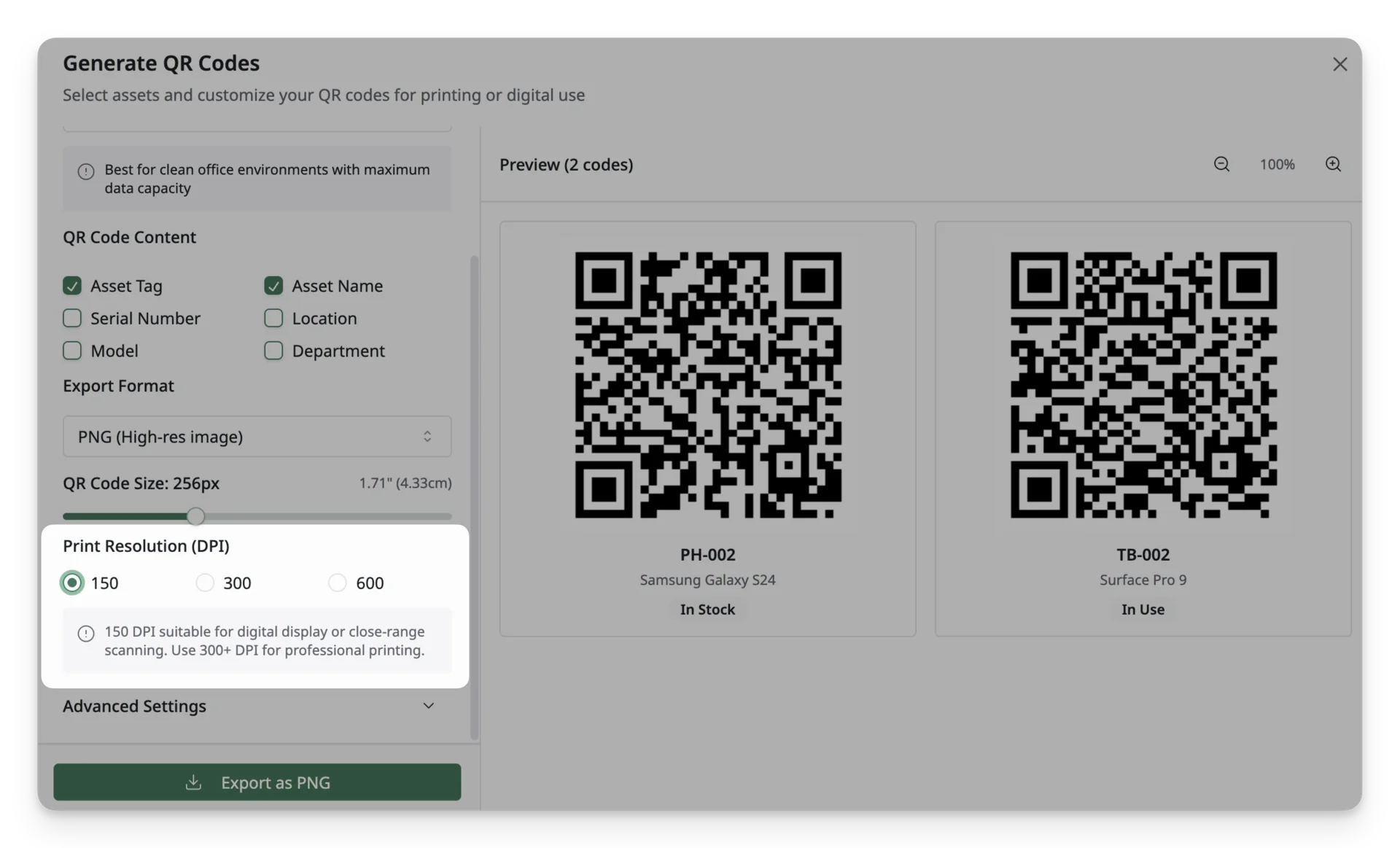
A higher DPI creates a sharper printed code, but it may also create a larger file size. A lower DPI creates a smaller file, but it may not be suitable for professional printing.
Available DPI options include:
| DPI | Description | When to use |
|---|---|---|
| 150 DPI | Lower-resolution output with a smaller file size. | Use for previews, testing, or digital-only use. |
| 300 DPI | Standard print-quality resolution. | Best for most asset labels and general printing needs. |
| 600 DPI | Very high-resolution output with a larger file size. | Best for premium printing, high-quality labels, or cases where extra sharpness is needed. |
H. Advanced Settings: Quiet Zone Padding
The Quiet Zone Padding setting controls the blank space around the QR code or barcode. This empty space helps scanners clearly separate the code from surrounding text, borders, colors, or label designs.
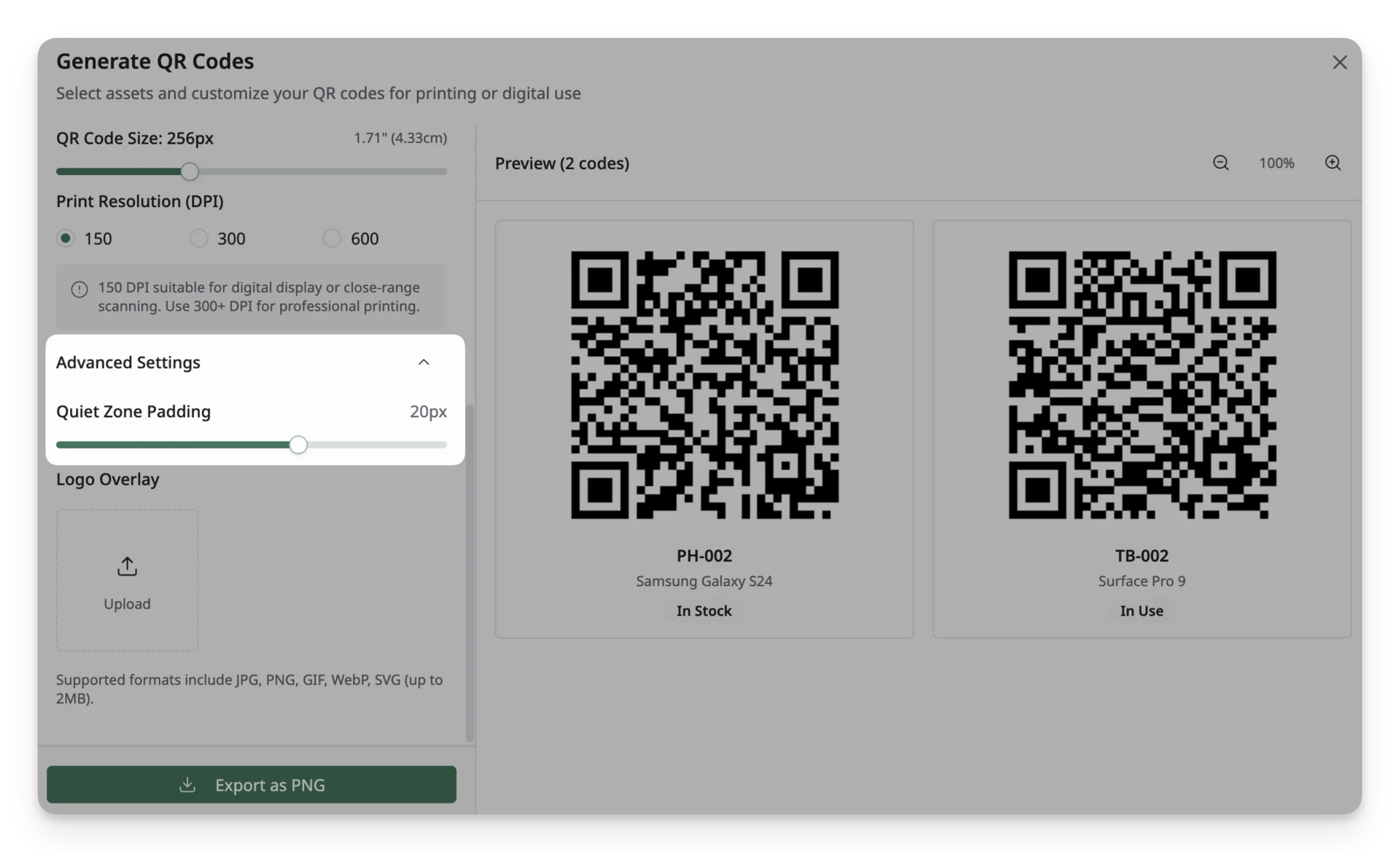
If the quiet zone is too small, the code may be harder to scan, especially after printing or when placed near other visual elements.
I. Logo Overlay
This option is available if you choose QR Code.
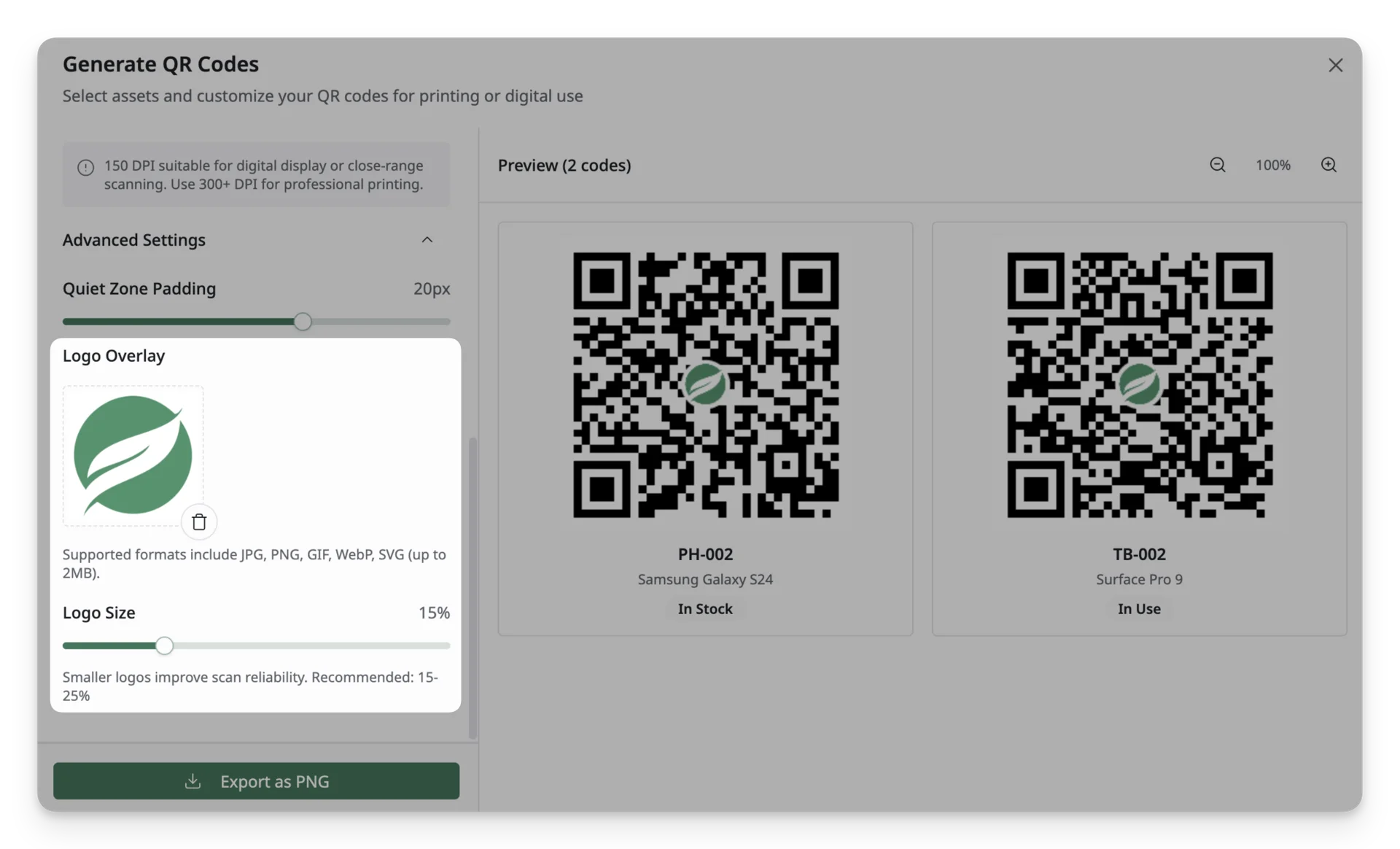
The Logo Overlay section allows you to upload a logo image and place it on top of the generated QR code. This can be useful if you want your asset labels to include company branding.
Supported formats include JPG, PNG, GIF, WebP, and SVG, with a maximum file size of 2MB. You can also modify the Logo Size to fit your requirements.
Use this option carefully, because placing a logo over the QR code may reduce scan reliability if the logo is too large or covers important parts of the code. Smaller logos scan more reliably, especially with lower error correction.
Once you’re satisfied with the settings, you can preview the code and download it as an image file.
3. Preview and Export
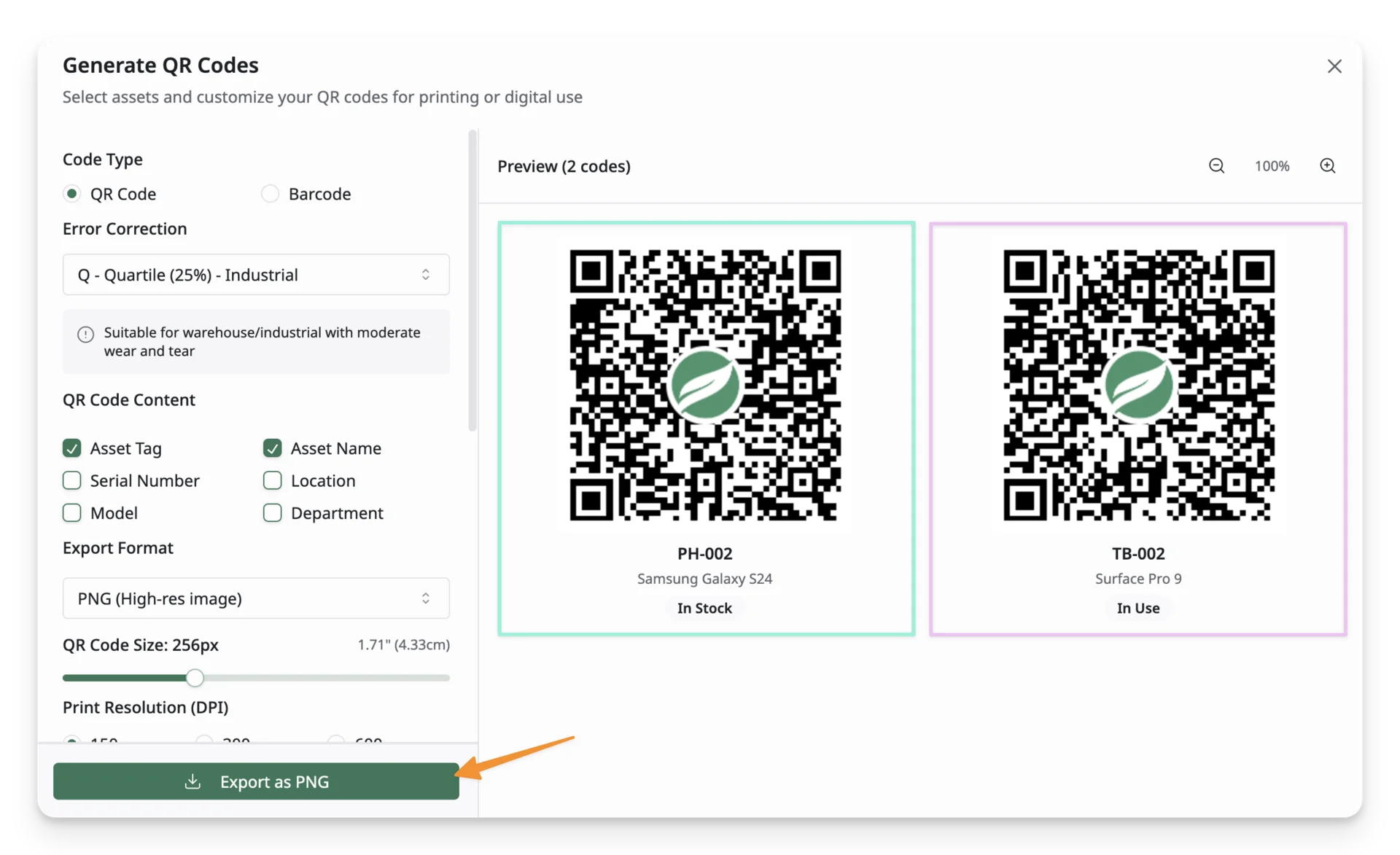
- After adjusting the settings, you’ll see a Preview of the QR code or barcode with the selected content.
- To download the generated code, click the Export as … button (the exported file format depends on your earlier format choice).