What to Do If a Company Laptop Is Stolen
Your company laptop was stolen? Don't panic. First, ensure your data is safe.
It’s one of the worst moments: your company laptop is gone. But, don’t panic just yet… There are immediate actions you can take to secure the sensitive data on that laptop and prevent further damage. Here’s what to do right now.
1. Notify Your IT Department Immediately
The very first thing you need to do is alert your IT team. This is the most important step. The faster they know, the faster they can take action to lock the device or even wipe its data remotely if your company uses Mobile Device Management (MDM) software like JAMF or Intune. These tools allow IT to prevent unauthorized access before the thief tries to turn on the device or bypass the password.
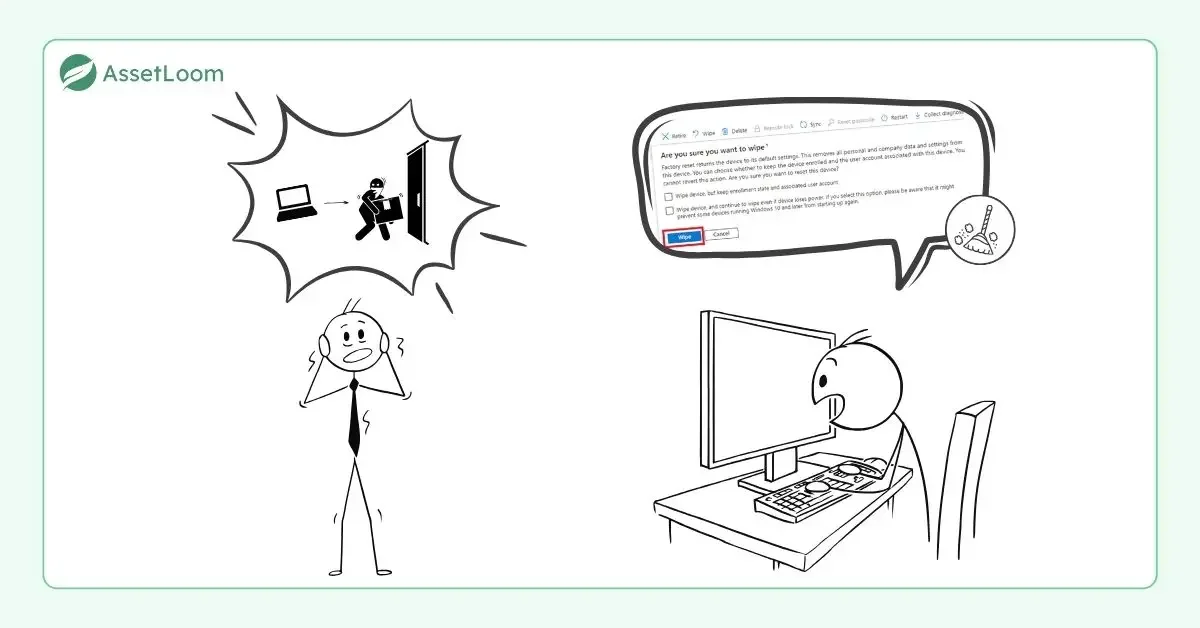
Time is critical. The faster you act, the higher the chance of preventing the thief from causing further trauma. Call IT right away if you’re unsure whether your company uses MDM. Let them know what’s happened, and they’ll know what to do next.
2. Lock The Stolen Laptop Remotely Yourself If IT is Unavailable
In many cases, if IT is unreachable or you need to act immediately, you may still have some control over the device through built-in tools like Find My Device (for Windows) or Find My Mac (for Apple devices).
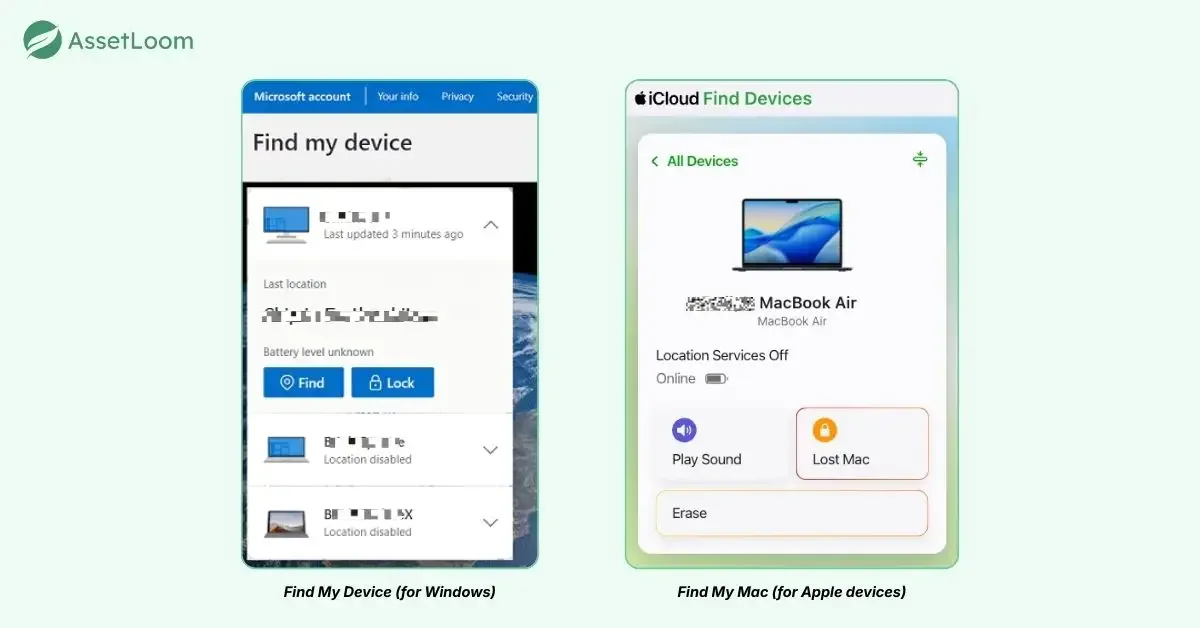
These features allow you to remotely lock or track the device without needing to wait for IT. Here’s how to proceed in those situations:
For Windows Laptops:
If your company laptop is running Windows 10 or 11 and has Find My Device enabled, you can lock the laptop yourself:
- Go to another device (a phone or another computer) and sign in to your Microsoft account at https://account.microsoft.com.
- In your account settings, look for the “Devices” section.
- Select the stolen company laptop from the list of devices.
- Under the device options, choose “Find My Device”.
- You should see the option to lock or wipe the laptop remotely.
For MacBooks (Apple Devices):
If it’s a MacBook and you have Find My Mac enabled through iCloud, follow these steps:
- Go to https://iCloud.com or open the Find My app on another Apple device.
- Sign in using your Apple ID.
- Locate your MacBook in the list of devices.
- Select the “Lock” option to lock the device immediately. You can also use the “Erase” option if you need to remotely wipe the device to protect sensitive data.
Learn more: How to Track a Stolen Laptop with Serial Number
3. File a Police Report for Financial and Legal Protection
Once you’ve notified IT, it’s time to contact the police. Don’t wait. File a police report for the stolen company laptop as soon as possible, especially if it contains confidential company data or personal information. A police case number is crucial for several reasons:
- Insurance Claims: Many insurance providers require a police report to process claims for stolen company property. Having this documentation ensures your company can seek financial compensation for the loss.
- Device Recovery: If the thief attempts to resell the laptop or access sensitive information, a police report helps track down the device and may increase the chances of recovery.
- Protecting Yourself: In case of a legal or financial investigation, a police report shows that you acted swiftly and responsibly. It protects you from accusations of negligence, showing that you didn’t just ignore the theft but took immediate action to report it and try to minimize the damage.
In many cases, the police may also be able to access footage from surveillance cameras or nearby areas to gather evidence about the theft, which can help you avoid any blame or accusations.
Without a police report, you may face difficulties with insurance or even risk legal consequences, particularly if any sensitive data is exposed or misused. Filing a report ensures you’ve done everything possible to handle the situation responsibly.
4. Change All Your Passwords
Yes, even if you’re sure the laptop had encryption, you should change your passwords immediately.
Think about it: you may have had access to personal accounts, sensitive work information, or client data on that laptop. Even if the device was protected by a password, that only prevents someone from logging in normally. It won’t necessarily stop someone from removing the hard drive and connecting it to another computer to try accessing the stored data.
Because of this, it’s best to play it safe. Start changing passwords for any accounts that were accessible from the laptop. This may include:
- Work email
- Company systems or internal platforms
- Cloud storage accounts
- Any personal accounts you logged into from the device
It might feel like a lot of work, but doing this greatly reduces the risk of unauthorized access if the thief manages to get into the laptop’s data.
5. Remove the Stolen Company Laptop From Trusted Devices and Authentication Lists
Many work systems remember devices that you’ve previously logged in from. These are often called “trusted devices” or “recognized devices.” Once a device is trusted, some platforms may skip additional security checks like multi-factor authentication (MFA).
If your stolen company laptop is still listed as a trusted device, it might still be able to access certain services without triggering extra verification.
From another device, check the security settings of your main work accounts and remove the stolen company laptop from the list of authorized devices. For example:
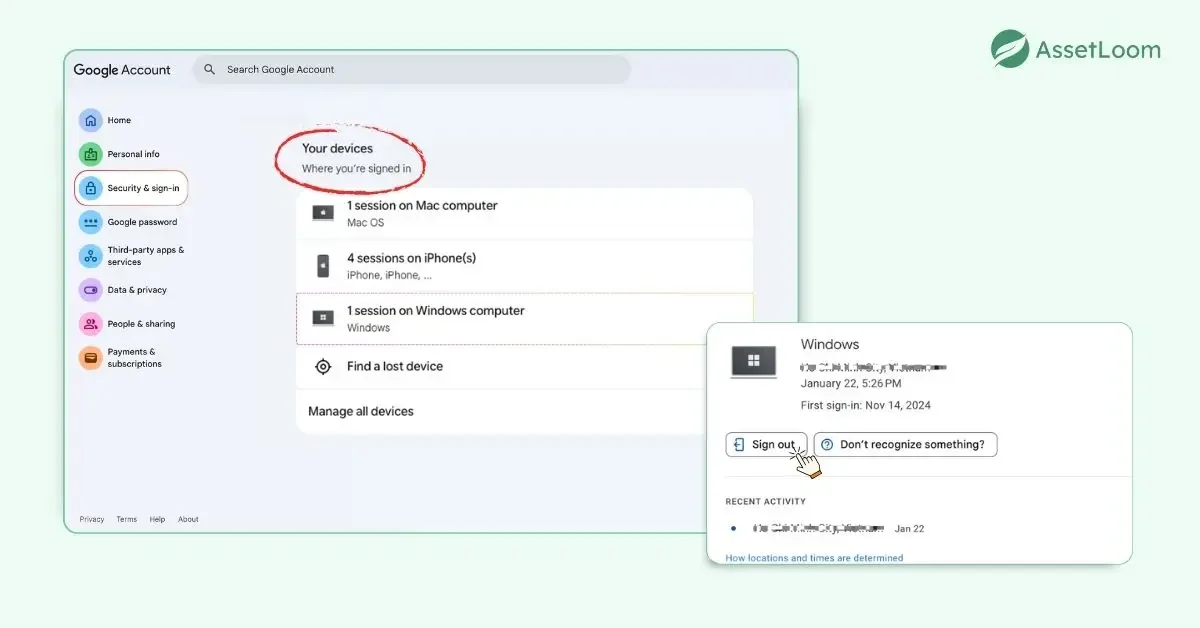
- In Google Account Security (Google Workspace), visit https://myaccount.google.com/. Select “Security & Sign-in” and find “Your devices” to view your logged-in devices. Choose the lost device and log out of your Google account on it.
- In Microsoft accounts (Microsoft 365 / Azure AD), go to account.microsoft.com/devices. Find the device you want to remove and select “Remove device”.
- Password managers such as 1Password, LastPass, or Bitwarden also allow you to deauthorize devices that were previously logged in.
Most of these platforms have a section like “Your devices,” “Where you’re signed in,” or **“Trusted devices.” **Removing the stolen laptop from these lists ensures that even if someone manages to access the machine, it won’t be recognized as a trusted device anymore.
6. Keep an Eye On Data Exposure
At this point, you need to make sure that your data hasn’t been compromised. Here’s how you can do that:
- Monitor for unusual activity on personal or work accounts that were accessed from the laptop. Did someone try to access your email or company files? Keep an eye on anything that seems off.
- Contact your company’s legal or compliance team if the stolen company laptop contained sensitive or regulated data. Depending on your industry, a data breach notification may need to be sent out to affected individuals or clients. If the laptop held personally identifiable information (PII) or other confidential data, these steps are especially important.
Even if the laptop was encrypted or remotely wiped, it’s best to check accounts for suspicious activity to ensure no one has accessed private or sensitive information.
To Sum Up
We know this is a stressful situation, but the good news is that quick action can limit the damage. Focus on protecting the data first: alert your IT department, change your passwords, and file a police report. These steps help secure your company’s sensitive information and minimize the risk of thieves exploiting the data. Remember: the laptop might be gone, but the company’s data doesn’t have to be lost.