View Asset Information
Explore how to view asset information in AssetLoom
Transparency is key! You can view the details of any asset assigned to you, including historical information, warranty, and any additional notes.
How to View Asset Information?
-
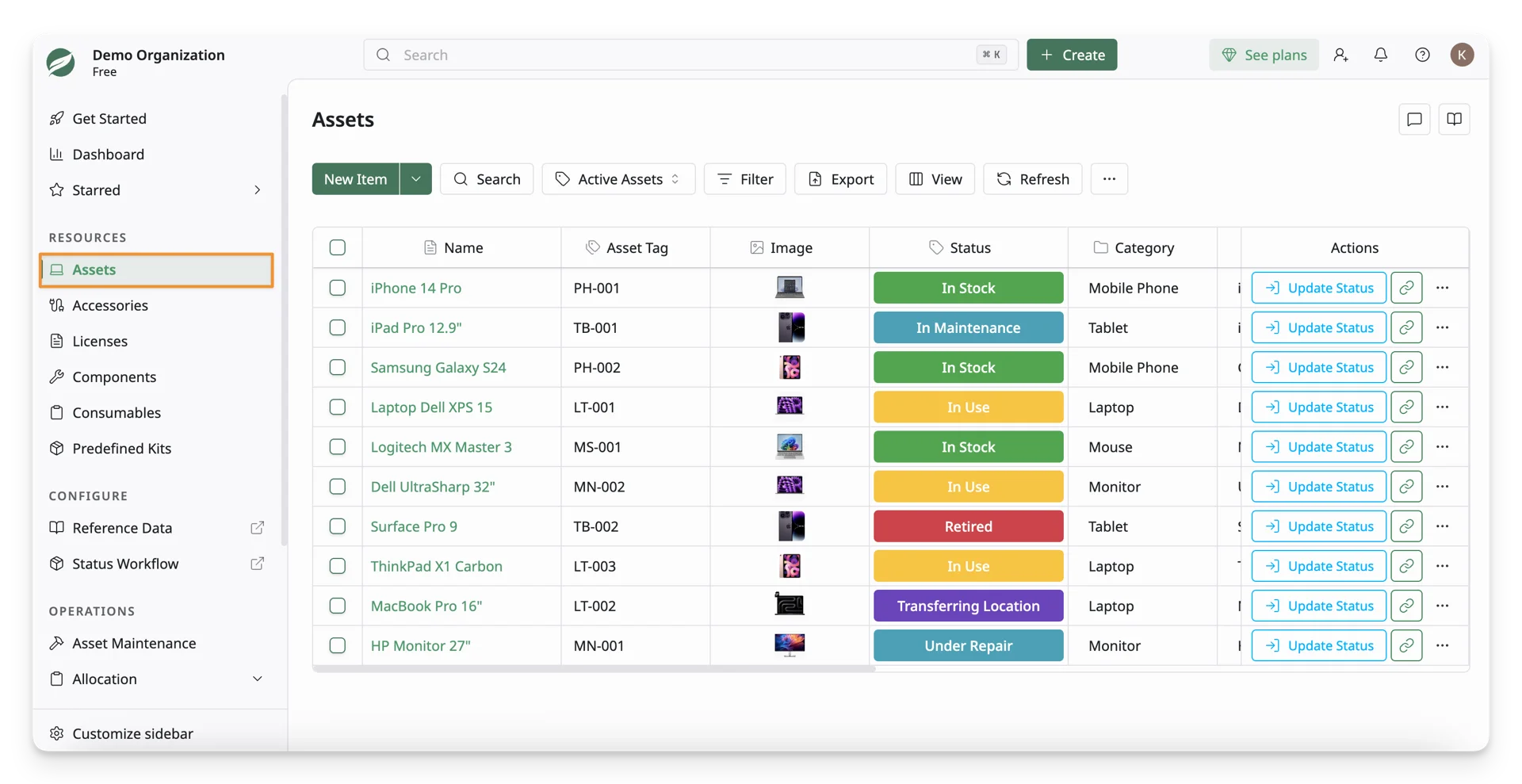
Go to the Asset Lists Navigate to Assets in the Resource section on the left-hand side menu bar and click on any asset assigned to you.
-
View Assignment Details You’ll see the basic information about the asset, including:
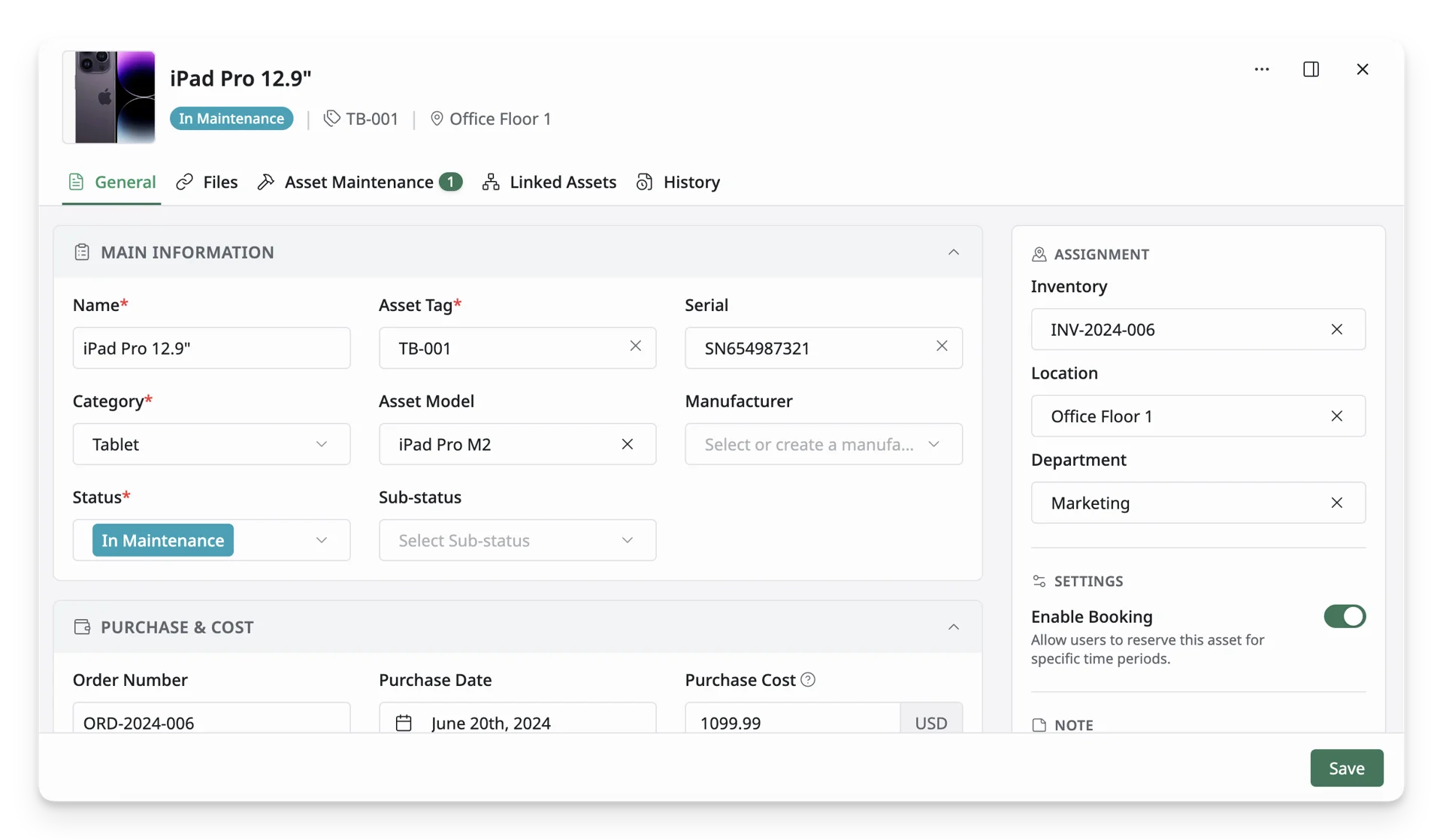
- Model
- Serial Number
- Assigned Date
-
Check Warranty Information The asset’s warranty details will be available, including:
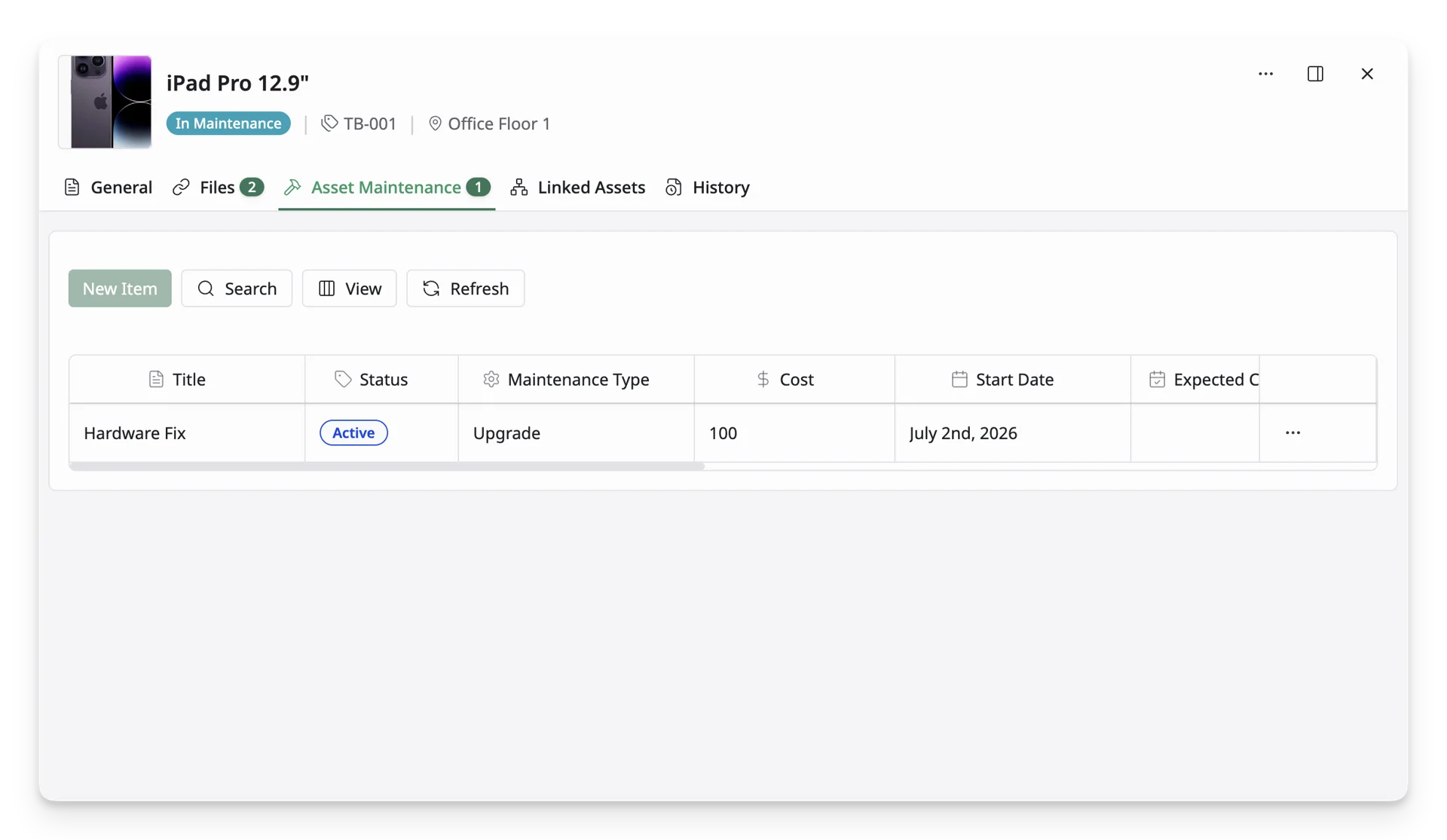
- Warranty Expiry Date
- Maintance Type
-
View Asset History You can see the full history of the asset, including:
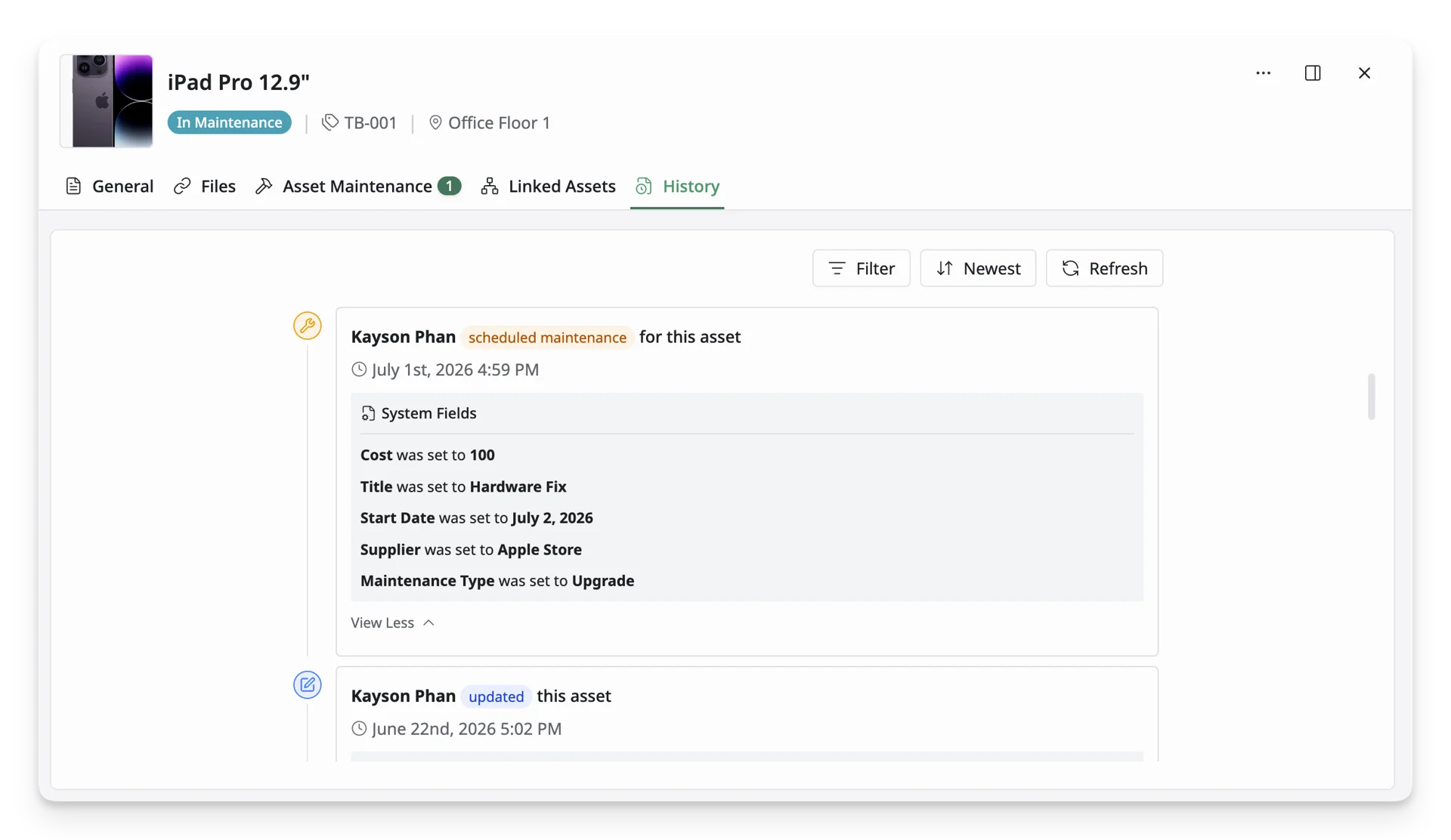
- Previous Assignments
- Status Changes (e.g., checked in, checked out, maintenance, etc.)
-
Read Notes and Documentation Any relevant notes about the asset will be available, including:
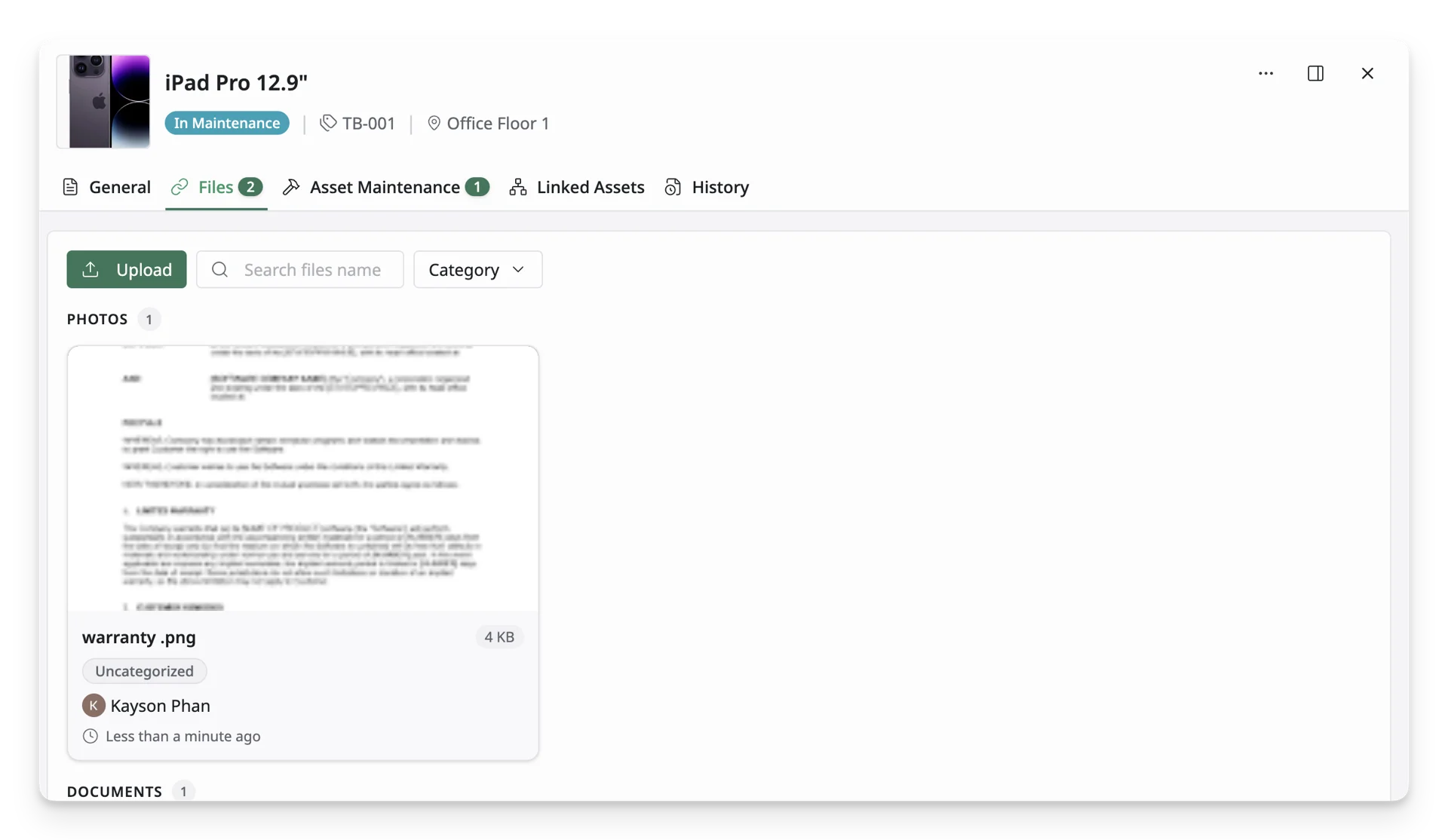
- Condition at handover
- Previous repairs or issues
- Other specific instructions
What’s Next?
- The Asset List: Explore the AssetLoom Asset List to manage your assets