Types of Widgets
This guide helps you understand the available types of AssetLoom dashboard widgets
Widgets are important tools in AssetLoom that help you view key asset and resource information on your personal dashboard. They help you consolidate asset, inventory, financial, compliance, and operational insights in one place to monitor updates, identify items needing attention, and understand your workspace better.
You can navigate to Dashboard → Add widget → More Widget and view these widget details in the Widget Center.
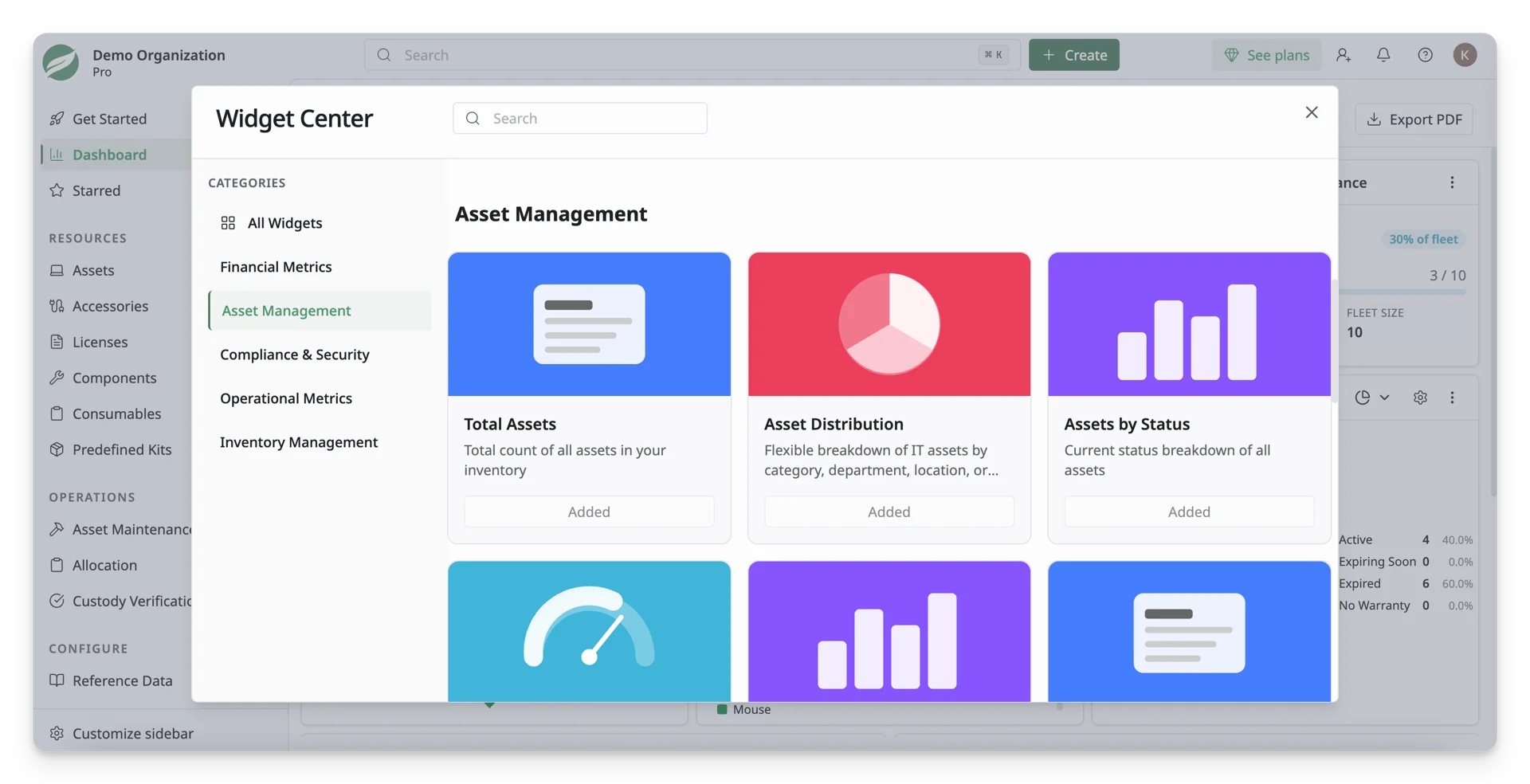
In AssetLoom, widgets are categorized into 5 main groups:
1. Financial Metrics Widgets
Use these widgets to track the financial value of your resources, including acquisition cost, book value, depreciation, and other cost-related insights.
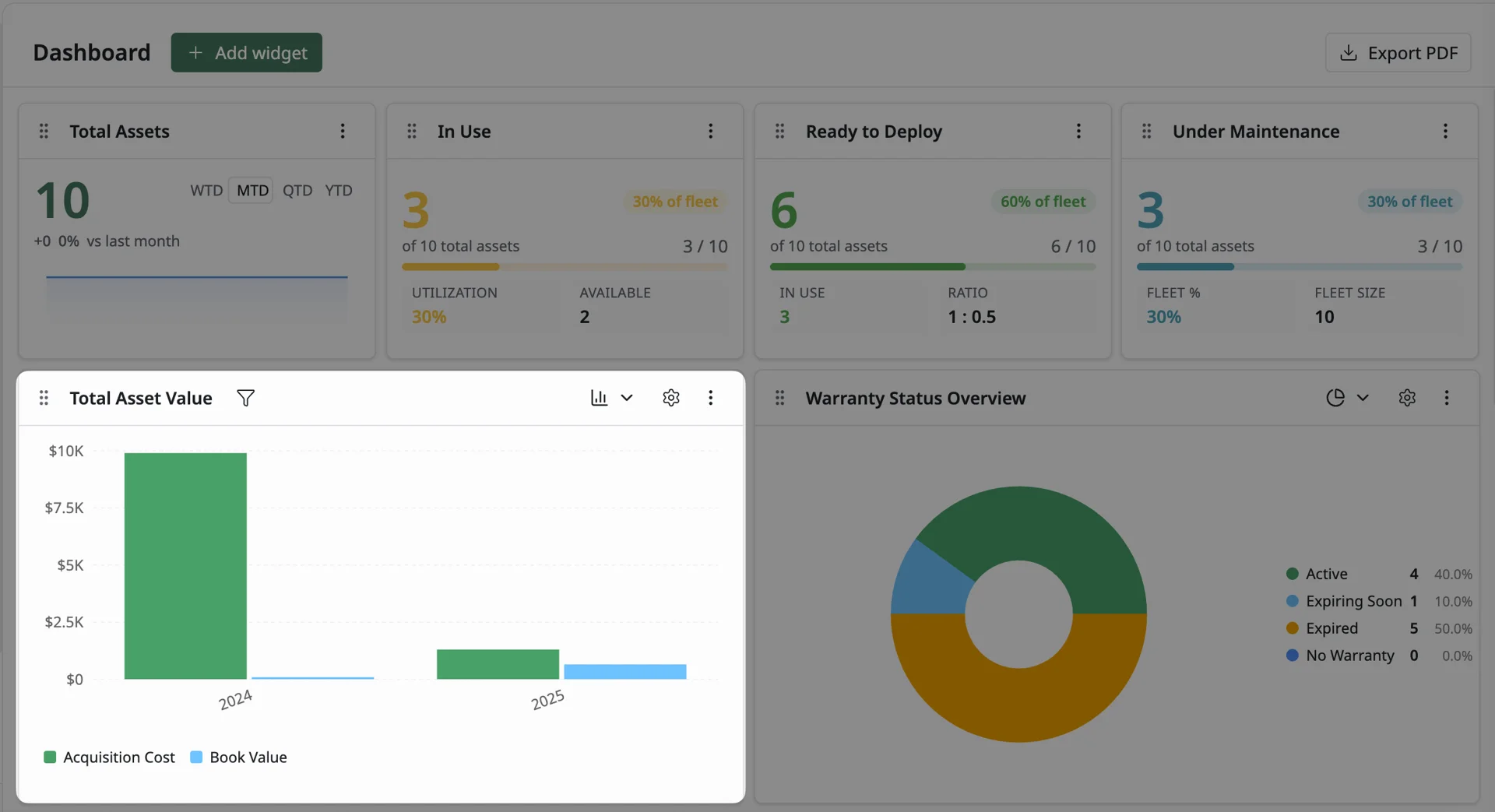
Total Asset Value
Total Asset Value shows the overall financial value of your assets over the year. It compares the original acquisition cost with the current book value, helping you understand how much your assets were purchased for and how their value changes after depreciation.
2. Asset Management Widgets
Use these widgets to monitor asset records, including availability, status tracking, and other related information.
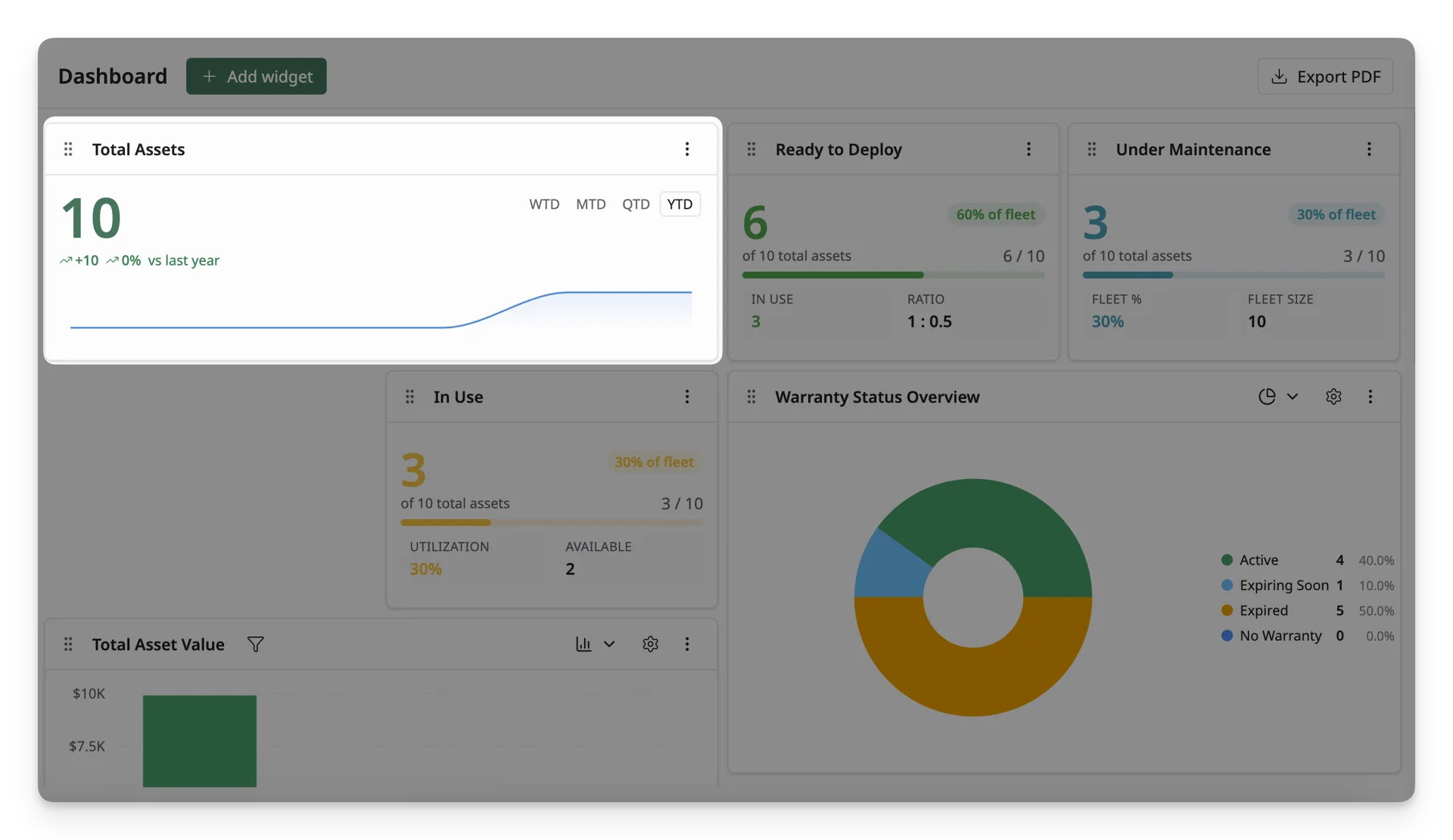
Total Assets
Total Assets shows the total number of assets recorded in your workspace. This widget gives you a quick understanding of your asset volume and compares changes across different time ranges, such as week-to-date, month-to-date, quarter-to-date, or year-to-date.
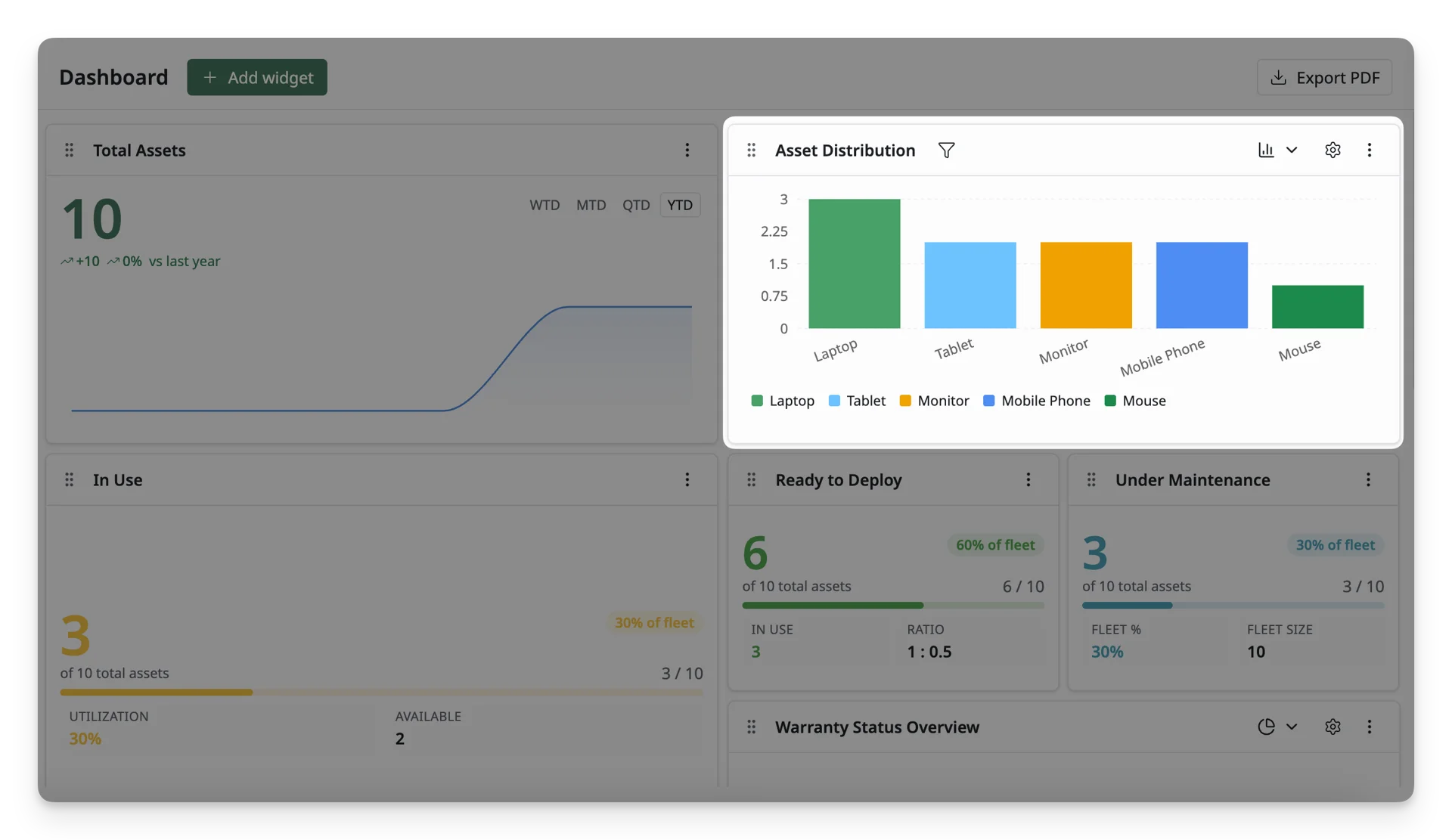
Asset Distribution
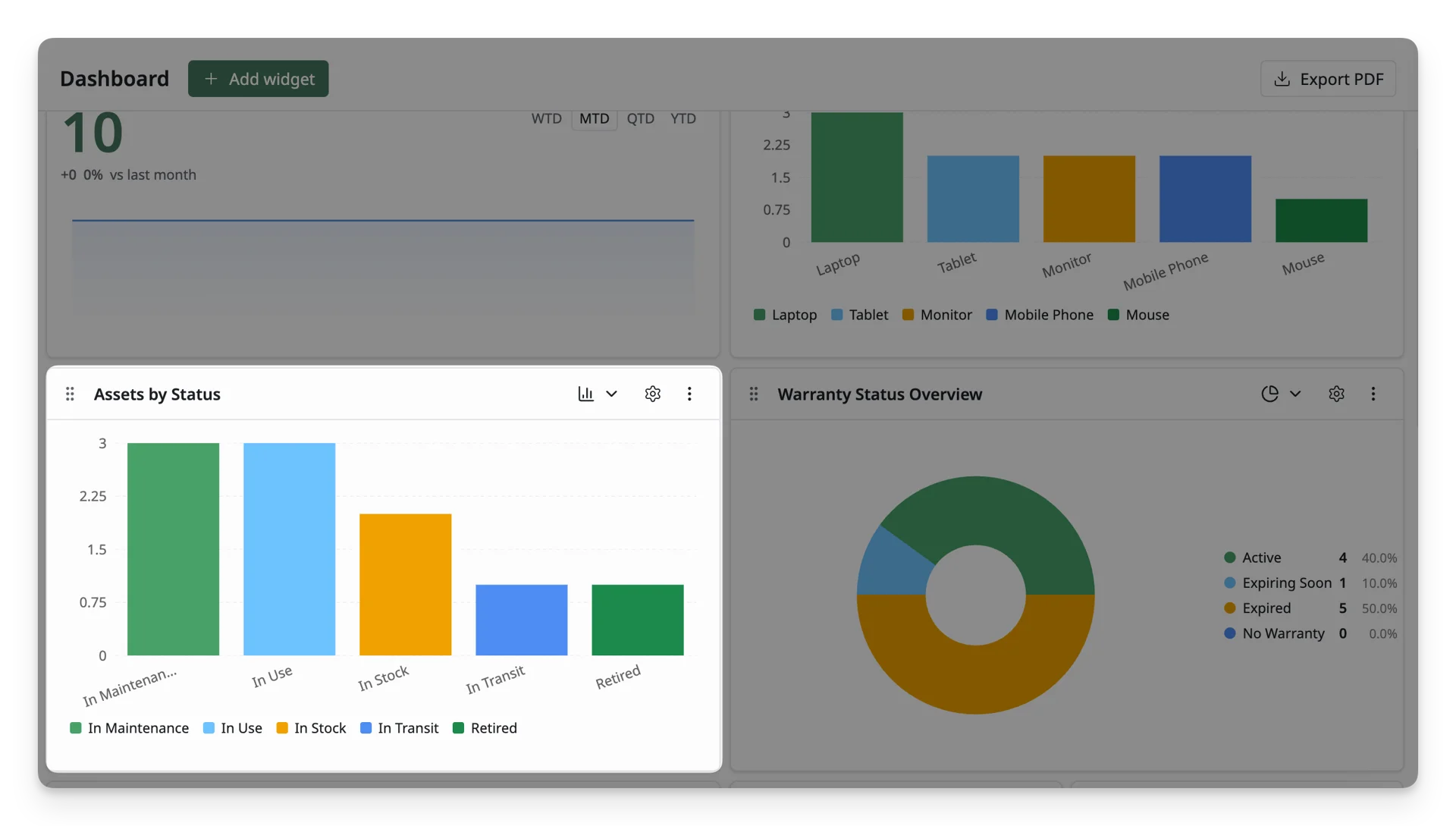
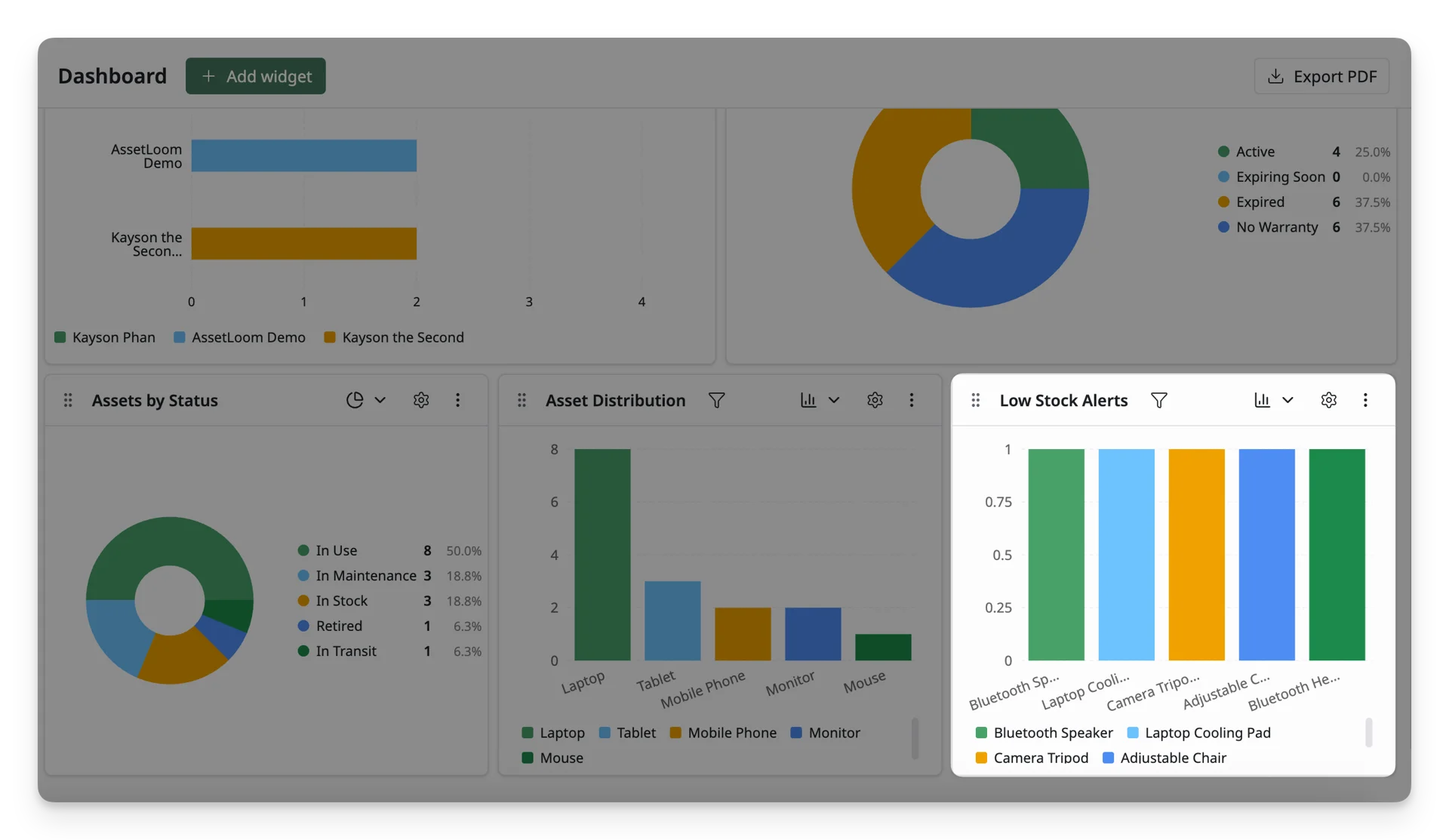
Asset Distribution shows how your assets are grouped across different categories, such as laptops, tablets, monitors, etc. This helps you understand what categories of assets your organization has most and where your asset mix may need balancing.
Assets by Status
Assets by Status shows how your assets are distributed across lifecycle stages like in use, in stock, under maintenance, in transit, or retired. This helps you quickly locate your assets and identify any abnormal quantities that may need attention.
Asset Age Analysis
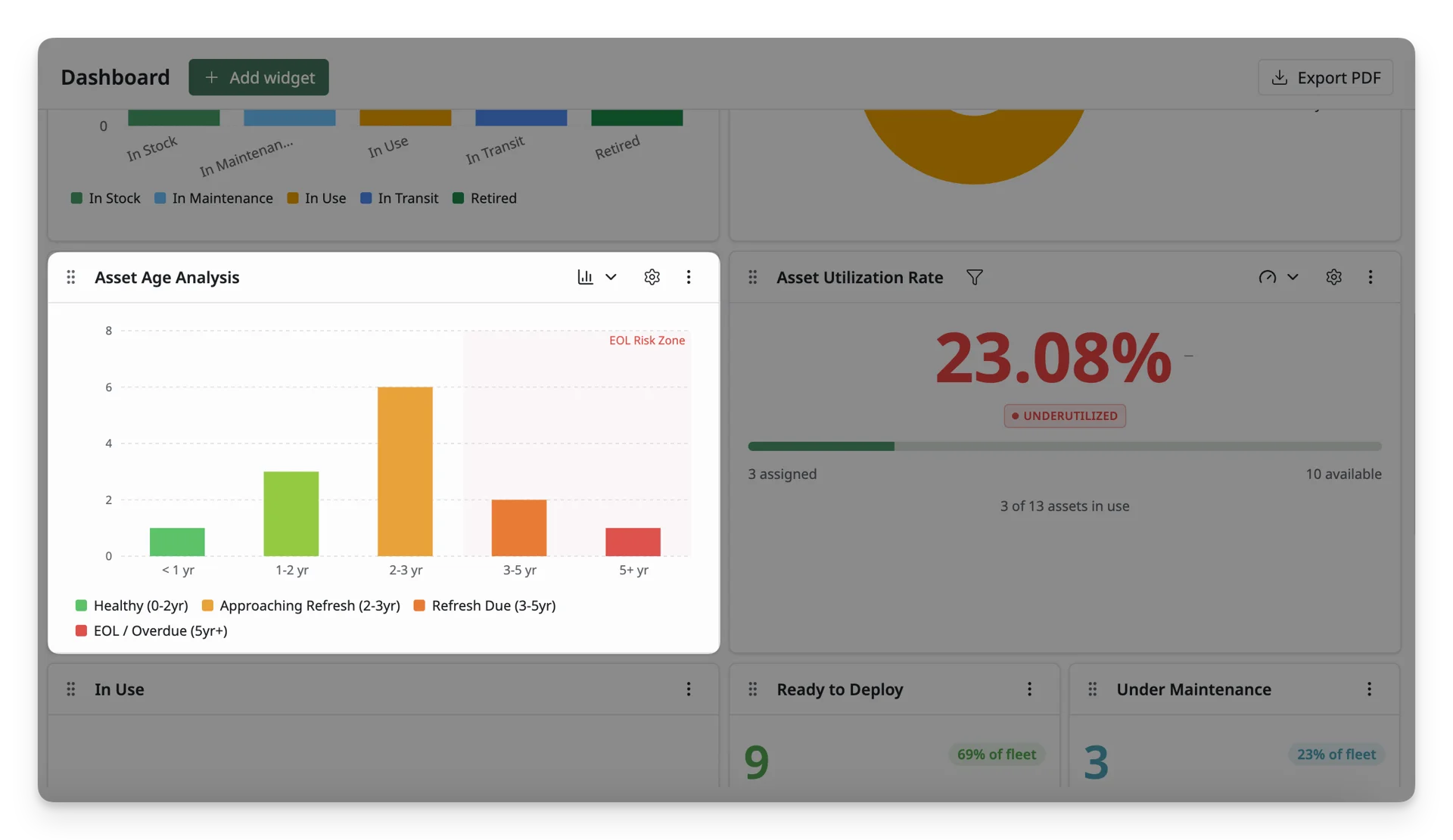
Asset Age Analysis shows how old your assets are based on their purchase dates. It helps you see which assets are still new, which ones may need refresh planning, and which ones may be close to end-of-life or overdue for replacement.
Top Asset Users
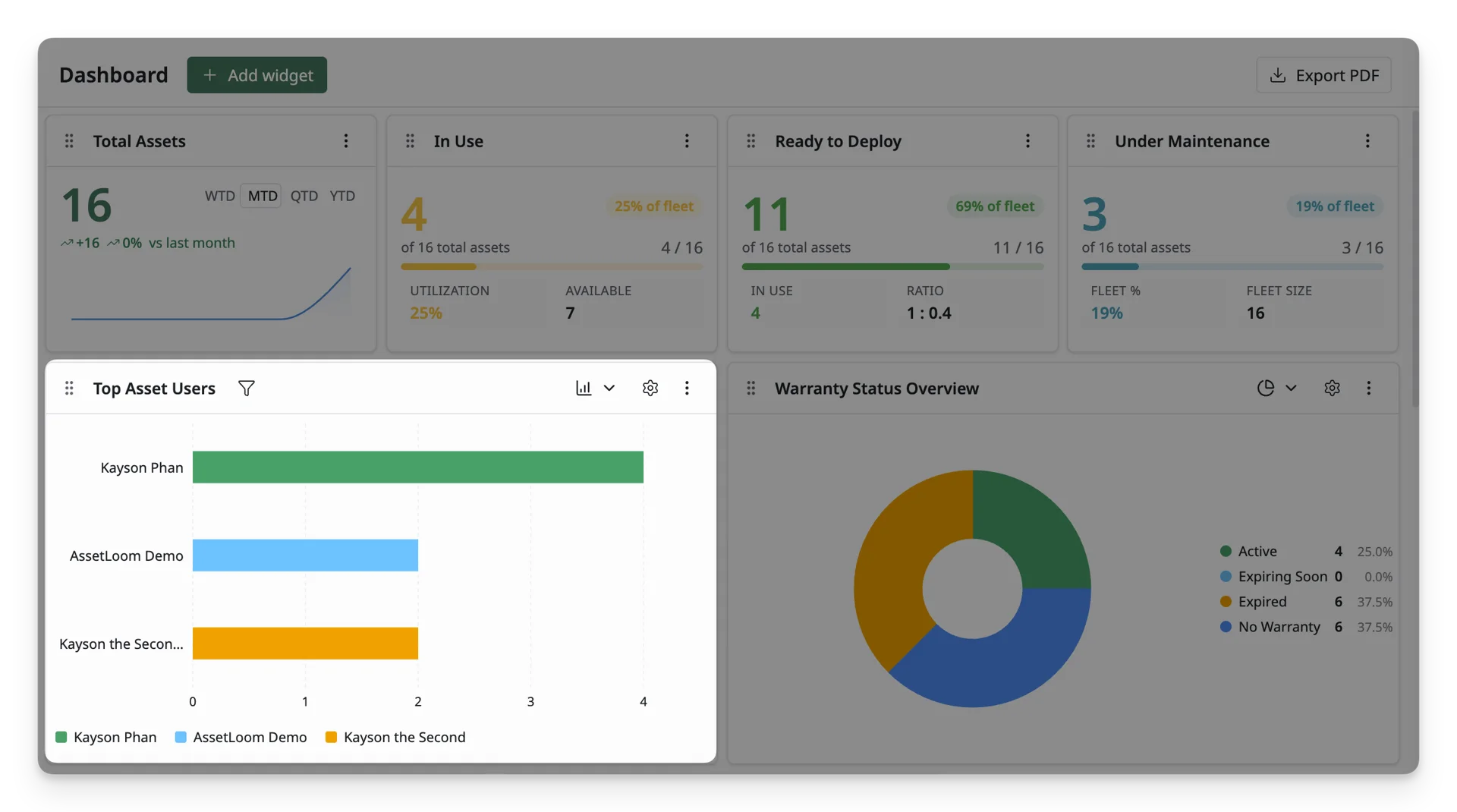
Top Asset Users helps you monitor who has the most assets assigned to them. It shows which users are using the highest number of assets, so you can review assignments, balance resource usage, and make sure assets are distributed properly.
Asset Utilization Rate
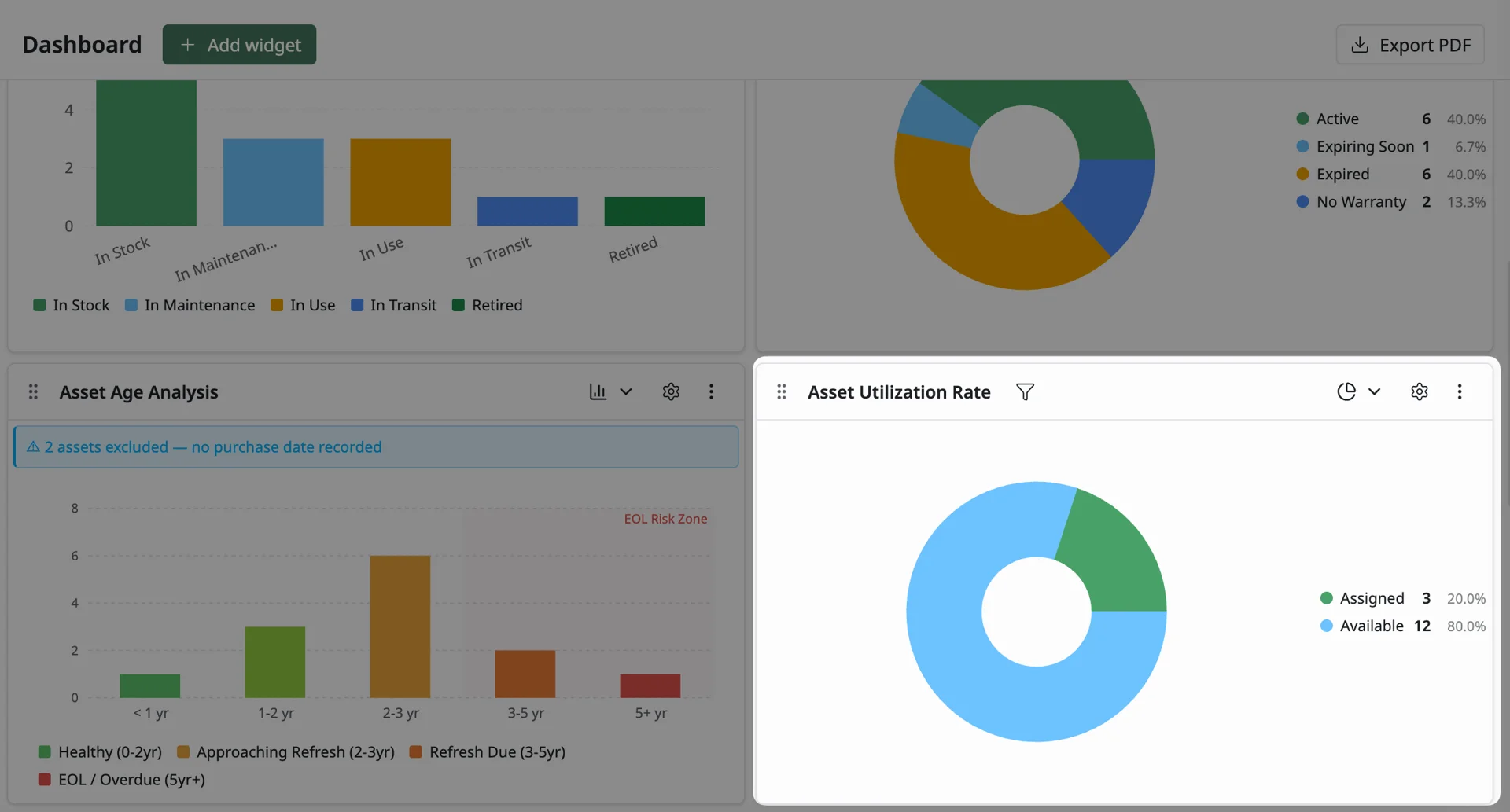
Asset Utilization Rate shows how many assets are currently assigned compared to how many are still available. This helps you understand whether your assets are being used effectively or if there are too many unused items.
3. Compliance & Security Widgets
Use these widgets to stay aware of important compliance-related items, such as warranty status, license expiration, and other risks that may need attention.
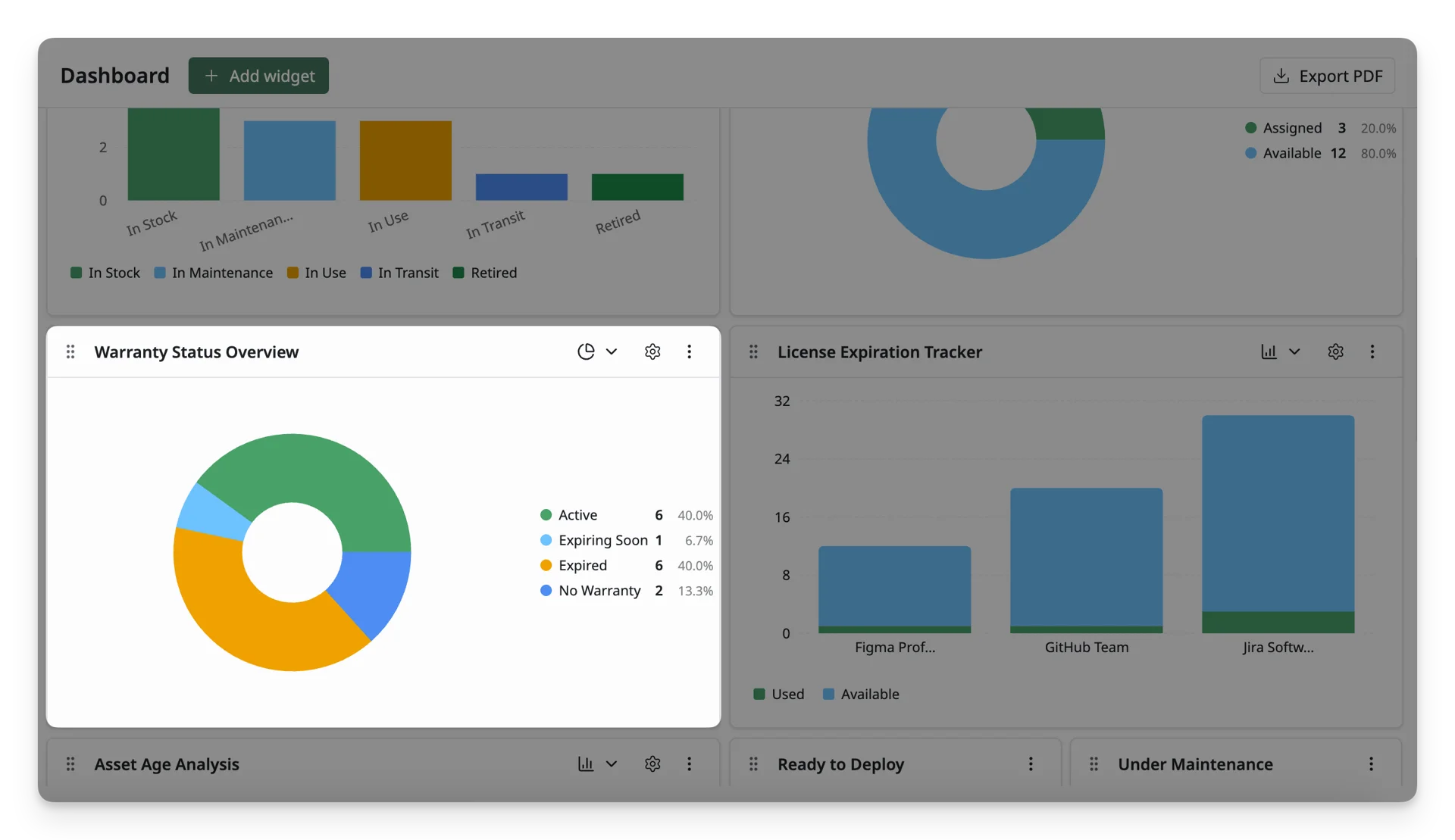
Warranty Status Overview
Warranty Status Overview shows the warranty coverage of your assets. You can track which assets are still covered, which warranties are expiring soon, and those has expired or are missing a warranty. It can help you to plan repairs, follow up on expiring warranties, and avoid unexpected costs when assets are no longer covered.
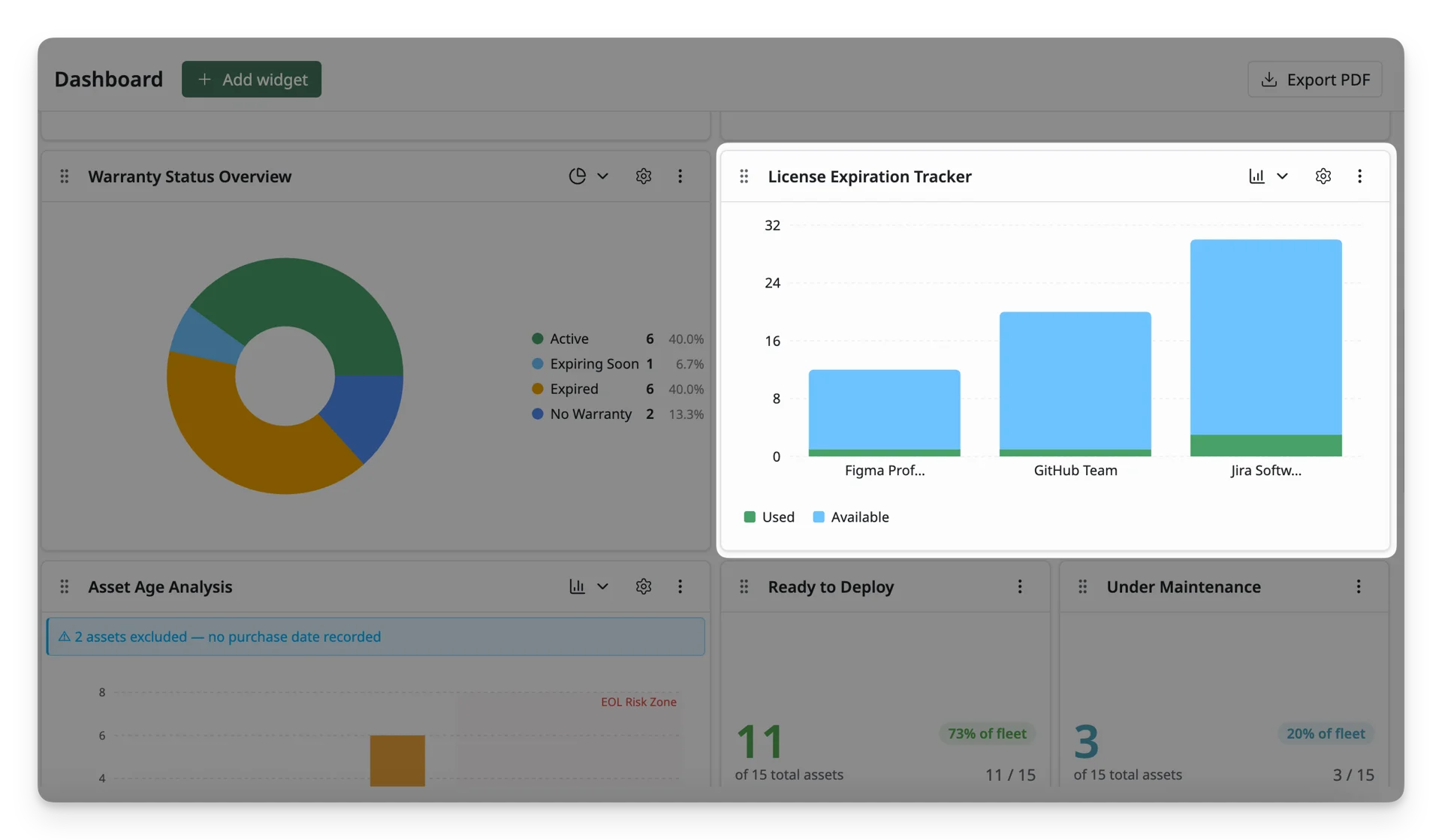
License Expiration Tracker
License Expiration Tracker helps you monitor license usage and availability before licenses expire. It shows how many license seats are used and still available, so you can plan renewals, adjust subscriptions, and avoid losing access to important software.
4. Operational Metrics Widgets
Use these widgets to understand day-to-day asset operations, such as assets ready to deploy, assets currently in use, or assets under maintenance.
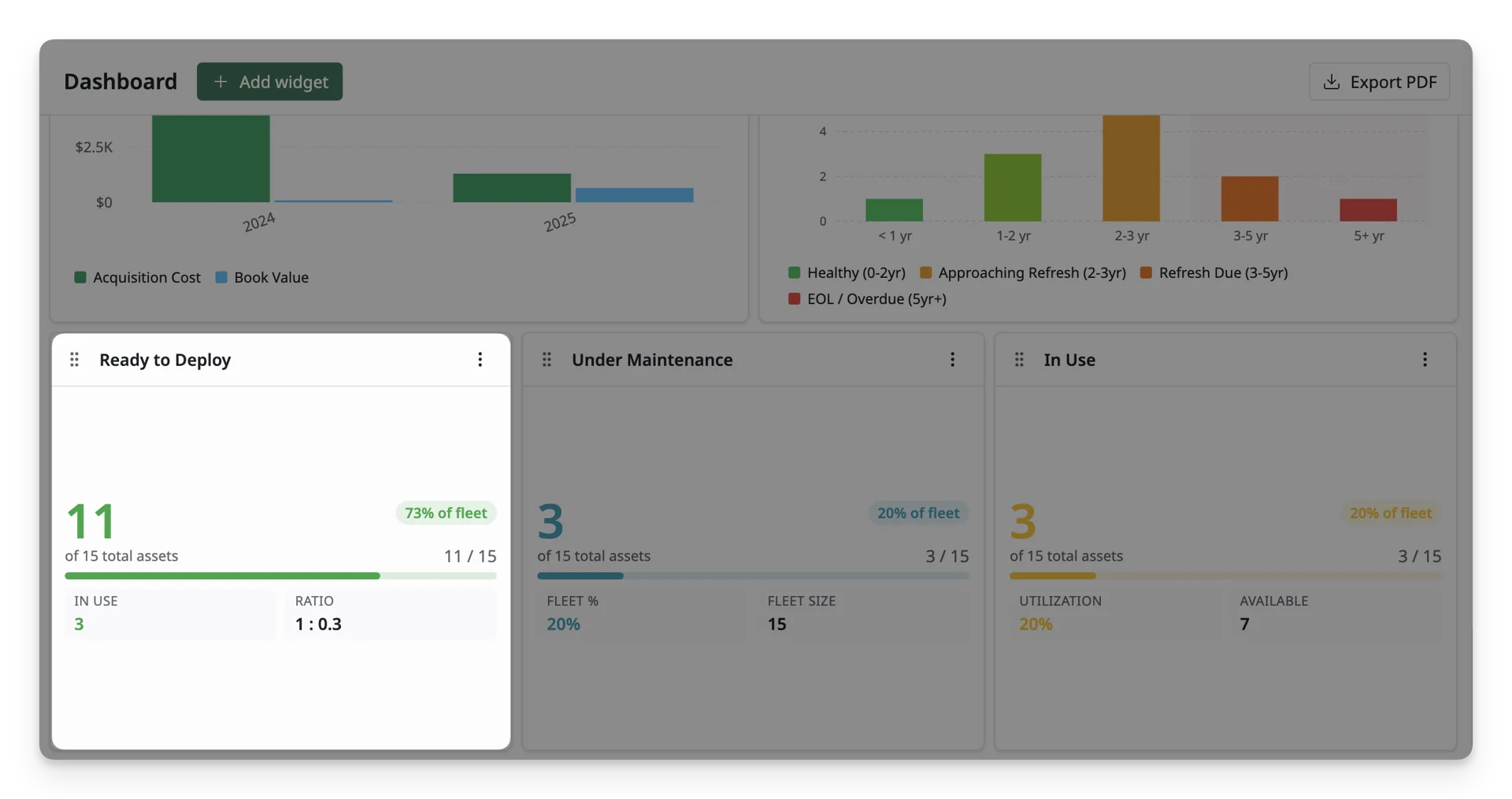
Ready to Deploy
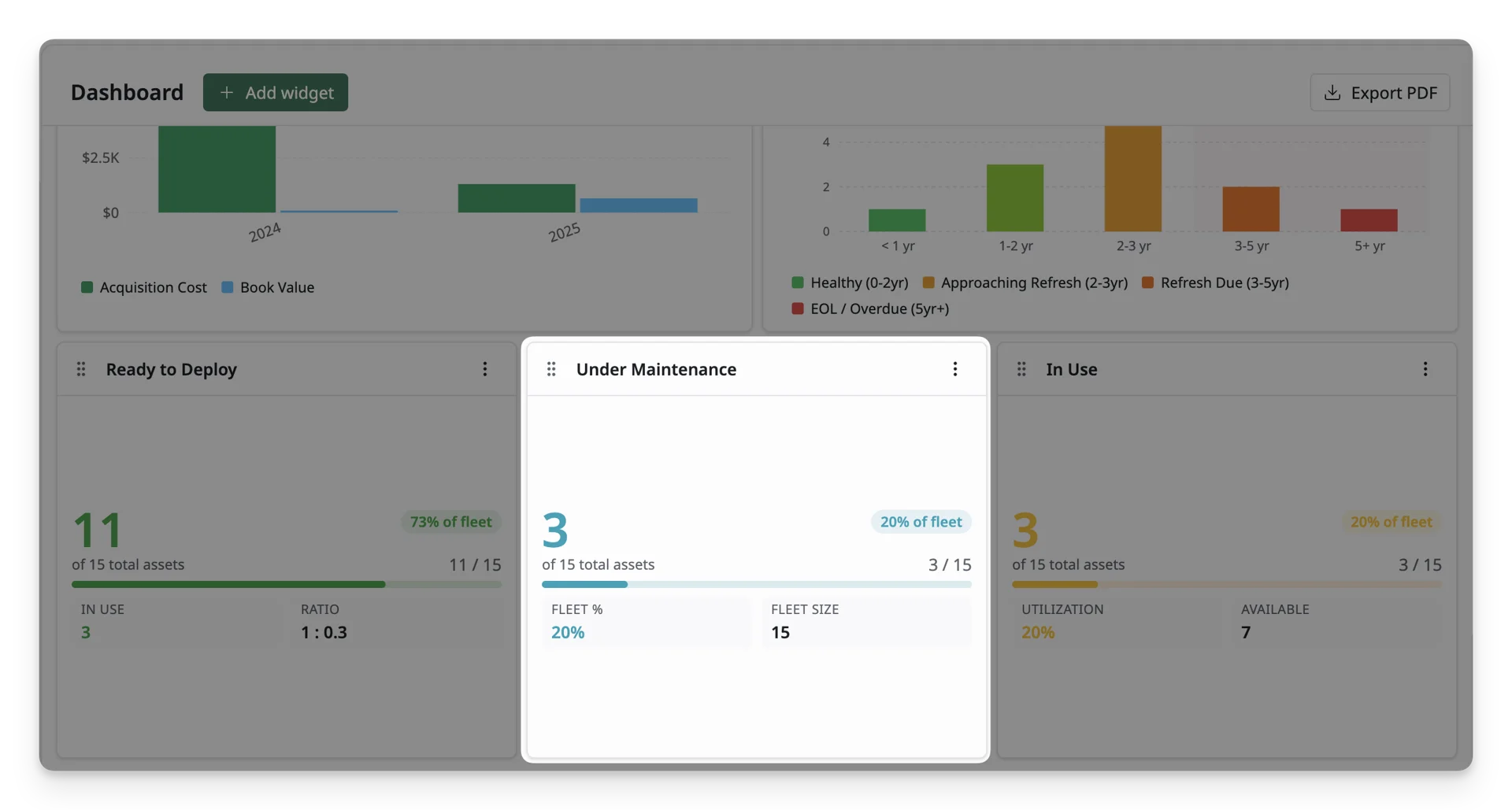
Ready to Deploy widget helps you monitor assets that are available for assignment. It shows how many assets are ready compared to your total assets, so you can plan onboarding, replacements, and upcoming deployments without running short on equipment.
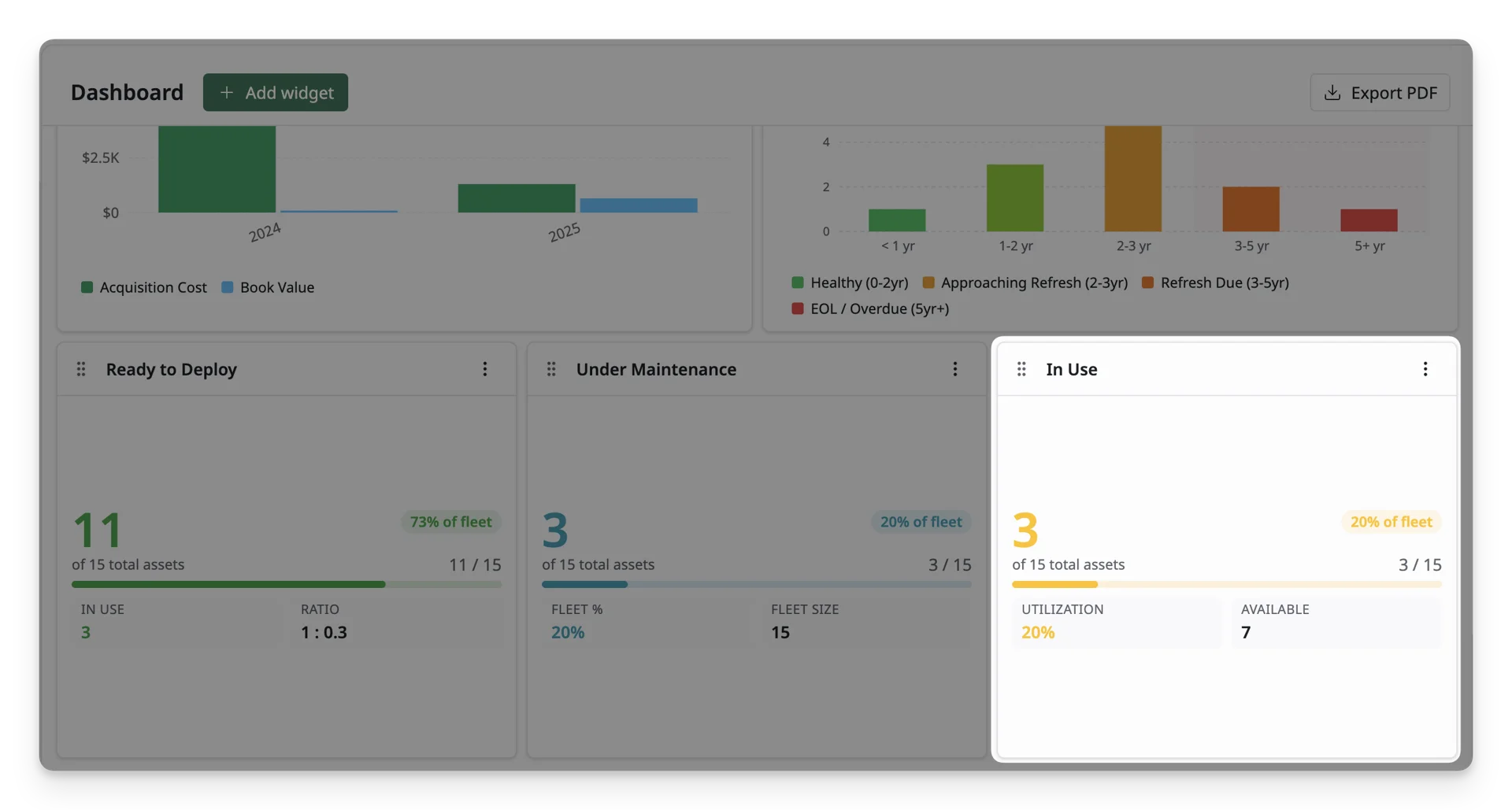
In Use
In Use widget helps you monitor assets that are currently assigned or actively being used. It shows how many assets are in use compared to your total assets, so you can understand utilization, plan availability, and decide whether more equipment is needed.
Under Maintenance
Under Maintenance widget helps you monitor assets that are currently being repaired, serviced, or checked. It shows how many assets are unavailable due to maintenance, so you can plan replacements, follow up on repairs, and reduce downtime.
5. Inventory Management Widgets
Use these widgets to monitor resource stock levels and identify items that may need restocking or follow-up.
Low Stock Alerts
Low Stock Alerts widget helps you monitor accessories, components, and consumables that are running low and may need restocking. It shows which resources are below their minimum quantity, so you can reorder on time and avoid shortages.
What’s Next?
- Set Up A Personalized Dashboard: Learn how to create your own personal dashboard with AssetLoom