Top Navigation Bar
Learn how to use the top navigation bar for quick access to your sites, resources, actions, and personal settings.
The top navigation bar gives you quick access to your sites, resources, actions, and personal settings. Below is a breakdown of each component and how to use it.
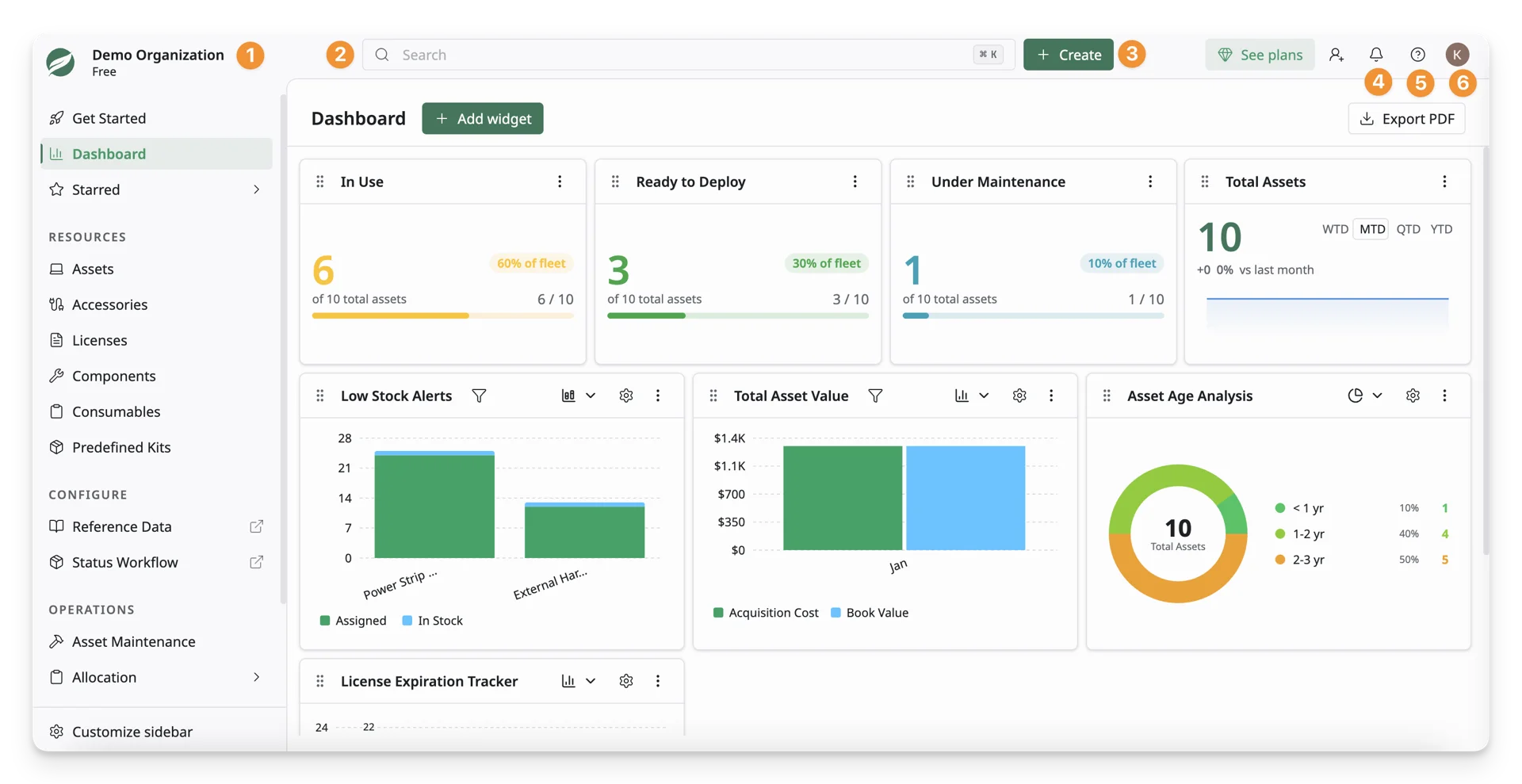
Site Name
This section displays the currently active site, along with the current plan of your working site.
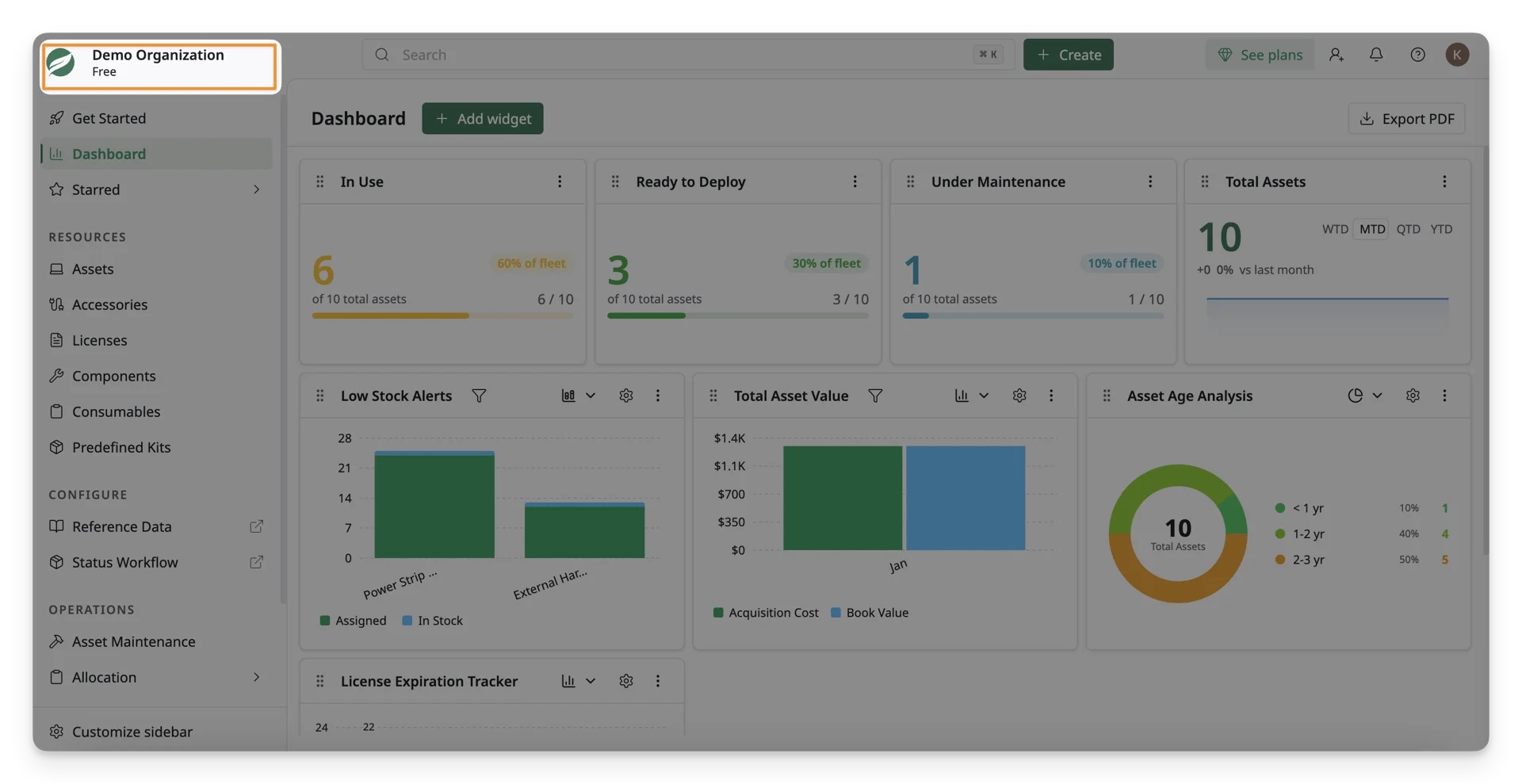
Search Bar
The Search Bar allows you to quickly find resources across the platform. Type in keywords, asset IDs, or any relevant information to locate your desired asset.
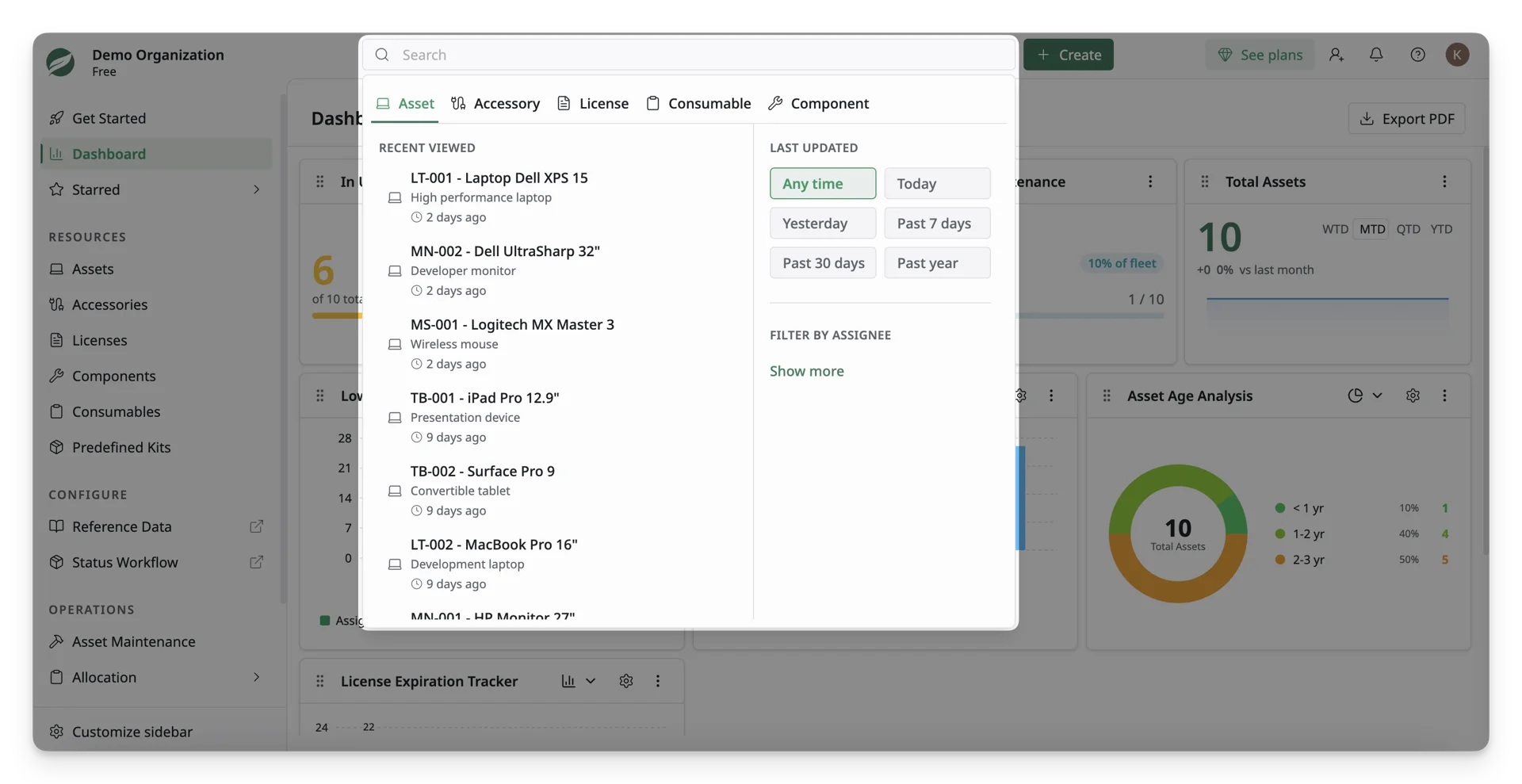
It includes filter options to refine your search:
- Last Updated Filter: Sort results by when the resource was recently changed.
- Assignee Filter: Filter your search results by who the resource is assigned to.
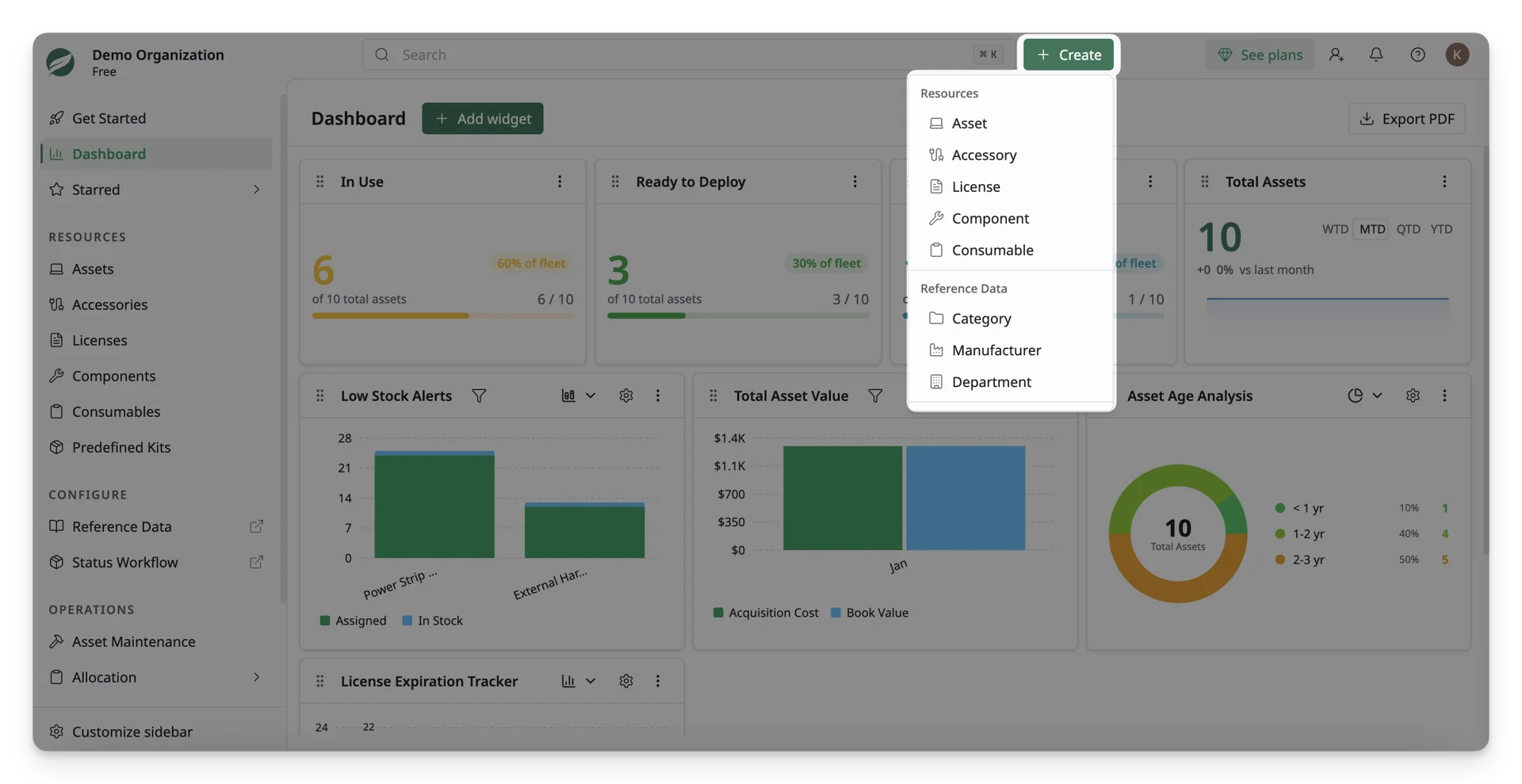
“Create” Shortcut
The Create button lets you quickly add new items to the system. From here, you can create Assets, Accessories, Licenses, Components, Consumables, or Reference data such as categories, manufacturers, or departments (depending on permissions).
Notifications
The Notification Bell keeps you informed about important events, such as:
- Asset check-ins and check-outs
- Overdue bookings
- License expirations
- System and resource updates
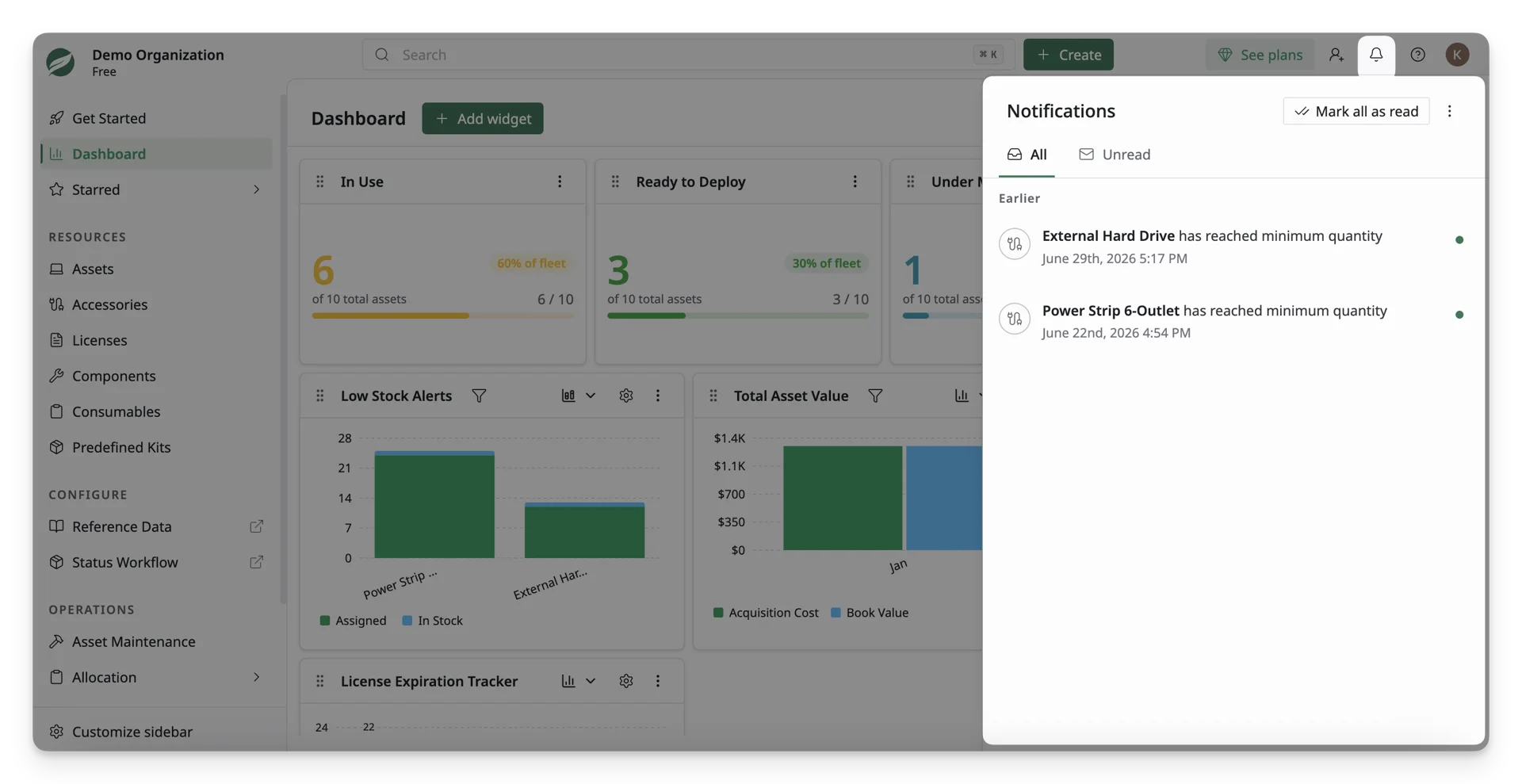
Notification behavior depends on your role:
- Notification Admins receive system-wide alerts across the site
- Non-admin users receive notifications related to their assigned resources and actions
👉 Learn more about Notification Admins
Help & Support
The Help menu provides quick access to support resources, including:
- User Guide
- Product Tour
- Help Center
- Contact Support
- New Updates
- Request New Features
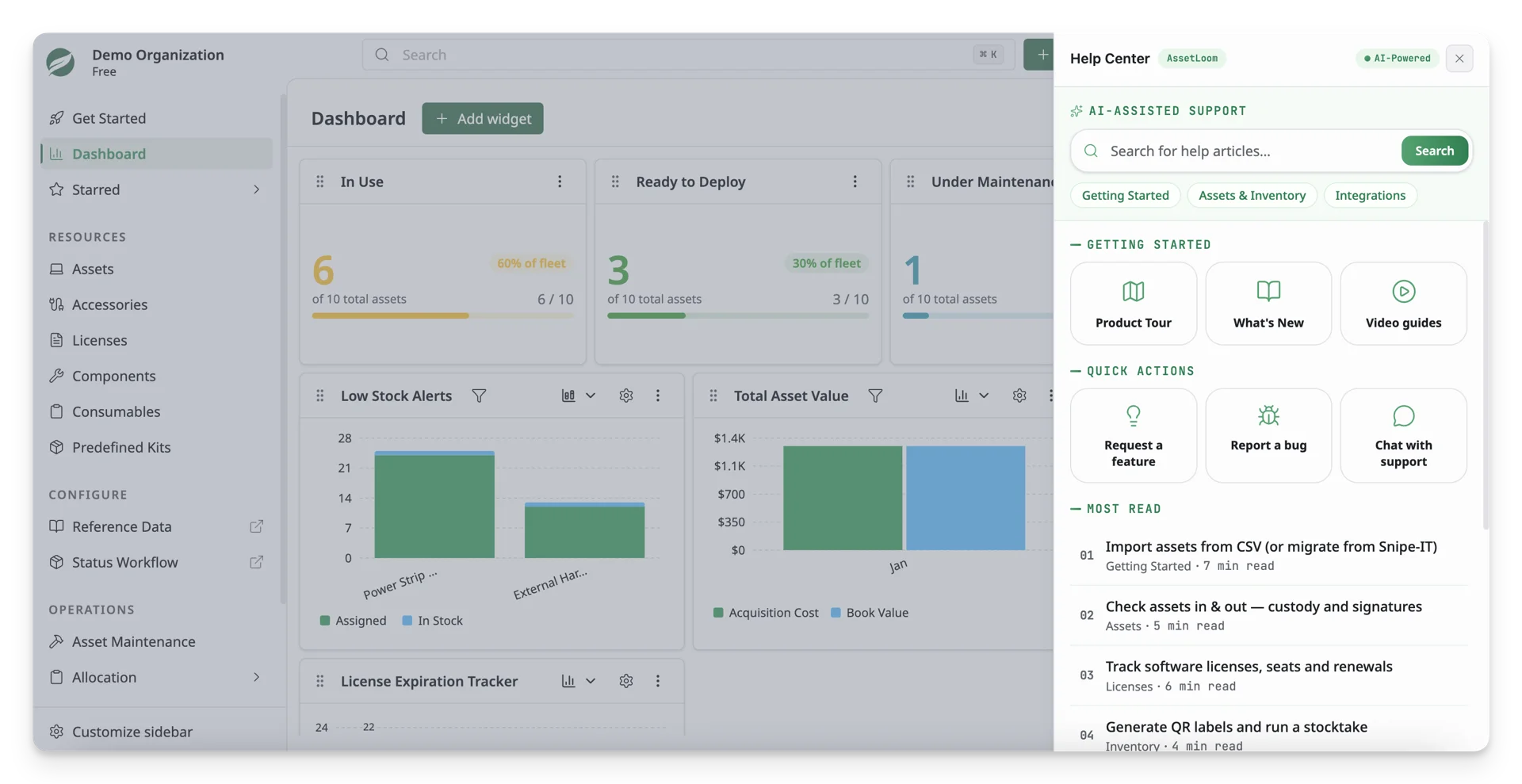
Use this menu whenever you need documentation, troubleshooting help, or to reach the support team.
User Profile Menu
Located in the top-right corner, the Profile Icon gives you access to personal preferences and account options.
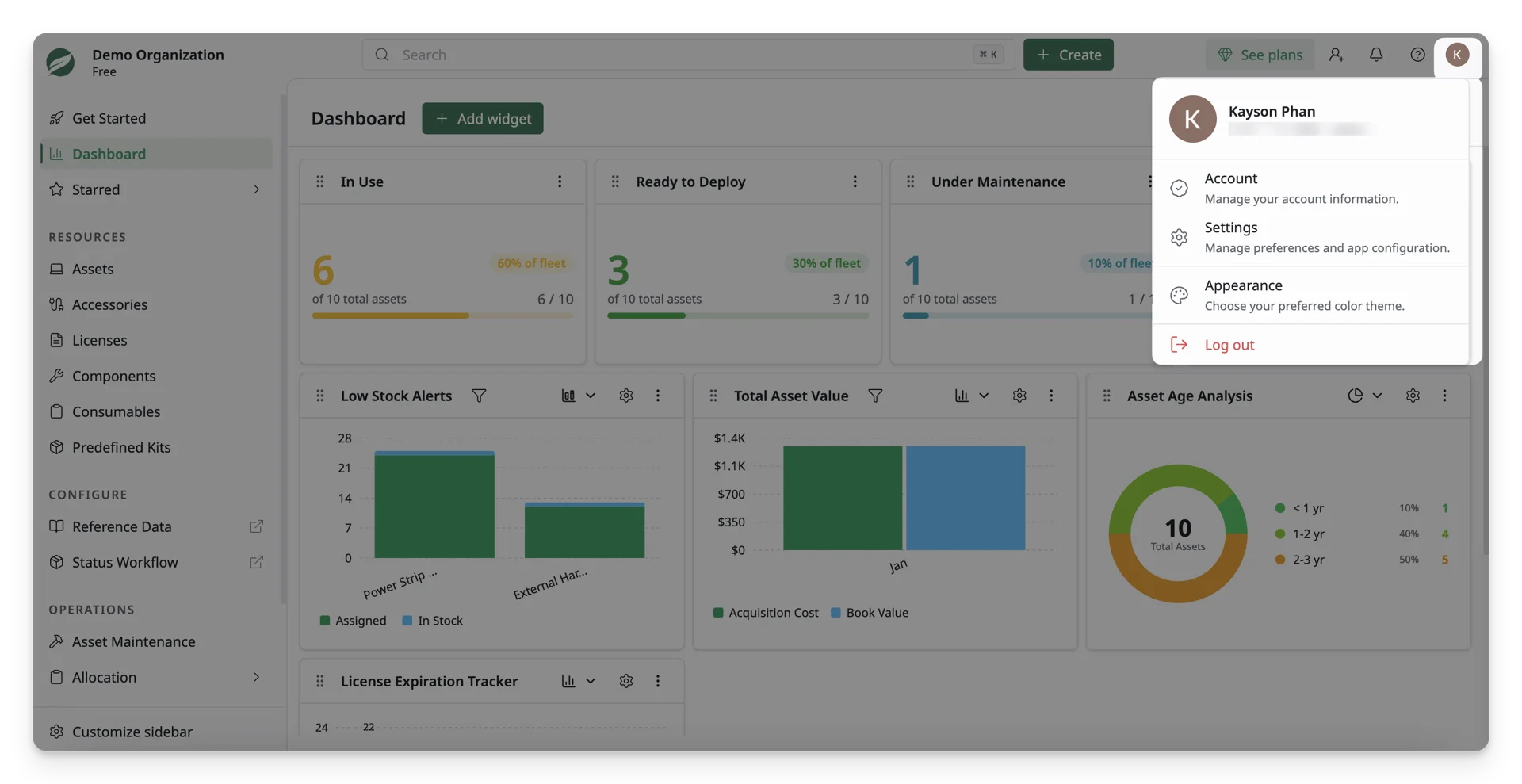
From here, you can:
- View your profile information
- Adjust appearance settings (theme color, light mode/dark mode)
- Access account and administration pages (based on role)
- Log out of AssetLoom
What’s Next?
- Main Menu: Explore the sidebar navigation, which provides access to all key features of AssetLoom.
- Quick Start for Site Owners : Get started with site setup, inviting members, and managing roles.
- Quick Start for Team Members : Learn how to view and manage your assets, request equipment, and check asset details.