Set Up A Kit
Learn how to setup your predefined kits
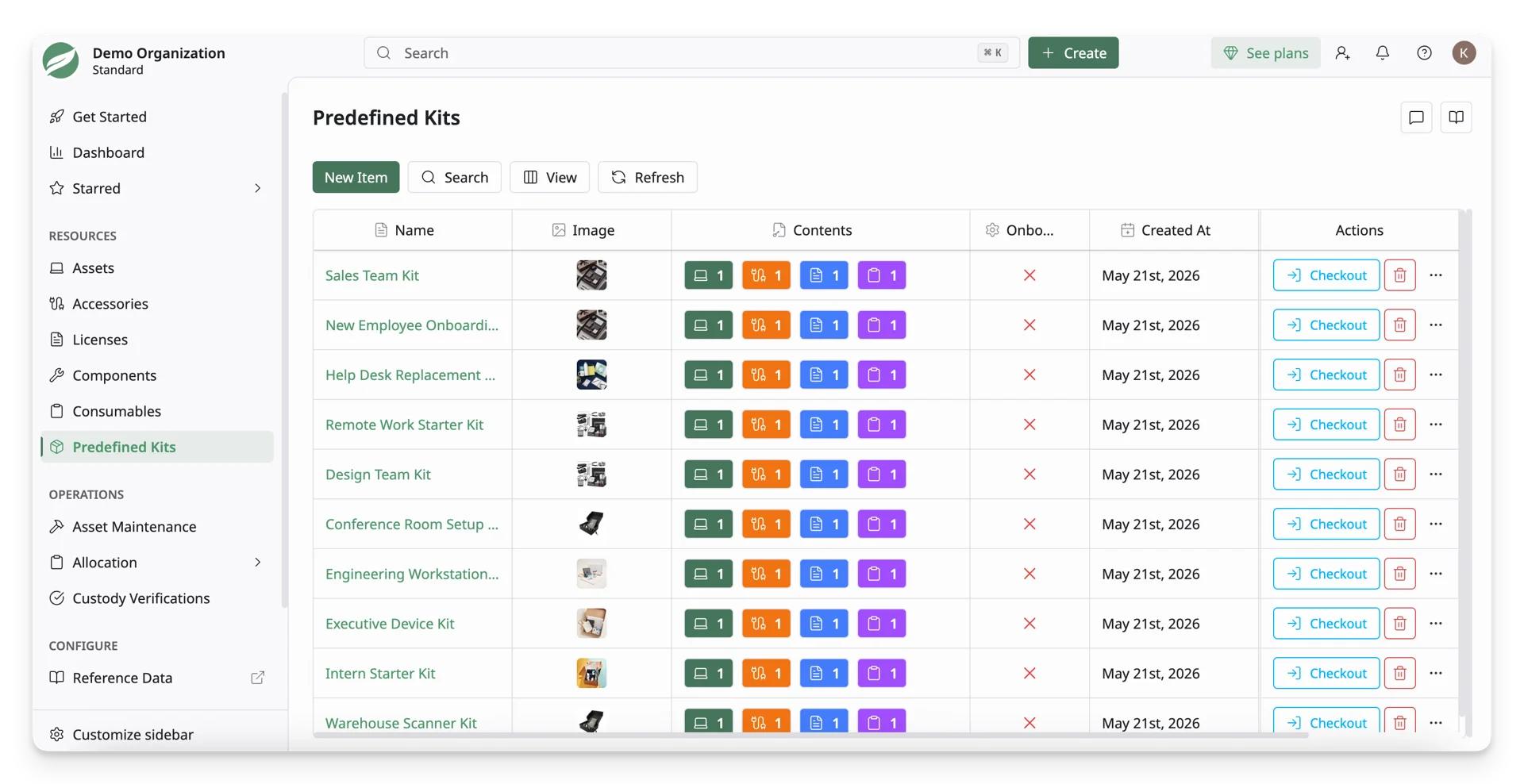
The Predefined Kits section is located under the Resources dropdown in the left sidebar. This page displays all predefined kits you have set up in the system and serves as the central place for managing them.
What are predefined kits? In AssetLoom, predefined kits are collections of related items grouped together as a single ready-to-use package. They help you quickly prepare and check out multiple resources at once, instead of selecting each item one by one.
A predefined kit can include assets, accessories, licenses, and consumables. For example, a New Employee Onboarding Kit may include a laptop, monitor, keyboard, mouse, Microsoft 365 license, and asset tag labels.
Predefined kits are useful for repeatable workflows where the same set of items is assigned regularly. You can:
- Bundle asset models, accessories, licenses, and consumables into one organized setup.
- Automatically check out the onboarding kit to new members during onboarding.
- Speed up checkout by using a prepared list of required items.
In this guide, you’ll learn how to manually create a predefined kit by filling out the necessary fields in the Predefined Kit Creation Form.
Before setting up your kits, make sure:
- The items you want to include already exist in your workspace
- There are available assets that can be checked out
- Accessories, licenses, and consumables included in your kit must have sufficient stock
Learn more: How to Create
Step 1: Access the Predefined Kit Form
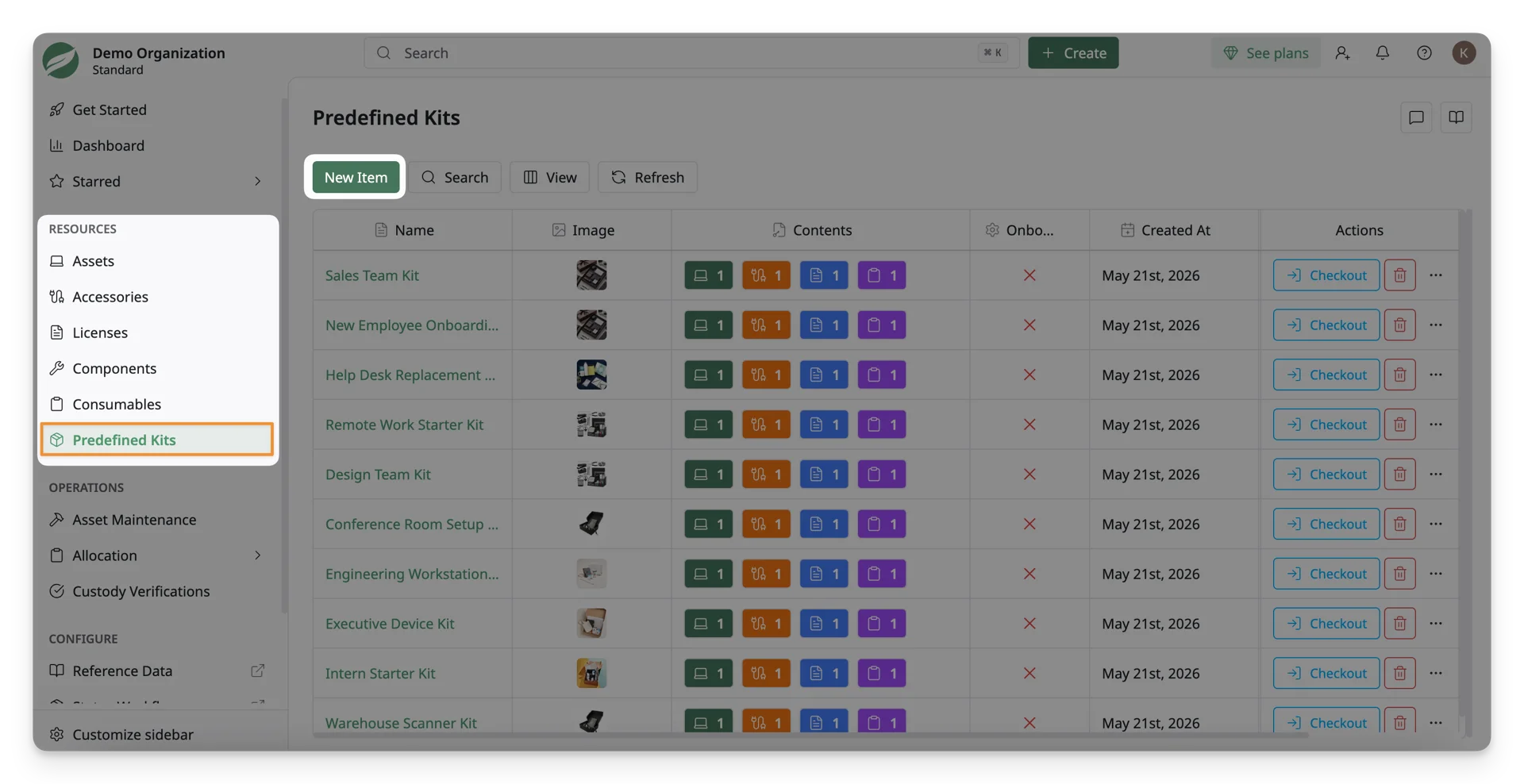
- Navigate to Resources > Predefined Kits in the side menu.
- Click on the Create button at the top right of the screen to open the Predefined Kit Form.
Step 2: Fill Out the Predefined Kit Details
The form consists of several sections that need to be filled out to create the kit.
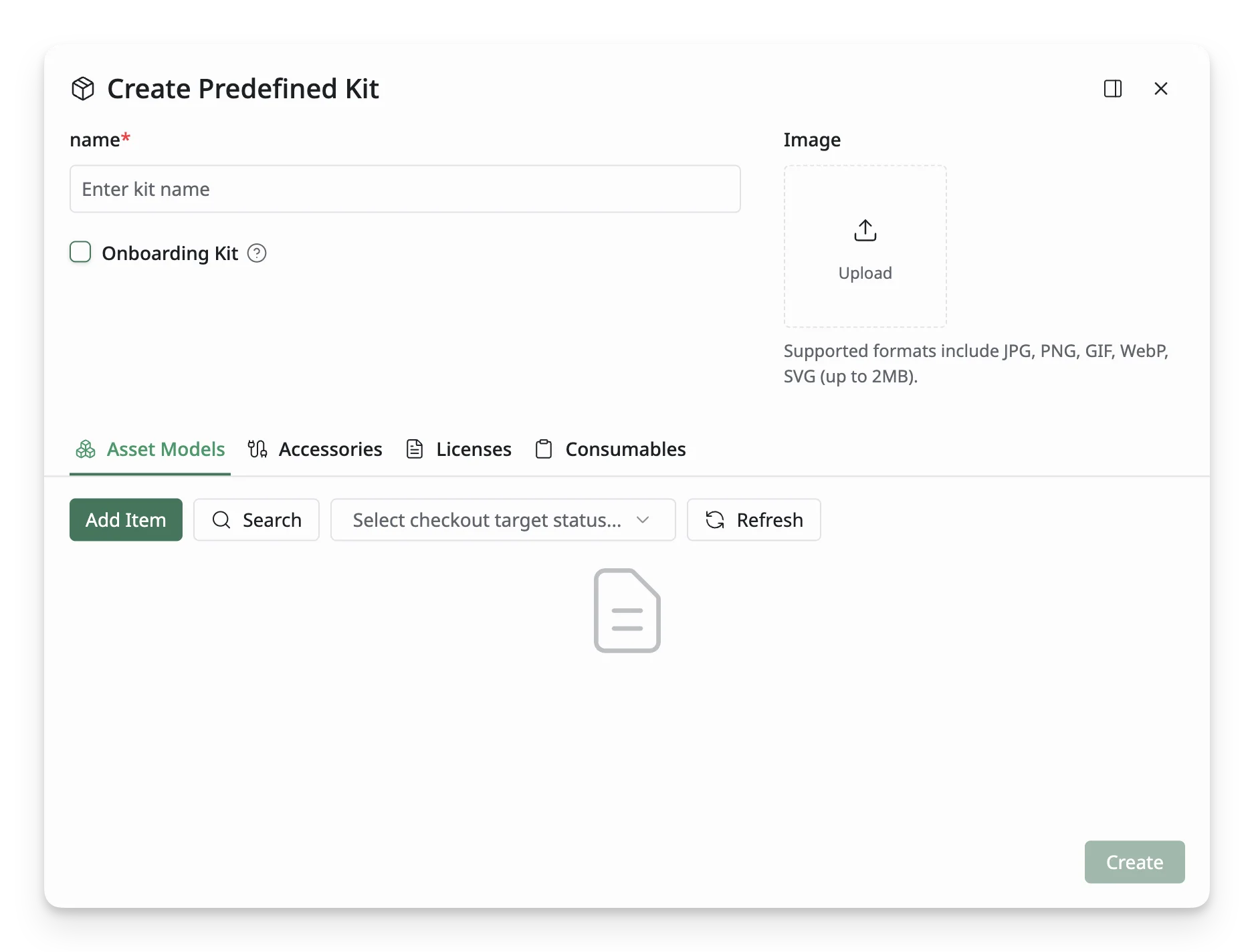
Below is an overview of the key fields:
1. Kit Information
This section is for the core details that define the kit.
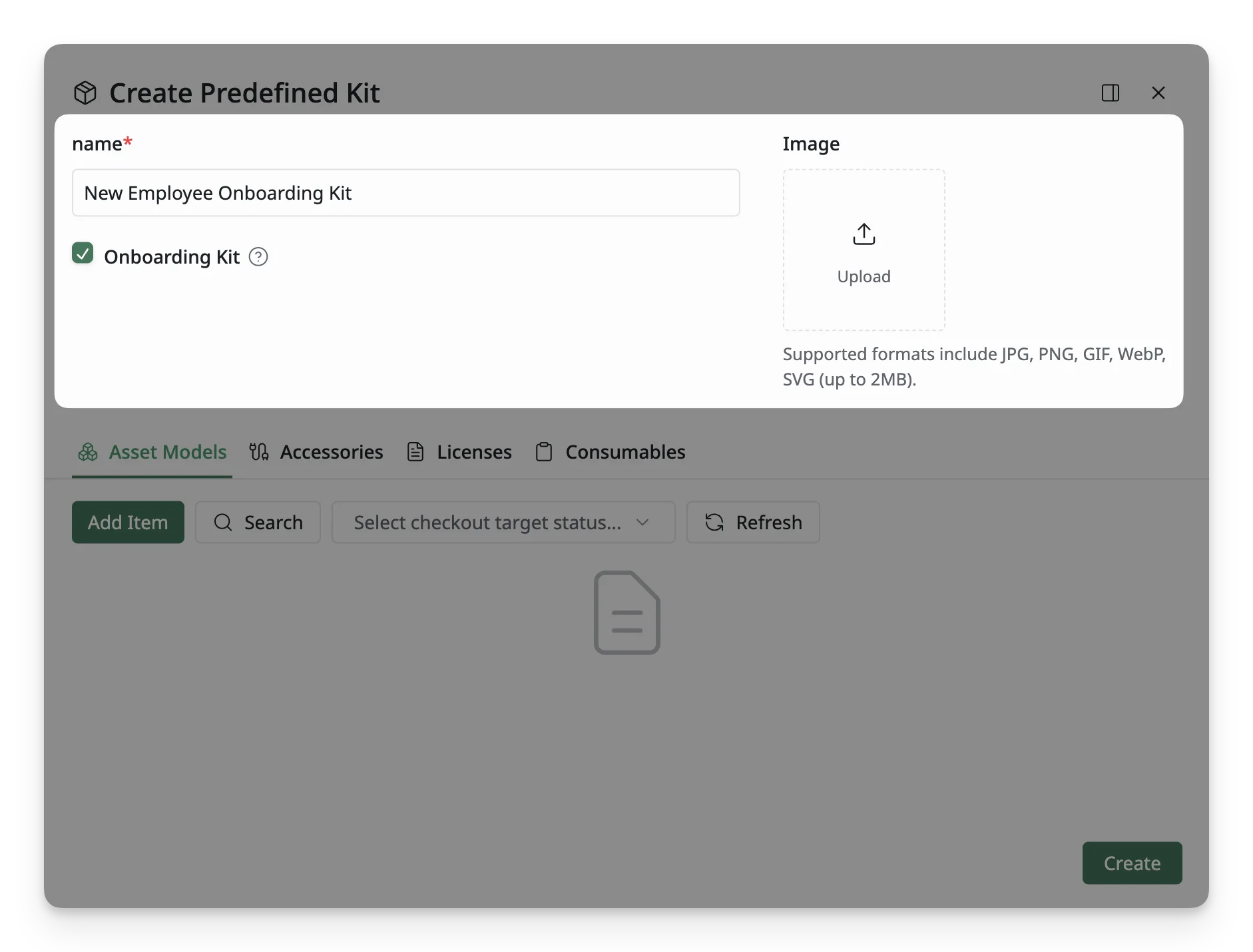
- Name: Enter a name for the kit. (e.g.:
Sale Kit) - Onboarding Kit: Tick this option if you want to use this kit as the default onboarding kit for new members. Only one onboarding kit can be active at a time.
In AssetLoom, an onboarding kit is a predefined set of assets that is automatically assigned to new users when they join a site.
This is particularly useful when you want to ensure every new member receives a standard set of assets as part of their onboarding process, such as laptops, accessories, or other required equipment.
- Image: Upload an image under JPG, PNG, GIF, WebP, or SVG format of the kit for easier identification and visual reference
2. Resource Information
This section tracks 4 resource types: assets, accessories, licenses, and consumables in the kits.
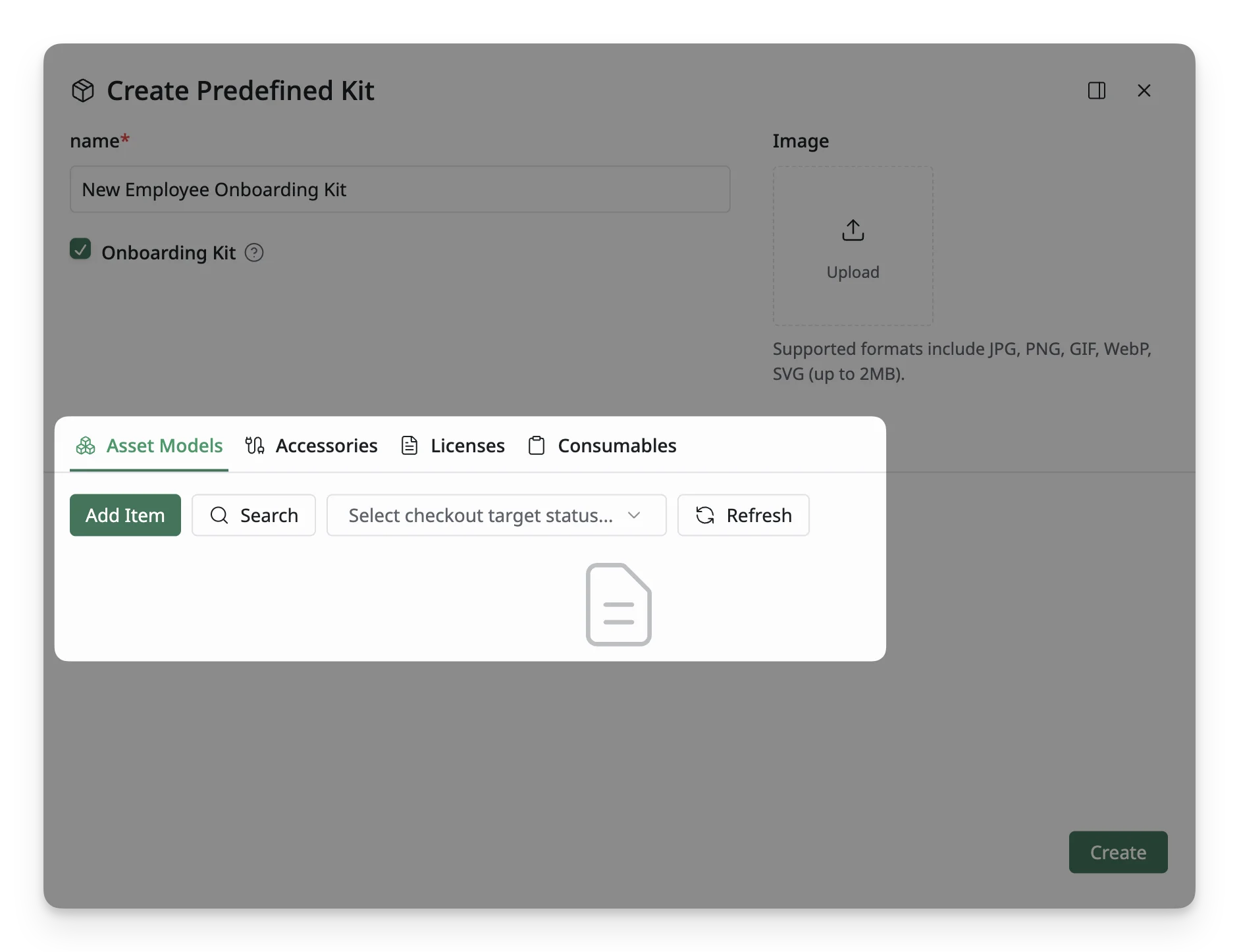
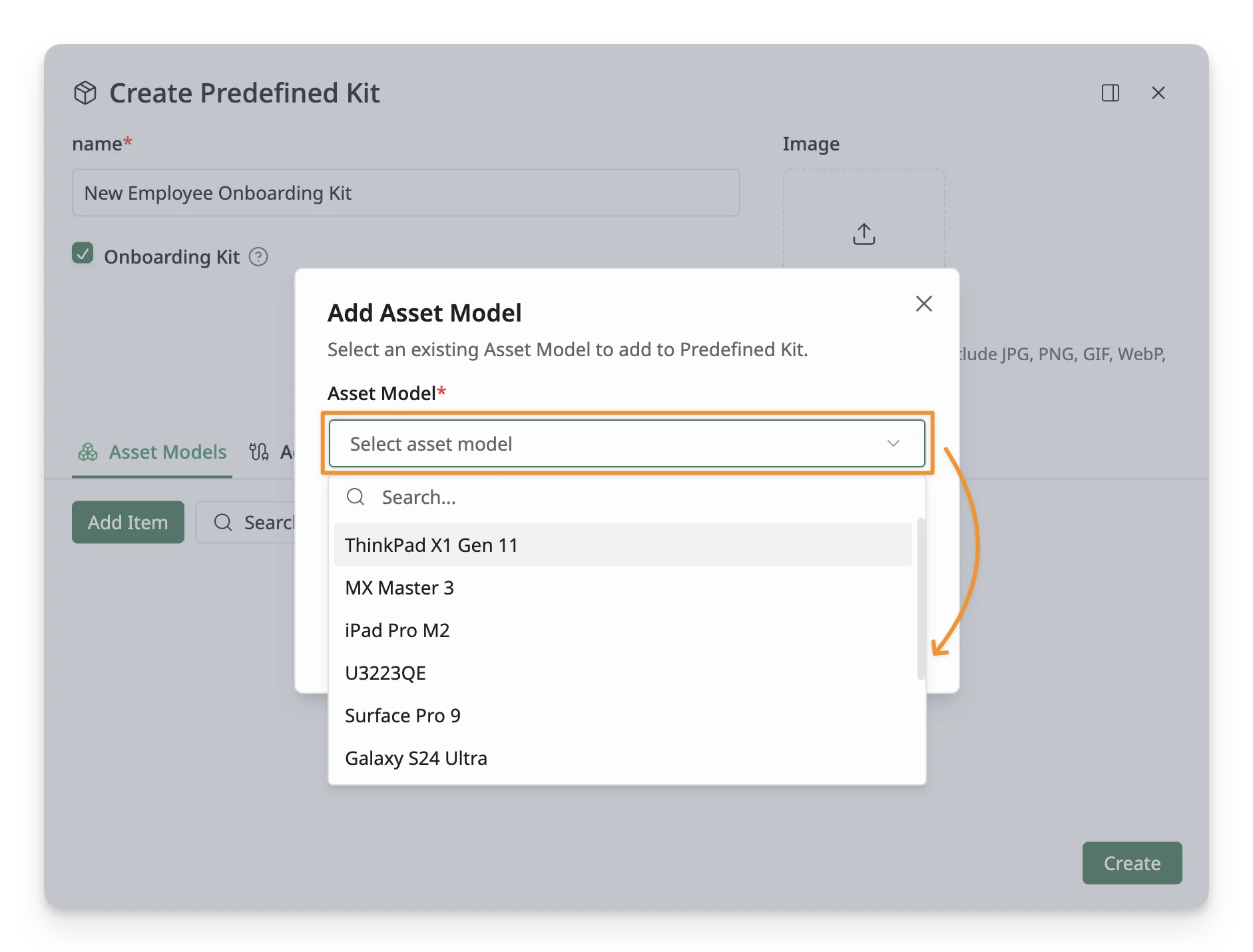
- Asset Models:
- Select the asset models that should be included in this kit, such as laptops, monitors, desktops, or mobile devices.
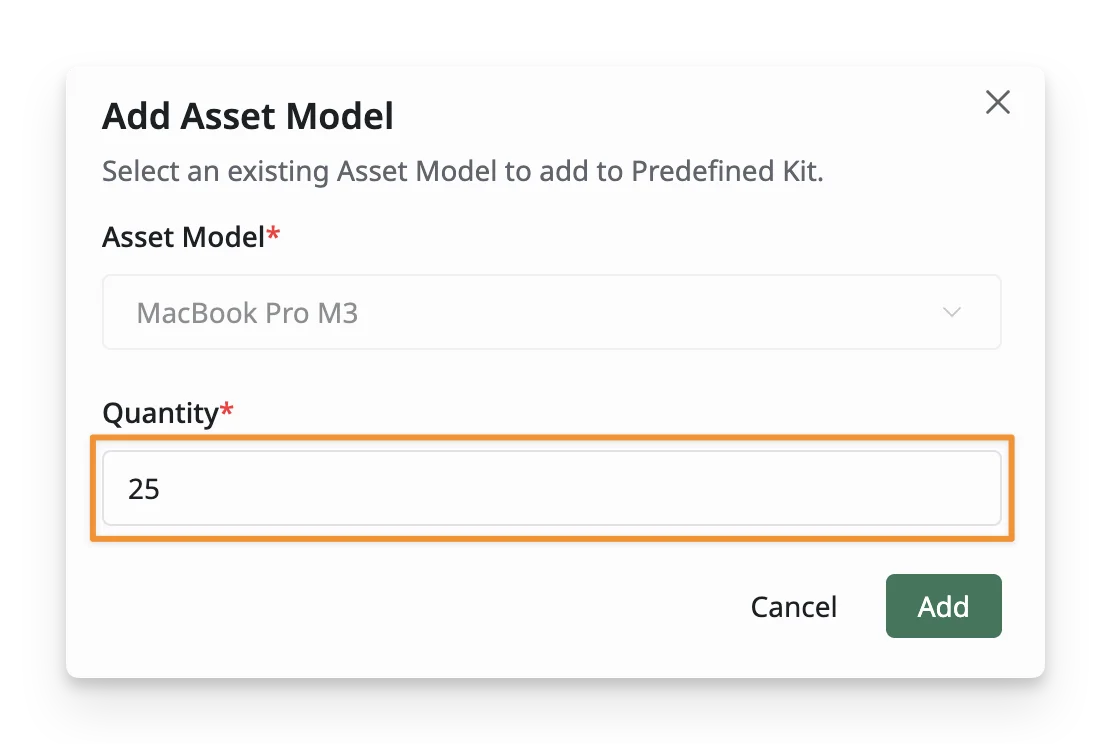
- Add the quantity for this asset model, from 1 to 10,000
- Select the asset models that should be included in this kit, such as laptops, monitors, desktops, or mobile devices.
- Accessories:
- Choose the accessories that should be bundled with the kit, such as keyboards, mice, docking stations, laptop bags, or headsets.
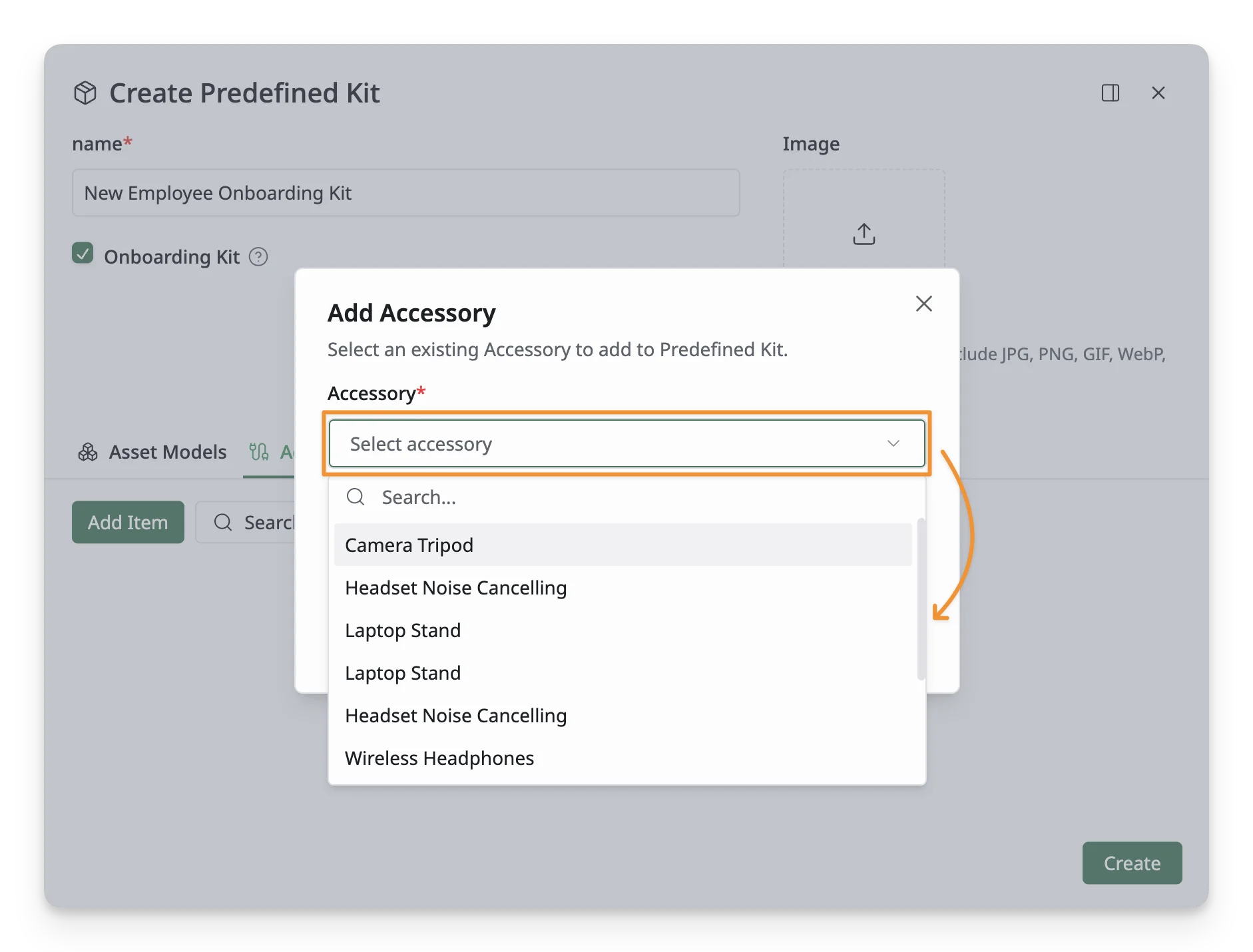
- Add the quantity for this accessory, from 1 to 10,000
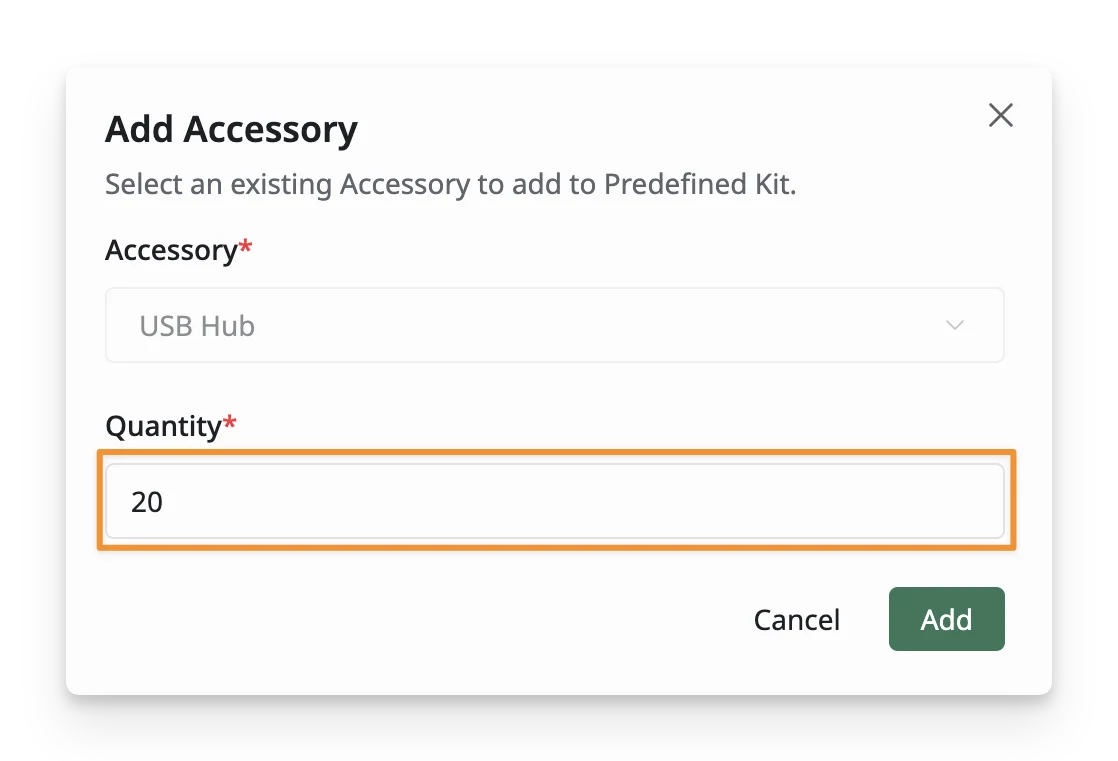
- Choose the accessories that should be bundled with the kit, such as keyboards, mice, docking stations, laptop bags, or headsets.
- Licenses:
- Pick up the software licenses that should be assigned as part of the kit, such as Microsoft 365, Zoom, Slack, or VPN licenses.
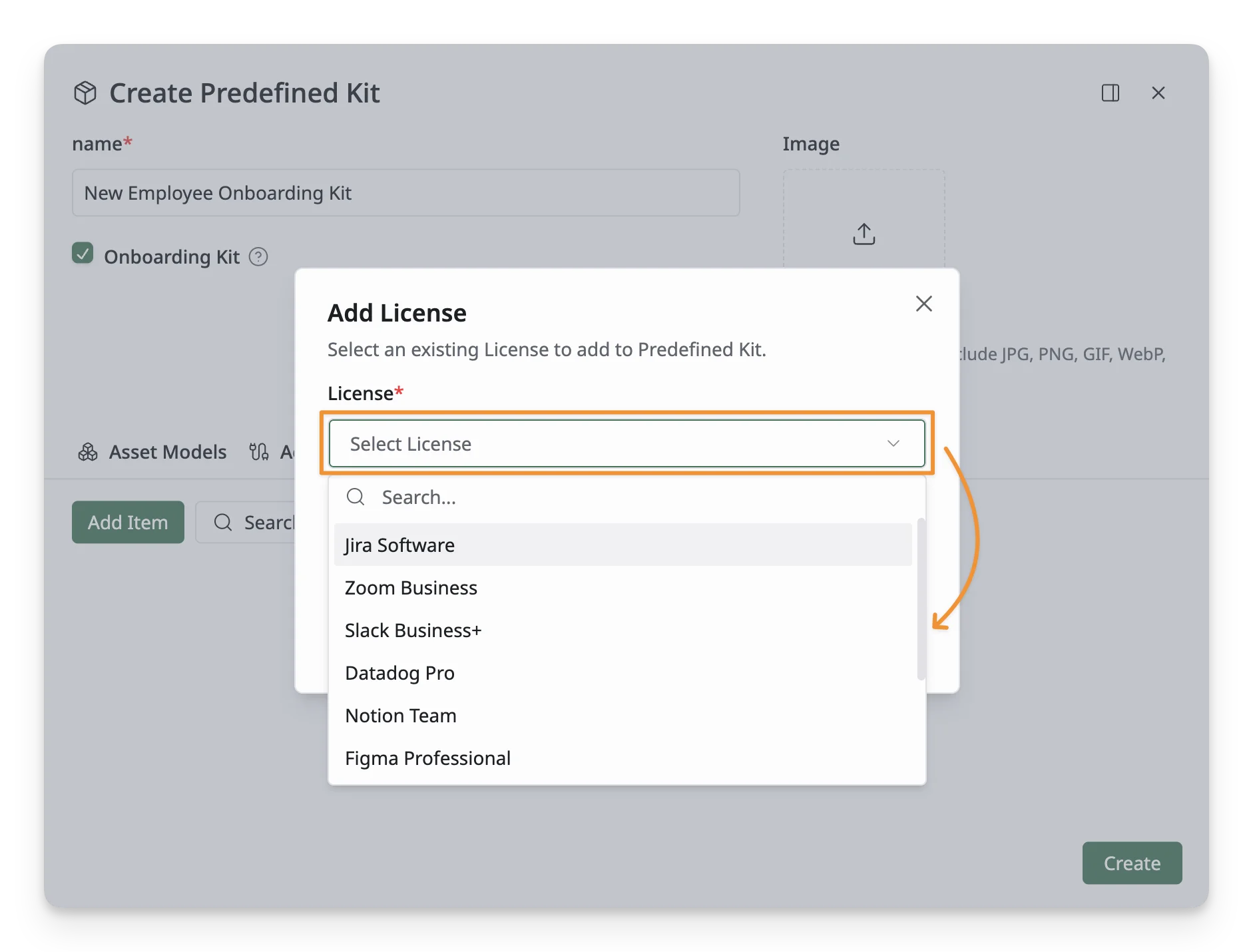
- Add the quantity for this license, from 1 to 10,000
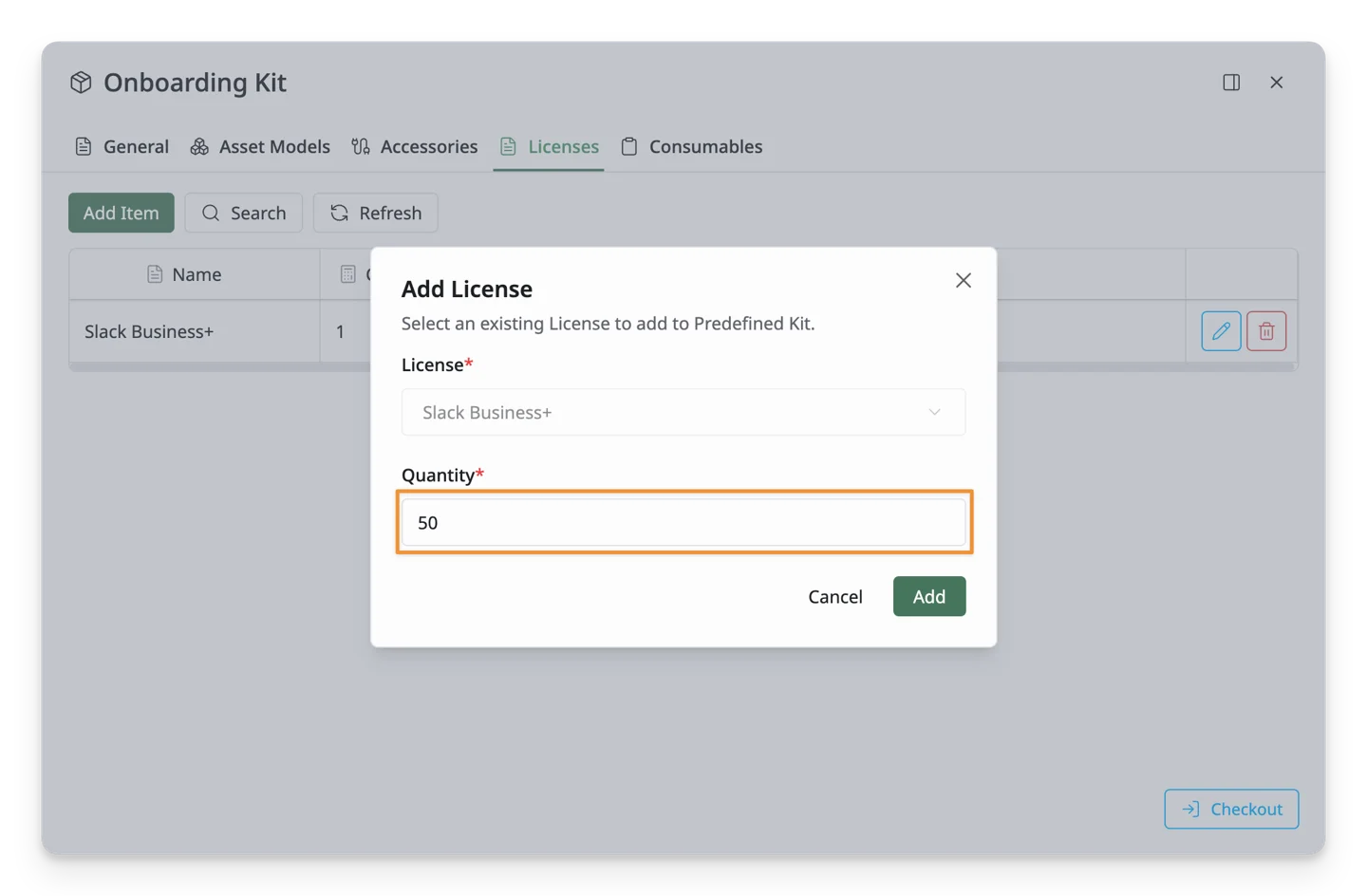
- Pick up the software licenses that should be assigned as part of the kit, such as Microsoft 365, Zoom, Slack, or VPN licenses.
- Consumables:
- Select the consumable items that should be issued with the kit, such as asset tags, labels, batteries, cable ties, or cleaning wipes.
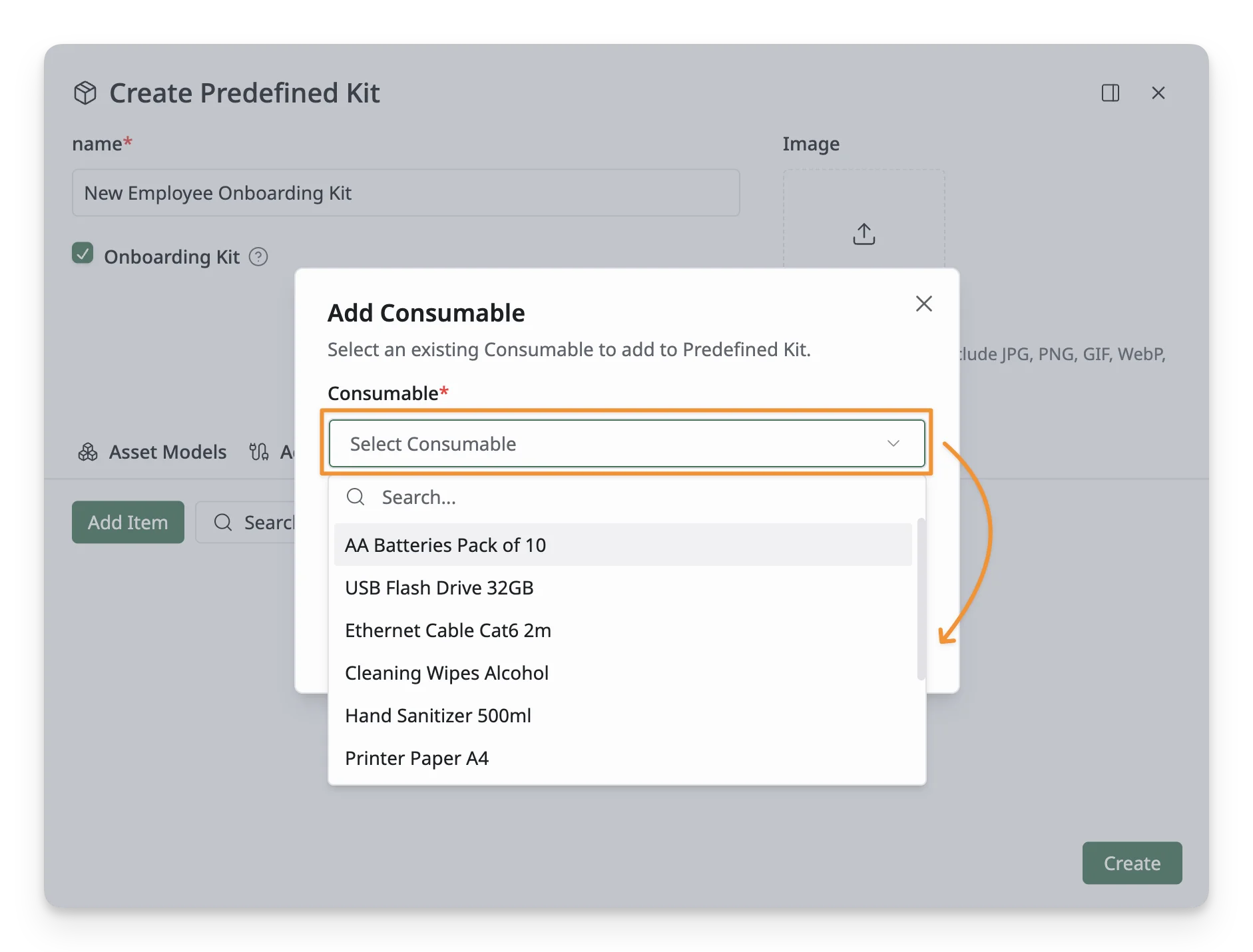
- Add the quantity for this consumable, from 1 to 10,000
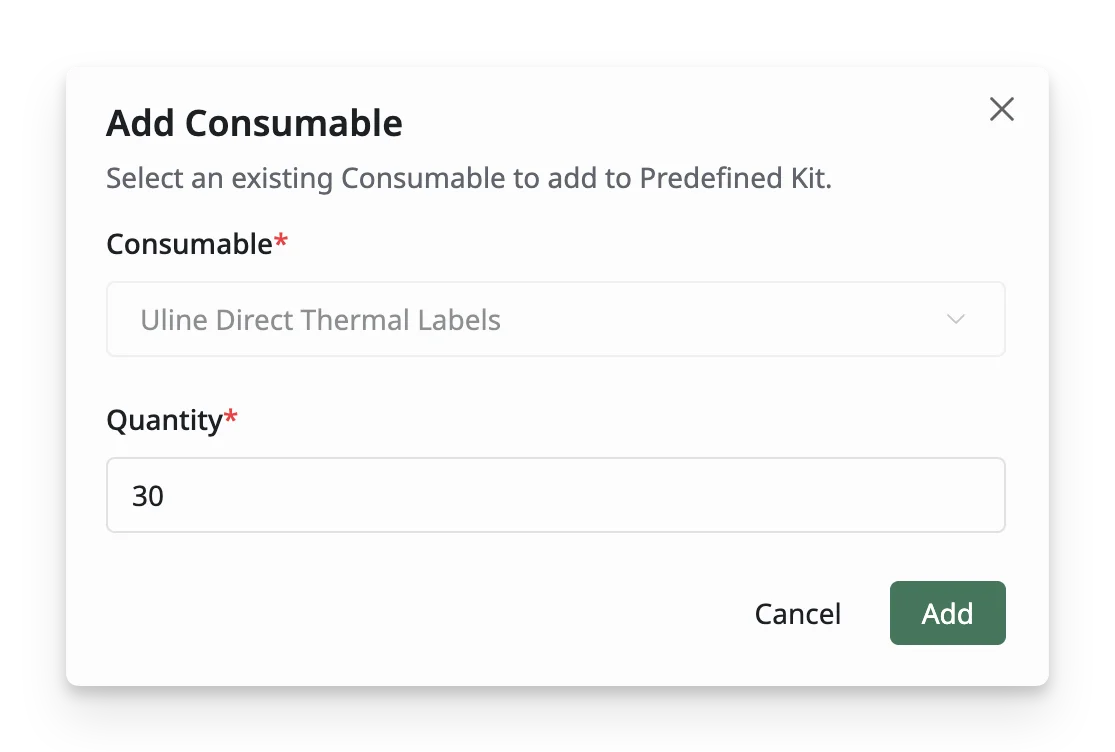
- Select the consumable items that should be issued with the kit, such as asset tags, labels, batteries, cable ties, or cleaning wipes.
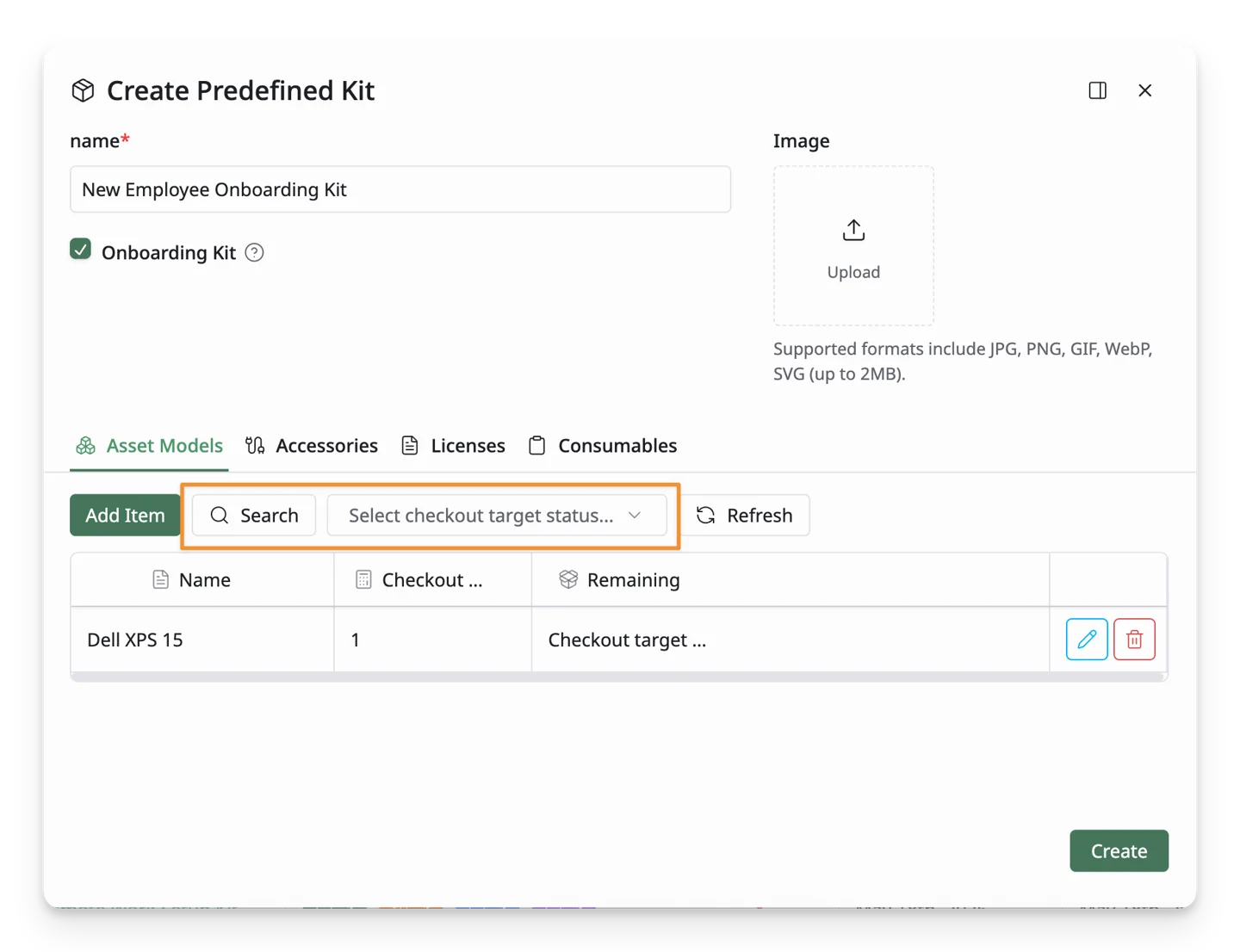
You can quickly:
Search for these resources (assets, accessories, licenses, consumables) with the item names
Select specific assets by asset status (in Use, in stock, etc.) to calculate remaining assets of the models.
Step 3: Save the Predefined Kit
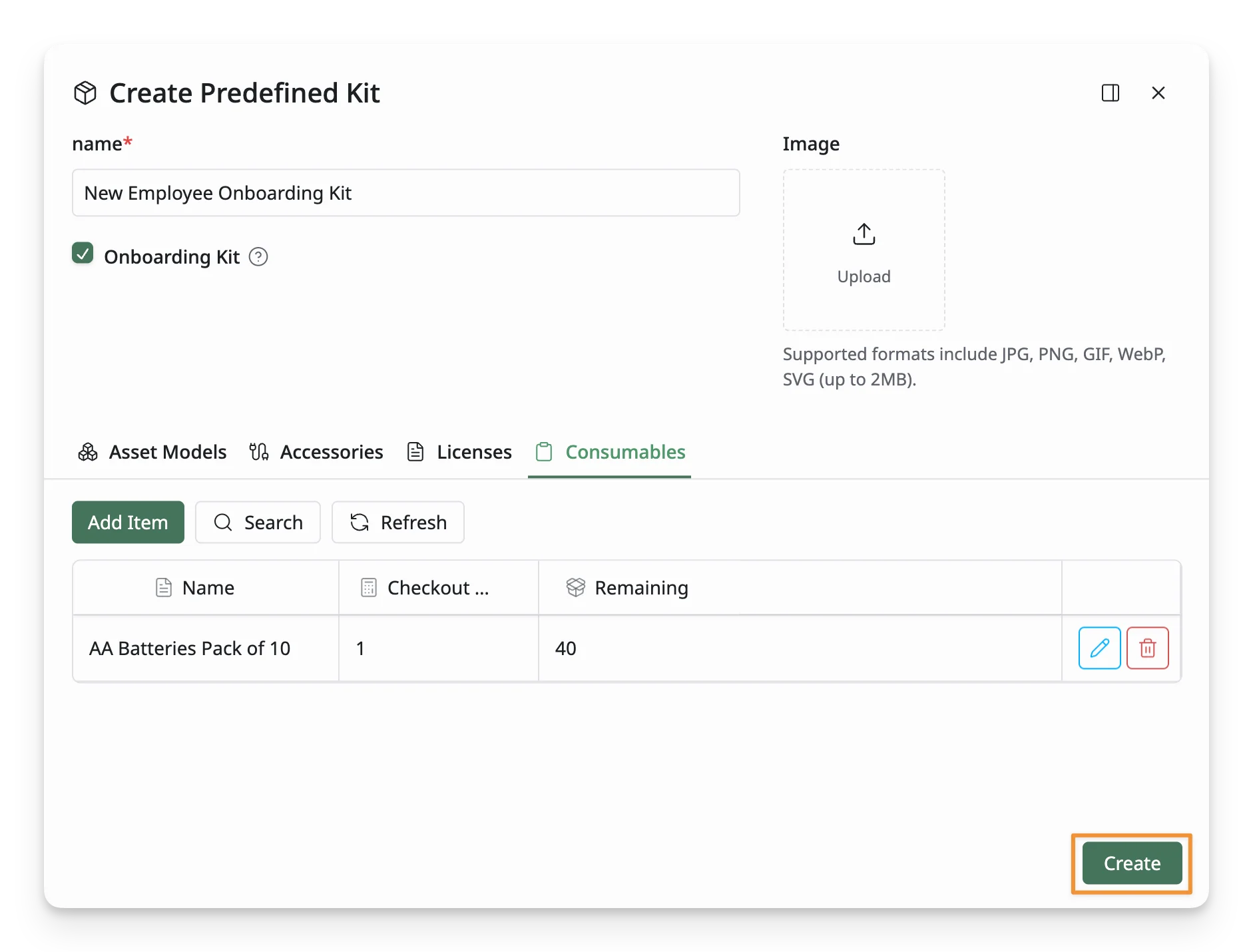
Once all required fields are filled, click the Create button at the bottom of the form to save the predefined kits to the system.
Step 4: Review Your Kits
After creating the kits, you will be redirected to the Predefined Kit List, where you can view and manage all your kits. You can view information such as the number of items per resource, update time, and onboarding kit status.
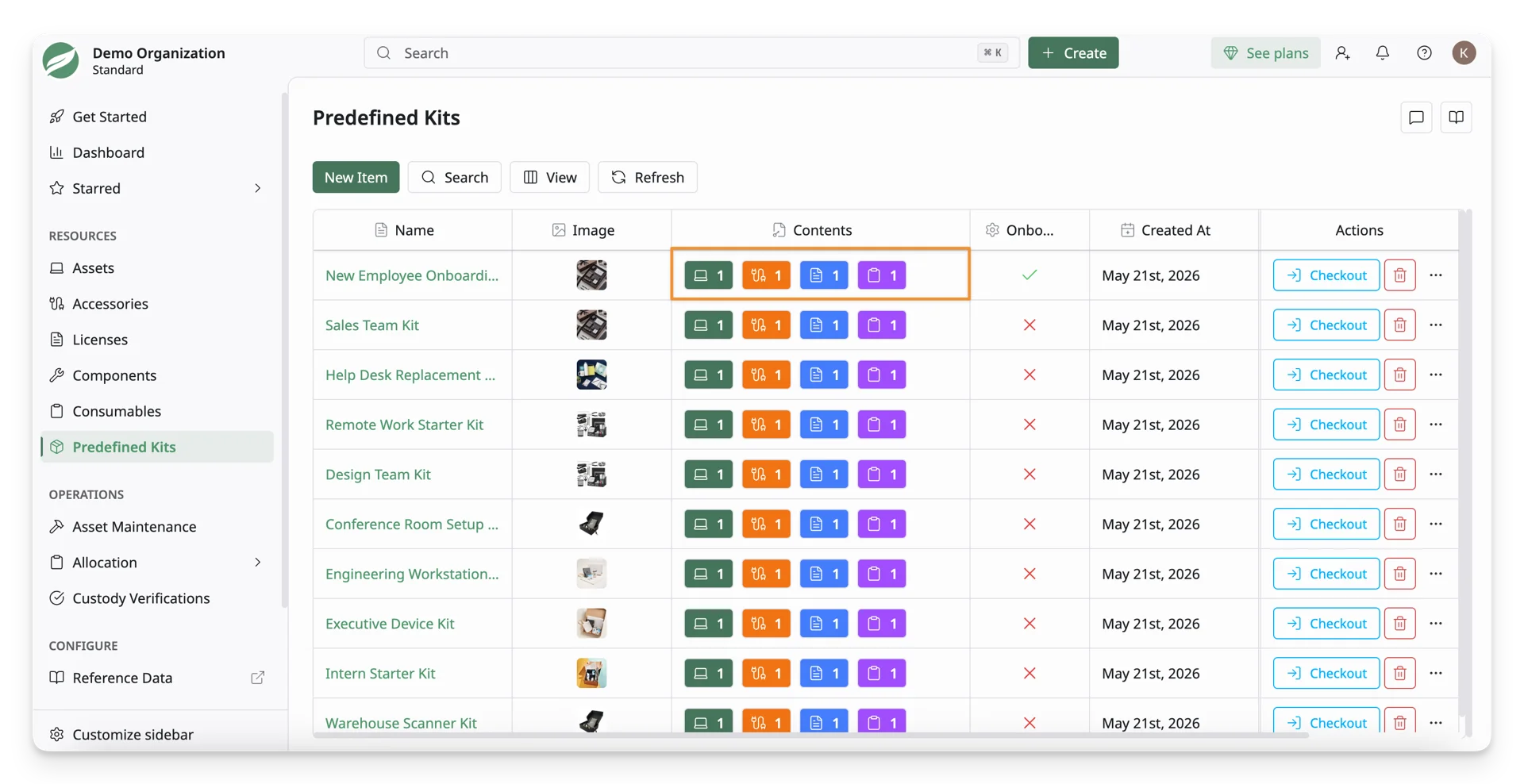
If any information needs to be updated, simply click on the kit and modify the details as needed.
What’s Next?
- Assign A Kit: Learn how to check out a predefined kit