Run & Save Scan Results
Learn how to run a network scan, review discovered devices, and save the scan results for further analysis or import into AssetLoom.
Once your dry run is successful, you can start the actual scan and save the discovered devices as either a CSV or JSON file.
This guide shows you how to run a scan and save the results.
Run & Save Scan Results
You can start the actual scan and save the discovered devices as either a CSV or JSON file.
Run & Save Results as a CSV File
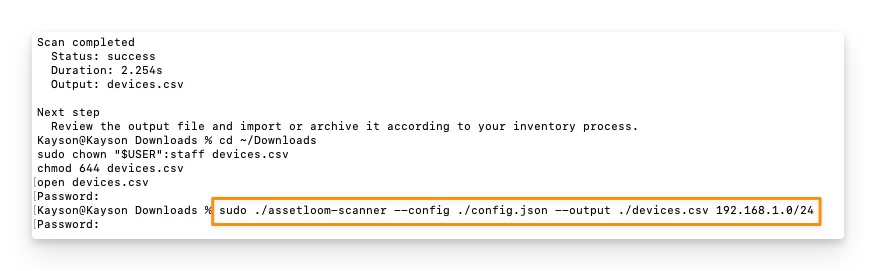
- For macOS and Linux, use the following command:
sudo ./assetloom-scanner --config ./config.json --output ./devices.csv target
- For Windows, use the following command:
.\assetloom-scanner.exe --config .\config.json --output .\devices.csv target
You can replace target with the device or network range you have conducted the dry run on.
- For example:
.\assetloom-scanner.exe --config .\config.json --output .\devices.csv 192.168.1.0/24 - If no
targetis provided, the scanner detects local IPv4 subnets attached to the scanner host instead.
You can change devices.csv to any filename you prefer, but keep the .csv file extension.
Run & Save Results as a JSON File
- For macOS and Linux, use the following command:
sudo ./assetloom-scanner --config ./config.json --format json --output ./devices.json target

- For Windows, use the following command:
.\assetloom-scanner.exe --config .\config.json --format json --output .\devices.json target
Overwrite Result
By default, AssetLoom Network Scanner will not overwrite an existing output file.
If a file with the same name already exists, add --force-output to replace it with the new scan result.
Overwrite a CSV File
- For macOS and Linux, use the following command:
sudo ./assetloom-scanner --config ./config.json --output ./devices.csv --force-output target

- For Windows, use the following command:
.\assetloom-scanner.exe --config .\config.json --output .\devices.csv --force-output target
Overwrite a JSON File
- For macOS and Linux, use the following command:
sudo ./assetloom-scanner --config ./config.json --format json --output ./devices.json --force-output target

- For Windows, use the following command:
.\assetloom-scanner.exe --config .\config.json --format json --output .\devices.json --force-output target
Stop a Scan
For longer scans, especially when scanning multiple network ranges, you can stop the scan at any time if you no longer want it to continue.
To stop the scan, press: Ctrl + C
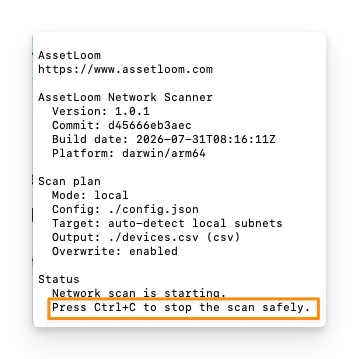
The scanner will stop and exit with an interruption error instead of reporting a successful completion.
Depending on when you stop the scan, a partial result file may still be created. This file contains the devices discovered up to the point when the scan was interrupted.
You can review the partial CSV or JSON file in the same way as a completed scan result.