Run a Dry Run
Learn how to run a dry run to validate your scan target and configuration before starting the actual network scan.
Run a Dry Run
Before starting the actual scan, conducting a dry run helps you confirm that your target and configuration are ready.
A dry run in AssetLoom Network Scanner is a test run that checks the scan target and configuration before sending any discovery packets. It helps you check:
- Whether the IP target is valid and allowed
- How many IP addresses will be included
- Whether the target is local, routed, allowed or public
- Which discovery protocols are enabled
- Whether ICMP and ARP are available
- The configured timeouts and concurrency
- The estimated scan workload
A dry run does not send discovery packets or scan devices. It is especially useful before each of your scans or after you update the configuration.
Choose Scan Targets
Before starting the scan, you should decide which device or network range you want AssetLoom Network Scanner to check. The target must be within the approved_ranges you allowed earlier in the Configure Scan Options step.
You can select the target as a single device, a subnet, an IP range, or multiple targets in one command.
| What you want to scan | Target Format | Example |
|---|---|---|
| Single device | IP address | 192.168.1.50 |
| Entire subnet | CIDR | 192.168.1.0/24 |
| Part of a subnet | Short IP range | 192.168.1.1-254 |
| Full IP range | Start and end IP | 192.168.1.1-192.168.1.254 |
| Multiple targets | Comma-separated | 192.168.1.0/24,10.0.0.50 |
| Multiple targets | Space-separated | 192.168.1.0/24 10.0.0.50 |
- IPv6 targets are not supported yet.
- Same
/24range notation must stay within a single/24boundary. - In a multi-target list, any malformed target is rejected and reported.
- If at least one target is valid and allowed by
approved_ranges, the scan continues with the accepted targets. - If all targets are invalid, malformed, or outside
approved_ranges, the scan fails. - Each individual target is limited to a
/16-equivalent host count. - The total host count across all accepted targets must not exceed
max_aggregate_hosts.
Run a dry run
Use these commands to initiate your dry run
- For macOS or Linux:
sudo ./assetloom-scanner --config ./config.json --dry-run target
- For Windows:
.\assetloom-scanner-windows-amd64.exe --config .\config.json --dry-run target
The target here can be:
- Single IP:
192.168.1.10 - CIDR range:
192.168.1.0/24 - Multiple ranges:
192.168.1.0/24,10.0.0.0/24
If no target is provided, AssetLoom Network Scanner automatically uses the local subnet detected from your device.
Review Dry Run Results
Your dry run will produce a result like this. You can review it to confirm your network scan is ready
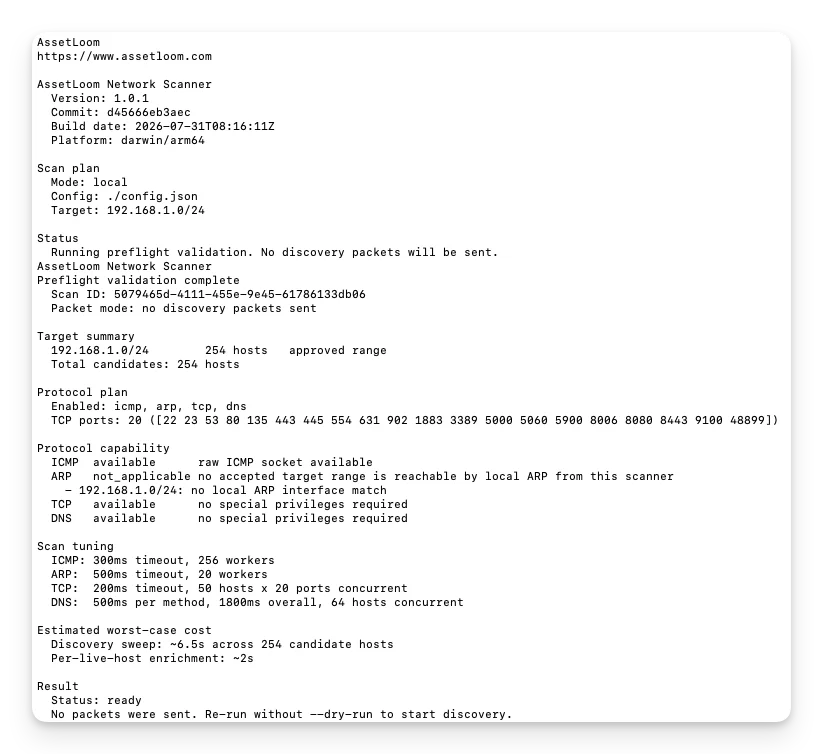
Below is the key information you should focus on:
Target summary
The Target Summary shows you information about the network range you are about to scan, including whether the target is allowed, how many hosts are included, and how the target is classified.
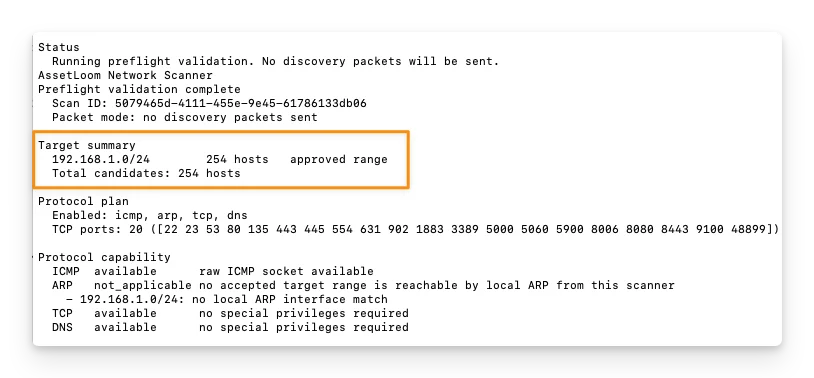
In this example:
192.168.1.0/24is the network range selected for the scan.254 hostsmeans the scanner has identified 254 candidate IP addresses within that subnet.approved rangeconfirms that the target is allowed by your current scan configuration.Total candidates: 254 hostsshows the total number of IP addresses the scanner would attempt to discover during the actual scan.
Protocol Capabilities
The Protocol Capability section shows you whether each enabled protocol can run from your current device and network. It also explains why a protocol may be unavailable or not applicable.
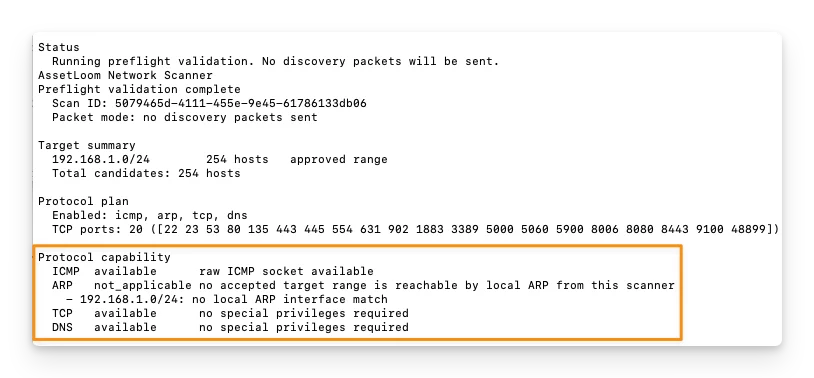
You can see one of these protocol statuses:
| Status | Meaning |
|---|---|
available | The protocol is ready to use. |
degraded | The protocol may work, but with limited capability. |
unavailable | The protocol cannot currently run. |
disabled | The protocol is turned off in your configuration. |
not_applicable | The protocol does not apply to this target, such as ARP on a routed network. |
If your target is accepted and the required discovery methods are available, you are ready to start the scan. If not, you can move back to the Configure Scan Options step and to review your network scope or protocol settings.
Result
The Result section summarizes the checks performed during the dry run, including the target validation, protocol availability, scan settings, and estimated scan workload. It tells you whether the pre-scan validation is complete and whether the scanner is ready to start discovery.
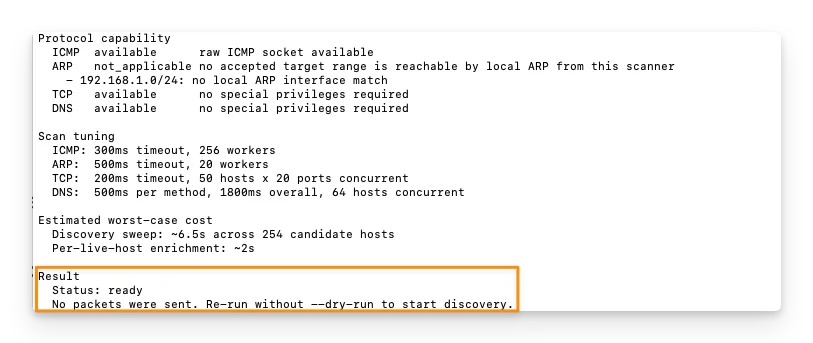
Everything is ready for your network scan!