Report Templates in AssetLoom
Learn about report templates in AssetLoom
AssetLoom offers a variety of preset report templates to help you create reports faster. Each template is designed for a common reporting need and comes with recommended fields, filters, and chart types where applicable. You can run a template as-is, or customize it further before saving it as your own report.
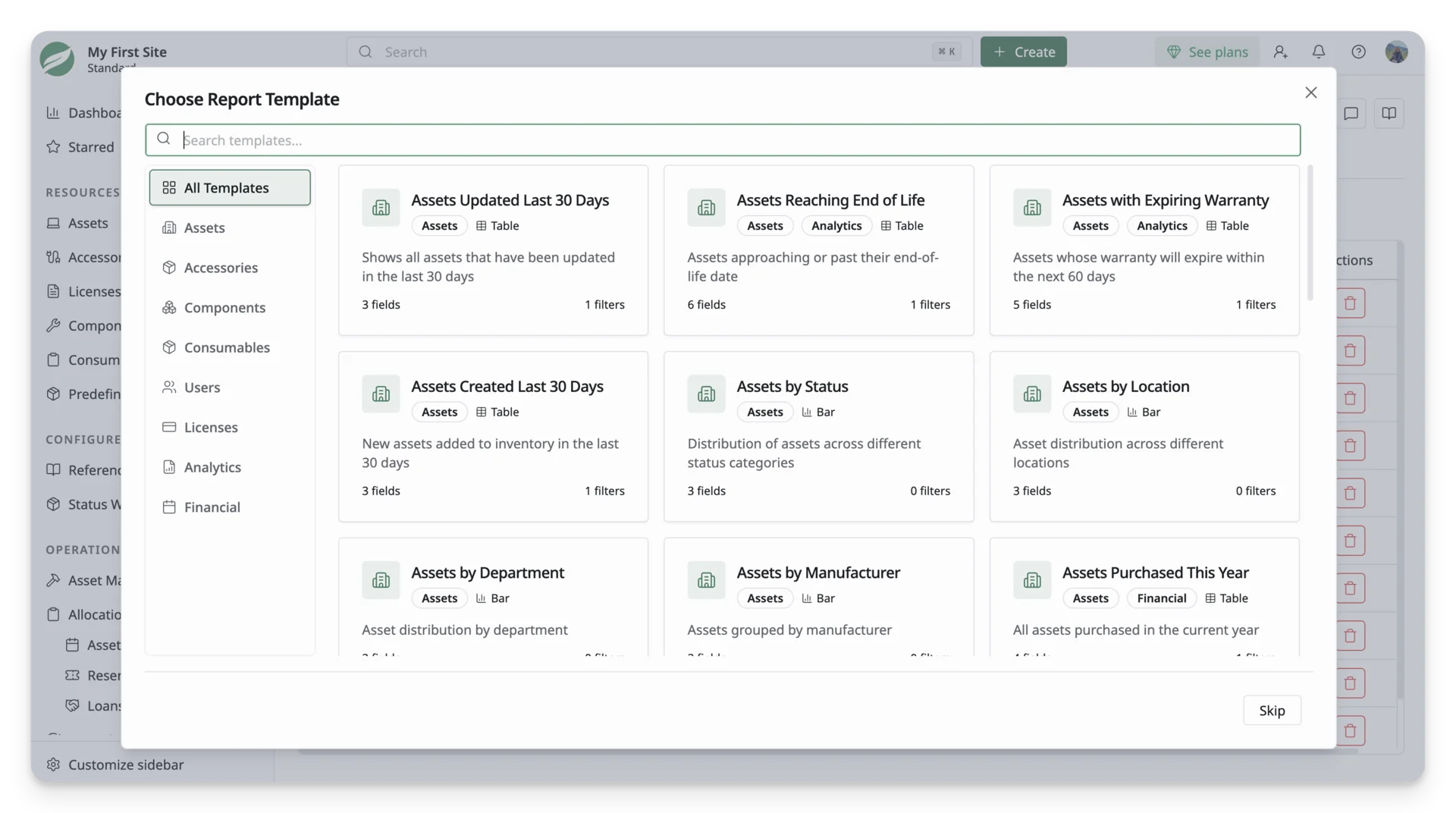
To access report templates, go to Analytics > Reports, click New Report, then choose a template from the Choose Report Template window.
Template categories
AssetLoom report templates are organized into categories so you can quickly find a template that matches the type of report you want to create.
The available template categories include:
- Assets: Reports for physical assets, including asset status, location, department, manufacturer, model, warranty, purchase activity, and lifecycle planning.
- Accessories: Reports for accessory inventory, stock levels, locations, categories, and recent purchases.
- Components: Reports for replacement parts or technical components, including low stock, category, and location-based tracking.
- Consumables: Reports for consumable items that are used up over time, such as low-stock supplies or consumables grouped by manufacturer.
- Users: Reports related to site members, such as newly added members.
- Licenses: Reports for software licenses, including expiration, status, department, manufacturer, category, and cost tracking.
- Analytics: Reports focused on operational insights, such as assets reaching end of life or assets with expiring warranties.
- Financial: Reports related to purchase activity, high-value assets, high-cost licenses, and procurement review.
Select a category from the left side of the template window to narrow the template list. You can also use All Templates to browse every available template in one place.
Assets Templates
Use Assets templates to report on physical assets such as laptops, phones, monitors, servers, and other equipment. Templates include:
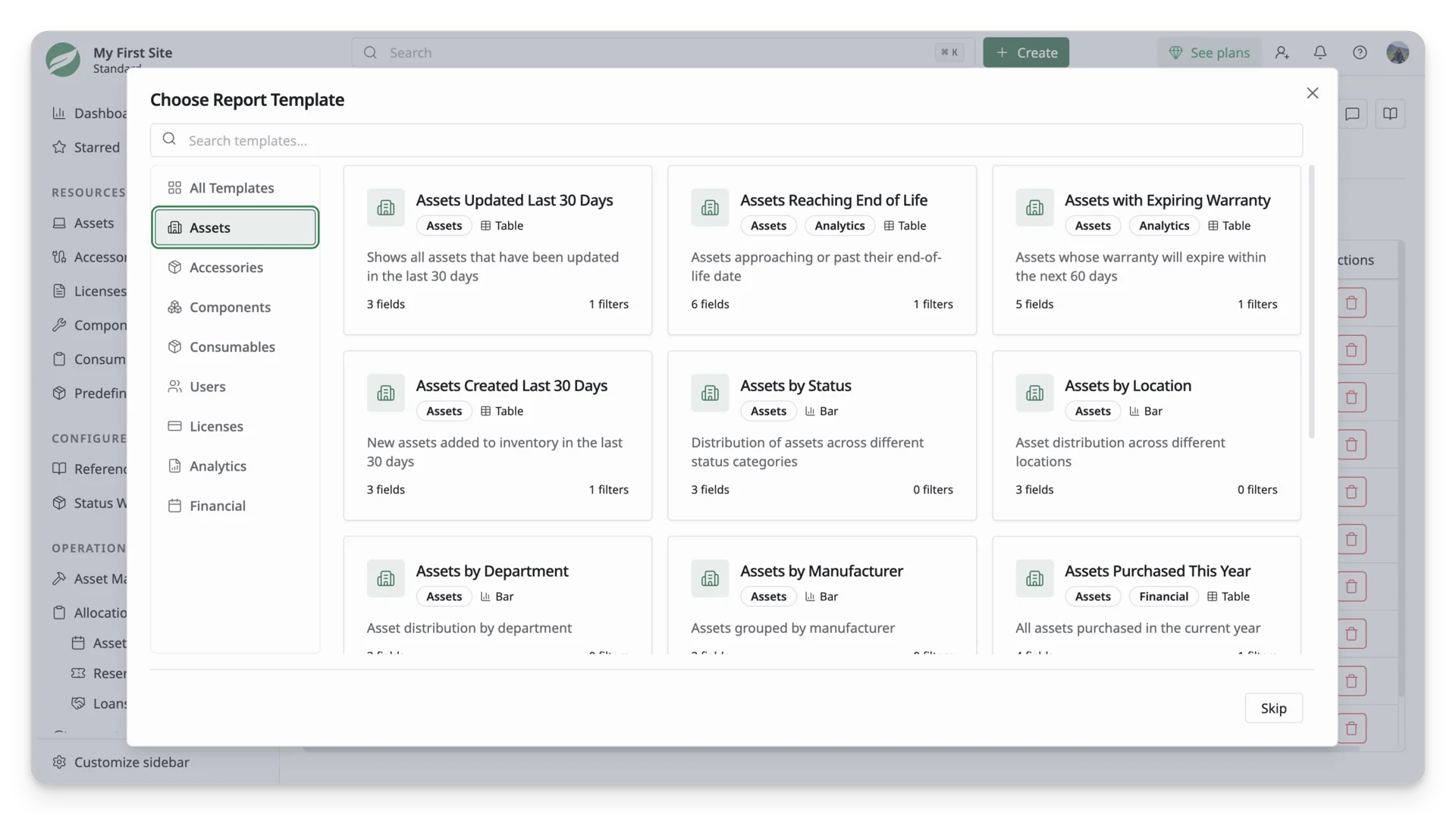
- Assets Updated Last 30 Days: Shows all assets that have been updated in the last 30 days. Use this to review recent inventory changes, audit updates, or record edits.
- Assets Created Last 30 Days: Shows new assets added to inventory in the last 30 days. Use this to review recent asset onboarding or newly recorded equipment.
- Assets Reaching End of Life: Shows assets approaching their end-of-life date. Use this for lifecycle planning, replacement preparation, or budget forecasting.
- Assets with Expiring Warranty: Shows assets whose warranty will expire within the next 60 days. Use this to plan warranty renewals, repairs, replacements, or support follow-up.
- Assets by Status: Groups assets by status. Use this to understand how many assets are in use, available, in maintenance, retired, lost, or under other lifecycle statuses.
- Assets by Location: Groups assets by location. Use this to review where assets are deployed or stored across offices, floors, rooms, warehouses, or branches.
- Assets by Department: Groups assets by department. Use this to understand how assets are distributed across teams or business units.
- Assets by Manufacturer: Groups assets by manufacturer. Use this to review brand distribution and support hardware standardization decisions.
- Assets Purchased This Year: Shows assets purchased in the current year. Use this for procurement review, budgeting, and annual asset investment tracking.
- High Value Assets: Shows assets with purchase cost above a preset threshold. Use this for financial review, insurance planning, audit preparation, or high-value asset monitoring.
- Assets by Model: Groups assets by model. Use this to understand model distribution, identify commonly used models, or support device standardization.
- Assets Without Purchase Date: Shows assets that do not have a purchase date recorded. Use this for data cleanup and asset record completion.
- Unassigned Assets: Shows assets that are not currently assigned to any user, asset, or location.
Accessories templates
Use Accessories templates when you want to report on supplementary items such as keyboards, mice, adapters, chargers, headsets, or other accessories. Templates include:
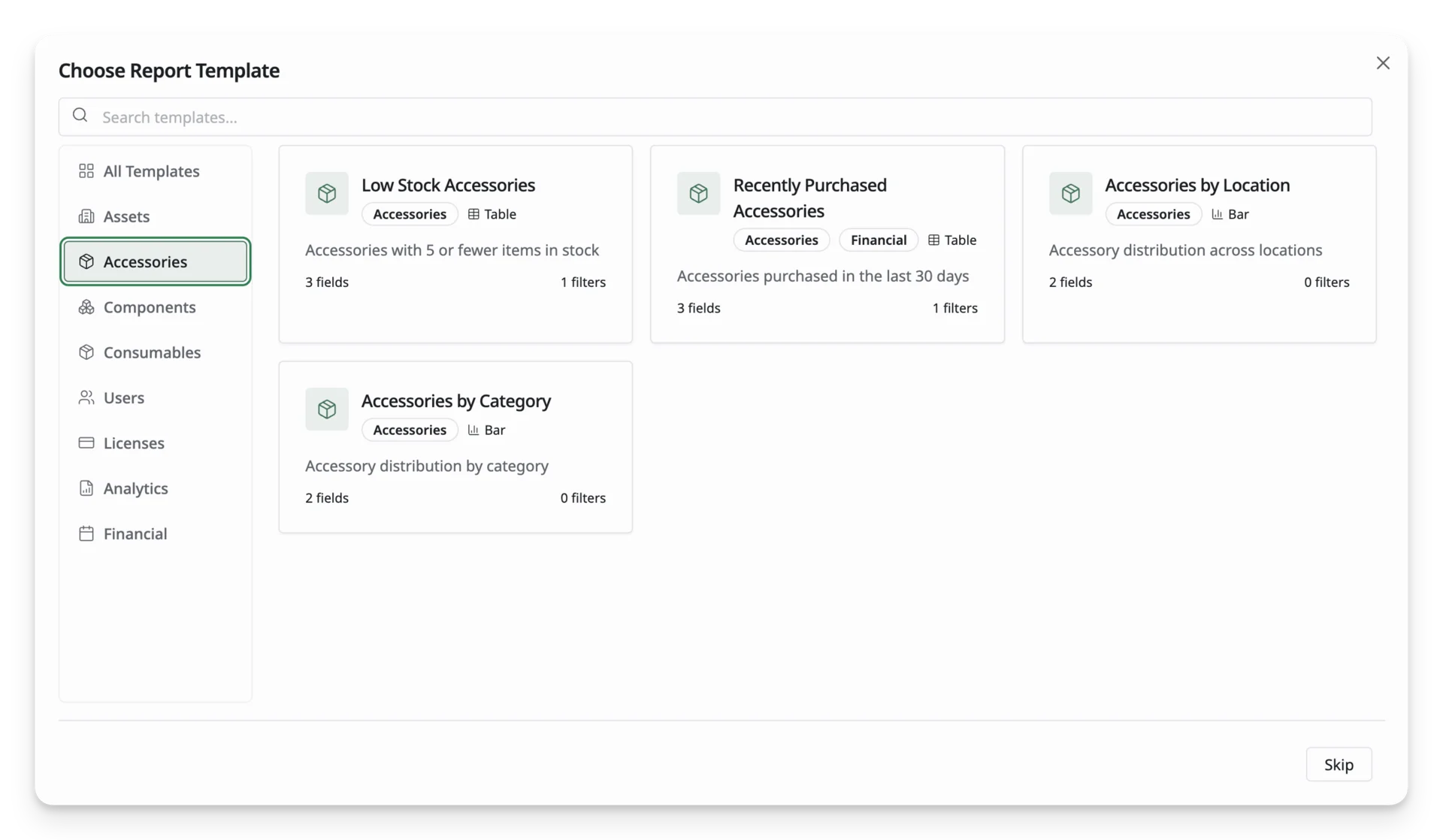
- Low Stock Accessories: Shows accessories with 5 or fewer items in stock. Use this to identify items that may need replenishment.
- Recently Purchased Accessories: Shows accessories purchased in the last 30 days. Use this to review recent procurement activity.
- Accessories by Location: Groups accessories by location. Use this to check where accessories are stored or distributed.
- Accessories by Category: Groups accessories by category. Use this to understand accessory types and inventory composition.
Components templates
Use Components templates when you want to report on replacement parts or technical components such as RAM, SSDs, batteries, or spare parts.
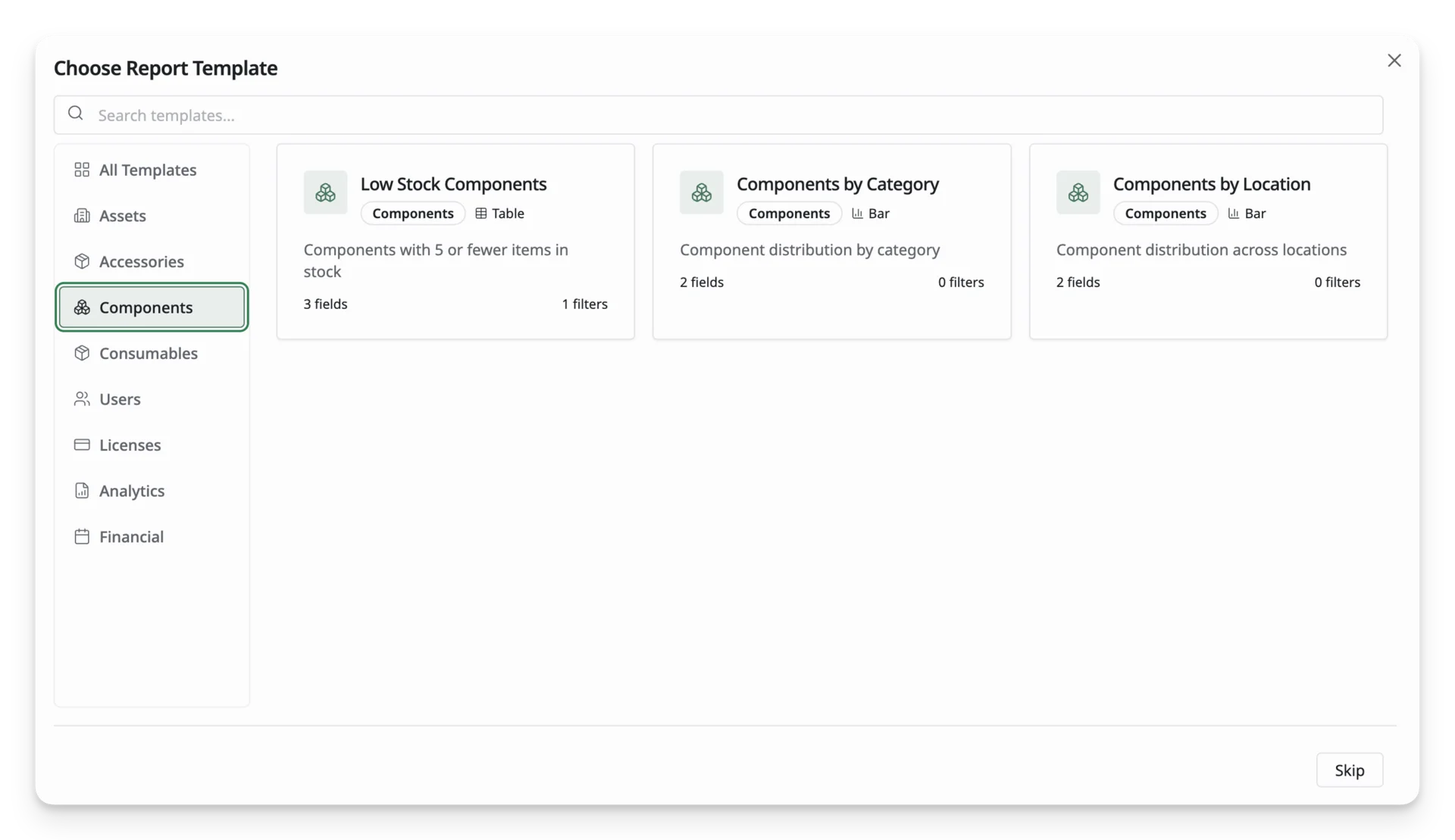
- Low Stock Components: Shows components with 5 or fewer items in stock. Use this to identify parts that may need restocking.
- Components by Category: Groups components by category. Use this to review component types and inventory composition.
- Components by Location: Groups components by location. Use this to check where replacement parts are stored.
Consumables templates
Use Consumables templates when you want to report on items that are used up over time, such as printer ink, labels, cables, or other recurring supplies.
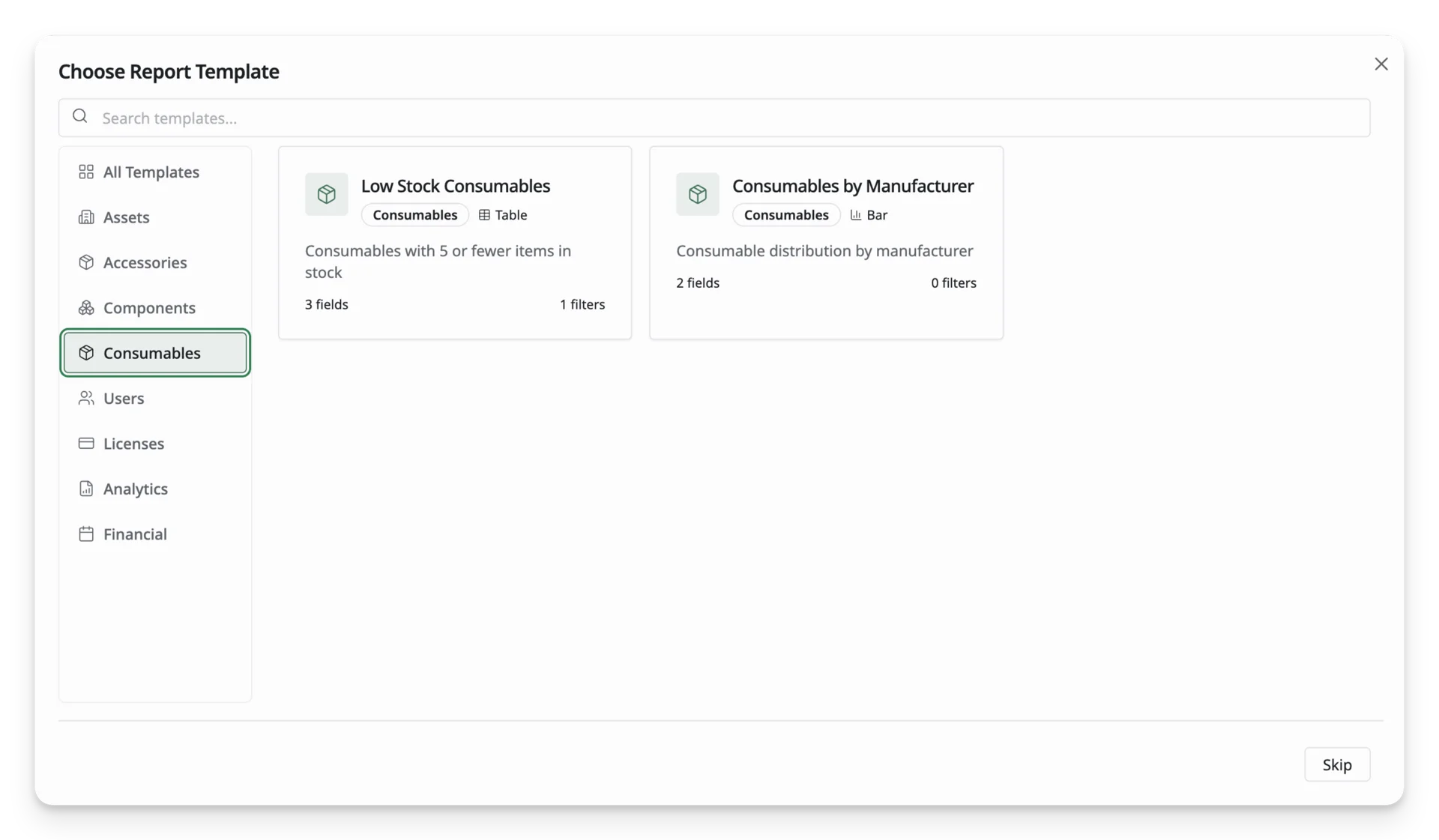
- Low Stock Consumables: Shows consumables with 5 or fewer items in stock. Use this to plan replenishment before supplies run out.
- Consumables by Manufacturer: Groups consumables by manufacturer. Use this to review brand or vendor distribution for recurring supplies.
Users templates
Use Users templates when you want to report on site members:
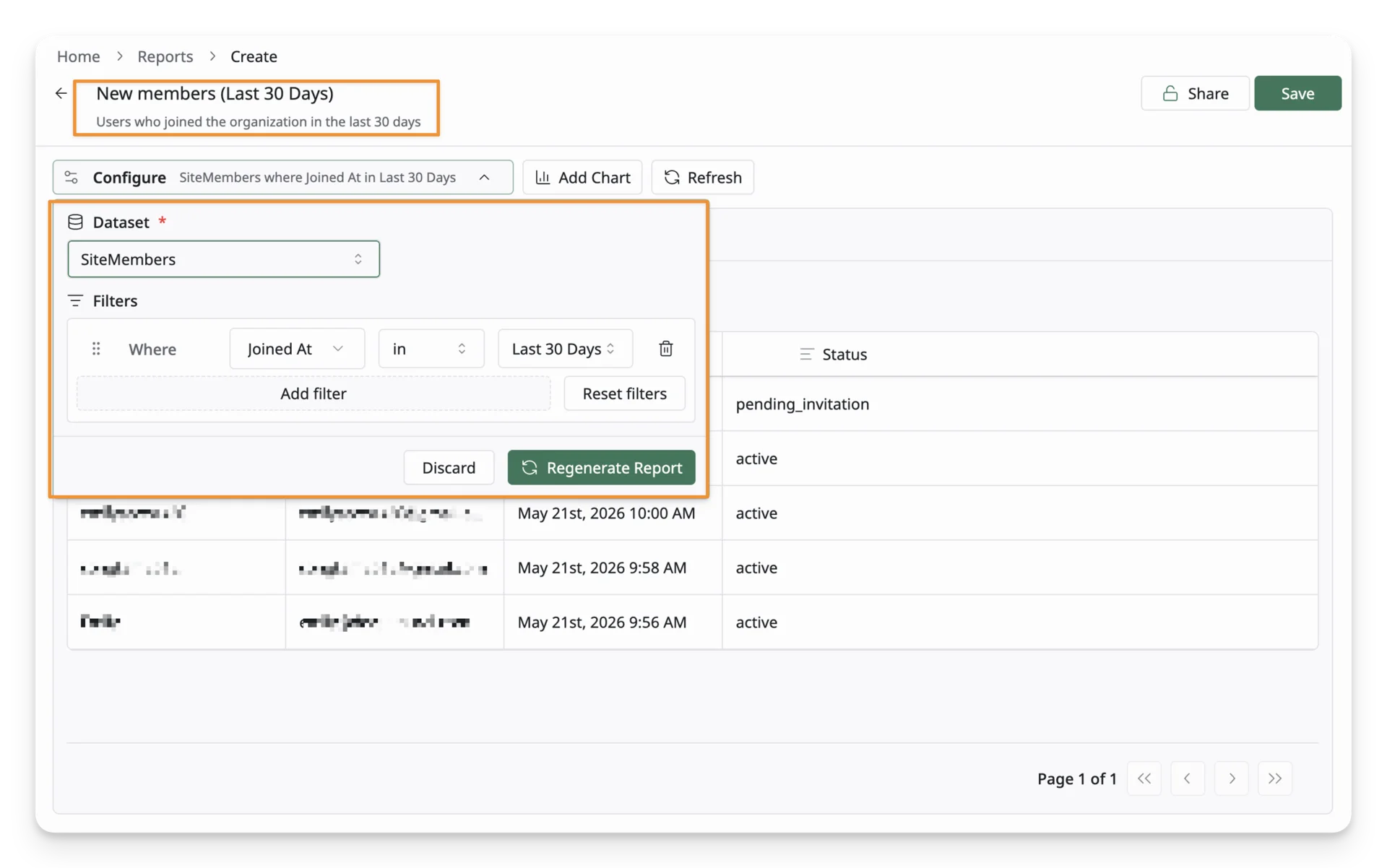
- New Members Last 30 Days: Shows users who joined the organization in the last 30 days. Use this for onboarding review, access audits, or user management checks.
Licenses templates
Use Licenses templates when you want to report on software licenses, subscriptions, renewals, or usage rights.
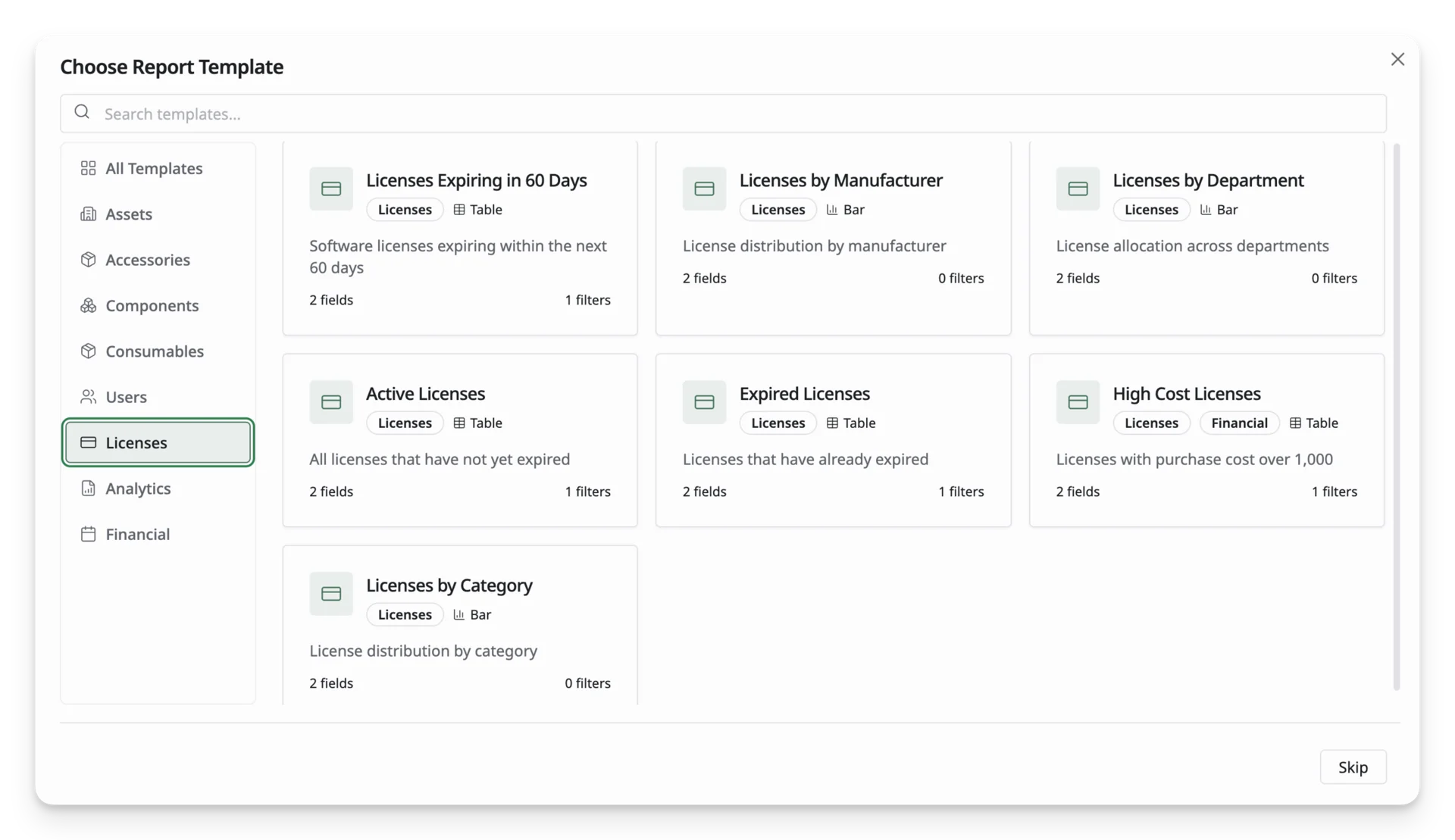
- Licenses Expiring in 60 Days: Shows software licenses expiring within the next 60 days. Use this to plan renewals and avoid service interruptions.
- Licenses by Manufacturer: Groups licenses by manufacturer. Use this to review vendor concentration or software ownership.
- Licenses by Department: Groups licenses by department. Use this to understand how software licenses are distributed across teams.
- Active Licenses: Shows licenses that have not yet expired. Use this to review currently valid licenses.
- Expired Licenses: Shows licenses that have already expired. Use this for cleanup, renewal follow-up, or compliance review.
- High Cost Licenses: Shows licenses with purchase cost above a preset threshold. Use this for software spend review and budget control.
- Licenses by Category: Groups licenses by category. Use this to understand software types, usage areas, or business purposes.
Analytics templates
Use Analytics templates when you want quick lifecycle or operational insights.
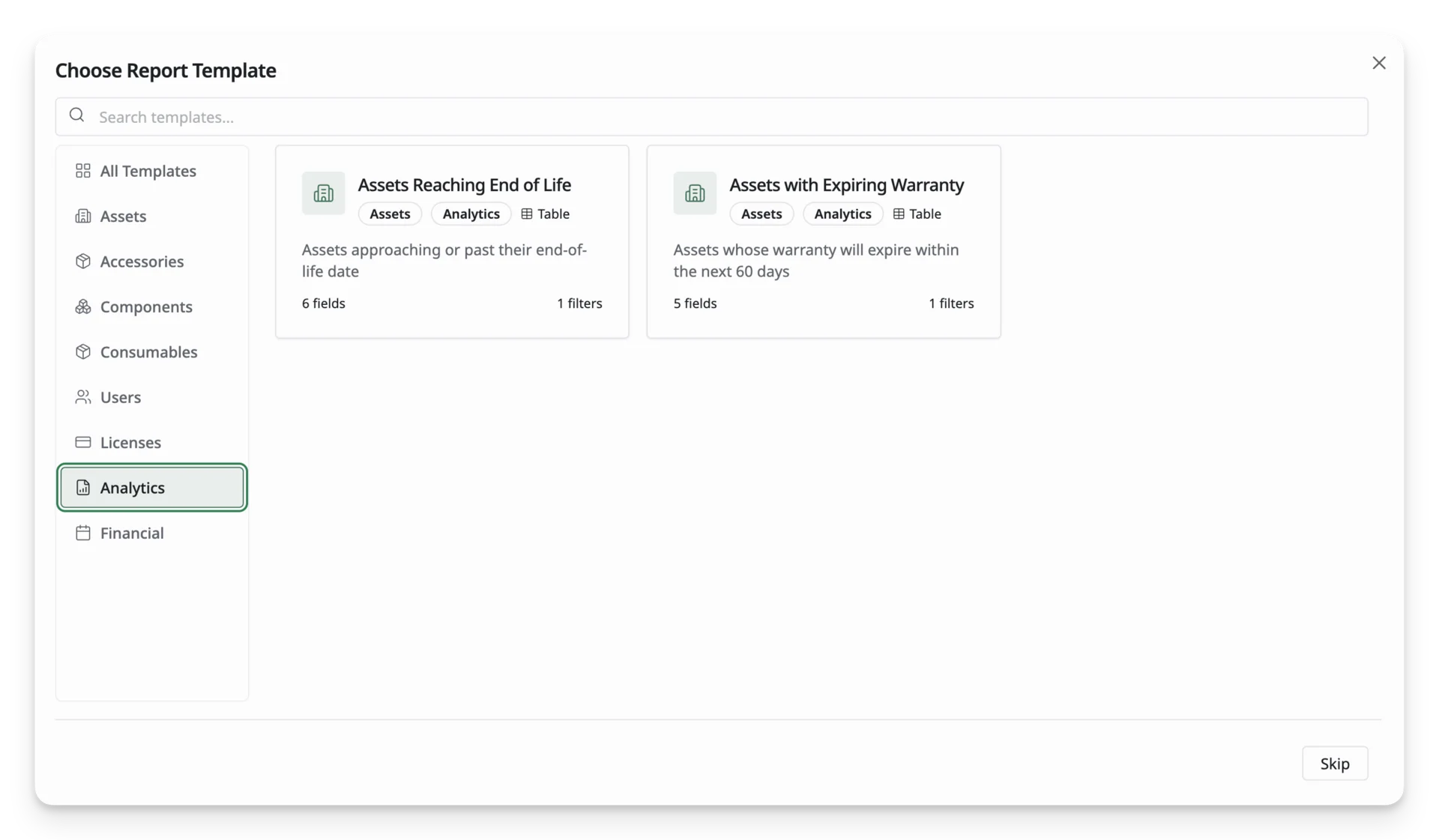
- Assets Reaching End of Life: Shows assets approaching their end-of-life date. Use this for lifecycle planning and replacement strategy.
- Assets with Expiring Warranty: Shows assets whose warranty will expire within the next 60 days. Use this for warranty planning, support follow-up, or replacement decisions.
Financial templates
Use Financial templates when you want to review purchase, cost, or value-related information.
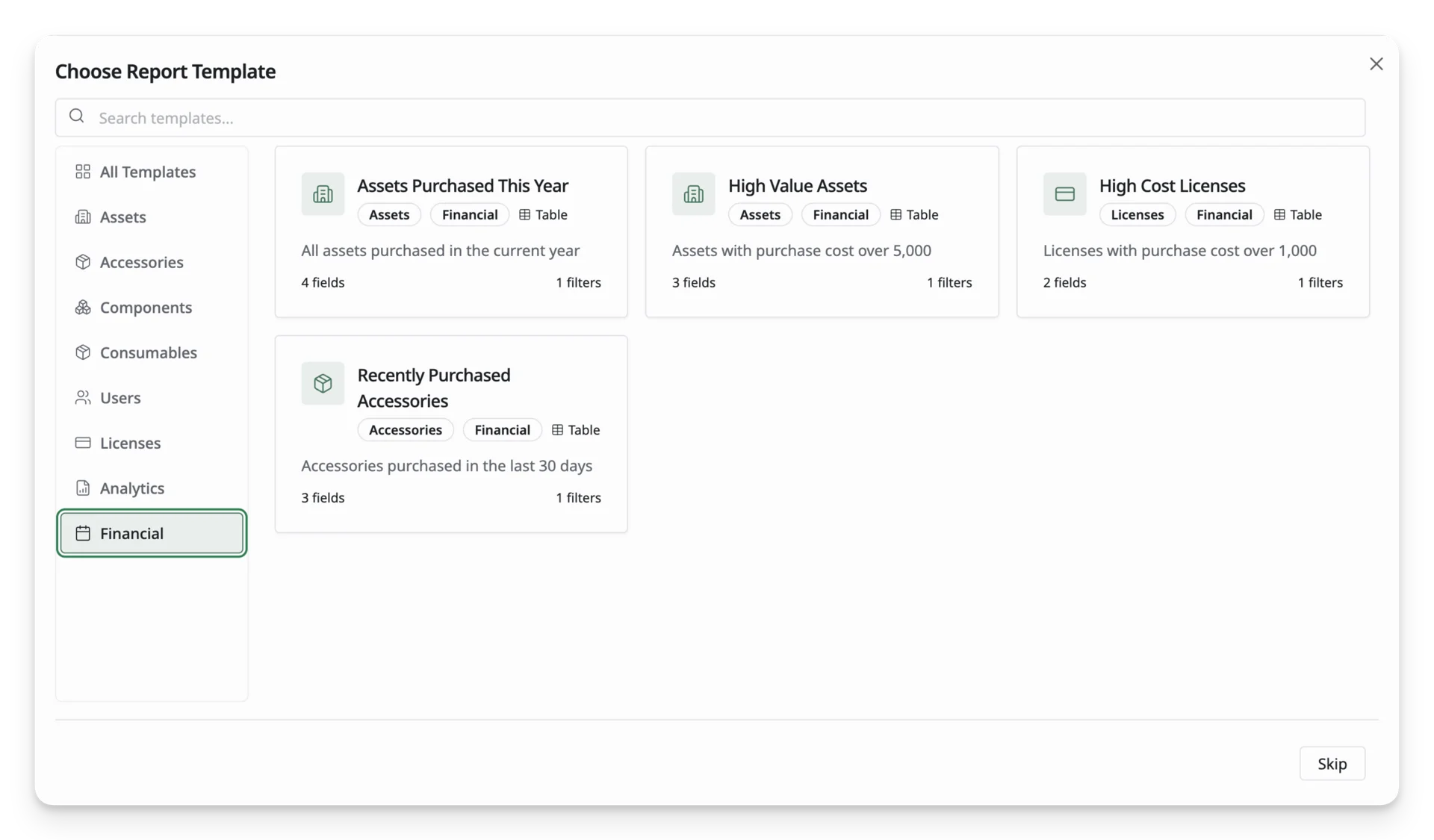
- Assets Purchased This Year: Shows assets purchased in the current year. Use this for annual procurement tracking and budget review.
- High Value Assets: Shows assets with purchase cost above a preset threshold. Use this for financial review, asset audits, or insurance planning.
- High Cost Licenses: Shows licenses with purchase cost above a preset threshold. Use this for software spend review and budget control.
- Recently Purchased Accessories: Shows accessories purchased in the last 30 days. Use this to review recent accessory procurement.
Customize a template
After selecting a template, AssetLoom opens the report builder with the template’s preset configuration. You can still customize the report by changing the name, description, visibility, filters, displayed fields, chart settings, and export options.
Skip templates
If none of the templates match what you need, click Skip.
This takes you directly to the report builder, where you can create a custom report by selecting your own dataset, filters, fields, and chart settings.