Notifications
Learn how to manage AssetLoom Notifications
1. What Are Notifications in AssetLoom?
Notifications in AssetLoom keep users updated about important actions, changes, and system activity.
Notifications can be sent in three ways:
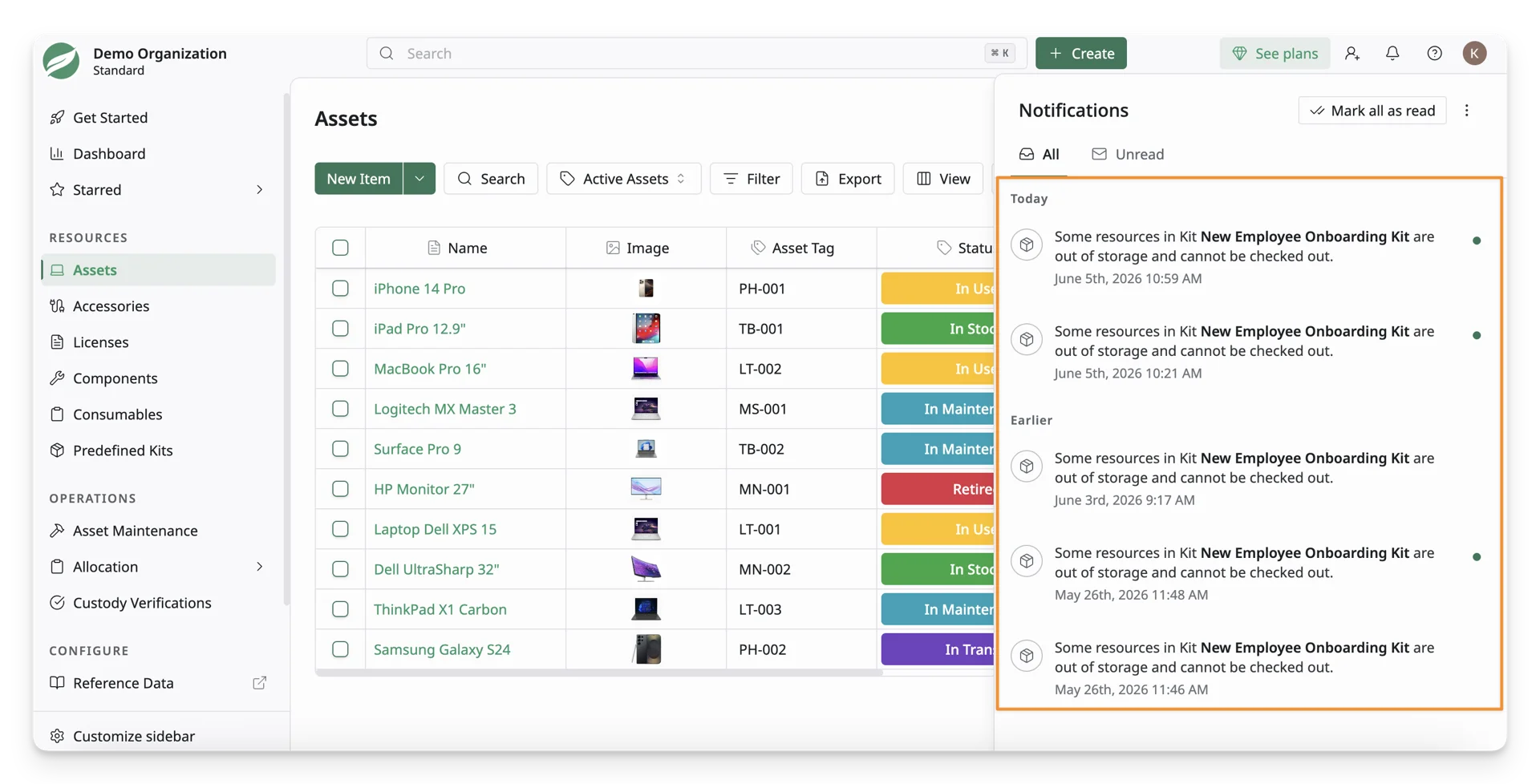
- In-app notifications — appear inside the AssetLoom interface
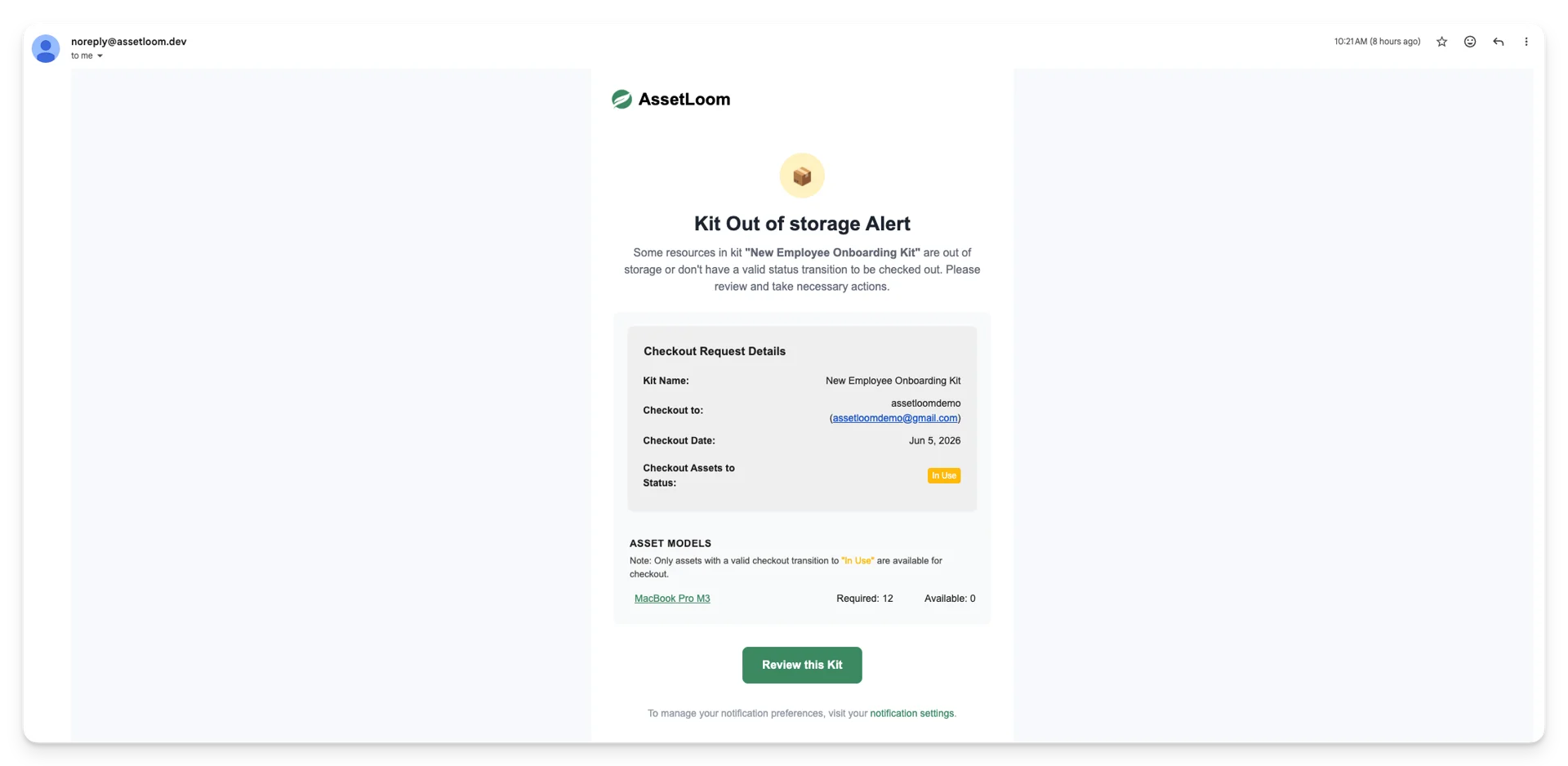
- Email notifications — sent to the user’s registered email address
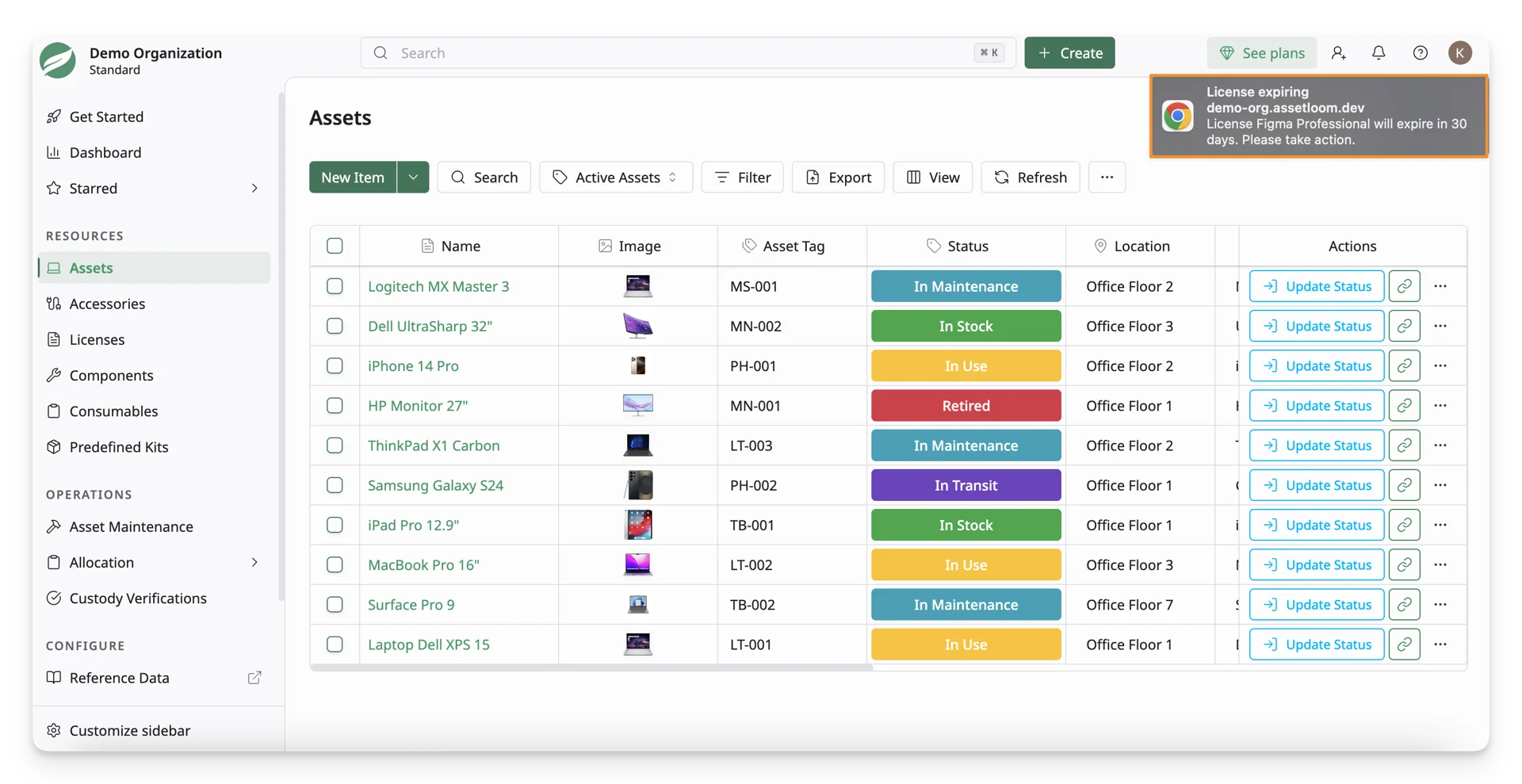
- Browser notifications — appear on the user’s device when browser notifications are enabled
2. Types of Notifications
AssetLoom supports two types of notifications: User Notifications and Admin Notifications.
User Notifications
User Notifications are personal alerts related to your own asset activity. These help you stay updated when resources are assigned to you, returned from you, or require your action. Below is the list of notifications a normal user receives:
| Resources | Action |
|---|---|
| Asset | Asset Checkout for that user only |
| Asset | Asset Check-in for that user only |
| Asset | Booking Request |
| Asset | Booking Updated |
| Asset | Booking Approved |
| Asset | Booking Declined |
| Accessory | Accessory Checkout for that user only |
| Accessory | Accessory Checkin for that user only |
| License | License Checkout for that user only |
| License | License Checkin for that user only |
| Consumable | Consumable Checkout for that user only |
| Custody | Create Custody |
| Predefined Kit | Checkout Predefine Kit for that user only |
| Report | Share Report |
| Report | Revoke Shared Report |
Admin Notifications
Admin Notifications are system-wide alerts sent to Site Admins & Site Owners. These help admins monitor important resource activity, stock changes, booking updates, maintenance events, and license deadlines.
| Resources | Action |
|---|---|
| Asset | Asset Checkout For All Users, Asset, Location |
| Asset | Asset Checkin For All Users, Asset, Location |
| Asset | Booking Request |
| Asset | Booking Updated |
| Asset | Booking Approved |
| Asset | Booking Declined |
| Asset | Maintenance Create |
| Asset | Maintenance Update |
| Asset | Maintenance Complete |
| Asset | Maintenance Cancel |
| Asset | Asset Overdue |
| Asset | Booking Pending |
| Accessory | Accessory Checkout To Assets, Users |
| Accessory | Accessory Checkin From Assets, Users |
| Accessory | Accessory Reached Minimum Quantity |
| License | License Checkout For Assets, Users |
| License | License Checkin For Assets, Users |
| License | License Expired |
| Component | Component Checkout To Asset |
| Component | Component Checkin From Asset |
| Component | Component Reached Minimum Quantity |
| Consumable | Consumable Checkout To Users |
| Consumable | Consumable Reached Minimum Quantity |
| Custody | Create Custody |
| Custody | Response Custody |
| Predefined Kit | Checkout Predefine Kit |
| Out of Storage | Missing onboarding checkout status |
Notifications are not sent to the person who performed the action.
3. Access Notification Settings
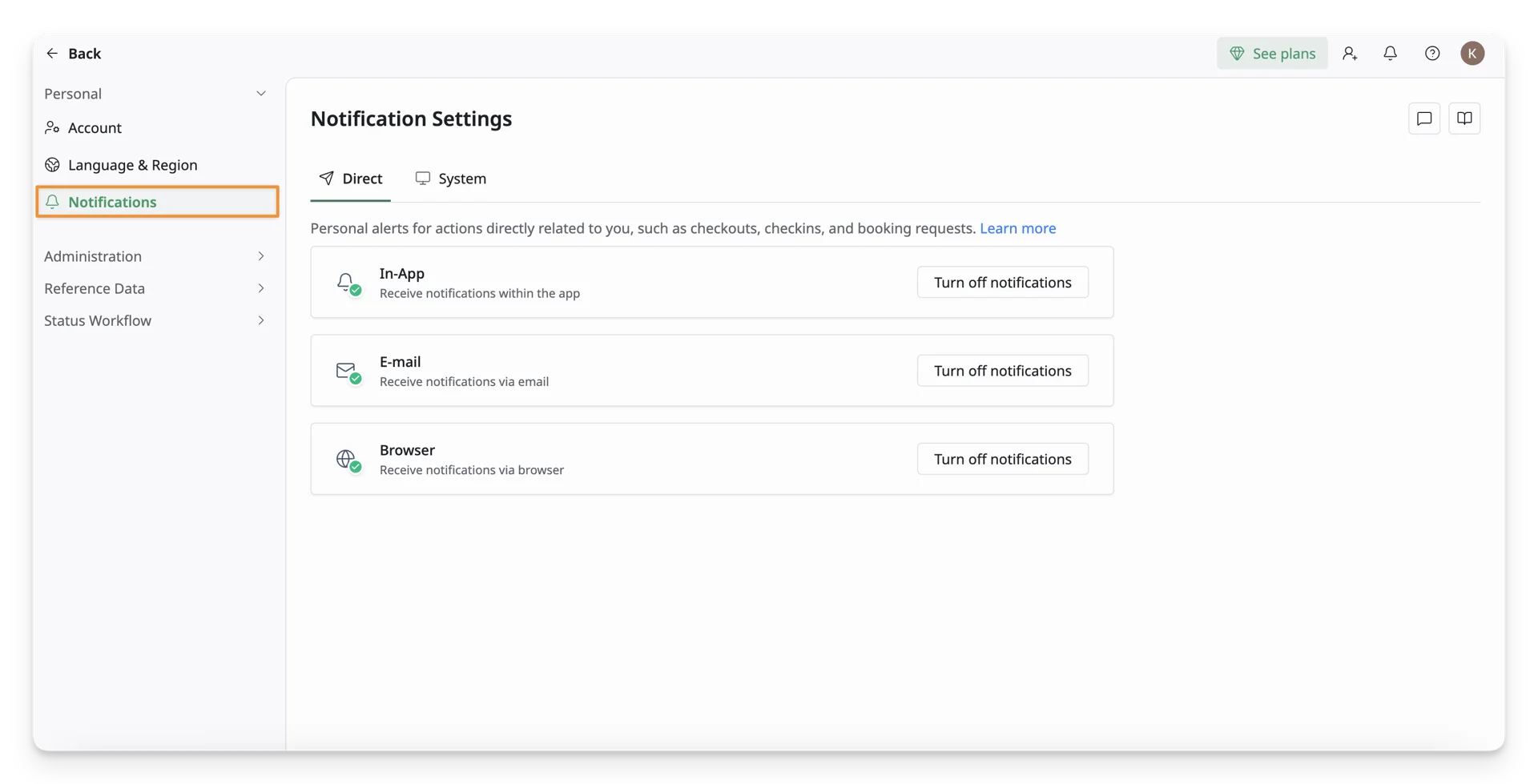
Click on your Avatar button, then select the Account option.
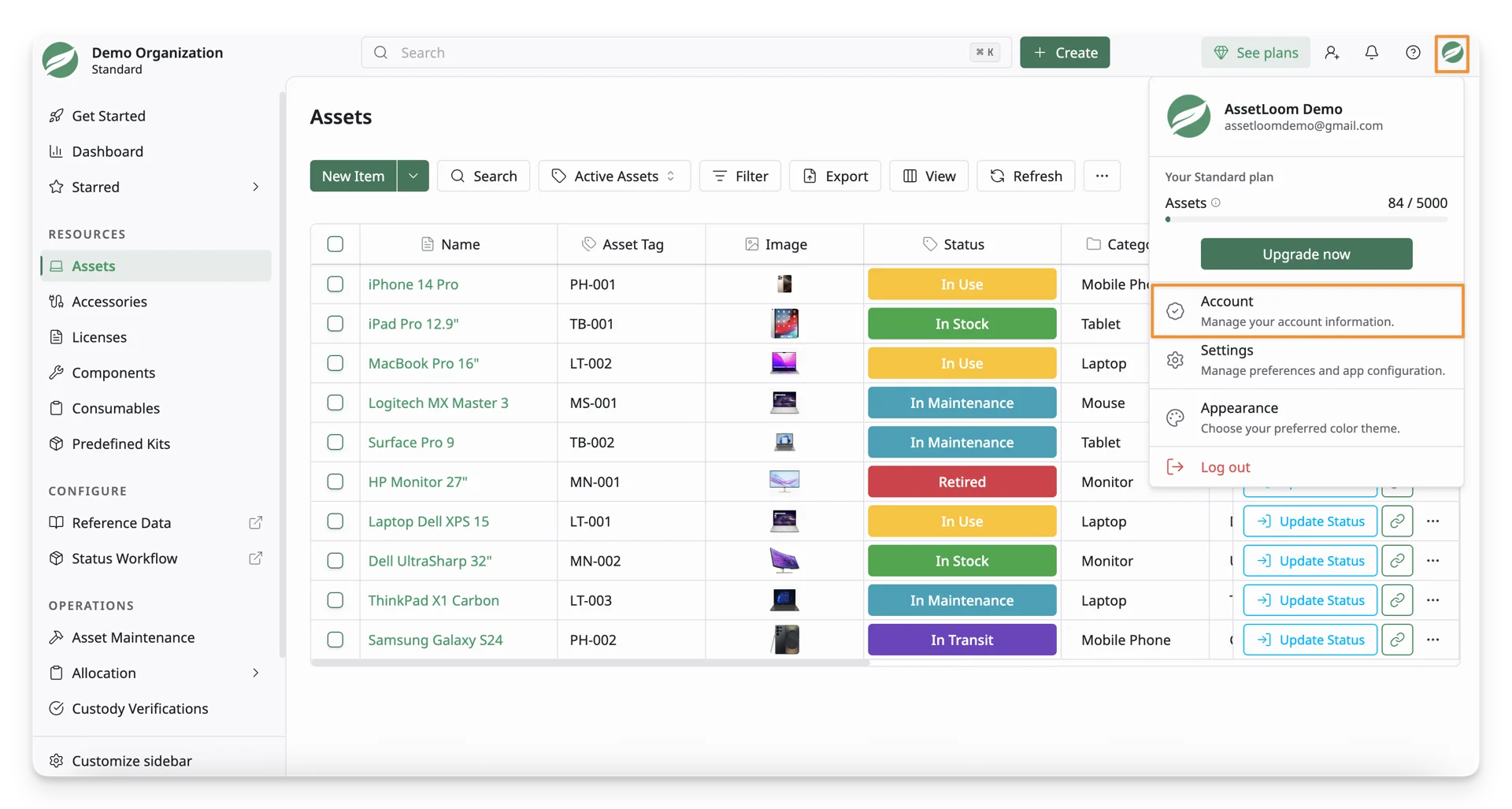
You can see the Notifications settings under the Personal tab. This is where you can choose the channel you want to receive alerts for your own activity and configure other scheduled actions.
4. Manage Notifications as a User
As a normal user, you can only turn on/offf notifications in the Direct tab. These notifications are directly related to your own account activity and assigned resources.
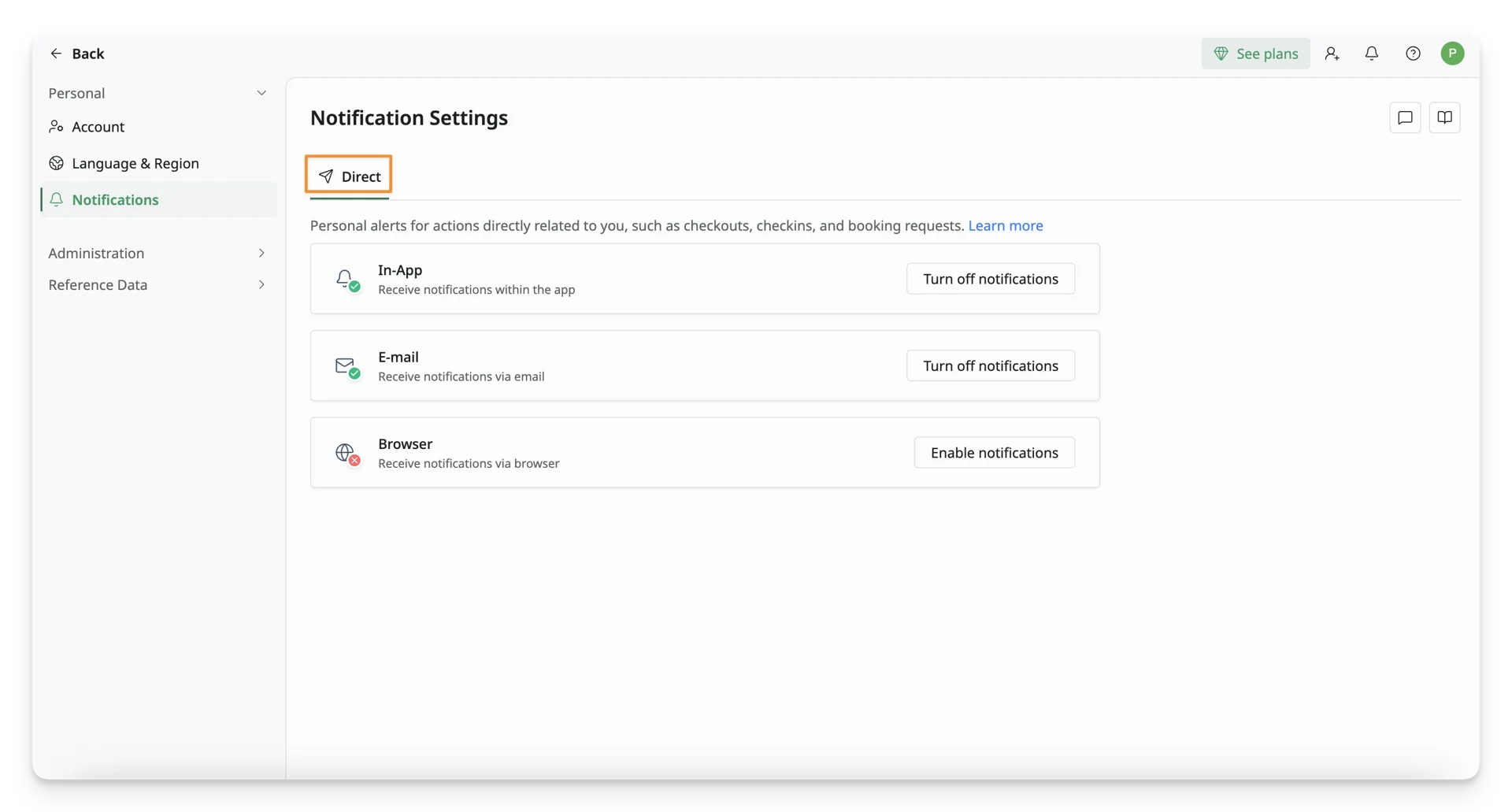
In this tab, you can choose which channels you want to receive notifications from, including in-app, email, and browser notifications.
To turn notifications on or off for a channel, click Enable notifications or Turn off notifications.
For email notifications, ensure you have access to the registered email and check your spam inbox if you don’t receive any updates.
For browser notifications, confirm that you have allowed the site and system settings to send notifications.
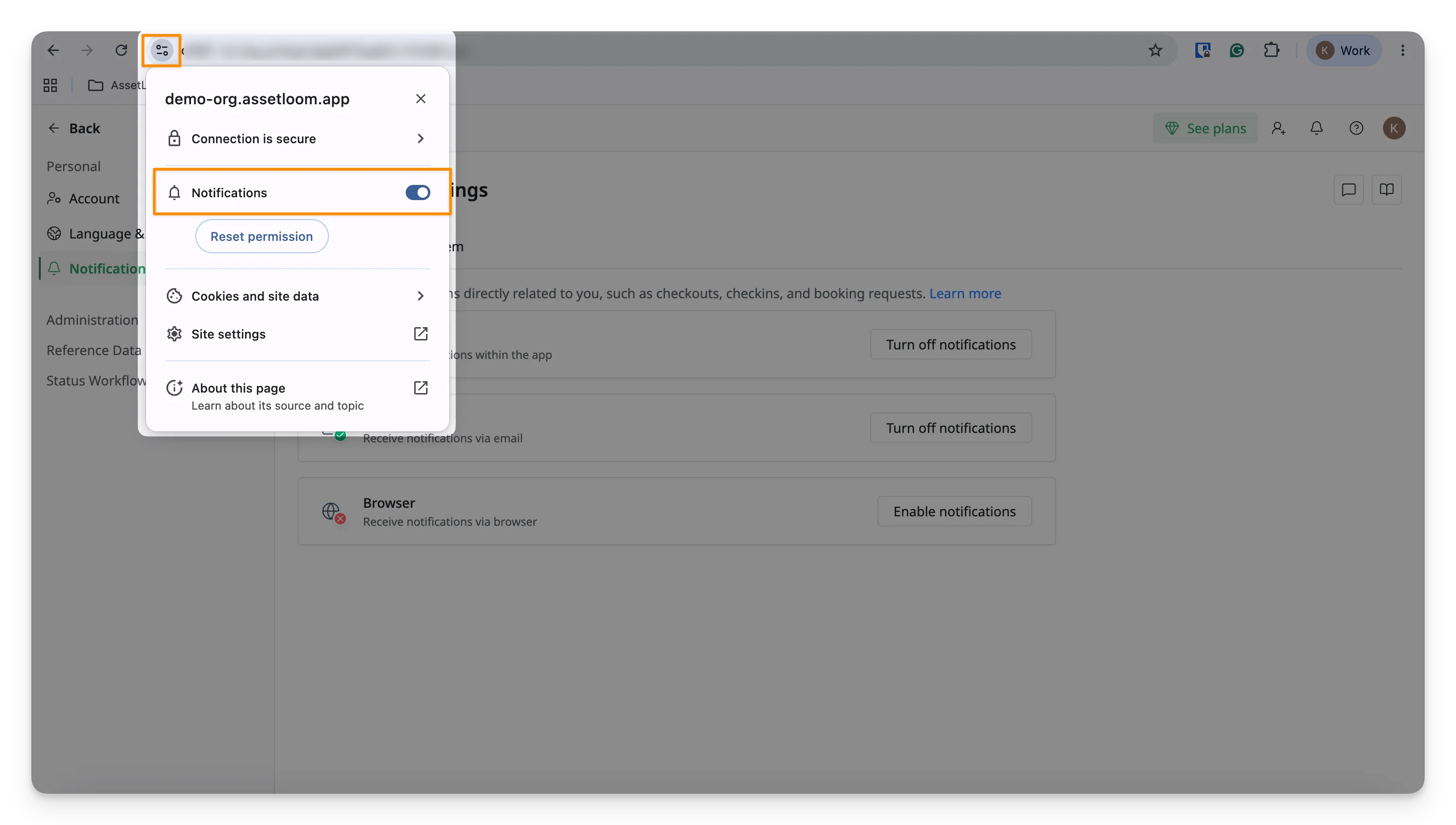
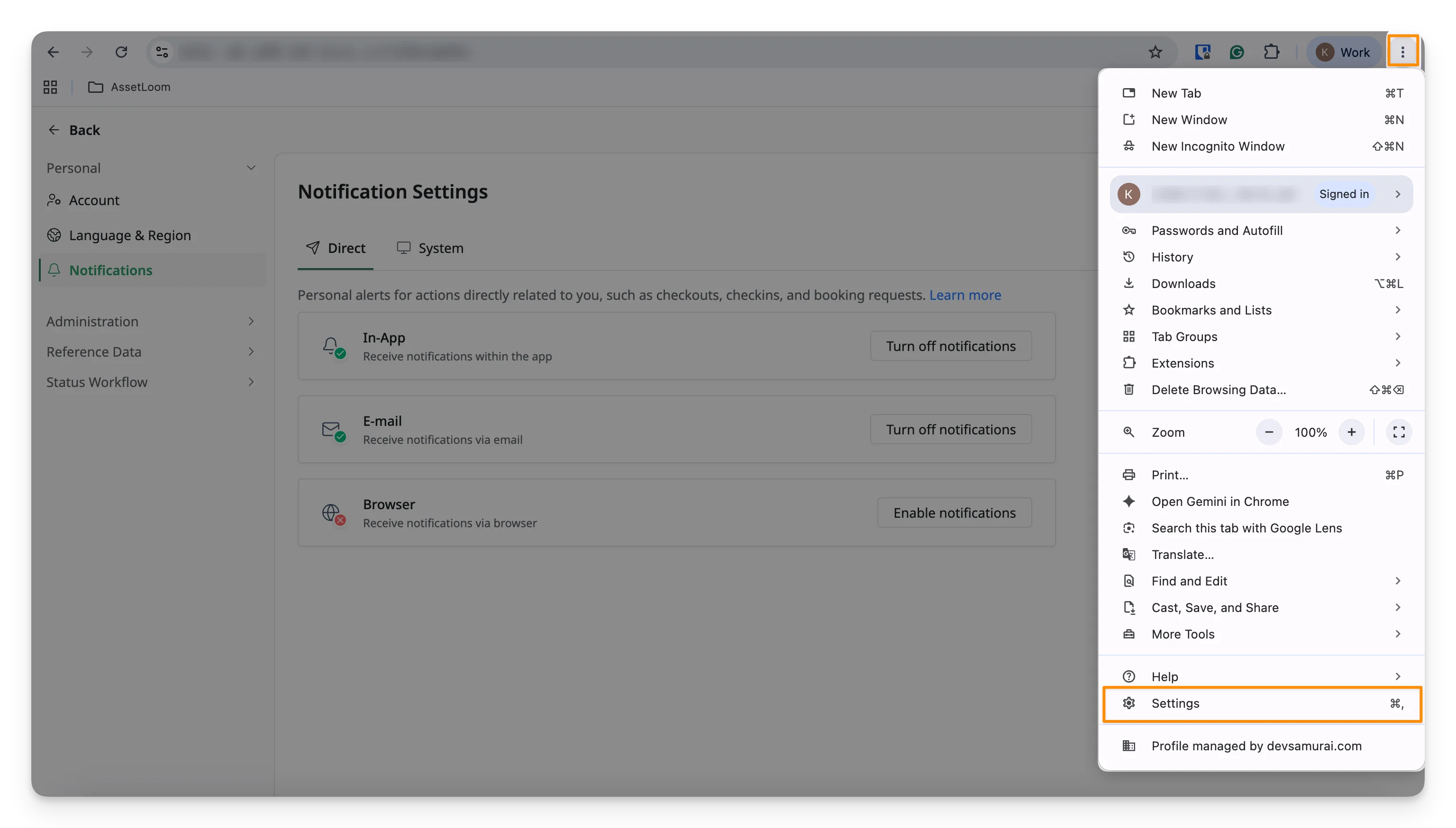
For Chrome, you can follow these steps to enable AssetLoom site notifications on your browser.
- Navigate to the 3-dot button near your Google account on the top right-hand side, and select Settings.
- In the Privacy and Security tab, select Site settings
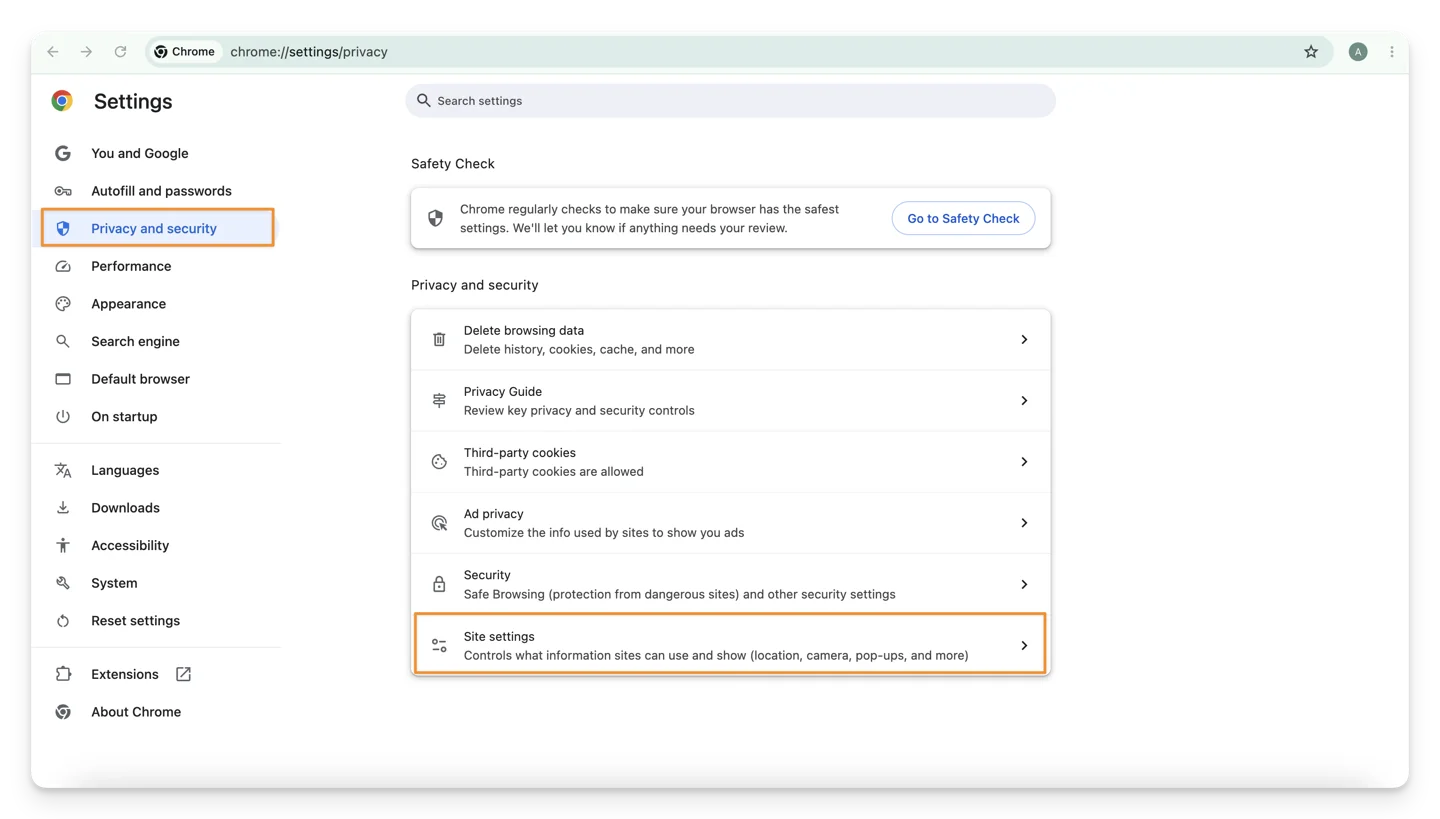
- In the Privacy and Security tab, select Site settings
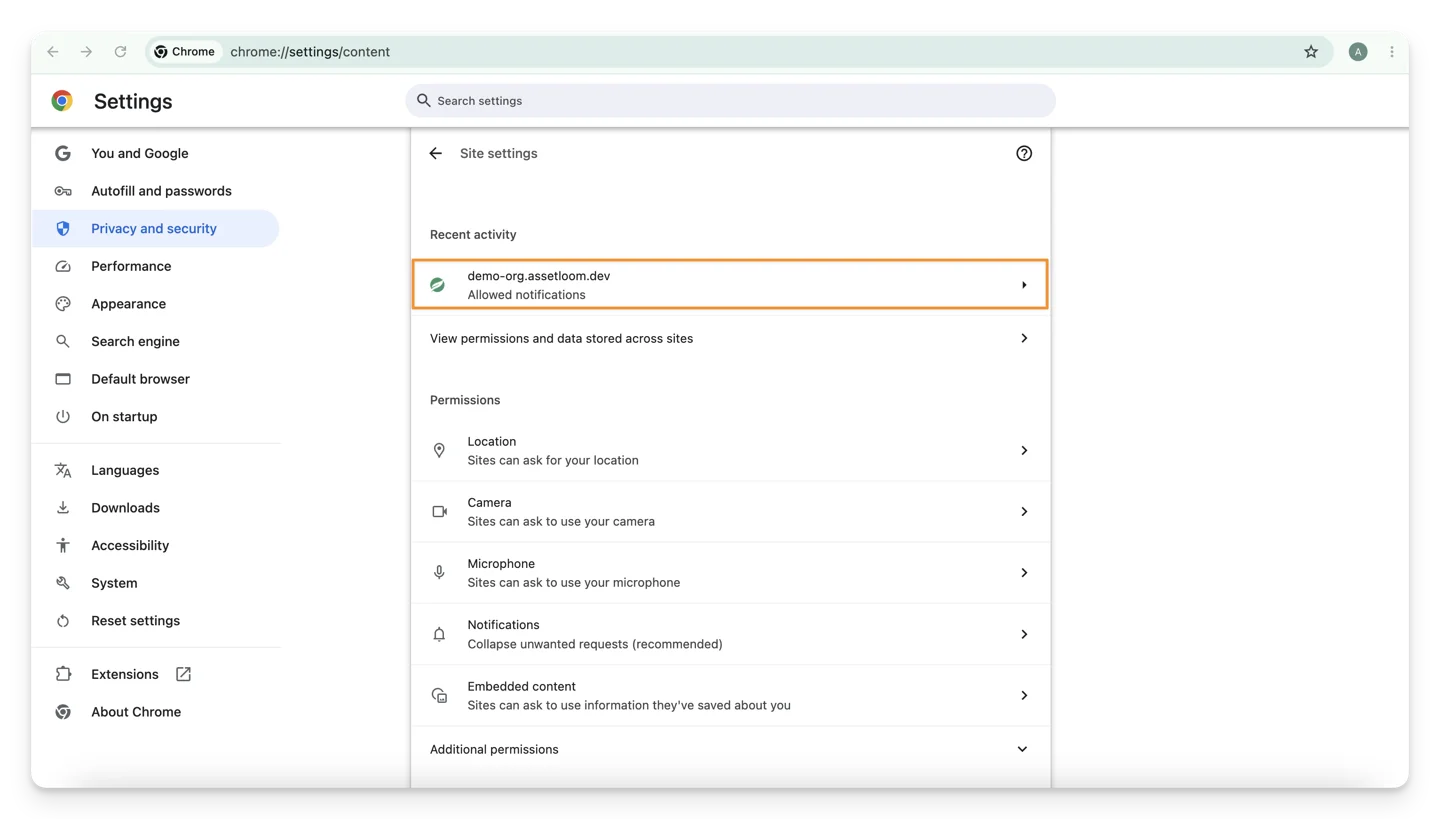
- Choose your AssetLoom site and allow notifications for this site
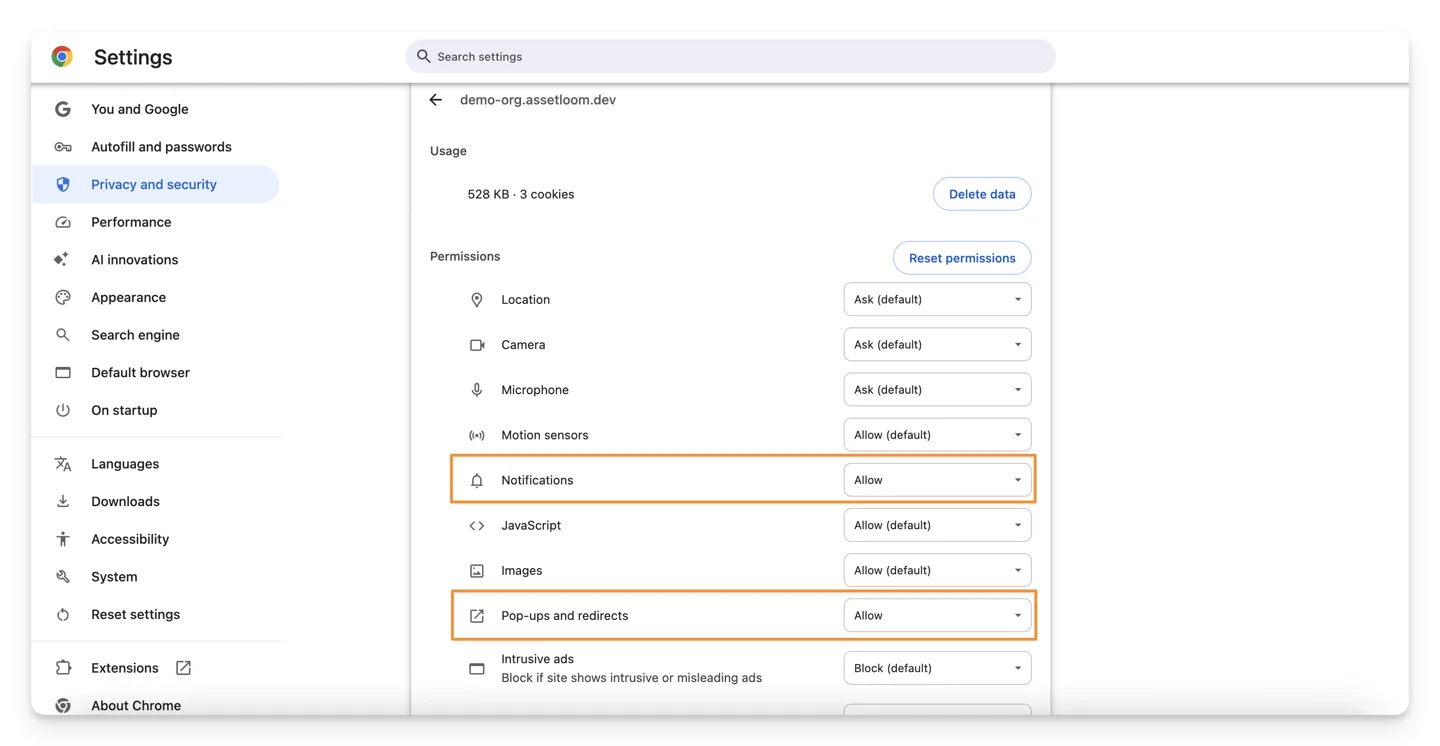
- Allow permission to receive notifications & pop-ups and redirects for this site
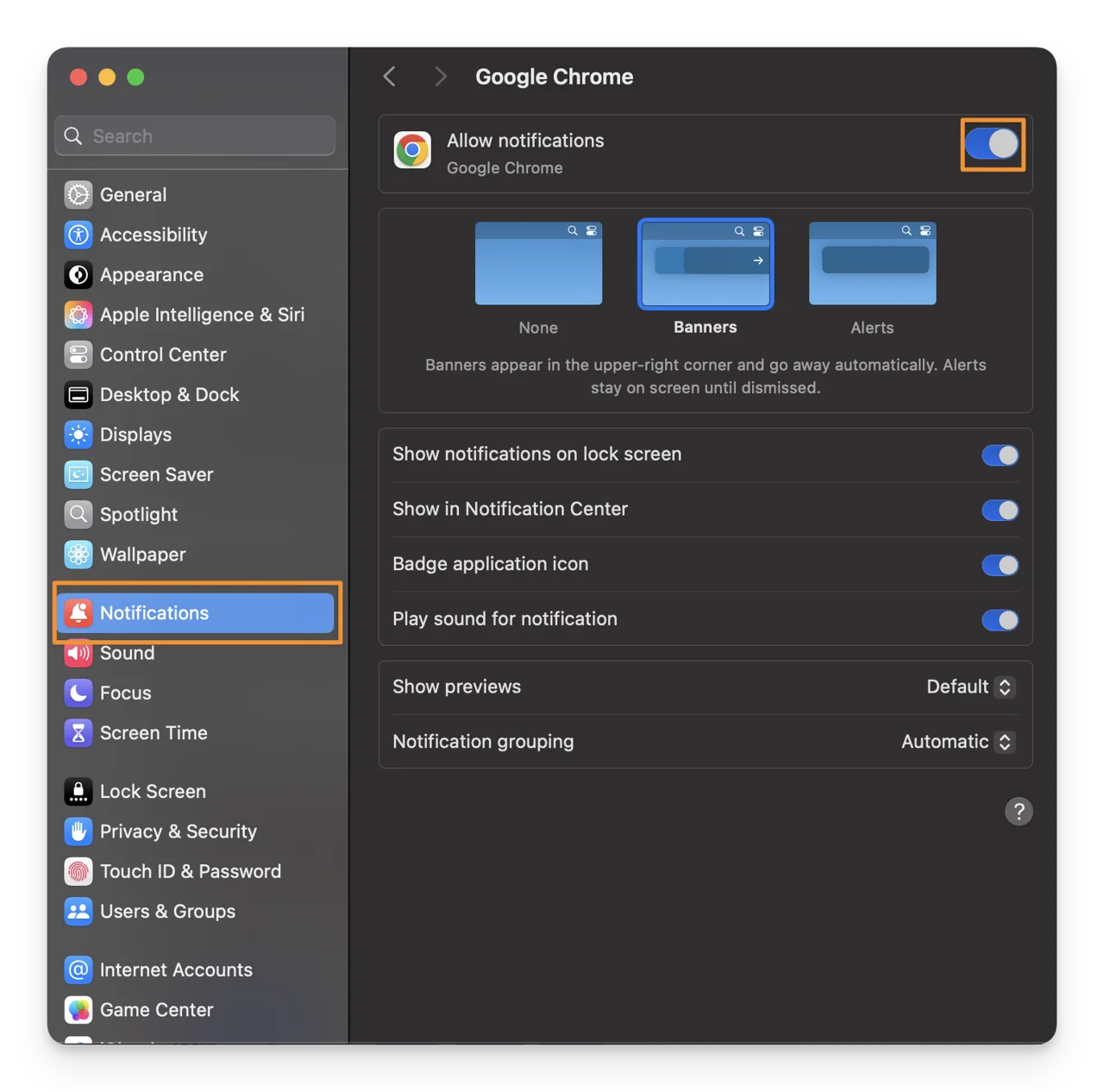
- Make sure you have enabled the operating system’s settings.
- On Mac
- Click the Apple logo in the upper-left corner of your screen.
- Click System Settings and then click Notifications.
- Choose your browser from the list.
- Turn Allow notifications on. If it was already on, try to turn it on and off.
- On Windows
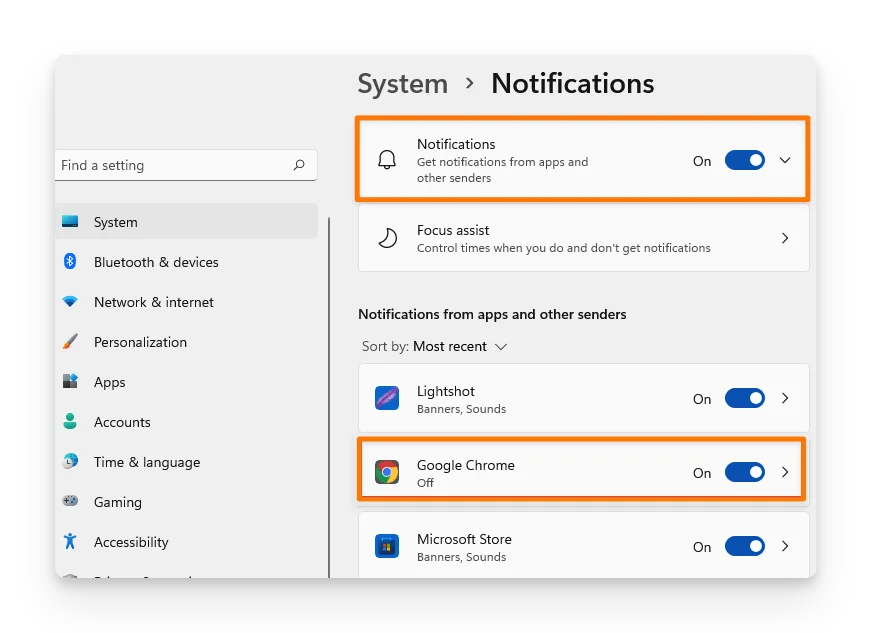
- Go to Settings, System, and then Notifications & actions.Turn on the top-level toggle for Notifications.Choose your browser under Get notifications from these senders.Enable notifications for your browser. If it was already enabled, try to turn it on and off.
5. Manage Notifications as an Admin
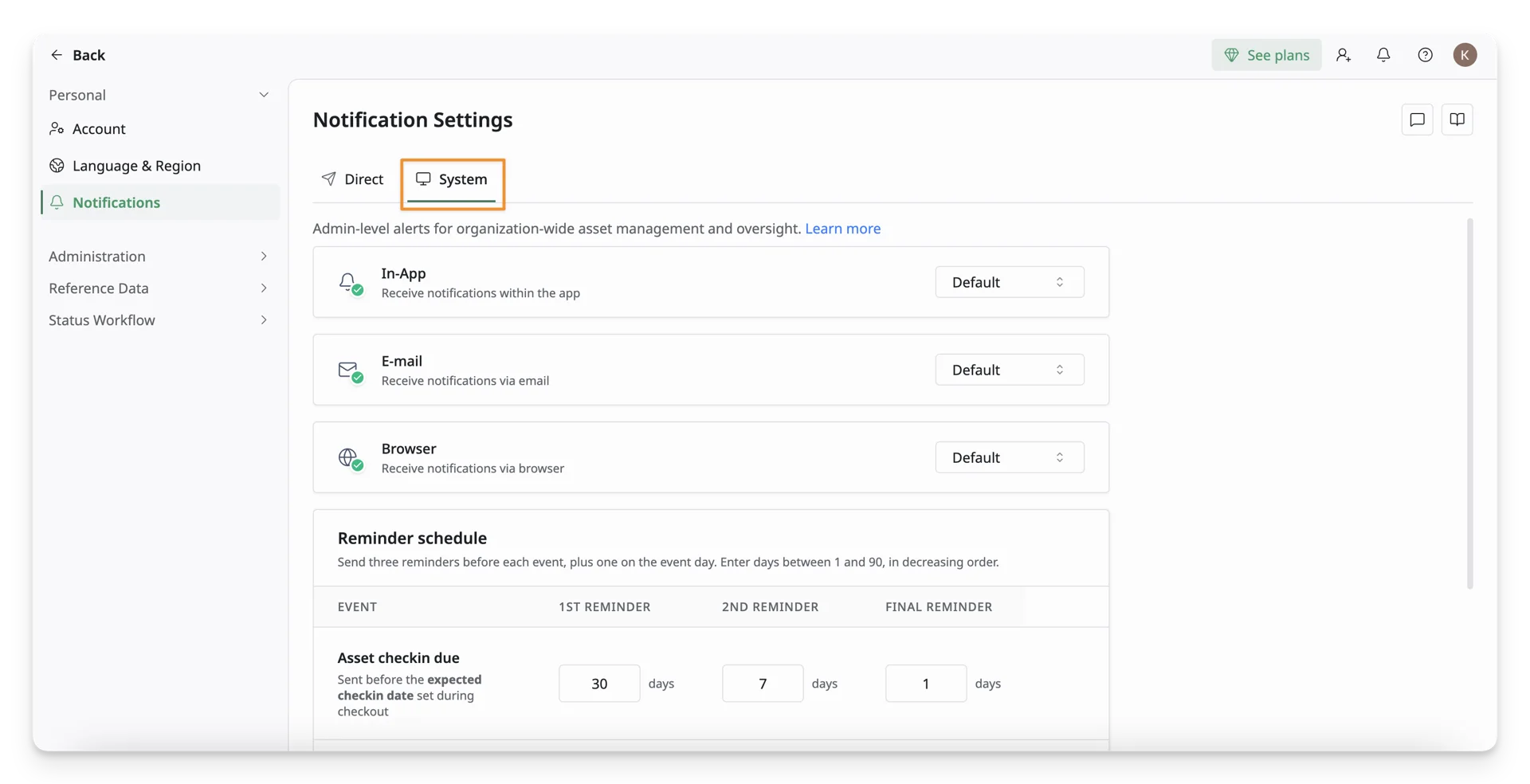
As an admin, you can view and configure other notification settings in the System tab, alongside those in Direct settings as a normal user.
Set up Notification Channels
In the System tab, you can choose which notification channels you want to receive for other system activities. Note that these notifications are system-wide, covering resource updates, requests, or admin events, unlike personal updates for regular users.
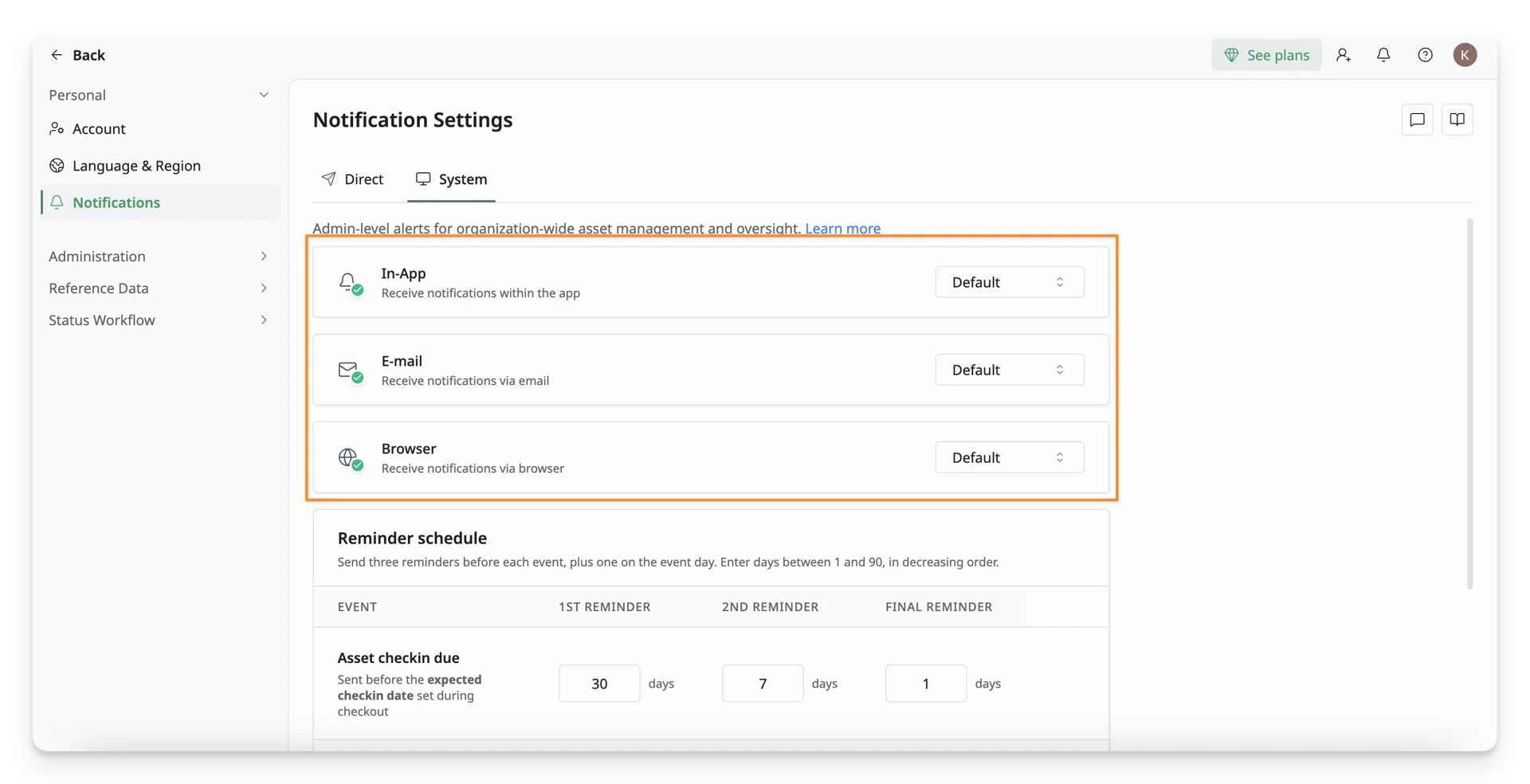
Navigate to the 3 channels (In-app, E-mail, and Browser), click Enable notifications or Turn off notifications to turn on/off notifications.
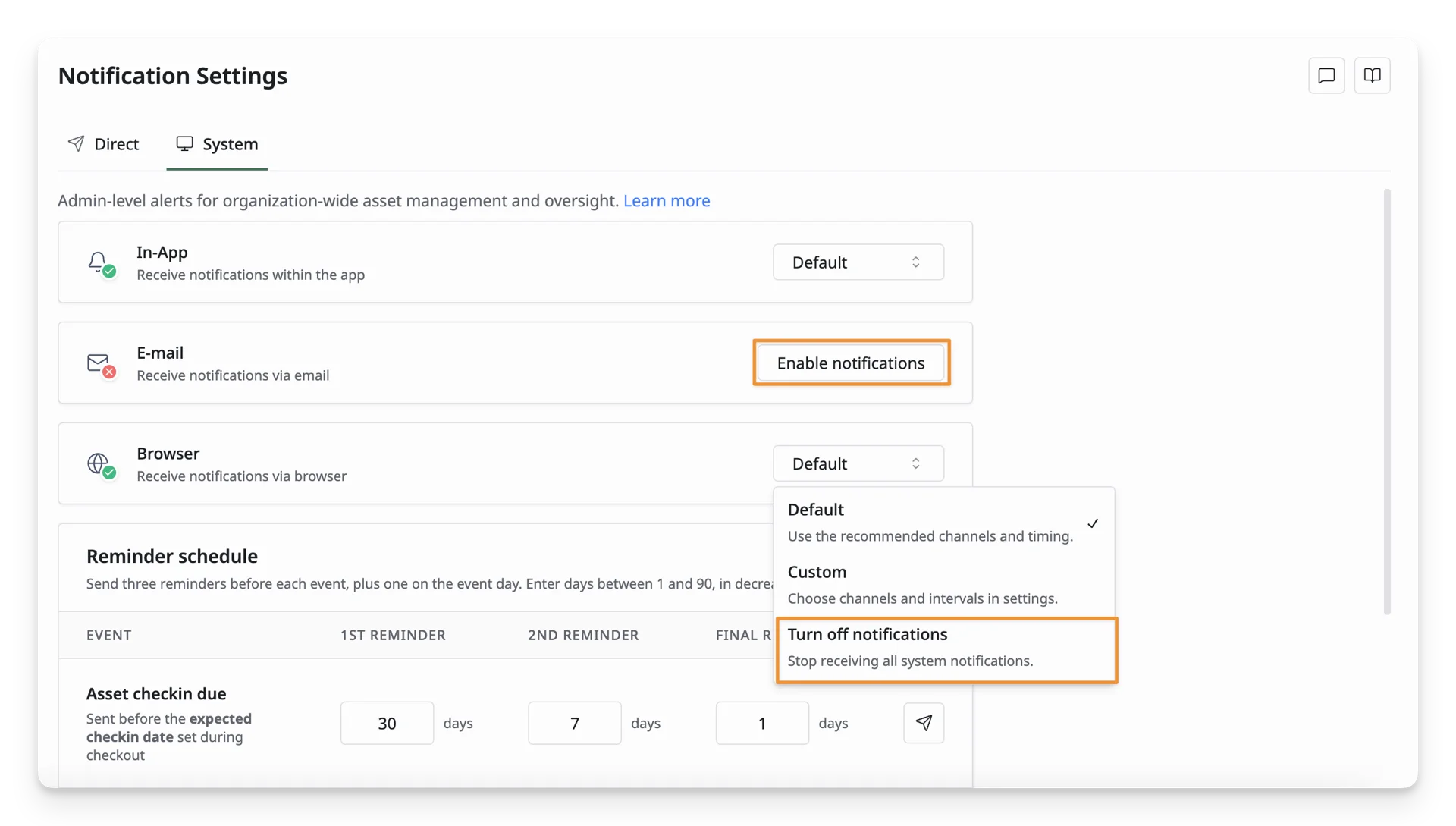
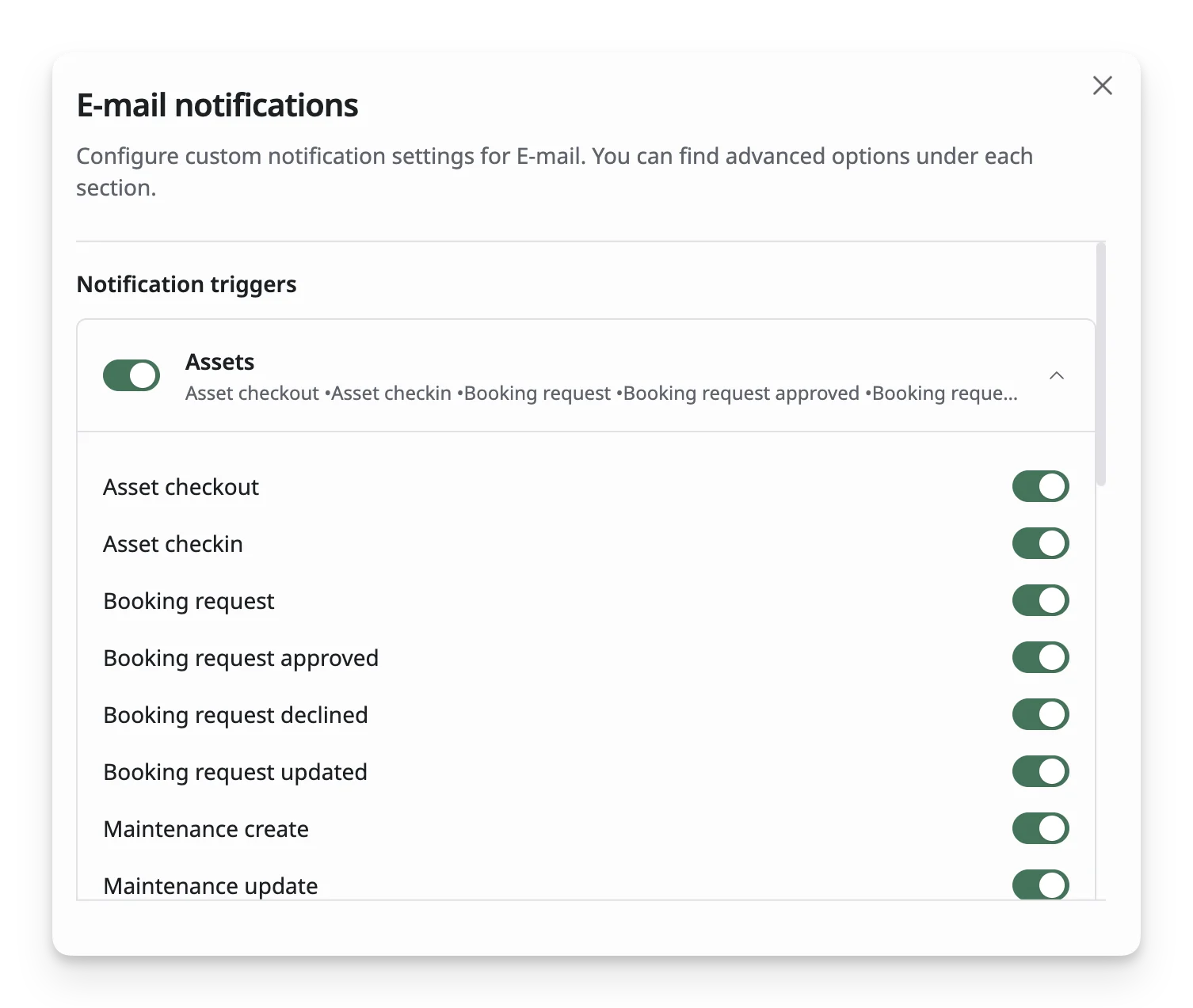
You can also choose which actions you want to receive notifications for and which ones you want to turn off. This helps you stay updated on important activities without receiving unnecessary alerts.
- Default: Receive all system-wide notifications from AssetLoom
- Custom: Select specific actions for notifications.
- Click the “Gear” button to open the customization screen.
- Toggle the option to enable or disable notifications for these actions
Set up Reminder Schedule
AssetLoom can automatically send up to three reminders before key events and one more on the event day. This helps you as an admin stay aware of upcoming deadlines and take action on time. The three supported events are:
- Asset checkin due: Reminds admin before an asset is due to be checked in, so you can follow up and avoid overdue returns.
- Booking pending: Reminds admin when a booking is still waiting for approval before its start date, so you can review it on time.
- License expiring: Reminds admin before a license expires, so you can renew, replace, or take action before license access is affected.
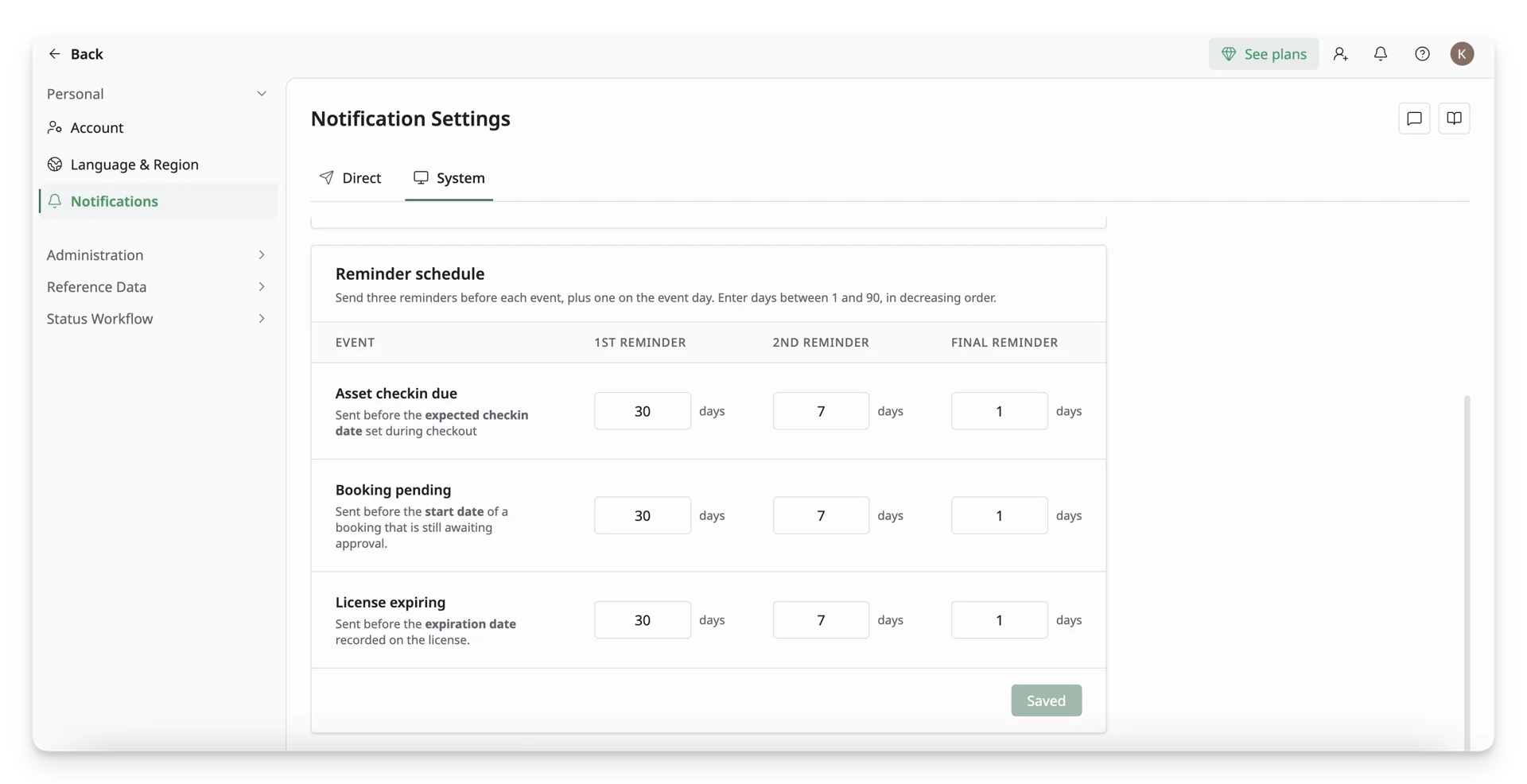
By default, these reminders are set to 30 days, 7 days, and 1 day before the expiration date. You can enter your preferred timeline based on your organization’s renewal process.
Note that each reminder must be set to at least 1 day before the expiration date.
What’s Next?
- Theme and Appearance: Configure your in-app theme and appearance