Network Scanner Troubleshooting Guide
Troubleshoot common AssetLoom Network Scanner issues, including scan failures, protocol errors, missing device data, permissions, and network configuration problems.
Sometimes, the scanner does not start as expected, rejects your target, returns incomplete device information, or produces an unexpected output.
This guide covers some of the most common issues you may encounter and shows you how to identify the cause and resolve them.
1. Configuration File Not Found
Error Message: Error: configuration file not found
Happens when: You start a dry run or an actual scan.
Reason: This means the scanner cannot find the config.json file at the path you provided.
How to fix:
You should confirm that you are in the folder containing config.json, or provide the correct file path.
If you have not created the configuration file yet, run this command to create the config file:
- macOS:
sudo ./assetloom-scanner --config ./config.json --init-config - Windows:
./assetloom-scanner --config ./config.json --init-config
Then rerun the scanner using the same --config path.
2. Configuration File Already Exists
Error Message: config file already exists
Happens when: You create a new config file.
Reason: A configuration file already exists at that location. The scanner will not automatically overwrite it.
How to fix:
- Continue using the existing configuration file.
- Create a new configuration file at another path.
- Back up and remove the existing file before creating a new one.
3. Output File Already Exists
Error Message: output: devices.csv already exists; pass --force-output to overwrite
Happens when: After you save the scan result.
Reason: The issue occurs because a CSV or JSON file with the same name already exists.
How to fix:
Use a different filename, or add --force-output when you intentionally want to replace the existing file.
- macOS/Linux CSV file:
sudo ./assetloom-scanner --config ./config.json --output ./devices.csv --force-output TARGET - macOS/Linux JSON file:
sudo ./assetloom-scanner --config ./config.json --format json --output ./devices.json --force-output TARGET - Windows CSV file:
.\assetloom-scanner.exe --config .\config.json --output .\devices.csv --force-output TARGET - Windows JSON file:
.\assetloom-scanner.exe --config .\config.json --format json --output .\devices.json --force-output TARGET
You can also use a different output filename if you want to keep the previous scan result.
4. Routed Network Is Rejected
Error Message: range ... is not fully within a locally-attached subnet
Happens when: During a dry run or when starting an actual scan.
Reason: The target is not directly connected to the scanner host. It may be reached through a router, VPN, or another network path, while routed scanning is currently disabled.
How to fix:
When you are authorized to scan the network, add the specific range to approved_ranges.
For example:
"approved_ranges": ["10.10.20.0/24"]
Alternatively, you can enable routed scanning:
"allow_routed": true
Using approved_ranges is recommended when possible because it gives you more control over exactly which networks can be scanned.
5. Public Network Is Rejected
Error Message: range ... is a public address range
Happens when: During a dry run or when starting an actual scan.
Reason: Public network scanning is disabled by default.
How to fix:
When you are authorized to scan the public network, add the specific range to approved_ranges.
For example:
"approved_ranges": ["203.0.113.0/24"]
Alternatively, you can enable routed and public scanning:
"allow_routed": true,
"allow_public": true
Only enable public scanning for networks you are authorized to scan. Special-purpose ranges are still rejected.
6. ICMP or ARP Is Unavailable
Issue: ICMP or ARP may appear as unavailable or degraded.
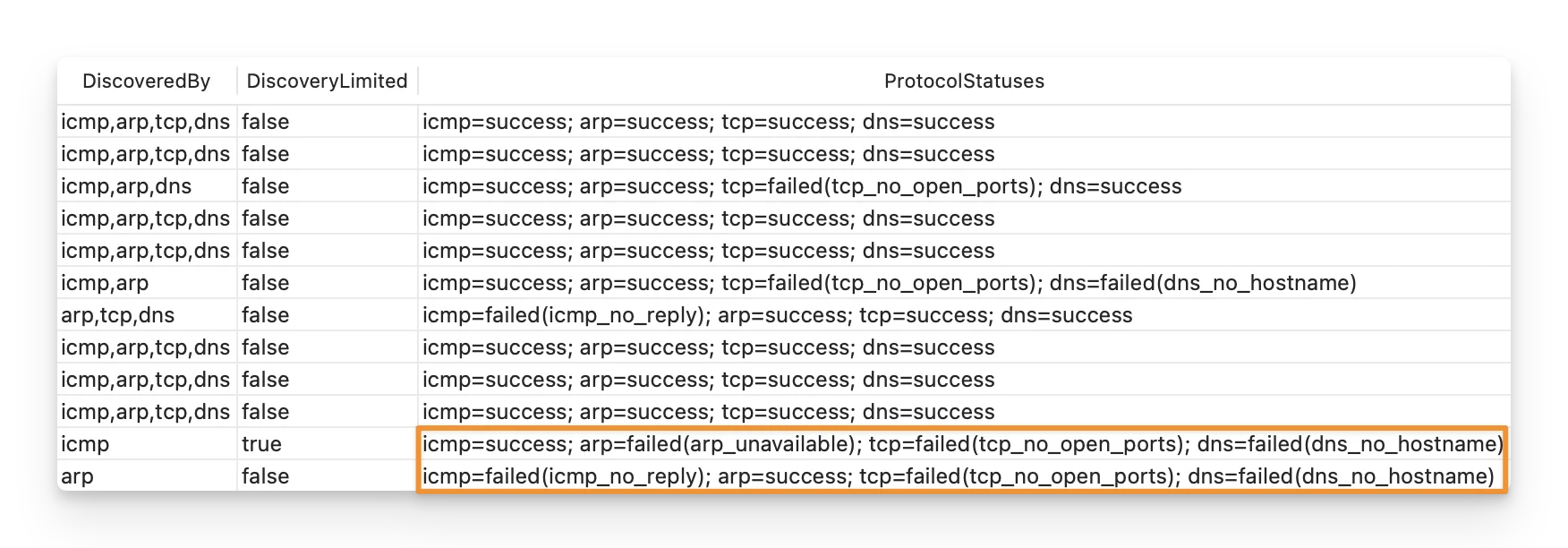
Happens when: You check Protocol Capability in a dry run or in an actual scan.
Reason:
- The scanner does not have enough system permissions, cannot access the target network, or local security software prevents the protocol from running.
- For ARP, this may also happen when the target is outside the scanner host’s local Layer 2 network.
How to fix:
Run the dry run again with administrator access.
- macOS/Linux:
sudo ./assetloom-scanner --config ./config.json --dry-run TARGET - Windows:
.\assetloom-scanner.exe --config .\config.json --dry-run TARGET
You should also confirm that:
- The scanner host is connected to or can reach the target network.
- Firewall or endpoint security software is not blocking the required network access.
- The target is on the local network if you expect ARP to work.
For routed targets, ARP being skipped or shown as not_applicable is expected.
7. ARP Does Not Find a Device
Issue: A device has no MAC address or ARP did not contribute to its discovery.
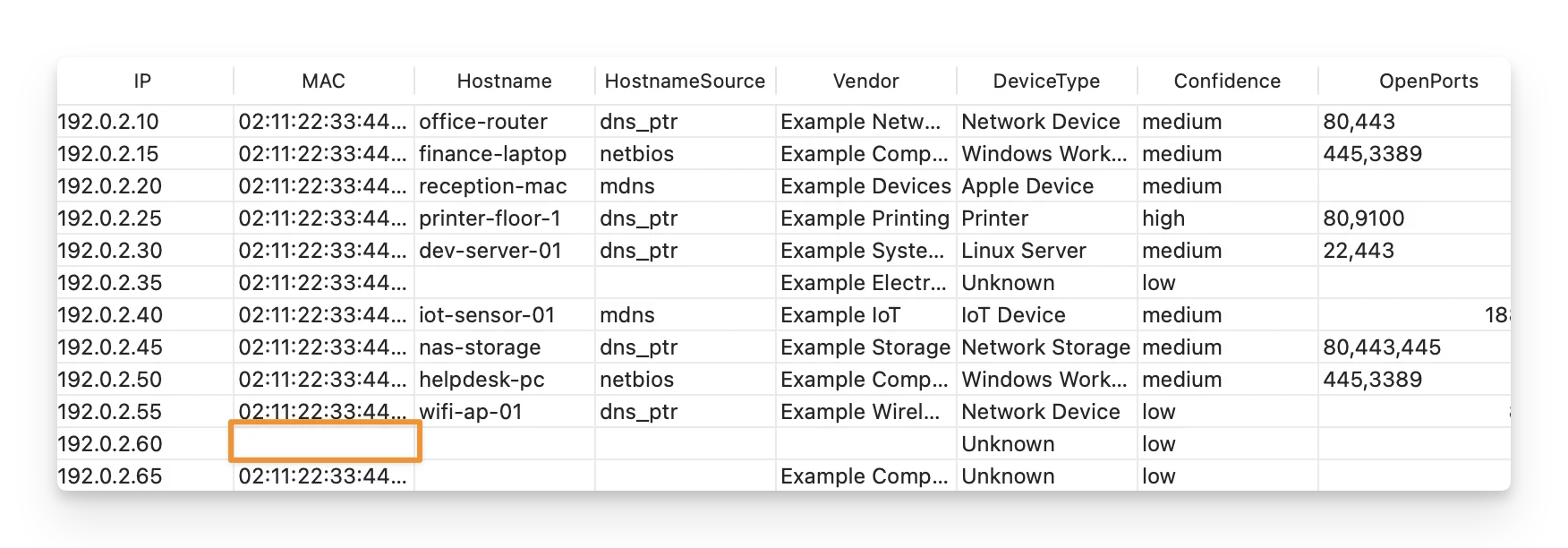
Happens when: You view the result after an actual scan.
Reason:
- The device is not on the same local Layer 2 network as the scanner host.
- The target is behind a router, VPN, or NAT.
- The scanner does not have the required ARP permission.
- The device was offline during the scan.
How to fix:
Confirm that the device is on the same local network as the scanner host and that ARP is available.
If the device is on a routed network, ARP is not expected to work. You can review the ICMP and TCP discovery information instead.
8. Hostname Is Empty
Issue: The Hostname field is empty for some devices.
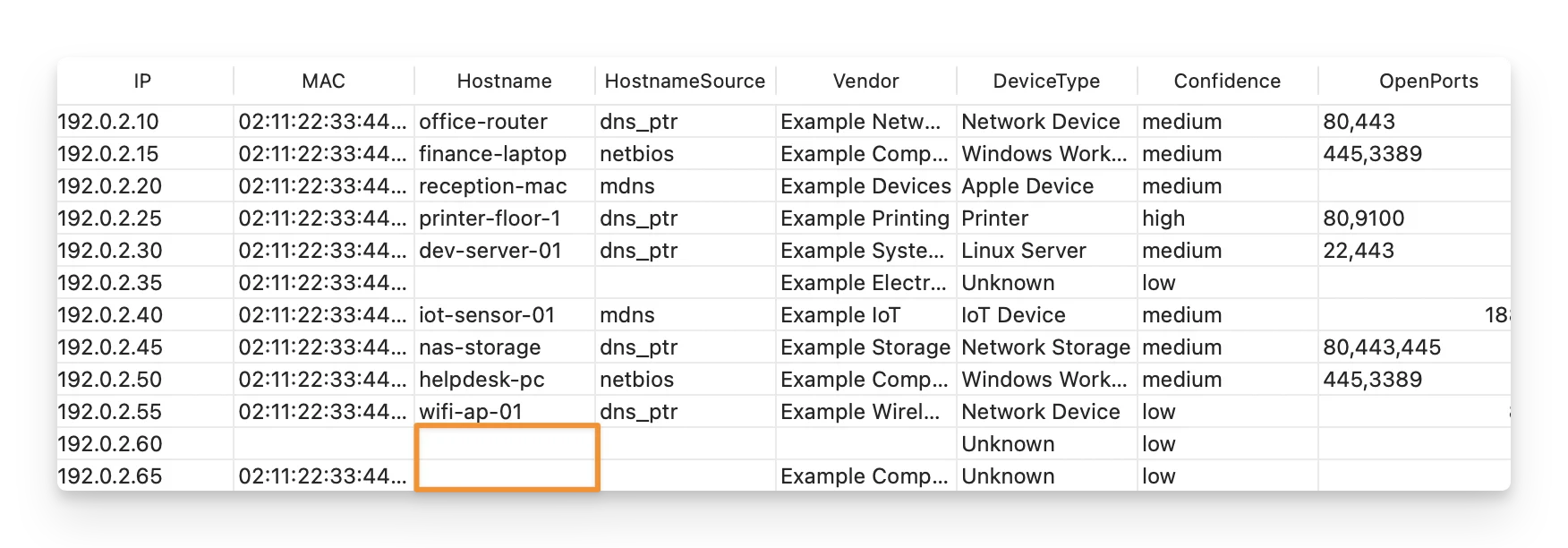
Happens when: You view the result after an actual scan.
Reason: The scanner discovered the device but could not retrieve a usable hostname.
Possible reasons include:
- No PTR record exists for the device.
- NetBIOS is disabled.
- mDNS is blocked or not used on the network.
- The device does not respond within the configured DNS timeout.
- The device does not return a usable hostname.
How to fix:
- Review
DiscoveredByandProtocolStatusesto confirm how the device was discovered. - Give hostname discovery more time by increasing the DNS timeout values in
config.json.
9. Vendor Is Empty
Issue: You may find that the Vendor field is empty even though the device was successfully discovered.
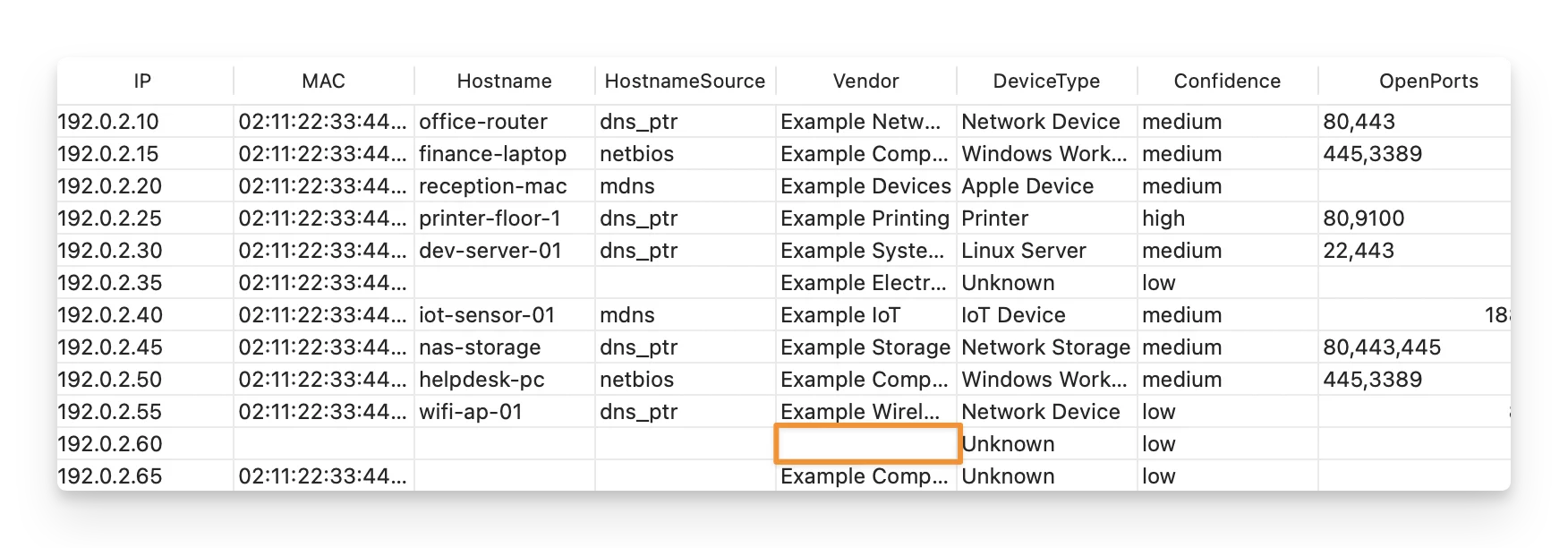
Happens when: You view the result after an actual scan.
Reason:
- No MAC address was discovered.
- The device uses a randomized or locally administered MAC address.
- The MAC OUI is not available in the scanner’s vendor database.
How to fix:
Check whether a MAC address was discovered and whether ARP was available during the scan.
If no usable MAC address is available, the scanner may not be able to determine the vendor.
10. Device Type Is Unknown
Issue: Some discovered devices may appear with Unknown in the DeviceType field.
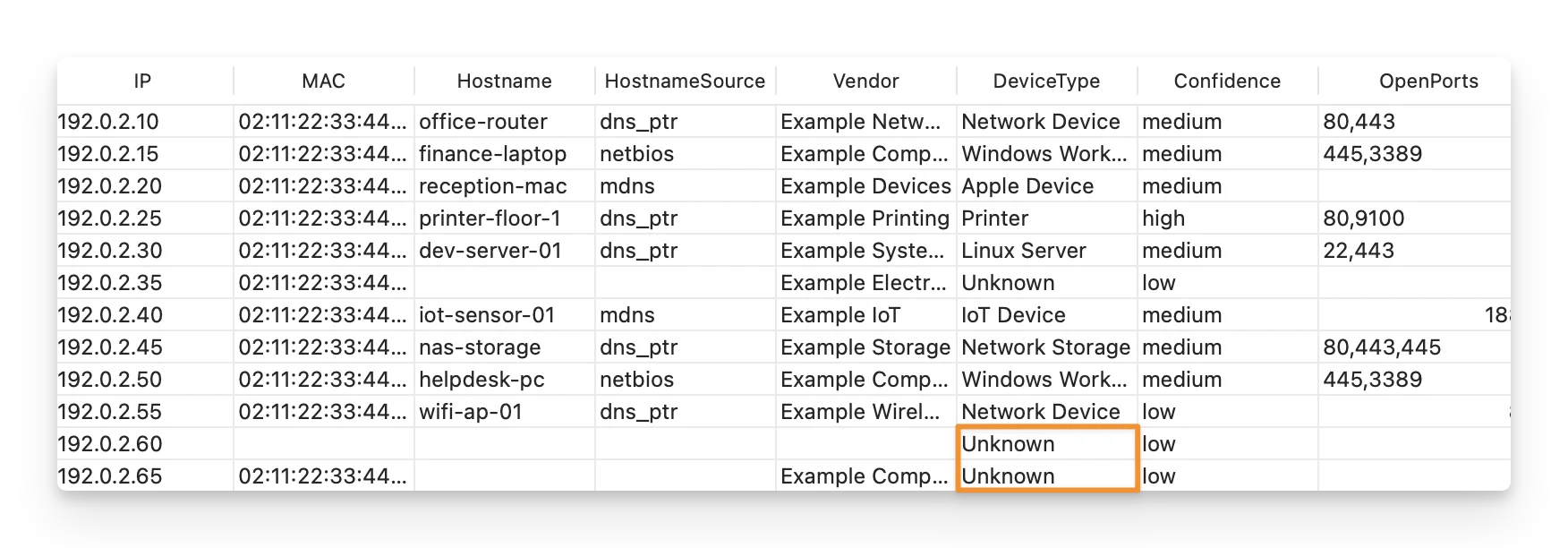
Happens when: You view the result after an actual scan.
Reason: The scanner found the device but did not collect enough evidence to confidently identify a more specific device type.
How to fix:
You can try to collect more discovery information by:
- Running the scanner with administrator access.
- Confirming that ARP and TCP are enabled.
- Adding relevant TCP ports to
scan.tcp_ports. - Confirming that the device is online and reachable.
Unknown does not mean the scan failed. It only means the available evidence was not strong enough for a more specific classification.
11. CSV or JSON Format Error
Issue: The scanner rejects the output configuration.
--format json --output devices.csv

Happens when: During the Run & Save Scan Results step, after you define the output format and filename and start the scan.
Reason: This happens because JSON output should use a .json file, while CSV output should use a .csv file.
How to fix:
Make sure the selected format matches the file extension.
12. Scan Is Too Large
Error Message: aggregate target host count ... exceeds max_aggregate_hosts
Happens when: During a dry run or when starting an actual scan.
Reason: The combined number of candidate hosts exceeds the value allowed by max_aggregate_hosts.
How to fix:
You can:
- Scan a smaller network range.
- Split the target into multiple scan runs.
- Increase
max_aggregate_hostsonly when you intentionally need to run a larger authorized scan.
After changing the target or configuration, run another dry run to confirm that the new target size is accepted.
13. No Devices Are Found
Issue: A scan may complete without returning any discovered devices.
Happens when: You view the result after an actual scan.
Reason: The target cannot be reached, the devices are offline, the available discovery protocols cannot detect them, or firewall and endpoint security settings block scanner traffic.
How to fix:
- Run a dry run and confirm the target is accepted.
- macOS/Linux:
sudo ./assetloom-scanner --config ./config.json --dry-run - Windows:
.\assetloom-scanner.exe --config .\config.json --dry-run
- Confirm that the scanner host is connected to, or can route to, the target network.
- Try scanning one known active device first.
- Run the scanner with administrator/root permissions.
- macOS/Linux:
sudo ./assetloom-scanner --config ./config.json --output ./devices.csv --force-output - Windows:
.\assetloom-scanner.exe --config .\config.json --output .\devices.csv --force-output
- Check whether your firewall or endpoint security software is blocking scanner traffic.
- Confirm that the output was not prevented by an existing file.
If the device is still not discovered, review the dry-run protocol status and any captured scanner logs to identify which discovery methods are unavailable or failing.