Microsoft Intune Sync Overview
Learn how Microsoft Intune sync works in AssetLoom, including sync status, recent activity, and how device data is imported and updated.
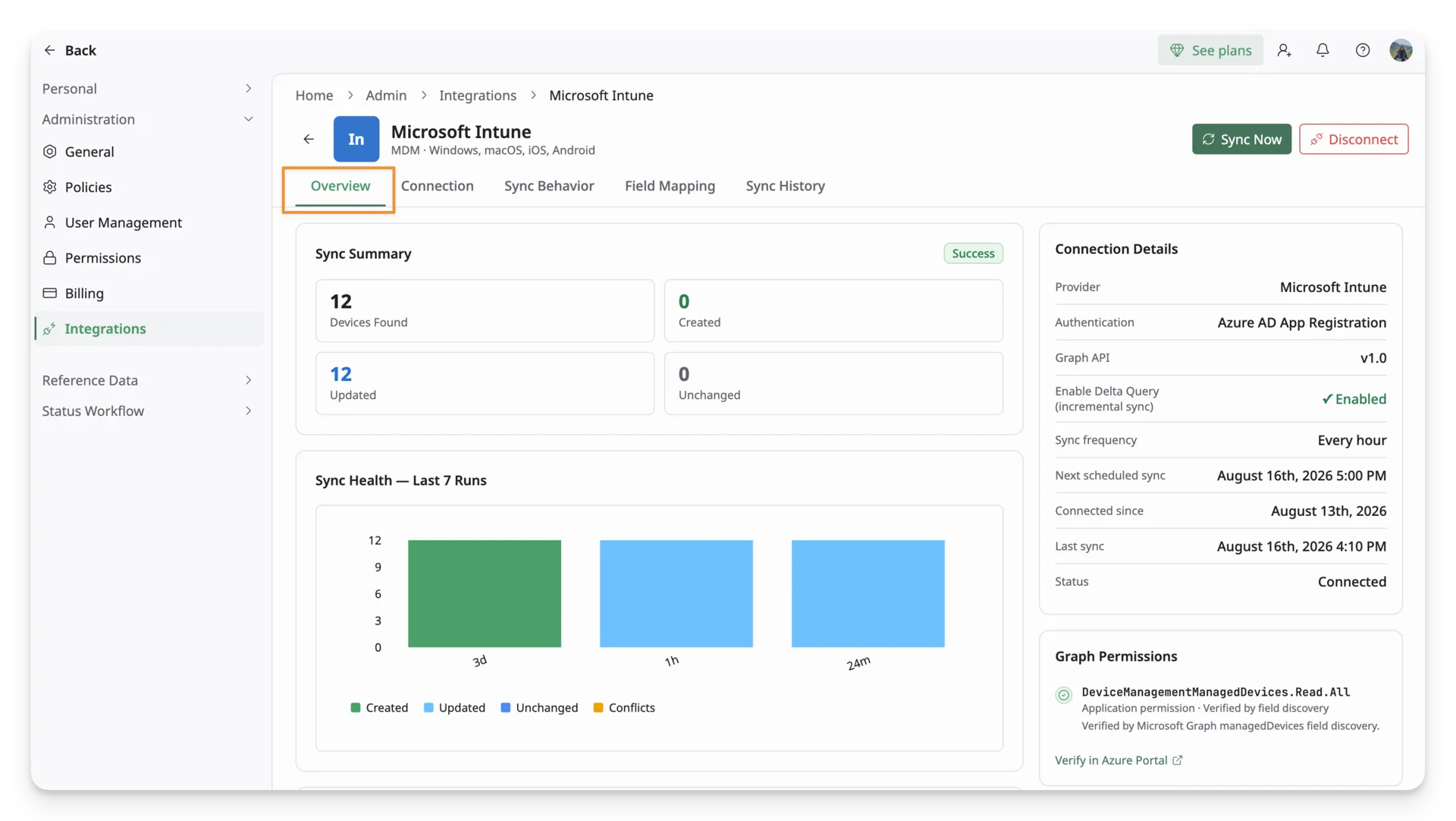
The Overview tab is the first page you see when you open the Microsoft Intune integration details. It gives you a quick view of whether syncing is working, what happened during the latest sync, and how the connection is currently configured.
To access it, open the Microsoft Intune Integration Details page and navigate to the Overview tab.
Sync Summary
Sync Summary shows what the most recent sync did to your asset data:
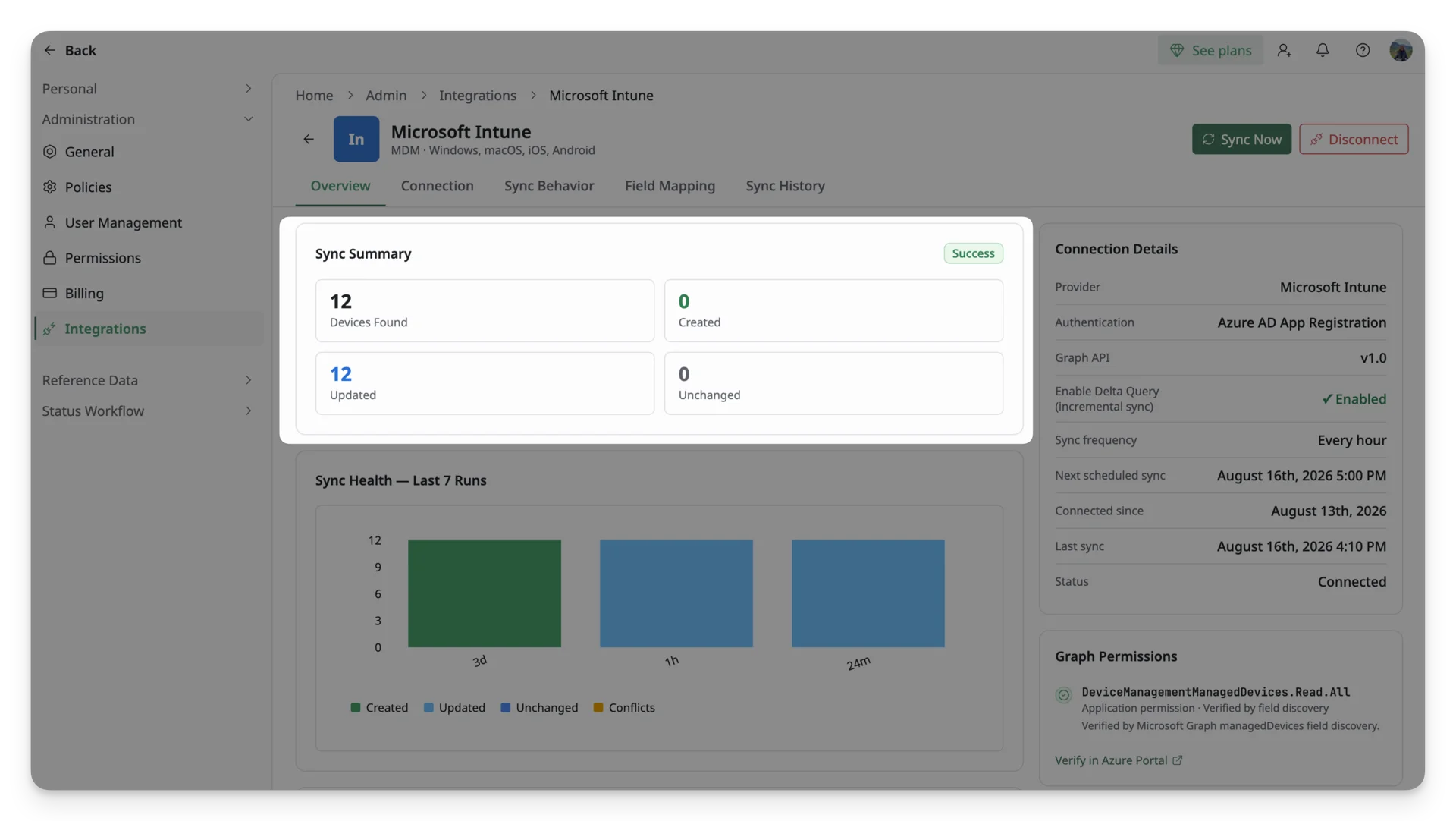
- Devices Found: Total number of managed devices returned from Intune during the sync.
- Created: Devices that did not already exist in AssetLoom and were created as new assets.
- Updated: Existing AssetLoom assets that were updated with data from Intune.
- Unchanged: Existing assets that did not require any updates.
The status badge, such as Success or Failed, shows the overall result of the latest sync.
Sync Health - Last 7 Runs
Sync Health — Last 7 Runs shows the results of your recent sync runs over time.
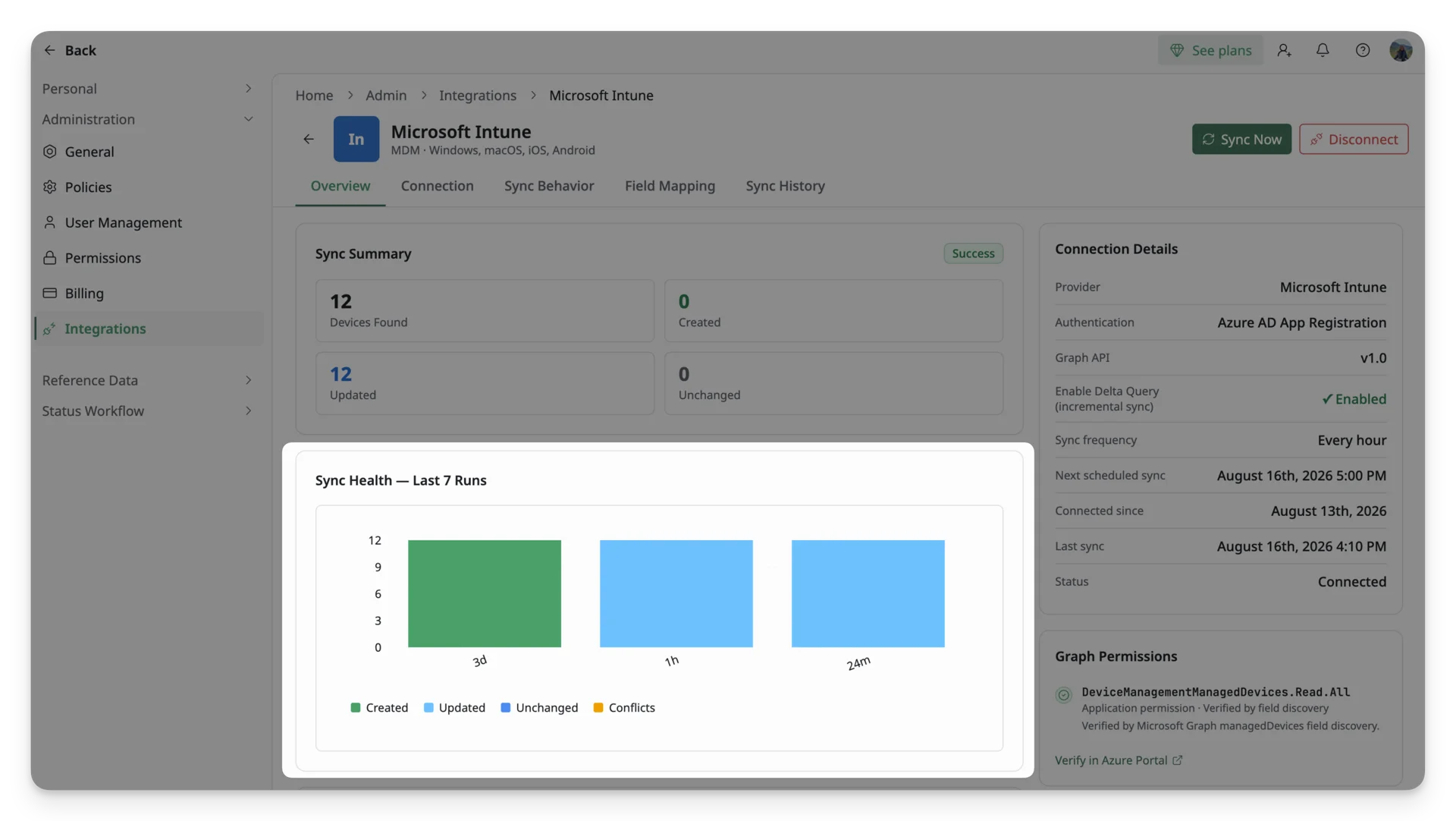
Each bar represents a sync run and is broken down by what happened to the devices processed during that run, including:
- Created: Devices that did not already exist in AssetLoom and were created as new assets during that sync.
- Updated: Existing AssetLoom assets that received updated data from Intune during that sync.
- Unchanged: Existing assets whose synced Intune data already matched the data in AssetLoom, so no update was needed.
- Conflicts: Devices where incoming Intune data could not be applied as expected because of a data or mapping conflict that may require review.
Latest Run
Latest Run summarizes the result of the most recent sync in plain language, along with the number of devices found, created, updated, and unchanged.
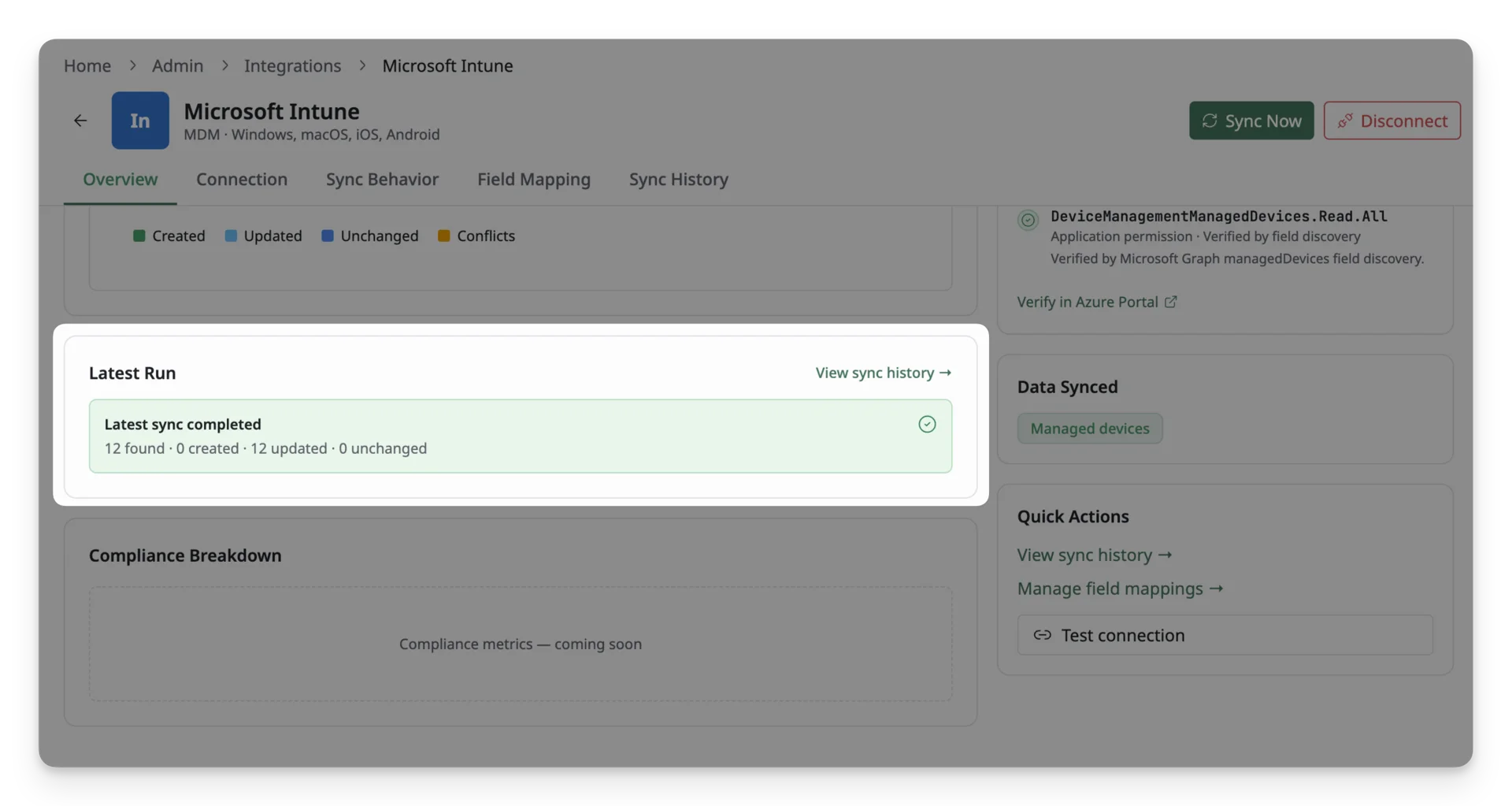
Click View sync history to open the full run-by-run history and review previous sync results in more detail.
Connection Details
Connection Details summarizes how Microsoft Intune is currently connected and how synchronization is configured.
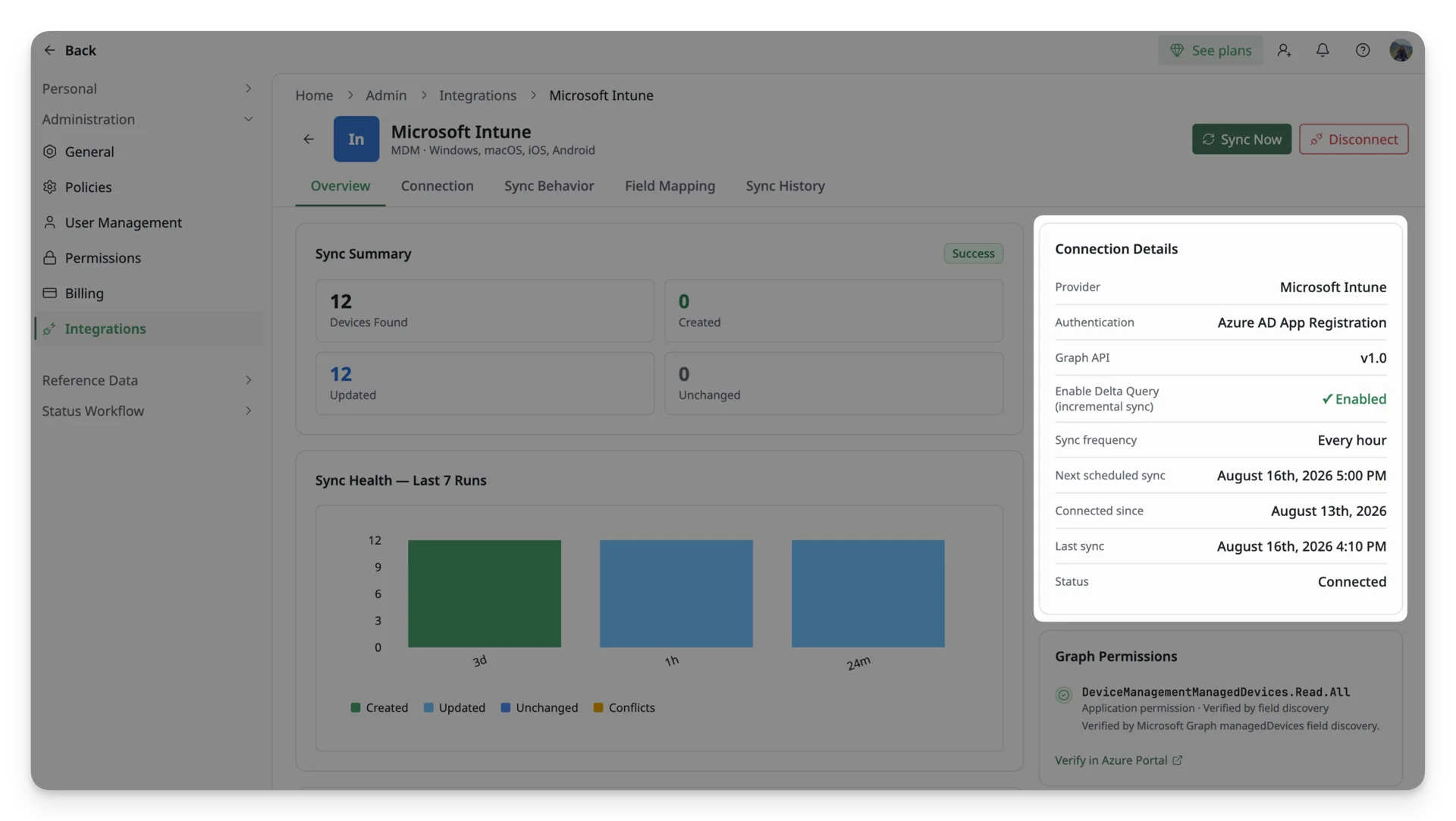
It includes:
- Provider: confirms that the connected provider is Microsoft Intune.
- Authentication: shows the authentication method used for the connection.
- Graph API: shows the Microsoft Graph API version used by the integration.
- Enable Delta Query (incremental sync): shows whether incremental synchronization is enabled. When enabled, AssetLoom can retrieve changes since the previous sync instead of processing the full dataset each time.
- Sync frequency: shows how often automatic synchronization runs, or whether syncing is manual only.
- Next scheduled sync: shows when the next automatic sync is expected to run.
- Connected since: shows when the Intune connection was established.
- Last sync: shows when the most recent sync ran.
- Status: indicates whether the integration is currently connected.
You can manage connection and scheduling settings from the Connection tab.
Graph Permissions
Graph Permissions shows the Microsoft Graph application permissions that AssetLoom has verified for the integration. These permissions control what Microsoft data the registered application can access when AssetLoom connects through Microsoft Graph.
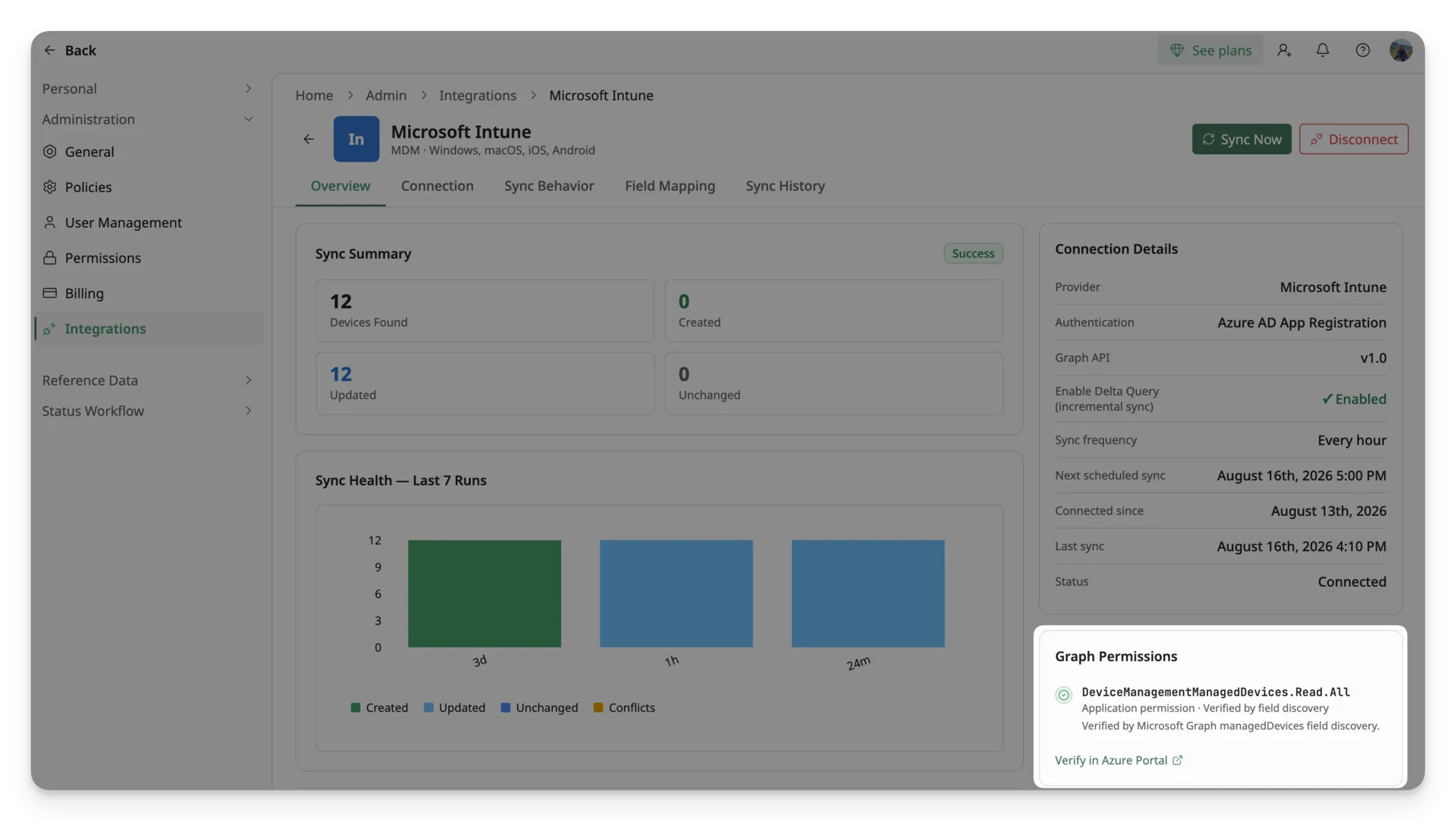
Click Verify in Azure Portal to review the permission directly in your Microsoft environment.
Data Synced
Data Synced shows which Intune data source is currently included in synchronization.
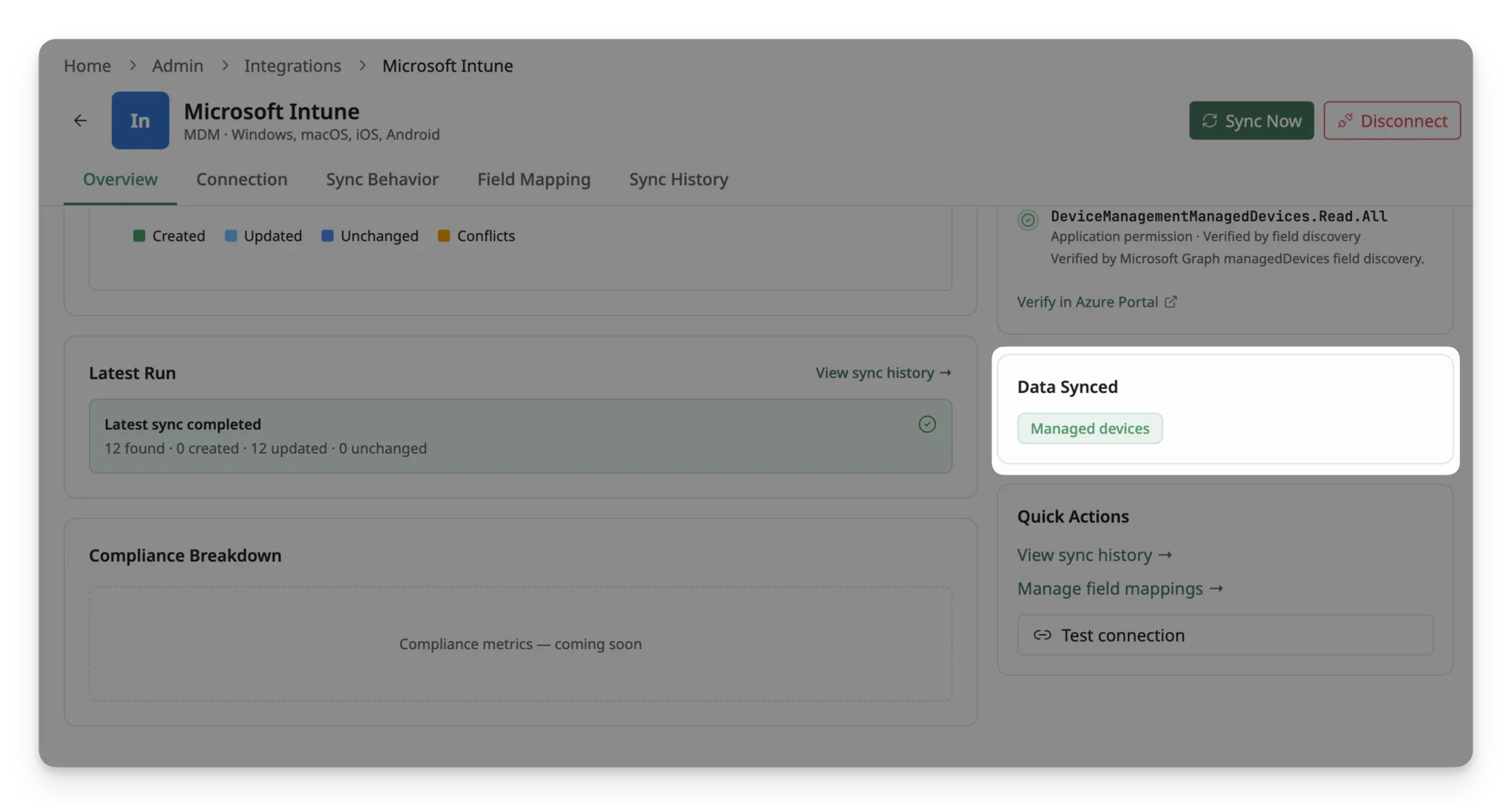
For Microsoft Intune, Managed devices represents the device records AssetLoom retrieves from Intune and syncs into your asset inventory.
Quick Actions
Quick Actions provides shortcuts to common tasks you may want to perform from the Overview page:
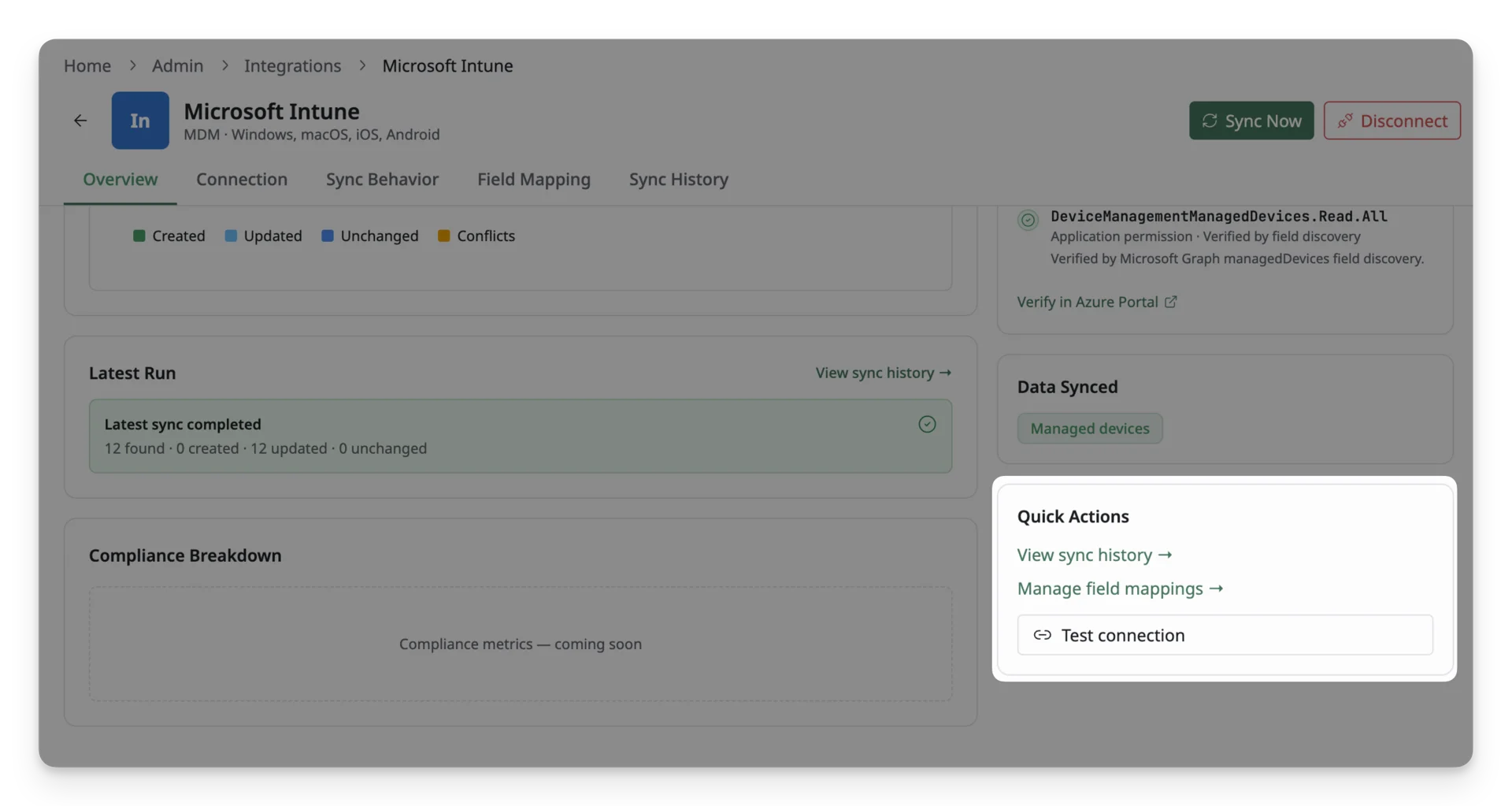
- View sync history: review previous synchronization runs and their results.
- Manage field mappings: configure how Intune data maps to AssetLoom fields.
- Test connection button: click to test and confirm that AssetLoom can still authenticate and communicate with your Microsoft Intune connection.