Microsoft Intune Sync History
Learn how to view Microsoft Intune sync history in AssetLoom, including sync status, activity details, and results from previous synchronization runs.
The Sync History tab keeps a record of Microsoft Intune sync runs and their results. Use it to check when a sync ran, how many devices were processed, and what happened to individual devices during that sync.
To access it, open the Microsoft Intune Integration Details page and select the Sync History tab.
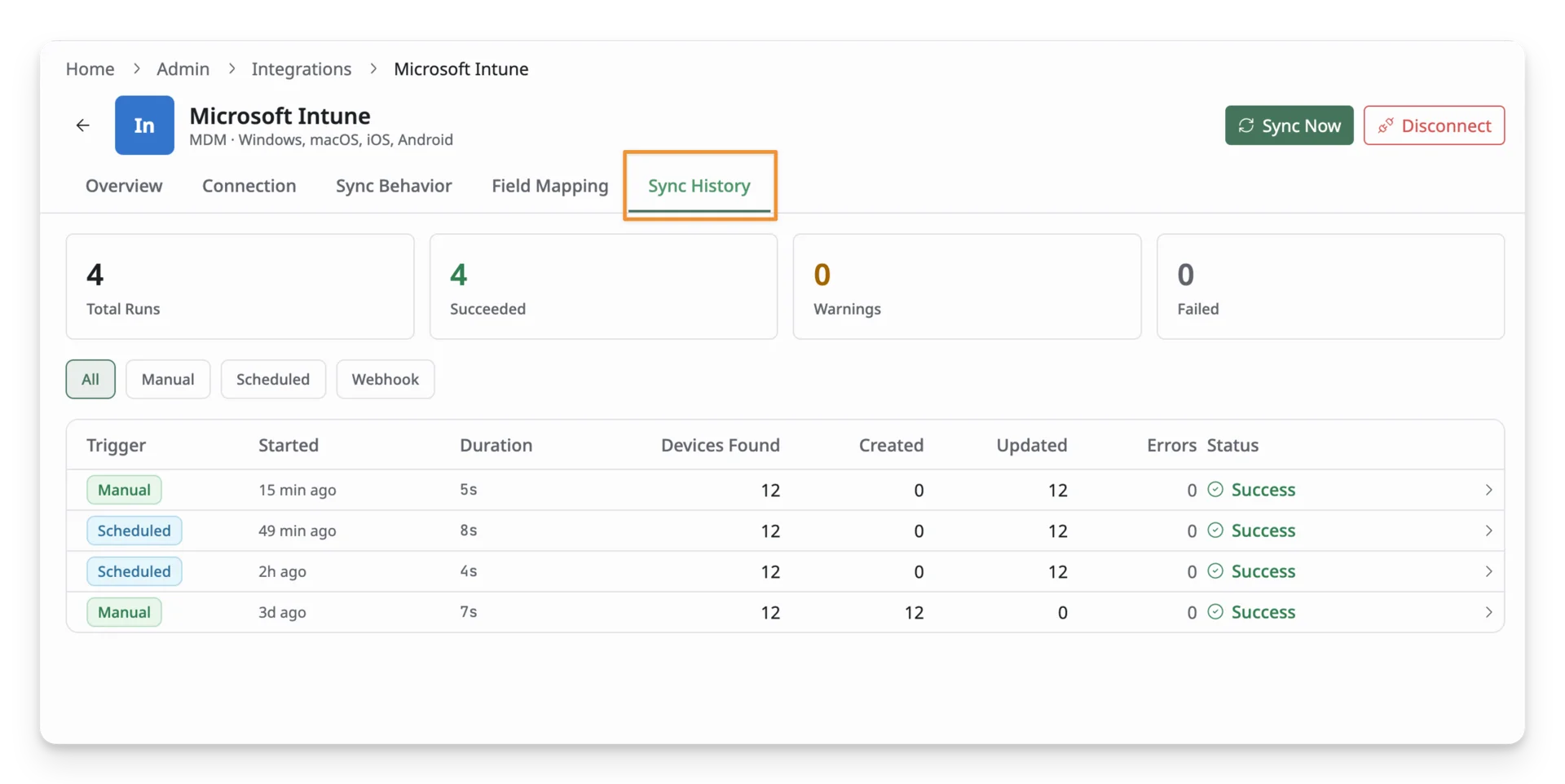
Sync History Overview
At the top of the page, the summary cards show the overall result of your recorded sync runs:
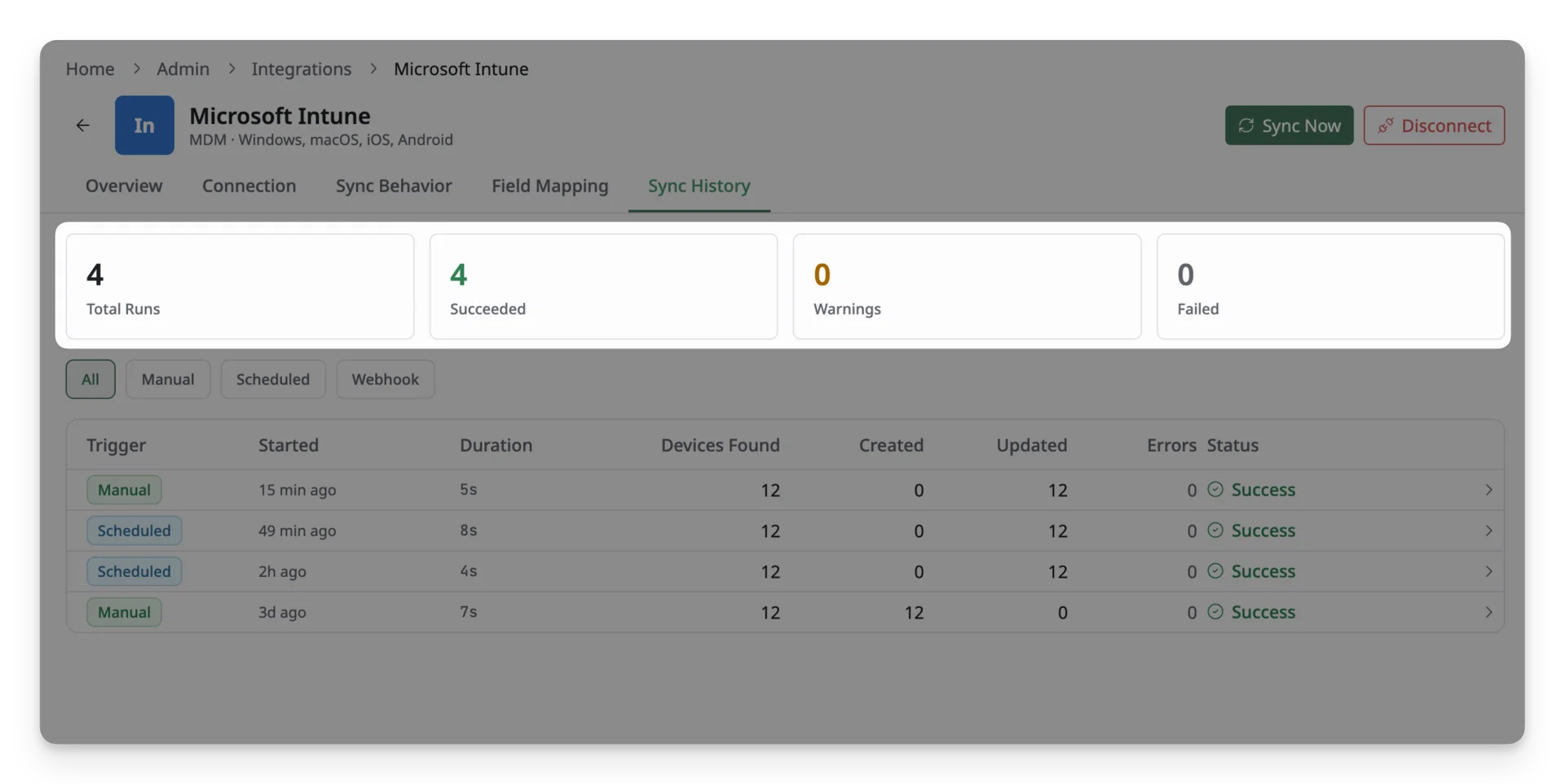
- Total Runs: Total number of sync runs recorded.
- Succeeded: Runs that completed successfully.
- Warnings: Runs that completed but included issues that may need review.
- Failed: Runs that could not complete successfully.
You can filter the history by how a sync was triggered:
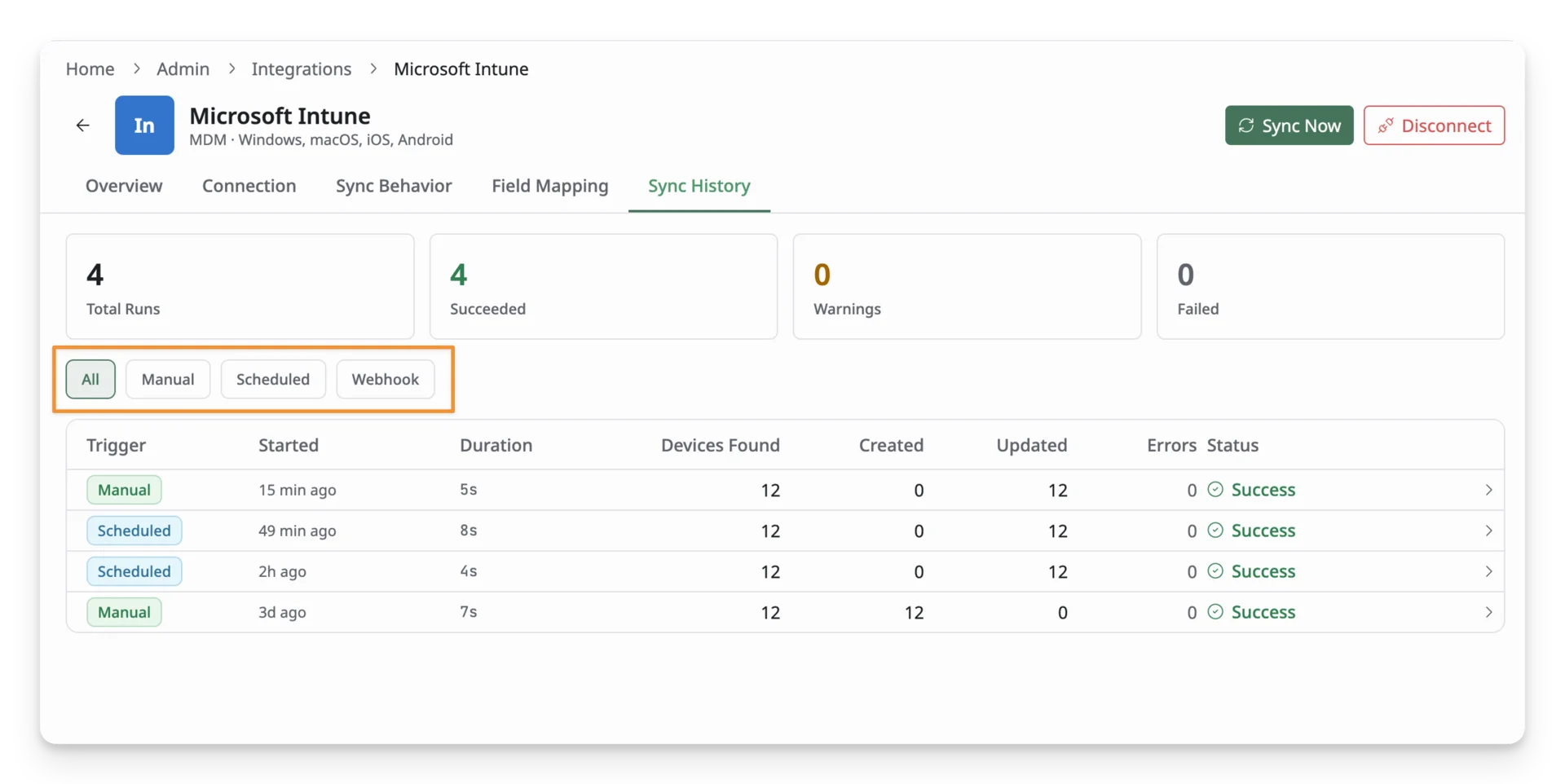
- All: Show all sync runs.
- Manual: Show syncs started manually using Sync Now.
- Scheduled: Show syncs started automatically according to the configured sync schedule.
Each sync run shows:
- Trigger: How the sync was started.
- Started: When the sync began.
- Duration: How long the sync took.
- Devices Found: Number of Intune devices found during the run.
- Created: Number of new AssetLoom assets created.
- Updated: Number of existing assets updated.
- Errors: Number of errors encountered during the sync.
- Status: Overall result of the sync, such as Success or Failed.
Review a Sync
Click a sync run to expand it and review what happened during that run, including the run summary and run type. You can also review the detailed information of a synced device.
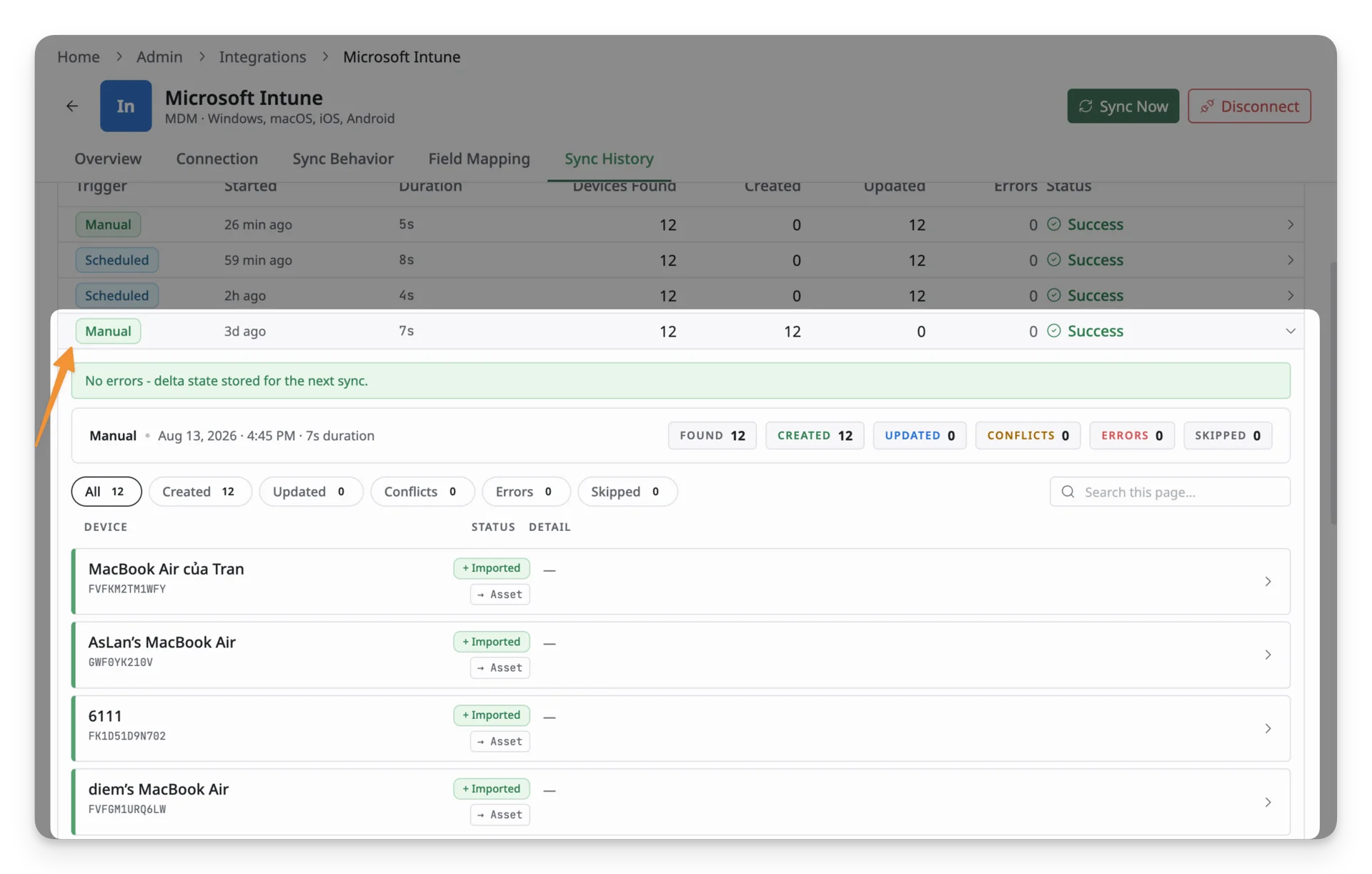
The run summary shows the number of devices that are:
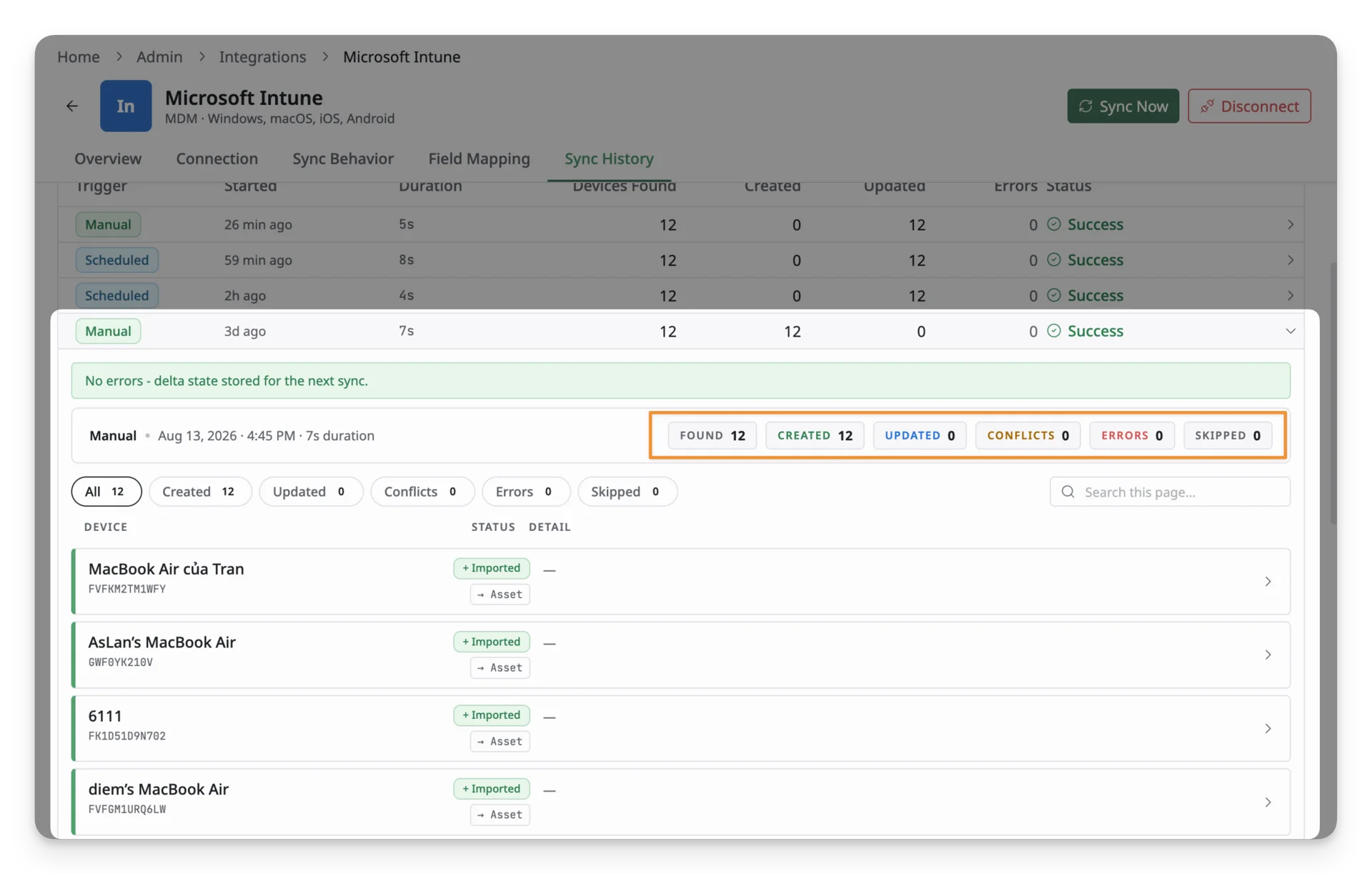
- Found: Devices returned from Intune.
- Created: Devices created as new AssetLoom assets.
- Updated: Existing AssetLoom assets updated during the sync.
- Conflicts: Devices where synced data could not be applied as expected because of a conflict.
- Errors: Devices that encountered an error during processing.
- Skipped: Devices that were not processed.
Use the filters to show only the device results you want to review, or use the search box to find a specific device.
Review a Device Sync Result
Each device listed under a sync run shows its sync result and the AssetLoom record affected by the sync. Click a device to expand its details.
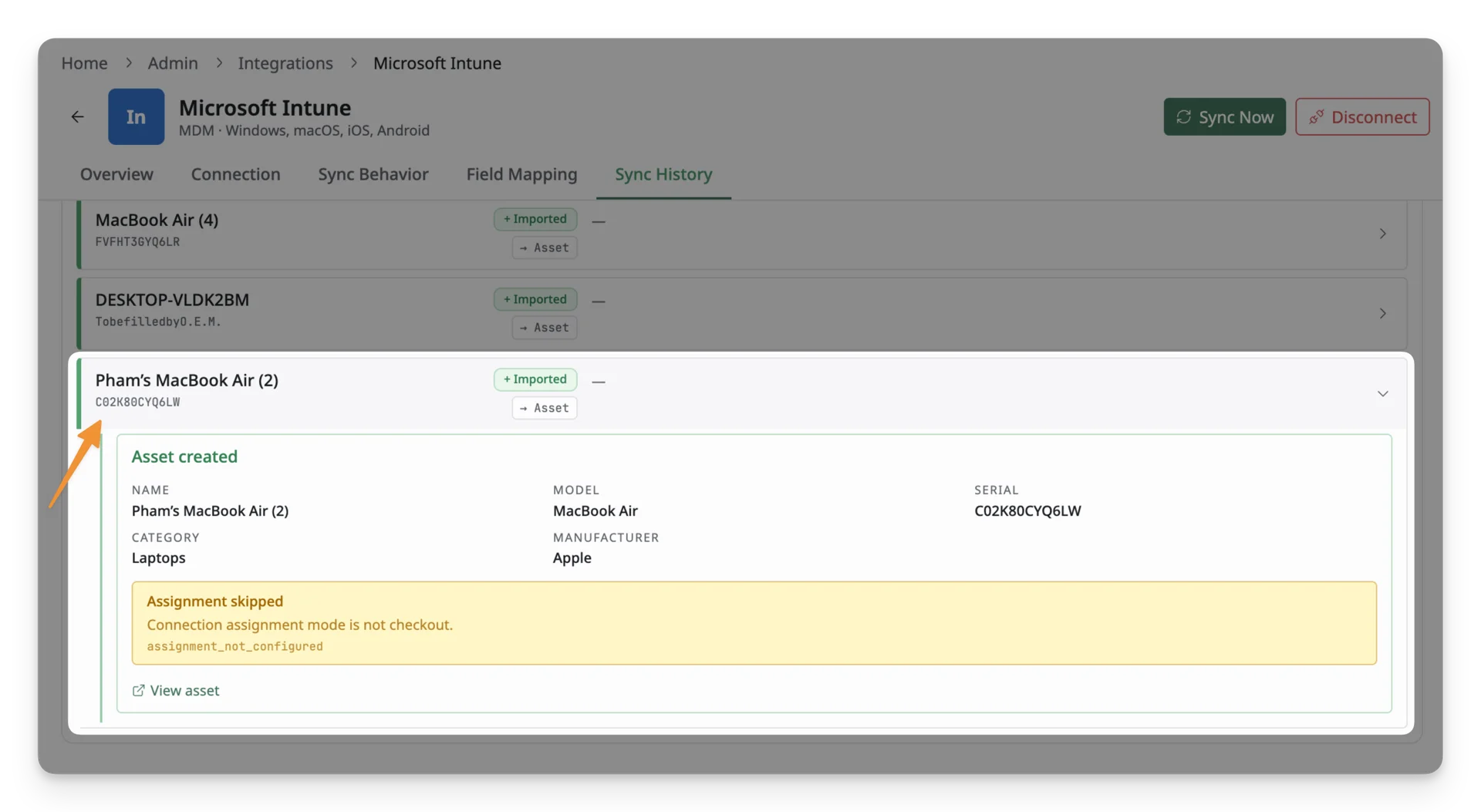
Depending on what happened during the sync, the details can show information such as:
- Whether an AssetLoom asset was created or updated.
- The asset’s name, model, serial number, manufacturer, and category.
- Whether checkout or assignment was completed or skipped.
- Any warning, conflict, or error related to that device.
Click View asset to open the corresponding asset record in AssetLoom.
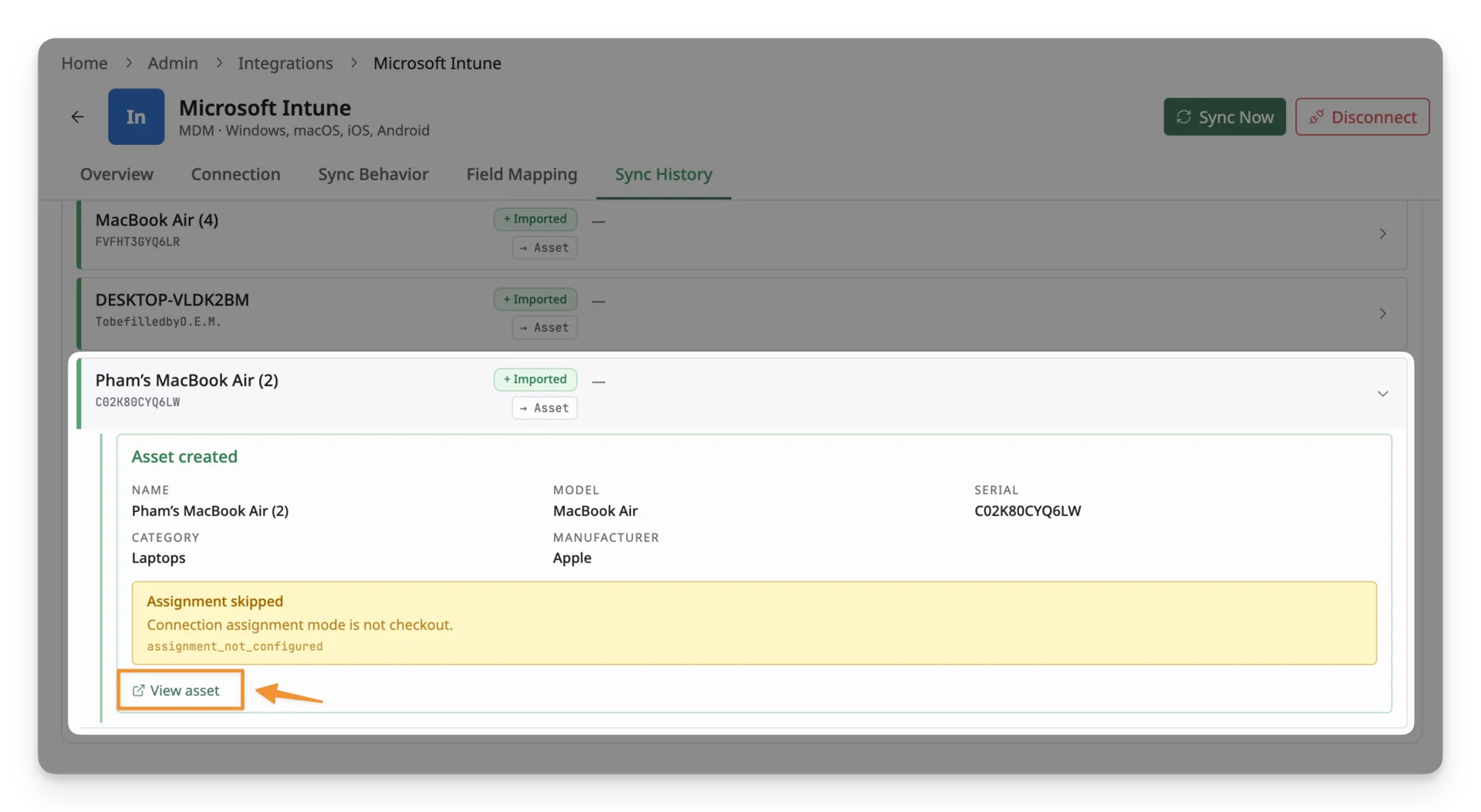
Click View Asset to navigate to the profile of the synced device
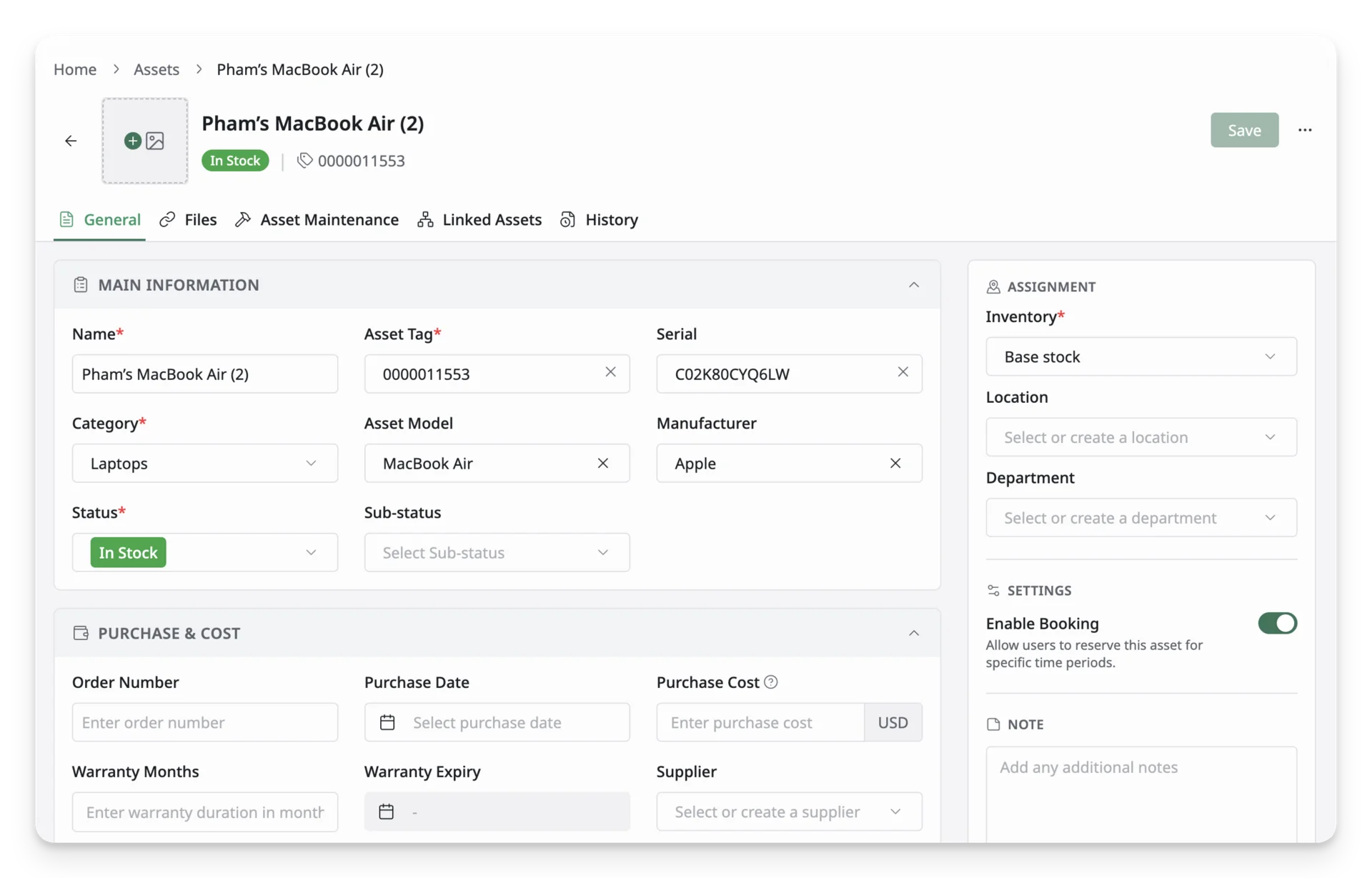
Synced asset details stored in AssetLoom