Microsoft Intune Integration Overview
Get an overview of AssetLoom’s Microsoft Intune integration and learn how to connect, sync, and manage your IT assets efficiently.
The Microsoft Intune integration connects AssetLoom to your Microsoft Intune environment and automatically keeps your managed device inventory up to date. Instead of manually creating or updating device records in AssetLoom again, the integration retrieves device information from Intune and syncs it with your AssetLoom assets.
What the Microsoft Intune integration does
- Pulls managed device data from Intune into AssetLoom: The integration reads device records from Microsoft Intune and creates or updates the matching assets in AssetLoom. This can include device metadata, operating system details, ownership, assigned users, network information, and enrollment or management status.
- Syncs on a schedule or on demand: Once connected, AssetLoom keeps device data current automatically on a recurring schedule. You can also trigger an immediate sync at any time using Sync Now.
- Gives you control over how data is merged: For each supported field group, you can choose how AssetLoom handles differences between existing AssetLoom data and values received from Intune:
- Microsoft Intune wins: the value from Intune overwrites the existing value in AssetLoom.
- AssetLoom wins: the existing AssetLoom value is kept.
- Fill blanks only: Intune data is only used when the corresponding AssetLoom field is empty.
Access and permissions
The integration uses read-only Microsoft Graph application permissions to retrieve Intune-managed device information and related Microsoft Entra directory data.
The following permissions are required:
- DeviceManagementManagedDevices.Read.All: Read managed device records from Microsoft Intune.
- Device.Read.All: Read device information from Microsoft Entra ID.
- Directory.Read.All: Read directory information, including related users and other directory objects needed to identify and associate device data.
These permissions require administrator consent in your Microsoft environment.
AssetLoom uses these permissions only to read and sync data into AssetLoom. It does not write data back to Microsoft Intune or Microsoft Entra ID.
Where to manage the Microsoft Intune integration
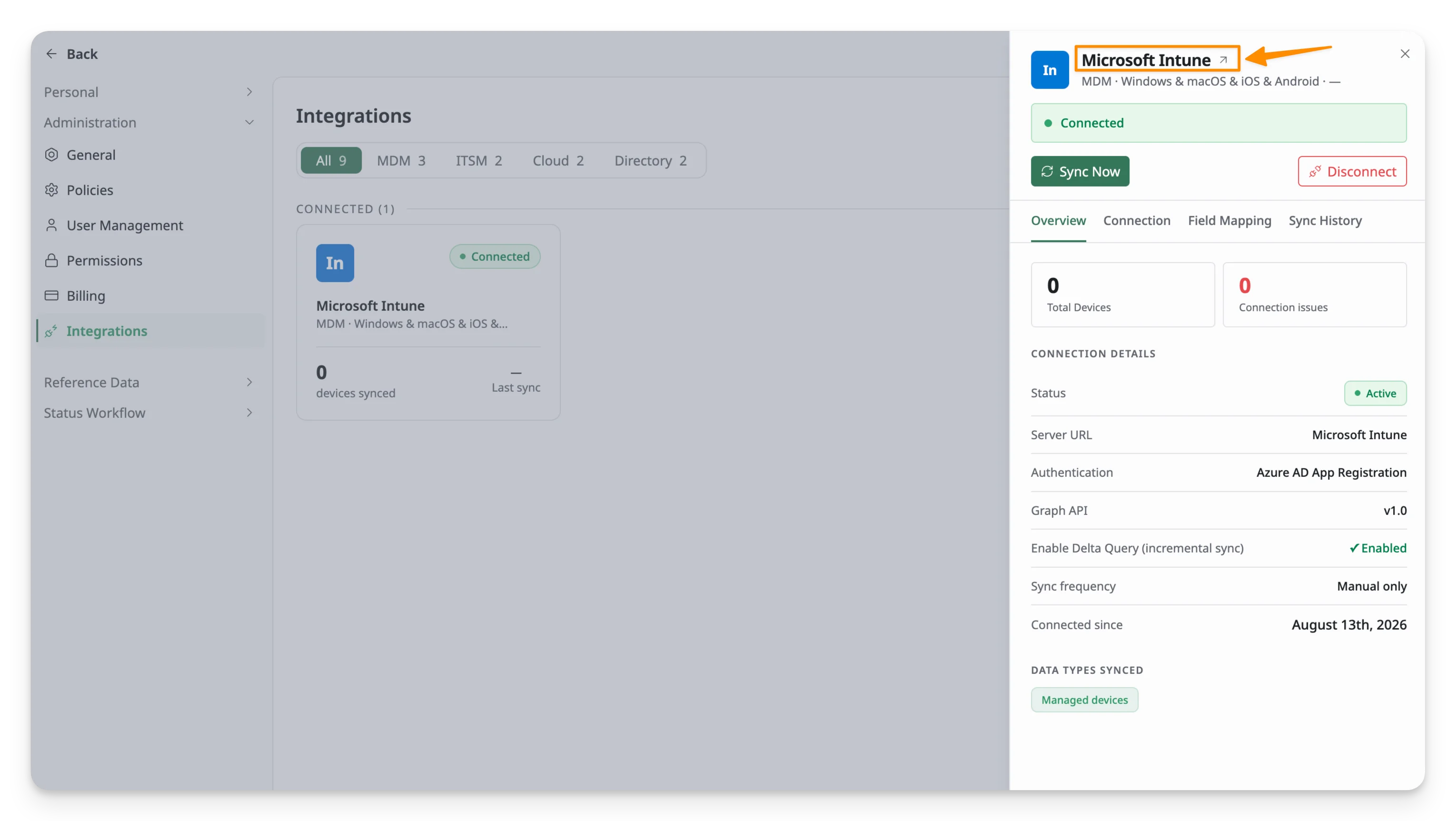
- From the Integrations hub, locate and select the Microsoft Intune card.
- In the right panel, click Microsoft Intune to open the full Integration Details page.
- You’ll land on the Overview tab, which shows your sync summary, sync health over the last 7 runs, and the result of the latest sync.
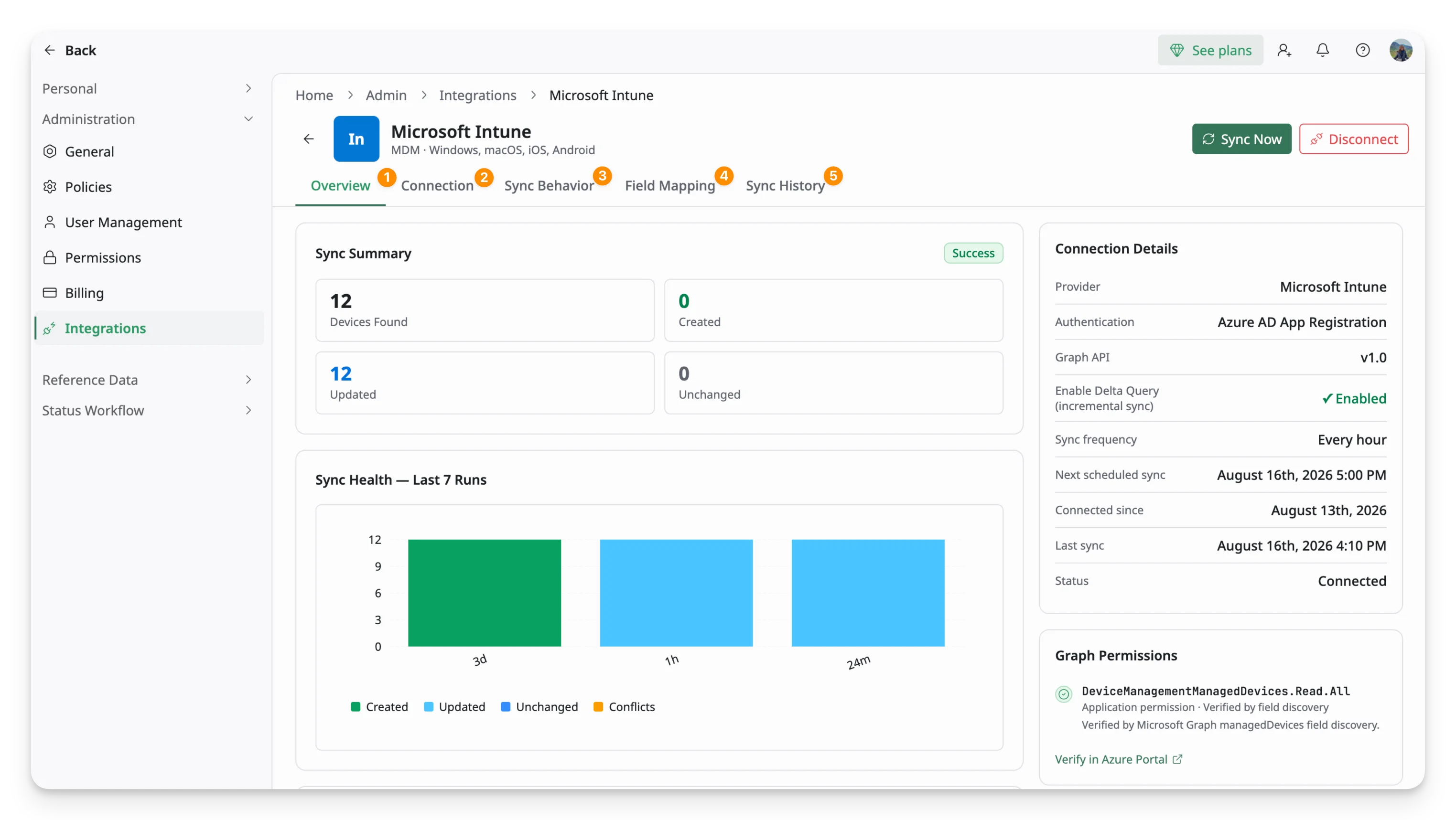
From here, you can access four additional tabs:
| # | Tab | Purpose |
| 1 | Overview | Review the integration summary, connection status, and recent sync health |
| 2 | Configuration | Manage connection details and the scope of data to sync |
| 3 | Sync Behavior | Configure conflict resolution rules and how synced device data is handled in AssetLoom |
| 4 | Field Mapping | Map Microsoft Intune fields to AssetLoom fields and configure supported field mappings |
| 5 | Sync History | Review previous sync runs and their results |
From this page, you can also:
- Sync Now: Manually trigger an immediate sync outside the regular schedule.
- Disconnect: Remove the connection between AssetLoom and Microsoft Intune.