Mapping Fields from Jamf Pro to AssetLoom
Learn how to map Jamf Pro fields to AssetLoom, configure value mappings, sync custom fields, and ensure accurate asset data synchronization.
Field Mapping lets you configure how data from Jamf Pro is written into AssetLoom fields, including core fields and custom fields that AssetLoom doesn’t track by default. It also lets you map individual values from Jamf Pro, such as specific manufacturer or model names, to AssetLoom, ensuring the data reflects correctly.
To access Field Mapping, from the Jamf Pro Integration Details page, navigate to the Field Mapping tab.
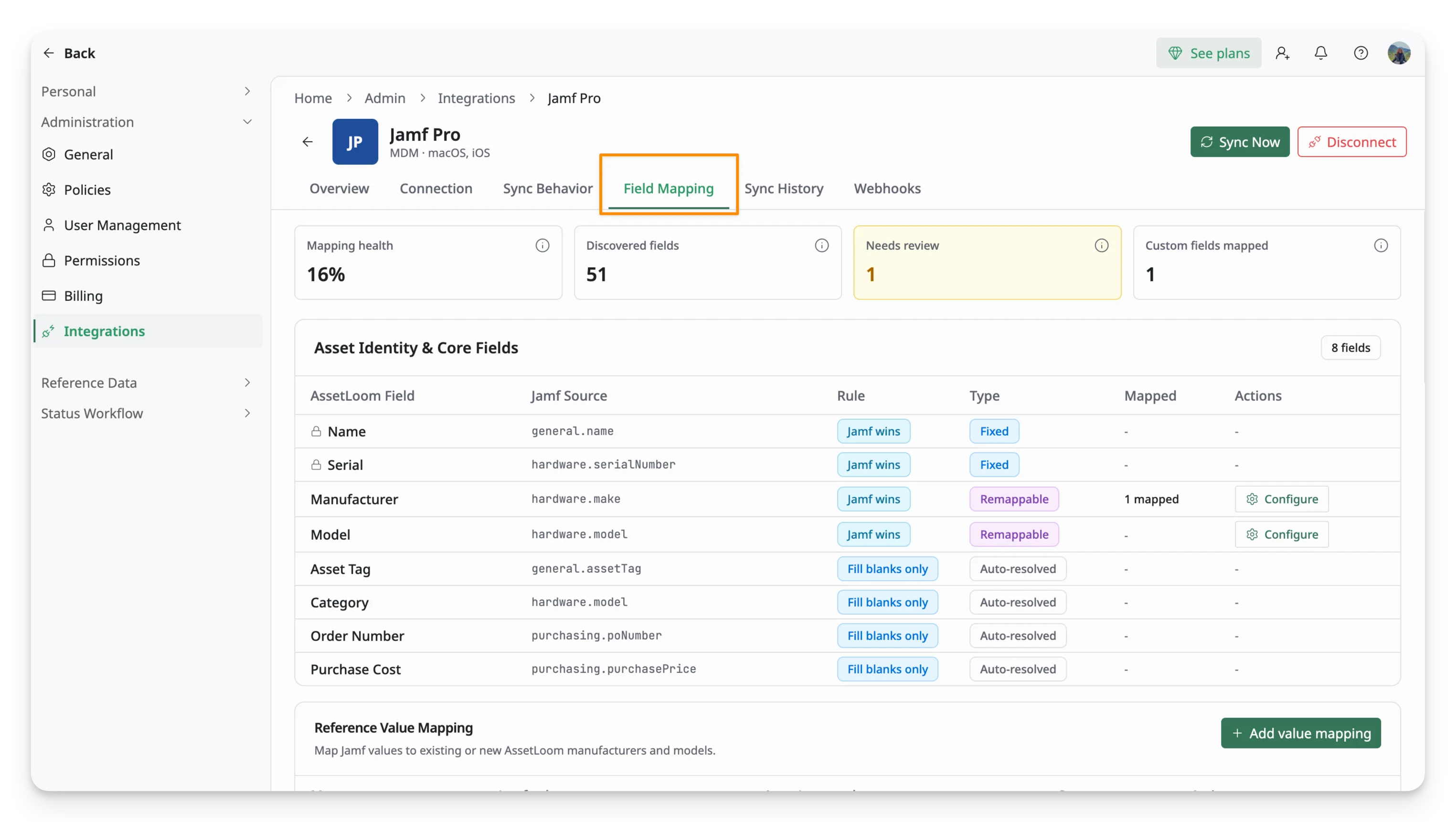
The Field Mapping screen covers 5 aspects:
- Mapping Overview: Shows summary figures for overall mapping health.
- Asset Identity & Core Fields: Shows how AssetLoom’s default fields map to their matching Jamf source fields.
- Value Mapping: Lets you map individual Jamf values to AssetLoom manufacturer and model records.
- Custom Field Mappings: Lets you map additional Jamf fields to custom fields in AssetLoom, including creating a new custom field on the spot.
- Jamf Field Browser: A reference list of every field Jamf Pro exposes, with the option to map any field directly from here.
1. Mapping Overview
Mapping Overview is located at the top of the Field Mapping screen, summarizing the current state of field mapping between Jamf and AssetLoom.
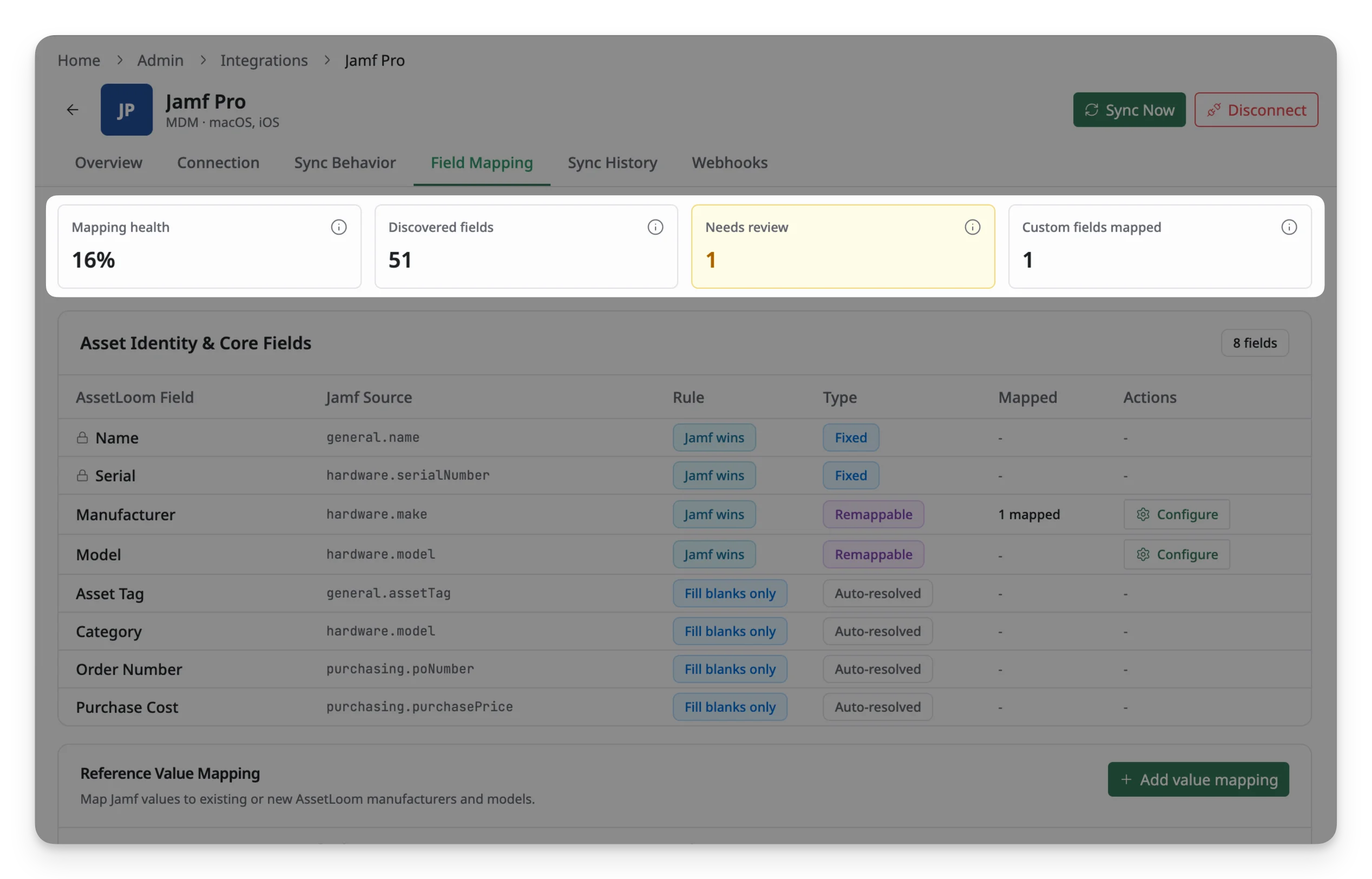
- Mapping health: indicates the percentage of discovered fields that have been mapped.
- Discovered fields: lets you know the total number of Jamf fields found in your environment.
- Needs review: shows how many fields still need extra setup, such as value mapping, before they sync correctly.
- Custom fields mapped: indicates how many custom fields you’ve mapped from Jamf so far.
2. Asset Identity & Core Fields
Asset Identity & Core Fields shows how the essential fields of an AssetLoom asset are populated from Jamf Pro. AssetLoom automatically provides the standard mappings for these fields, so you do not need to manually choose their Jamf Pro source.
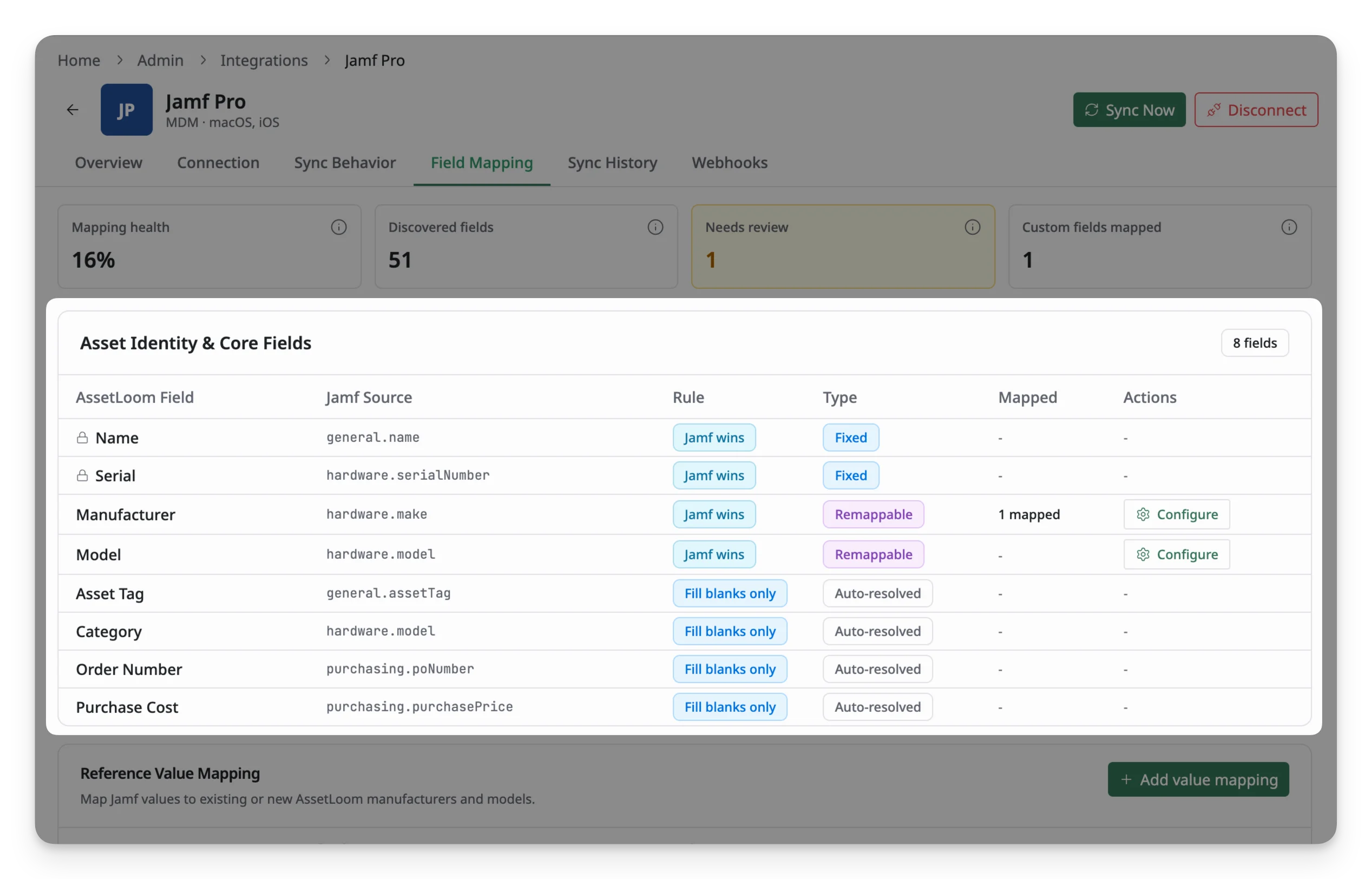
Each core field is described by four parts, showing how its data moves from Jamf into AssetLoom:
- AssetLoom Field: the built-in AssetLoom field receiving the data.
- Jamf Source: the Jamf field from which AssetLoom reads the value.
- Rule: determines how the incoming Jamf value interacts with existing AssetLoom data, such as Jamf wins, Fill blanks only, or AssetLoom wins. This reflects the rules configured under Sync Behavior.
- Type: indicates whether the mapping is Fixed or Remappable.
- Fixed mappings are predefined and cannot be changed.
- Remappable fields require individual Jamf values to be resolved to AssetLoom records.
- Mapped shows how many values have already been resolved for a remappable field.
- Actions: any additional setup available for that field. Most core fields don’t require any action, since they’re auto-mapped already. For Manufacturer and Model, you can configure how their values are matched to AssetLoom records using the Configure values button, or by configuring the Reference Value Mapping section below.
Category does not have a direct Jamf source in this section.
Instead, once Manufacturer and Model are mapped, AssetLoom looks up the category already associated with that model and applies it automatically. If no model match exists, AssetLoom falls back to the Fallback Category you chose when you first connected to Jamf.
3. Reference Value Mapping
Reference Value Mapping maps the manufacturer and model values received from Jamf to the corresponding Manufacturer and Asset Model records in AssetLoom.
Jamf reports these as free-text values (for example, Apple, Dell), and those raw values don’t automatically match an existing AssetLoom manufacturer or model record. Value mapping connects each raw Jamf value to the correct AssetLoom record, so AssetLoom knows what Apple or Dell from Jamf actually corresponds to.
For example:
- Jamf manufacturer
Apple→ AssetLoom Manufacturer Apple - Jamf model
Dell→ AssetLoom Asset Model iPhone 11 Pro Max
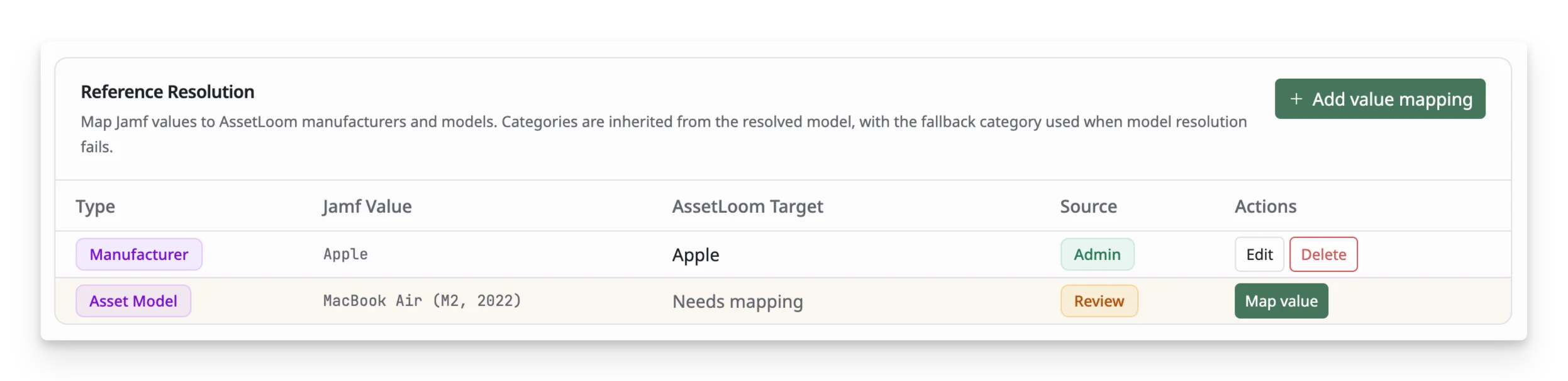
If a Jamf manufacturer or model value has not been mapped yet, it appears as Needs mapping in this section.
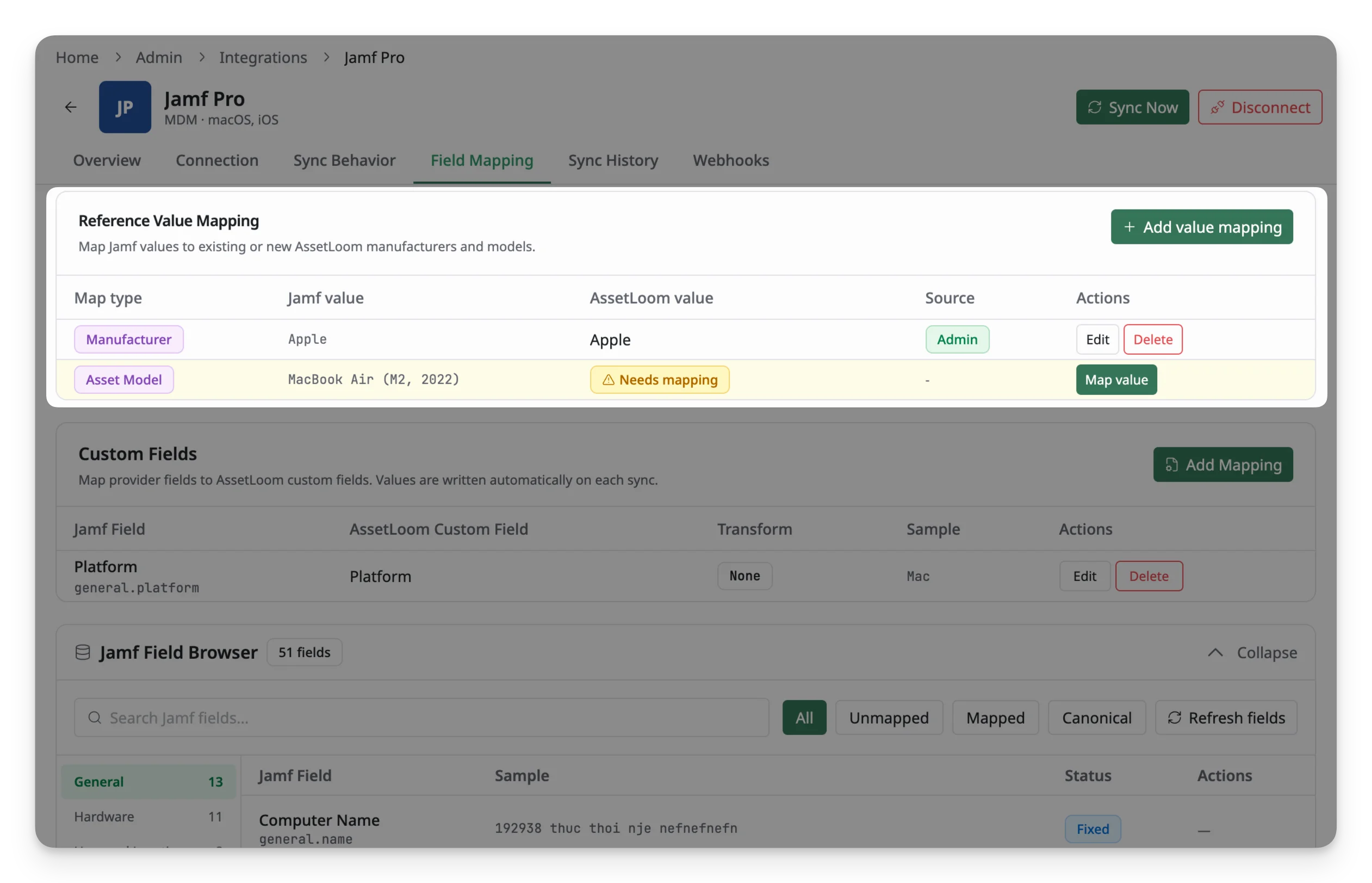
To map a value:
- Find the manufacturer or model value that shows Needs mapping and click Map value (or click Add value mapping to create a new value to be mapped).
- A panel opens where you confirm:
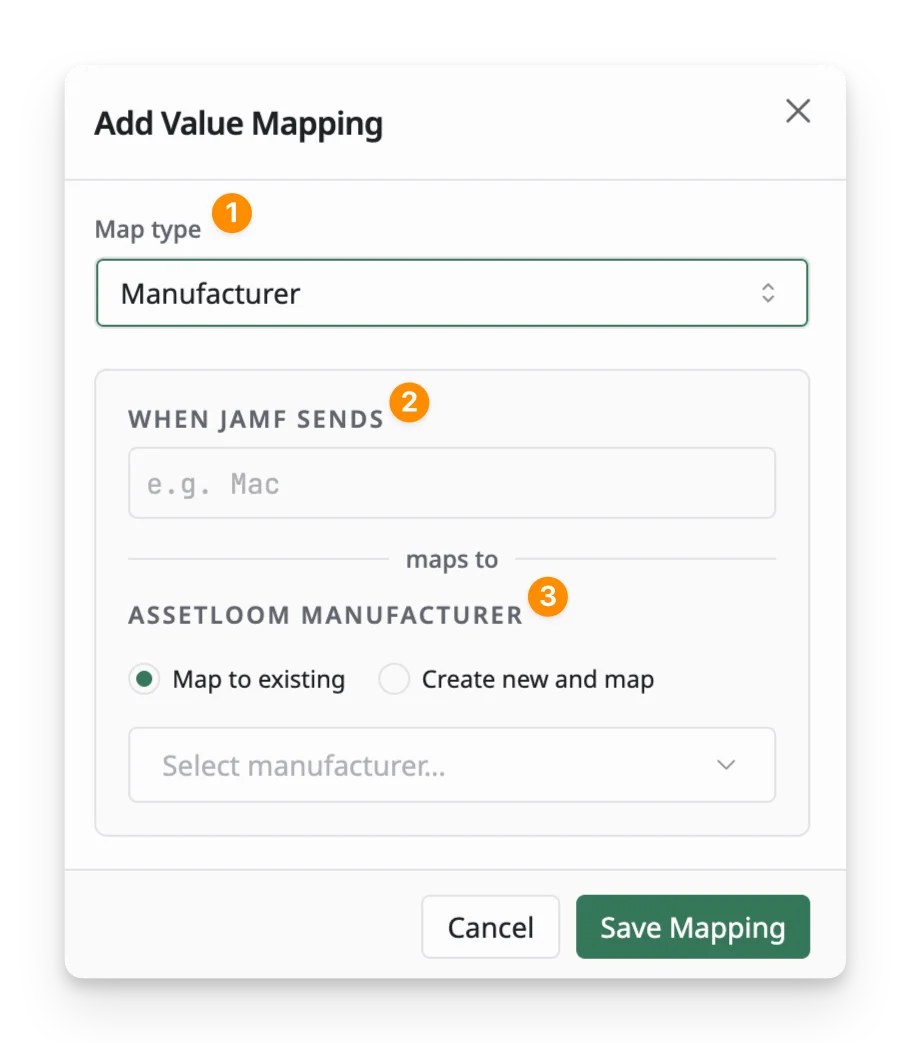
- Confirm the map type: whether you’re mapping a Manufacturer or a Model value.
- Confirm the value as Jamf sends it, shown under “When Jamf sends”.
- Choose the AssetLoom record it should map to. You can either select a record that already exists in AssetLoom (Map to existing), or create a new manufacturer or model record directly within this panel (Create new and map), if AssetLoom doesn’t have one yet.
Click Save Mapping to confirm the mapping, or Cancel to discard the changes. Once a value is mapped, its row updates to show the AssetLoom record it now resolves to. From here, you can click Edit to change what the value maps to, or Delete to remove the mapping entirely.
4. Custom Fields
Custom Field Mappings is where you map fields from Jamf that aren’t part of AssetLoom’s default core fields. Since core fields cover only the basics (name, serial, manufacturer, and so on), any other Jamf data you want tracked in AssetLoom, for example, a specific compliance flag or an internal Jamf identifier, needs to be mapped here to a custom field instead. Once mapped, that value is written into the custom field automatically on every sync, without manual entry.
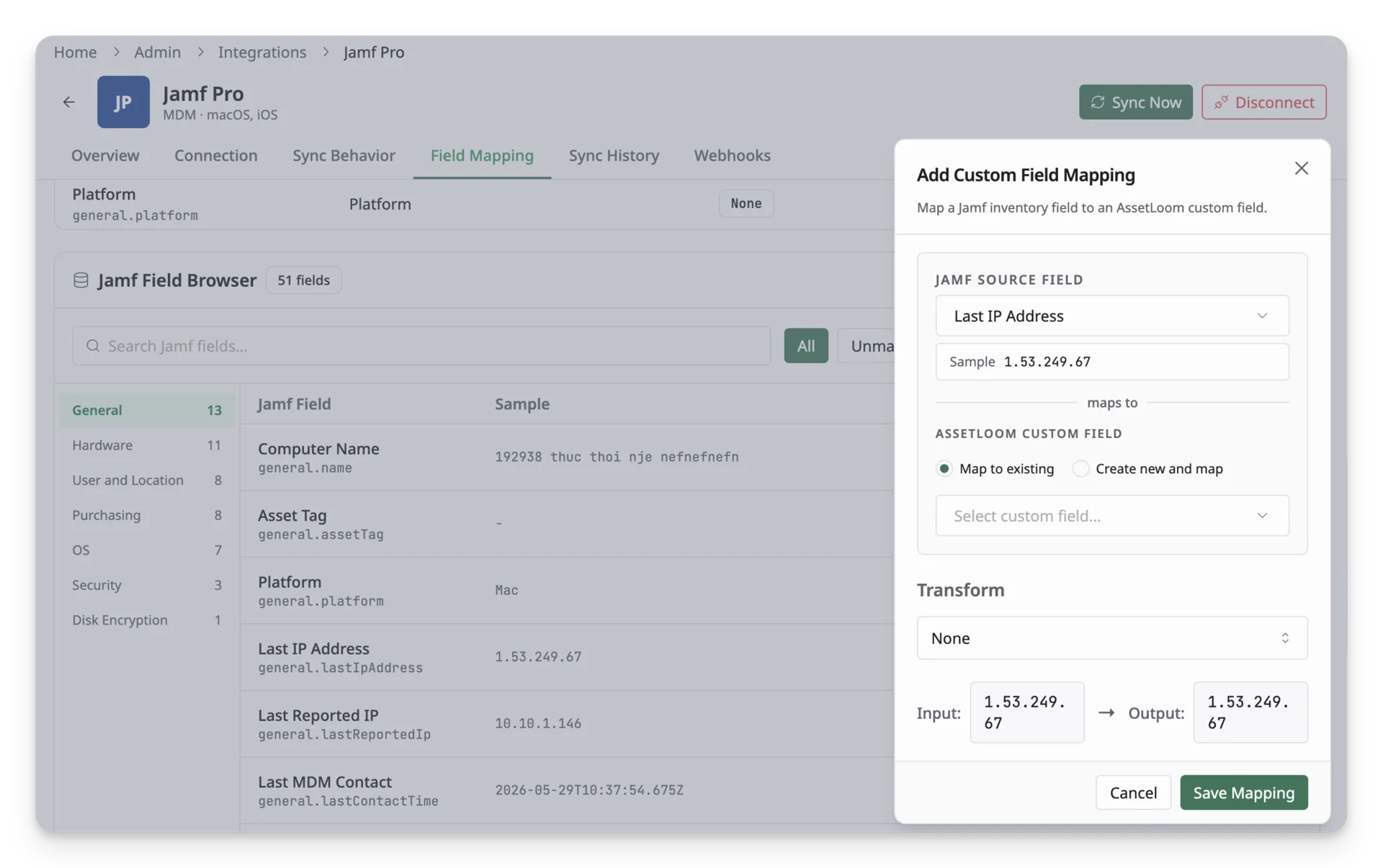
This section starts out empty. To add one, click Add Mapping. A panel opens where you:
- Search for and select the Jamf source field you want to bring in. Once selected, a Sample value from your Jamf data appears underneath it, so you can see the kind of value you’re working with.
- Choose how it maps to an AssetLoom custom field:
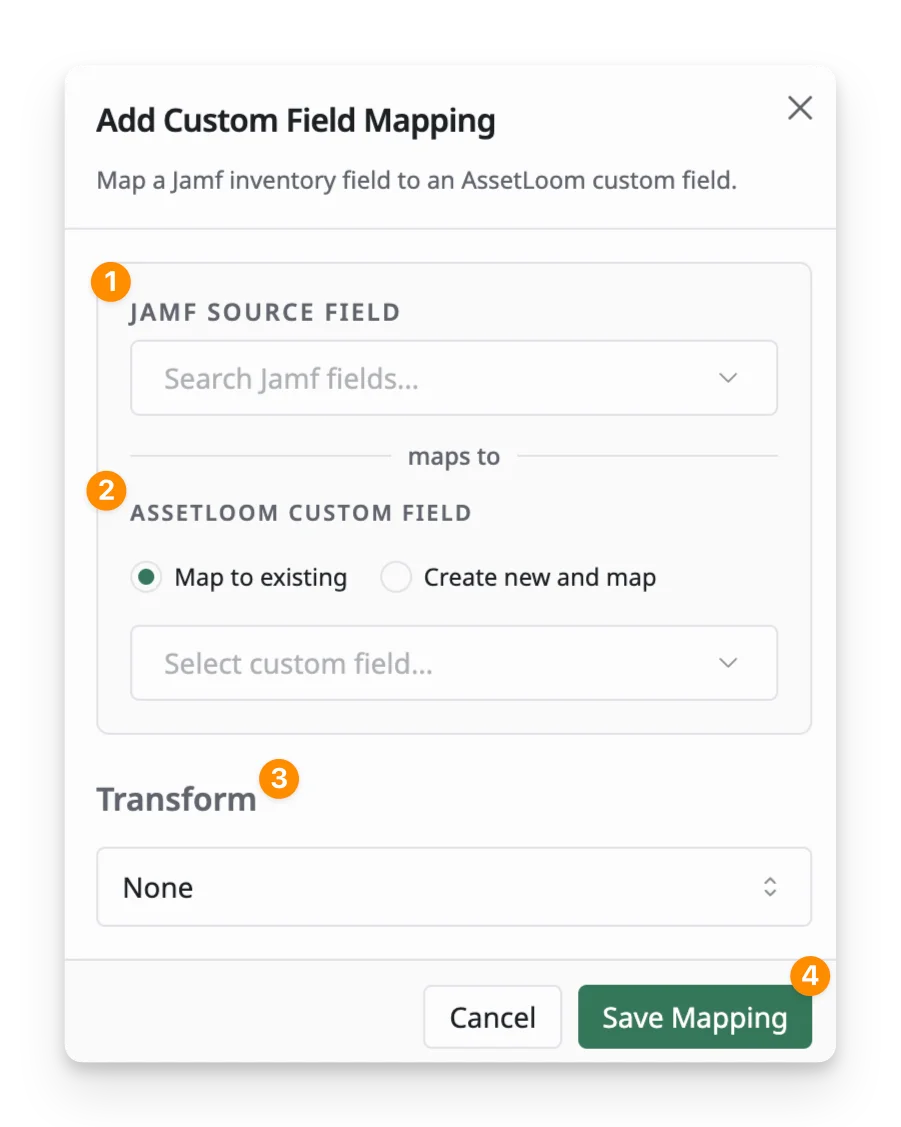
- Map to existing lets you search for and select a custom field that’s already in AssetLoom.
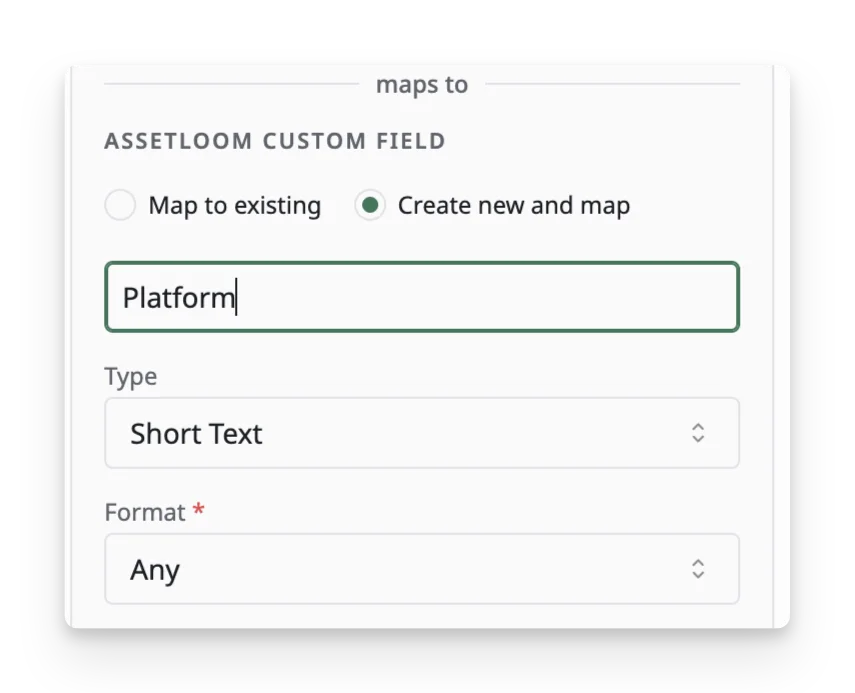
- Create new and map lets you create one on the spot. Give it a Field name, choose its Type (e.g., Short Text), and choose a Format. Format narrows what kind of value the field expects (e.g., IP Address for a network field, or Any if it doesn’t need a specific format).
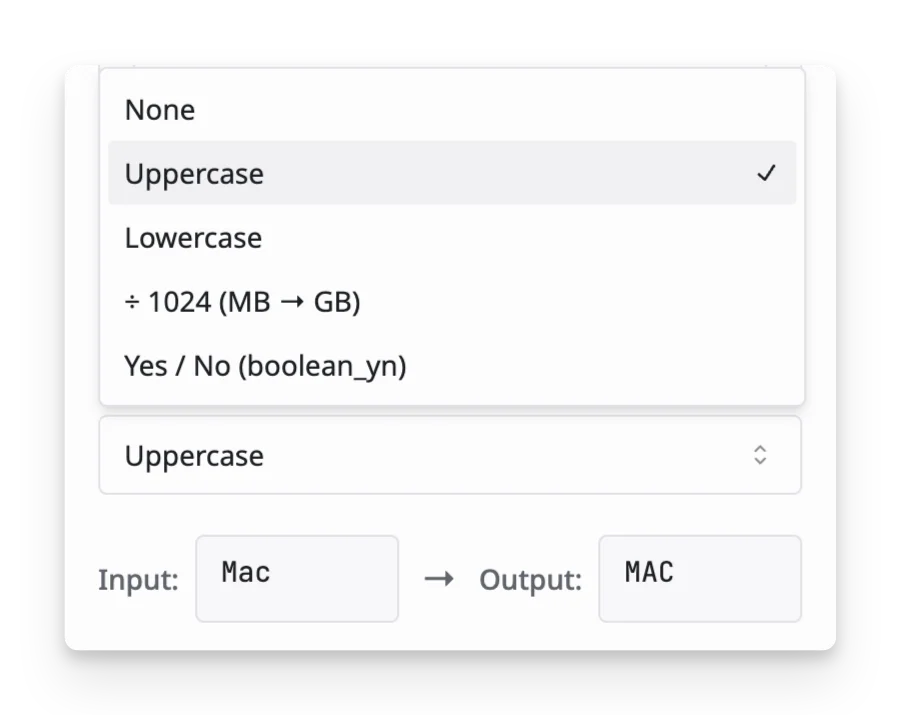
- Apply a Transform to convert the value before it’s written. Available transforms include: Uppercase, Lowercase, ÷ 1024 (MB → GB), and Yes/No (boolean_yn), or None to write the value as-is.
Click Save Mapping to confirm, or Cancel to discard the changes.
5. Jamf Field Browser
The Jamf Field Browser lists all Jamf fields currently discovered by AssetLoom. You can use it to review what data is available from Jamf and quickly find fields you may want to map to AssetLoom custom fields.
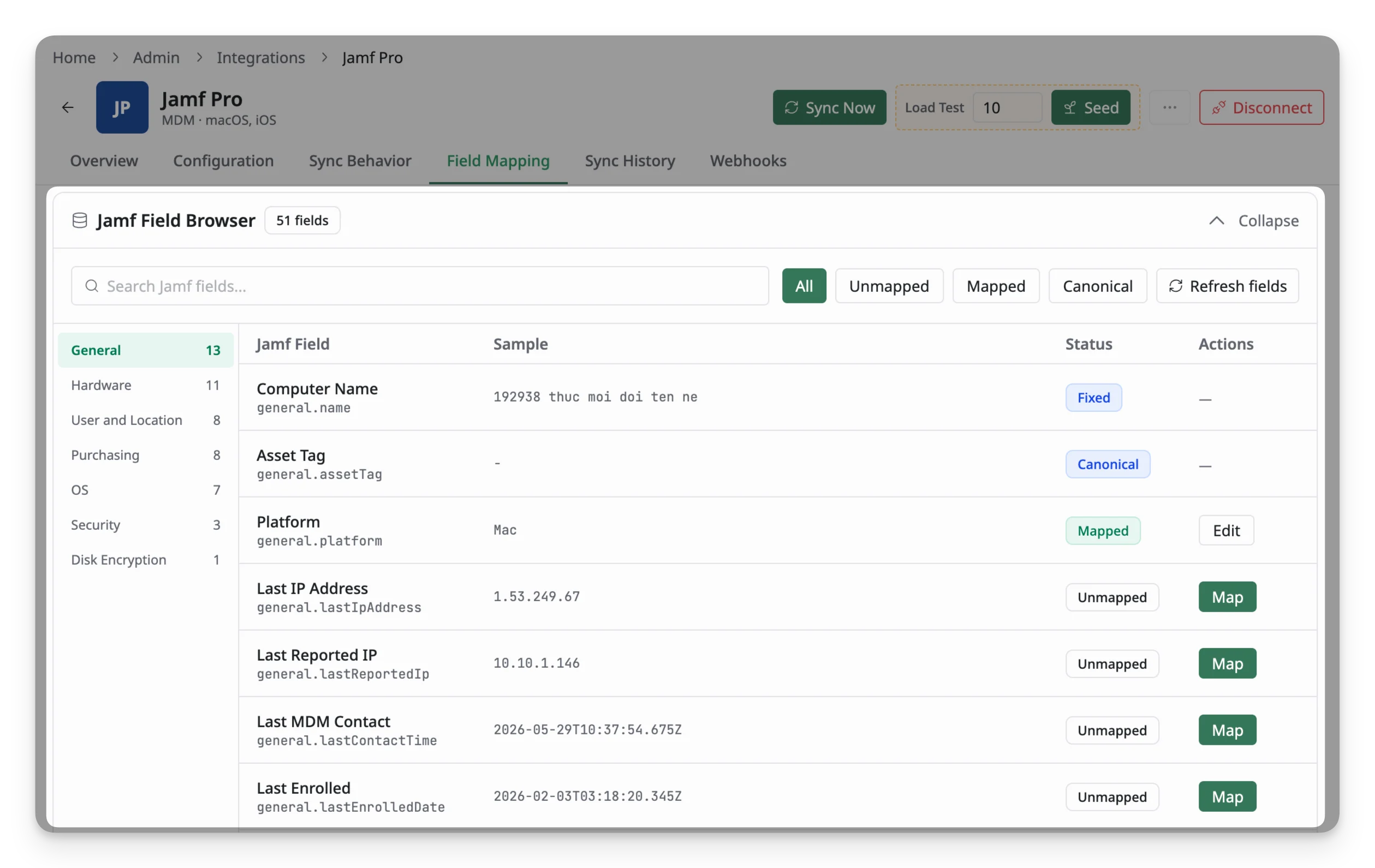
Fields are grouped by data type, such as Device, Assignment, Security, Enrollment, Hardware, Identity, Network, Compliance, and OS.
For each field, you can see:
- Jamf Field: the field name received from Jamf.
- Sample: an example value from your synced Jamf data, when available.
- Status: shows whether the field is already mapped.
- Actions: lets you start mapping an available field.
Use the filters at the top to narrow the list:
- All: shows all discovered Jamf fields.
- Unmapped: shows fields that are not currently mapped.
- Mapped: shows fields already mapped to AssetLoom custom fields.
- Canonical: shows Jamf fields already used by AssetLoom’s predefined core field mappings.
Use the search box to find a specific Jamf field by name. If new fields become available from Jamf, click Refresh fields to update the field list.
To map an Unmapped field directly from the browser, click the Map button next to it.
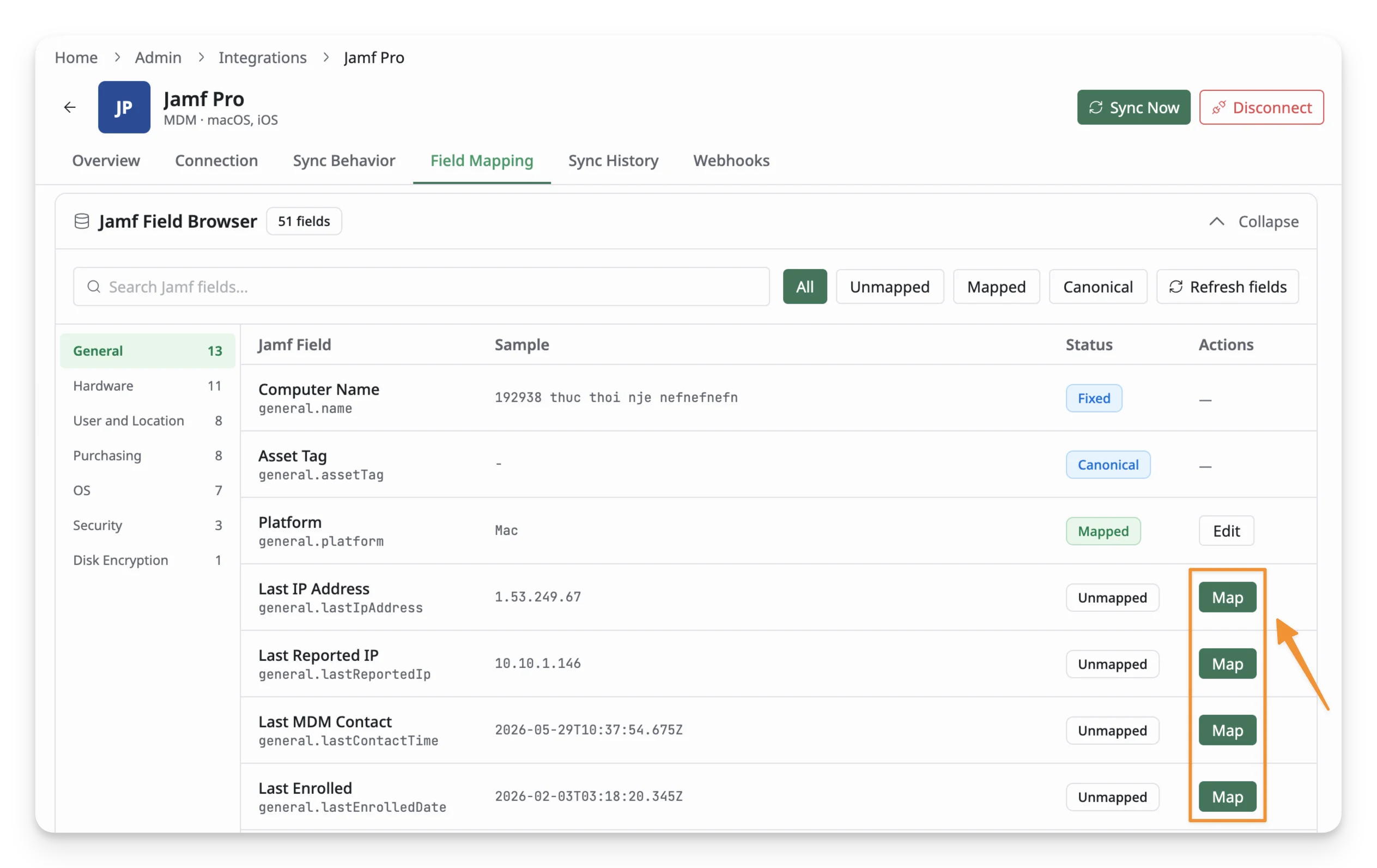
The Add Mapping panel opens with that Jamf field already selected. You can then map it to an existing AssetLoom custom field or create a new one.