Managing the Jamf Pro Connection
Manage your Jamf Pro connection in AssetLoom, including authentication settings, sync scope, connection status, and disconnecting or removing synced data.
The Connection section holds the settings established when Jamf Pro was first connected: authentication, what gets synced, and the option to disconnect or delete synced data.
To access it, from the Jamf Pro integration details page, navigate to the Connection tab.
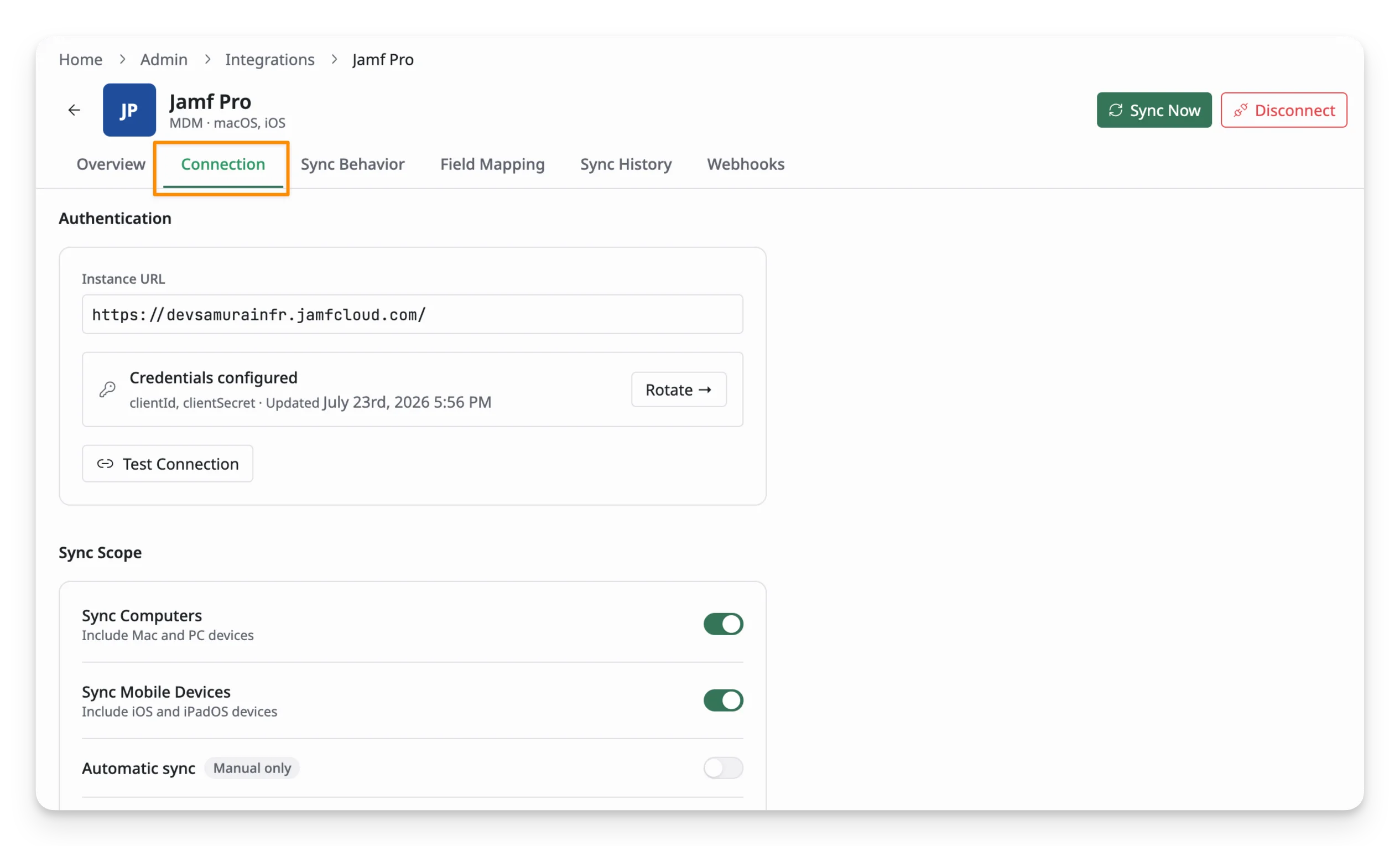
Authentication
This section lets you review and configure how AssetLoom connects to your Jamf Pro instance.
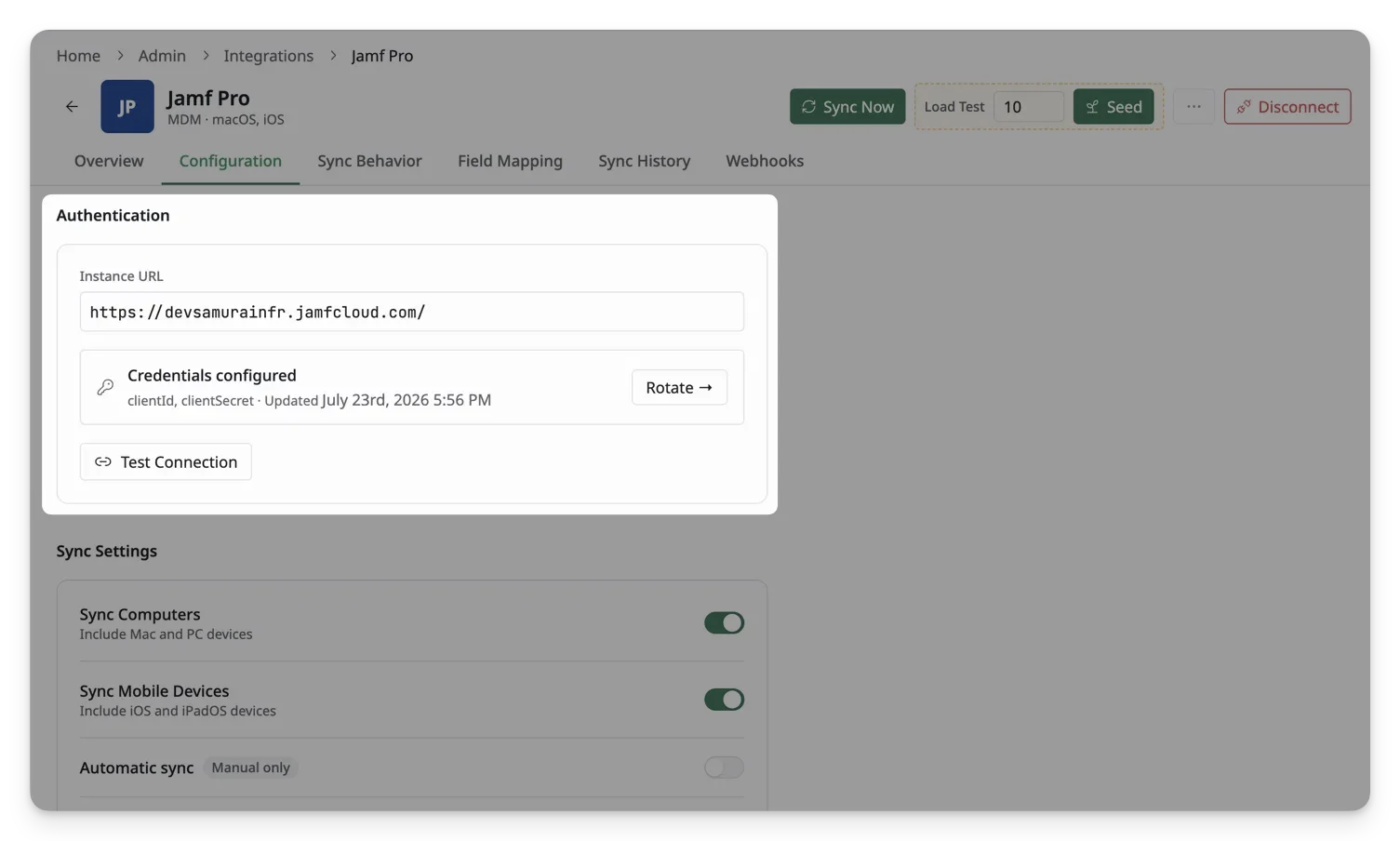
- Instance URL: your connected Jamf Pro server address.
- Credentials configured: displays a Client ID and Client Secret that are on file, along with when they were last updated. Click Rotate to generate and enter a new Client Secret.
- Test Connection: clicks Test Connection to check whether AssetLoom can currently authenticate with your Jamf Pro instance using the credentials on file.
Sync Scope
Use Sync Scope to choose which types of devices AssetLoom imports and keeps updated from Jamf Pro. Changes to these settings apply to future syncs and do not delete assets that have already been synced.
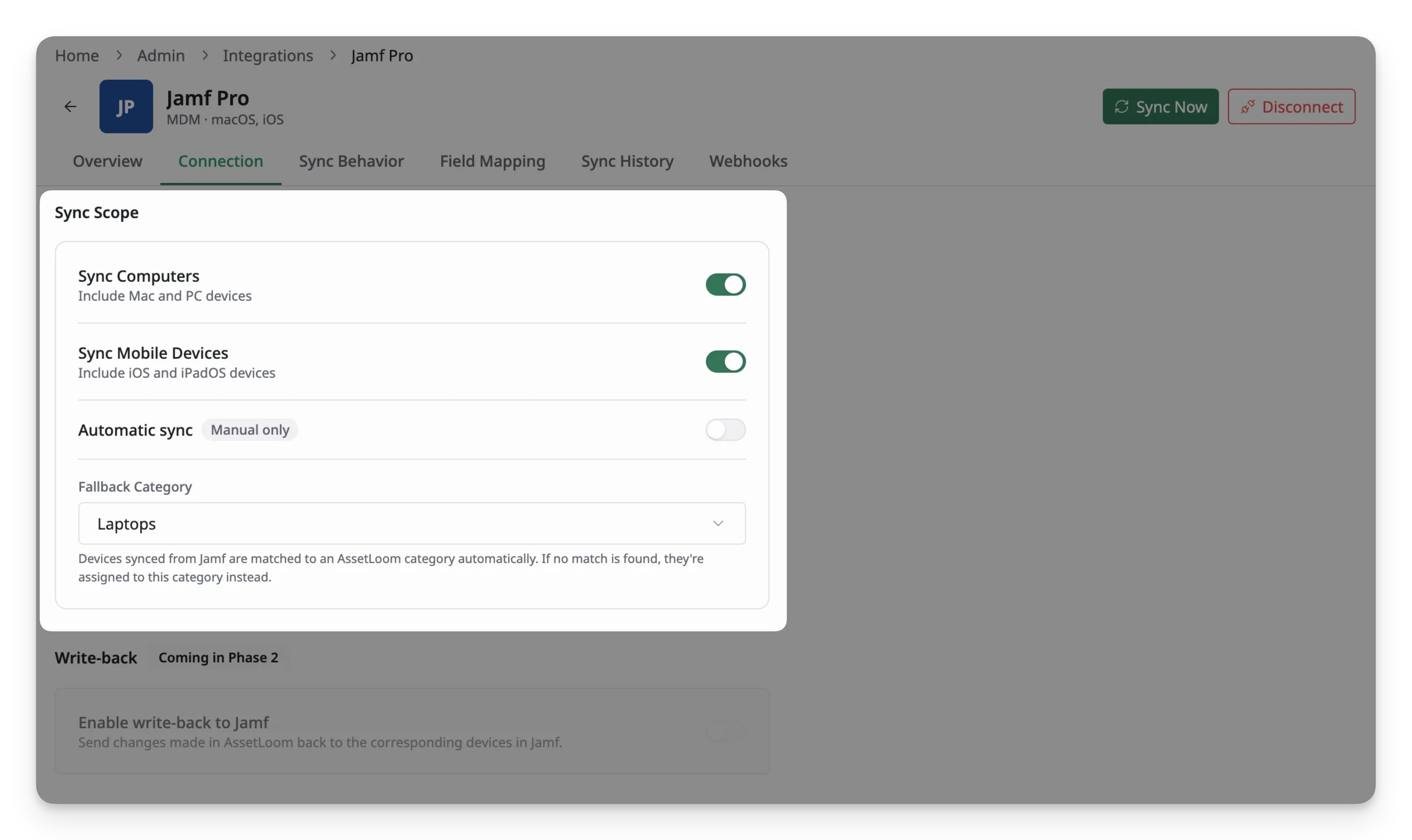
- Sync Computers: Turn this on to import and update Mac and PC records from Jamf Pro. Turn it off to exclude them from future syncs.
- Sync Mobile Devices: Turn this on to import and update iPhone and iPad records from Jamf Pro. Turn it off to exclude mobile devices from future syncs.
- Automatic sync: Controls whether AssetLoom runs scheduled synchronizations automatically. When set to Manual only, start a full sync by clicking Sync Now. Configured webhooks can still process supported device events as they occur.
- Fallback Category: Select the AssetLoom category used when a synced device cannot be matched to an existing category.
In plain terms, the Fallback Category is a safety net for categorization.
When AssetLoom syncs a device from Jamf Pro, it tries to match that device to one of your existing AssetLoom categories. If it can’t find a match, instead of leaving the device uncategorized, AssetLoom puts it into whichever category you’ve designated as the fallback.
Write-back
Write-back allows supported changes made to synced asset records in AssetLoom to be sent back to the corresponding device records in Jamf Pro. This creates a two-way flow of information instead of only importing device data from Jamf Pro into AssetLoom.
Write-back is not currently available and will be introduced in Phase 2 of the Jamf Pro integration.
Danger Zone
Use the Danger Zone to stop the Jamf Pro integration or permanently remove the assets imported through it. Review the impact of each action carefully before proceeding.
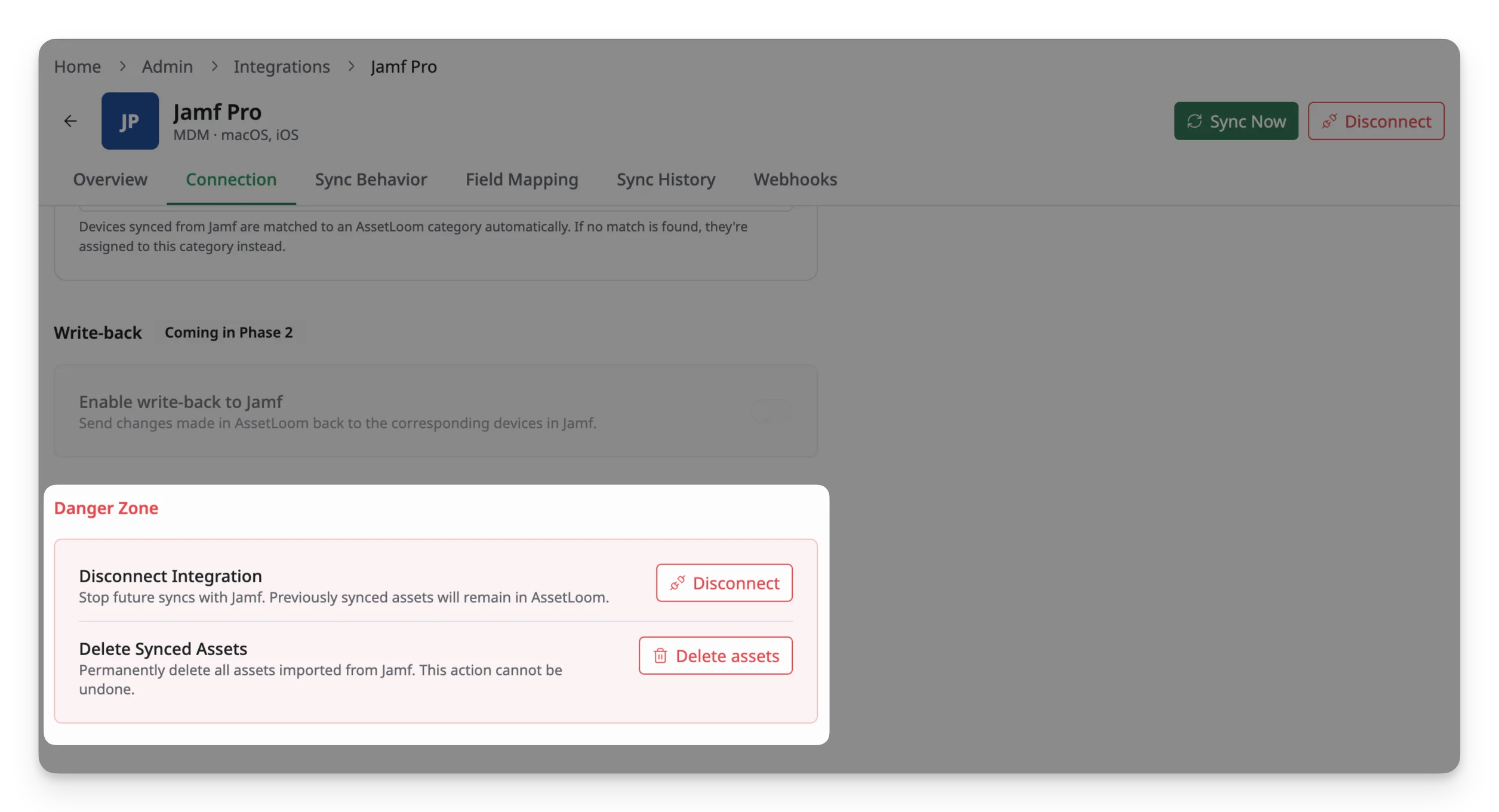
Disconnect Integration
Disconnecting stops AssetLoom from communicating with the connected Jamf Pro instance.
To disconnect:
- Click Disconnect.
- Review the confirmation message.
- Confirm the action.
After the integration is disconnected:
- Future manual, automatic, and webhook-based syncs stop.
- Existing assets previously synced from Jamf Pro remain in AssetLoom.
- The Jamf Pro integration must be connected again before syncing can resume.
Delete Synced Data
Use Delete Synced Data to permanently remove assets imported through this Jamf Pro integration.
To delete the synced assets:
- Click Delete Assets.
- Review the assets and data that will be affected.
- Confirm the deletion.
This action is irreversible. All assets sourced from this Jamf Pro integration will be permanently removed from AssetLoom and cannot be restored.