Manage Your Account
Learn how to manage your account settings
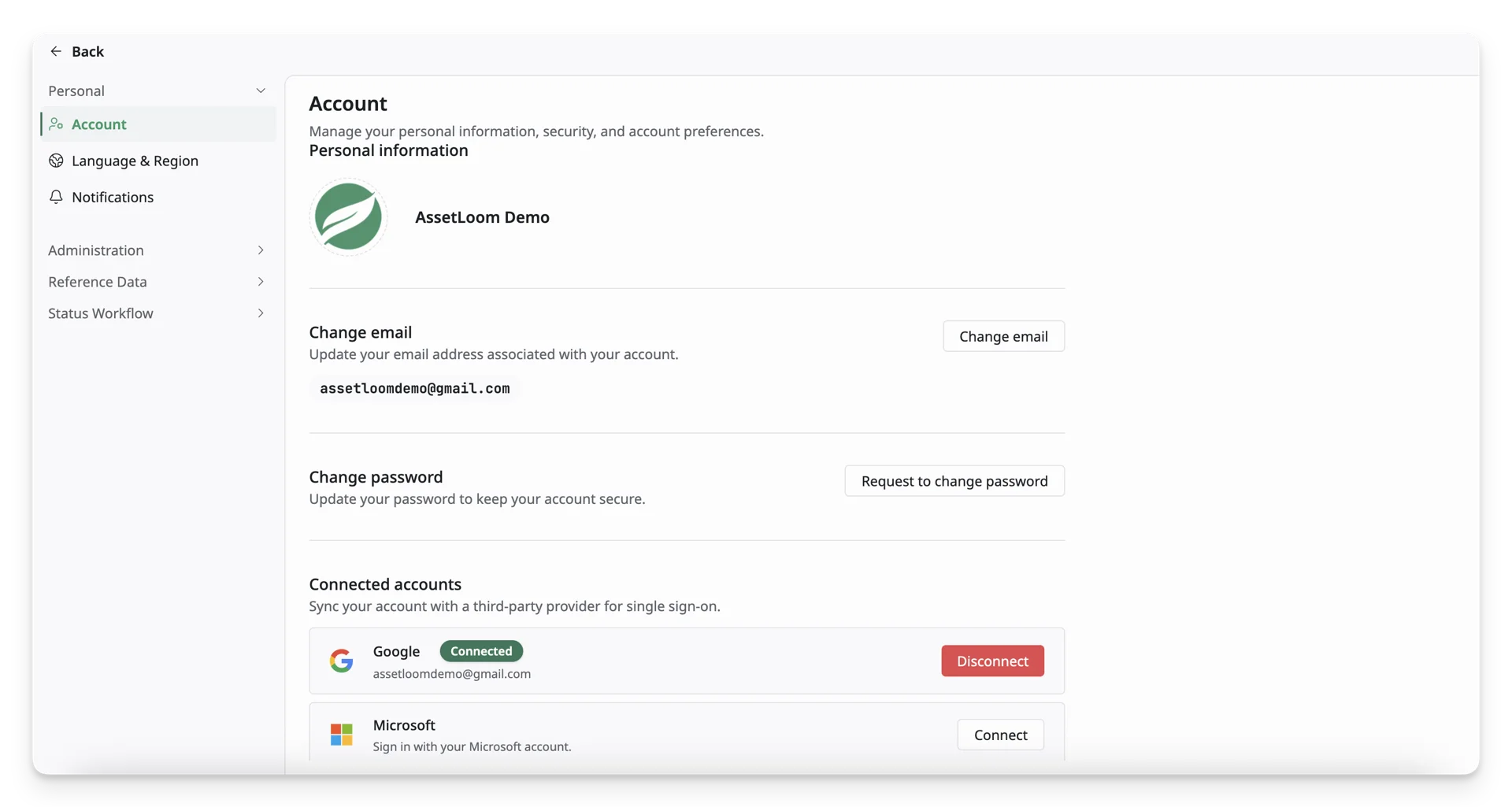
Account Settings lets you manage the core details used to access and secure your AssetLoom account. Keeping this information up to date helps protect your account and ensures you can sign in without interruption.
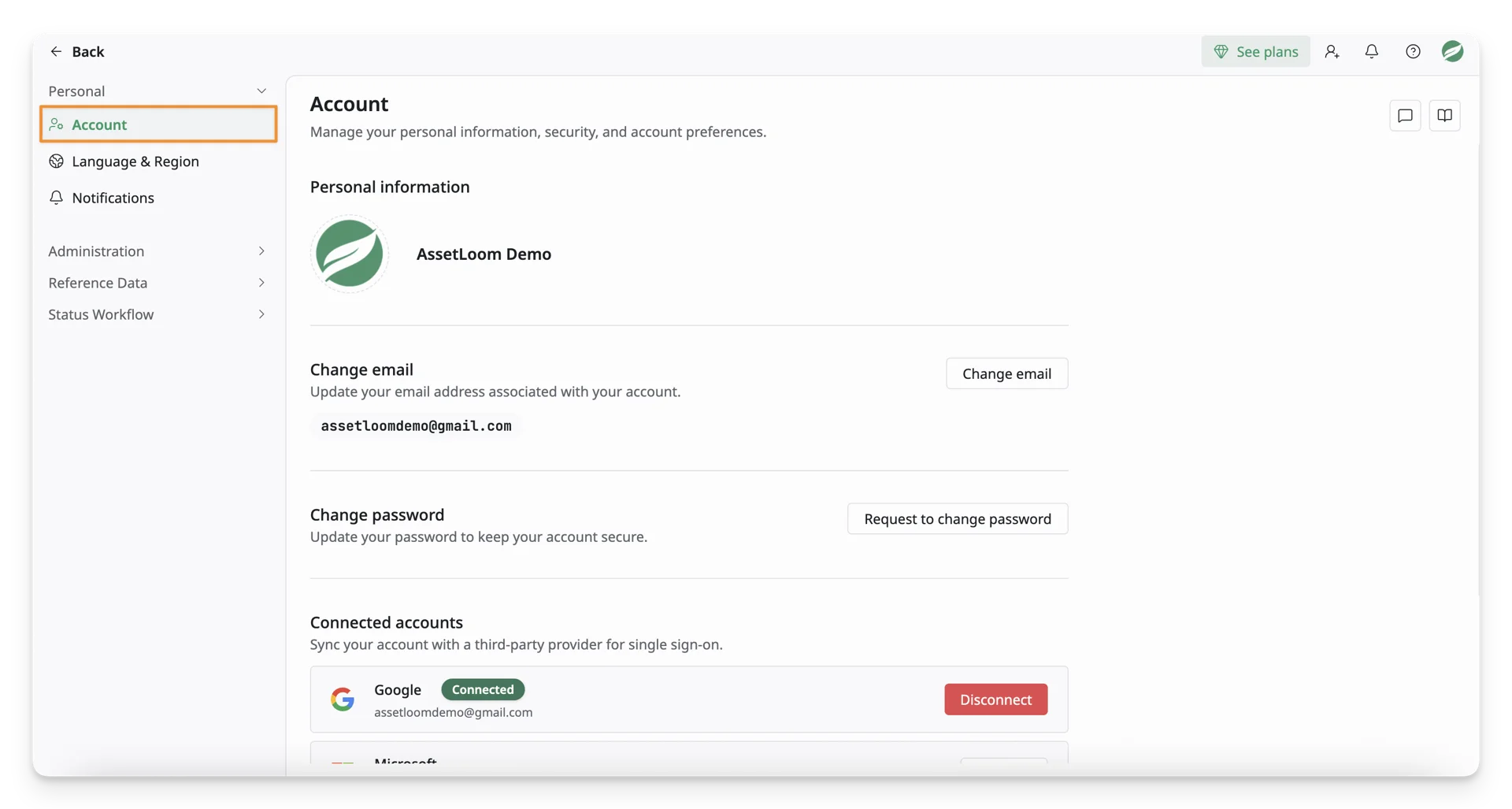
The Account is located under the Personal section on the Personal Settings page.
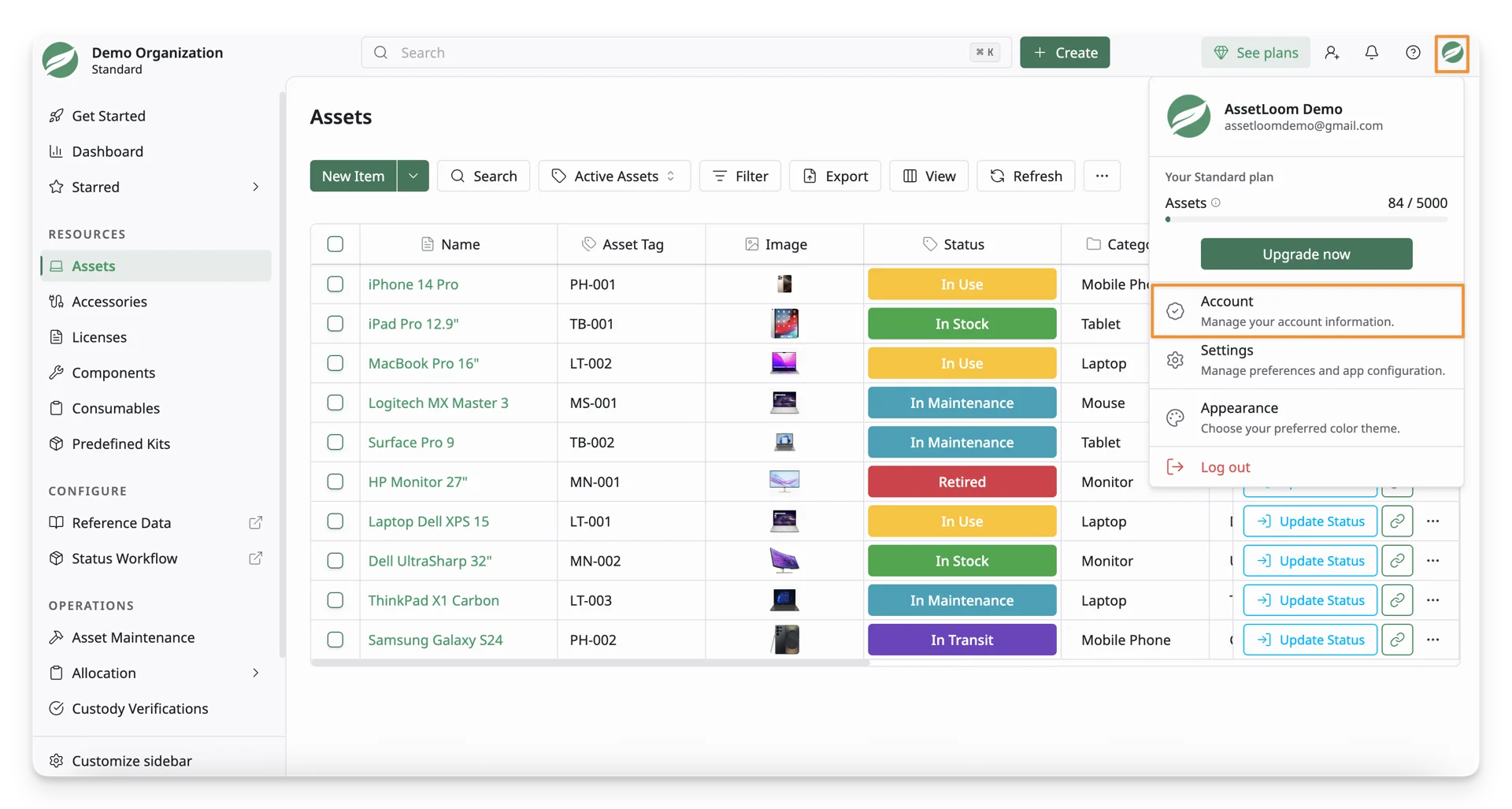
1. Access Account Information
Click on your Avatar button, then select the Account option.
You can see the Account settings under the Personal tab.
2. Actions In The Account Settings
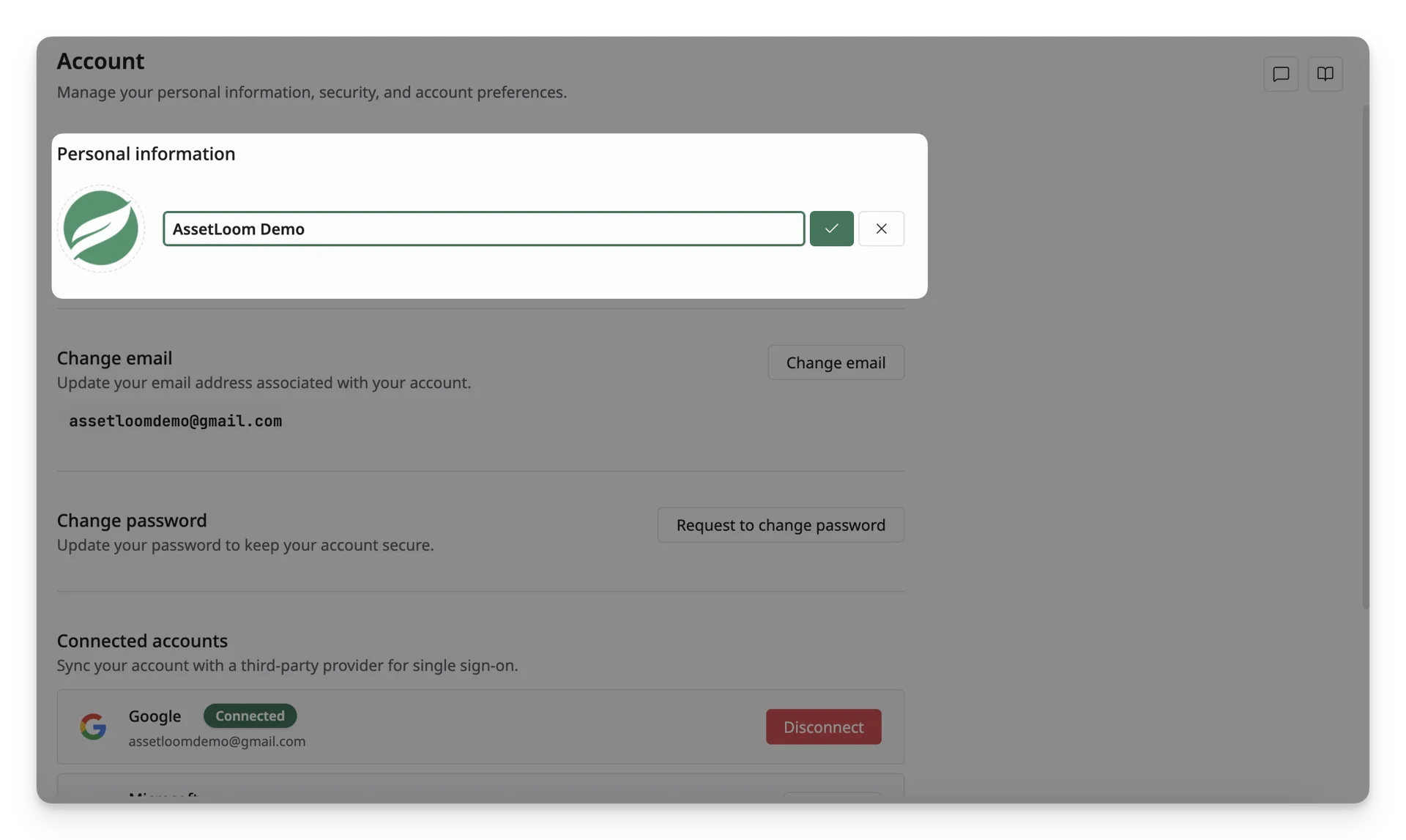
Update Personal Information
Under the Personal Information section, you can:
- Update your profile avatar: Upload or change your profile image under 2MB in PNG, JPEG, or WEBP format
- Edit your display name: Update the name shown across AssetLoom, with a maximum of 64 characters. Note that special characters such as &,%, etc are not allowed.
Change Email
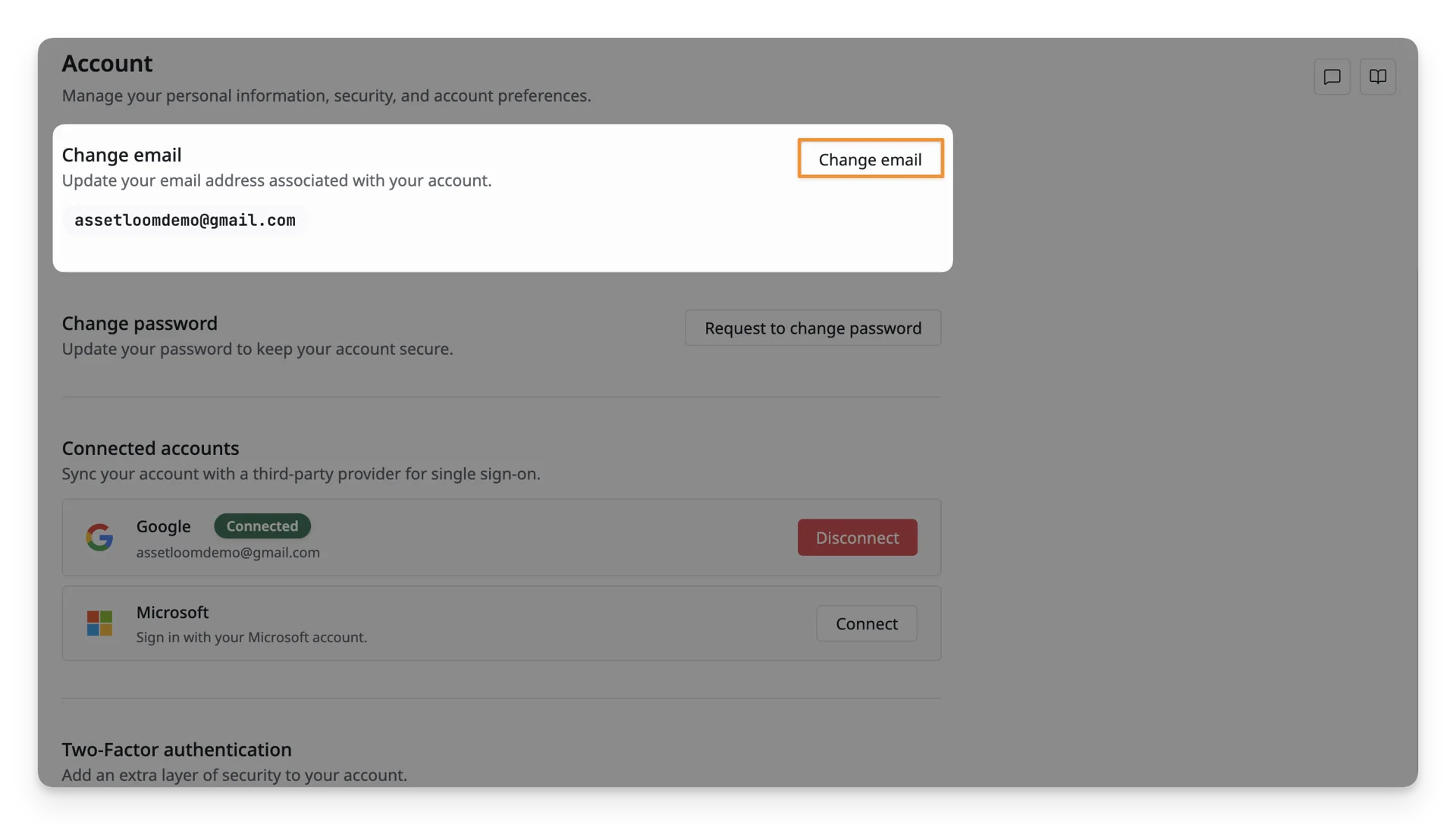
Your email address is used when you signed up with AssetLoom. It is also used for signing in, password recovery, notifications, and account verification. This email address can be updated; here is how.
- Click on the “Change Email” button
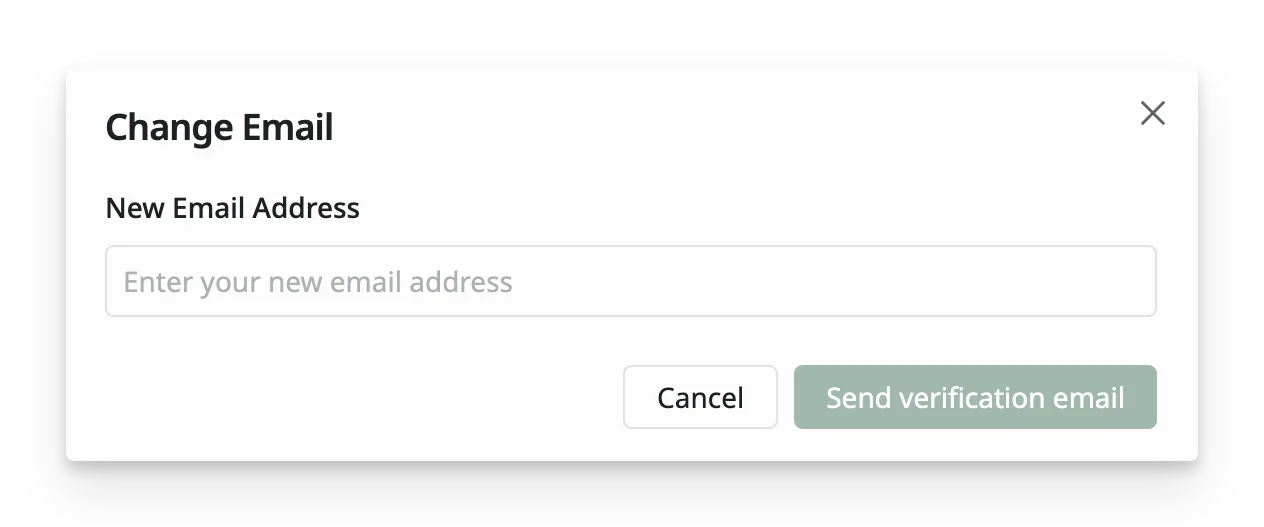
- Enter the email address to change. Then, click the “Send verification email” button.
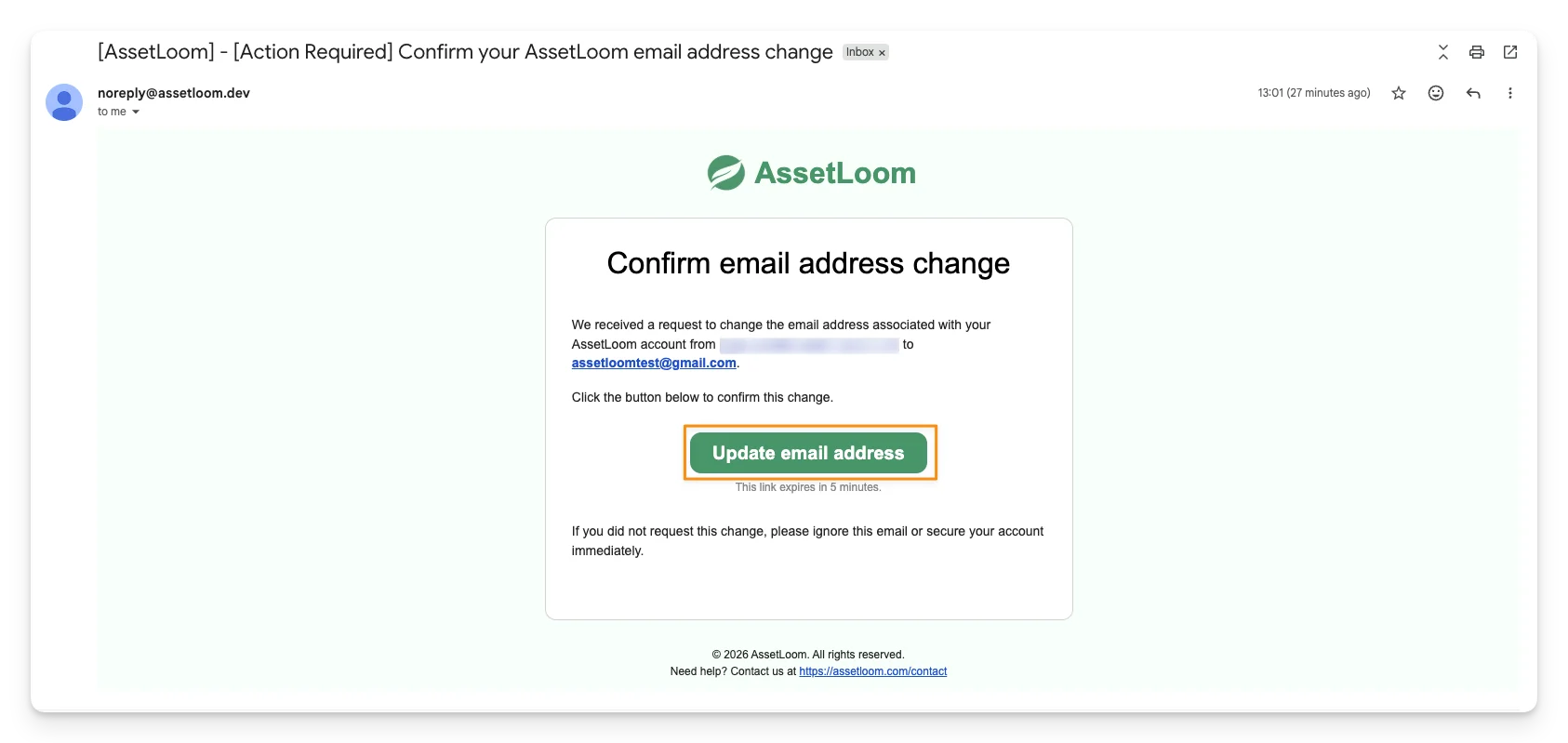
- You will receive a notification at your current email address about the address update. Click on the “Update Email Address” button to confirm.
- AssetLoom will send a verification email to the new email address.
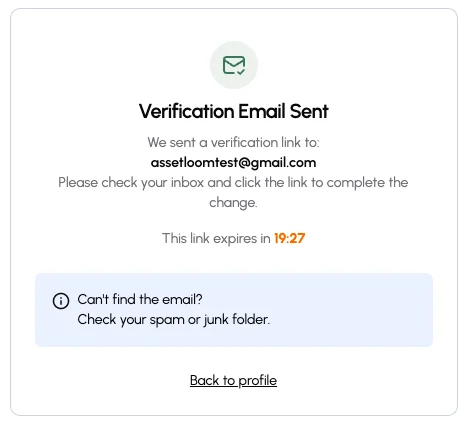
- Check your email and click the “Confirm Email Address Update” button.
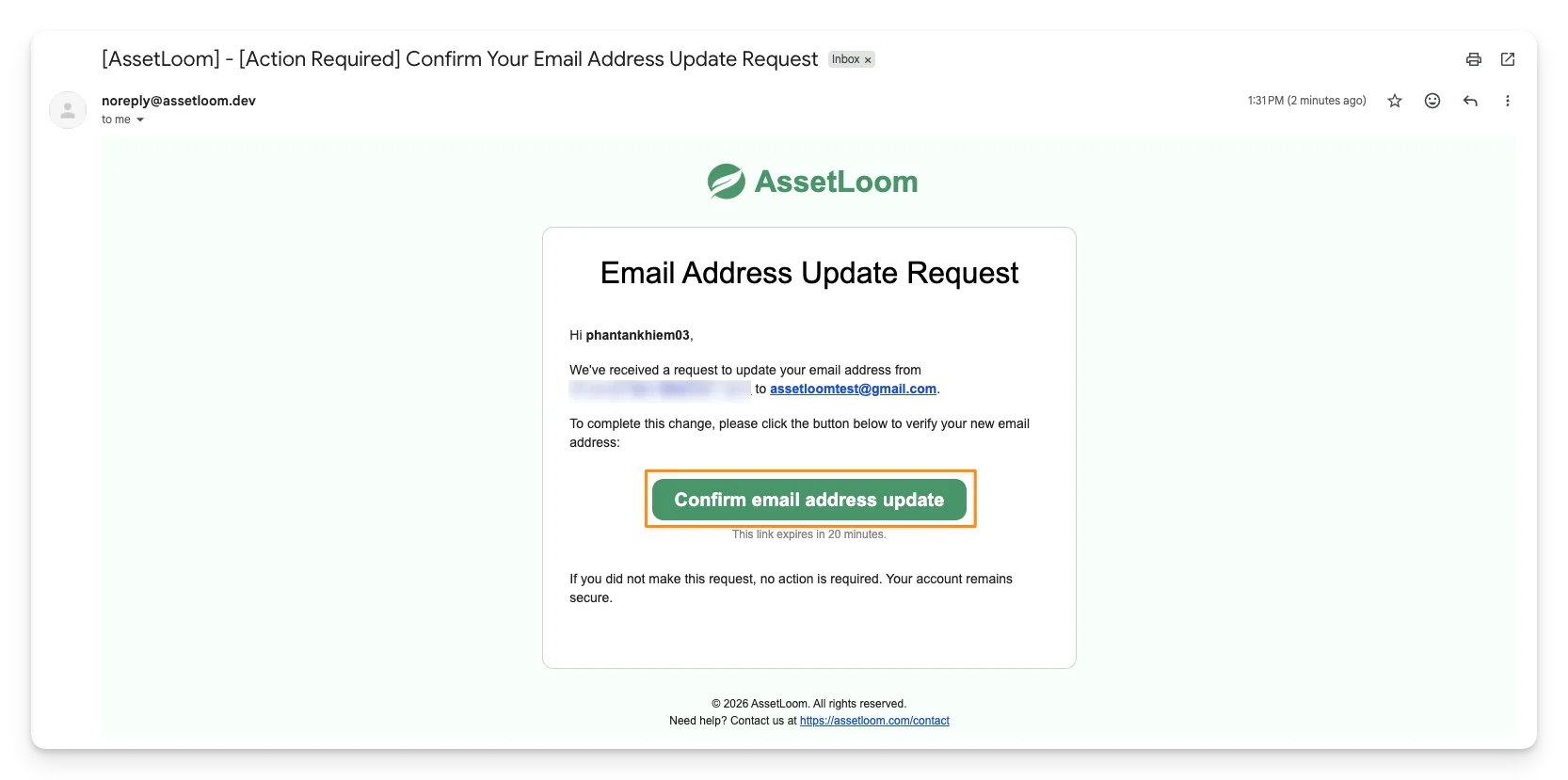
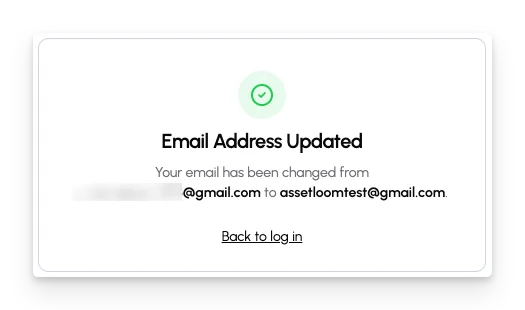
- You will receive the notification when your address has been updated.
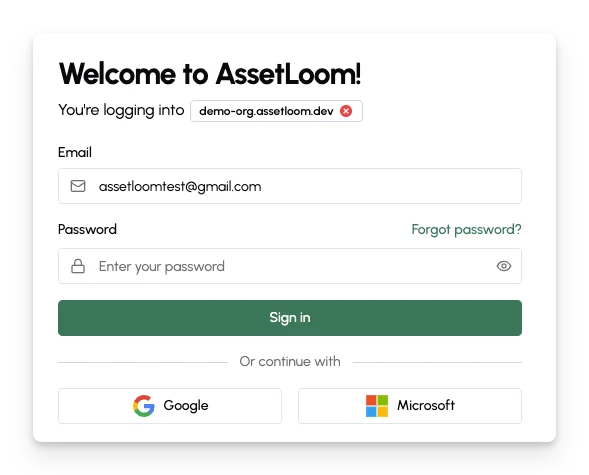
- Now you can log in to AssetLoom again with the new email address and your current password.
To complete this process successfully, you need to:
- Turn off 2FA authentication
- Disconnect your account with Google/Microsoft and reset your password
- Make sure the new email address has not joined any AssetLoom site
Change Password
This applies only to accounts signed in with email.
Updating your password could help to ensure your AssetLoom account security. Here’s how:
- Click the “Request To Change Password” button in the Change Password section.
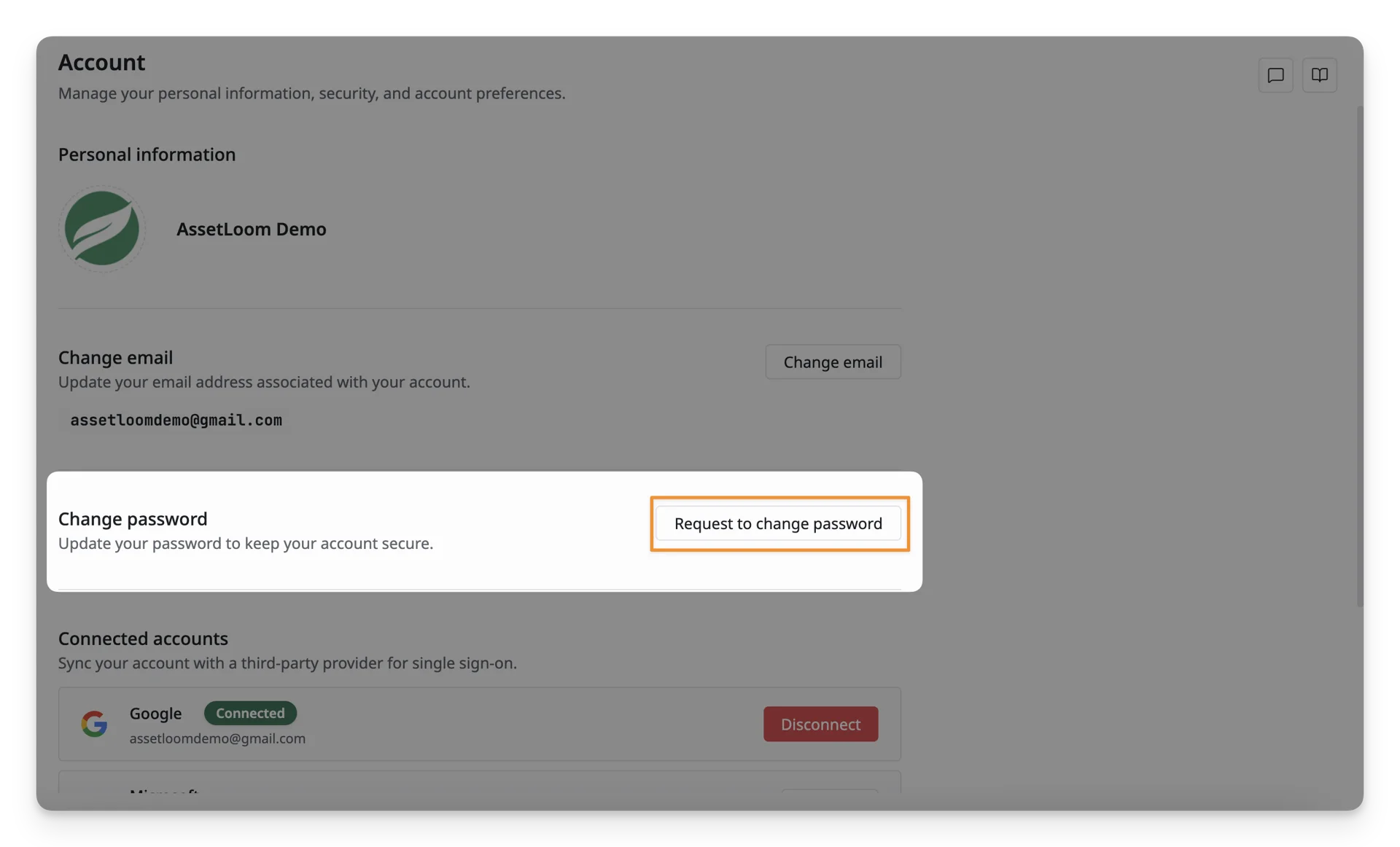
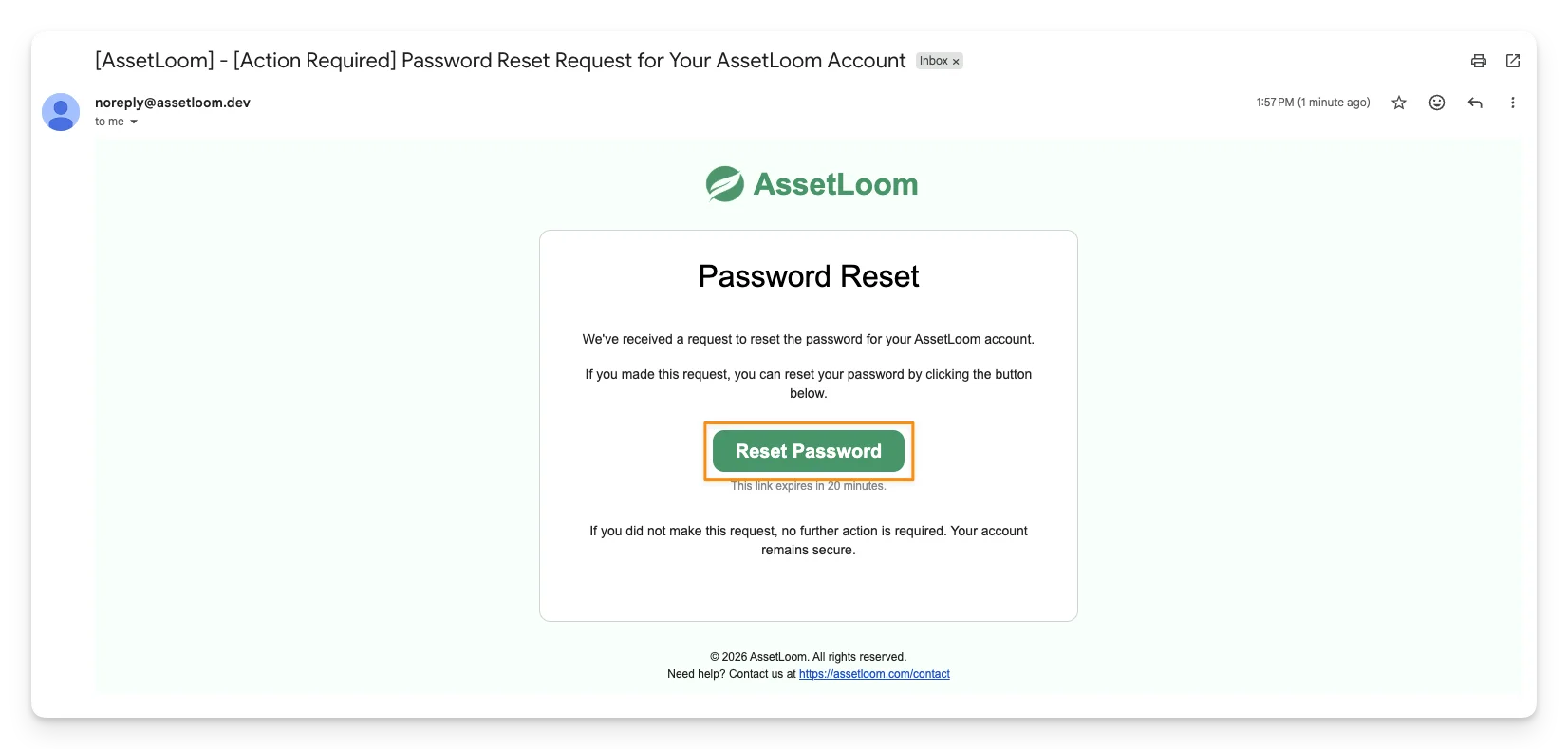
- An email will be sent to your email address with a link to reset your password. Click the “Reset Password” button to open the password reset form.
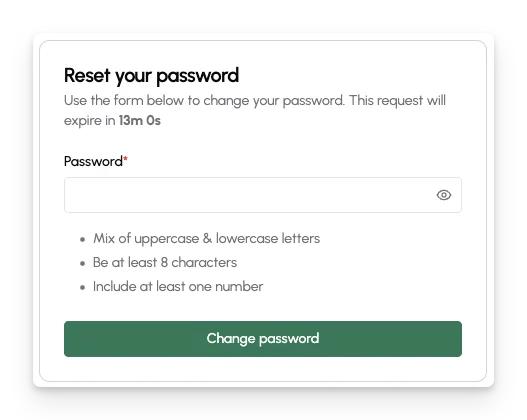
- Follow the instructions in this form to generate a new password for your account.
To complete this process successfully, you need to:
- Turn off 2FA authentication
- Disconnect your account with Google/Microsoft and reset your password
Connected Accounts
Connected accounts let you sign in to AssetLoom using trusted third-party providers, such as Google or Microsoft. This gives you a faster and more secure way to access your account without relying only on a password.
To connect/disconnect a Google/Microsoft account, simply click on the “Connect/Disconnect” button.
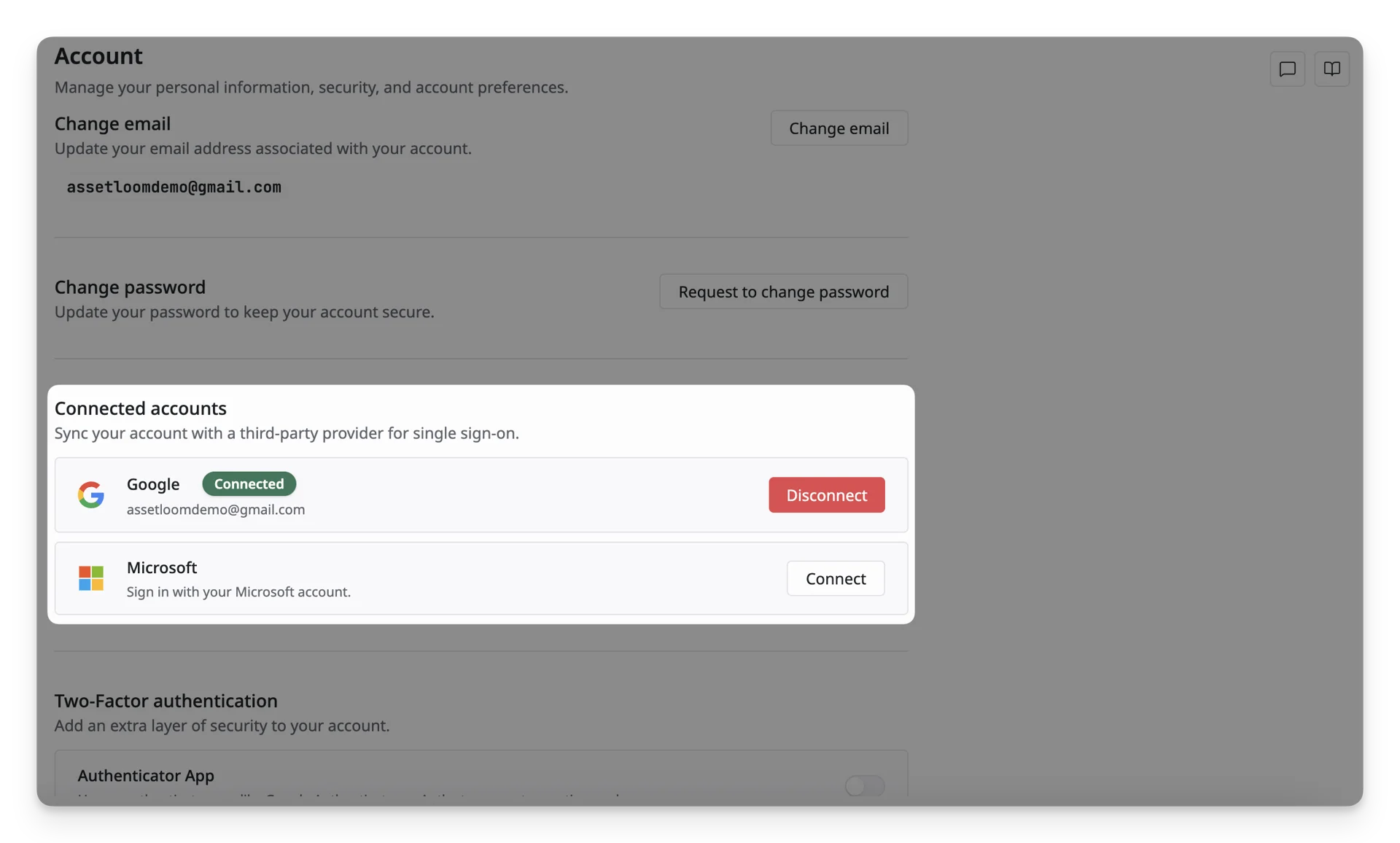
You can connect to both Google and Microsoft accounts simultaneously. Disconnecting both requires logging in again with your email and password.
Two-Factor Authentication
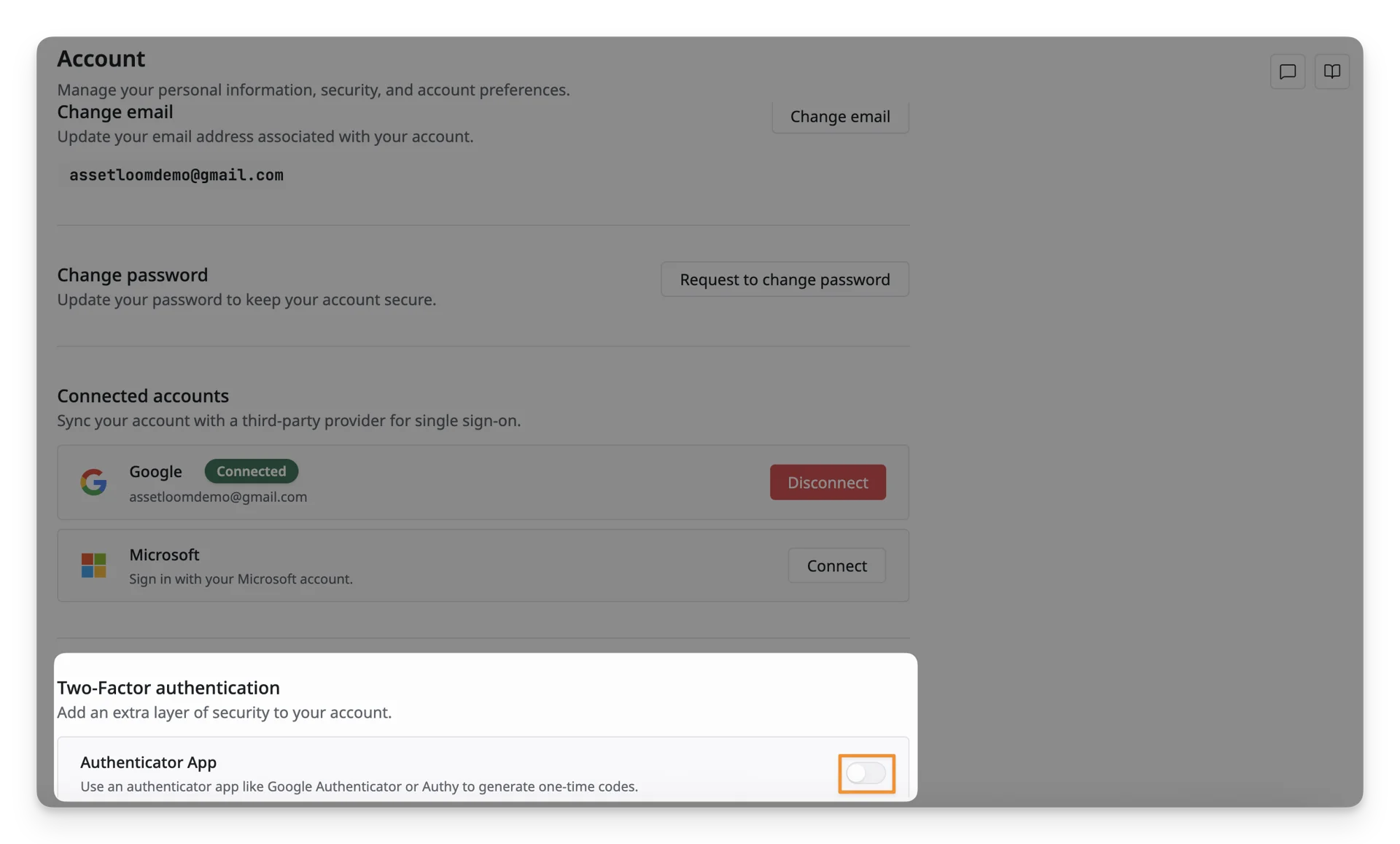
Two-Factor Authentication helps make sure only you can access your AssetLoom account. When it’s enabled, you’ll need both your password and a verification code when signing in, adding extra protection even if someone else knows your password.
To turn on/off the 2FA authentication, you can:
- Toggle on/off the Authenticator App button.
- Open any authentication app, such as Google Authenticator, Microsoft Authenticator, Authy, etc.
- Scan the QR code or enter the key to the authentication app
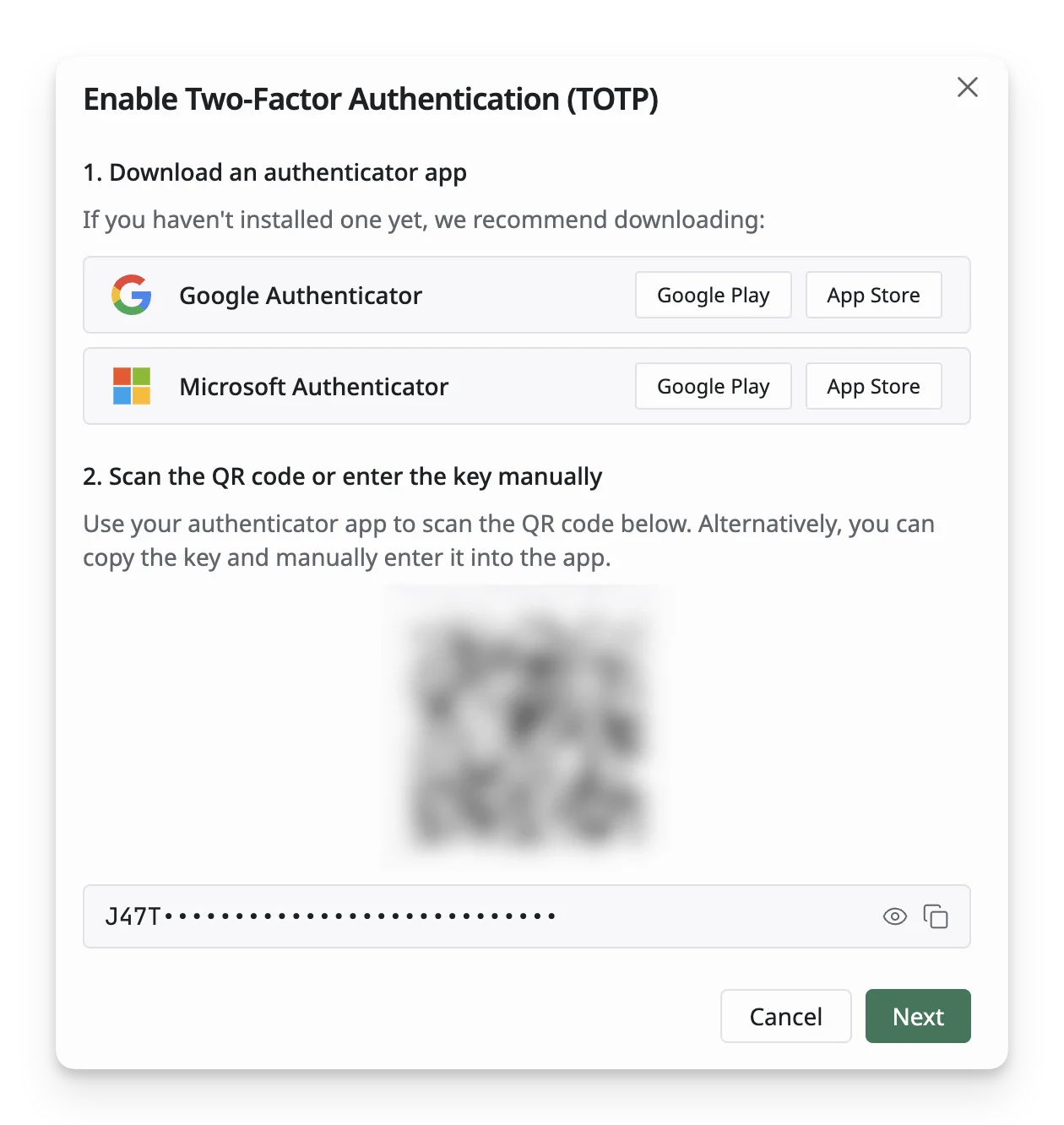
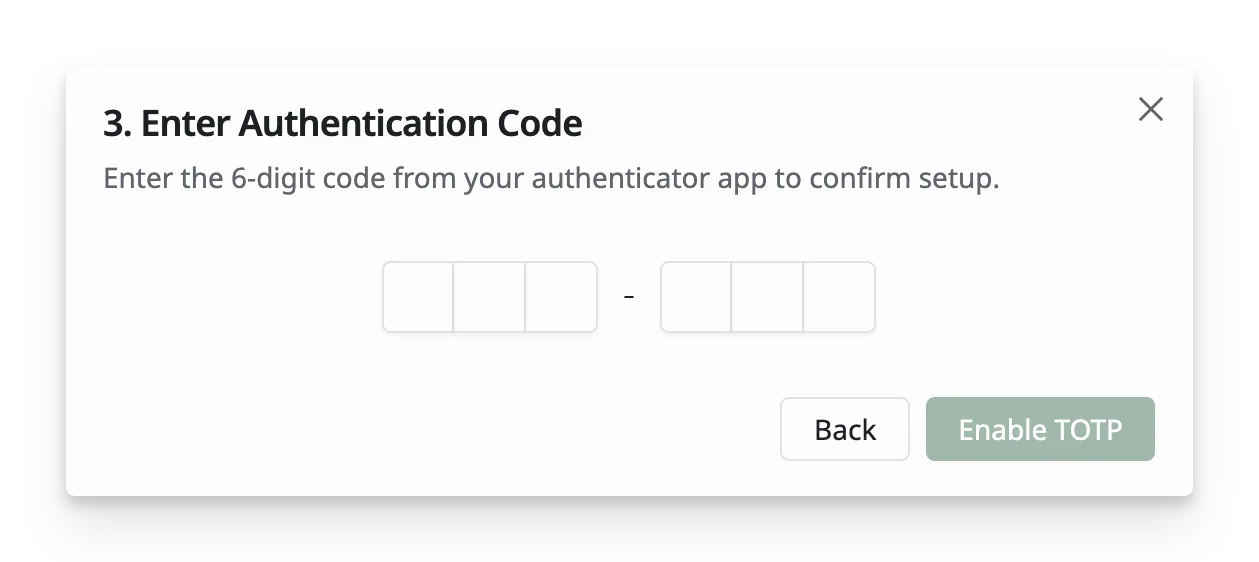
- Enter the authentication code you receive and click “Enable/Disable TOTP”.
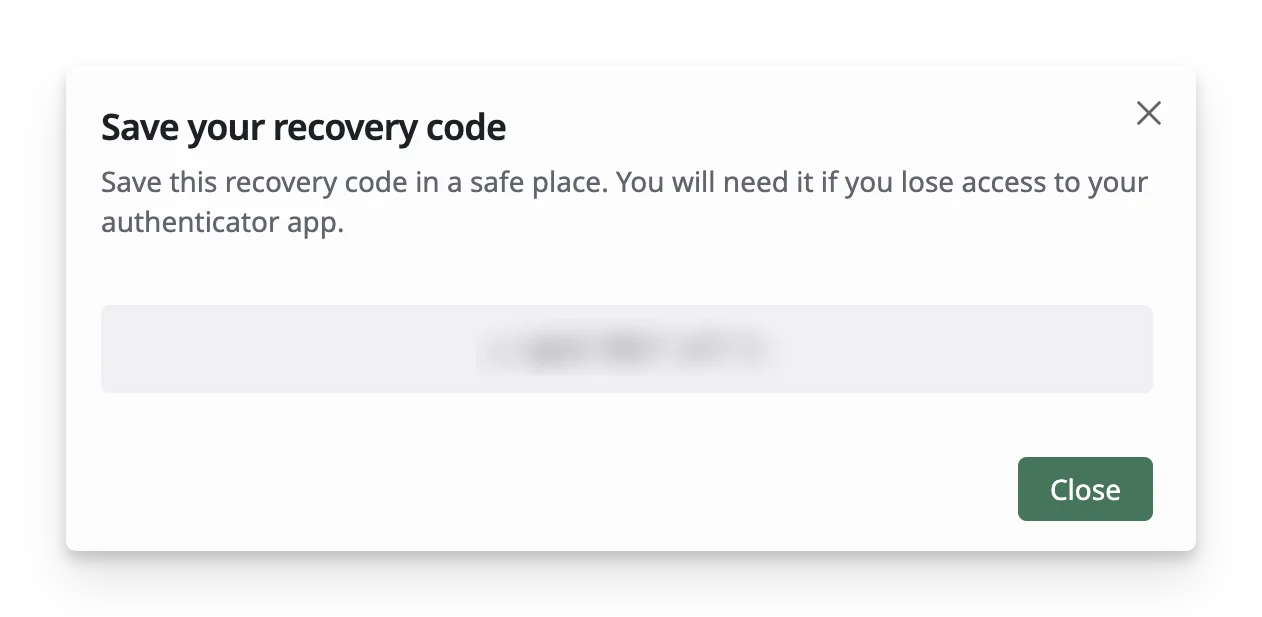
You will also receive a recovery code, which can help you authenticate when you lose access to your authentication app.
What’s Next?
- Language & Region: Learn how to configure your language and region settings.
- Notifications: Learn how to configure your notification settings.
- Theme and Appearance: Learn how to configure your theme and apperance settings