Manage Users
Learn how to manage users in AssetLoom site
The User Management area in AssetLoom allows Site Admins to view, organize, and control all members within a site.
It helps you manage:
- Who has access to your AssetLoom workspace
- What they can see and do in the system
- The resources and permissions assigned to each user
You can access this feature by going to: Settings → Administration → Users
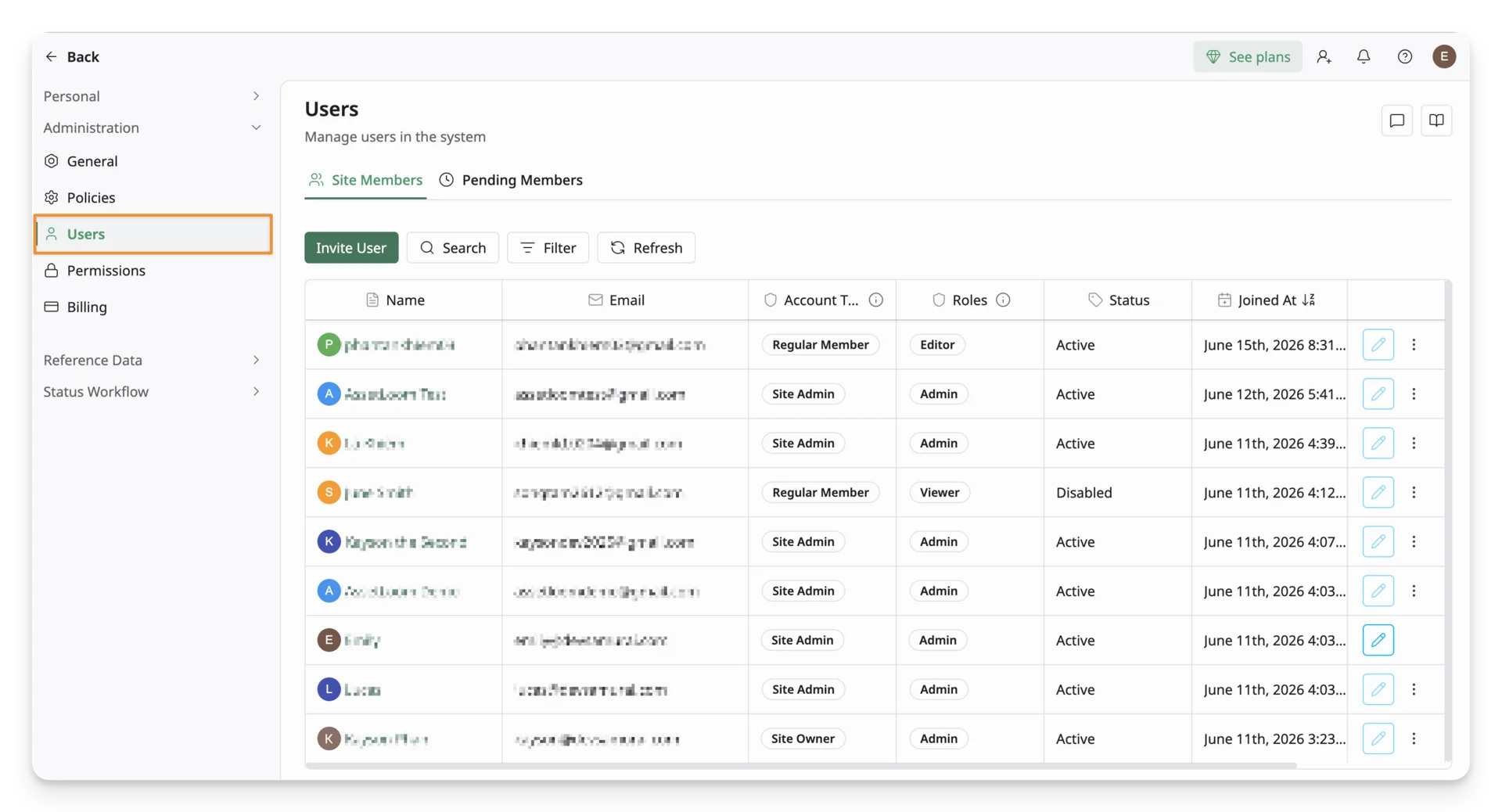
Inside this section, you will see a complete list of users on your site, divided into two tabs:
- Joined Members: Users who have accepted the invitation and are already active on the site.
- Pending Members: Users who have been invited but have not accepted the invitation yet.
All site members can access the User Management page. However, what each user can see and do depends on their permission level and account type.
- Only users with “View People” permission can view the full list of site members and access other users’ profiles.
- Only users with Site Admin/Site Owner account type can manage users, modify account settings, and perform administrative actions such as updating roles, suspending users, or removing members.
Manage Site Members
Site Members are users who have accepted the invitation and joined the site. They already have access to AssetLoom and can use the system based on their permissions. This list includes all existing members, regardless of whether they are currently active or suspended.
On this list, you can:
- View all site members and their current account status
- Search and filter users to quickly find specific members
- View key information for each user, including their account type, role(s), join date, and inviter
- Manage each user’s access and permissions
- Open a user profile to see detailed information such as assigned resources, activity history, and booking history
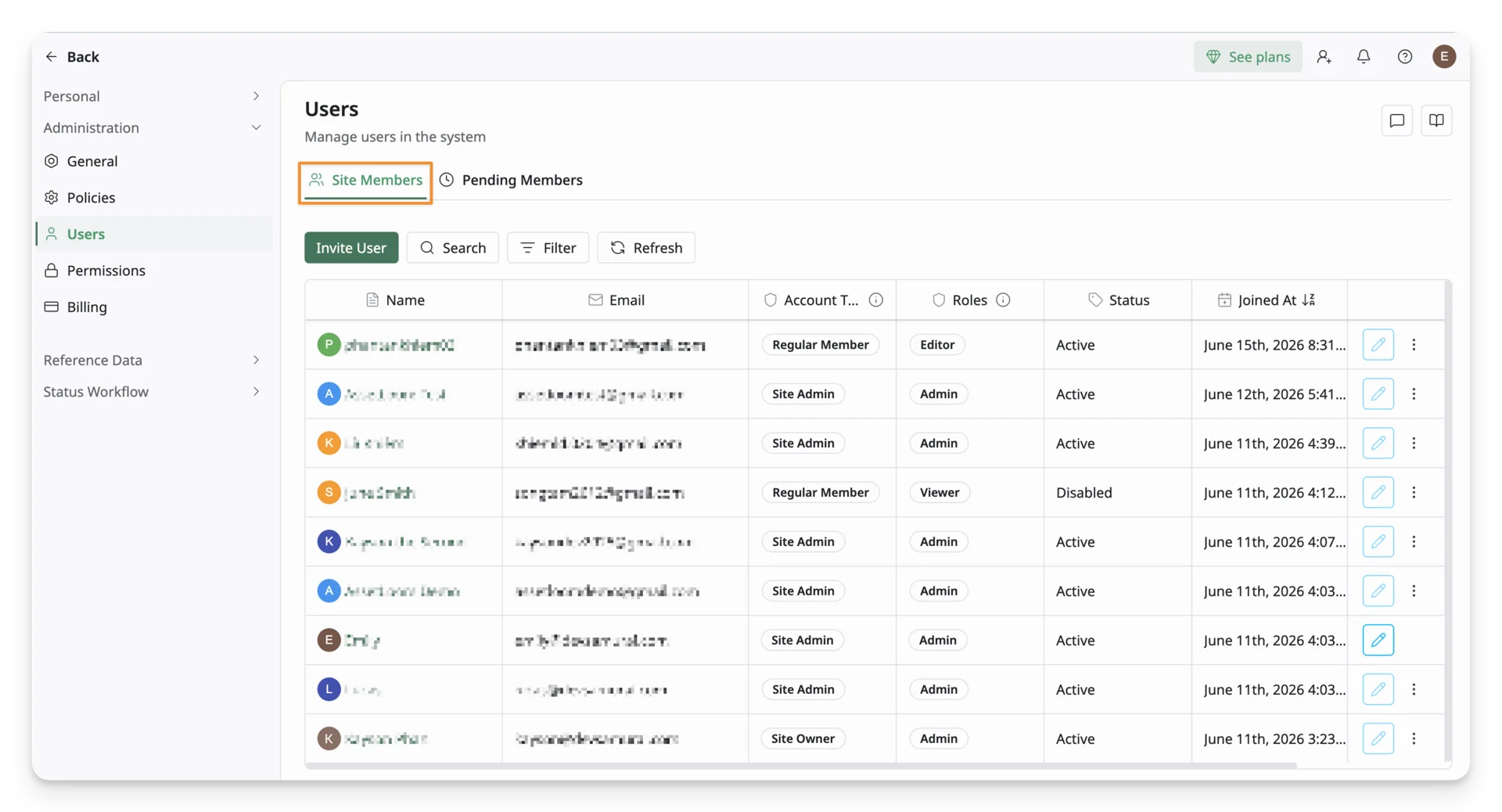
Manage Access Levels for Each Site Member
Each Site Member has two key access controls:
- Account Type: Defines the user’s access at the site level (e.g. users, billing, settings, and overall control of the site)
- Roles: Define what the user can do inside AssetLoom features (e.g. viewing, editing, managing data and workflows)
You can update a member’s access directly from the Site Members list using the following options:
Action Menu ⋯
The ⋯ (three-dot) menu gives you full access to manage a specific user from one place.
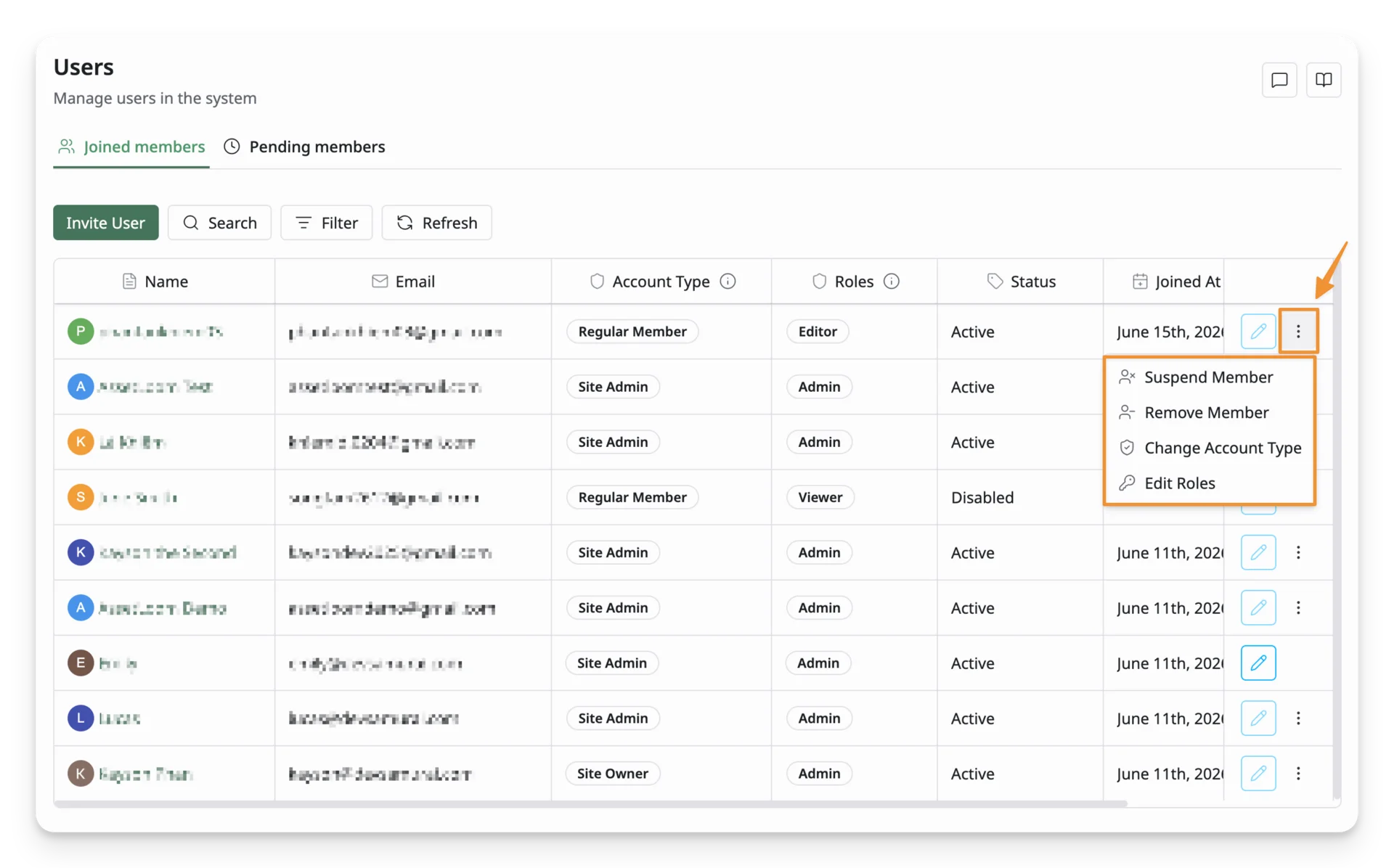
From this menu, you can:
- Change Account Type: Update the user’s site-level access (e.g. Site Admin, Billing Manager, Regular Member)
- Edit Roles: Assign or update what the user can do inside AssetLoom (feature-level permissions)
- Suspend Member: Temporarily disable the user’s access without removing them from the site
- Remove Member: Permanently delete the user from the site
- View User Profile: Open the full user profile to see assigned assets, activity history, and usage details
Account Type label (Site-level access)
The Account Type label is a quick shortcut for updating a user’s site-level permissions.
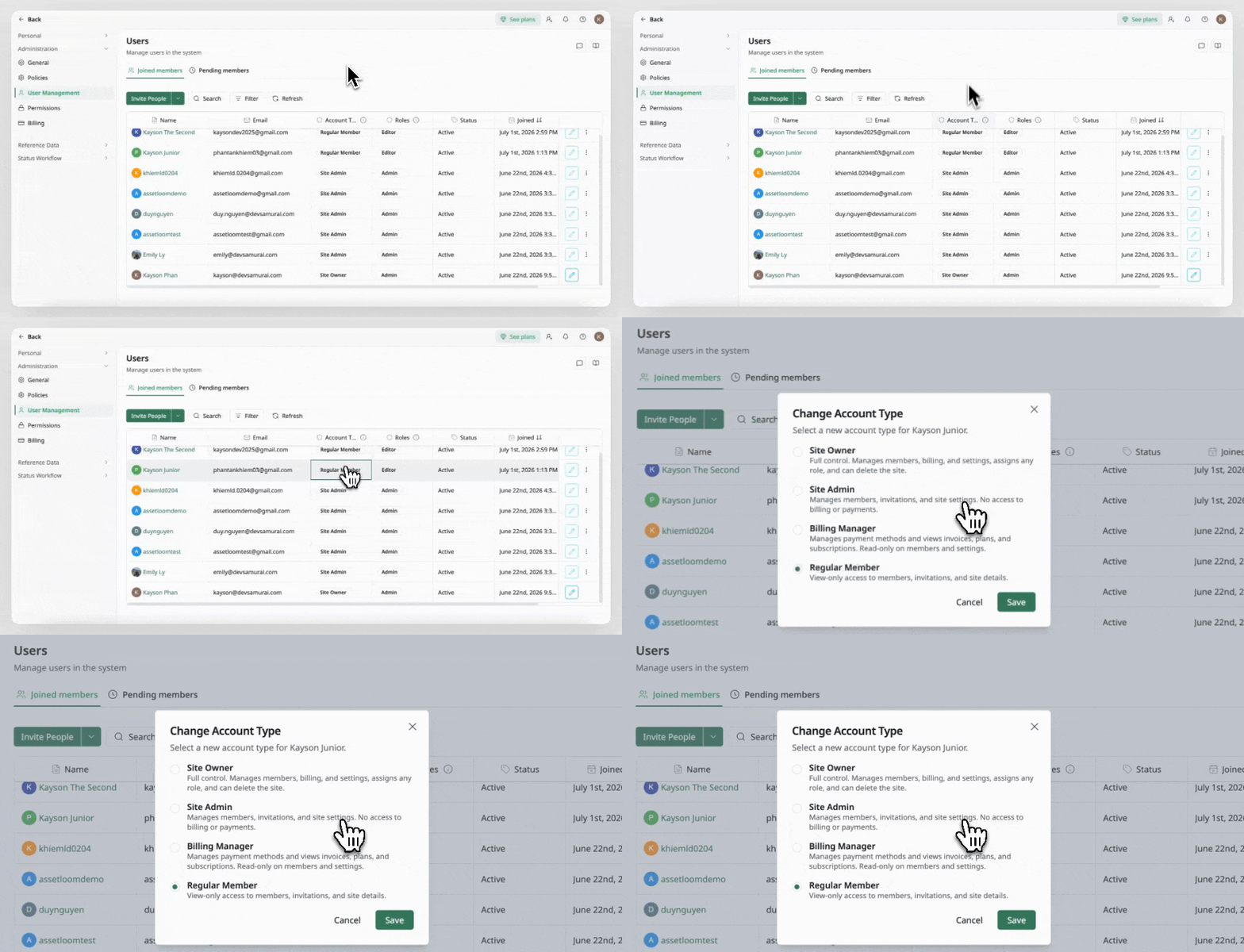
From here, you can:
- View the user’s current Account Type (e.g. Site Owner, Site Admin, Billing Manager, Regular Member)
- Change their site-level access directly
- Immediately update what the user can do across the entire site (users, billing, settings, and administration)
This option is used when you need to adjust a user’s overall responsibility or authority in the site.
Role label (Feature-level permissions)
The Role label is a shortcut for managing what a user can do inside AssetLoom features.
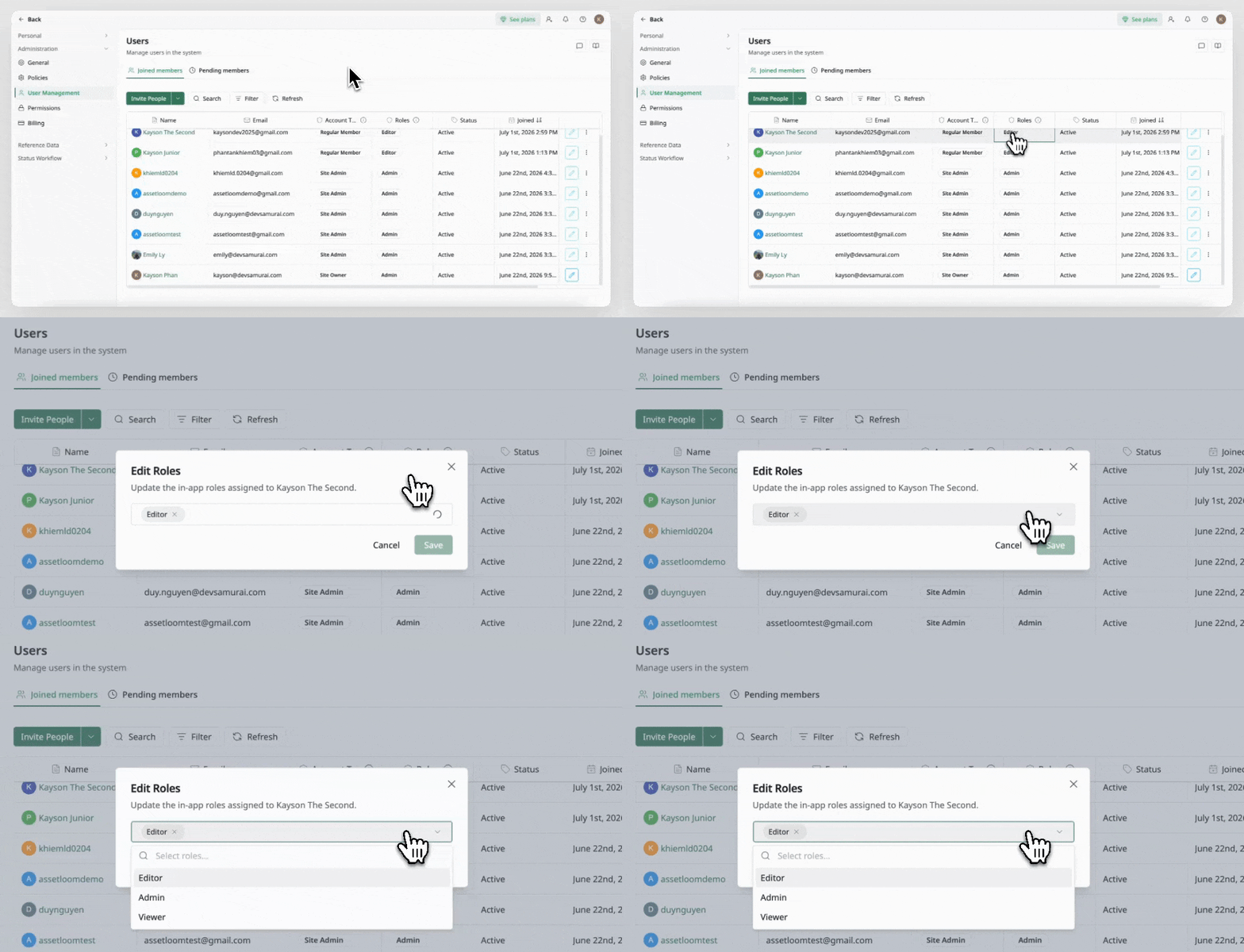
From here, you can:
- View all roles assigned to the user
- Add or remove roles
- Assign multiple roles if needed
- Apply custom roles based on job responsibilities
Changes made here affect the user’s permissions inside the system, such as viewing, editing, or managing assets and workflows.
View User Details
Each Site Member also has a dedicated user profile page. You can open a user profile by clicking on the user’s name in the Site Members list.
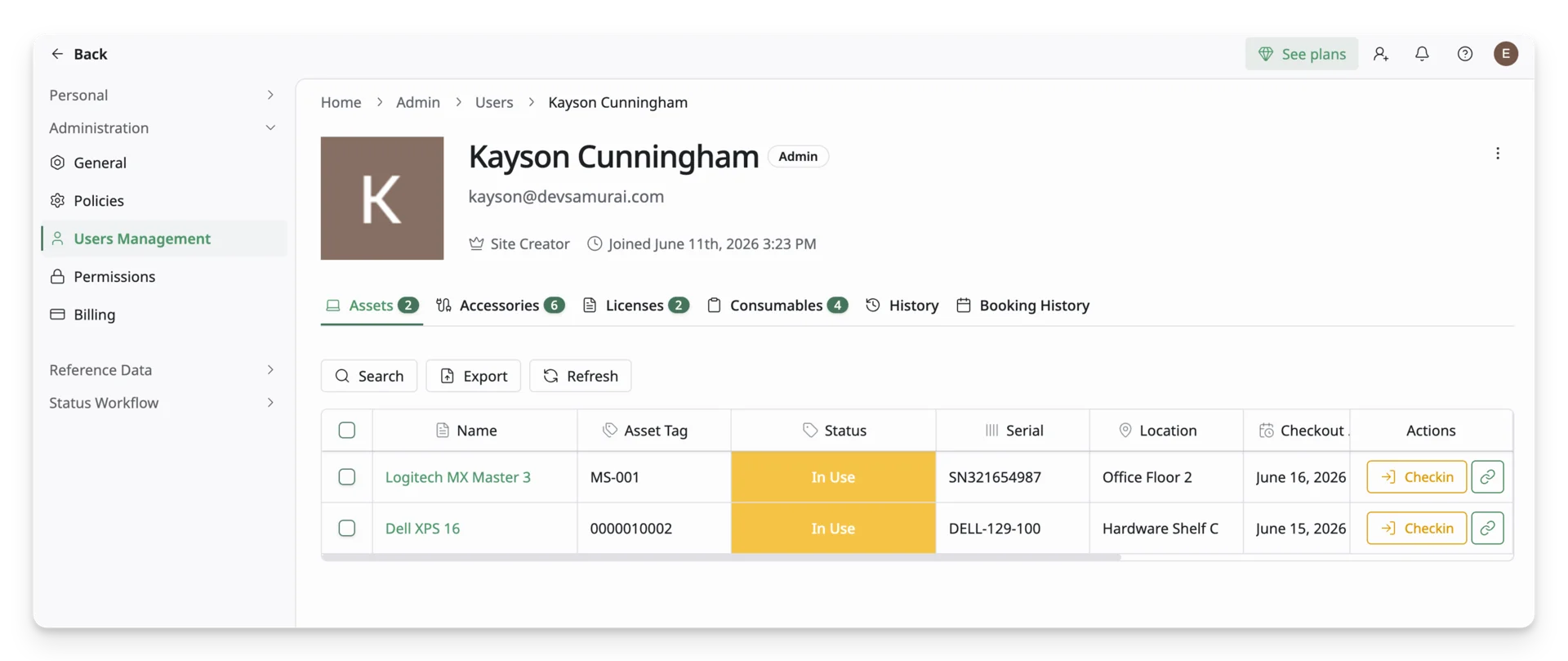
From this page, you can:
- View user information (name, email, account type, role)
- See all assets assigned to the user
- Review activity history
- Check booking history
From the top-right action menu (⋯), you can:
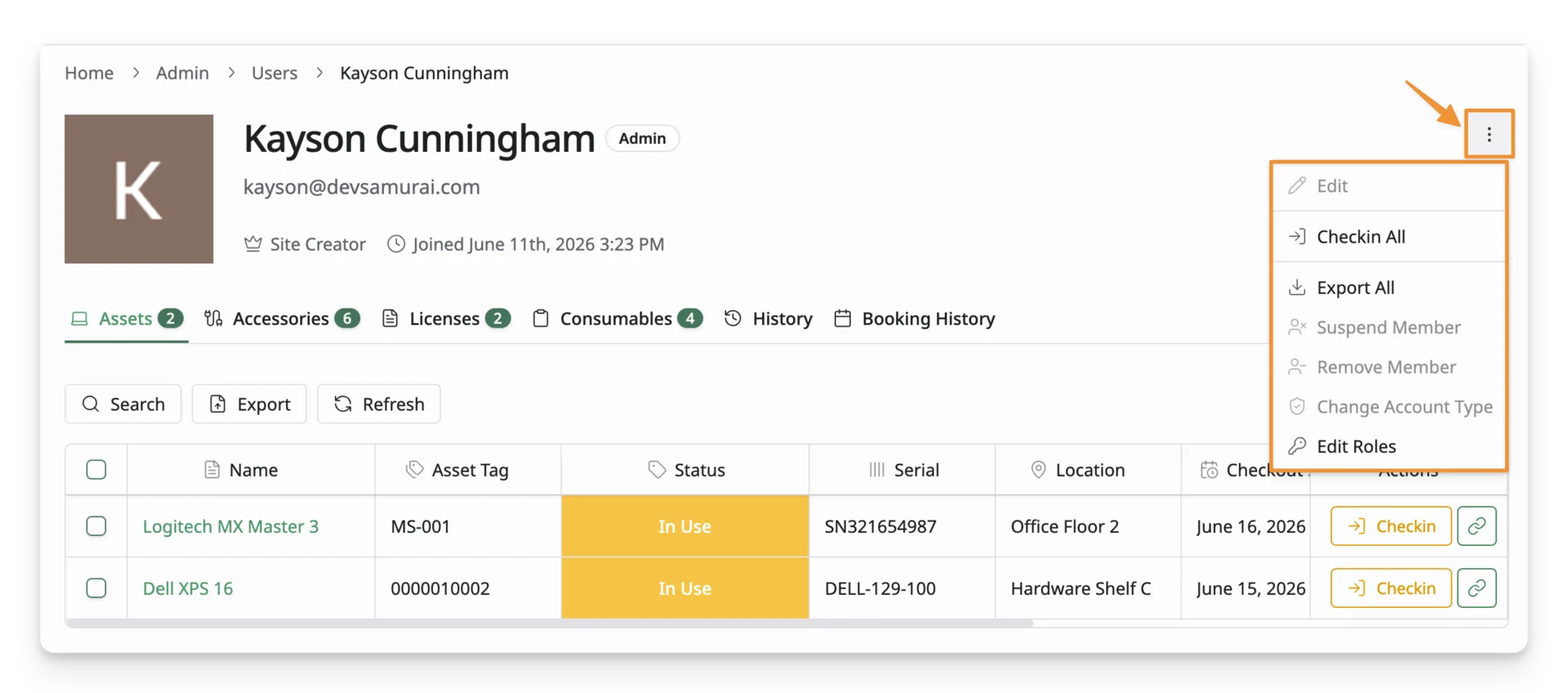
- Check-in All: Return all assigned assets from the user
- Export All: Export user-related data (assets, history, records)
- Suspend Member: Temporarily disable access
- Remove Member: Permanently remove the user from the site
- Change Account Type: Update site-level access
- Edit Roles: Update feature-level permissions
Pending Members
Pending Members are users who have been invited to join the site but have not accepted the invitation yet. They do not have access to AssetLoom until they accept the invitation.
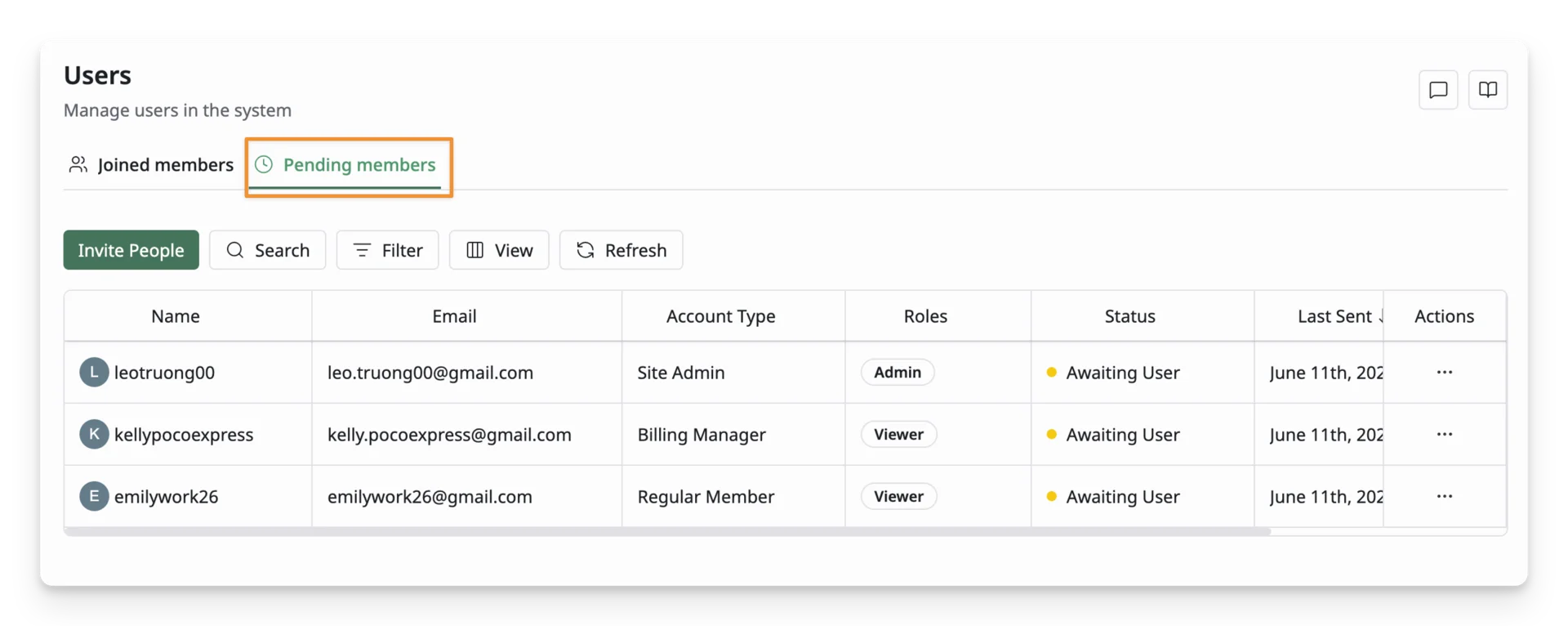
What you can do in Pending Members
From this tab, you can:
- View all users who are invited to join the site
- Track when the invitation was sent
- See who sent the invitation
- Search and filter pending invitations
This helps you manage onboarding and ensure invitations are properly handled.
How to manage pending members
You can manage each pending invitation using the actions menu (⋯).
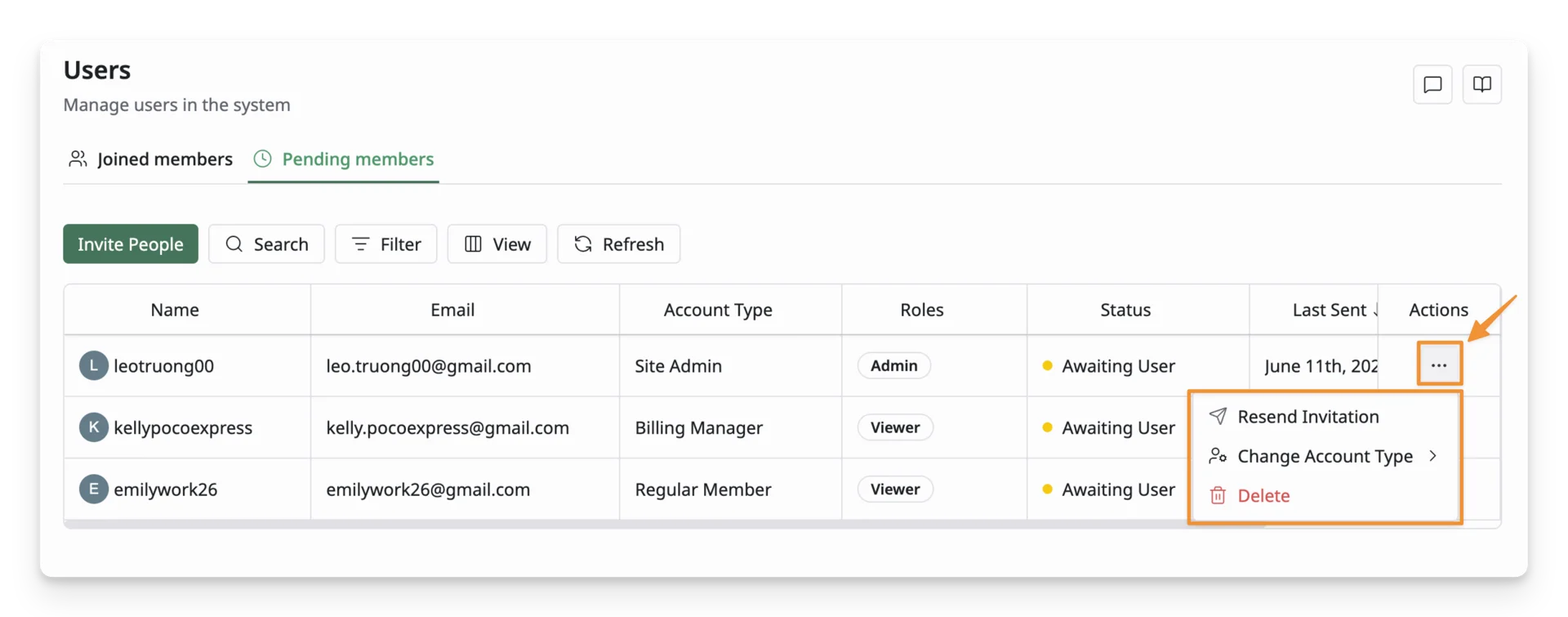
From here, you can:
- Resend Invitation: Send the invitation email again to the user
- Change Account Type: Update the user’s future access level before they join the site.
- Delete Invitation: Cancel and remove the invitation from the system. The user will no longer be able to join the site using that invitation link.