Manage Roles
Learn how to manage roles in AssetLoom
Roles define what a user can do in the system by grouping a set of permissions into a single access level. This page is used to operationally manage access control in your site.
Only users with the Admin role can access and manage roles.
Accessing the Manage Roles page
- Go to Settings → Administration → Permissions
- Select the Roles tab
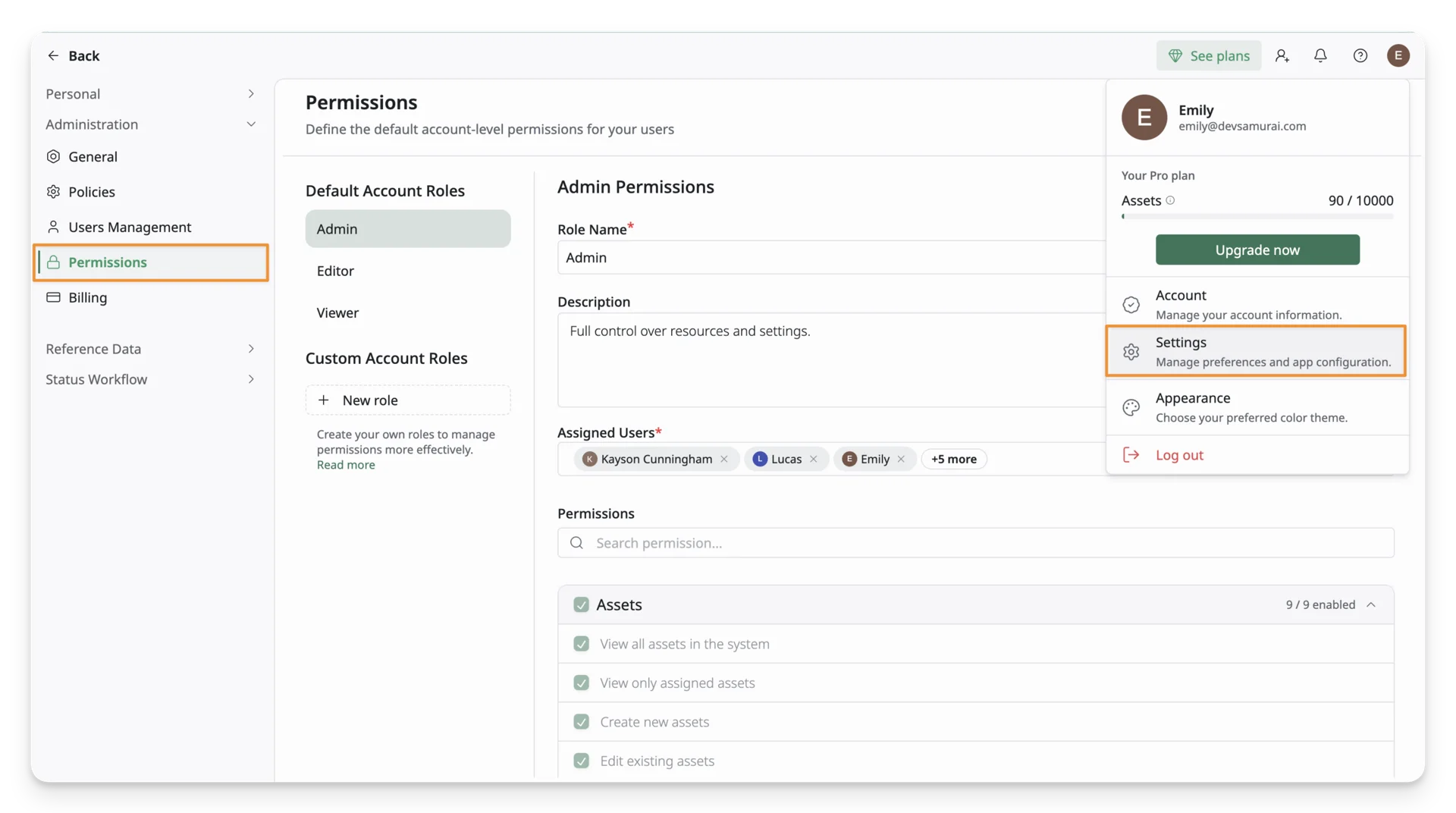
Here you will see two sections:
- Default Account Roles – Admin, Editor, Viewer
- Custom Account Roles – Any roles you have created
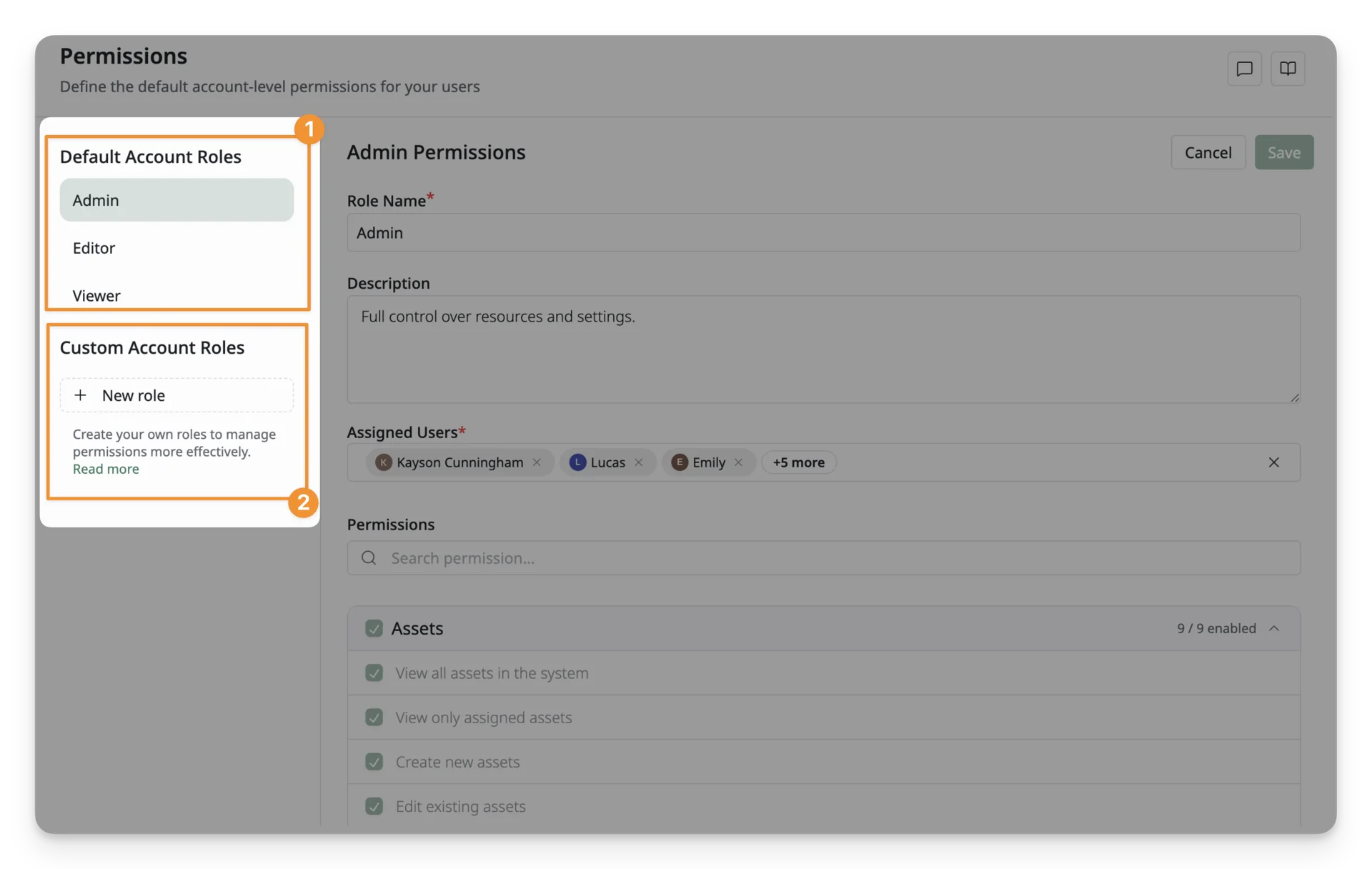
Working with Default Roles
AssetLoom includes three built-in default roles. Every user must be assigned a role to access the platform. These roles come with predefined permission sets that control access across the system.
- Admin – Full system access with control over all features, data, and system settings.
- Editor – Operational access to create and manage the 5 main resources (Assets, Accessories, Licenses, Components, and Consumables)
- Viewer – Read-only access to view assets and system data without the ability to create, edit, or delete anything.
Detailed Default Role Permissions
Below is the full permission matrix showing what each default role can access:
| Resource | Permission | Admin | Editor | Viewer |
|---|---|---|---|---|
| Assets | View all assets | ✓ | ✓ | ✓ |
| Assets | View assigned assets | ✓ | ✓ | ✓ |
| Assets | Create assets | ✓ | ✓ | ✕ |
| Assets | Edit assets | ✓ | ✓ | ✕ |
| Assets | Delete assets | ✓ | ✓ | ✕ |
| Assets | Restore assets | ✓ | ✓ | ✕ |
| Assets | Import assets | ✓ | ✓ | ✕ |
| Assets | Export assets | ✓ | ✓ | ✕ |
| Assets | Manage custody verifications | ✓ | ✓ | ✕ |
| Accessories | View all accessories | ✓ | ✓ | ✓ |
| Accessories | View assigned accessories | ✓ | ✓ | ✓ |
| Accessories | Create accessories | ✓ | ✓ | ✕ |
| Accessories | Edit accessories | ✓ | ✓ | ✕ |
| Accessories | Delete accessories | ✓ | ✓ | ✕ |
| Accessories | Restore accessories | ✓ | ✓ | ✕ |
| Accessories | Import accessories | ✓ | ✓ | ✕ |
| Accessories | Export accessories | ✓ | ✓ | ✕ |
| Accessories | Check in accessories | ✓ | ✓ | ✕ |
| Accessories | Check out accessories | ✓ | ✓ | ✕ |
| Licenses | View all licenses | ✓ | ✓ | ✓ |
| Licenses | View assigned licenses | ✓ | ✓ | ✓ |
| Licenses | Create licenses | ✓ | ✓ | ✕ |
| Licenses | Edit licenses | ✓ | ✓ | ✕ |
| Licenses | Delete licenses | ✓ | ✓ | ✕ |
| Licenses | Restore licenses | ✓ | ✓ | ✕ |
| Licenses | Import licenses | ✓ | ✓ | ✕ |
| Licenses | Export licenses | ✓ | ✓ | ✕ |
| Licenses | Check in licenses | ✓ | ✓ | ✕ |
| Licenses | Check out licenses | ✓ | ✓ | ✕ |
| Components | View all components | ✓ | ✓ | ✓ |
| Components | Create components | ✓ | ✓ | ✕ |
| Components | Edit components | ✓ | ✓ | ✕ |
| Components | Delete components | ✓ | ✓ | ✕ |
| Components | Restore components | ✓ | ✓ | ✕ |
| Components | Import components | ✓ | ✓ | ✕ |
| Components | Export components | ✓ | ✓ | ✕ |
| Components | Check in components | ✓ | ✓ | ✕ |
| Components | Check out components | ✓ | ✓ | ✕ |
| Consumables | View all consumables | ✓ | ✓ | ✓ |
| Consumables | View assigned consumables | ✓ | ✓ | ✓ |
| Consumables | Create consumables | ✓ | ✓ | ✕ |
| Consumables | Edit consumables | ✓ | ✓ | ✕ |
| Consumables | Delete consumables | ✓ | ✓ | ✕ |
| Consumables | Restore consumables | ✓ | ✓ | ✕ |
| Consumables | Import consumables | ✓ | ✓ | ✕ |
| Consumables | Export consumables | ✓ | ✓ | ✕ |
| Consumables | Check out consumables | ✓ | ✓ | ✕ |
| Custom Fields | View custom fields | ✓ | ✕ | ✓ |
| Custom Fields | Create custom fields | ✓ | ✕ | ✕ |
| Custom Fields | Edit custom fields | ✓ | ✕ | ✕ |
| Custom Fields | Delete custom fields | ✓ | ✕ | ✕ |
| Custom Fields | Export custom fields | ✓ | ✕ | ✕ |
| Asset Models | View asset models | ✓ | ✕ | ✓ |
| Asset Models | Create asset models | ✓ | ✕ | ✕ |
| Asset Models | Edit asset models | ✓ | ✕ | ✕ |
| Asset Models | Delete asset models | ✓ | ✕ | ✕ |
| Asset Models | Import asset models | ✓ | ✕ | ✕ |
| Asset Models | Export asset models | ✓ | ✕ | ✕ |
| Departments | View departments | ✓ | ✕ | ✓ |
| Departments | Create departments | ✓ | ✕ | ✕ |
| Departments | Edit departments | ✓ | ✕ | ✕ |
| Departments | Delete departments | ✓ | ✕ | ✕ |
| Departments | Import departments | ✓ | ✕ | ✕ |
| Departments | Export departments | ✓ | ✕ | ✕ |
| Categories | View categories | ✓ | ✕ | ✓ |
| Categories | Create categories | ✓ | ✕ | ✕ |
| Categories | Edit categories | ✓ | ✕ | ✕ |
| Categories | Delete categories | ✓ | ✕ | ✕ |
| Categories | Export categories | ✓ | ✕ | ✕ |
| Depreciations | View depreciations | ✓ | ✕ | ✓ |
| Depreciations | Create depreciations | ✓ | ✕ | ✕ |
| Depreciations | Edit depreciations | ✓ | ✕ | ✕ |
| Depreciations | Delete depreciations | ✓ | ✕ | ✕ |
| Locations | View locations | ✓ | ✕ | ✓ |
| Locations | Create locations | ✓ | ✕ | ✕ |
| Locations | Edit locations | ✓ | ✕ | ✕ |
| Locations | Delete locations | ✓ | ✕ | ✕ |
| Locations | Import locations | ✓ | ✕ | ✕ |
| Locations | Export locations | ✓ | ✕ | ✕ |
| Suppliers | View suppliers | ✓ | ✕ | ✓ |
| Suppliers | Create suppliers | ✓ | ✕ | ✕ |
| Suppliers | Edit suppliers | ✓ | ✕ | ✕ |
| Suppliers | Delete suppliers | ✓ | ✕ | ✕ |
| Suppliers | Import suppliers | ✓ | ✕ | ✕ |
| Suppliers | Export suppliers | ✓ | ✕ | ✕ |
| Manufacturers | View manufacturers | ✓ | ✕ | ✓ |
| Manufacturers | Create manufacturers | ✓ | ✕ | ✕ |
| Manufacturers | Edit manufacturers | ✓ | ✕ | ✕ |
| Manufacturers | Delete manufacturers | ✓ | ✕ | ✕ |
| Manufacturers | Import manufacturers | ✓ | ✕ | ✕ |
| Manufacturers | Export manufacturers | ✓ | ✕ | ✕ |
| Statuses | View statuses | ✓ | ✕ | ✓ |
| Statuses | Create statuses | ✓ | ✕ | ✕ |
| Statuses | Edit statuses | ✓ | ✕ | ✕ |
| Statuses | Delete statuses | ✓ | ✕ | ✕ |
| Statuses | Export statuses | ✓ | ✕ | ✕ |
| Reservations | Check out reservations | ✓ | ✕ | ✕ |
| Reservations | Decline reservation requests | ✓ | ✕ | ✕ |
| Reservations | Remove reservation assignments | ✓ | ✕ | ✕ |
| People | View people | ✓ | ✕ | ✓ |
Permissions set in Default Roles (Admin, Editor, Viewer) are fixed and cannot be modified. If you need custom permissions, consider creating a Custom Role tailored to your team’s needs.
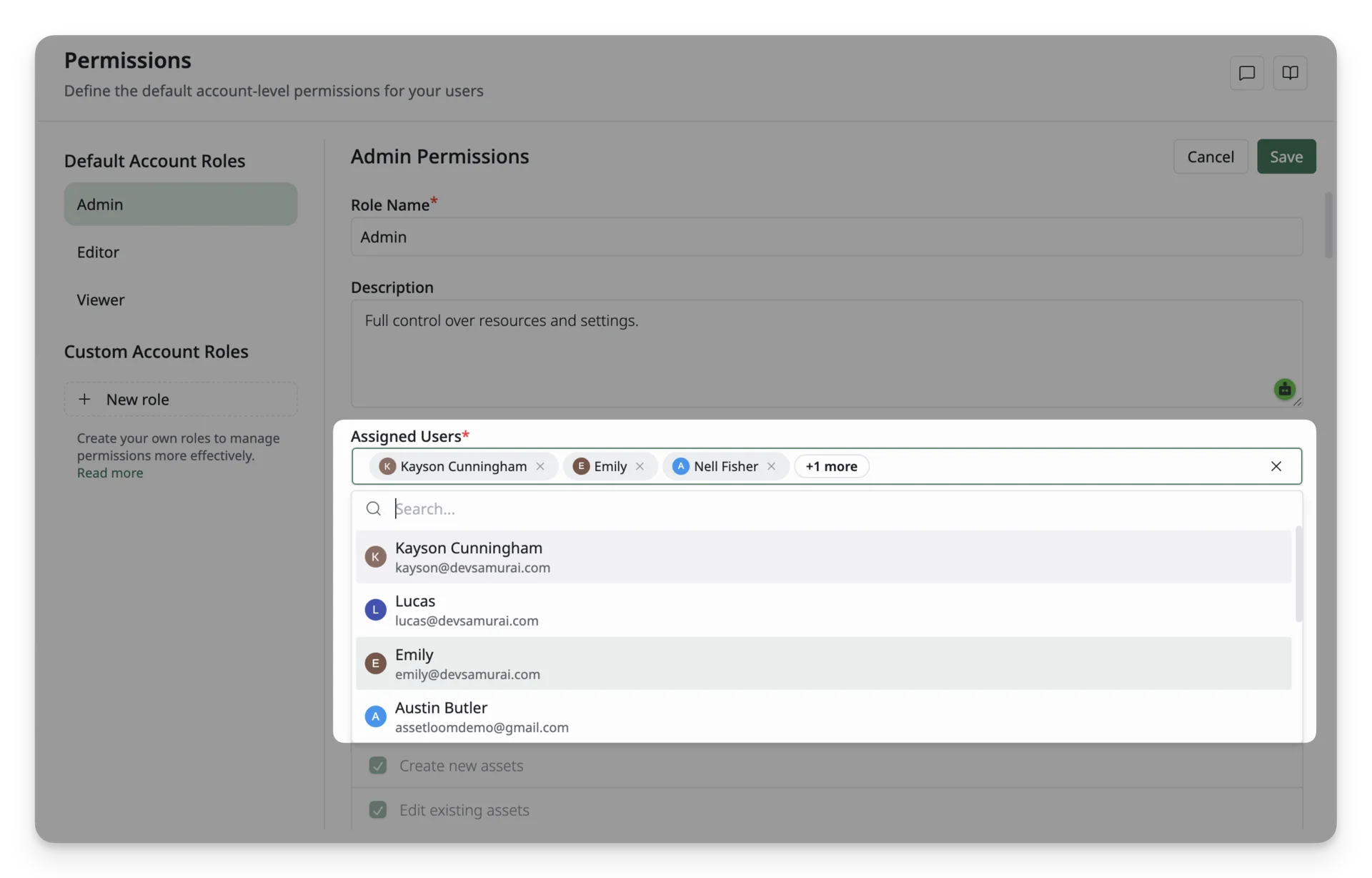
You can assign users to these roles directly by selecting them from the user list.
Working with a Custom Role
If the default roles do not match your needs, you can create a custom role.
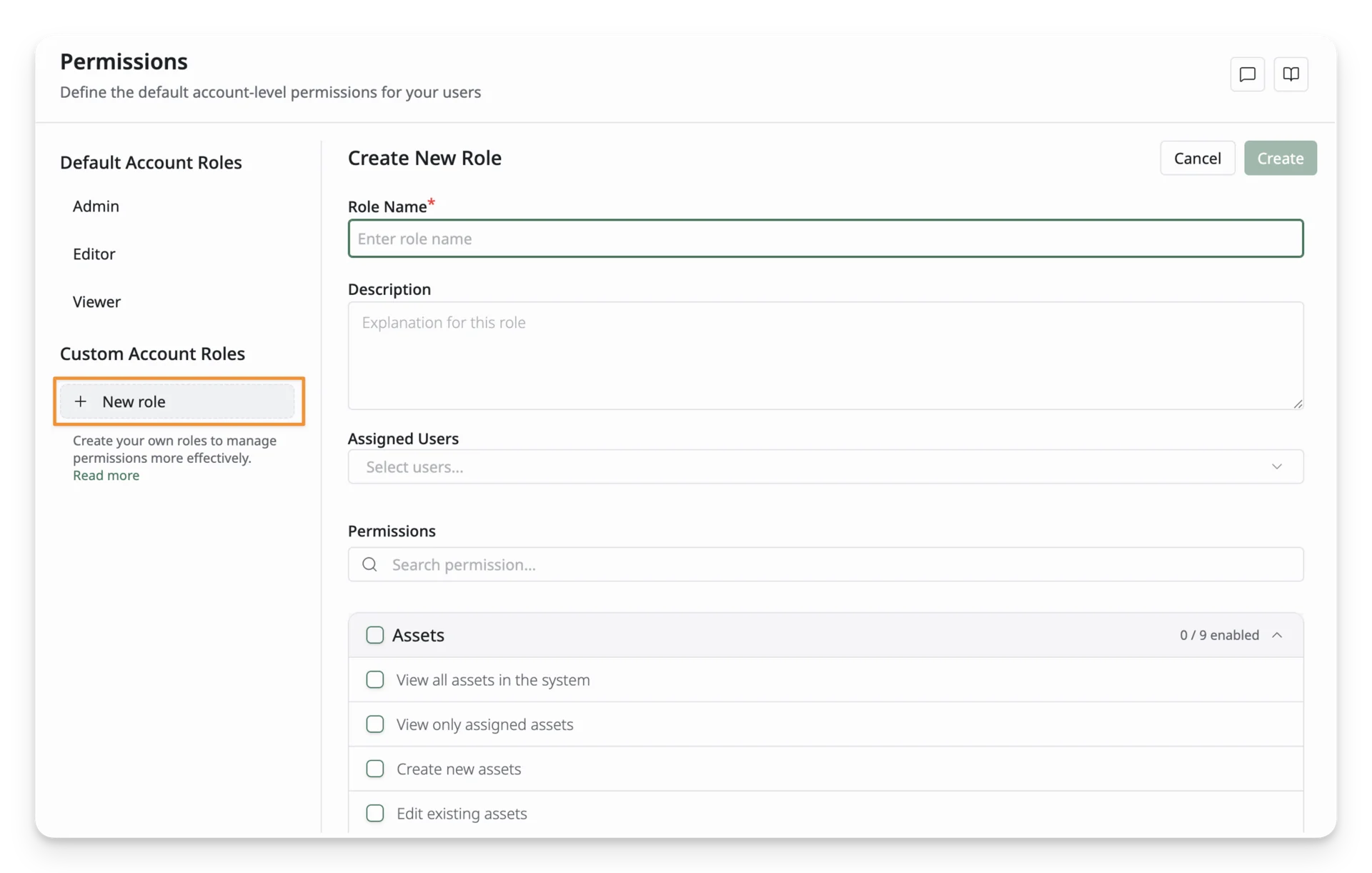
- Click + New role in the Custom Roles section
- Enter a role name
- Search and select permissions from available resources to define what this role can do
- Assign users to the role
- Click Save
Custom roles allow you to create fine-grained access levels for specific teams or responsibilities.
Editing a Role
- Select the role you want to edit (Editor, Viewer, or custom role)
- Update the role name or description
- Check or uncheck permissions to customize access (only for Editor or Custom roles)
- Add or remove users from the role
- Click Save