Manage Component Detail
Learn how to manage component details
You can view, update, and manage Component Details in AssetLoom via:
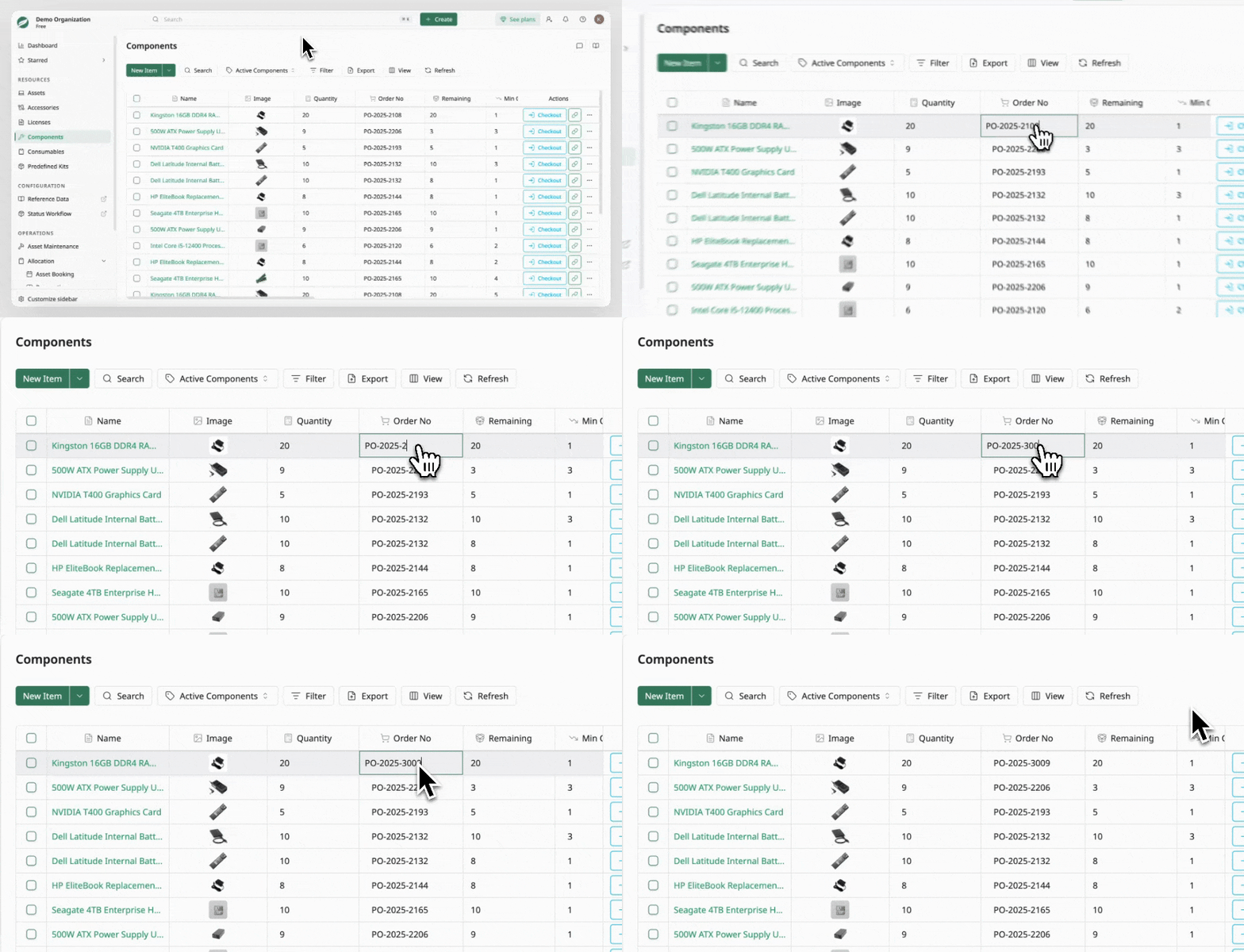
Inline Editing from the Component List
Use inline editing when you need to update information directly from the Component List without opening the component record.
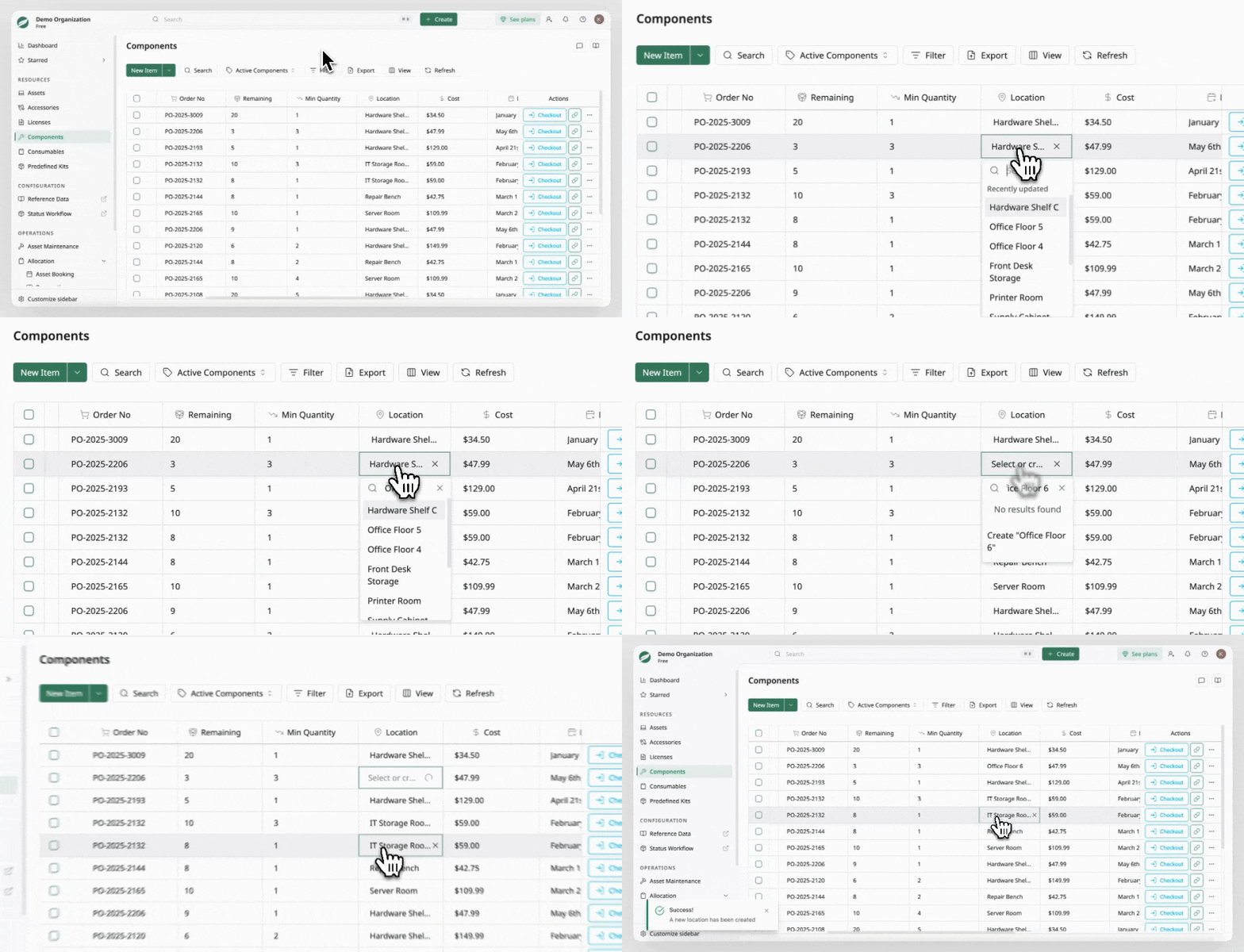
Some data fields, such as Category, Department, Location, and Inventory, let you type to create new data, even during inline editing of component information.
If the value you want does not yet exist in AssetLoom, simply:
- Click the field.
- Type the new value.
- Select Create.
The new value will be added and selected immediately.
The Component Details Screen
The Component Details screen allows you to review full information or manage related records.
Accessing the Component Details
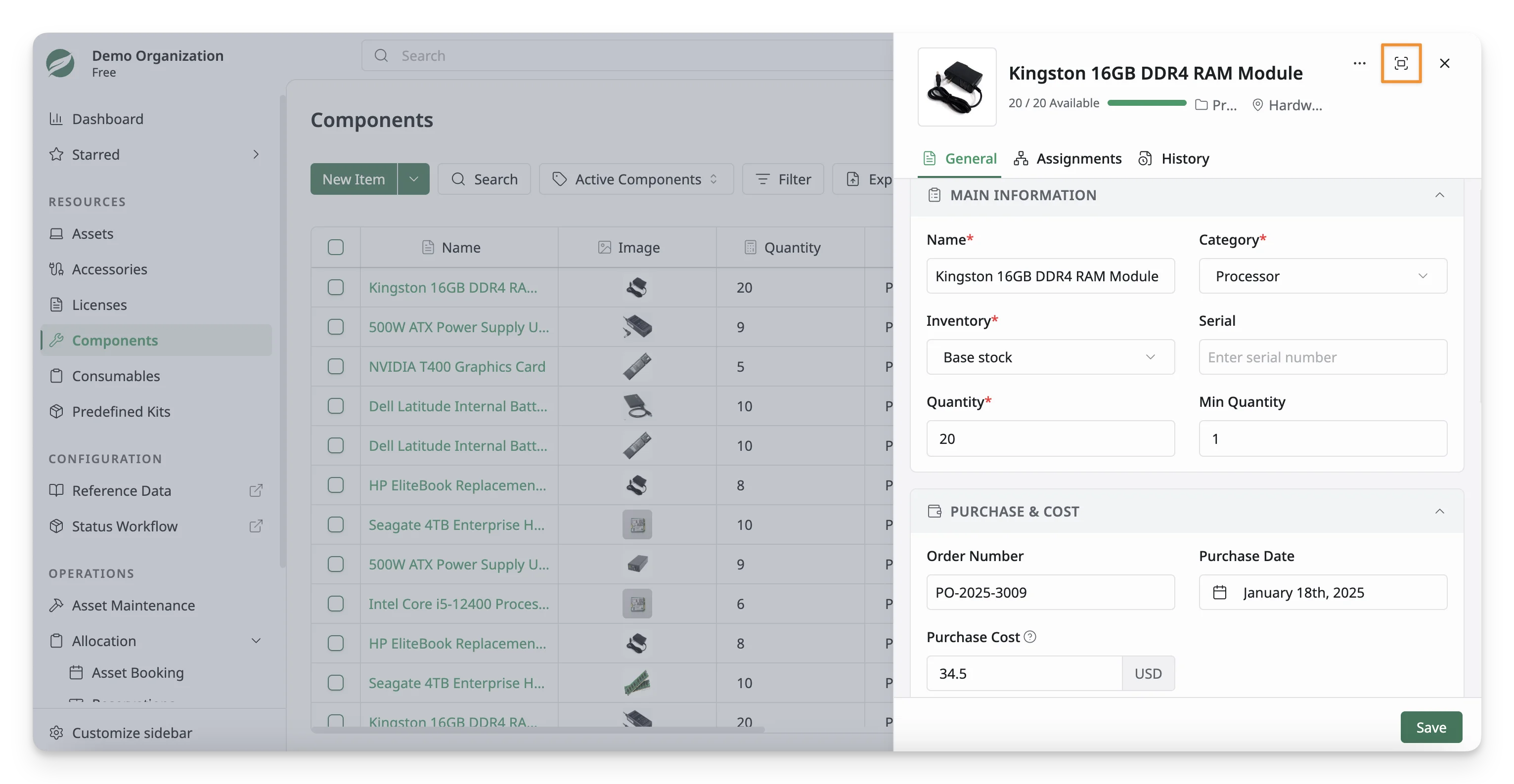
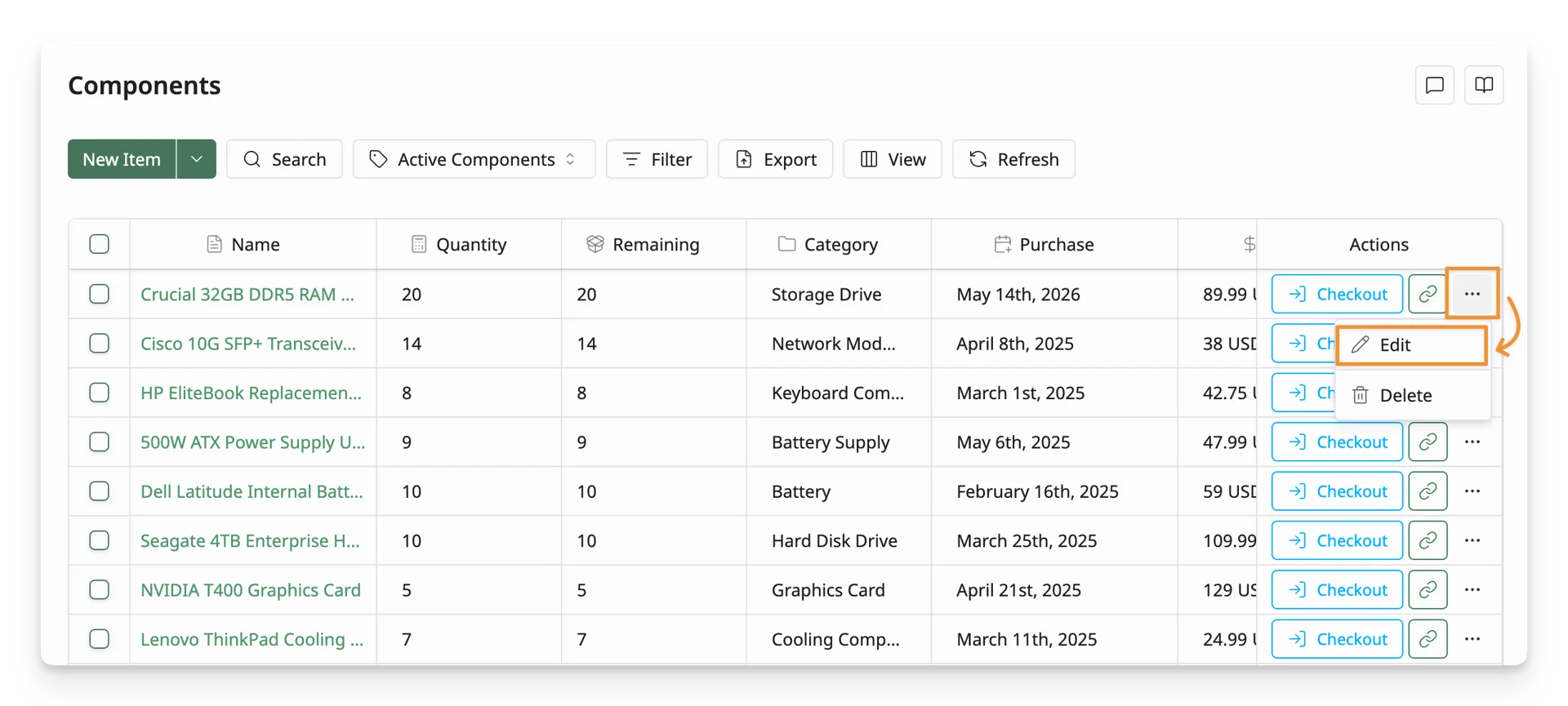
You can open the screen in two ways:
- Click the component name from the component list.
Click the Expand/Collapse button at the top of the panel to open a larger/smaller dialog view.
- Click the three dots in the Actions column, then select Edit.
Use Tabs in the Component Details Screen
The Component Details screen allows you to view and manage complete information for a selected component, organizing it into different tabs.
General
The General tab contains the main component information and is the primary place for reviewing or updating details. It may include Component details (name, quantity, min quantity, category, inventory), purchase details, other details, and custom fields. 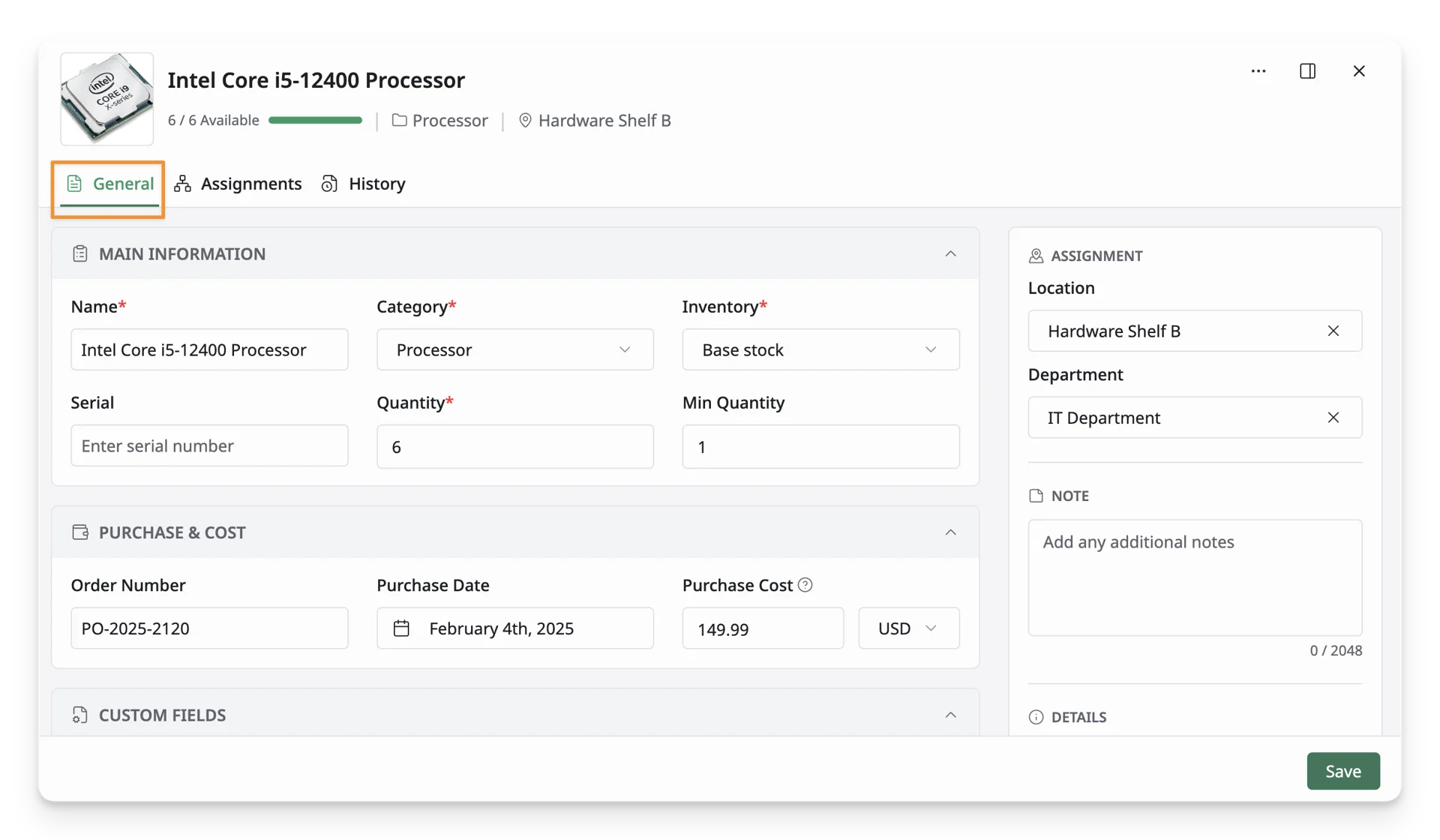
Assignments
The Assignments tab displays all currently checked-out quantities of the component. Unlike licenses or accessories, components can be checked out to an asset, such as laptops, desktops, etc
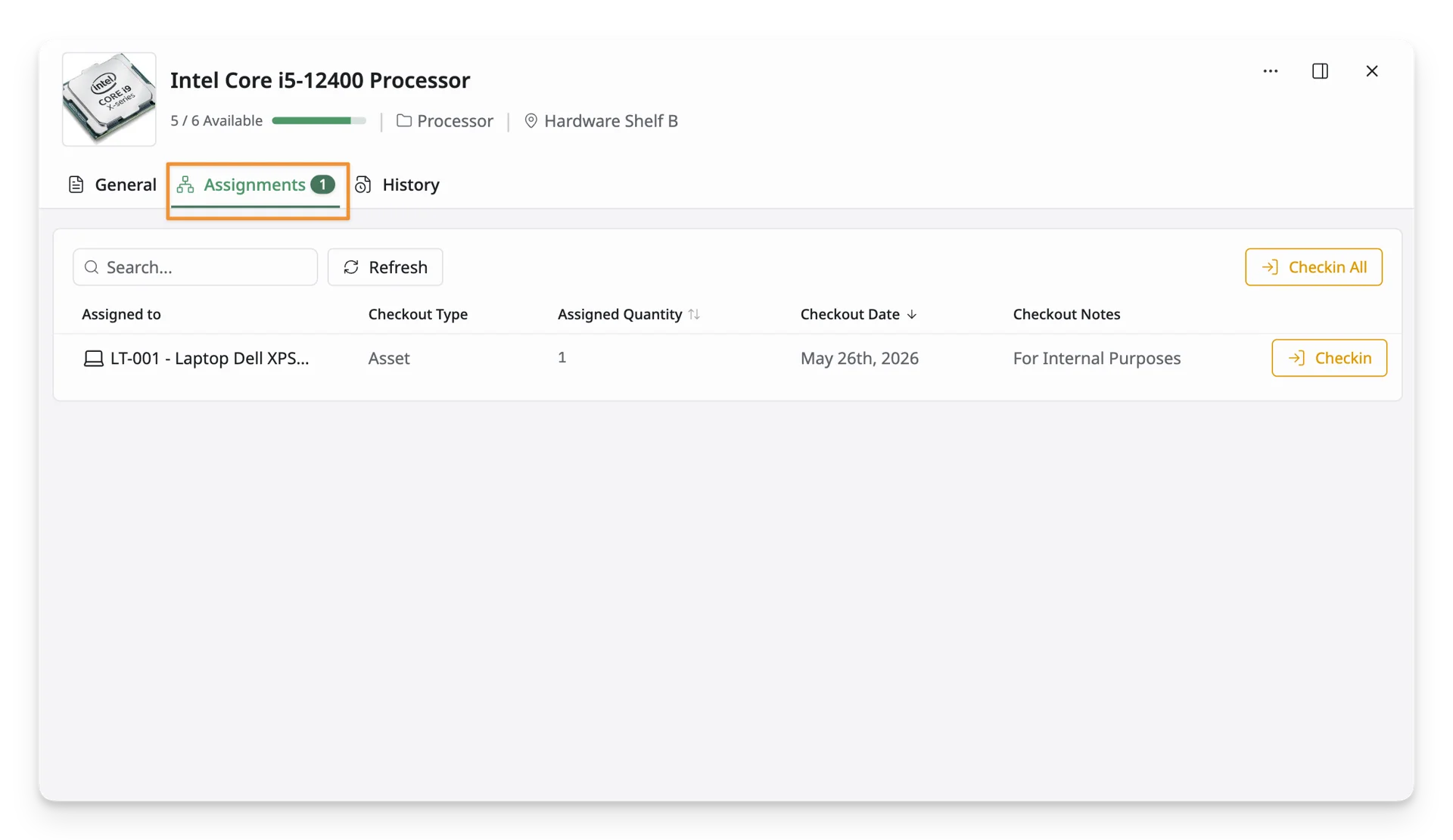
The table includes the following information:
- Assigned To: Displays the asset to which the component is currently assigned.
- Assigned Quantity: Shows the quantity of the component assigned.
- Checkout Date: Displays the date when the component was checked out.
- Checkout Notes: Shows any notes or remarks added during checkout, such as the purpose or usage details.
You can also click the “Check in” to quickly return the checked-out component quantity to inventory.
History
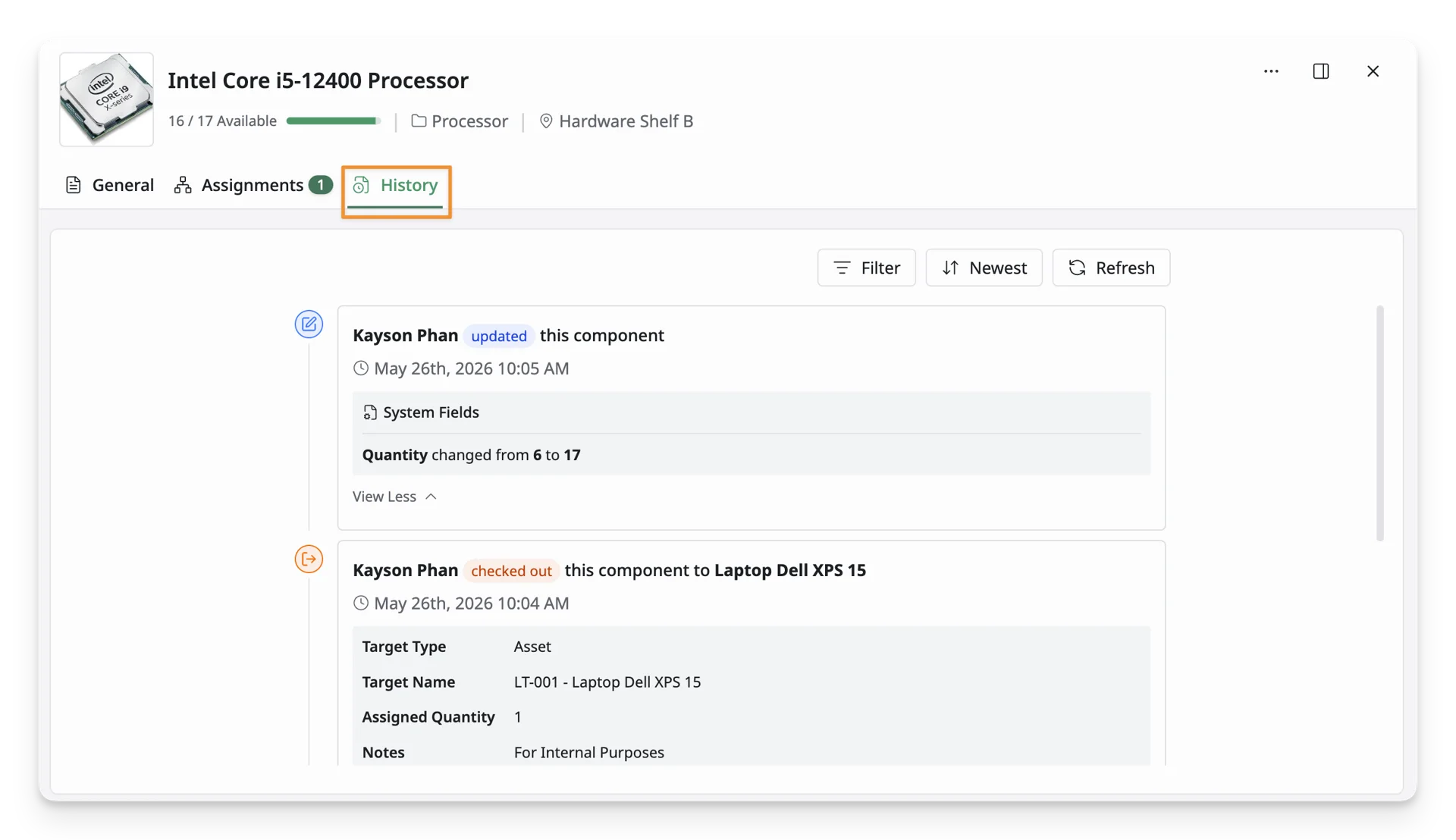
The History tab records actions taken on the component over time. This may include updates, check-in and check-out activity, assignments, or restore/move to trash actions. Use this tab when reviewing activity records or auditing changes.
What’s Next?
- Checkout/checkin Components: Learn how to checkout/checkin components