Manage Asset Status
In this guide, you will learn how to manage asset status in AssetLoom, including: what asset status represents & how to update the status of an asset
Understanding Asset Status
Asset status represents the current stage of an asset in its lifecycle. It shows whether an asset is available, in use, under maintenance, or no longer active.
Asset status works together with status transitions, which define how an asset can move from one status to another. Each change in status follows a defined workflow, connecting two statuses and representing a specific action that moves the asset forward in its lifecycle.
For example:
- Moving an asset from In Stock→ In Use represents assigning or deploying the asset
- Moving an asset from In Use → In Stock represents returning or checking in the asset
- Moving an asset from In Use → In Maintenance represents sending the asset for servicing and logging maintenance
Learn about Status Workflow in AssetLoom
How to Update Asset Status
You can update an asset’s status directly from the asset list. Open the update dialog by either:
- Clicking the status label, or
- Clicking Update Status in the Actions column
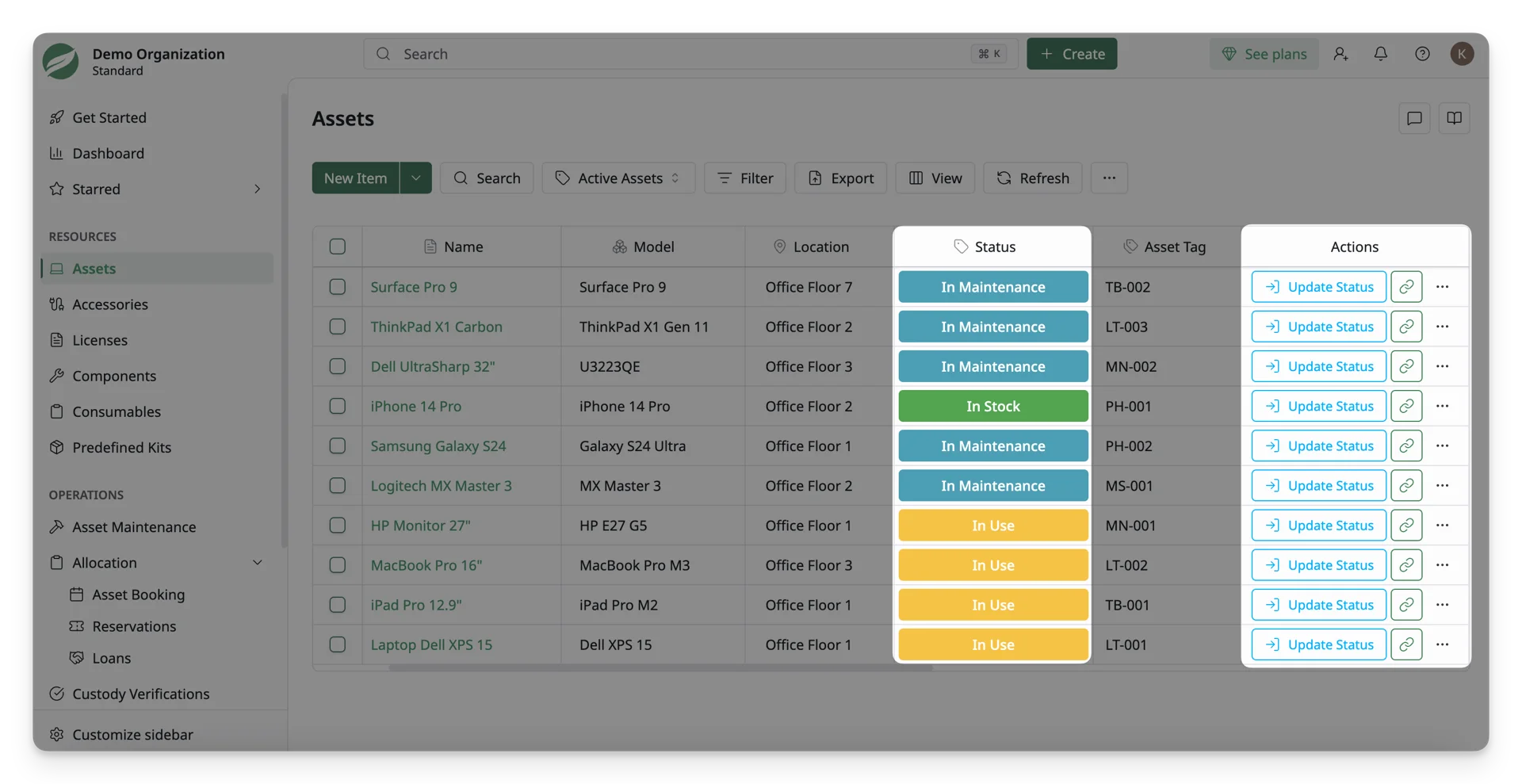
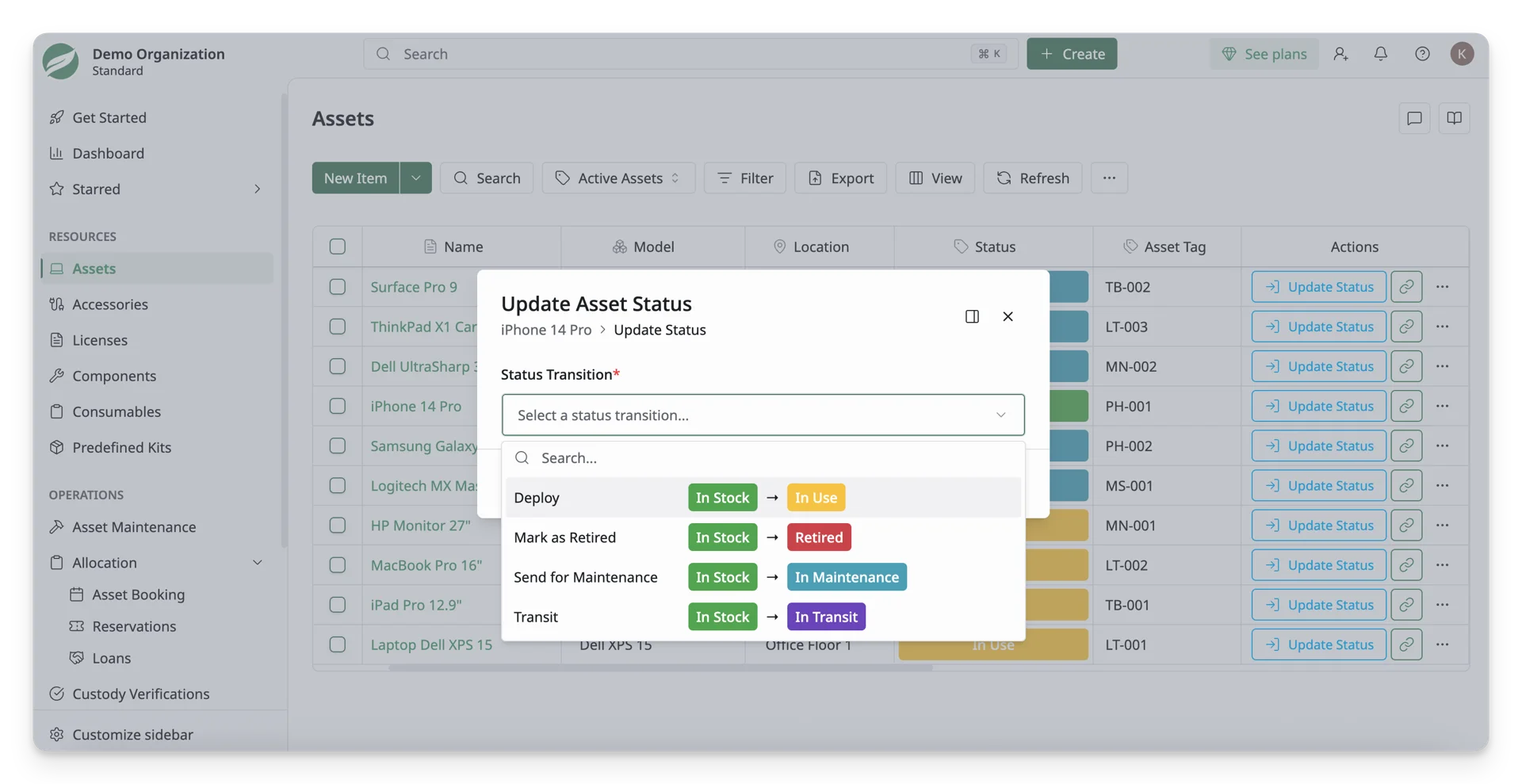
- In the Update Asset Status dialog, select the transition you want to achieve.
- After selecting a status transition, the form will update to show the required fields for that action. Enter the necessary information before saving.
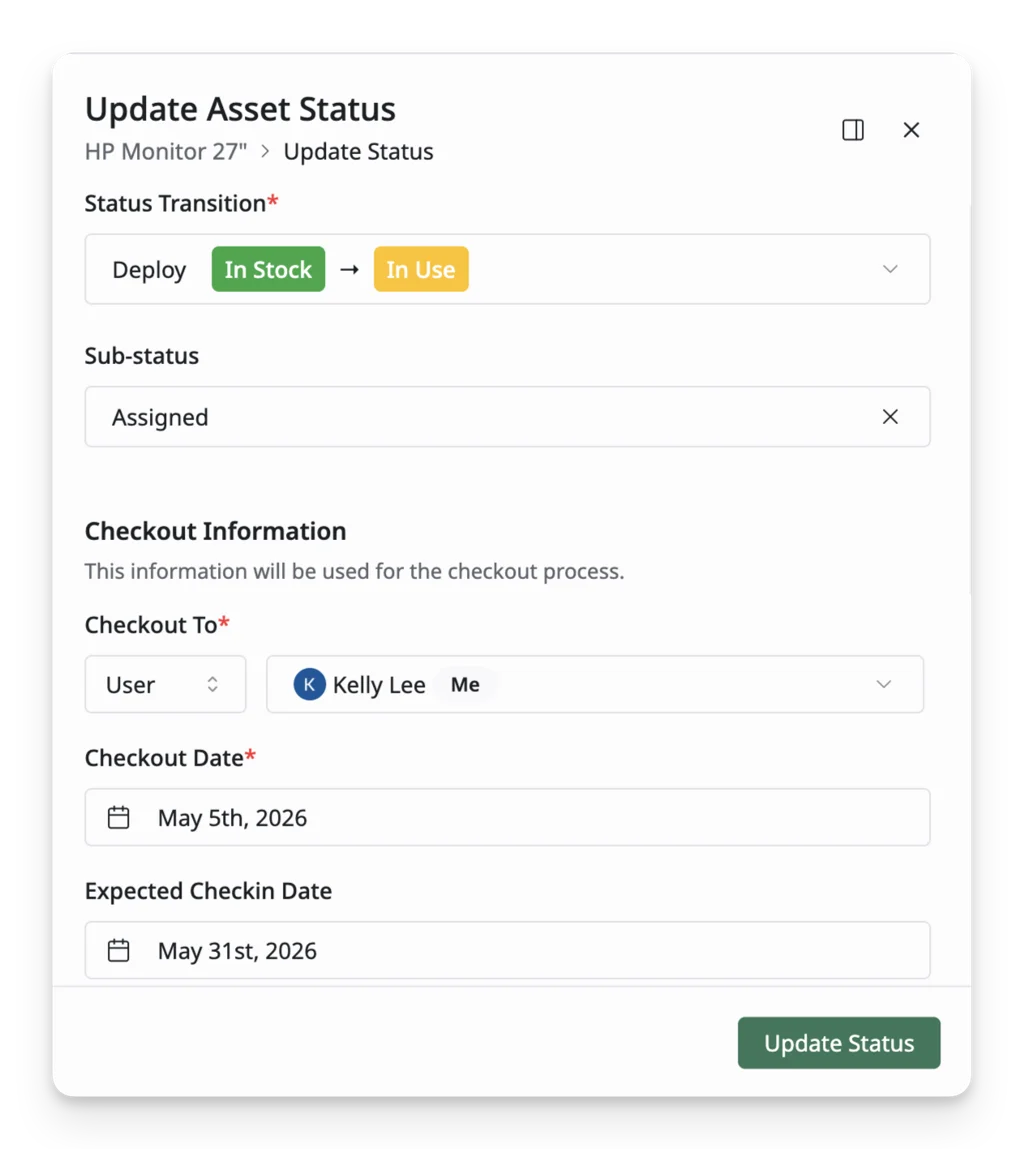
- Click Update Status to apply the change
The available status transitions depend on the asset’s current status and your configured Status Workflow.
- From one status, you can only transition to allowed statuses (for example, In Stock → In Use or In Stock → In Maintenance )
- If a transition is not available, it means that the action is not defined in your workflow
- The required fields and options may also change depending on the selected transition (for example, assigning an asset requires assignee details, while maintenance requires service information.)
To modify available transitions, update your Status Workflow settings.