The License List
Explore the AssetLoom Licenses List to manage your licenses
The License List is located under the Resources dropdown in the left sidebar. This page displays all licenses in the system and serves as the central place for managing them.
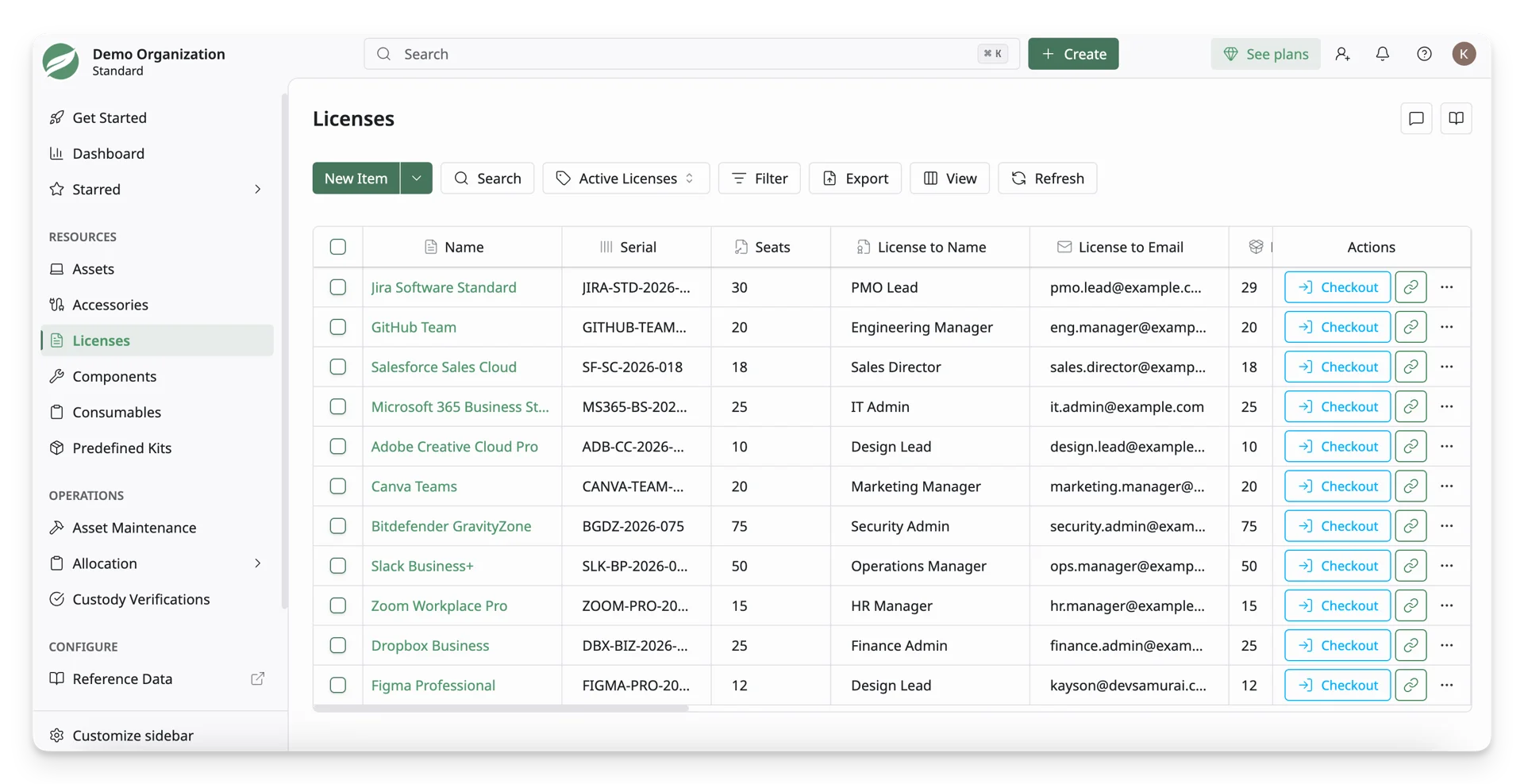
What are licenses? In AssetLoom, licenses are tracked records for legal permissions that allow an individual, team, or organization to use specific software or other intangible assets.
Licenses define the terms of usage, such as the number of allowed users or installations, the usage period, renewal date, and any restrictions set by the software vendor. Common examples include software subscriptions, operating system licenses, SaaS seats, design tool licenses, antivirus licenses, and other digital access rights.
Licenses are tracked by seats, allowing you to manage them as a single record while monitoring availability, assignment, and usage. You can:
- Assign licenses to specific users, devices, departments, or assets.
- Track available, assigned, and unused seats to prevent over-allocation.
- Monitor expiry dates and renewal schedules to stay compliant and avoid service interruptions.
In This Guide
In this guide, you will learn how to navigate and manage licenses using the License List page, including:
- The toolbar: Create new licenses and use tools such as search, filtering, exporting, and view customization.
- The license table: Understand how licenses are displayed and how to customize columns, rearrange them, and edit license information directly in the table.
- Actions on licenses: Perform actions on individual licenses or apply bulk operations to multiple licenses at once.
1. The Toolbar
The toolbar at the top of the page provides quick access to common actions.
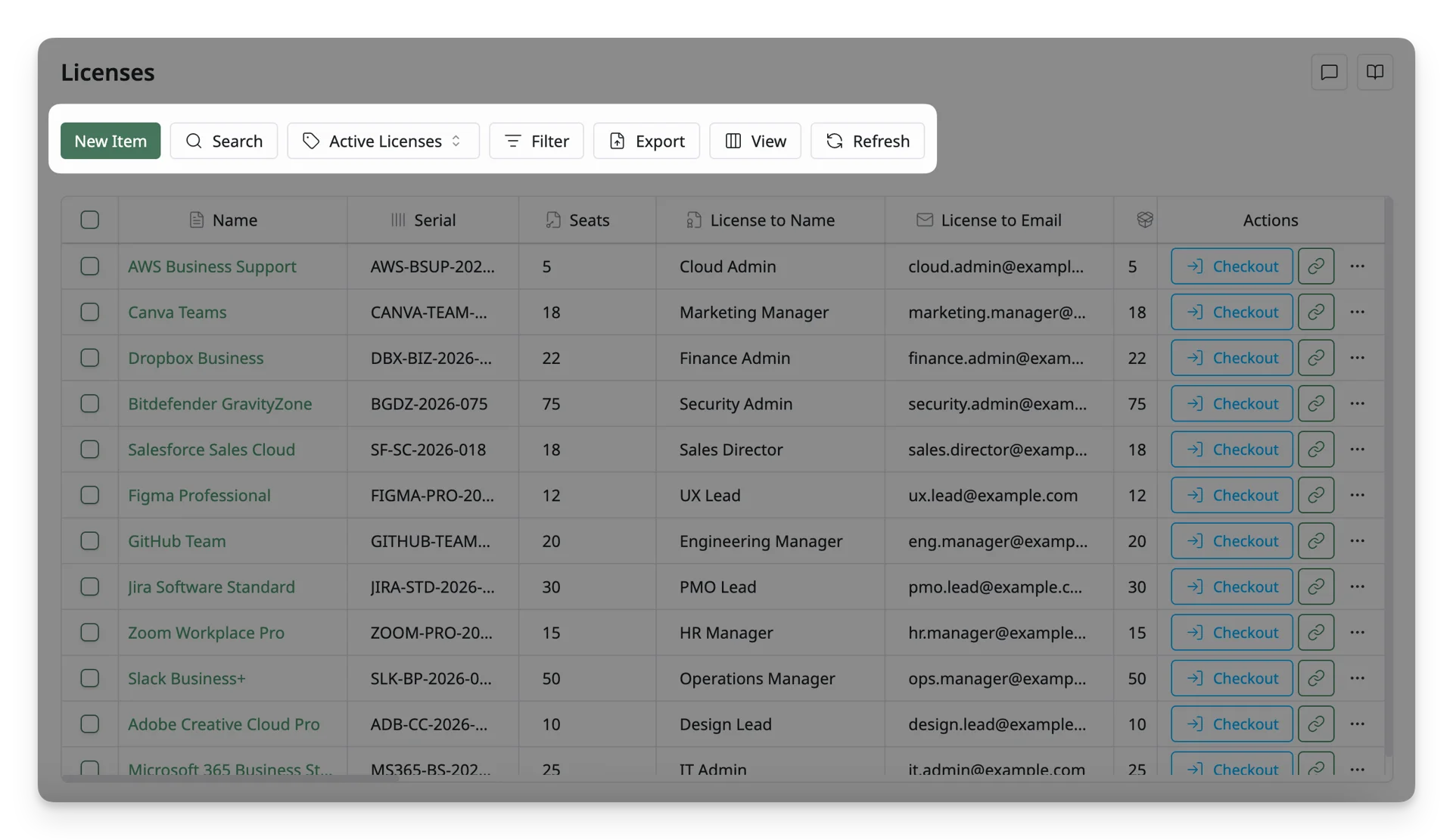
Here’s what you can do with the toolbar:
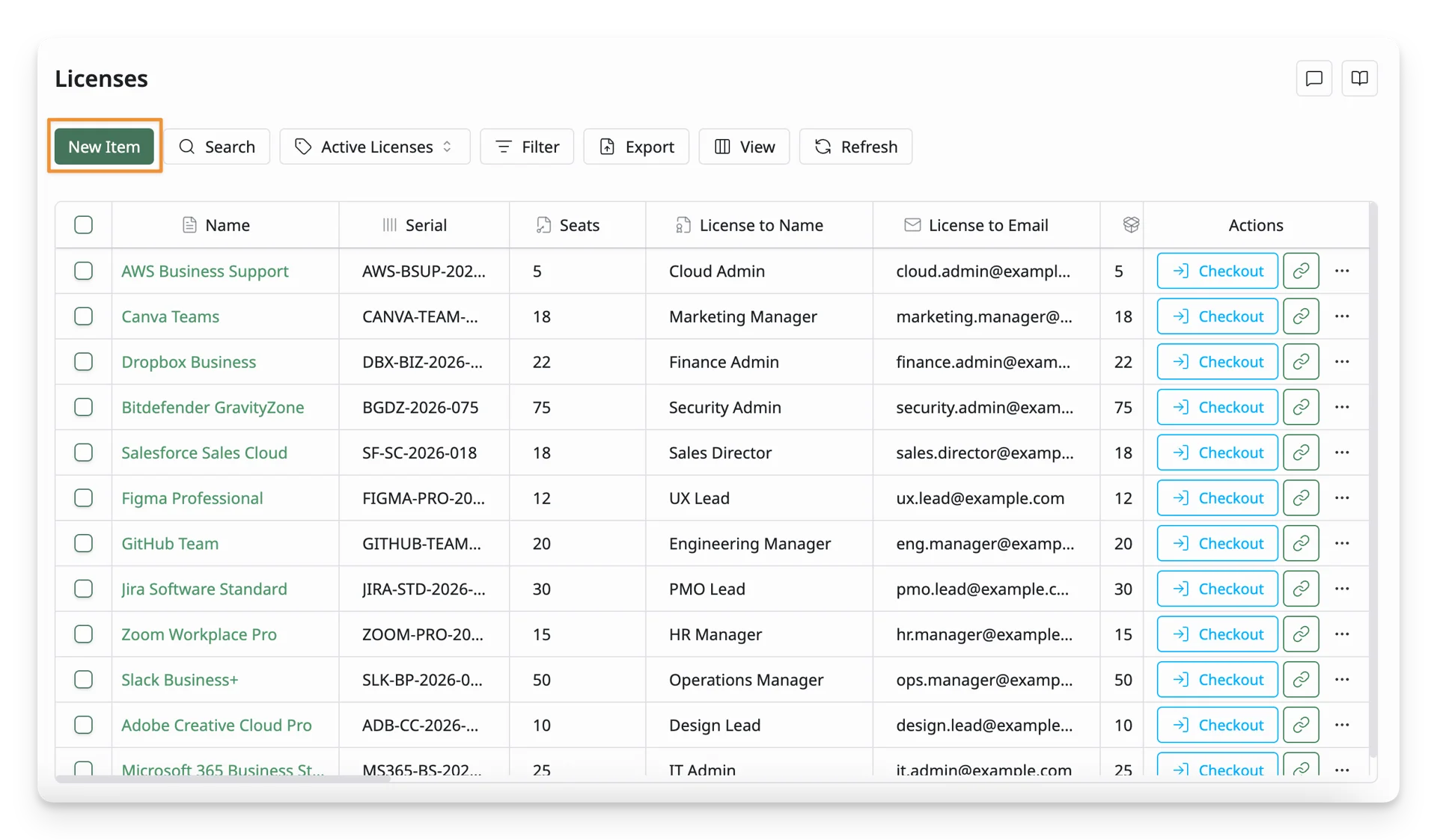
1.1. Add new licenses:
Use the “New Item” function to create new licenses manually.
1.2. Search:
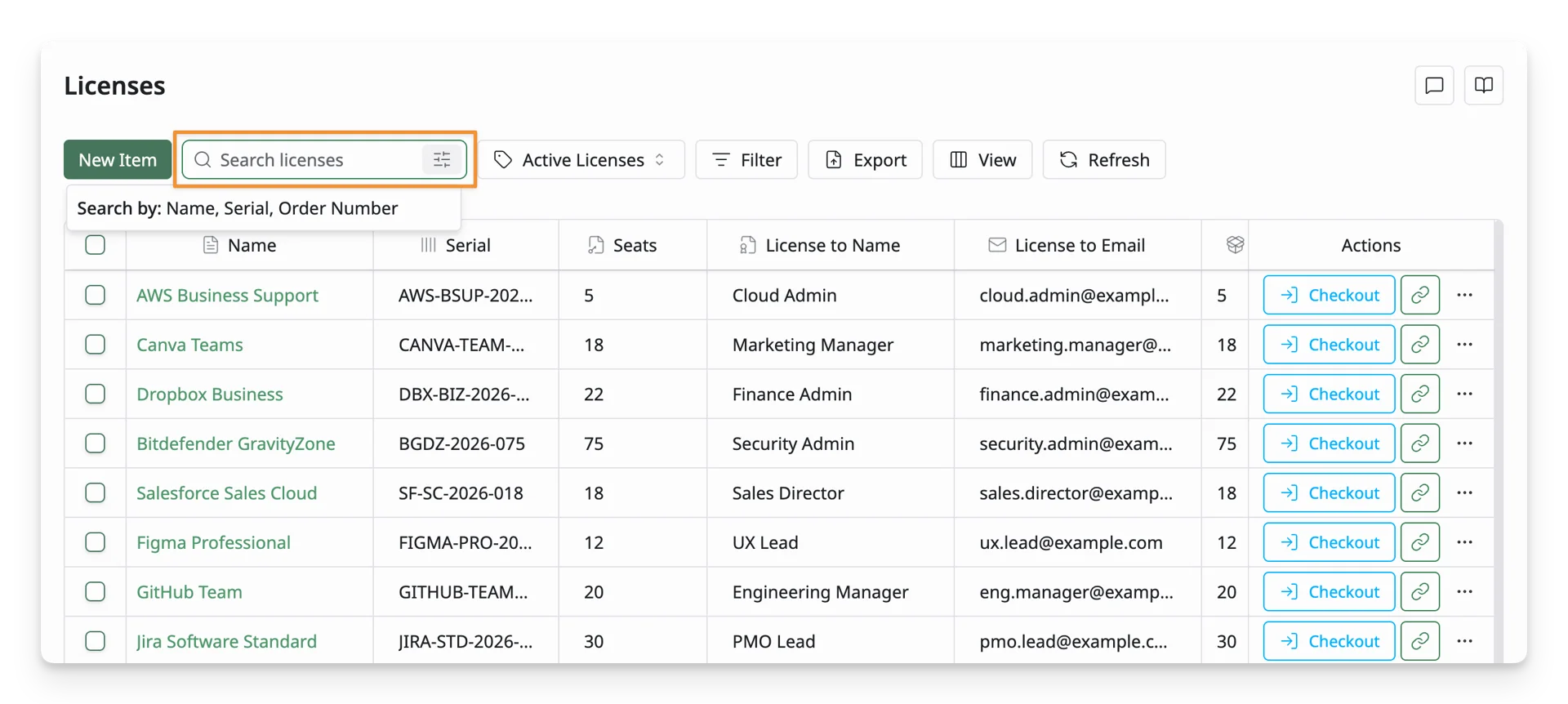
Use the “Search” function to quickly find specific licenses in the list. You can find these licenses with:
- Name: Search by the license name (e.g., “Jira”, “Figma”).
- Serial: Search using the serial number assigned to the licenses.
- Order Number: Search licenses based on specific purchase orders.
1.3. View Active/Trash Licenses
You can easily manage your licenses using the “Active Licenses/Trash” function to switch between two categories:
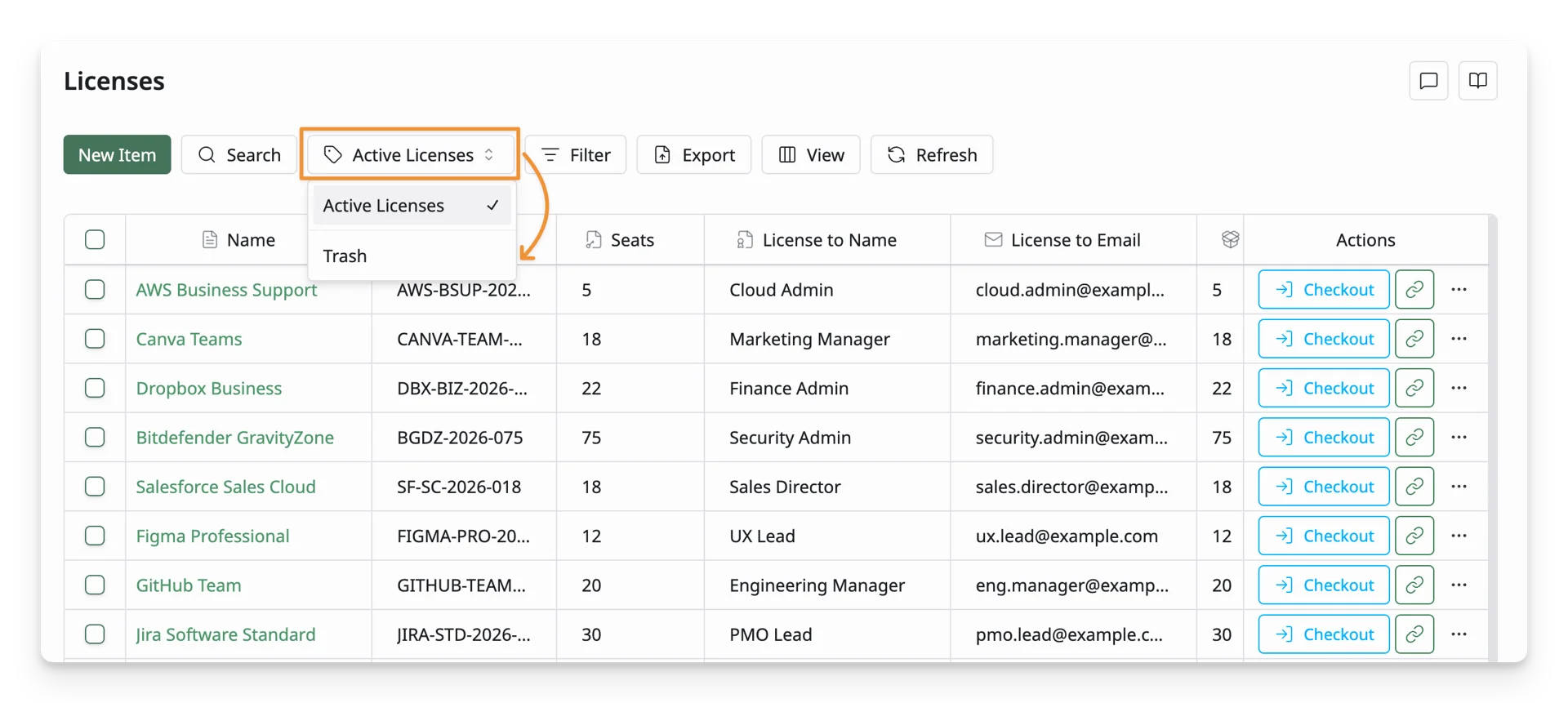
- Active Licenses: This section includes all licenses that are currently in use, whether they are in stock or out of stock. You can view and manage these items as part of your active inventory.
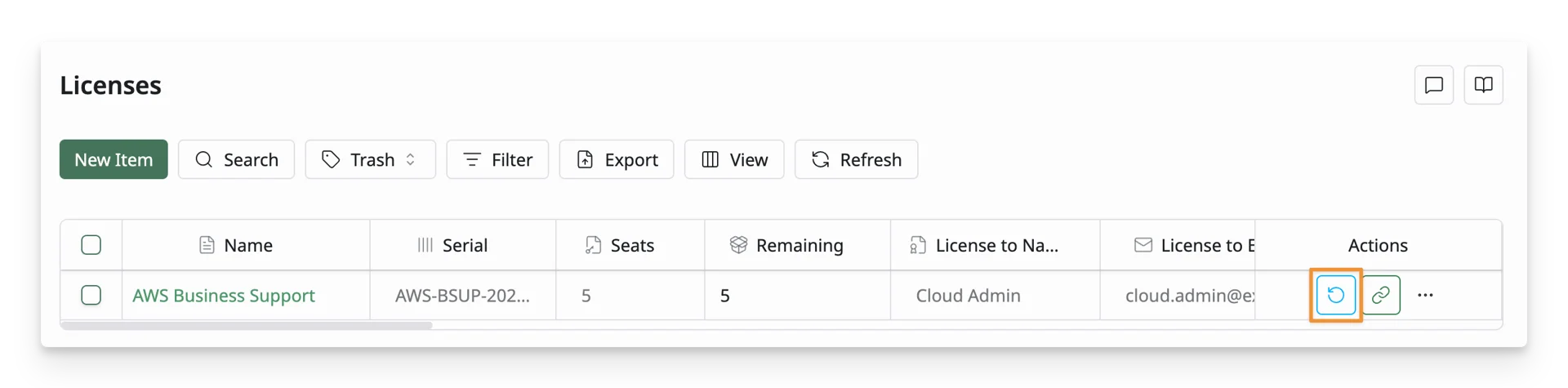
- Trash: This section contains licenses that have been temporarily deleted from the list. These items are not permanently removed and can be restored if needed.
1.4. Filter
Use the Filter function to narrow down the filter list based on specific criteria. This is especially useful when managing a large number of licenses.
- Inventory – Show licenses belonging to specific inventories
- Category – Filter by license type, such as Cloud Service, Software Tool, etc
- Department – Show licenses assigned to a particular department
- Supplier – Filter licenses based on their supplier
- Manufacturer – Display licenses from a specific manufacturer
- Reassignable - Filter licenses based on whether they can be checked in and reassigned after use
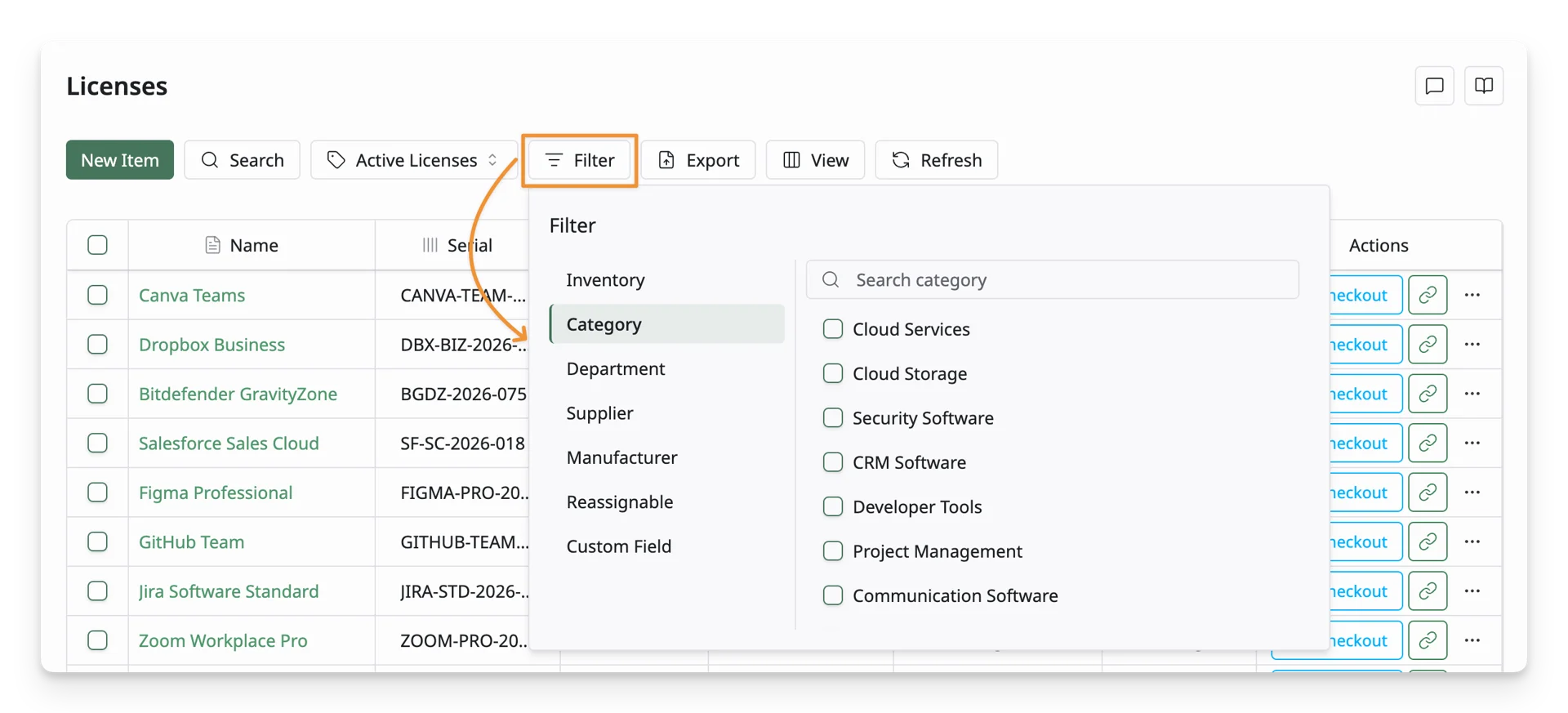
You can apply multiple filters at the same time to further refine the license list. Active filters are indicated on the Filter button, showing how many filters are currently applied. To remove all filters, click Clear all in the filter panel.
1.5. Export
Use the “Export” function to download the license data displayed in the license list as CSV or PDF.
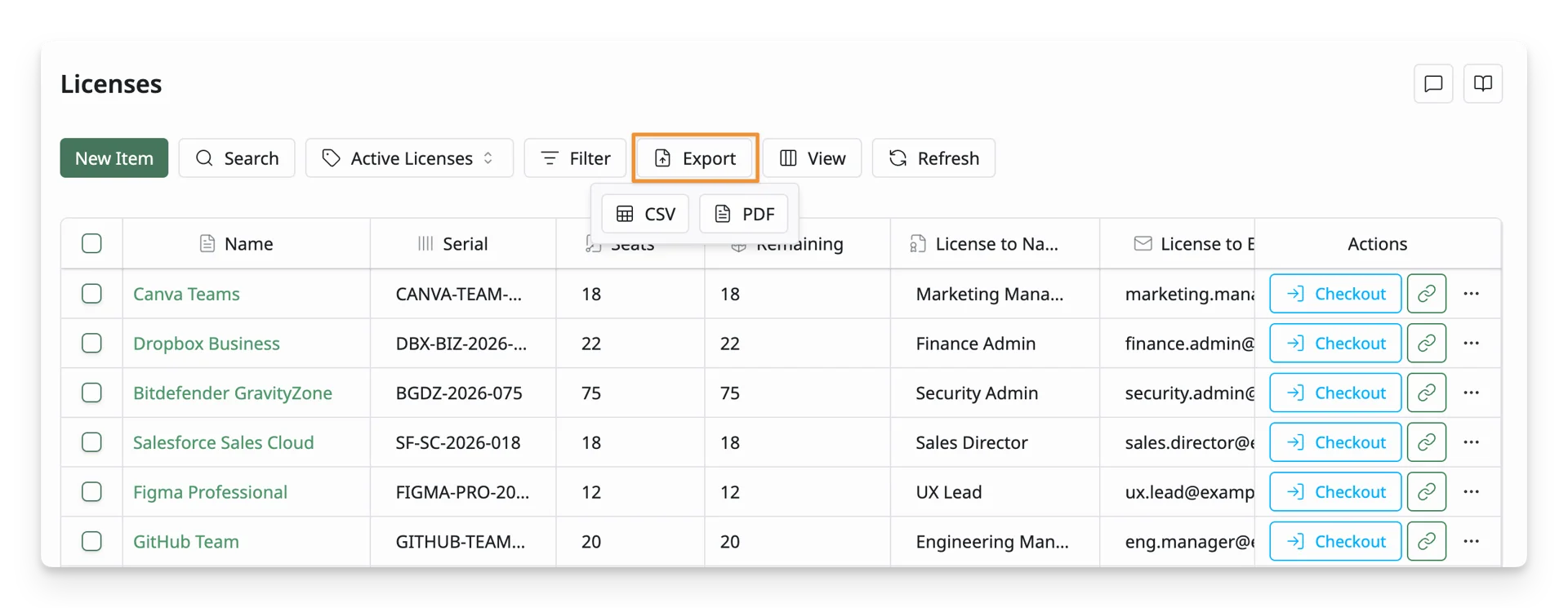
The export reflects your current view. Filters, searches, and visible columns are exported exactly as they appear on the screen.
1.6. View
Use the “View” function to customize how license information is displayed in the licenses list. With the View panel, you can:
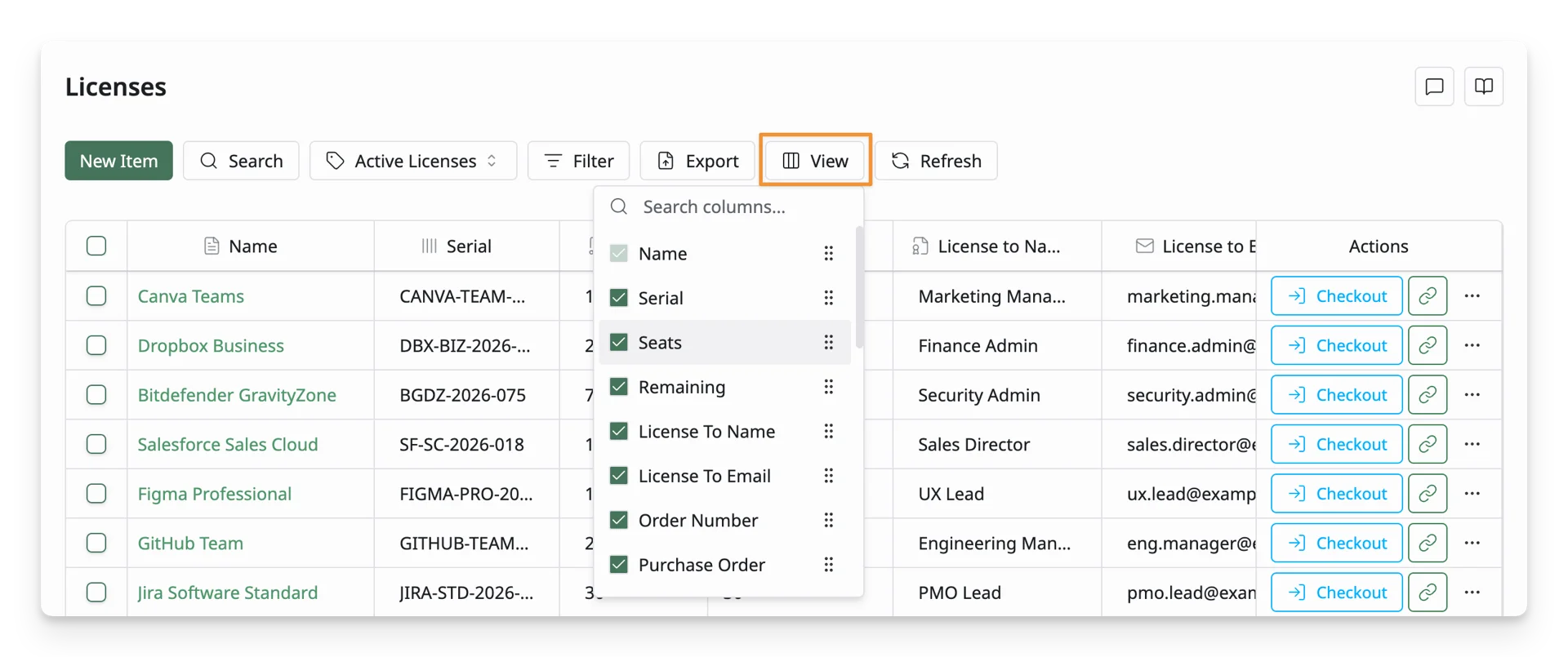
- Show or hide columns: Toggle columns on or off to control which license attributes are displayed in the license list.
- Rearrange columns: Drag and reorder columns to change their position in the table.
- Search for columns: Use the Search columns field to quickly find a specific column when working with many available attributes.
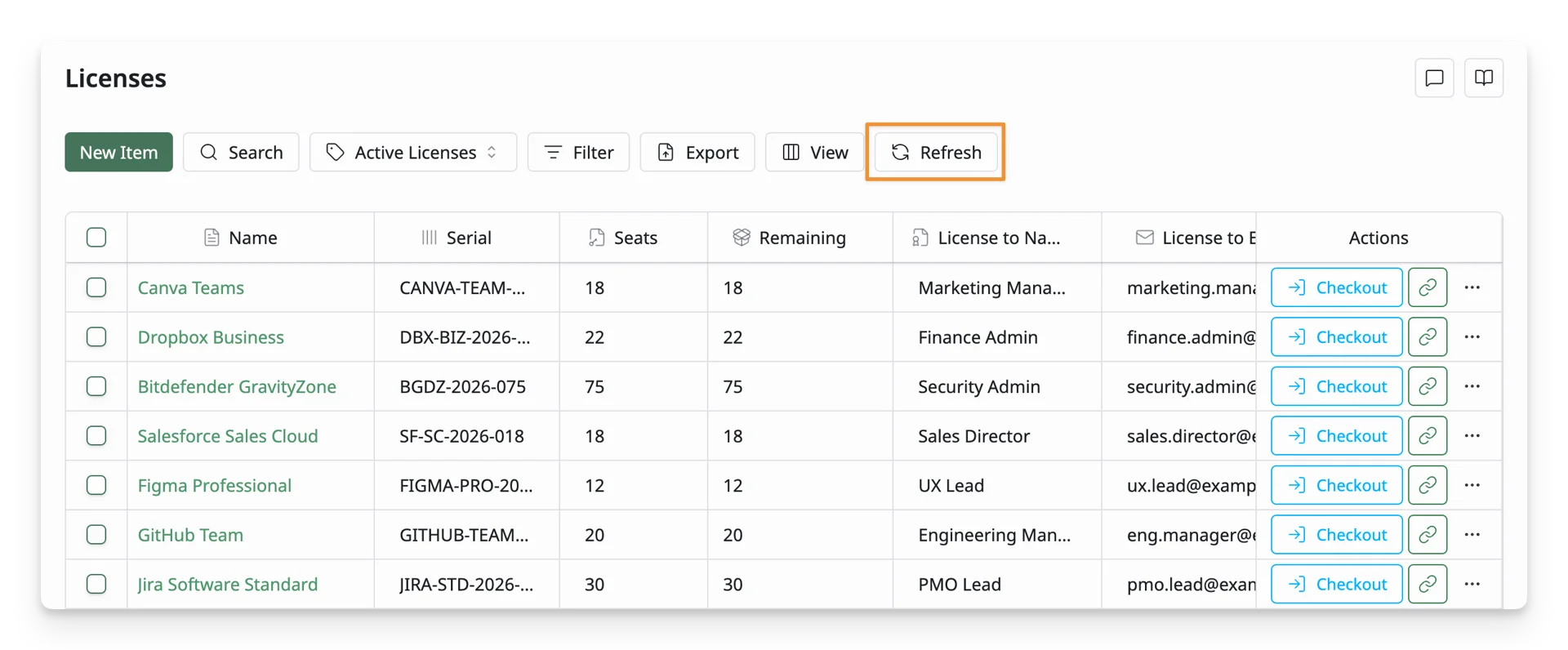
1.7. Refresh
Click the “Refresh” button to reload the license list.
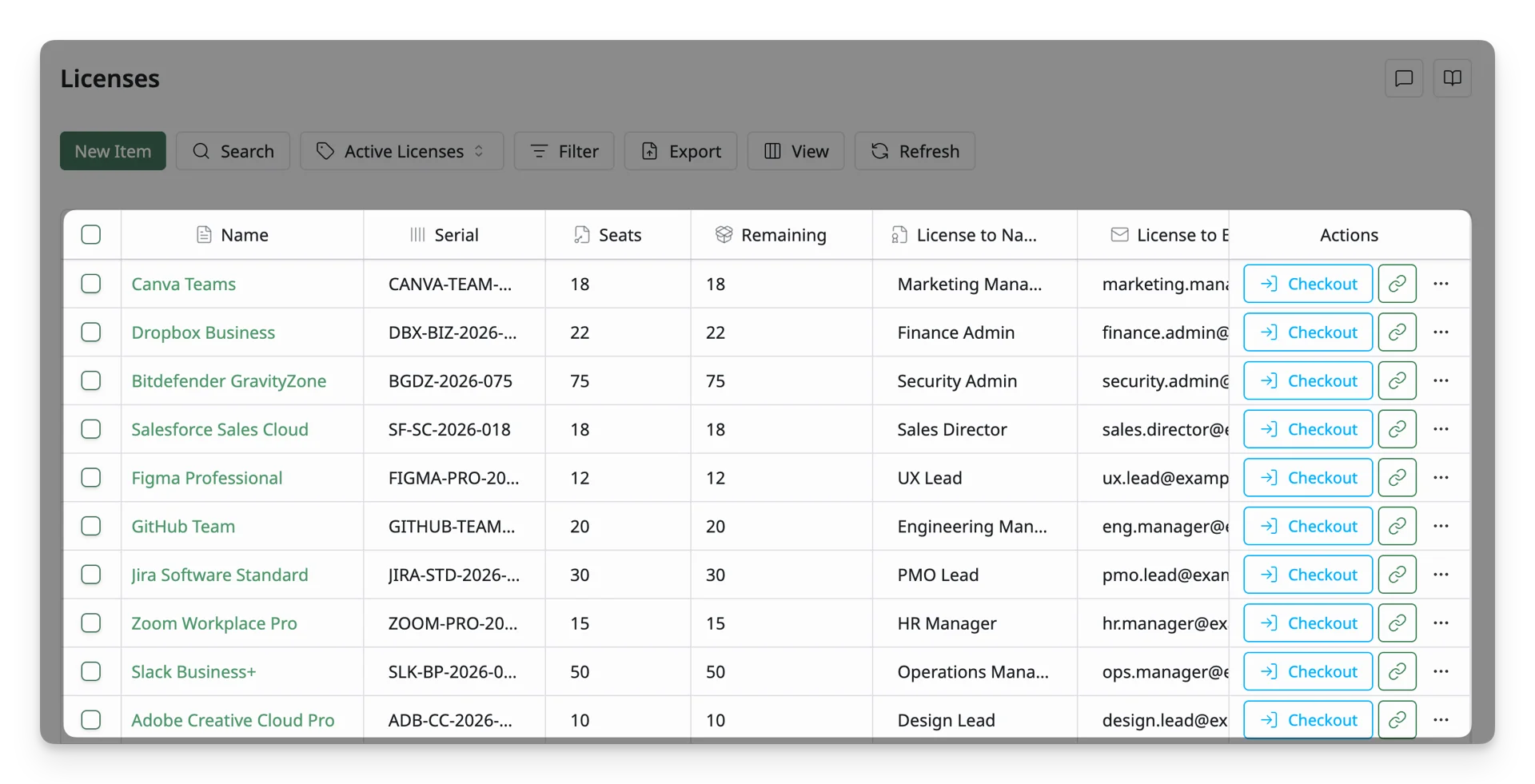
2. The License Table
The License Table lists all licenses managed in AssetLoom. Each row shows a license’s name, seat, category, remaining number, and other key details.
Click on a license to view its detailed information.
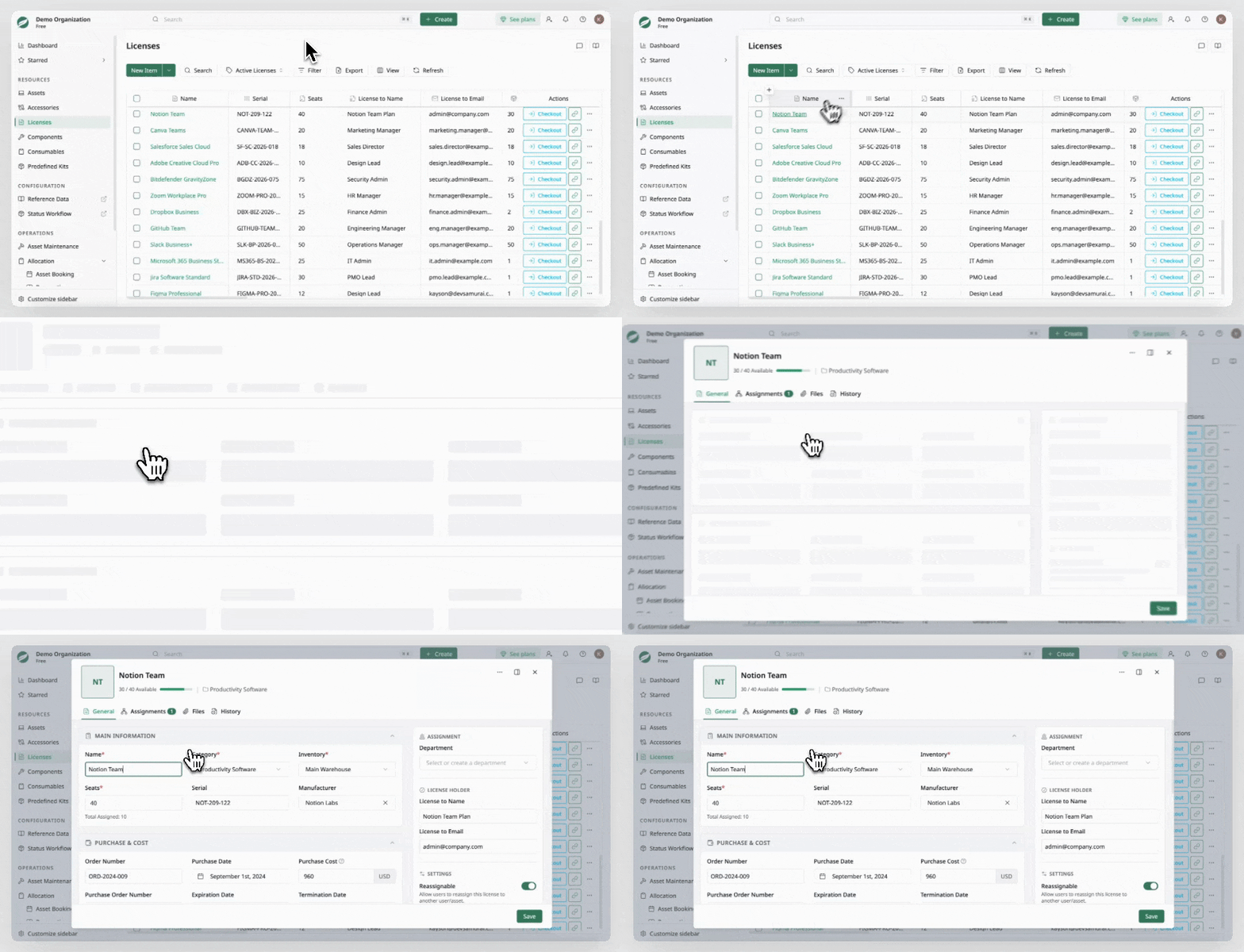
From the License Table, you can:
Manage Columns in the License Table
You can control which columns are visible and how they are arranged in the table.
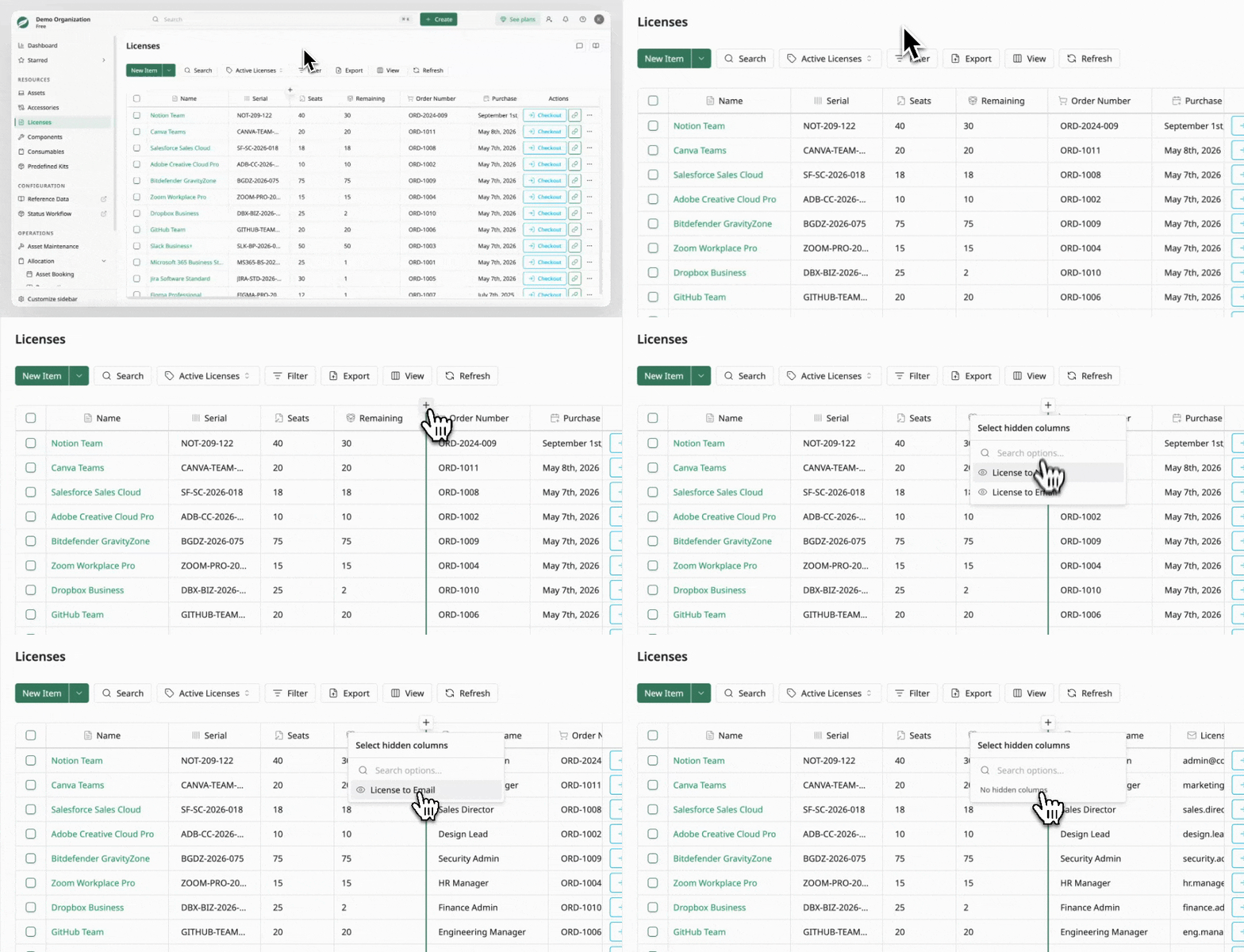
Add hidden columns
Hover over the table header to reveal the + button. Clicking this button opens a list of hidden columns that can be added back to the table. You can search for columns in this panel to quickly locate the one you want to display.
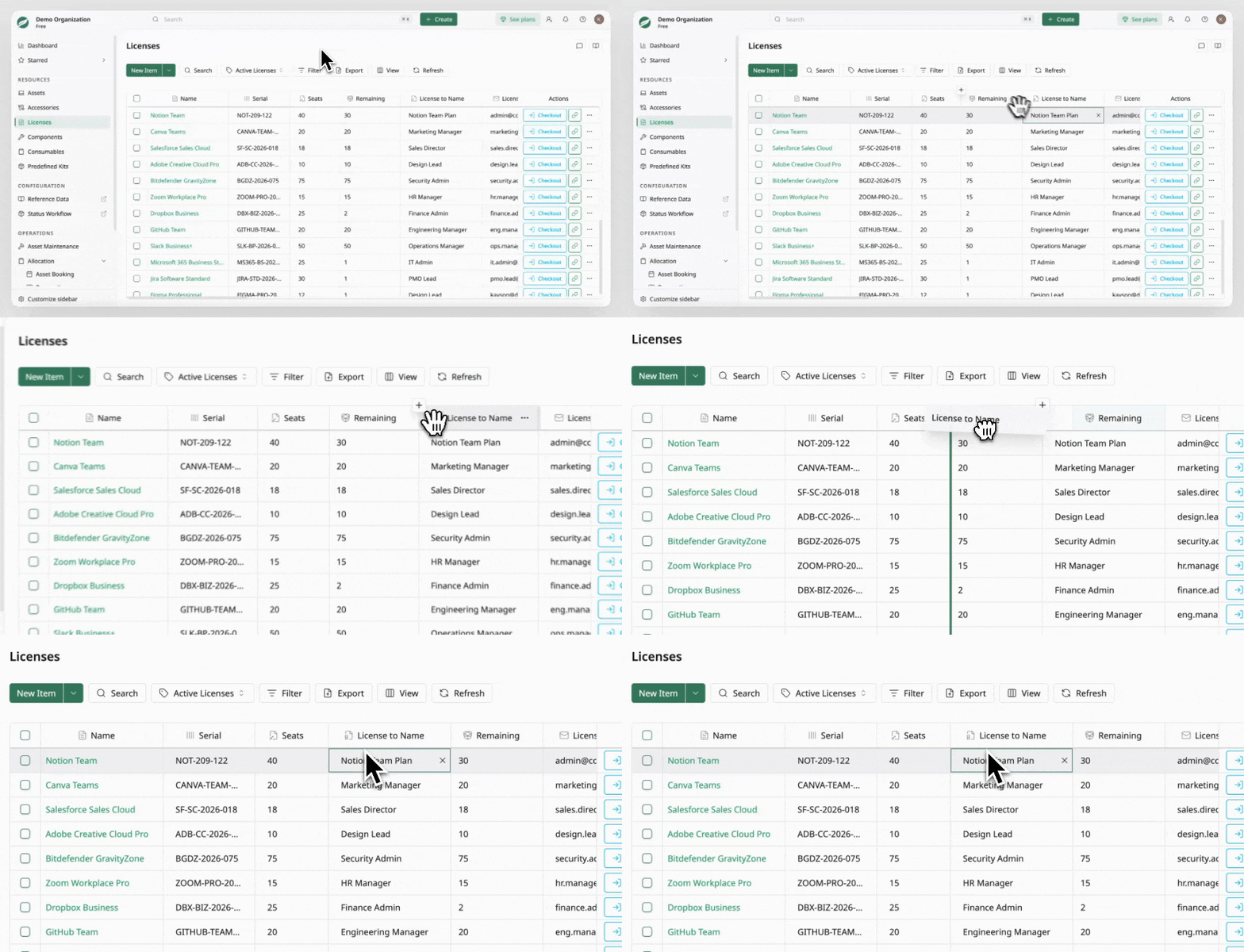
Rearrange columns
Columns can be reordered by dragging and dropping them within the table header. This allows you to organize the table layout based on your preferred workflow.
Column options
Each column header includes a more options menu (⋯) where you can perform additional actions:
- Sort A → Z: Sort the column values in ascending order
- Sort Z → A: Sort the column values in descending order
- Expand/collapse Column: Reduce/restore the column width on the table
- Hide Column: Temporarily hide the selected column from the table
- Pin Column / Unpin Column: Keep a column fixed in place when scrolling horizontally
- Add Column to Right: Insert a hidden column next to the selected column
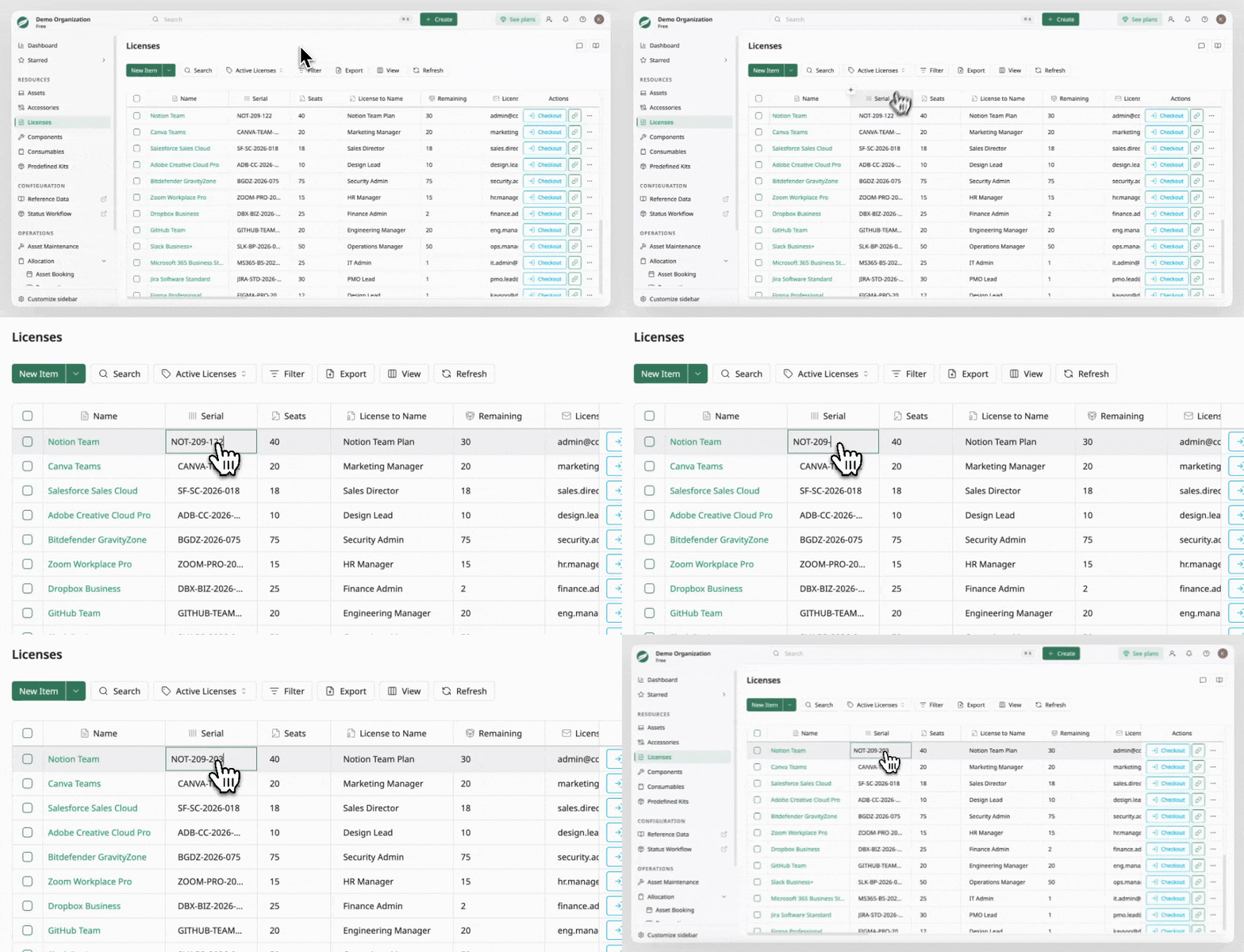
Edit License Information Directly on the License Table
License information can be edited directly within the table. Click a data cell to update its value. This inline editing lets you quickly update license details without opening a separate page.
3. License Actions
AssetLoom allows you to perform actions on either an individual license or multiple licenses at once.
Actions on an Individual License
Each license row includes an actions menu that provides operations specific to that license.
Click the ⋯ button at the end of a row to open the actions menu.
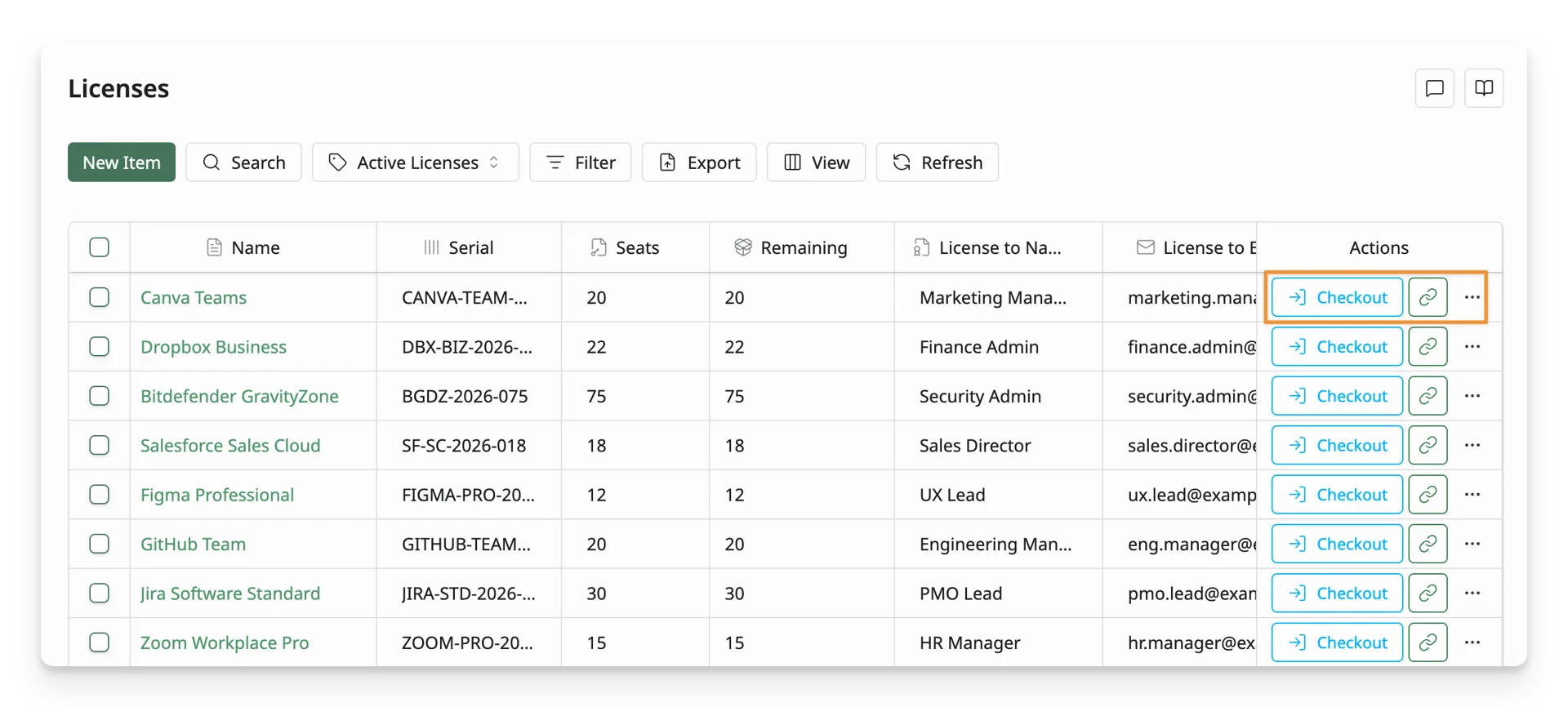
Available actions include:
- Checkout: Assign the license to a use.
- Edit: Open the license details to update its information.
- Copy Link: Copy a direct link to the license for quick sharing.
- Delete: Remove the license from the system.
These actions allow you to quickly manage a license without leaving the license list.
Bulk Actions
Bulk actions allow you to perform operations on multiple licenses at the same time. To select licenses, use the checkboxes on the left side of the license table.
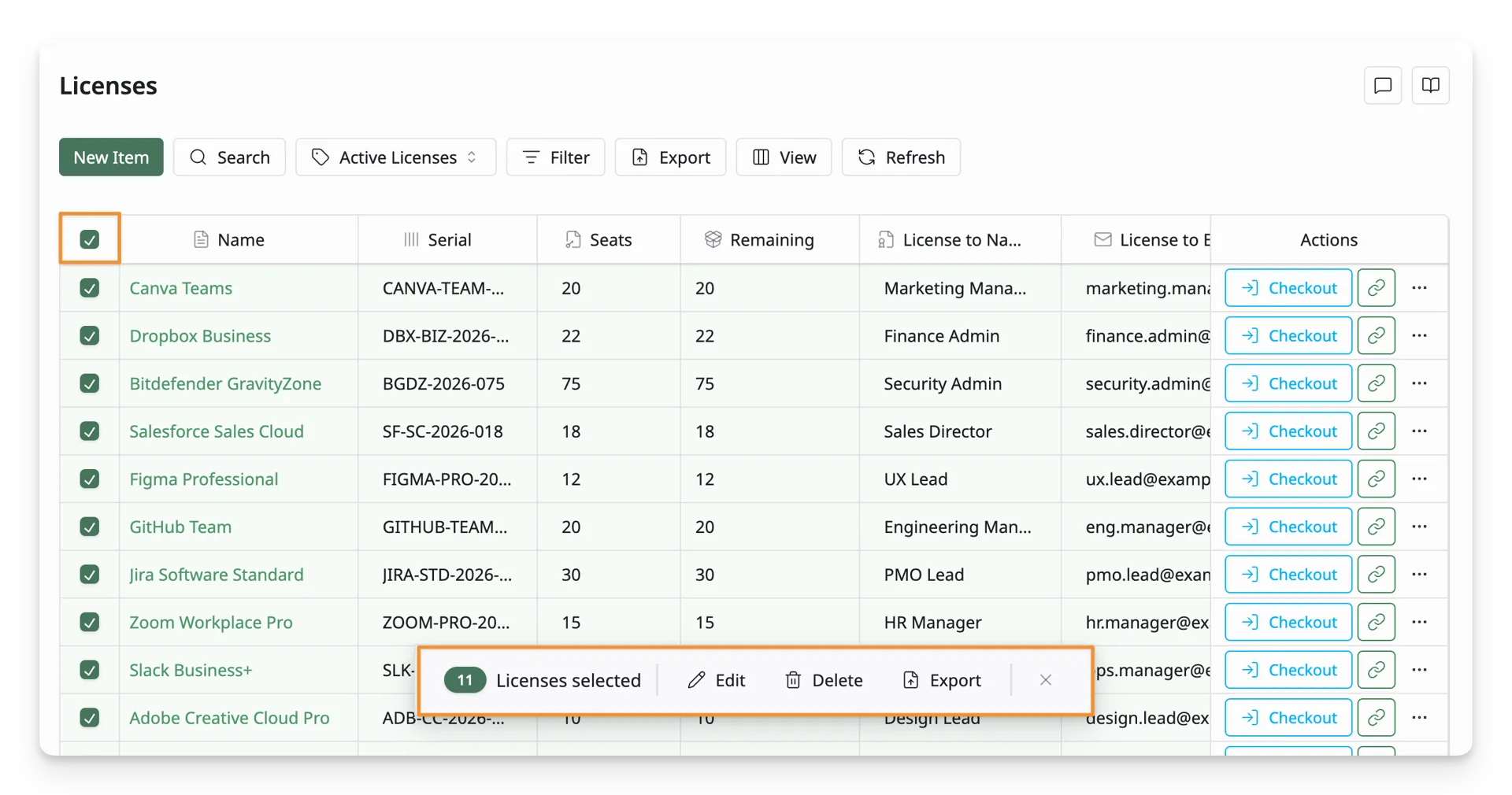
Once one or more licenses are selected, a bulk action bar will appear at the bottom of the page showing the number of selected items. From this bar, you can perform actions on all selected licenses at once, including:
- Edit: Modify properties for all selected licenses.
- Delete: Remove the selected licenses from the license list.
- Export: Export the selected licenses for reporting or external use.
What’s Next?
- Create a License Using the Creation Form: Create a license manually with AssetLoom
- Import New Licenses: Bulk import your licenses to AssetLoom