Set Up License Expiration Alerts
Learn how to setup licenses expiration alerts with AssetLoom
AssetLoom can send notifications before a license expires, based on your configured reminder range. This helps you plan renewals in advance, avoid interruptions, and manage resources more effectively.
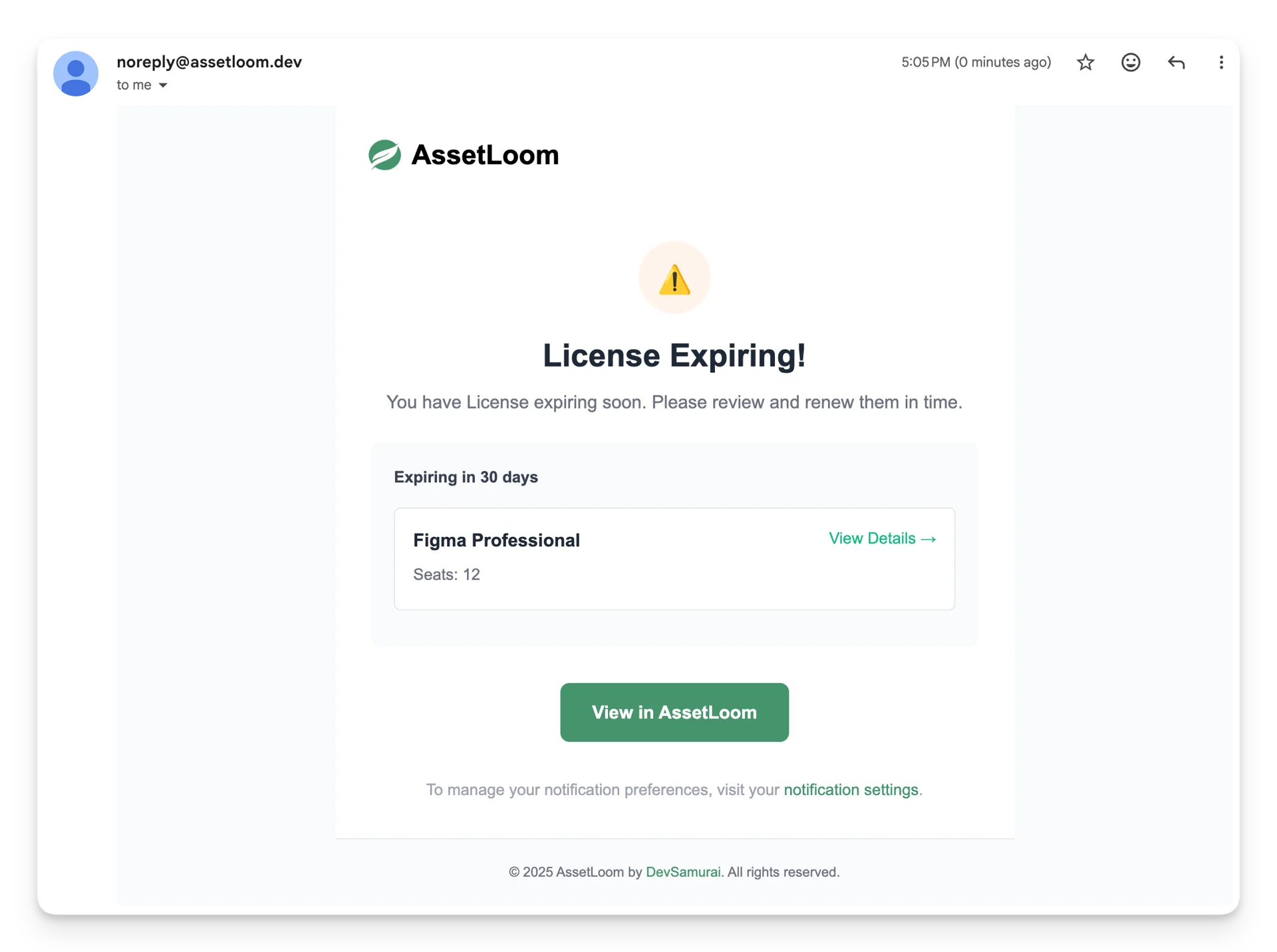
Only Admin can set up license expiration alerts
To set up notifications for license expiration, you can follow these steps:
Step 1: Access the Notification Settings
Navigate to the Personal settings → Select Settings to open the edit notification screen.
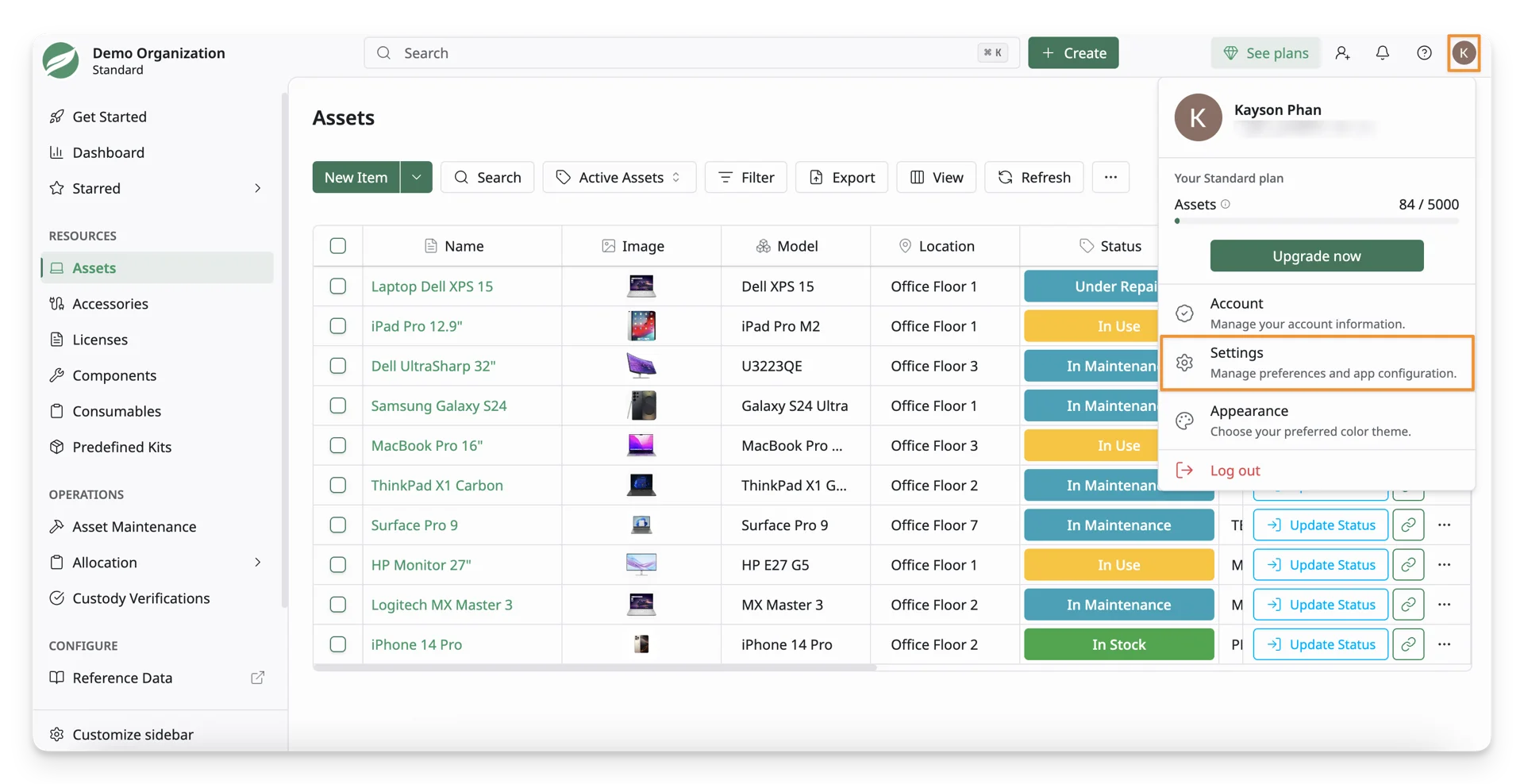
You can find the Notification settings under the Personal section.
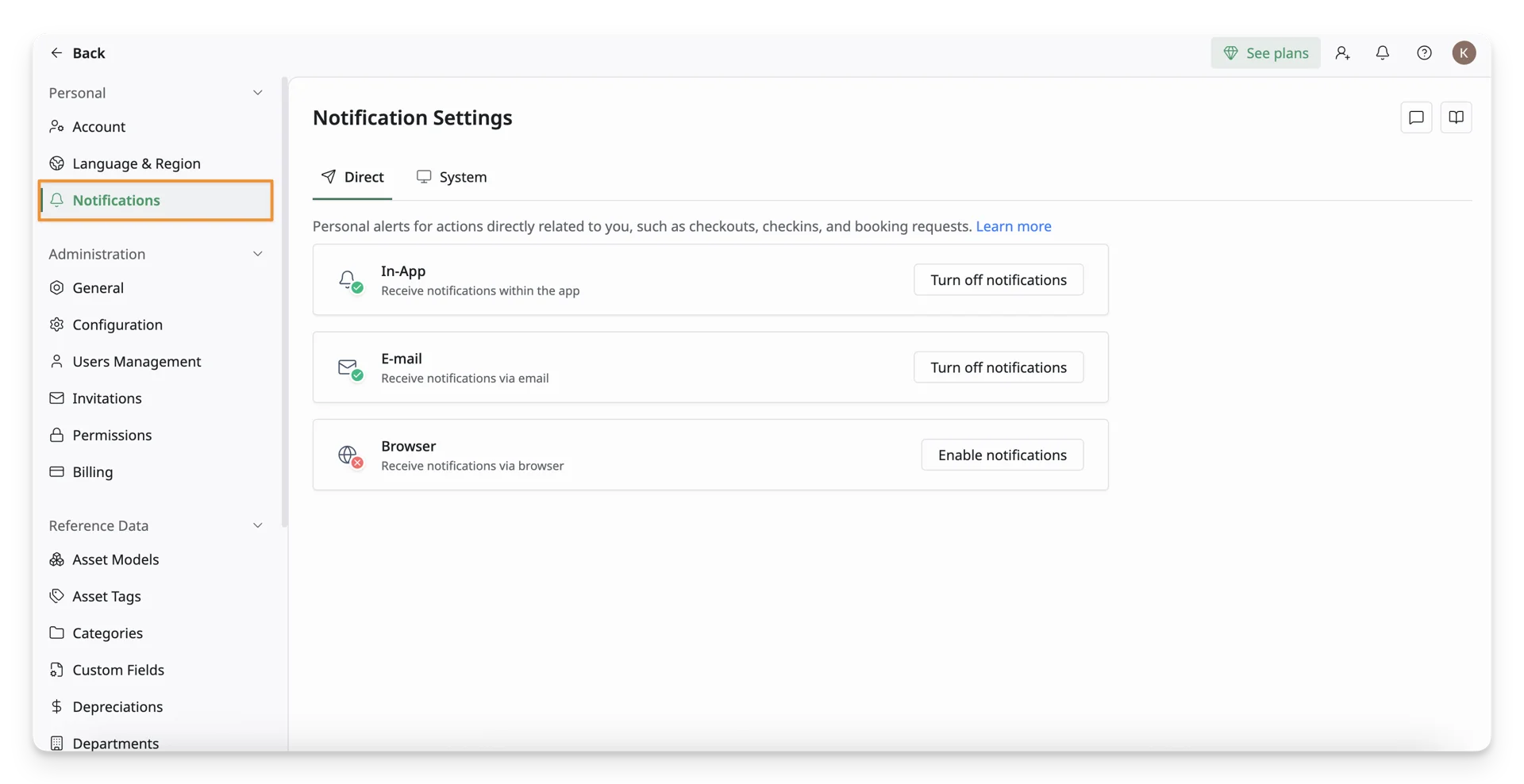
Step 2: Select Notification Channels
In the Direct tab, you can select to receive/not receive notifications via In-app, Email, or Browser by clicking Turn off/Enable notifications for each channel.
Step 3: Configure Reminder Schedule
Then, switch to the System tab. Here, you can scroll down and expand the Reminder Schedule section. Now, you can see the License Expiring options.
AssetLoom allows you to set up 3 notifications before license expiration in decreasing order.
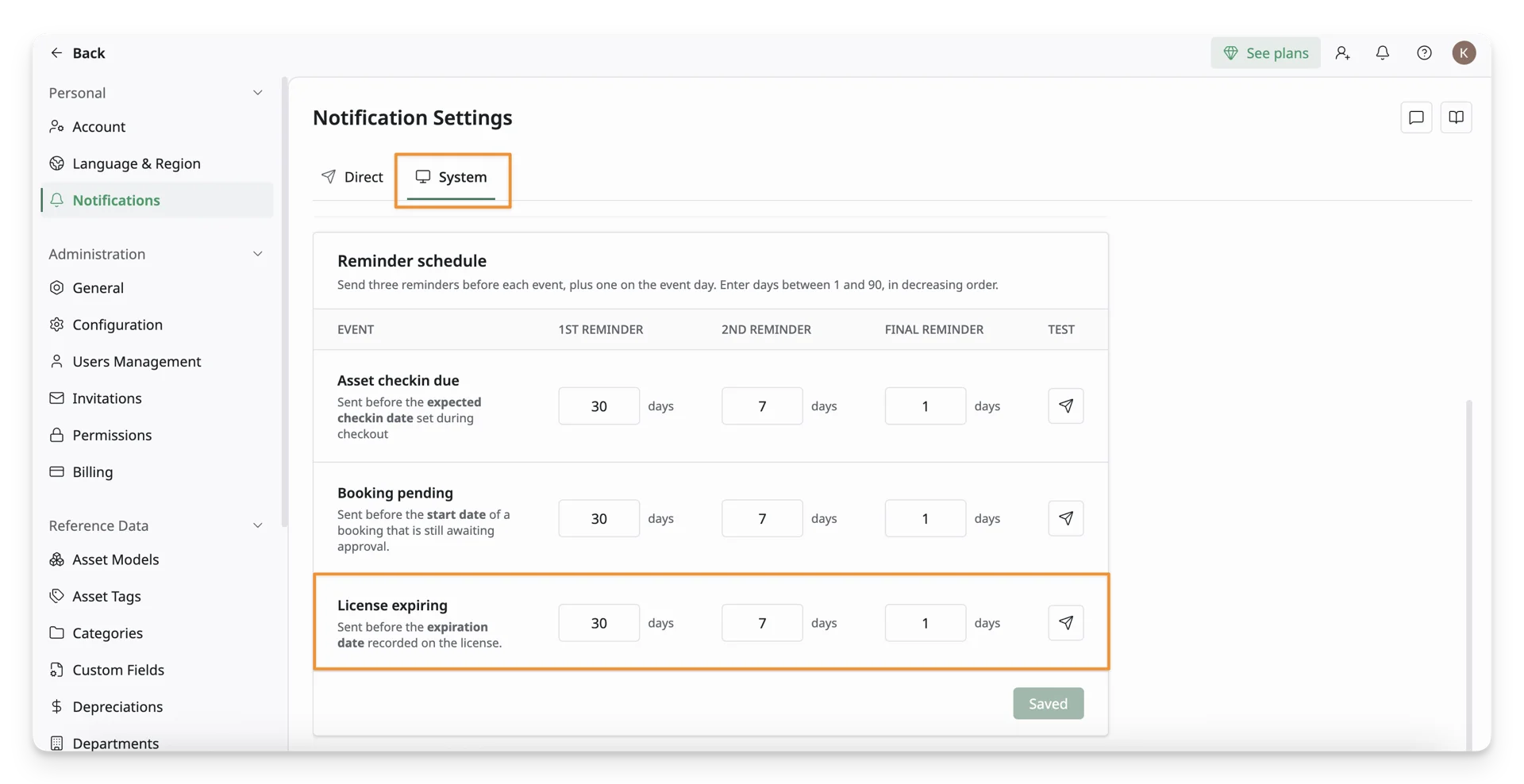
By default, these reminders are set to 30 days, 7 days, and 1 day before the expiration date. You can enter your preferred timeline based on your organization’s renewal process.
Note that each reminder must be set to at least 1 day before the expiration date.
Step 4: Save and Finish Your Setup
Click the Save button to finish setting up your license expiration alerts.