Jamf Pro Sync Overview
Learn how to use the Jamf Pro Sync Overview in AssetLoom to check sync status, review recent activity, and understand your integration configuration.
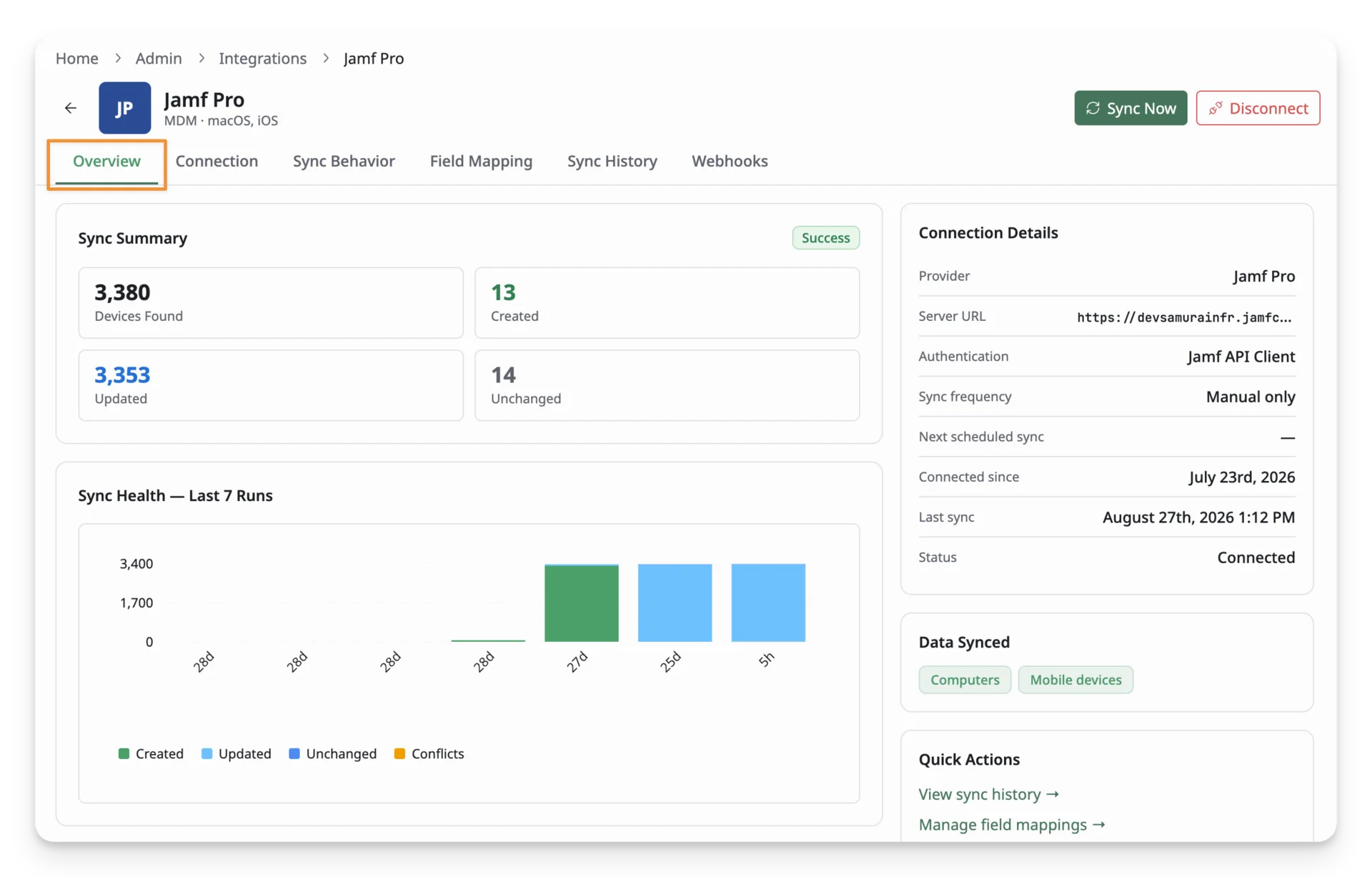
The Overview tab is the first thing you see when you open the Jamf Pro integration details page. It gives you a quick read on whether syncing is working, what happened during the last sync, and how the connection itself is configured, all without digging into the other tabs.
To access it, from the Jamf Pro integration details page, navigate to the Overview tab.
Sync Summary
The Sync Summary lets you know what the most recent sync did to your asset data, broken down into four figures:
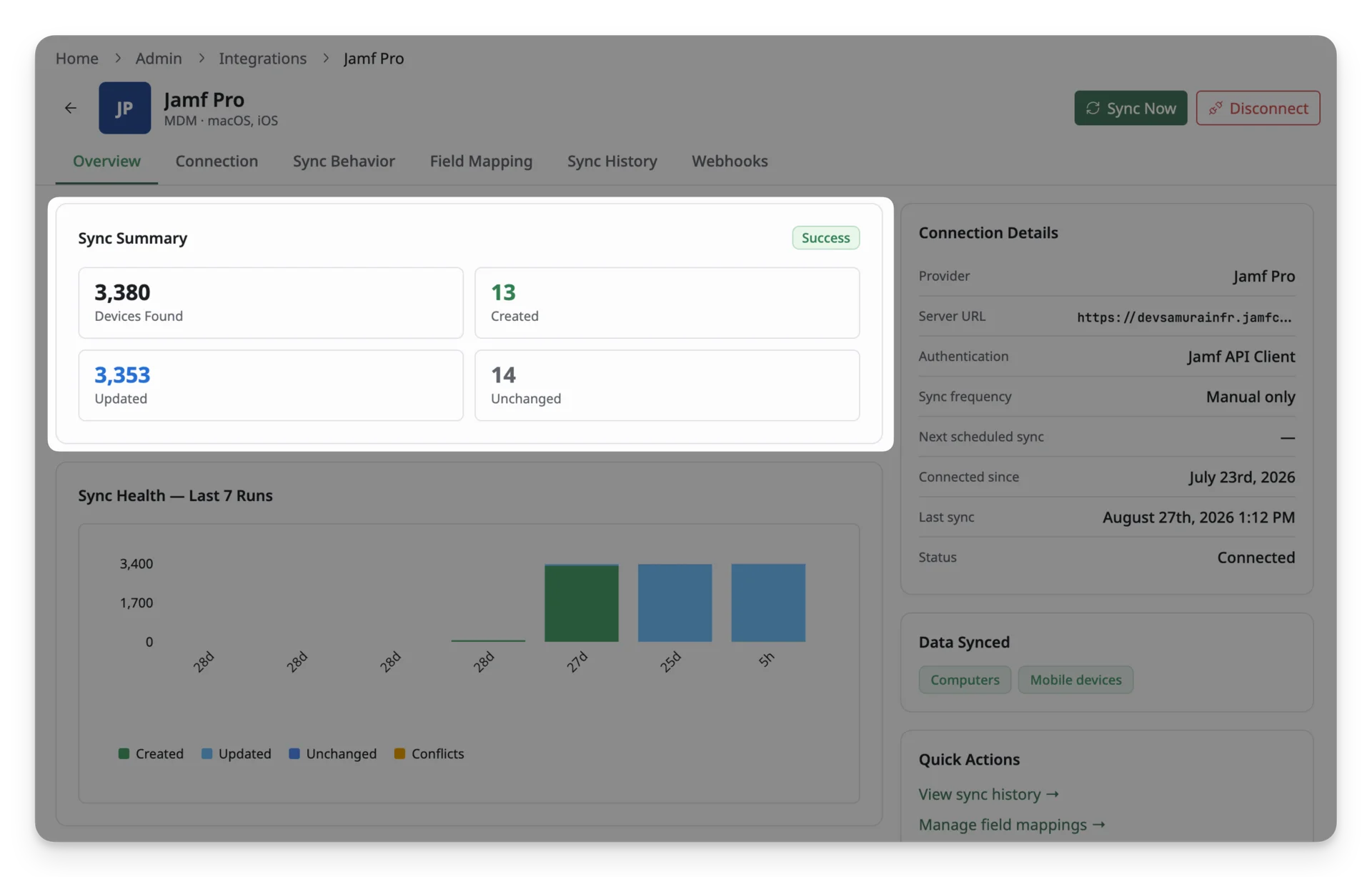
- Devices Found: Total number of devices Jamf reported during the sync.
- Created: The number of devices that didn’t exist in AssetLoom yet and were added as new assets.
- Updated: The number of existing assets in AssetLoom that were refreshed from Jamf.
- Unchanged: The number of assets matched what Jamf already had, so nothing needed to change.
The status badge (Success or Failed) also lets you know the outcome of the latest sync.
Sync Health
The Sync Health report lets you know your last 7 sync runs over time, so you can spot patterns, such as a sync that suddenly stopped creating new assets, or one that’s started producing conflicts.
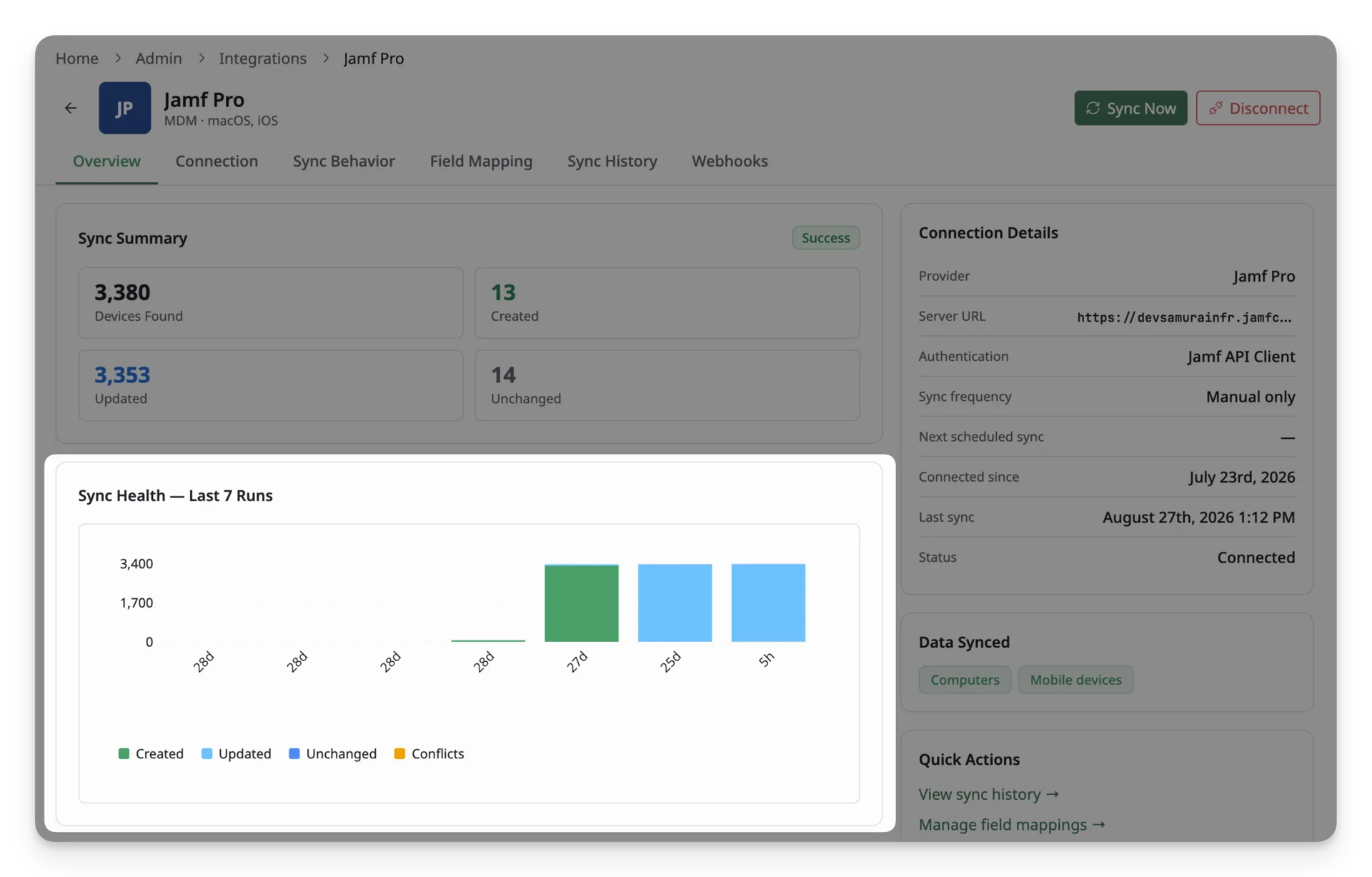
Each bar is broken down by what happened during that run.
Latest Run
The Latest Run report shows the outcome of the single most recent sync in plain language along with a quick found/created/updated/unchanged count.
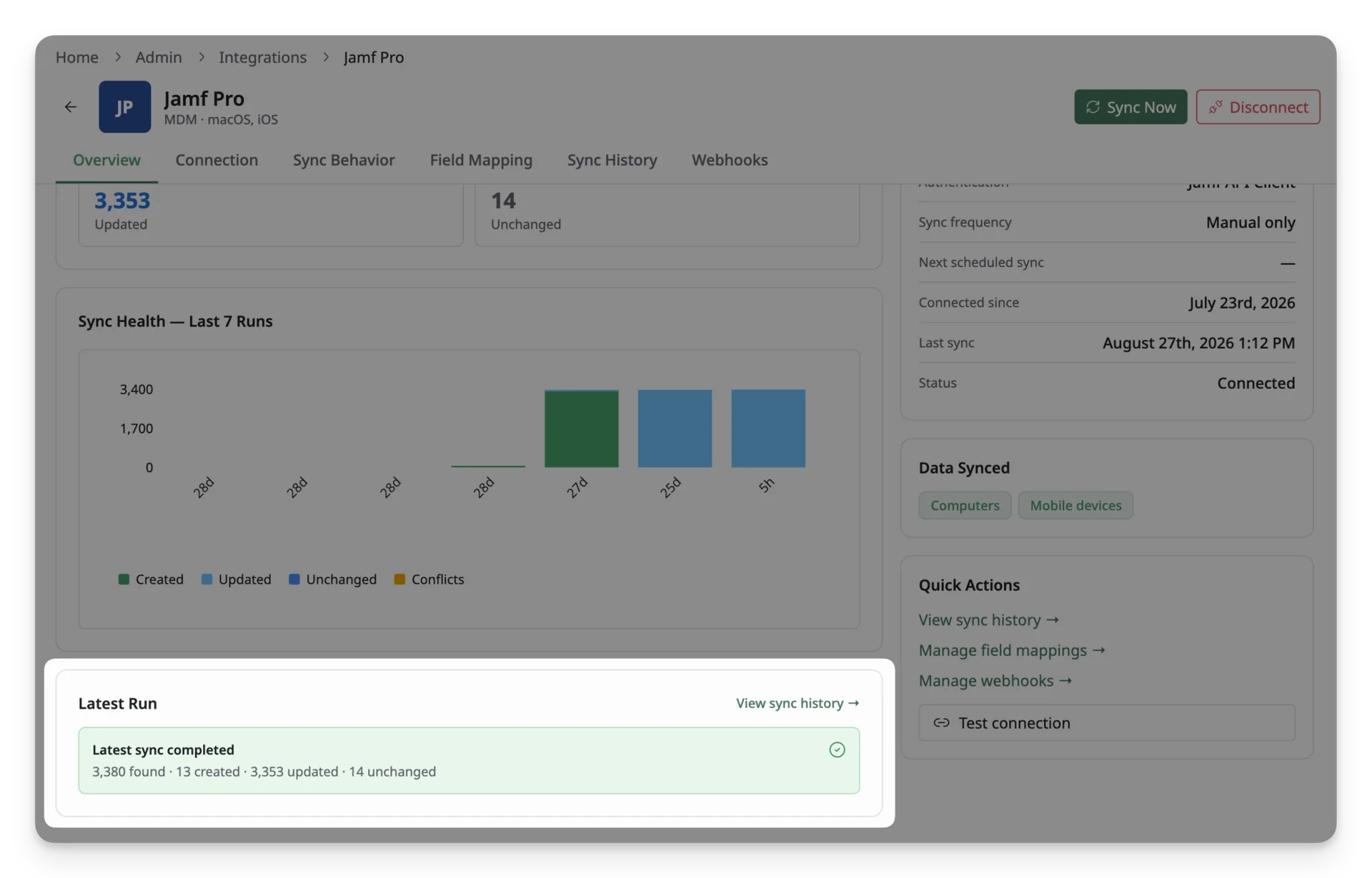
Click View sync history to open the full run-by-run history and review previous sync results in more detail.
Connection Details
Connection Details display a summary of how Jamf Pro is connected, most of which was set during the initial connection:
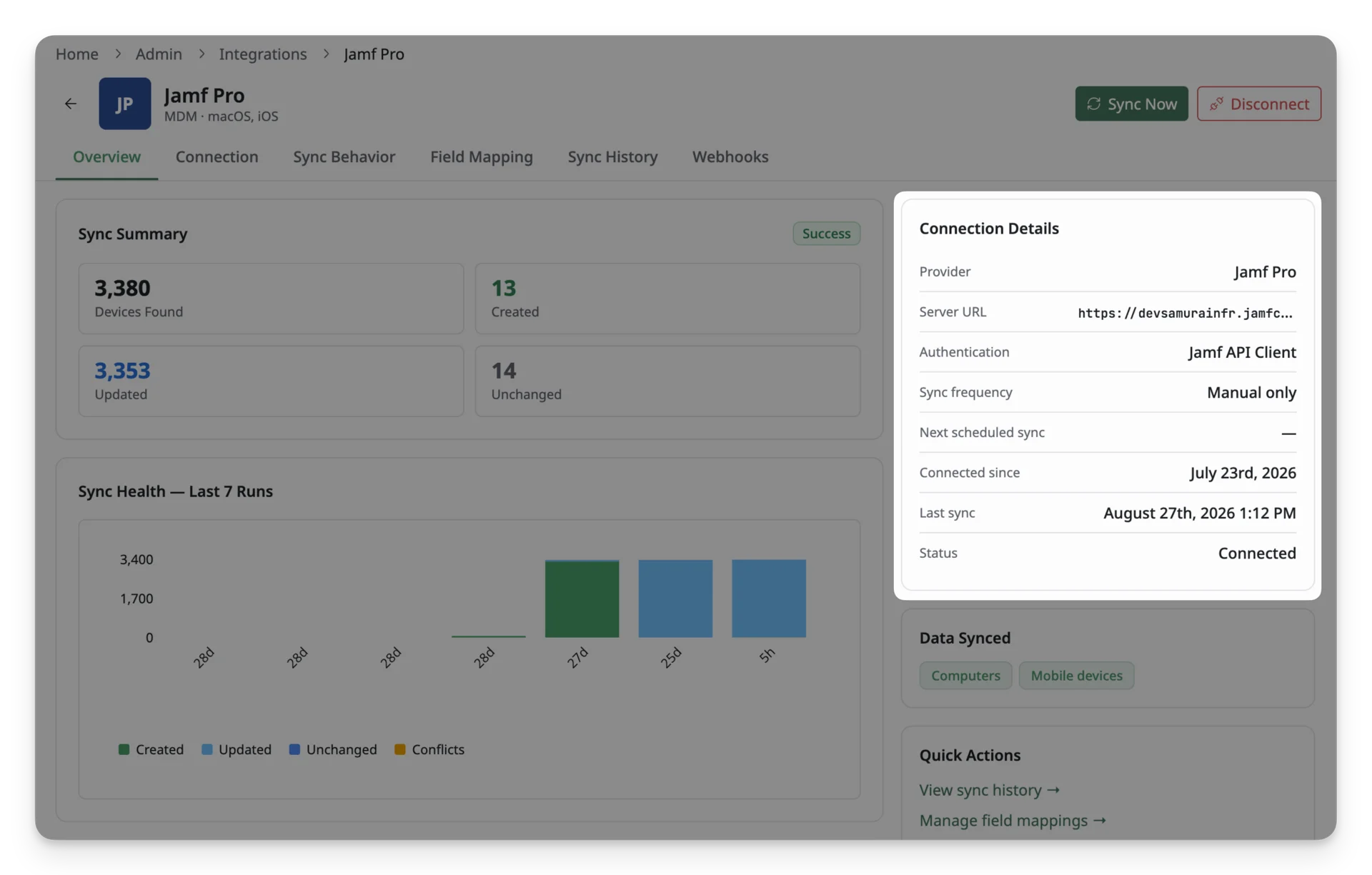
- Provider and Server URL: confirms which Jamf instance you’re connected to.
- Authentication: displays the method used (Jamf API Client).
- Sync frequency: shows whether syncing is automatic or manual only.
- Next scheduled sync: the time of the next automatic sync if auto-sync is enabled.
- Connected since and Last sync: track the connection’s history.
- Status: indicates whether the connection is currently healthy (Connected) or experiencing an issue.
You can also modify these details in Connection.
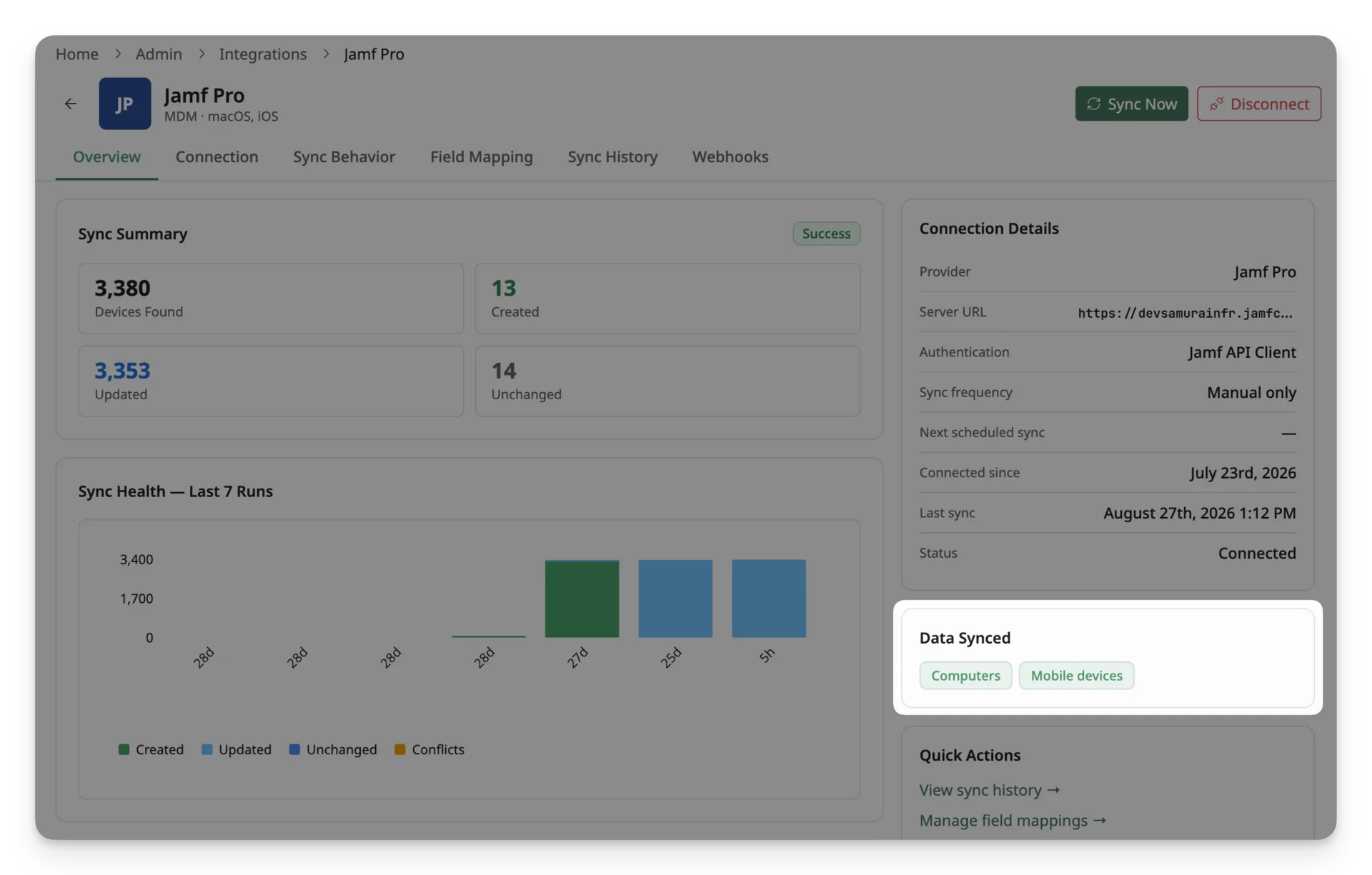
Data Synced
Data Synced shows which device types are currently being synced, e.g., Computers and Mobile devices. It reflects what’s turned on in the Connection tab.
Quick Actions
Quick Actions provide shortcuts to the actions and tabs you’re most likely to need next:
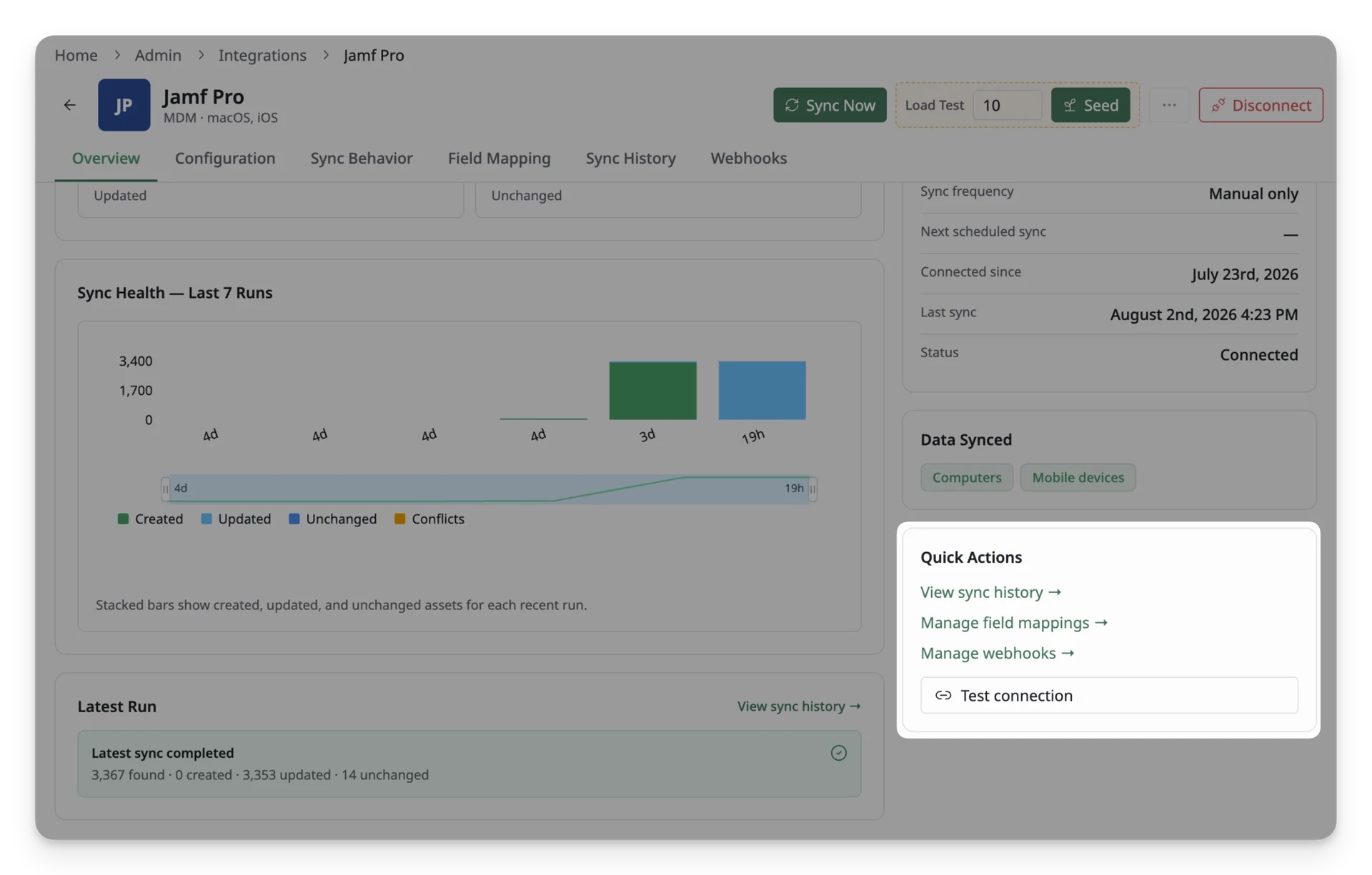
- View sync history: review previous synchronization runs and their results.
- Manage field mappings: configure how Jamf data maps to AssetLoom fields.
- Manage webhooks: Set up and manage Jamf Pro webhooks to receive device events.
- Test connection button: click to run a connection test to confirm that AssetLoom can still authenticate and communicate with your Jamf connection.