JAMF Pro Integration Overview
Learn how AssetLoom integrates with Jamf Pro to sync Apple device data, automate asset tracking, and maintain accurate IT inventory.
The Jamf Pro integration connects AssetLoom to your Jamf Pro instance and keeps your device inventory up to date automatically. Instead of manually entering or updating computers and mobile devices in AssetLoom, the integration pulls that data directly from Jamf Pro and syncs it into your asset records.
What JAMF Pro integration does
- Pulls device inventory from Jamf Pro into AssetLoom: The integration reads computer and mobile device records from Jamf Pro (macOS and iOS) and creates or updates the matching assets in AssetLoom.
- Syncs on a schedule or on demand: Once connected, AssetLoom keeps data current automatically on a recurring schedule. You can also trigger an immediate sync at any time using Sync Now.
- Gives you control over how data is merged: Jamf Pro isn’t always the only source of truth. Some data may already exist in AssetLoom, or you may want AssetLoom-entered values to take priority in certain cases. For each group of fields, you choose how conflicts are resolved:
- JAMF Pro wins: the value from Jamf Pro always overwrites what’s in AssetLoom.
- AssetLoom wins: the existing AssetLoom value is kept; Jamf Pro data is not applied.
- Fill blanks only: Jamf Pro data is only used to populate empty fields, without overwriting existing AssetLoom values.
Access and permissions
The integration uses read-only access to Jamf Pro. Specifically, it requires:
- Sync Computers: read access to computer inventory records
- Sync Mobile Devices: read access to mobile device inventory records
AssetLoom does not write data back to Jamf Pro.
Where to manage the JAMF Pro integration
- From the Integrations hub, locate the Jamf Pro card.
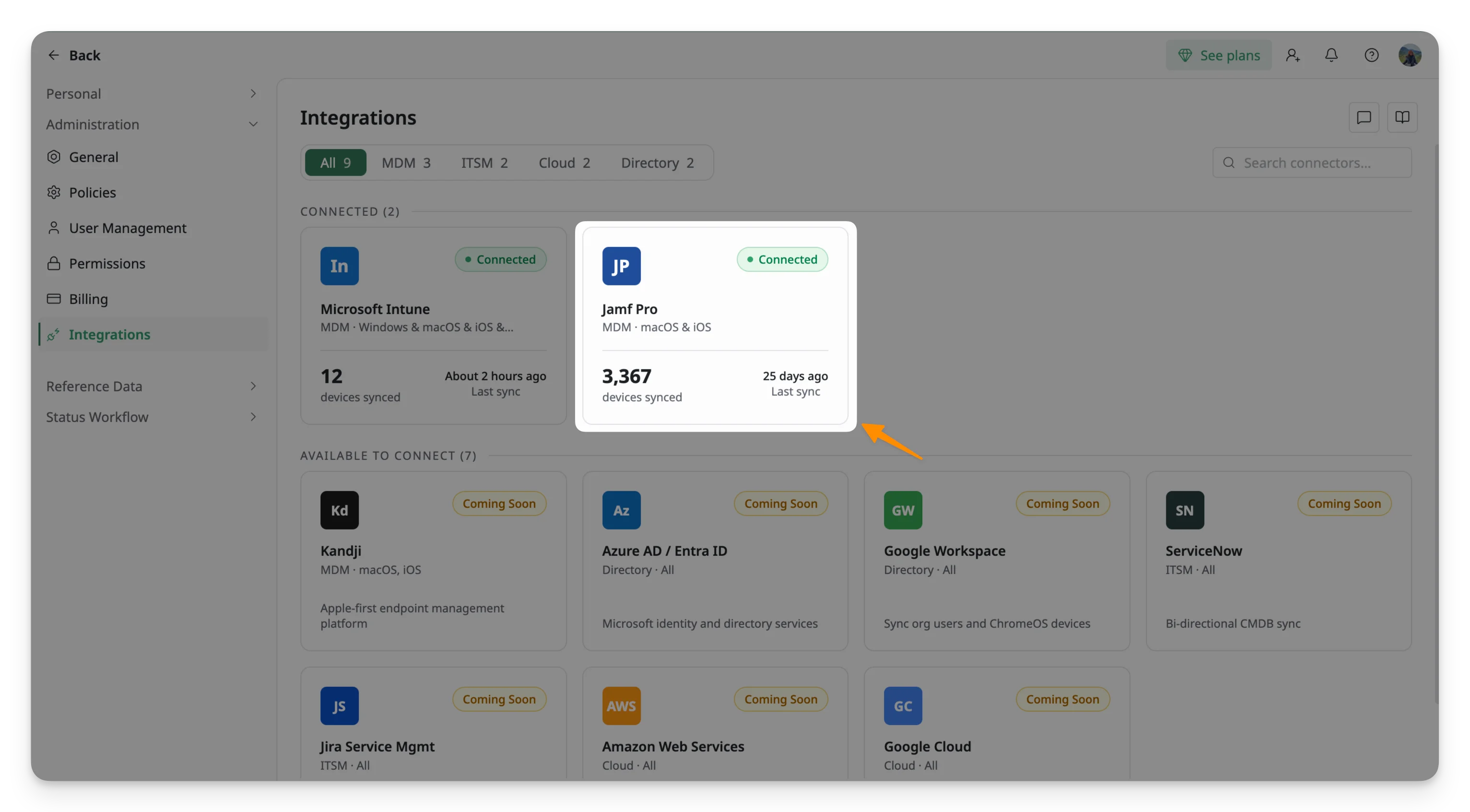
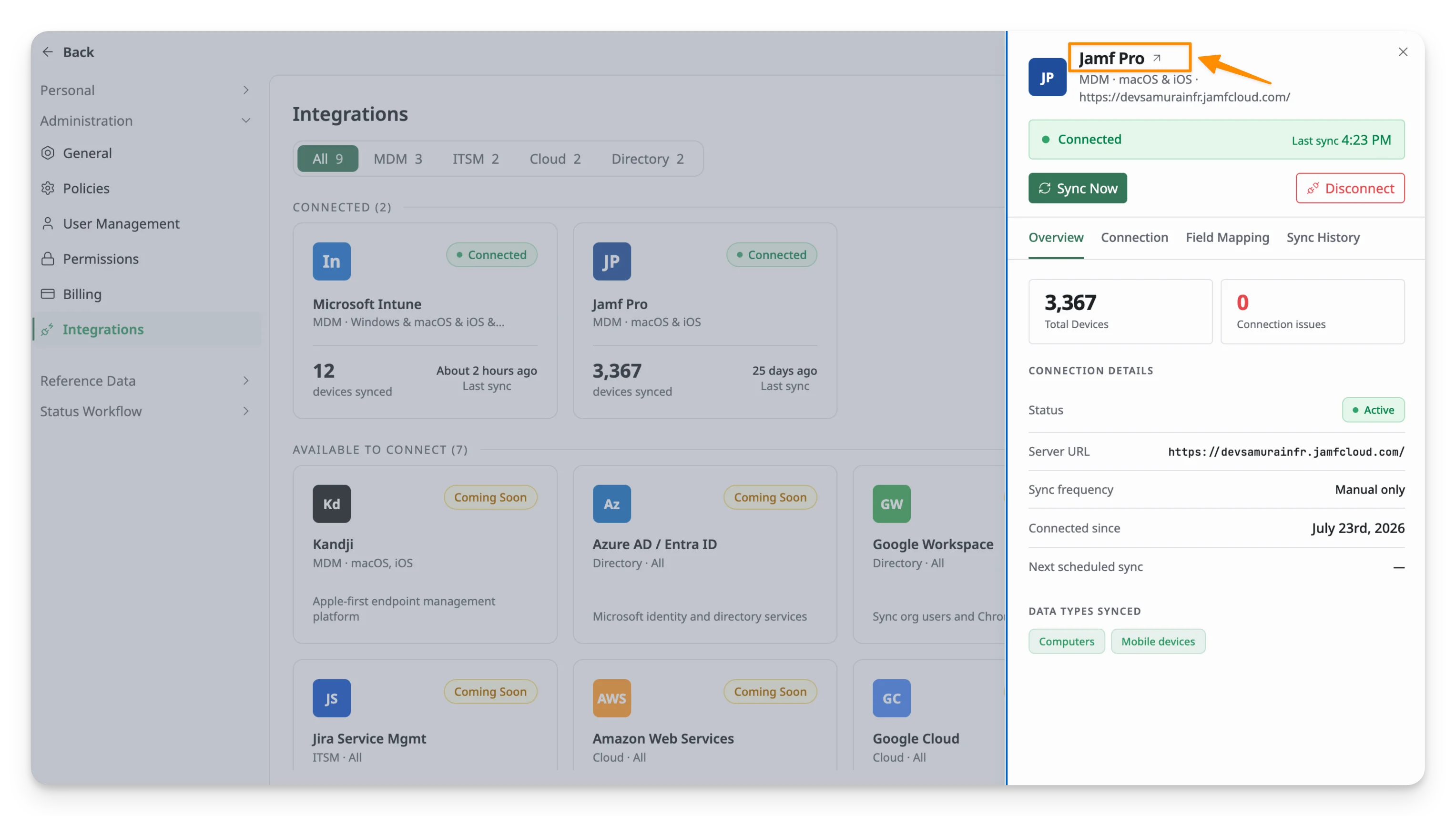
- You should see a right-side panel showing general information about the integration. Click Jamf Pro to open the full Integration Details page.
- You’ll land on the Overview tab, which shows your sync summary, sync health over the last 7 runs, and the result of the latest sync.
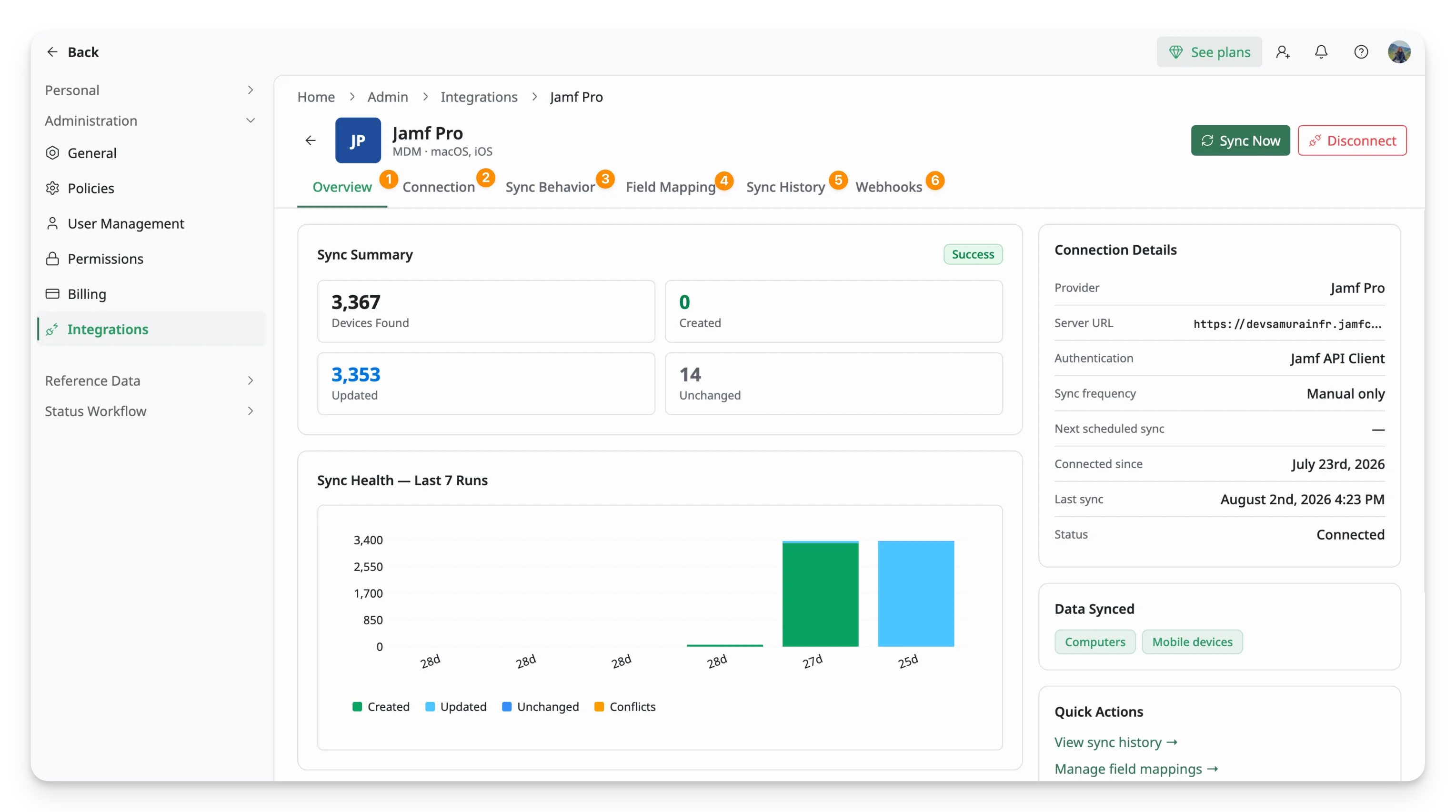
From here, you can access four additional tabs:
| # | Tab | Purpose |
| 1 | Overview | Review the integration summary, connection status, and recent sync health |
| 2 | Configuration | Manage connection details and the scope of data to sync |
| 3 | Sync Behavior | Configure conflict resolution rules and how synced device data is handled in AssetLoom |
| 4 | Field Mapping | Map Microsoft Intune fields to AssetLoom fields and configure supported field mappings |
| 5 | Sync History | Review previous sync runs and their results |
| 6 | Webhooks | Configure real-time event notifications from Jamf Pro |
From this page, you can also:
- Sync Now: Manually trigger an immediate sync outside the regular schedule.
- Disconnect: Remove the connection between AssetLoom and Jamf Pro.
Read More
Applicable Tiers
Free
Starter
Pro
Business