Invite team members to join your site
Learn how to invite team members to join your site
Inviting team members to your AssetLoom workspace is one of the first steps in setting up your system. As an admin, you can invite users and assign them roles so they can start using the platform.
Before You Start
Make sure:
- You are a Site Admin (only admins can invite team members)
- You have the email addresses of the people you want to invit
How to Invite Team Members to Join Your Site
You can invite users in 2 ways:
- From Get Started, click + User under Add Team Members
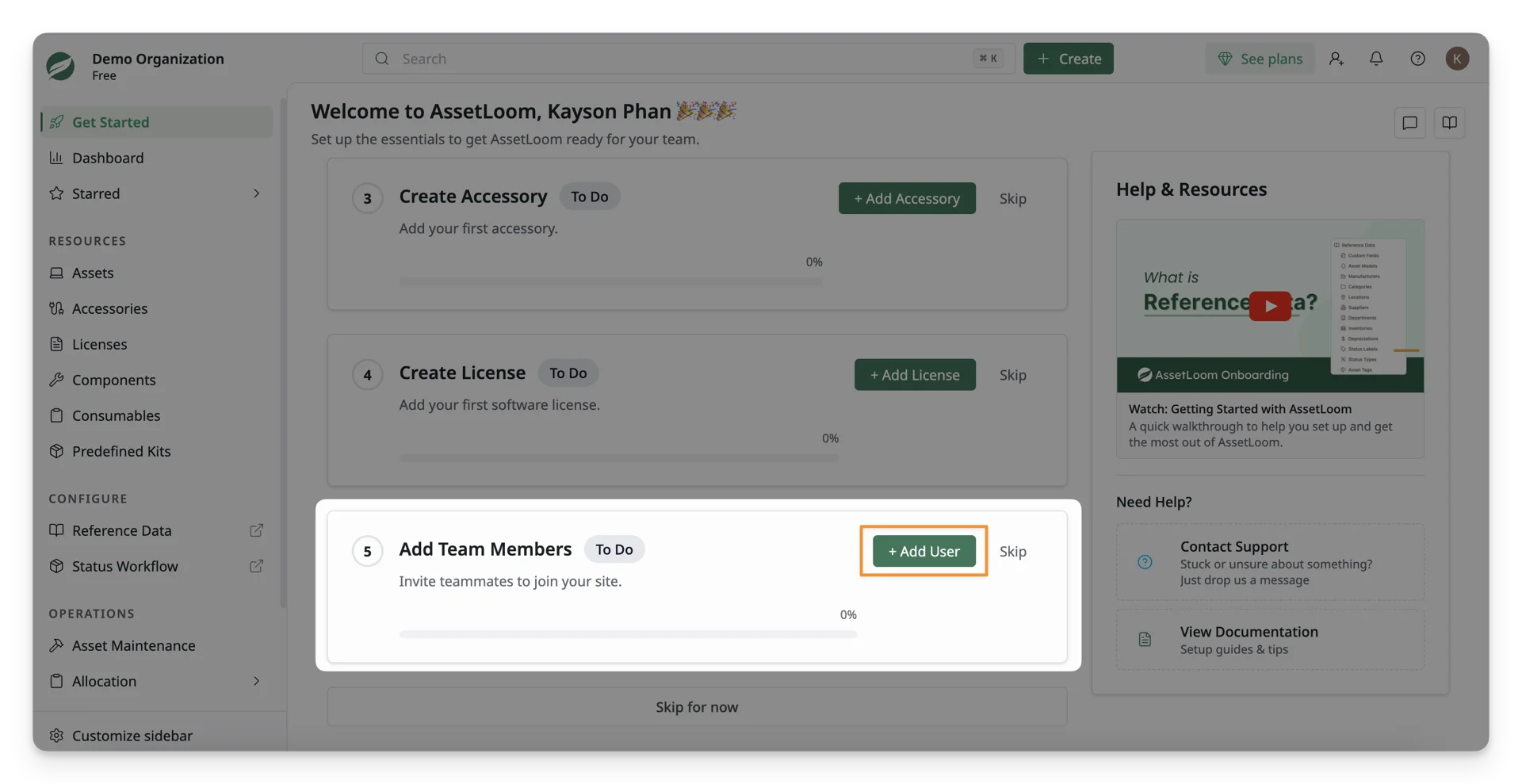
- Or click the Invite users icon in the top navigation bar
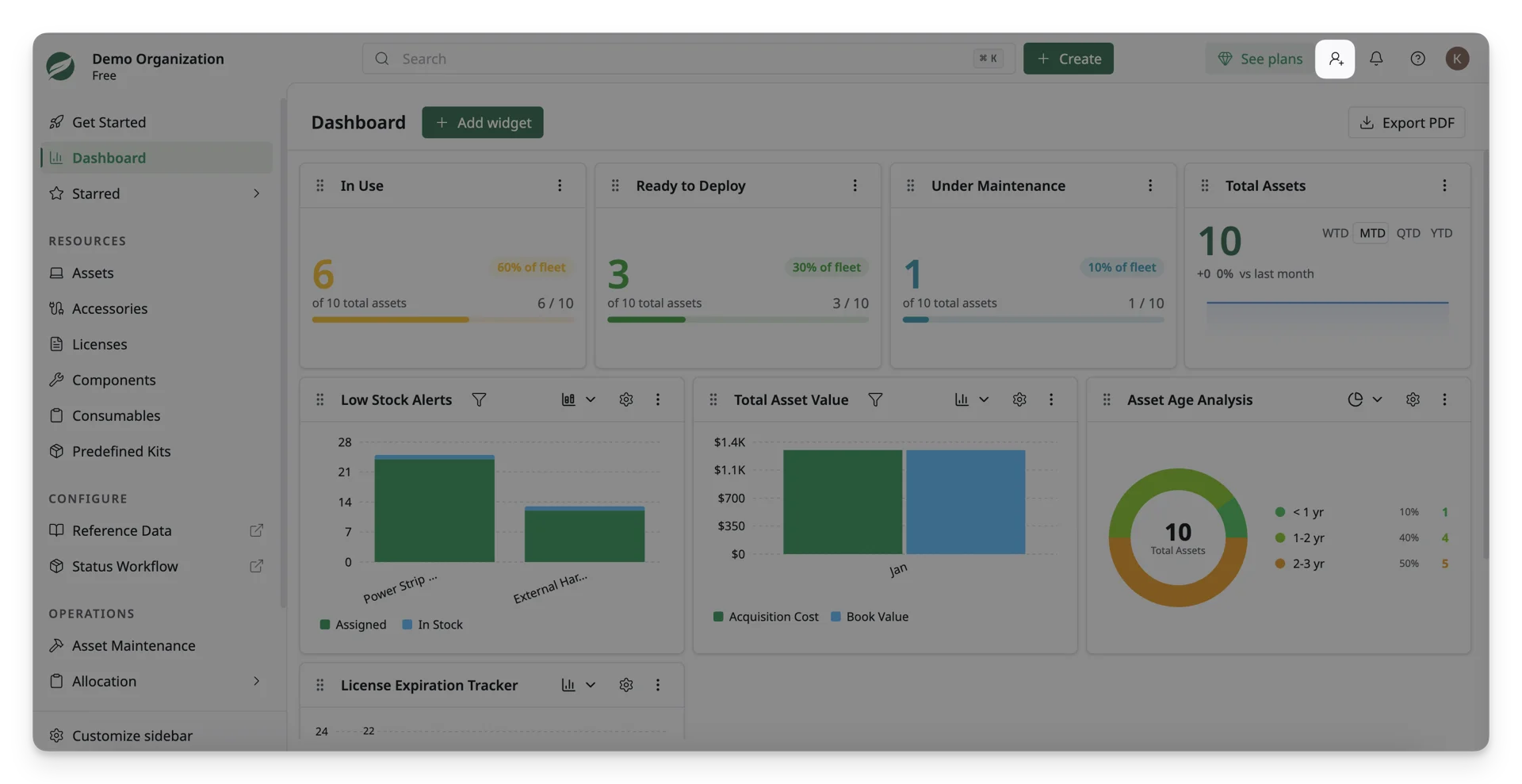
You should see an invitation dialog after clicking Invite Users. Here, you can: 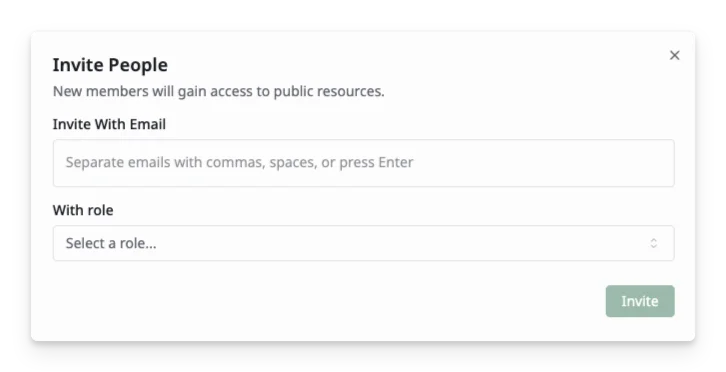
- Enter one or more email addresses.
- Select a role for the invited users:
- Admin – Full access to settings and data
- Editor – Can create and manage resources
- Viewer – Read-only access
- Click Invite to send the invitations.
After inviting users, they’ll receive an email invitation. They can click Accept Invitation to open AssetLoom and join your workspace.
What’s Next?
- Assign an asset to a team member: Learn how to assign an asset from your stock to a team member.
- Create an onboarding kit: Group your onboarding resources into a kit and automatically assign them to new team members.
- Manage access and visibility : Control who can see and manage specific items using roles and permissions.