Integration Hub in AssetLoom
The Integration Hub brings all supported and upcoming connections together in one place.
The Integration Hub is the central place to connect AssetLoom with external systems and manage your connected data sources. From here, you can discover available integrations, connect supported platforms, and access existing integrations to configure synchronization and review sync activity.
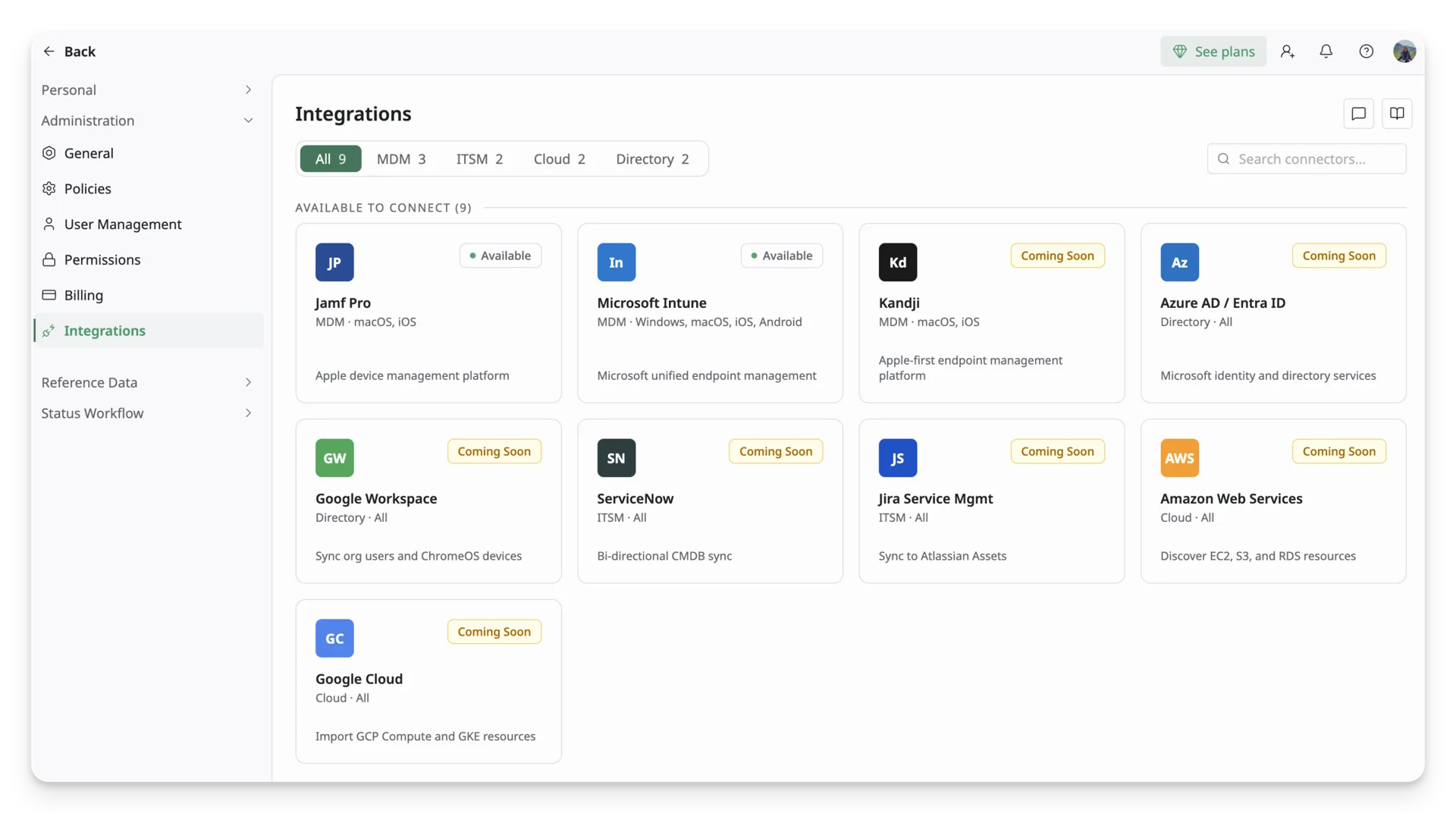
Access the Integration Hub
You can access the Integration Hub in two ways:
Option 1: Use the Integration Shortcut
- From the left-side menu, click Integrations.
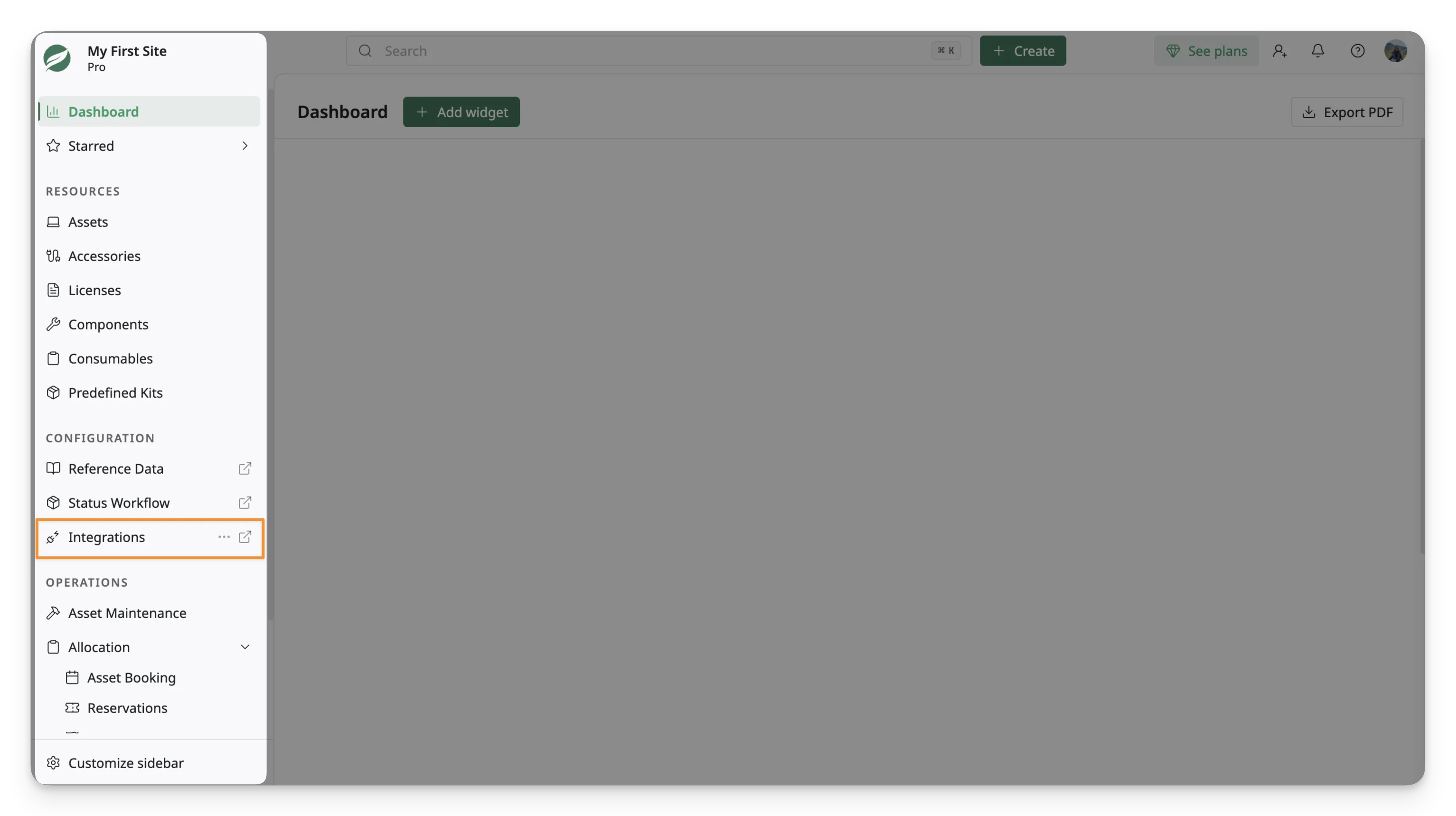
- You will be taken directly to the Integrations page under Administration.
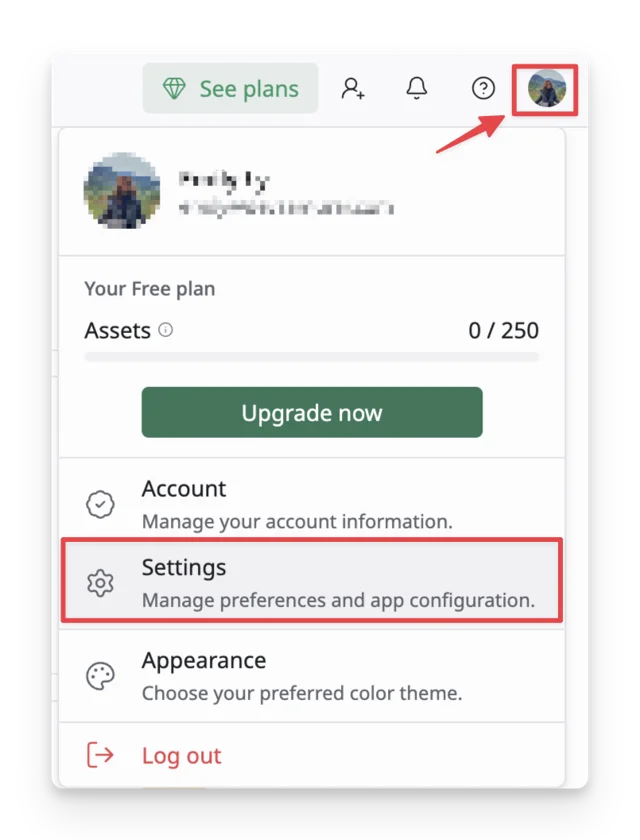
Option 2: Navigate through Settings
- Click your profile icon in the top-right corner and select Settings.
- Under the Administration settings, select Integrations.
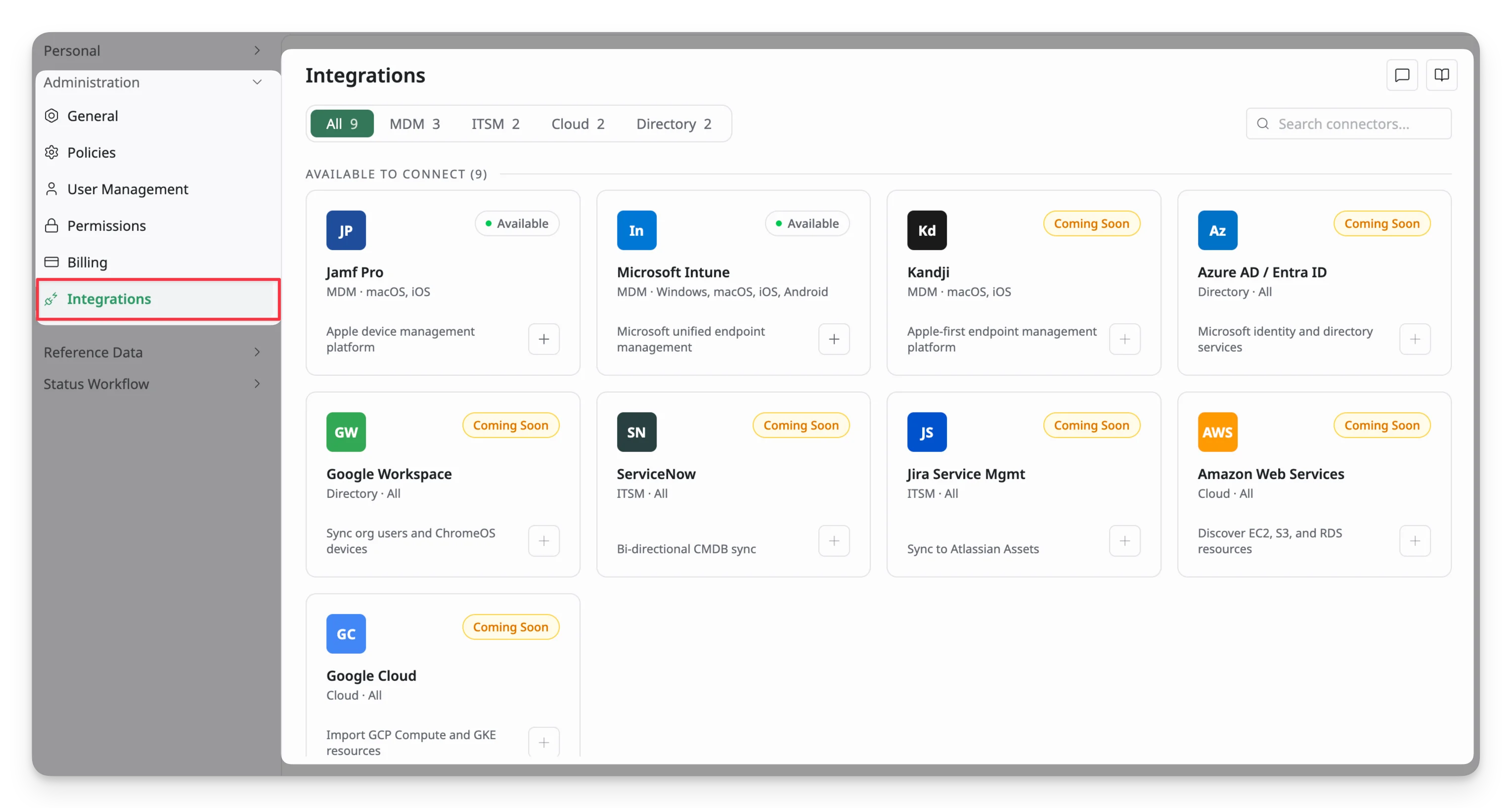
Available Integration Categories
AssetLoom supports integrations across several areas:
- MDM - Mobile Device Management: Import and synchronize device data from platforms such as Jamf Pro, Microsoft Intune, and Kandji.
- Directory Services: Connect employee and identity information from services such as Microsoft Entra ID and Google Workspace.
- ITSM - IT Service Management: Link asset records with service management and CMDB workflows.
- Cloud Platforms: Discover and import cloud resources from providers such as Amazon Web Services and Google Cloud.
Navigate the Integration Hub
To start using an integration, select an available integration card from the Integrations page and complete the connection setup.
Each integration has its own authentication requirements and configuration steps. Follow the dedicated guide for the integration you want to connect:
Manage Connected Integrations
After an integration is connected, it appears in the Connected section of the Integrations page.
Click a connected integration card to open its Integration Details page. From here, you can monitor synchronization activity and manage the integration settings.
For integration-specific configuration details, see: