Depreciations
Learn how to manage depreciations as one type of reference data
1. What is depreciation?
Depreciation is reference data used to model how an asset’s or license’s value decreases over time. In AssetLoom, depreciation helps organizations calculate an asset’s/license’s current value based on its useful life and salvage value, supporting better decisions around replacement, disposal, budgeting, and lifecycle planning.
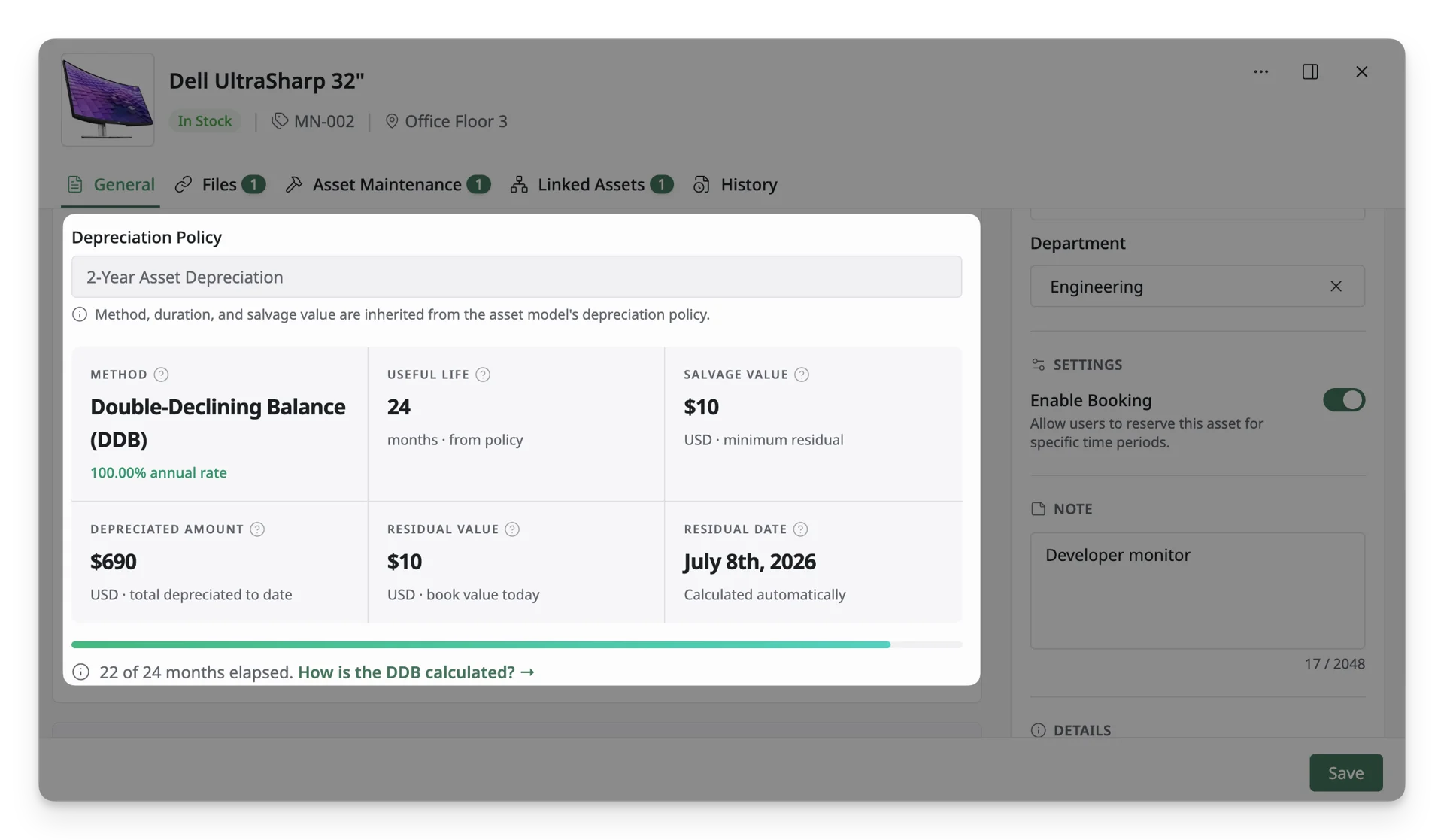
AssetLoom supports two depreciation methods:
Straight-Line Depreciation
Straight-Line depreciation reduces the asset or license value by the same amount each month throughout its useful life.
This method is best for items that lose value evenly over time, such as software licenses, subscriptions, or assets with predictable value reduction.
For example, if an item has a useful life of 36 months, AssetLoom spreads the depreciable value evenly across those 36 months.
Double-Declining Balance Depreciation
Double-Declining Balance depreciation reduces the asset value faster in the earlier years of its useful life. Instead of applying the same depreciation amount every month, AssetLoom applies a higher depreciation rate to the item’s remaining value at the start of each year.
This method is best for assets that lose more value early in their lifecycle, such as laptops, devices, servers, or other hardware.
For Double-Declining Balance depreciation, the useful life must be at least 12 months.
In both methods, AssetLoom stops depreciation once the asset or license reaches its salvage value. The residual value will not go below the salvage value defined in the depreciation policy.
2. How To Set Up Depreciation
Step 1: Navigate To The Depreciation Screen
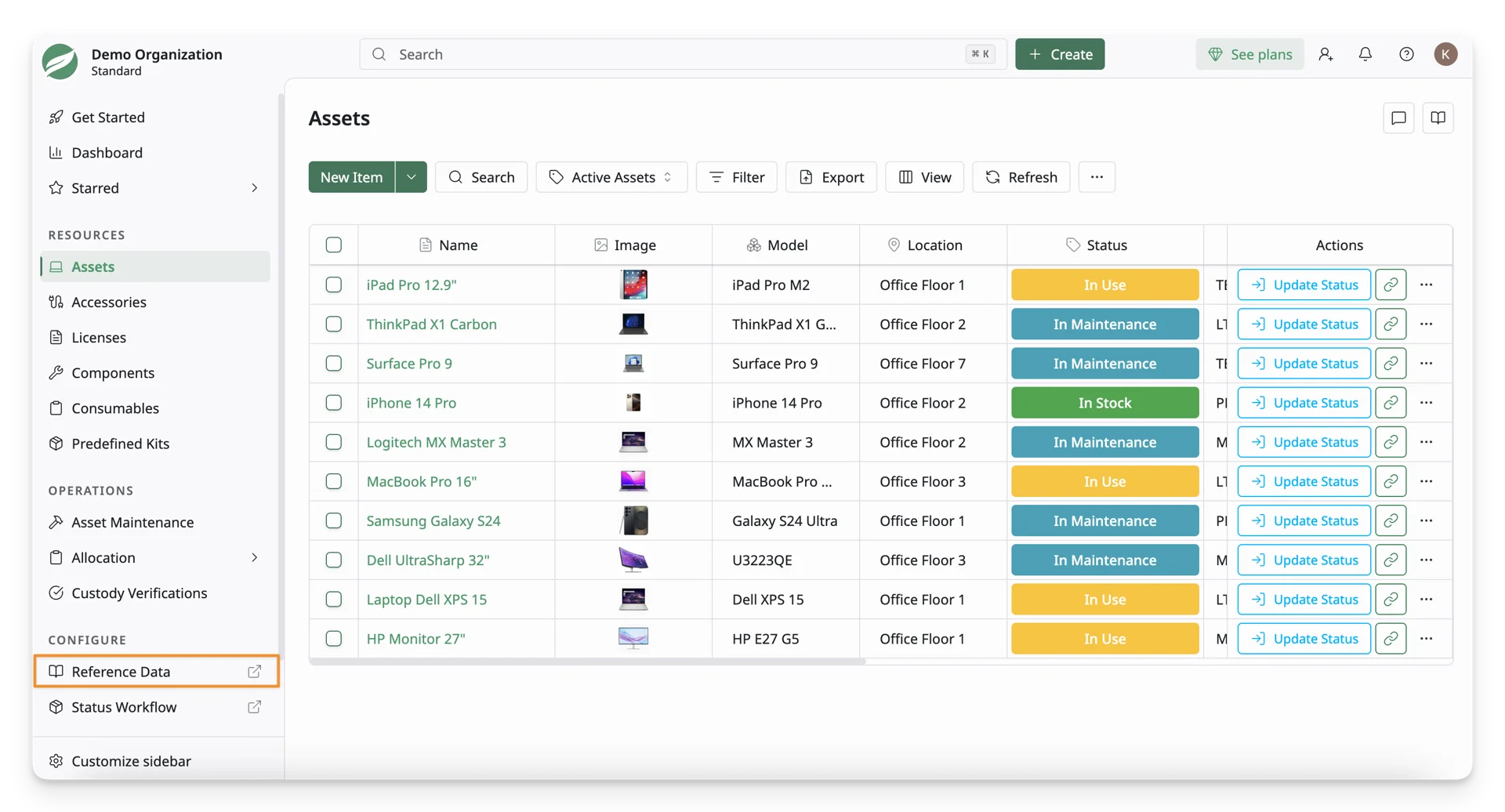
Select the Reference Data in the Configure section on the left-hand side menu sidebar.
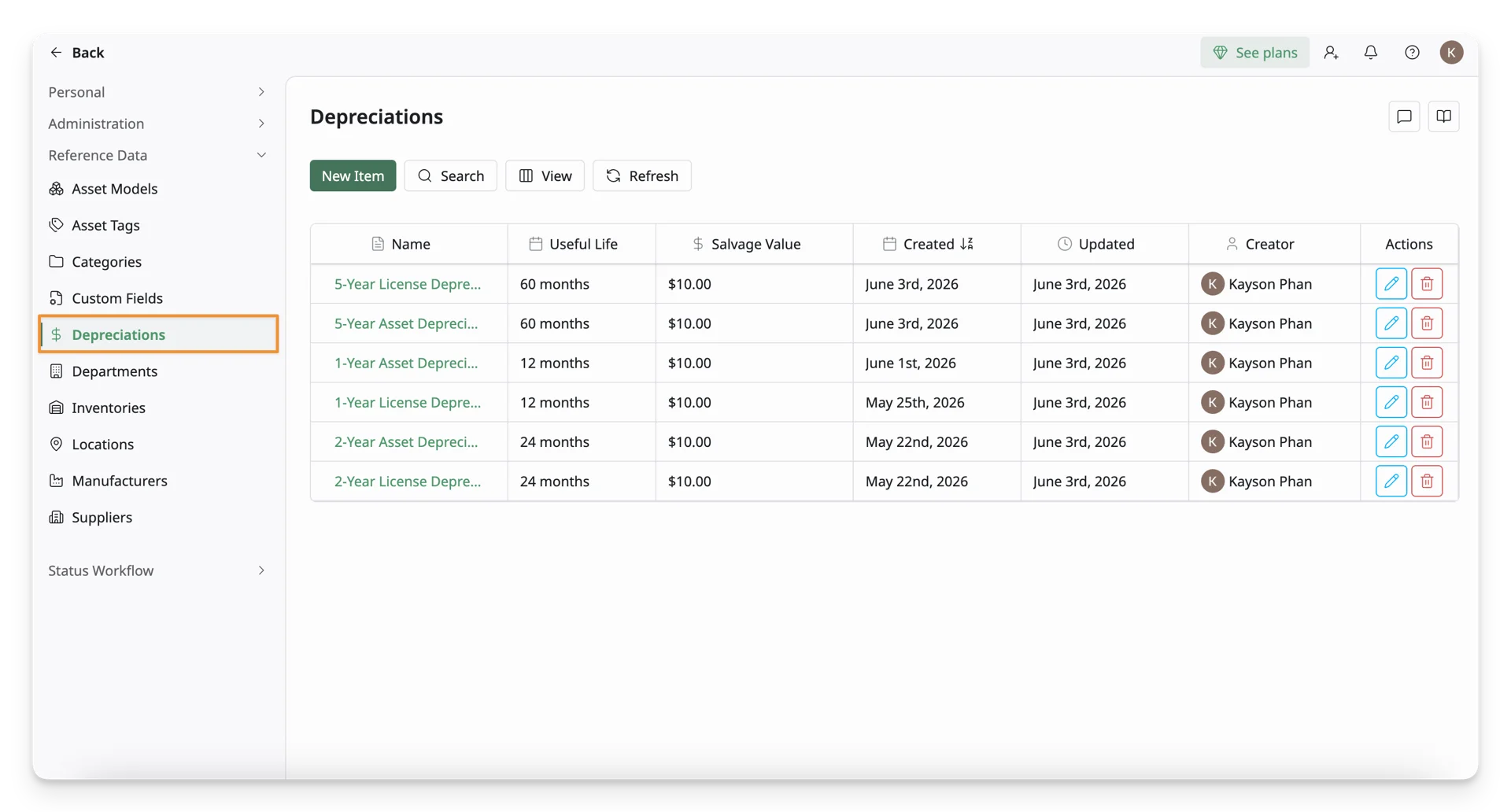
On the left menu sidebar, you can view Depreciation under the Reference Data.
Step 2: Fill In The Depreciation Form
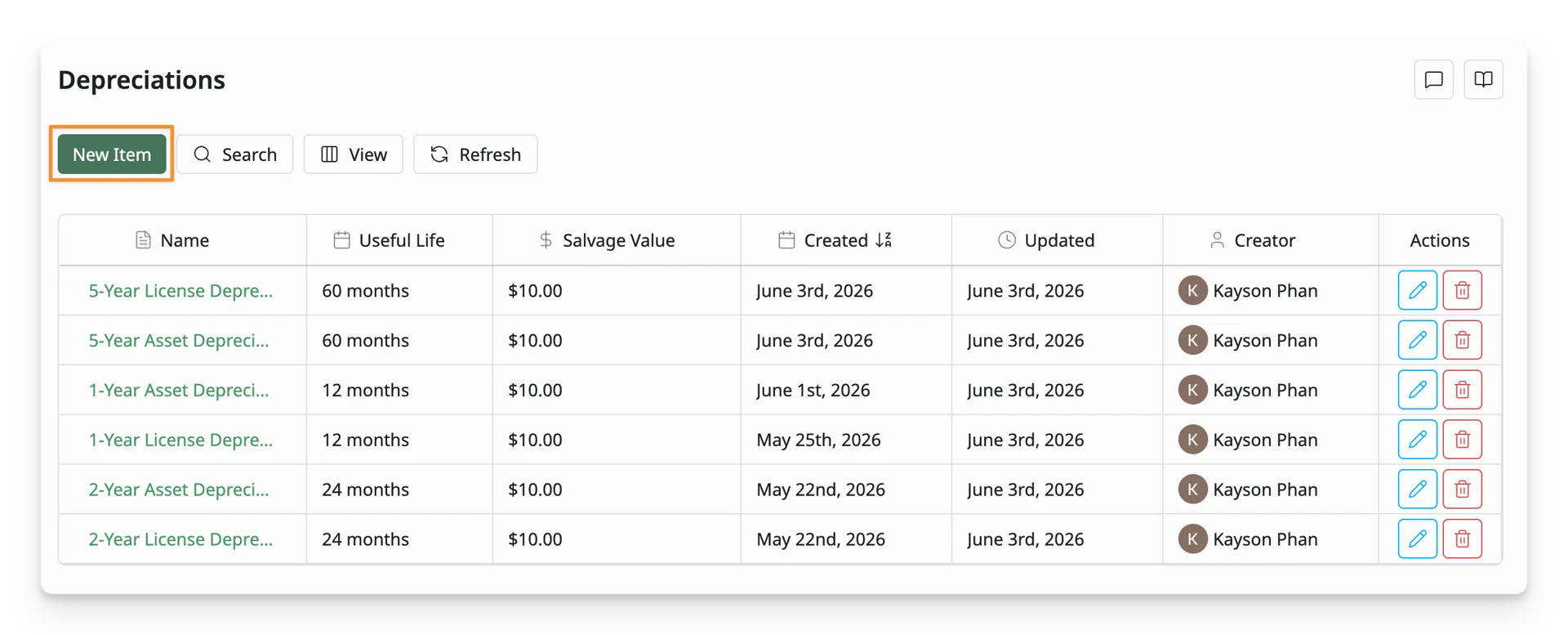
Click the “New Item” button to open the Depreciation Form
Now you can fill in the Depreciation Form. Below are some key fields:
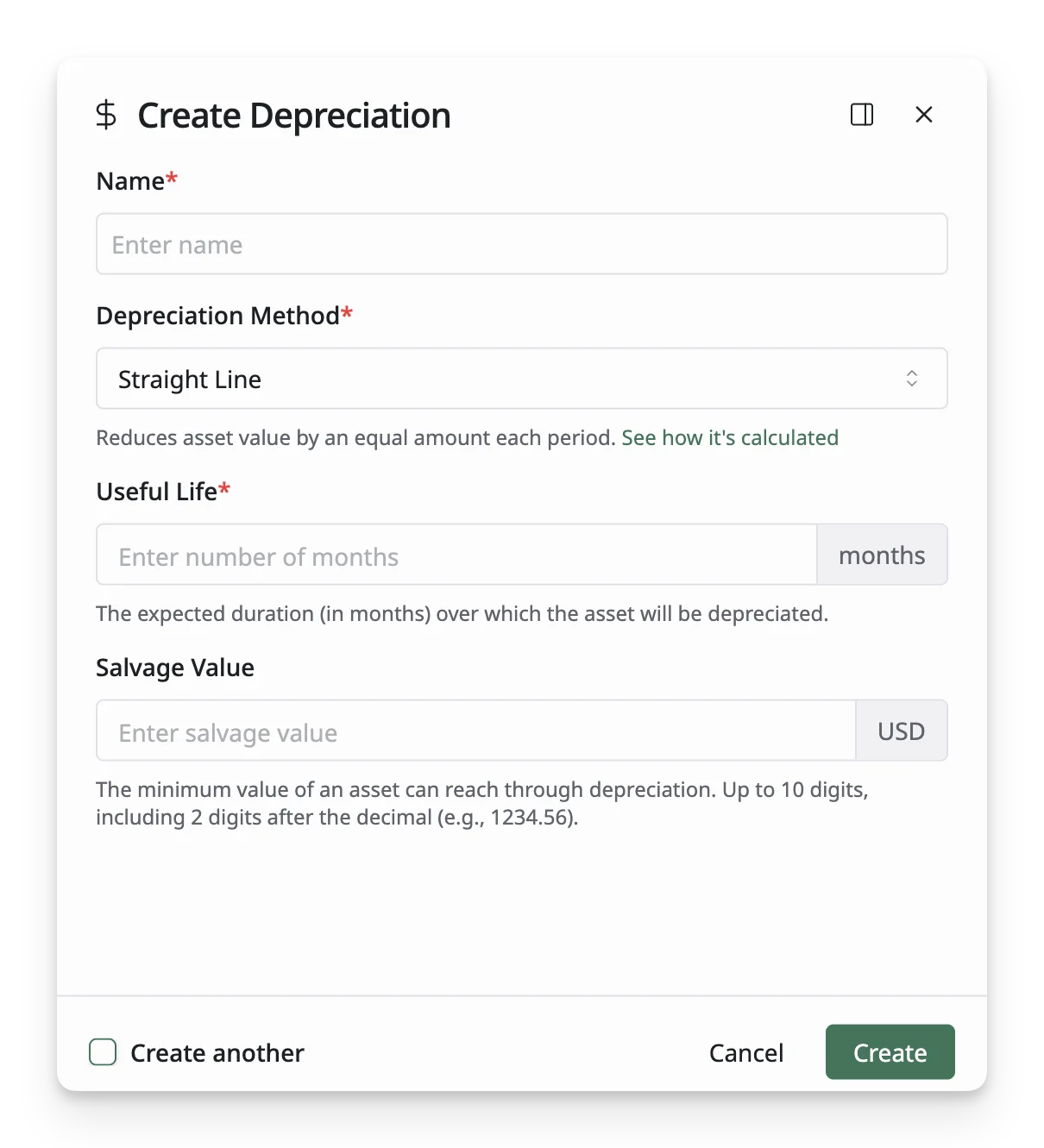
- Name: Enter the name of the depreciation rule, such as 1-Year Asset Depreciation, 3-Year Laptop Depreciation, or 5-Year Server Depreciation.
- Depreciation Method: Select the method used to calculate depreciation over time. Two methods AssetLoom supports are:
- Straight Line: Calculates depreciation by reducing the asset value by the same fixed amount every month until it reaches the salvage value.
- Double-Declining Balance: Calculates depreciation faster in the earlier years by applying a higher depreciation rate to the asset’s remaining value.
- Below are the comparisons of the 2 methods:
| Straight-Line (SL) | Double Declining Balance (DDB) | |
|---|---|---|
| Depreciation Cost | Evenly every month | Higher depreciation at the beginning, lower later |
| Residual Value Updates | Every month | Every year |
| Calculation Unit | Months | Years |
| Best for resources that | Lose value evenly over time, e.g. License | Lose more value early, e.g. Asset |
- Useful Life: Enter the expected period (in months) that the item will remain useful, such as 12 months, 36 months, or 60 months. For Double-Declining Balance, useful life needs to be at least 12 months.
- Salvage Value: Enter the estimated remaining value of the asset at the end of its useful life. The asset value will not depreciate below this amount.
Step 3: Save The Depreciations
Once all required fields are filled, click the Create button at the bottom of the form to save the depreciation to the system.
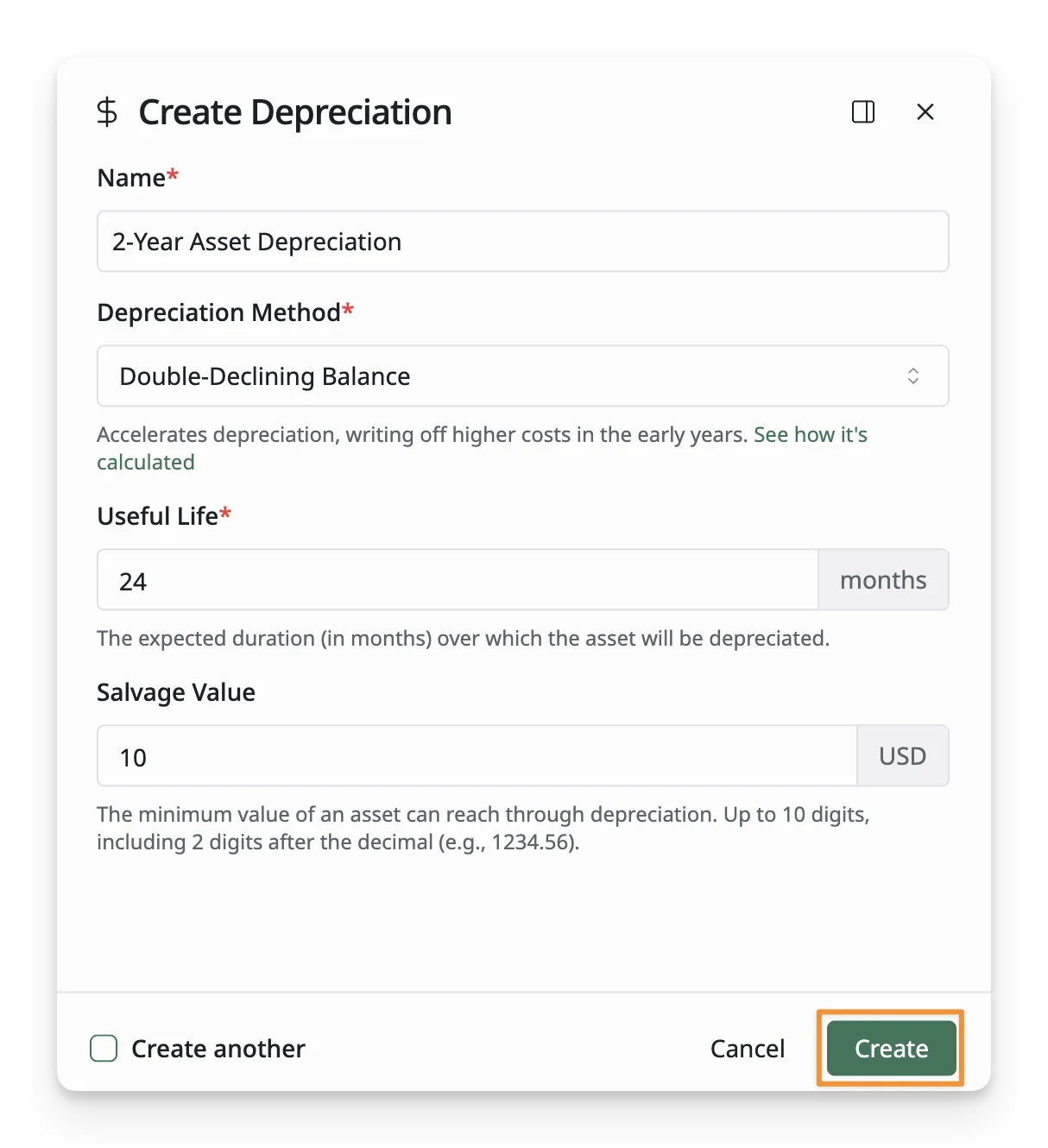
Step 4: Review Your Depreciations
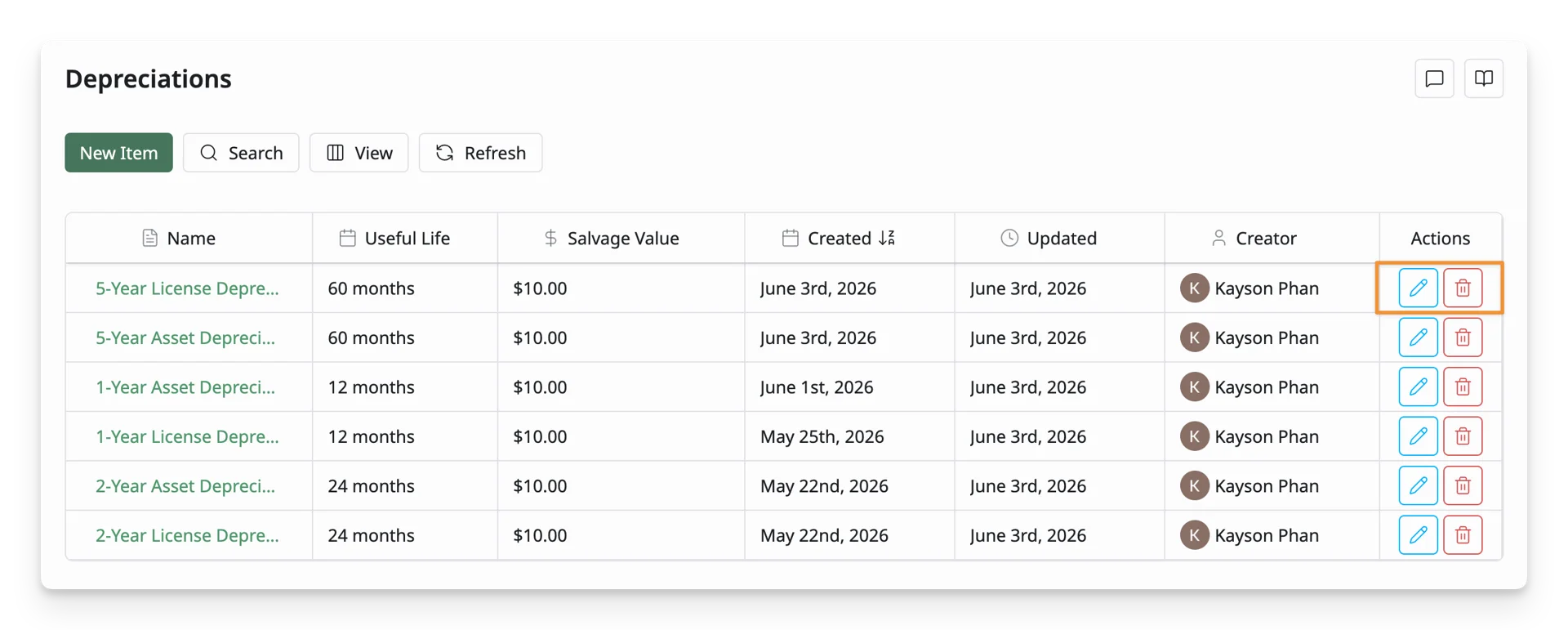
After creating the depreciations, you will be redirected to the Depreciations List, where you can view and manage all your depreciations. If any information needs to be updated, simply click on the depreciations and modify the details as needed.
3. Actions With Depreciation List
After creating the depreciations, you can perform some actions with the list:
- Edit: Update the Depreciation’s details
- Delete: Remove a Depreciation that is no longer needed.
4. How to Assign a Depreciation Policy to Assets or Licenses
After creating a depreciation policy, you can assign it to assets or licenses so AssetLoom can calculate their depreciated amount, residual value, and residual date.
AssetLoom can only calculate depreciation when the asset or license has both Purchase Date and Purchase Cost filled in.
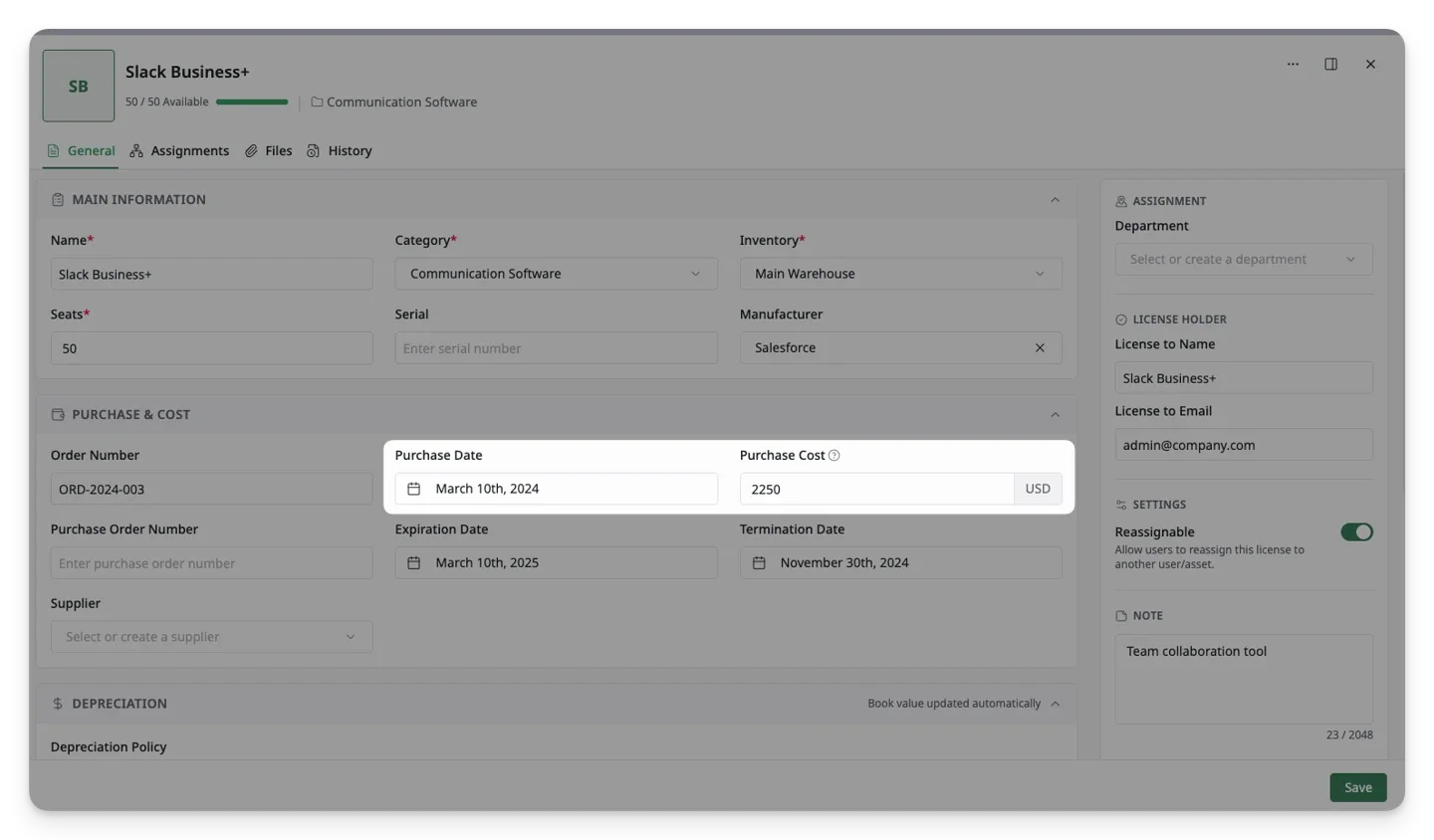
If either field is missing, depreciation values cannot be calculated, even if a depreciation policy has already been assigned.
Assign a Depreciation Policy to Assets
Assets inherit depreciation through their assigned Asset Model. This means you do not assign a depreciation policy directly to each asset. Instead, you assign the policy to an Asset Model, and all assets using that model will follow the same depreciation rule.
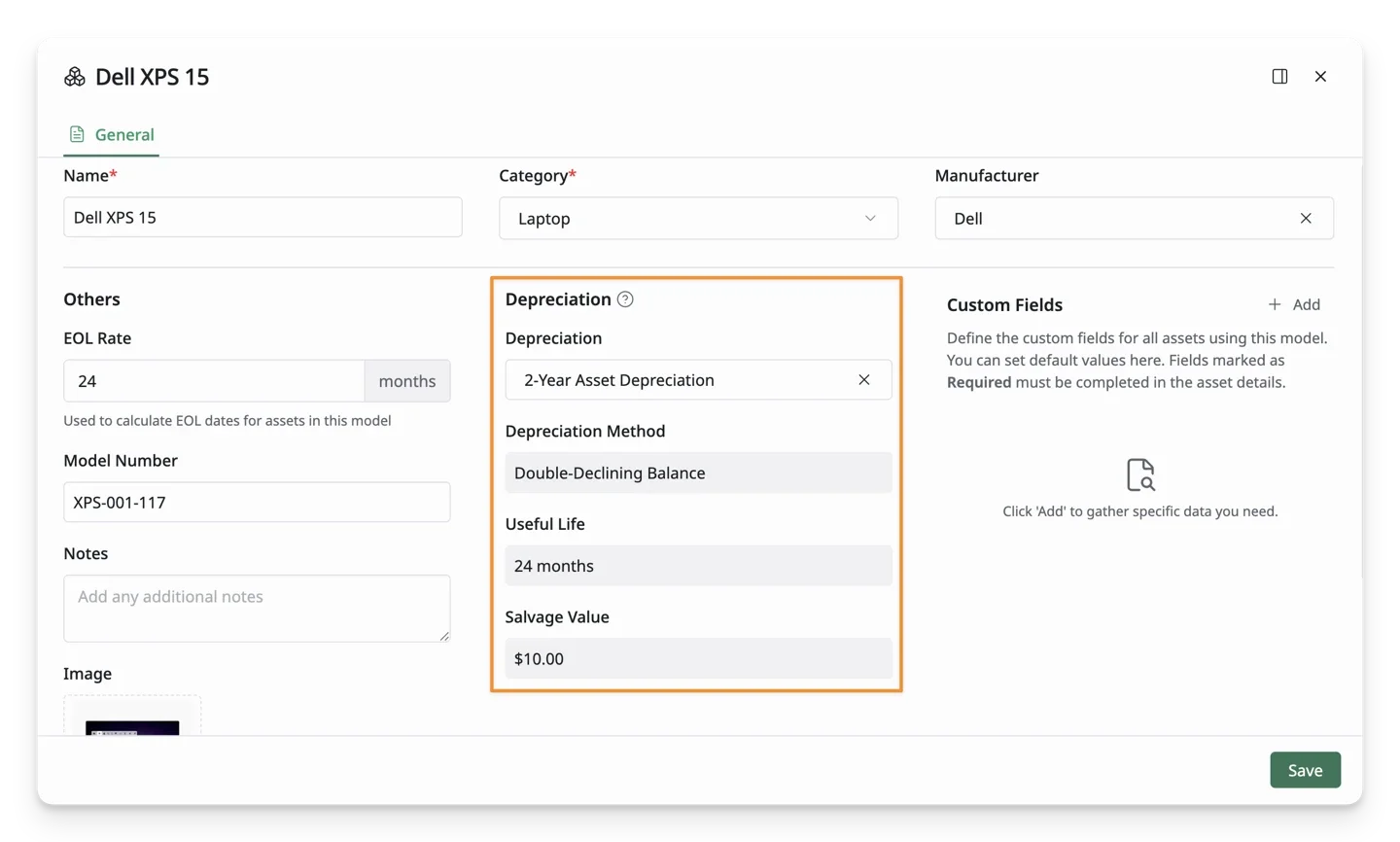
To assign a depreciation policy to assets:
- Go to the Asset Models page.
- Create a new Asset Model or open an existing one.
- Select the depreciation policy you want to apply.
- Save the Asset Model.
Once the depreciation policy is assigned to the Asset Model, all assets linked to that model will inherit the policy. AssetLoom will then calculate each asset’s depreciation based on the method, useful life, and salvage value defined in the selected policy.
For example, if a “3-Year Laptop Depreciation” policy is assigned to a Laptop Asset Model, all laptop assets using that model will be depreciated according to that policy.
Assign a Depreciation Policy to Licenses
Licenses can have a depreciation policy assigned directly. You can select a depreciation policy when creating a new license or update the policy later by editing an existing license.
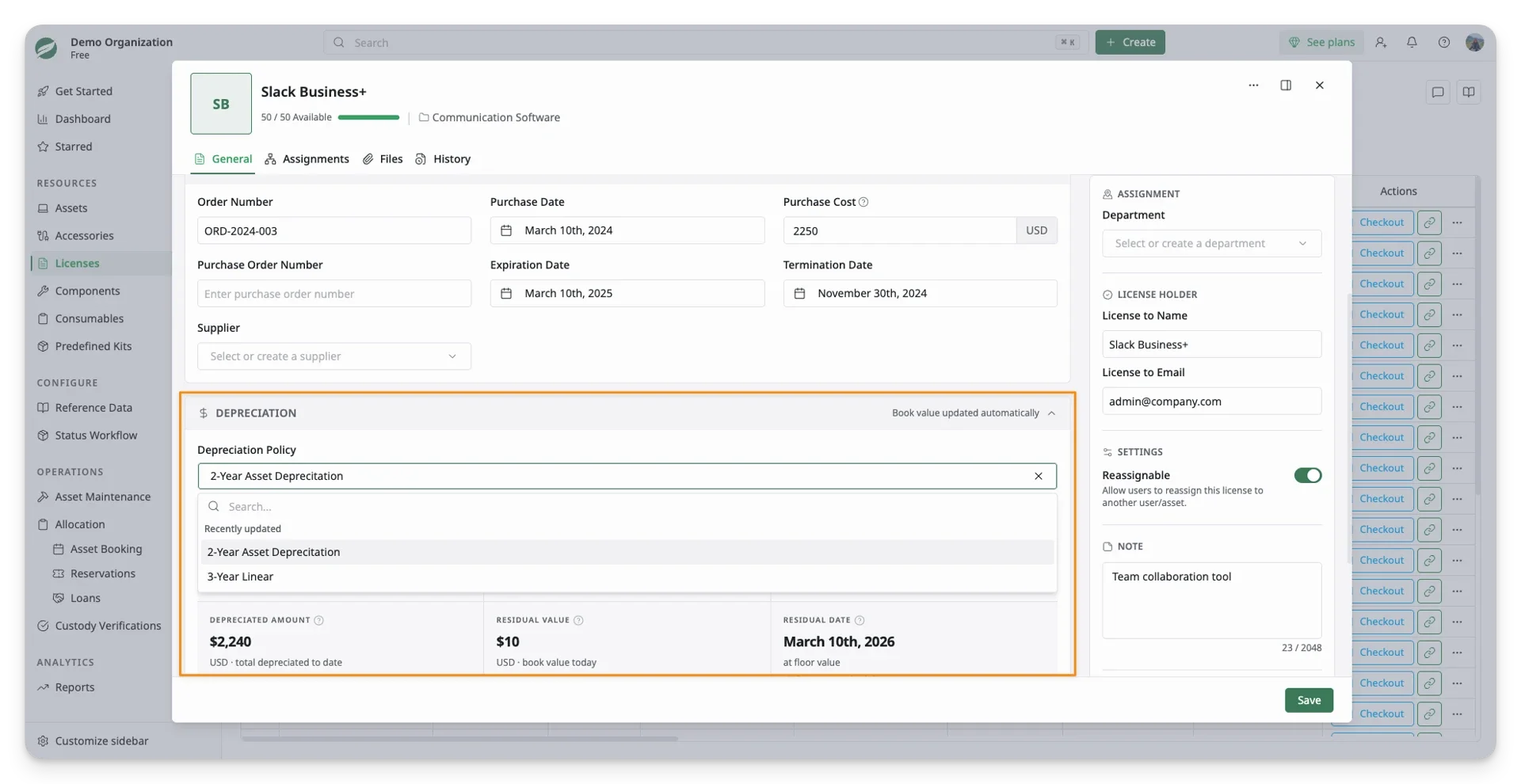
To assign a depreciation policy to a license:
- Go to the Licenses page.
- Create a new license or open an existing license.
- Locate the Depreciation section.
- Select the depreciation policy you want to apply.
- Save the license.
Once the policy is saved, AssetLoom will calculate the license’s depreciated amount, residual value, and residual date based on the method, useful life, and salvage value defined in the selected policy.
5. How Depreciations Are Calculated
After setting up your depreciation and filling in the purchase information, you can see the depreciation information of an asset or license in the Asset/License Detail Screen
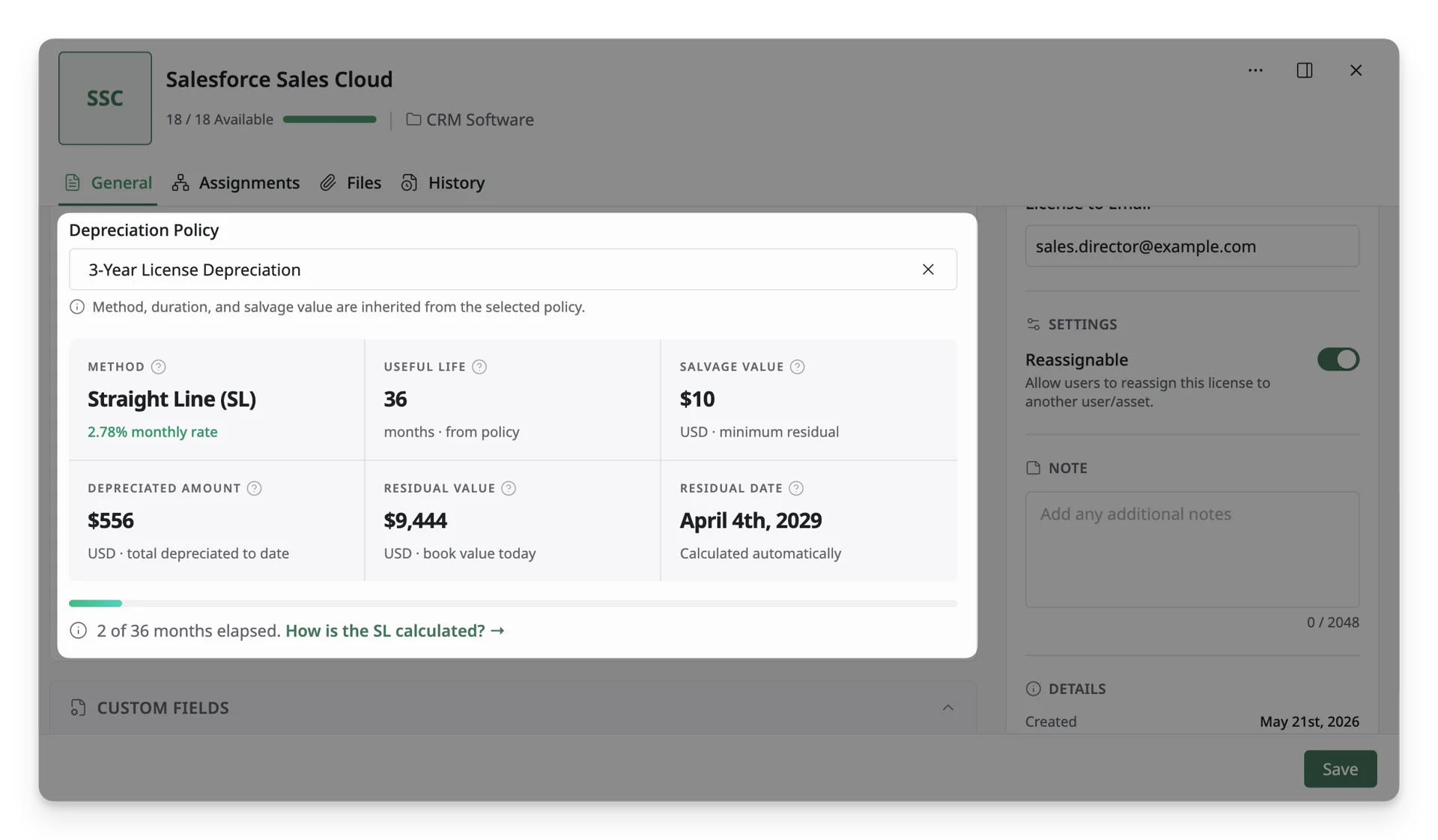
Summary Table of Depreciation-Related Fields
| Field Name | Type | Editable | Calculated | Description |
|---|---|---|---|---|
| Depreciation Policy | Choice | Yes | No | Select the depreciation rule applied to the asset or license. |
| Method | Choice | No | No | Shows the calculation method used by the selected depreciation policy. |
| Useful Life | Date | No | No | Shows how long the asset or license is expected to be used before reaching its salvage value. |
| Salvage Value | Currency | No | No | Shows the remaining value of the asset or license at the end of its useful life. |
| Depreciated Amount | Currency | No | Yes | Shows the total depreciation amount applied up to now. |
| Residual Value | Currency | No | Yes | Shows the remaining value of the asset or license after depreciation. |
| Residual Date | Date | No | Yes | Shows the date when the asset or license reaches its salvage value. |
Once you select a Depreciation Policy Name from your existing list, the Depreciation Method, Useful Life, and Salvage Value corresponding to this depreciation will be automatically filled in.
Here is how the other fields are calculated:
Depreciated Amount
Depreciated Amount indicates the total depreciation expense that has been applied to the asset or license so far.
| Straight-Line (SL) | Double Declining Balance (DDB) | |
|---|---|---|
| Formula | Depreciation Rate = 1 / Useful Life (months) Monthly Expense = (Purchase Cost - Salvage Value) × Depreciation Rate Depreciated Amount = Monthly Expense × Elapsed Month | Depreciation Rate = 2 / Useful Life (years) Factor “2”: Depreciation Factor, meaning it depreciates at twice the normal straight-line rate Current Year Expense = Residual Value at start of year × Depreciation Rate Depreciated Amount = Sum of all year expenses so far |
Residual Value
Residual Value shows the asset or license’s remaining value after depreciation has been applied.
| Straight-Line (SL) | Double Declining Balance (DDB) | |
|---|---|---|
| Formula | Residual Value = Previous Residual Value - Monthly Expense | Residual Value = Previous Residual Value - Annual Expense |
Despite the calculations, if the Residual value < Salvage value, AssetLoom will display the Salvage value instead.
Example
Purchase Cost = $10,000, Salvage Value = $500, Useful Life = 36 months
A. Depreciated Amount After:
- 2 Months for Straight Line approach
- 2 Years for Double-Declining approach
B. Residual Value After:
- 2 Months for Straight Line approach
- 2 Years for Double-Declining approach
Straight-Line (SL)
A. Depreciated Amount
Step 1: Calculate the Depreciation Rate”
- Depreciation = 1/36 (months) = 2.78%
Step 2: Calculate Monthly Expense
- Monthly Expense = (10,000 - 500) x 2.78% = $264 per month
Step 3: Calculate The Depreciated Amount after 2 months:
- Depreciated Amount = $264 x 2 = $528
B. Residual Value
Step 1: Calculate the Current Expense:
Step 2: Calculate the Resident Value after Month 2:
- Residual Value after Month 2 = $10,000 − $528 = $9,472
Double-Declining Balance (DDB)
A. Depreciated Amount
Step 1: Calculate the Depreciation Rate:
- Depreciation = 2/3 (years)= 66.67%
Step 2: Calculate Annual Expense Year 1:
- Annual Year 1 Expense = $10,000 x 66.67% = $6,667
Step 3: Calculate Residual Value Year 1:
- Residual Value after Year 1 = Residual Value start of Year 2 = $10,000 − $6,667 = $3,333
Step 4:Calculate Annual Expense Year 2:
- Annual Year 1 Expense= $3,333 x 66.67% = $2,222
Step 5: Depreciated Amount after 2 years:
- Depreciated Amount = $6,667 + $2,222 = $ =8,889
B. Residual Value
Step 1: Calculate the Depreciated Amount after Year 2:
Step 2: Calculate the Resident Value after Year 2:
- Residual Value after Year 2 = $10,000 − $8,889 = $1,111
Residual Date
Residual Date displays the date when the asset or license reaches its salvage value.
Formula: Residual Date = Purchase Date + Useful Life (months)
Example: Purchase Date Jan 01, 2026, Useful Life = 36 months
-> Residual Date = Jan 01, 2029