Respond to a Custody Verification Request
This guide help you learn how to respond to a Custody Verification Request
A custody verification request asks you to confirm whether an assigned asset is currently in your possession. When responding to a custody verification request, you confirm that you have the asset or report that you do not have it.
Custody verification requests can only be completed by the user assigned to the asset.
Whether you are a regular member or an admin, you can respond to a custody verification request as long as the asset is assigned to you.
If you are an admin, you can still view and manage custody verification records, but the response should be submitted by the assignee responsible for the asset.
Locate Your Pending Custody Verification Request
From the AssetLoom main menu, go to: Custody Verifications > My Verifications. You should see the pending custody verification requests assigned to you.
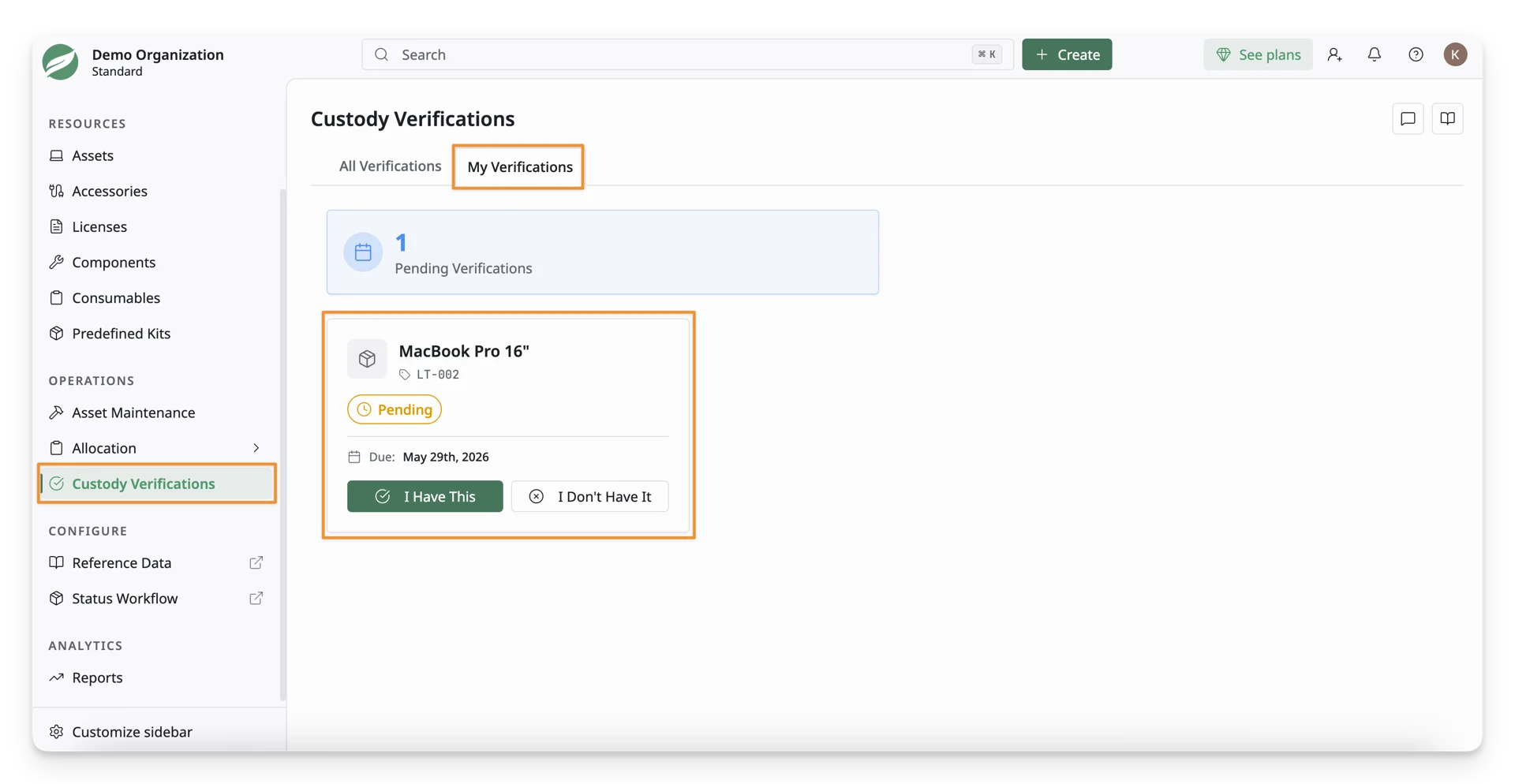
You may also receive an email notification when a custody verification request is assigned to you. From the email, select See more details to open the pending verification request in AssetLoom.
Respond to a Pending Verification
On the My Verifications page, each pending verification card displays the asset name, asset tag, status, and response due date.
You can respond in one of two ways:
- I Have This: Select this if the asset is currently in your possession.
- I Don’t Have It: Select this if the asset is not currently in your possession.
If You Have the Asset
Select I Have This to confirm that the asset is currently in your possession. In the Verify Asset Custody dialog, complete the required information:
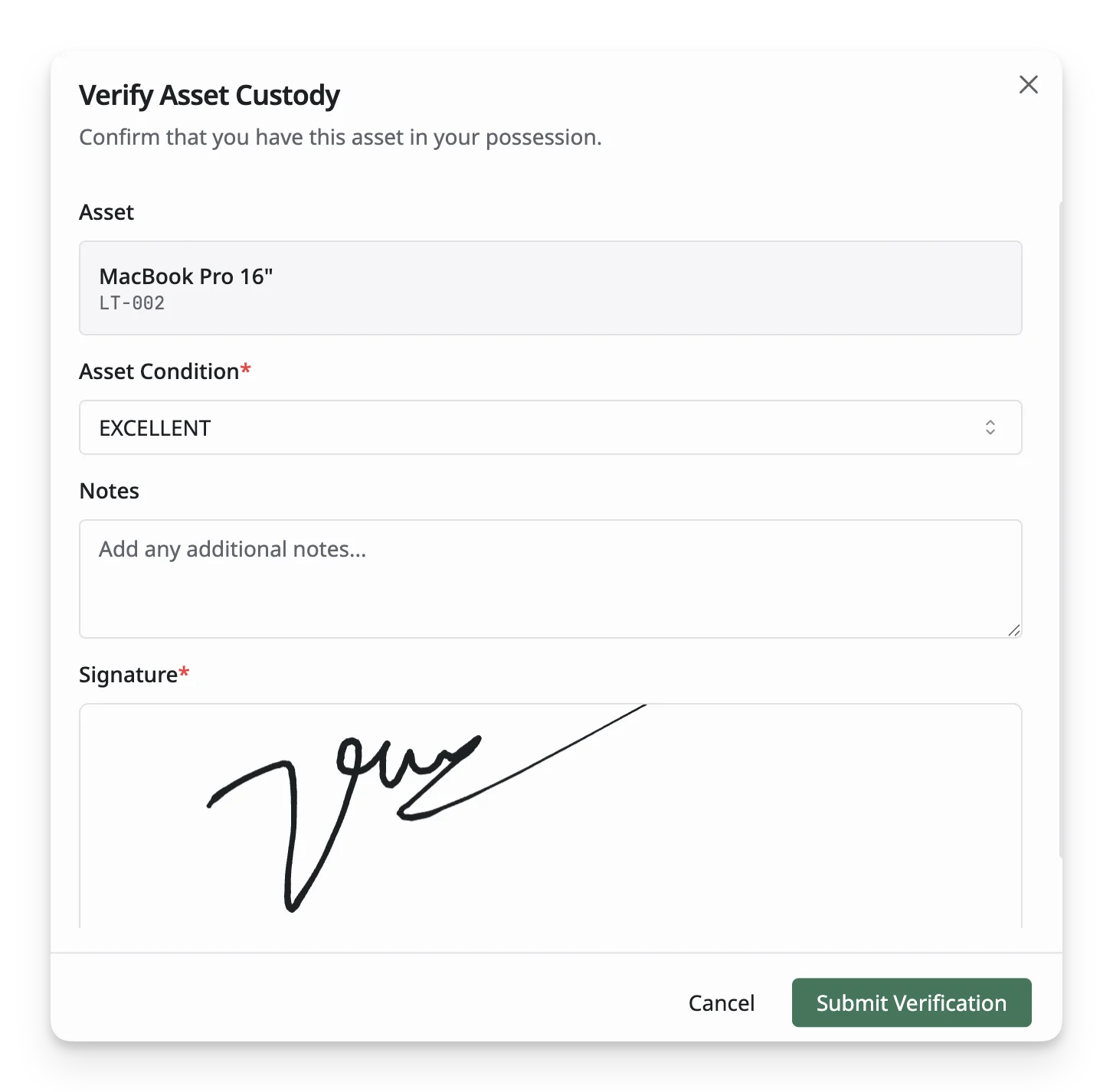
- Asset: Review the asset name and asset tag.
- Asset Condition: Select the current condition of the asset.
- Excellent: The asset is in excellent condition with no visible issues.
- Good: The asset is functioning as expected with minimal or no issues.
- Fair: The asset is usable but may show signs of wear or minor issues.
- Poor: The asset is usable but has noticeable issues or heavy wear.
- Damaged: The asset has physical damage and may not function properly.
- Needs Repair: The asset requires repair before it can be used normally.
- Lost: The asset is no longer in your possession and is considered lost.
- Notes: Add any additional details about the asset, if needed.
- Signature: Sign in the signature section if a signature is required.
After that, click Submit Verification to complete the response.
If You Do Not Have the Asset
Select I Don’t Have It to report that the asset is not currently in your possession. In the Report Asset Not in Possession dialog, complete the required information:
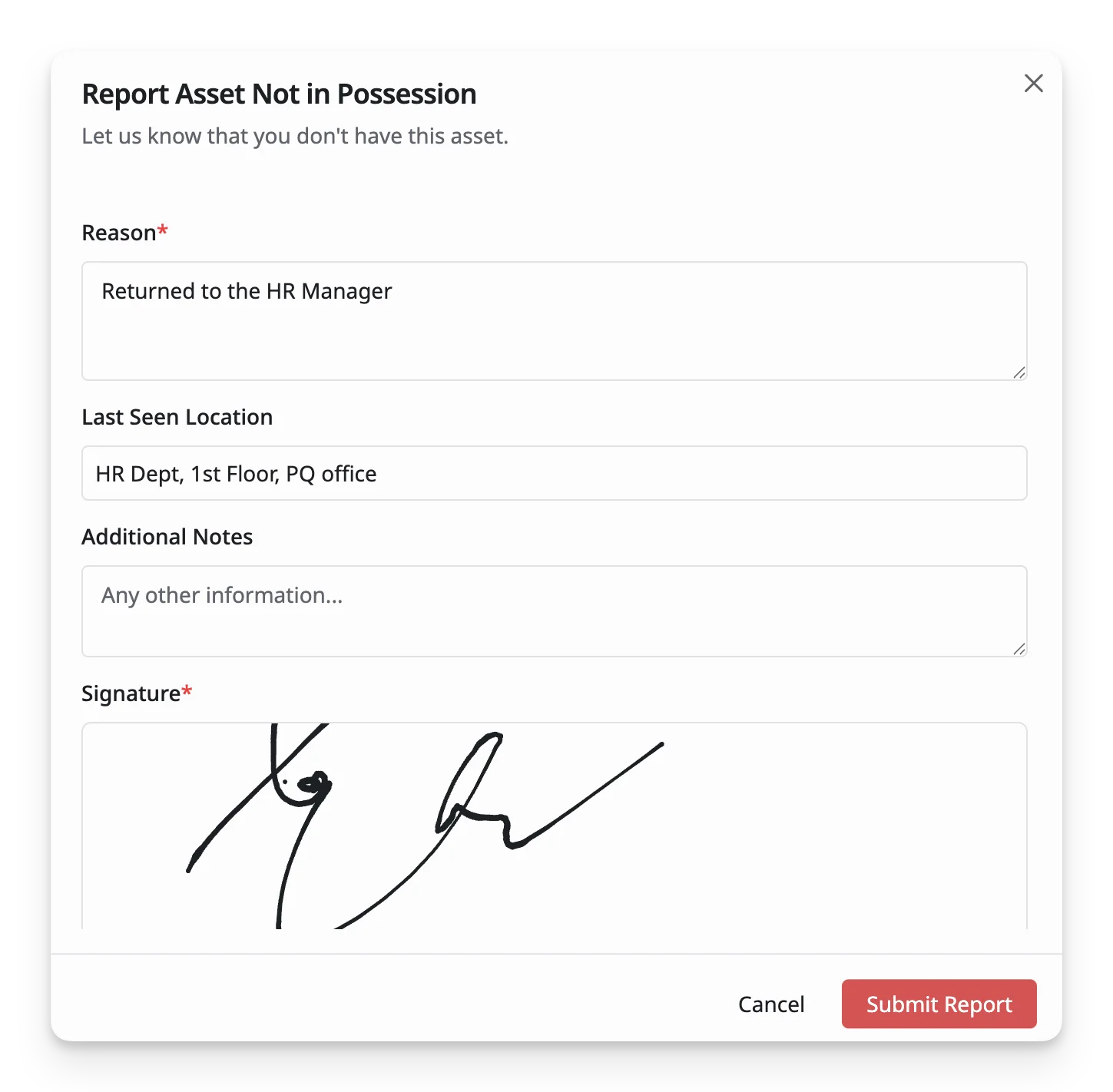
- Asset: Review the asset name and asset tag.
- Reason: Explain why you do not have the asset. E.g., the asset was left at another office or returned to a manager.
- Last Seen Location: Enter where you last saw the asset, if known.
- Additional Notes: Add any other information that may help the admin follow up.
- Signature: Sign in the signature section if a signature is required.
Select Submit Report to complete the response.
After You Submit
After you submit the verification or report, AssetLoom updates the custody verification record.
Admins and authorized users can review your response, including the asset condition, notes, reason, last seen location, and signature if provided.