The Custody Verification List
This guide help you gain basic understanding about the Custody Verification List
The Custody Verifications feature helps you track whether users still have the assets assigned to them and what condition those assets are in.
Use custody verifications to confirm asset possession, record asset condition, identify missing assets, and follow up on overdue verification requests.
To open this page, go to the left-side menu and select Custody Verifications.
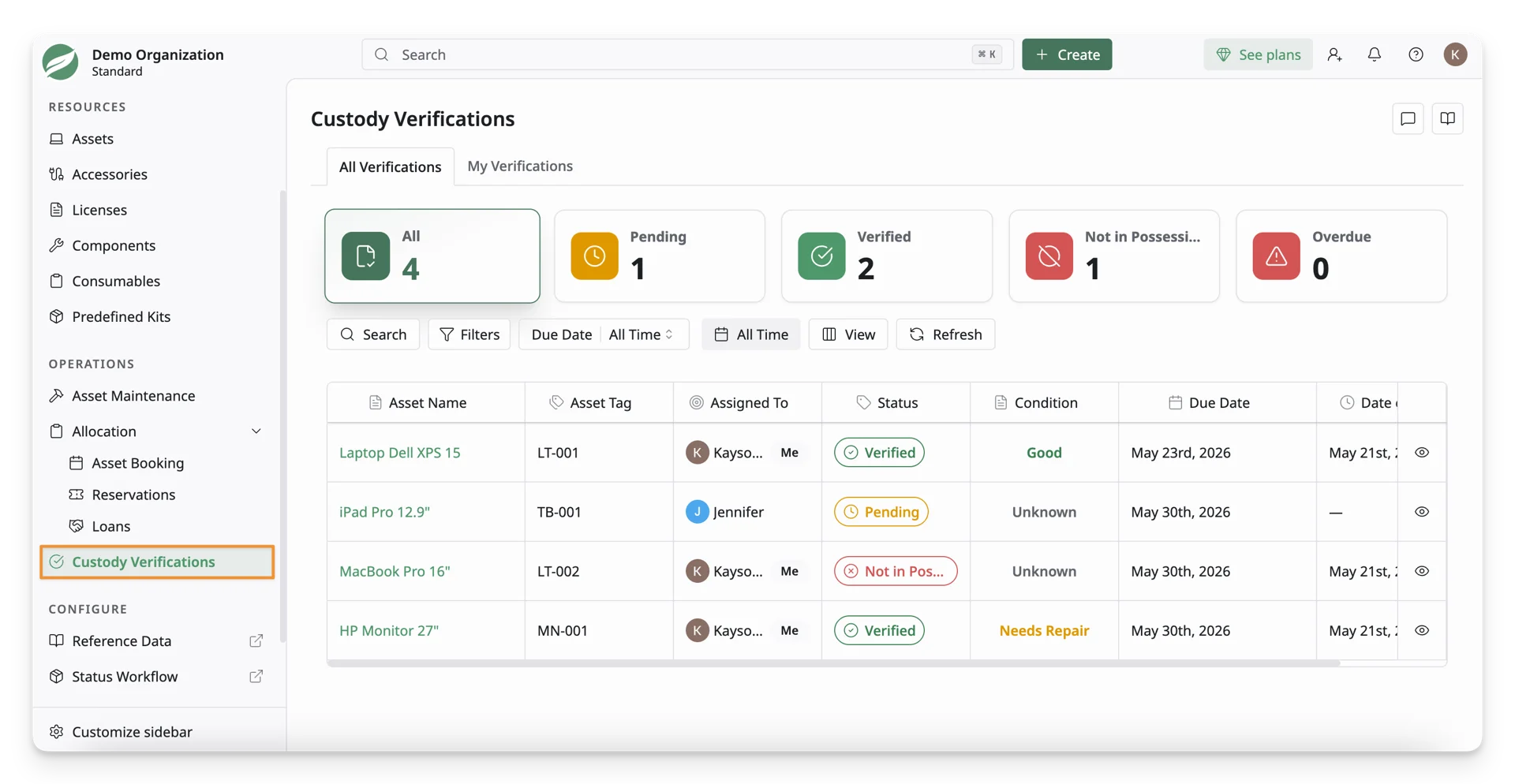
Only users with the Admin Role or Custody Verification permissions can view and manage all custody verification records. Regular users can only view verification requests assigned to them.
The Custody Verifications page includes two tabs.
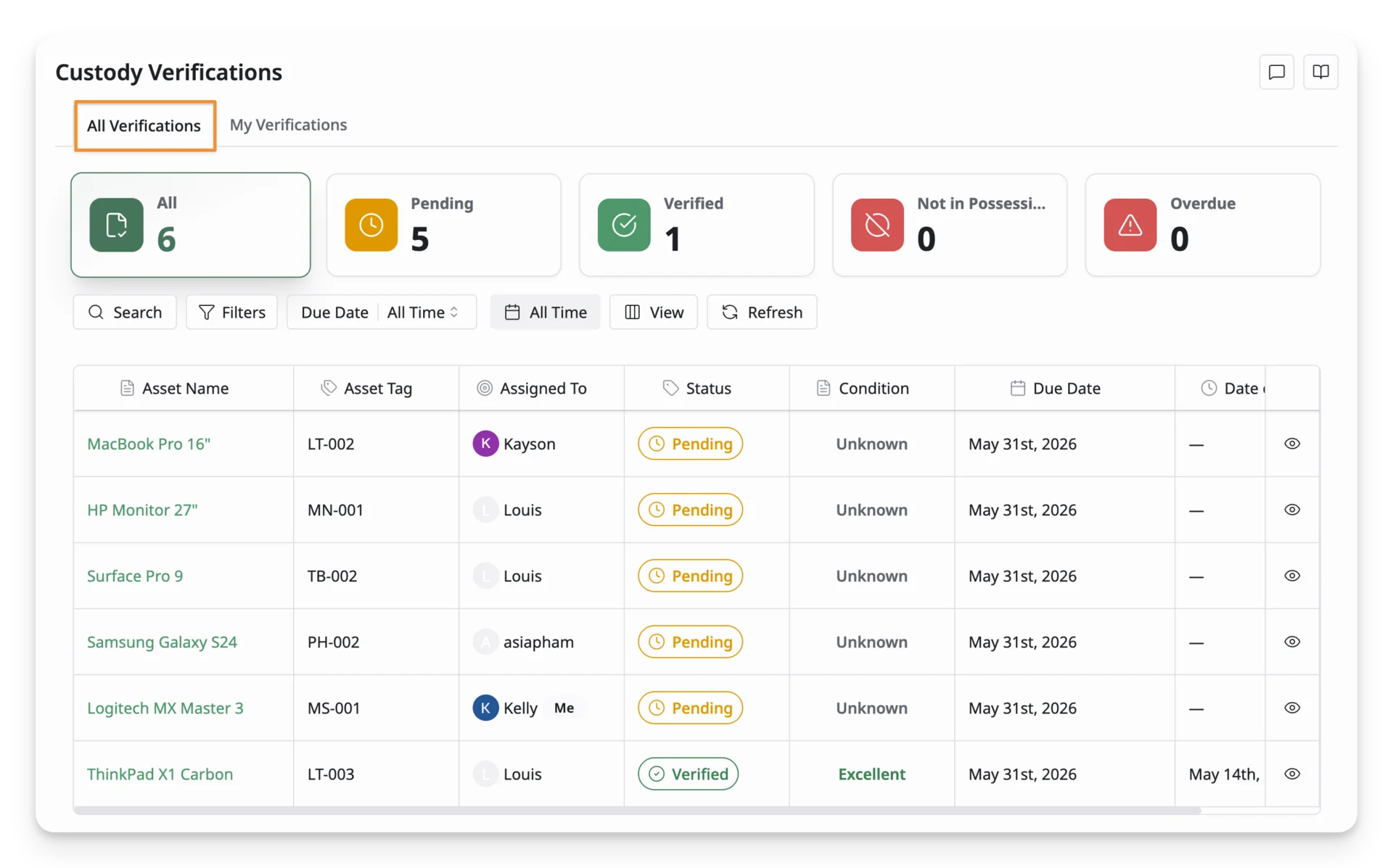
- All Verifications: Displays all custody verification records in the organization. Use this tab to view requests that are pending, completed, overdue, or reported as not in possession. This tab is available only to admins or users who have permission to manage custody verifications.
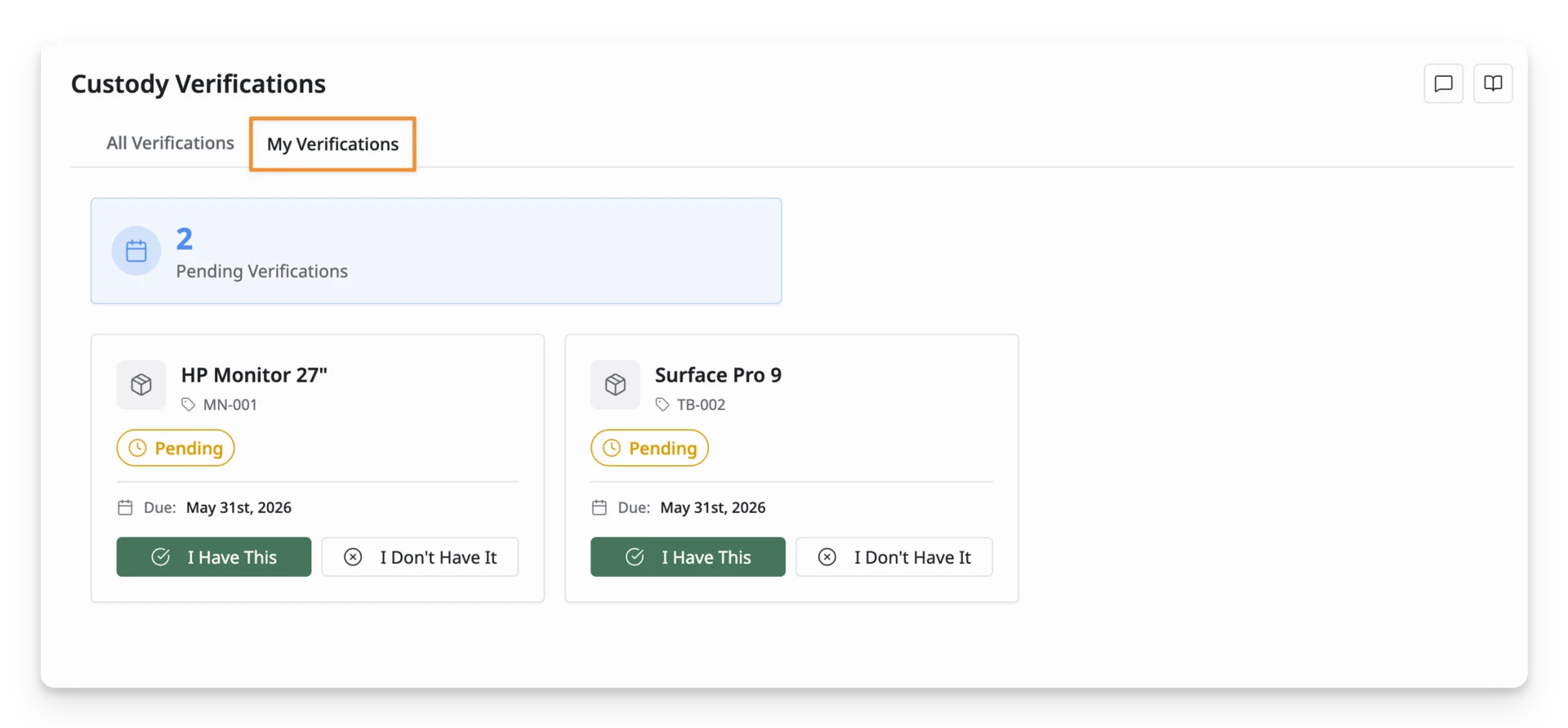
- My Verifications: Lists the verification requests assigned to you. Use this tab to find the assets you need to verify.
Custody Verification Categories
At the top of the Custody Verifications page, AssetLoom displays summary cards for each verification category. Select a category to filter the list.
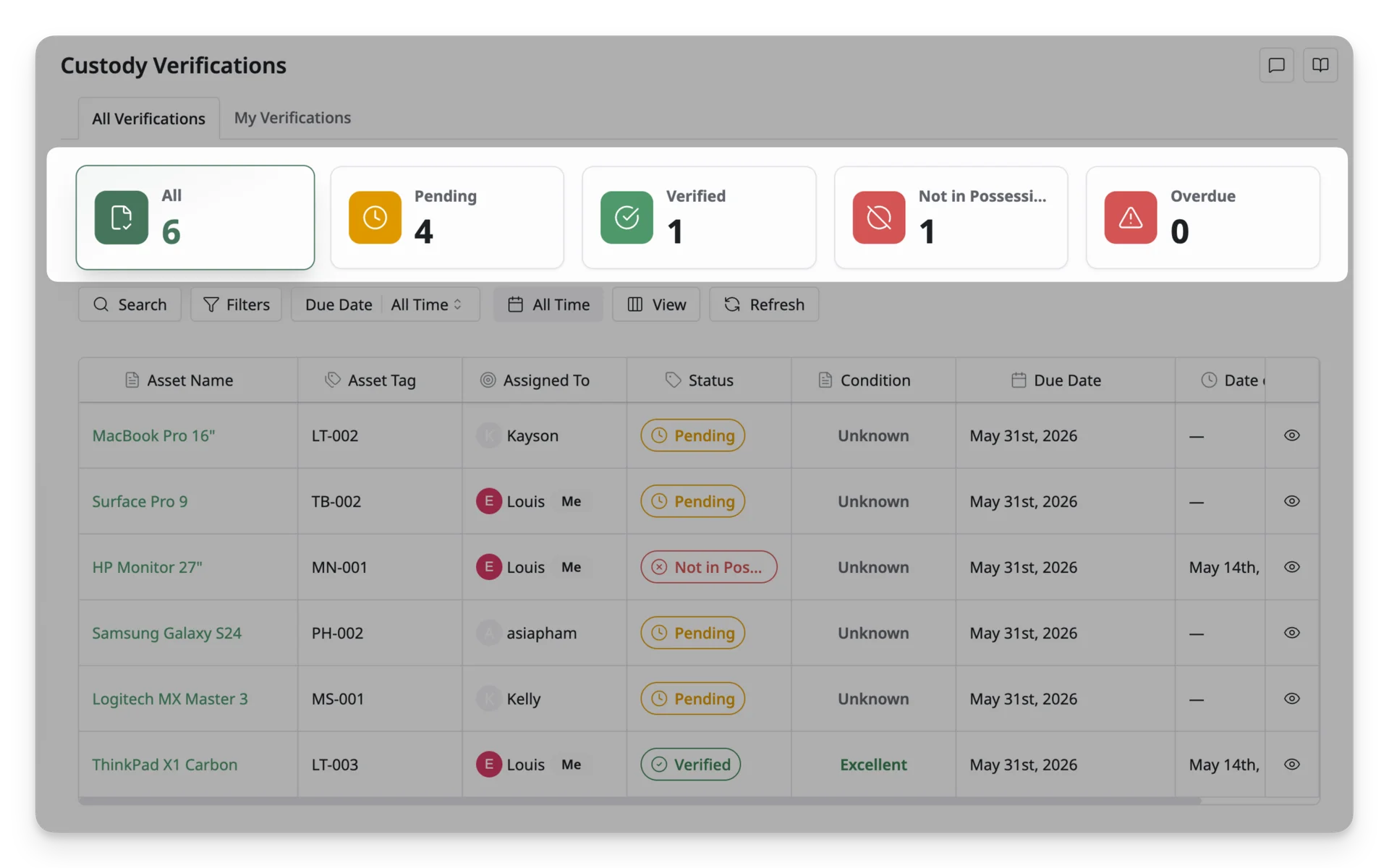
- All: Shows all custody verification records. Use this to view the full verification list.
- Pending: Shows verifications that are waiting for a response. Use this to find assets that still need to be verified by the assigned user.
- Verified: Shows verifications that have been completed and confirmed. Use this to review assets that users have already verified.
- Not in Possession: Shows assets that users reported they do not currently have. Use this to identify assets that may require follow-up or investigation.
- Overdue: Shows verification requests that have passed their due date. Use this to follow up on users who have not completed their verification on time.
Custody Verification List
The custody verification list displays verification records in a table. Each row represents one assigned asset that needs to be verified or has already been verified.
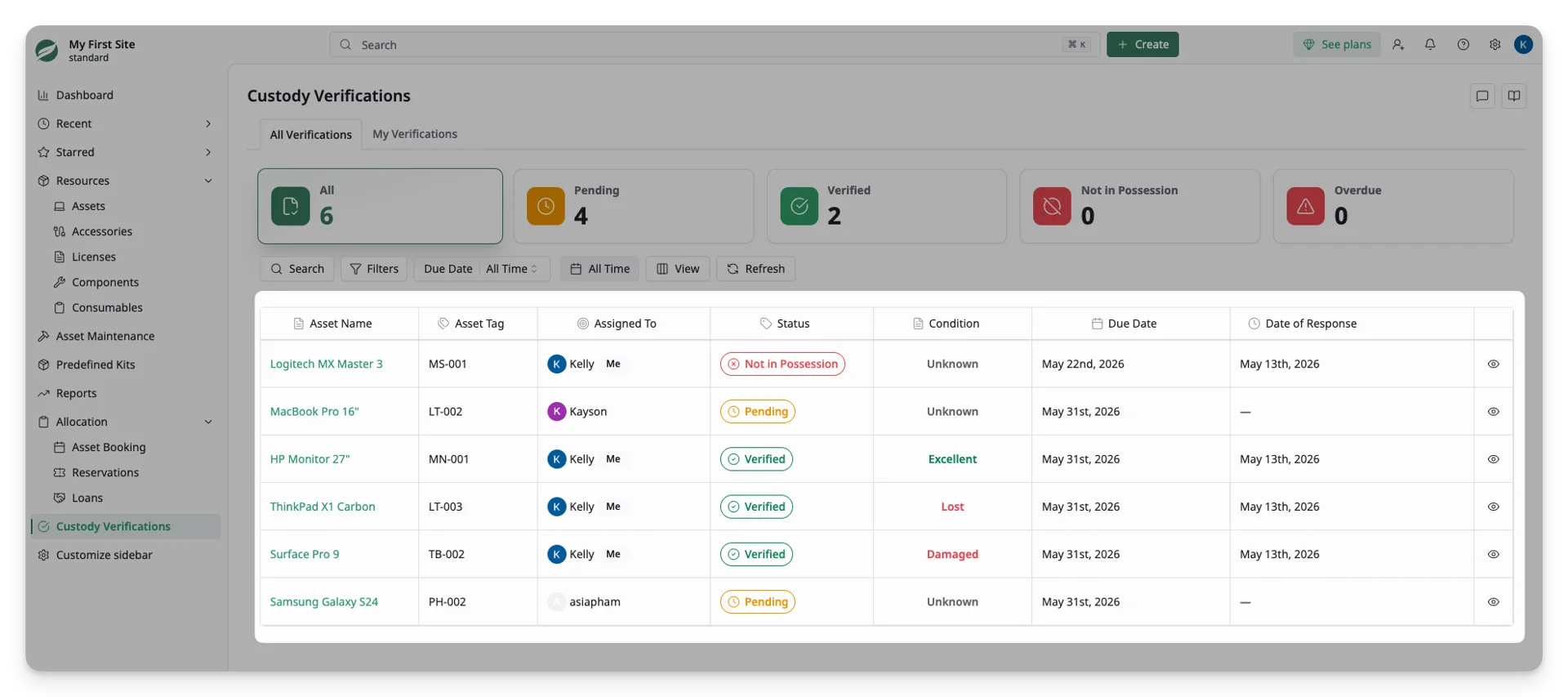
The list includes:
- Asset Name: The name of the asset being verified.
- Asset Tag: The unique identifier assigned to the asset.
- Assigned To: The user who currently has the asset assigned to them.
- Status: The current verification status, including:
- Pending: The verification request is waiting for a response.
- Verified: The assigned user confirmed the asset.
- Not in Possession: The assigned user reported that they do not have the asset.
- Condition: The asset condition reported during the verification. When completing a custody verification, the user selects one of the available condition options:
- Excellent: The asset is in excellent condition with no visible issues.
- Good: The asset is in good working condition with minimal or no issues.
- Fair: The asset is usable but may show signs of wear or minor issues.
- Poor: The asset is usable but has noticeable issues or heavy wear.
- Damaged: The asset is damaged and may not function properly.
- Needs Repair: The asset requires repair before it can be used normally.
- Lost: The asset was reported as lost.
- Due Date: The deadline for completing the verification.
- Date of Response: The date when the latest verification response was submitted. If no response has been submitted, this field may show a dash.
- View Details: The eye icon opens the details for a custody verification record.
Toolbar Options
The toolbar above the custody verification list helps you find, filter, and manage verification records.
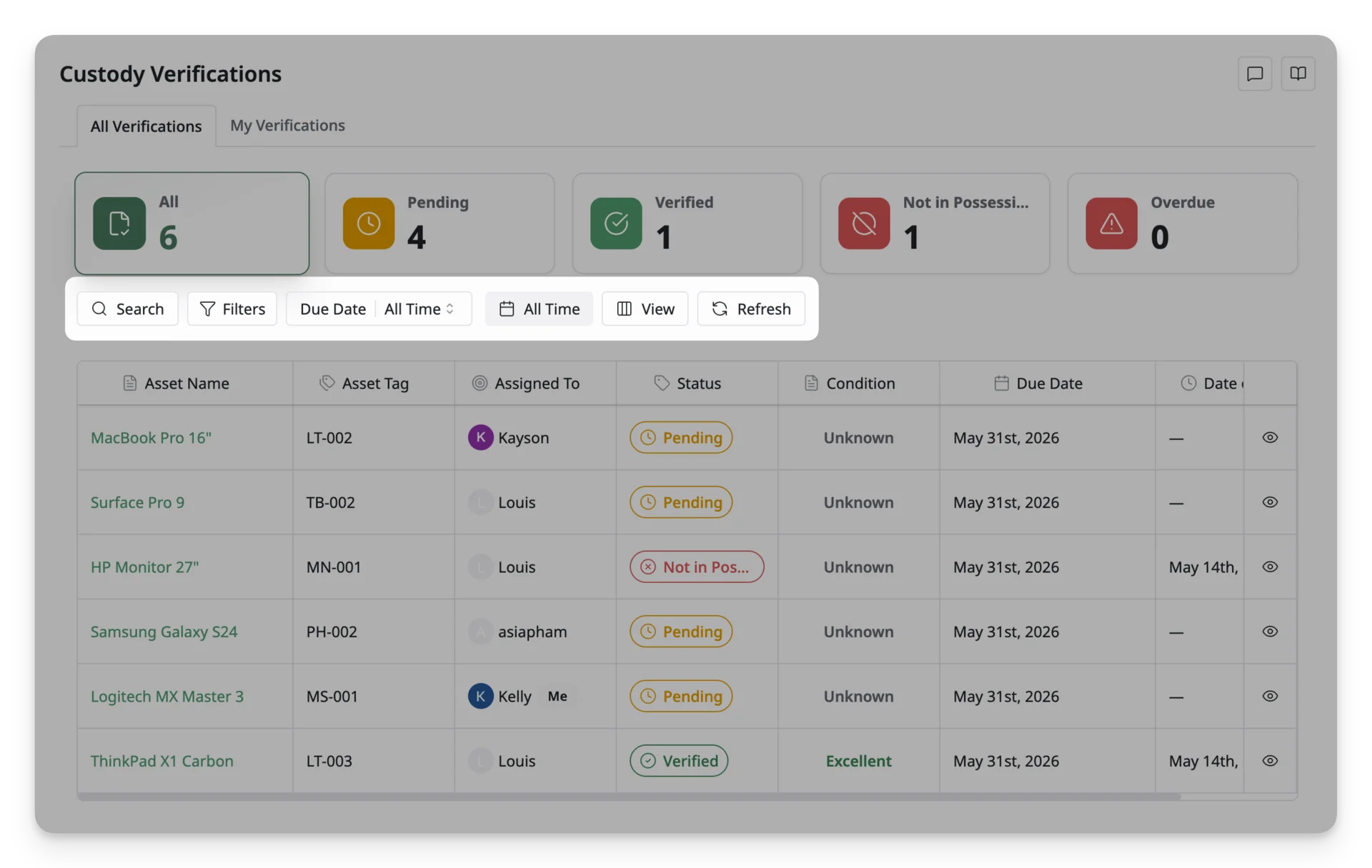
- Search: Finds verification records by available table information, such as asset name, asset tag, or assigned user.
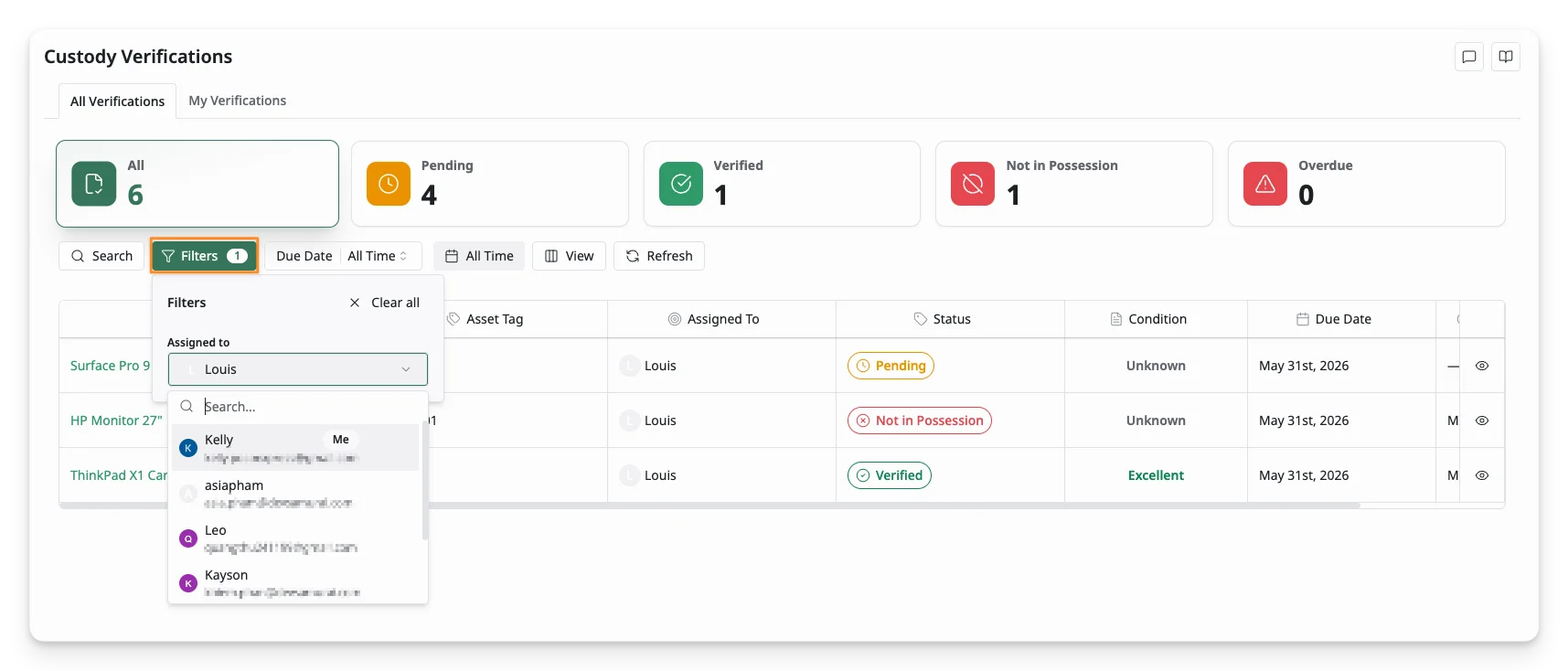
- Filter by Assignee: Narrows the list based on assignees.
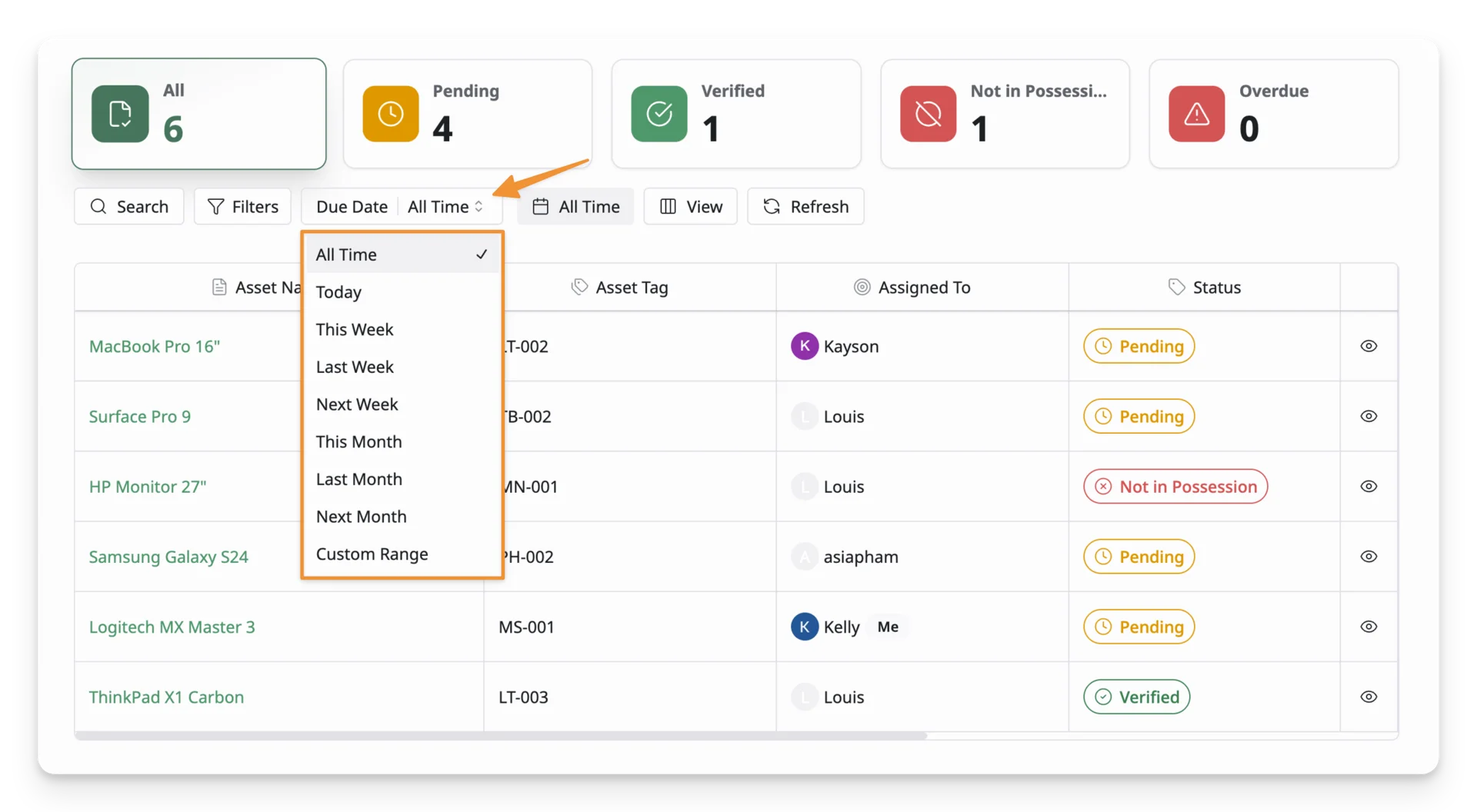
- Filter by Due Date: Find verifications with the due date in a specific time range.
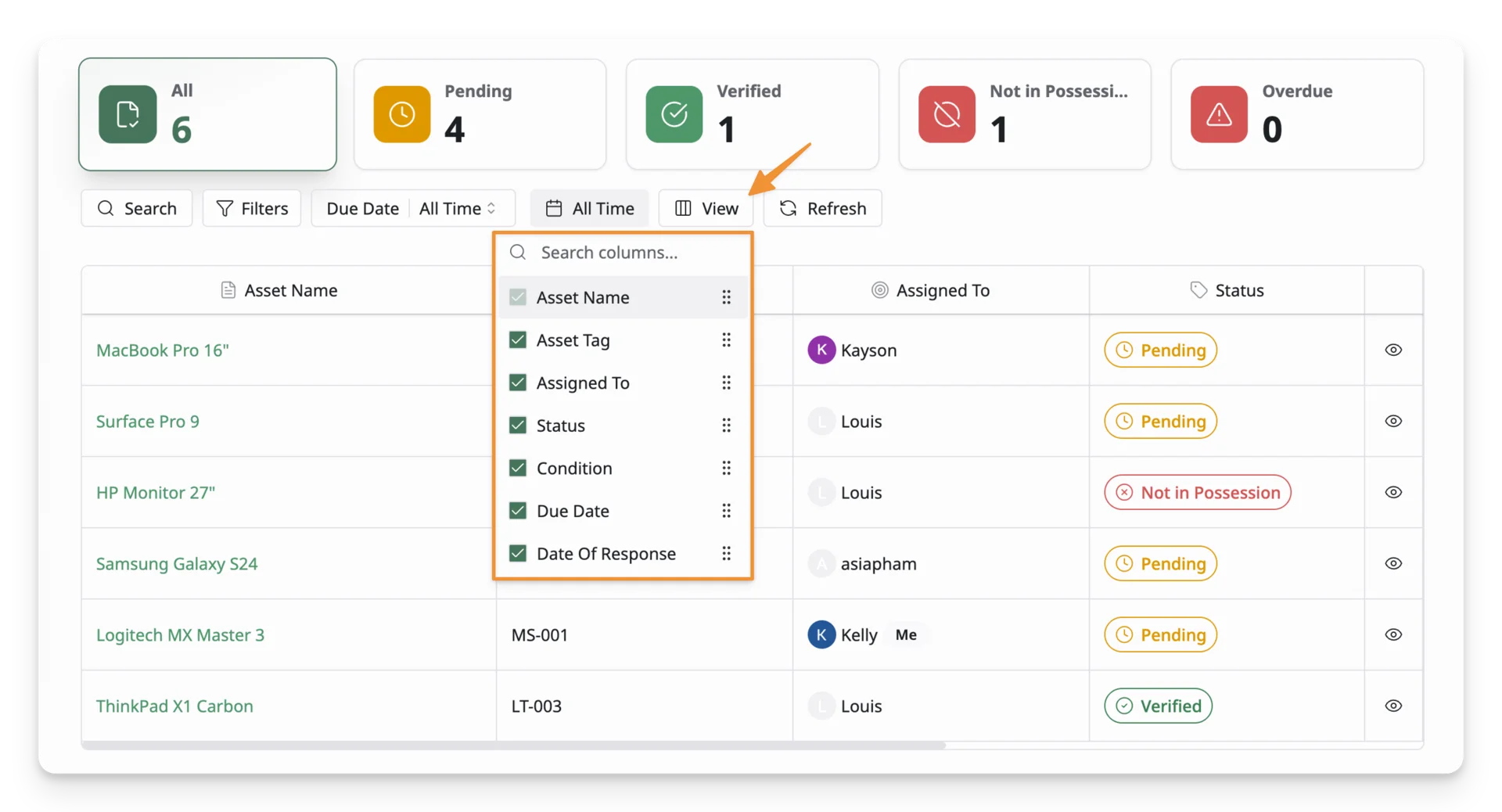
- View: Customizes how the columns are displayed on the table. Use this to show, hide, or arrange table columns.
- Refresh: Reloads the verification list to display the latest information.
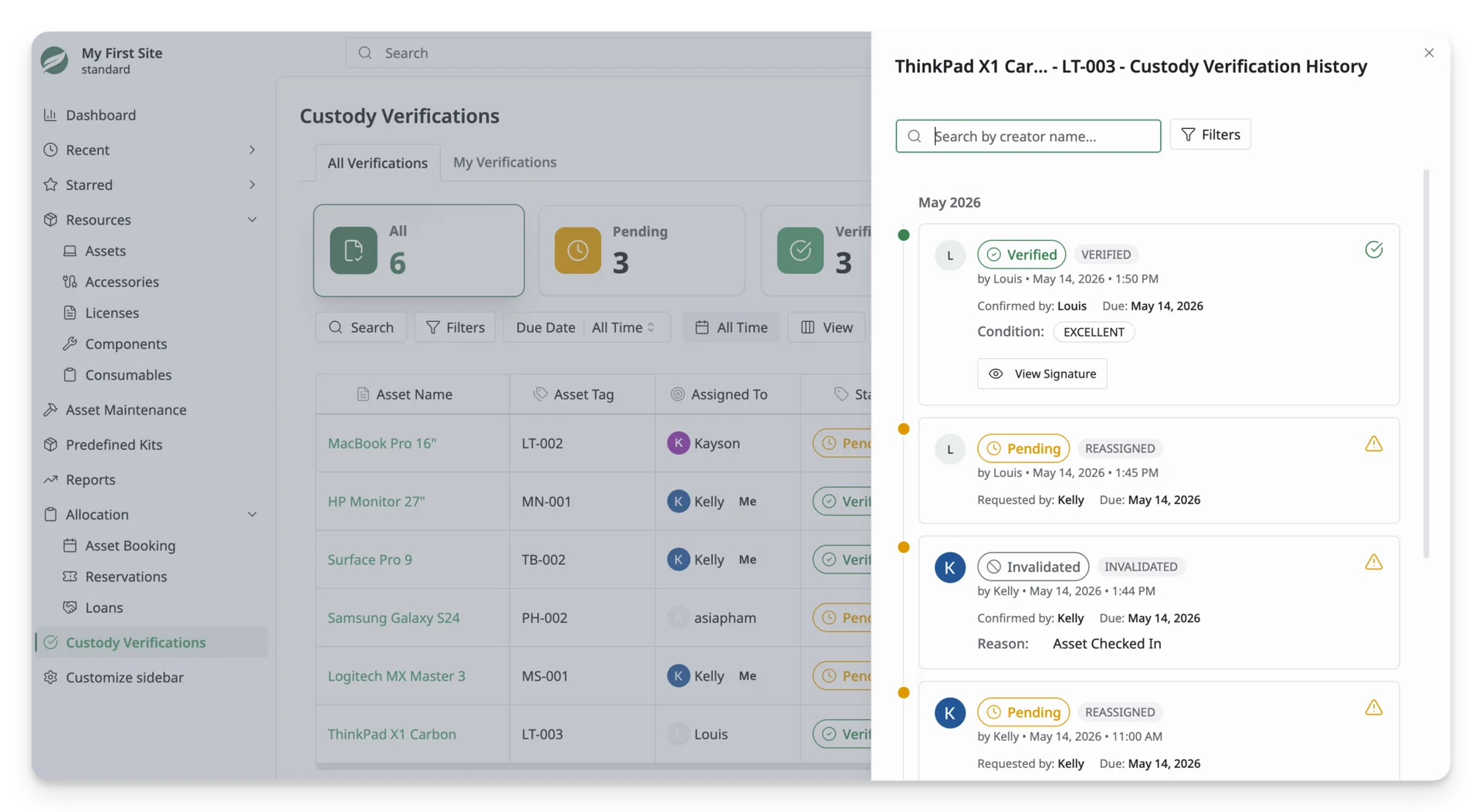
Custody Verification History
Select the eye icon at the end of a verification row to view the custody verification history for that asset. 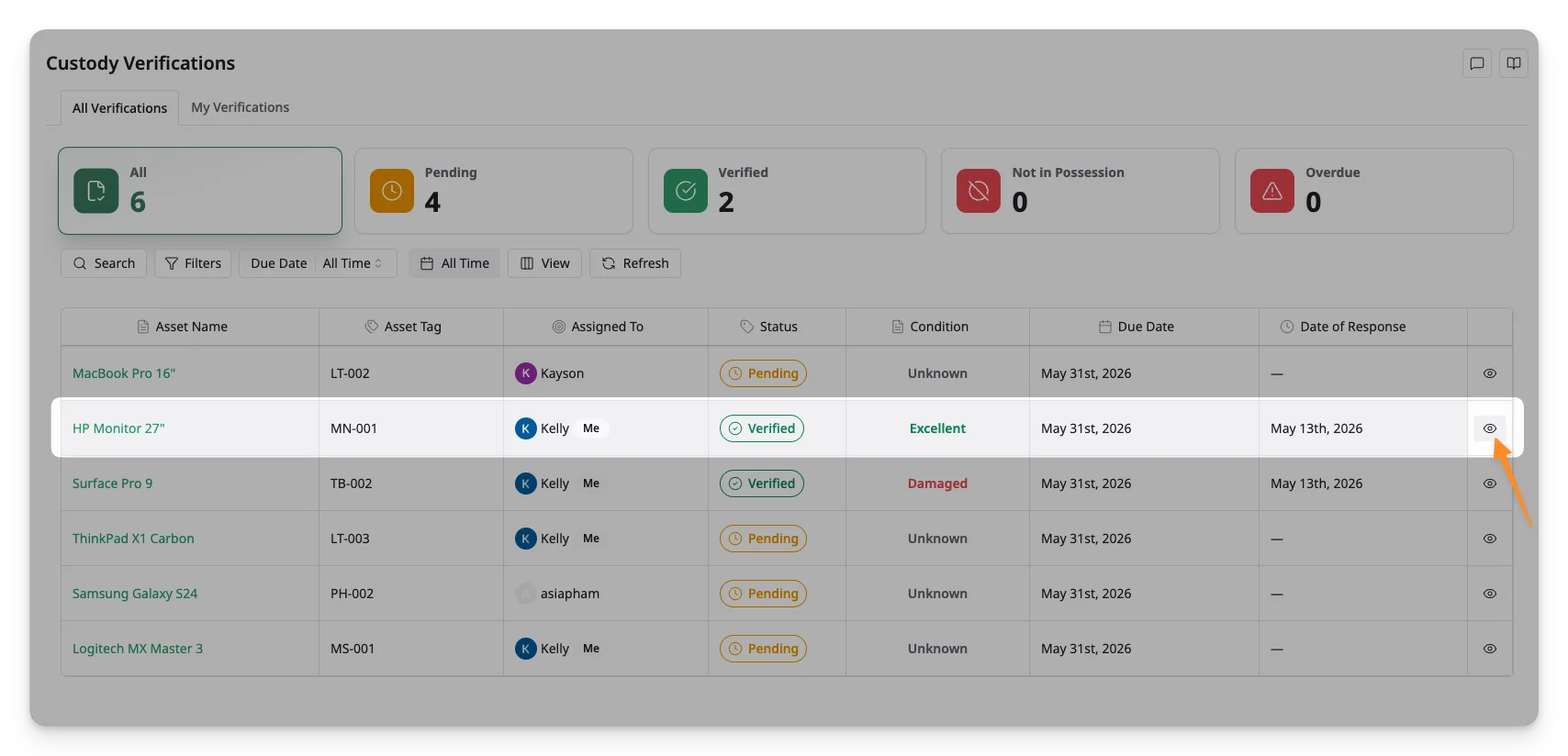
The history panel helps you review the custody verification details, including the requester, assignee, verification date and time, selected asset condition, and the assignee’s signature if a signature was required.