Configuring Microsoft Intune Sync Behavior
Configure Microsoft Intune sync settings in AssetLoom to control how device data is synchronized, updated, and maintained across your asset inventory.
Once Microsoft Intune is connected to AssetLoom, you can access the Microsoft Intune integration details page from the Integrations hub.
See Connect Microsoft Intune with AssetLoom → if you need help getting there.
This guide walks through the Sync Behavior tab, where you control how incoming Intune values interact with data already stored in AssetLoom and how synced device users affect asset checkout and assignment.
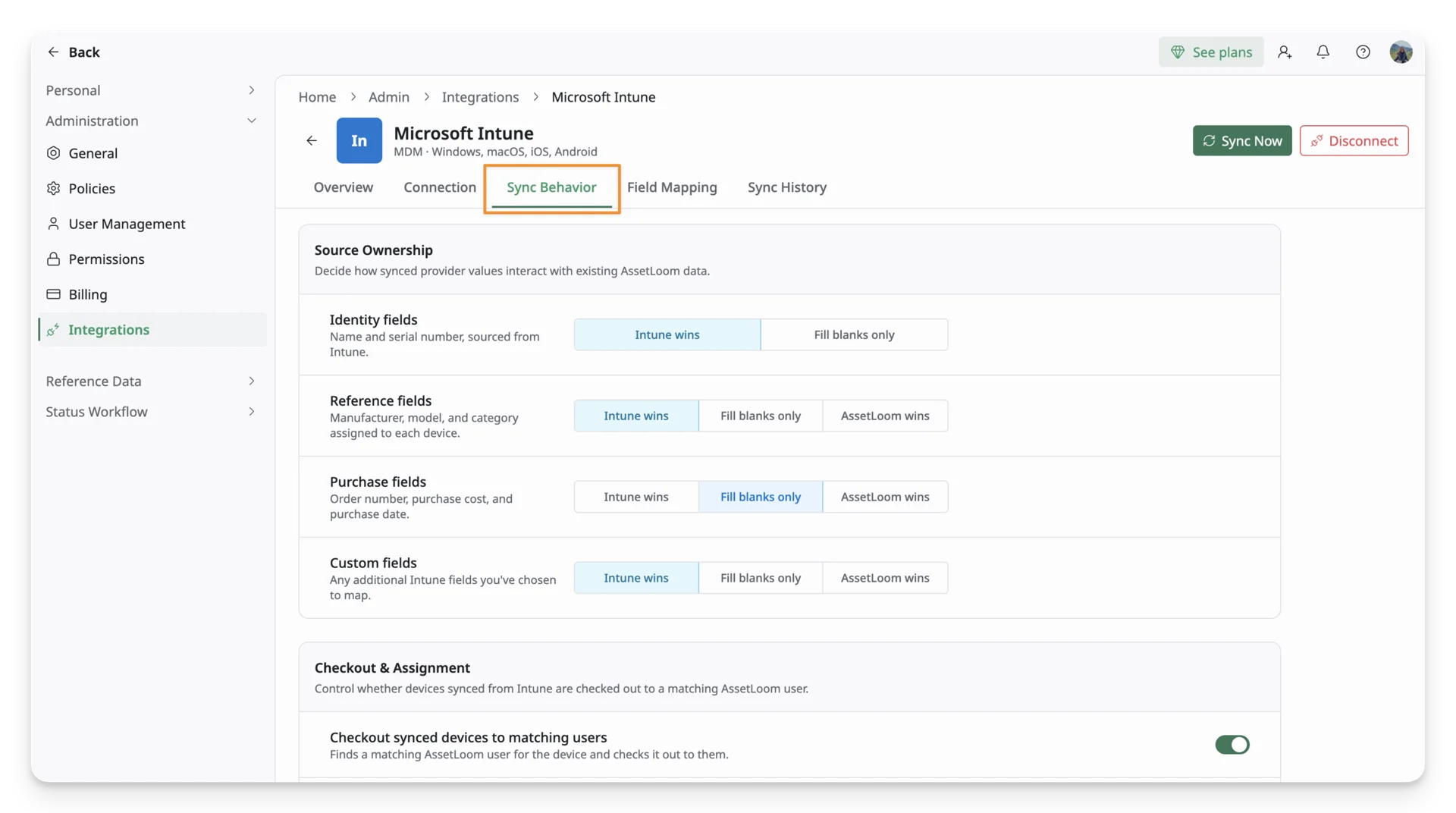
Set up Sync Behavior
Open the Sync Behavior tab from the Microsoft Intune integration details page. The settings are divided into two sections:
- Source Ownership — determines which value AssetLoom keeps when synced Intune data and existing AssetLoom data differ.
- Checkout & Assignment — determines whether synced devices are automatically checked out to matching AssetLoom users.
Source Ownership
When a device is synced from Intune, AssetLoom may already contain information for the same asset. Source Ownership determines how AssetLoom handles those values when they conflict.
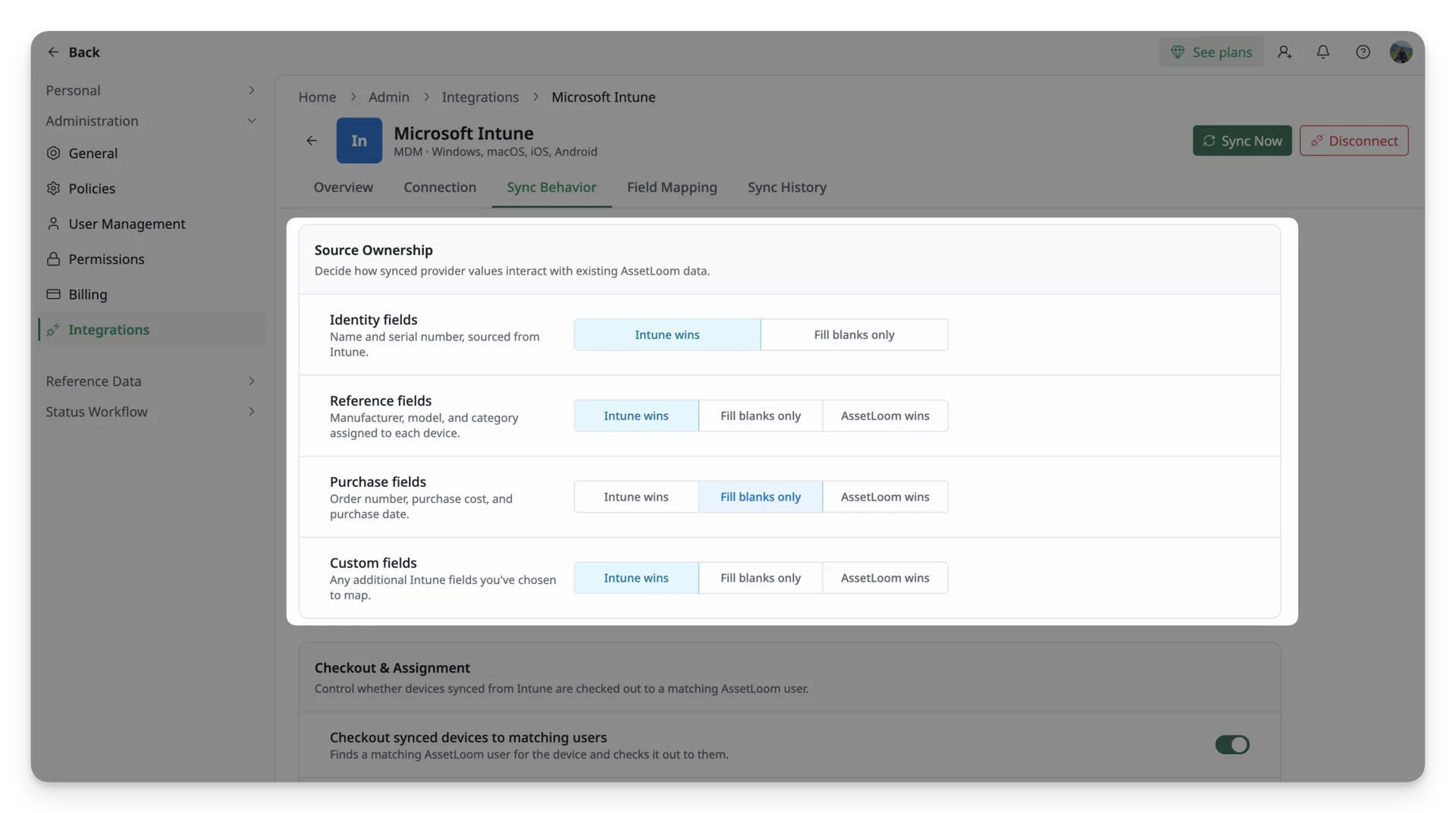
You can configure this behavior separately for different groups of fields. Source ownership options include:
| Option | What It Does |
| Microsoft Intune wins | Microsoft Intune's value always overwrites the AssetLoom value, even if AssetLoom already has data in that field. |
| Fill blanks only | Microsoft Intune's value is only applied if the AssetLoom field is empty. Existing AssetLoom data is never overwritten. |
| AssetLoom wins | AssetLoom's value is always kept, even if Microsoft Intune has a different value. Microsoft Intune data is not synced into this field. |
Choose the source ownership behavior that best matches how you manage each type of asset data:
- Identity fields: Name and serial number sourced from Intune. (You can choose Intune wins or Fill blanks only. AssetLoom wins is not available for this group because these fields are used to identify the synced device.)
- Reference fields: Manufacturer, model, and category assigned to the device.
- Purchase fields: Order number, purchase cost, and purchase date.
- Custom fields: Any additional Intune fields you have chosen to map to AssetLoom.
Source Ownership determines whose value is kept when both Intune and AssetLoom contain data for a field. It does not determine which Intune field corresponds to which AssetLoom field.
To control where individual Intune values are stored in AssetLoom, configure them from the Field Mapping tab.
Checkout & Assignment
Intune device records may include information about the user associated with a device. Checkout & Assignment controls whether AssetLoom uses that information to find a matching AssetLoom user and automatically check the asset out to them.
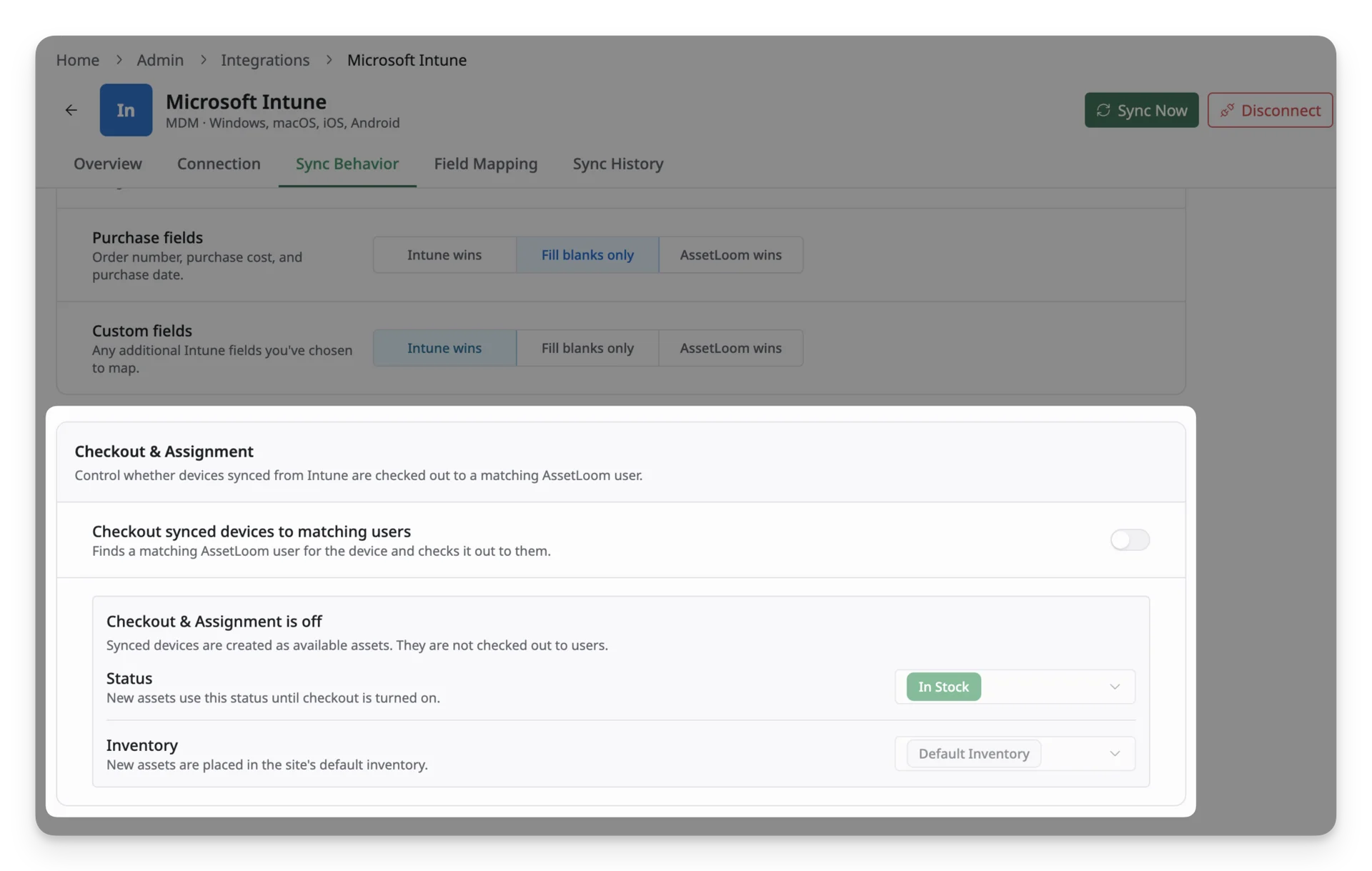
The Checkout synced devices to matching users option is turned off by default.
When Checkout & Assignment is off
When Checkout synced devices to matching users is disabled, synced devices are created as available assets with In stock status and belong to Base Stock inventory by default. No action is needed.
When Checkout & Assignment is on
Enable Checkout synced devices to matching users if you want AssetLoom to use the user information received from Intune to assign synced devices automatically.
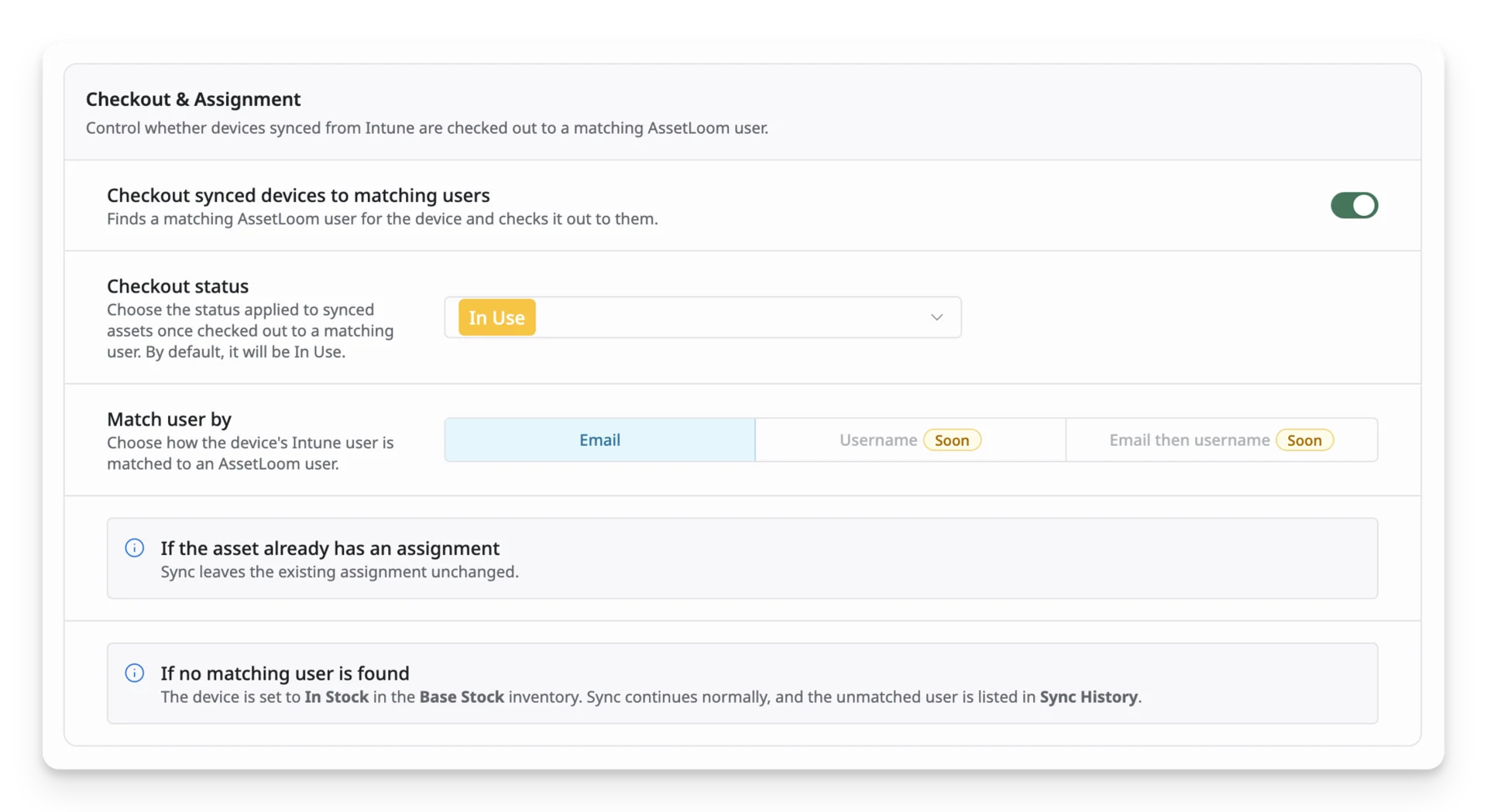
Once enabled, configure the following:
| Setting | What It Does |
| Checkout status | Select the status applied when a synced asset is successfully checked out to a matching user. The default is In Use. |
| Match user by | Determines how the Microsoft Intune user is matched with an existing AssetLoom user. Currently, matching by Email is available. Username and Email then username are planned for a future update. |
If a synced asset is already assigned to someone in AssetLoom, the sync leaves the existing assignment unchanged.
This prevents a Microsoft Intune sync from replacing an assignment that is already being managed in AssetLoom.
If AssetLoom cannot find a matching user, the synchronization still proceeds with:
- The device is synced normally and set to In Stock as an available asset.
- The device is placed in the Base Stock inventory.
- The unmatched user is recorded in Sync History for review.
What happens next
Your Sync Behavior settings are applied to future sync runs and determine how incoming Intune data is handled as device records are created or updated.
After configuring Sync Behavior, continue to Field Mapping to define how individual Microsoft Intune fields correspond to fields in AssetLoom.