Configuring Jamf Pro webhooks in AssetLoom
Follow this guide to configure Jamf Pro webhooks in AssetLoom and automatically send device change notifications for up-to-date asset information.
Jamf Pro webhooks allow AssetLoom to receive and process device changes as they occur. When a supported event is triggered in Jamf Pro, the webhook sends the event to AssetLoom so the corresponding computer or mobile device record can be created or updated automatically.
This reduces the need to wait for the next manual or scheduled synchronization and helps keep your AssetLoom inventory aligned with Jamf Pro.
To start setting up a Jamf Pro webhook, from the Jamf Pro Integration Details page, navigate to the Webhook tab.
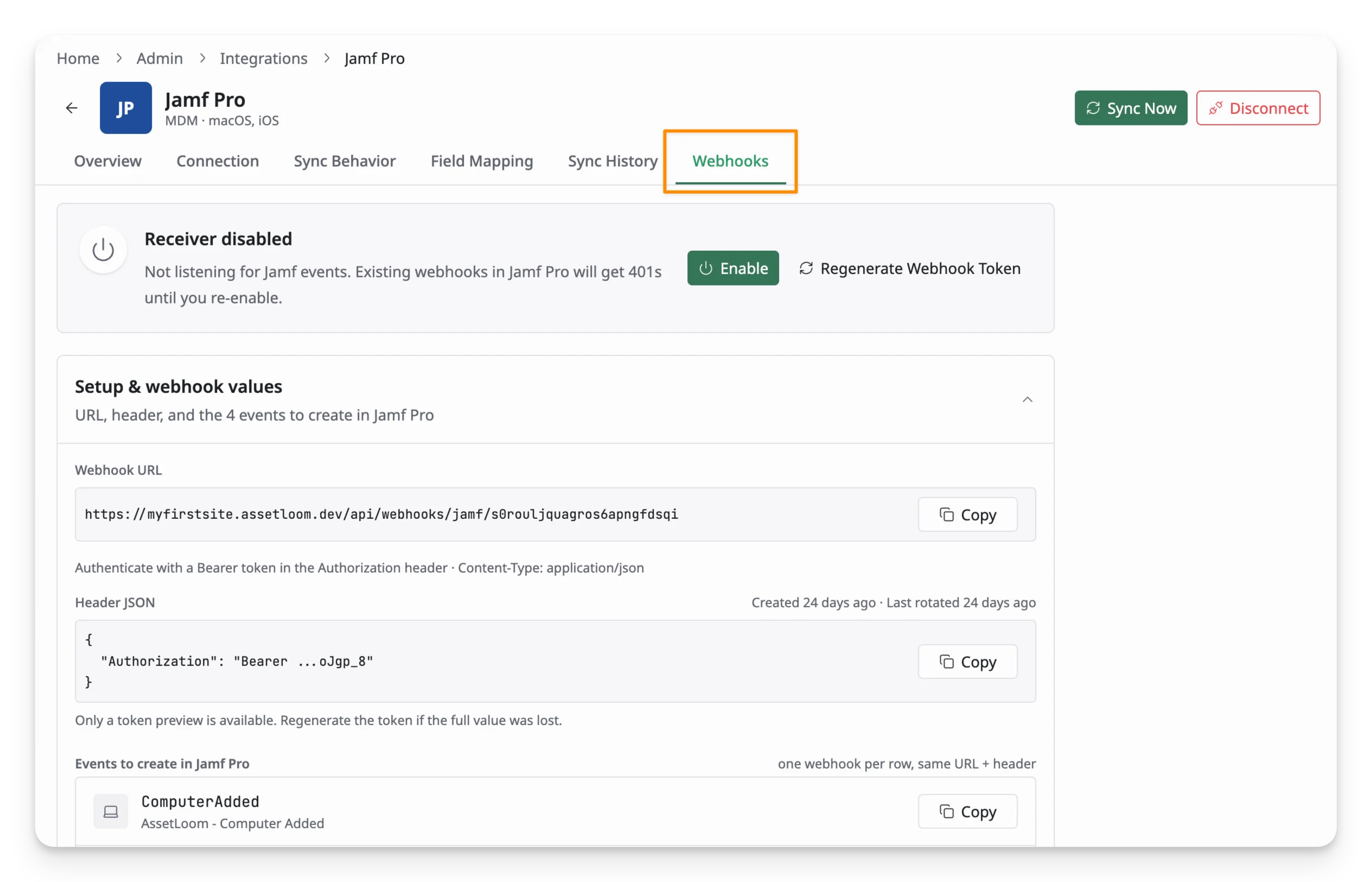
Supported webhook events
AssetLoom supports four Jamf Pro webhook events for computers and mobile devices. When one of these events occurs, Jamf Pro sends the event to AssetLoom so the corresponding device record can be created or updated without waiting for the next scheduled sync.
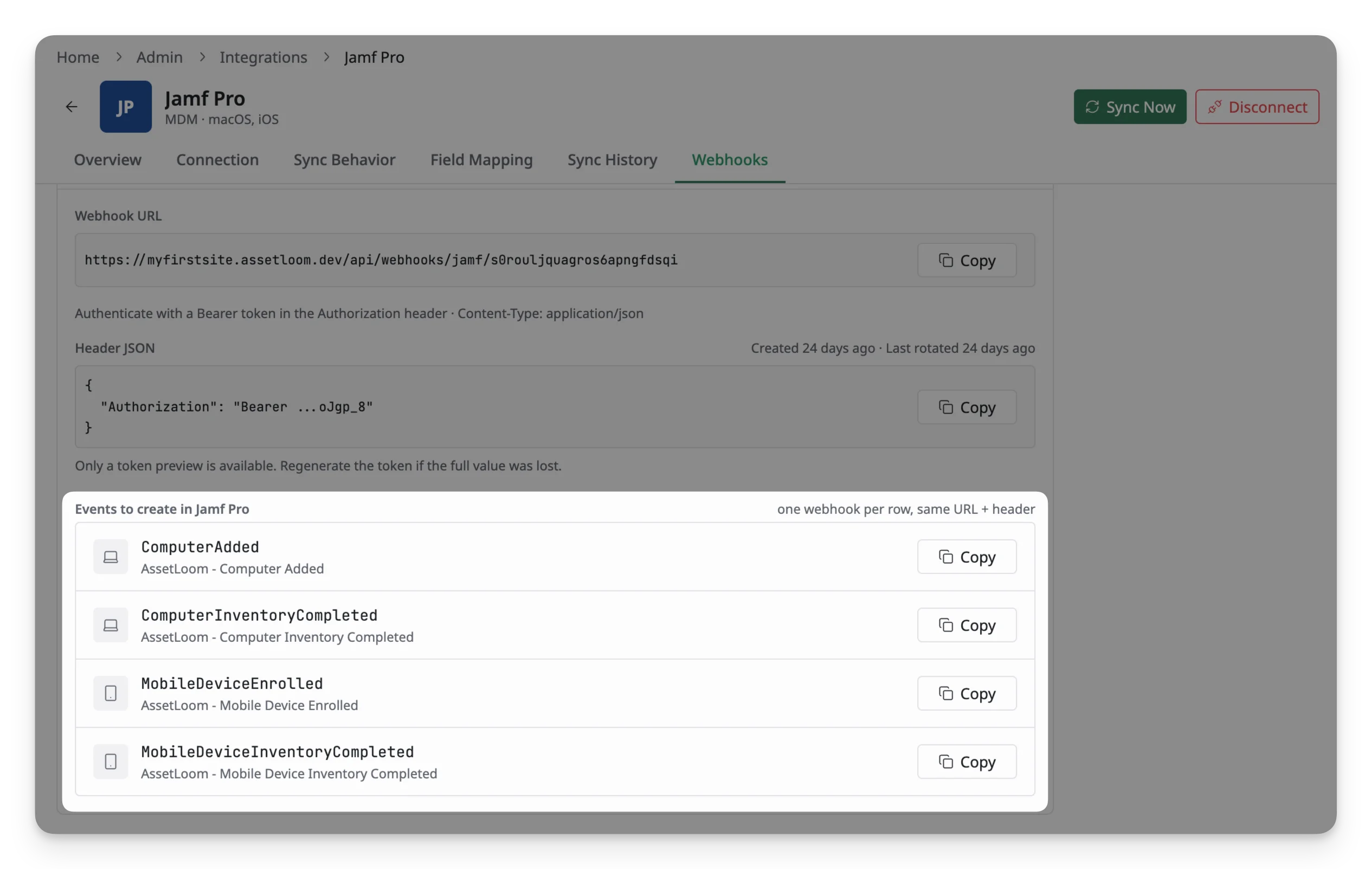
AssetLoom supports webhooks for the following events:
| Jamf Pro event | When it occurs | What does it do in AssetLoom |
| ComputerAdded | A new computer is enrolled in Jamf Pro. This event is not triggered when an existing computer is re-enrolled. | Creates or imports the corresponding computer record in AssetLoom. |
| ComputerInventoryCompleted | A managed computer submits its latest inventory information to Jamf Pro. | Updates the corresponding computer record with the latest available information. |
| MobileDeviceEnrolled | A mobile device is enrolled or re-enrolled in Jamf Pro. | Creates a new mobile device record or updates the existing record in AssetLoom. |
| MobileDeviceInventoryCompleted | A mobile device completes the Update Inventory command in Jamf Pro. | Updates the corresponding mobile device record with the latest available information. |
Jamf defines these as event notifications sent to a specified URL. AssetLoom receives the notification and processes the related device update.
The information applied to AssetLoom records follows the Field Mapping and Sync Behavior configured for the Jamf Pro integration.
How to set up Jamf Pro webhooks
You need to create a separate webhook in Jamf Pro for each event supported by AssetLoom. All four webhooks use the same webhook URL and authentication header provided by AssetLoom.
1. Generate a setup token in AssetLoom
- From the Webhooks tab, click Enable.
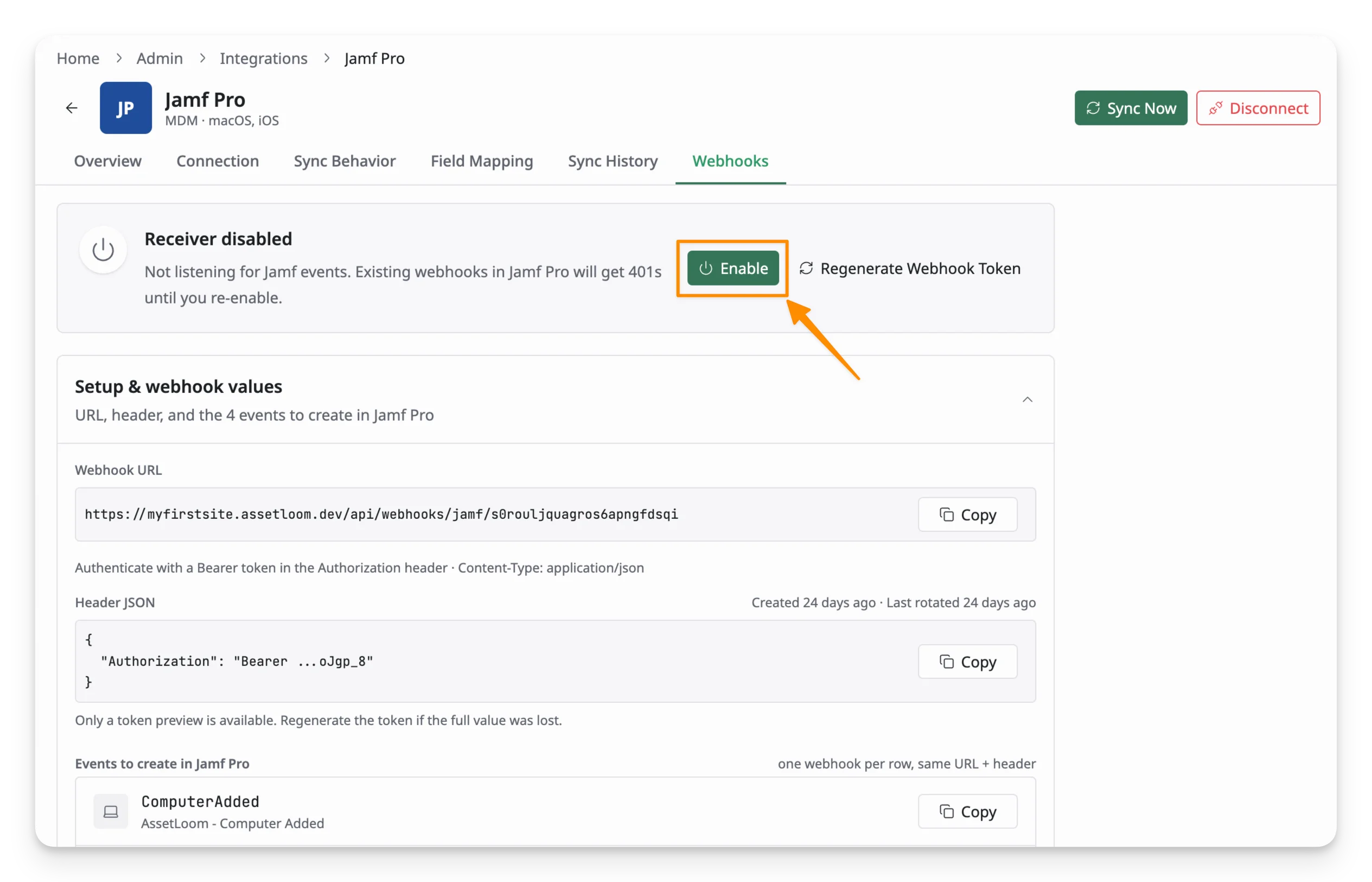
- Copy and securely store the generated token.
You should now have the Webhook URL, Header JSON, and supported events required to set up the webhooks in Jamf Pro.
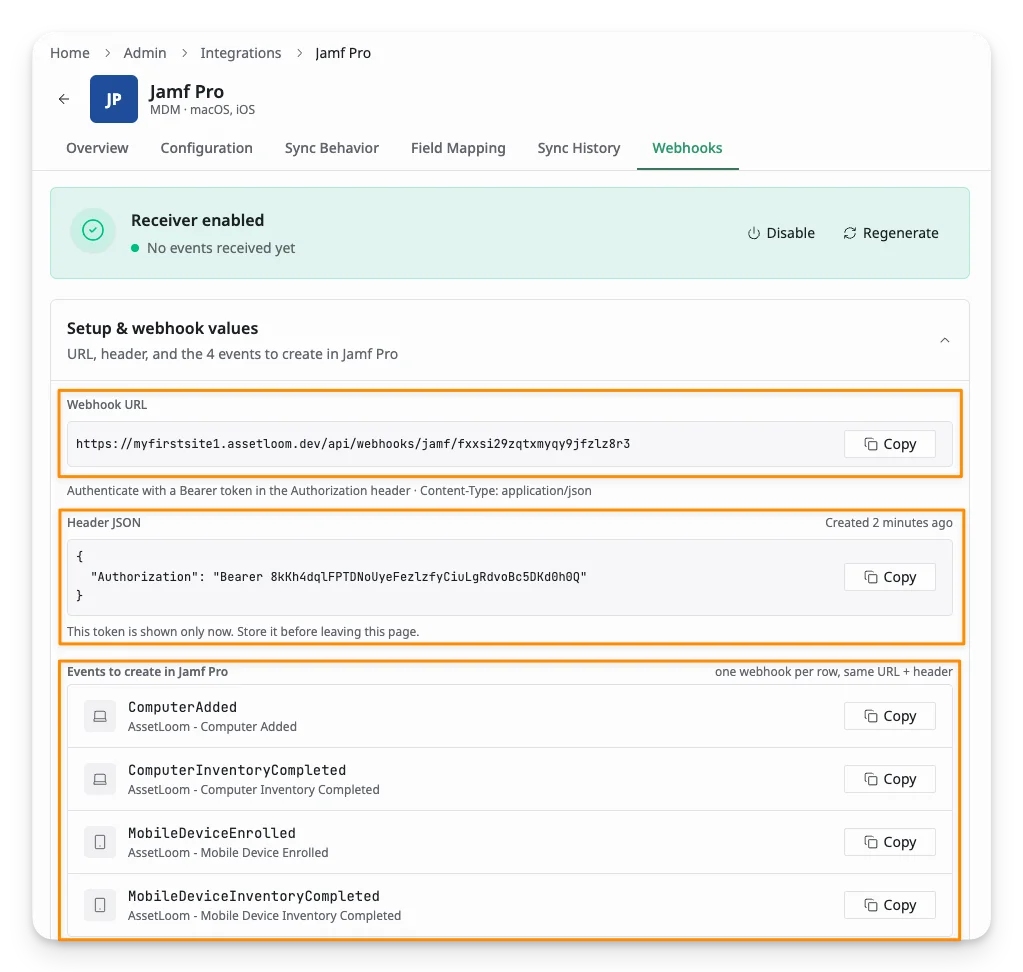
AssetLoom uses this token to authenticate webhook requests from Jamf Pro. The full token is only displayed when generated. If it is lost, you must generate a new one and update the authentication header for your existing webhooks.
2. Create a webhook in Jamf Pro
- Open Settings in Jamf Pro.
- Under Global, search for and select Webhooks.
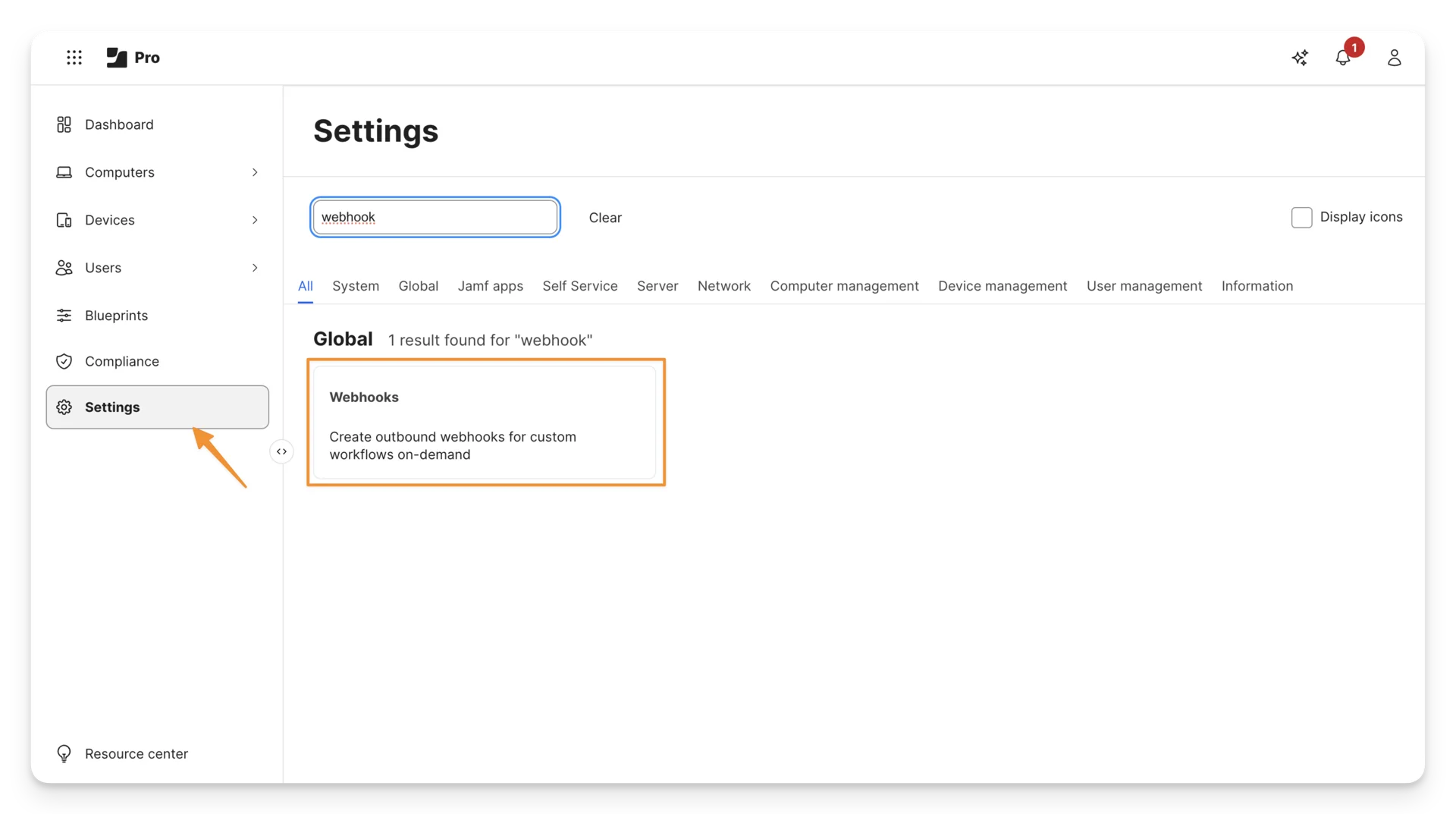
Open Webhooks in Jamf and click New to add a new webhook. Complete the webhook settings as follows:
- Display Name: Enter a recognizable name, such as
AssetLoom - Computer Added. - Enabled: Keep this option selected.
- Webhook URL: Copy the Webhook URL from AssetLoom and paste it into this field.
- Authentication type: Select Header Authentication and copy the Header JSON from AssetLoom and paste it into this field.
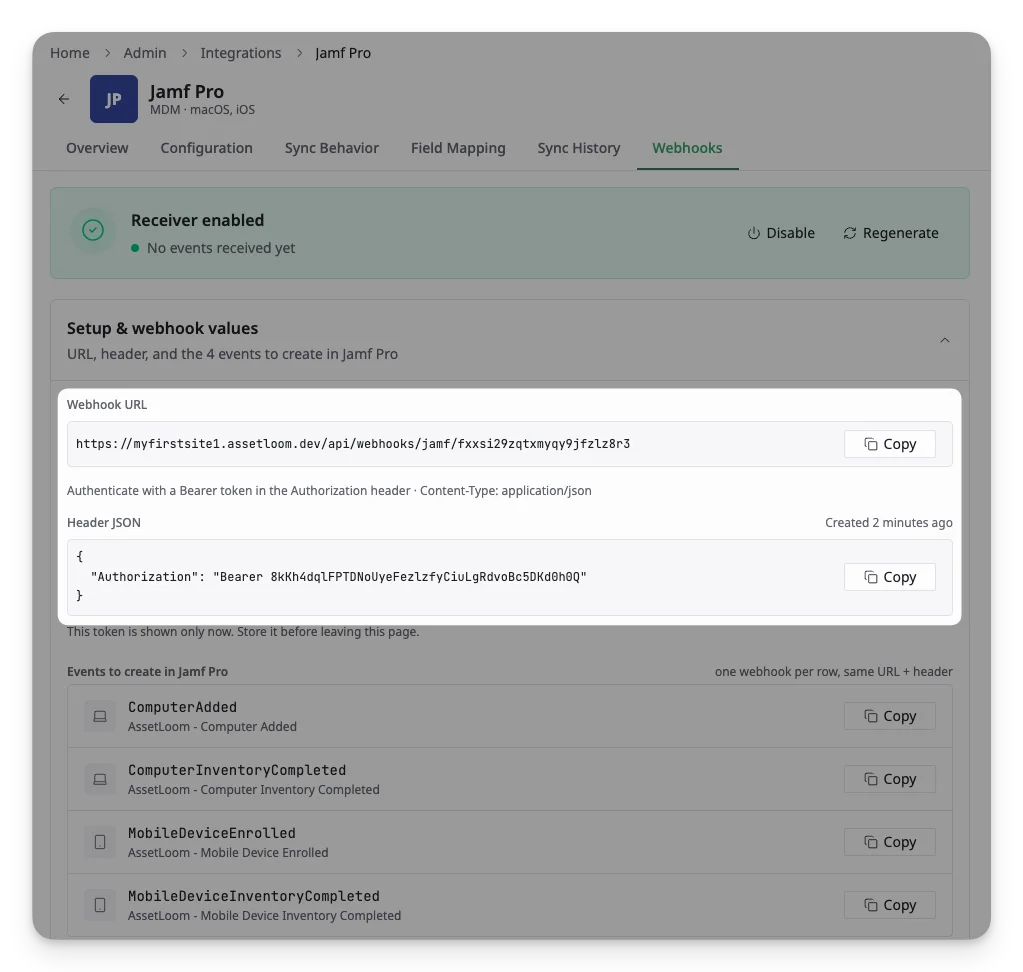
Copy the Webhook URL and Header JSON in AssetLoom after generating the token to the required fields in the Jamf Webhook Creation form
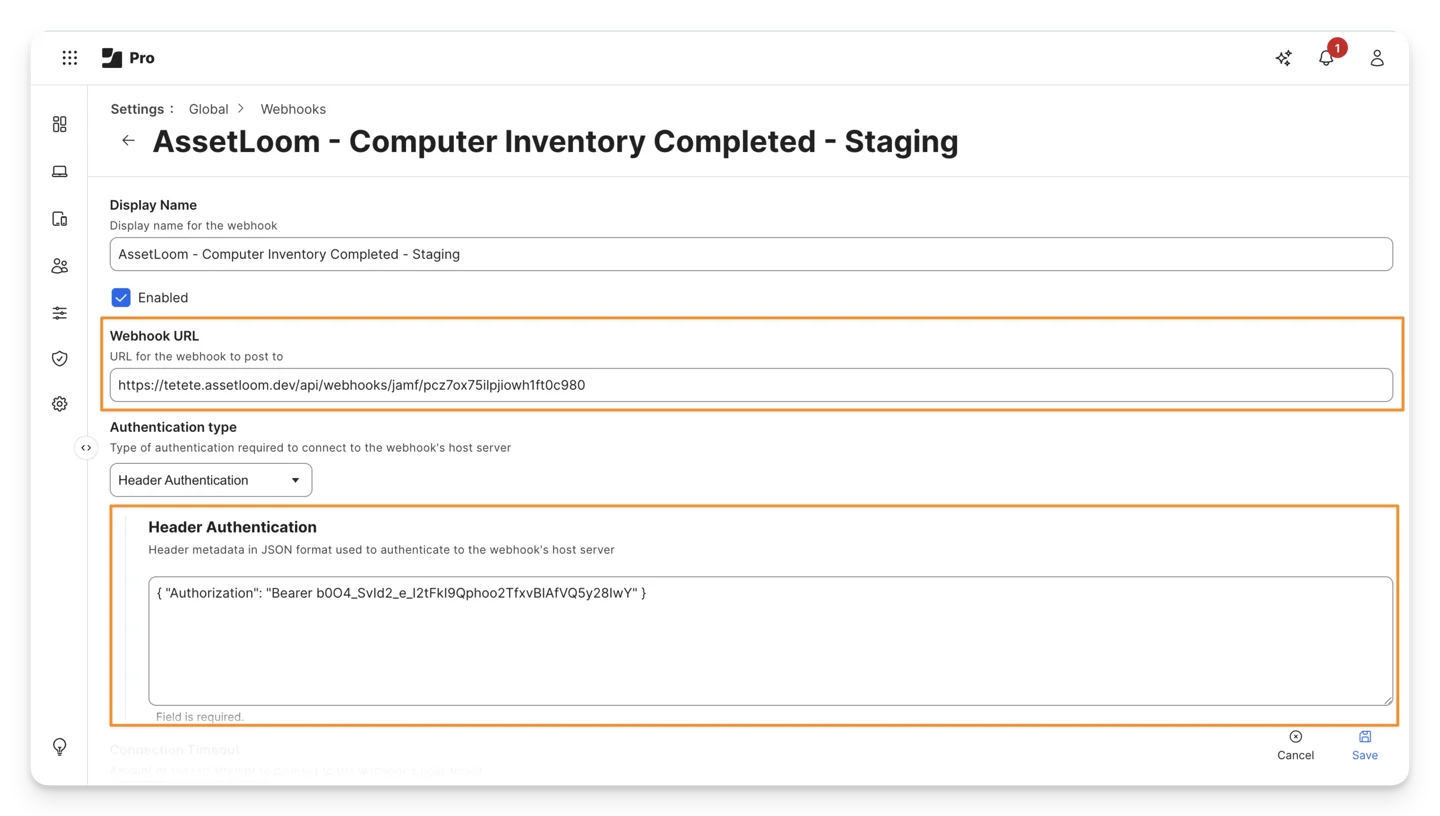
Paste the Webhook URL and Header JSON from AssetLoom into Jamf
- Connection Timeout: Enter a timeout value, e.g.,
5seconds. - Read Timeout: Enter how long Jamf Pro should wait for a response, e.g.,
10seconds. - Content Type: Select JSON.
- Webhook Event: Select one of the events supported by AssetLoom. For example, to have AssetLoom process a new computer when it is added to Jamf Pro, select ComputerAdded.
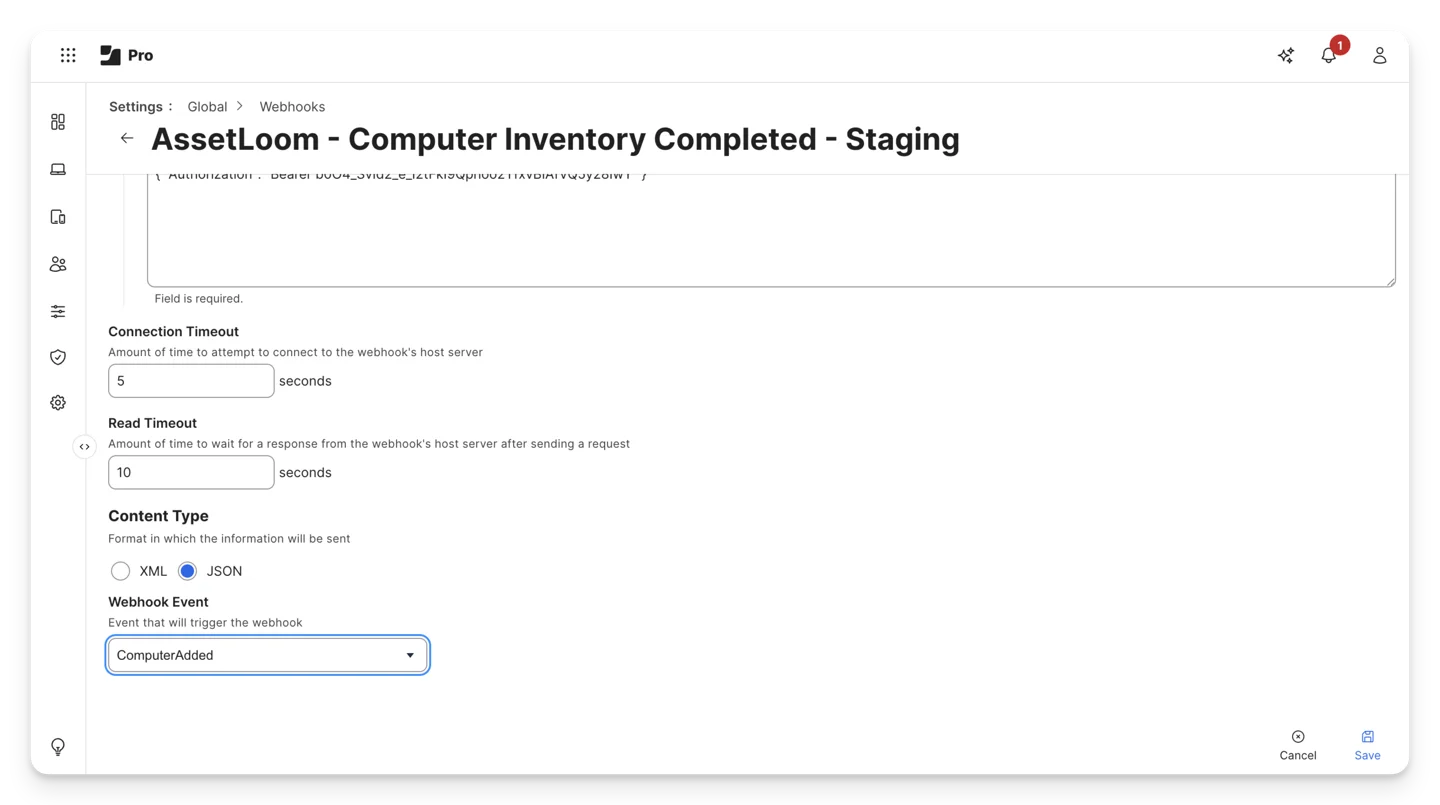
Or:
- Select ComputerInventoryCompleted to update a computer after its inventory is collected.
- Select MobileDeviceEnrolled to process a newly enrolled mobile device.
- Select MobileDeviceInventoryCompleted to update a mobile device after its inventory is collected.
Create a separate webhook for each event you want AssetLoom to process. You can reuse the same Webhook URL and Header JSON for every webhook; only the Display Name and Webhook Event need to be different.
Click Save to finish. AssetLoom can now receive and process supported events sent by Jamf Pro.
Manage the webhook receiver and token
After the webhook receiver is enabled, you can disable it temporarily or generate a new webhook token when needed.
Disable the webhook receiver
Disable the receiver when you want AssetLoom to stop processing webhook events from Jamf Pro. To do this, simply click Disable at the top of the Webhooks tab.
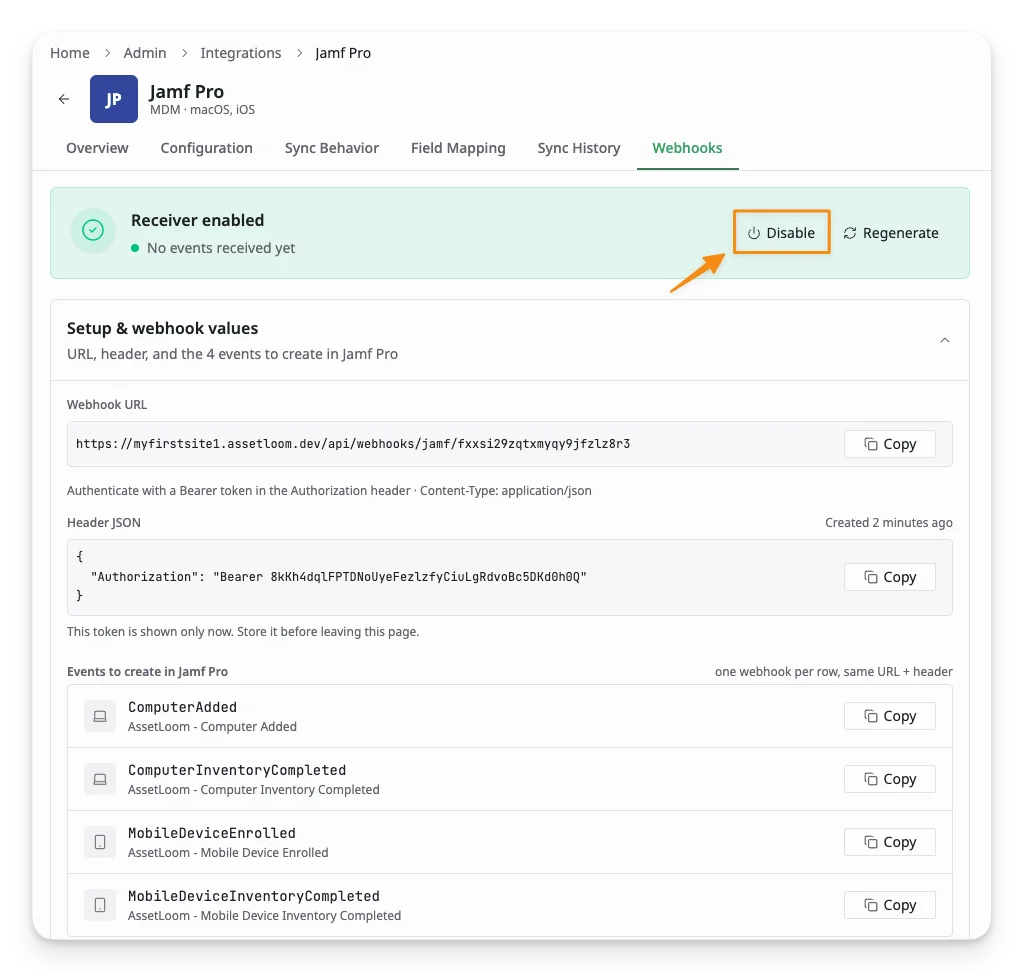
While the receiver is disabled, AssetLoom will not accept incoming webhook events. The webhooks configured in Jamf Pro are not deleted, so you can enable the receiver again later without recreating them.
Regenerate the webhook token
Regenerate the token if the current token is lost, exposed, or needs to be replaced for security reasons. To do this, click Regenerate at the top of the Webhooks tab.
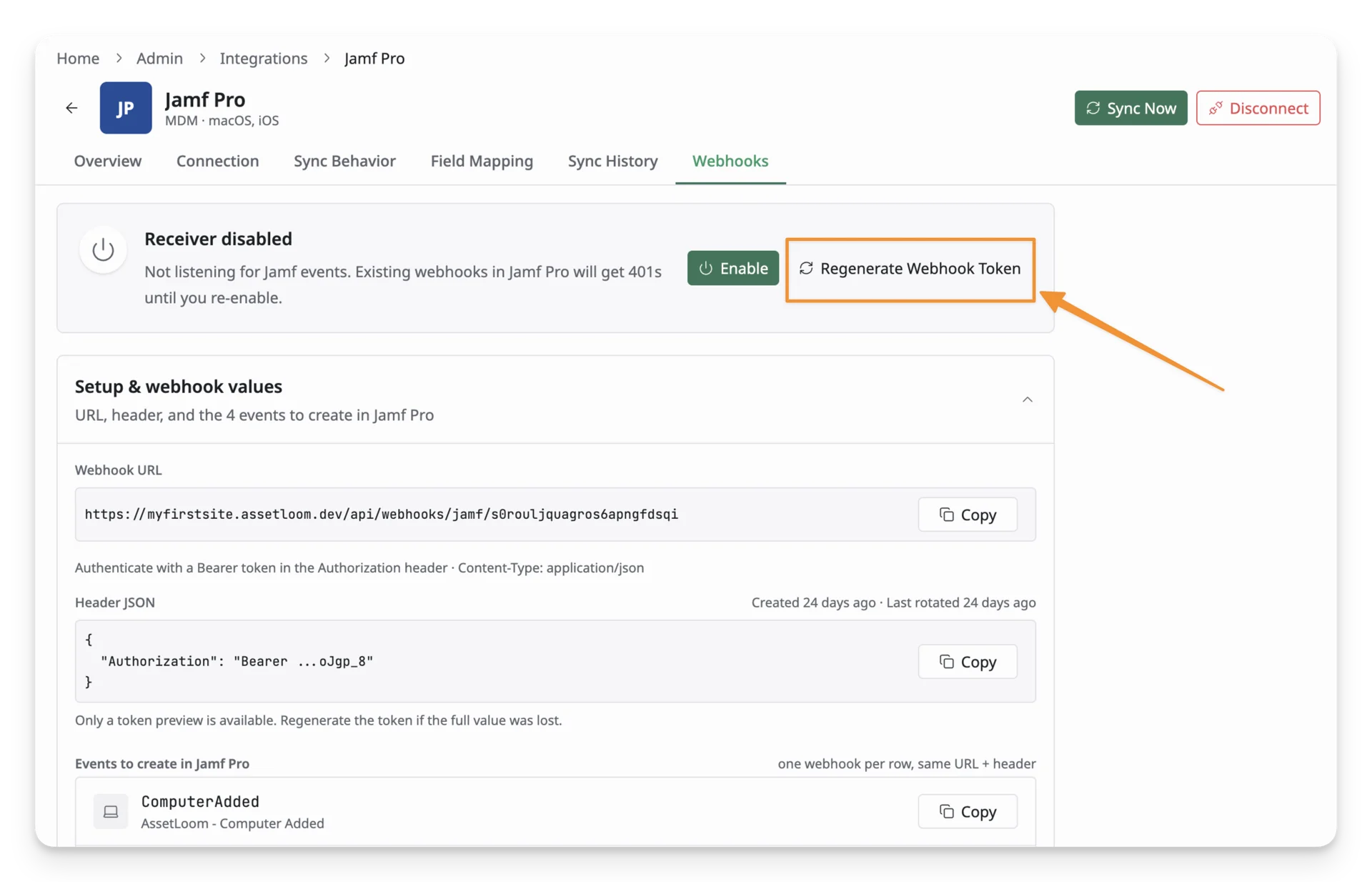
- Copy and securely store the new Header JSON before leaving the page.
- In Jamf Pro, replace the Header Authentication value in every AssetLoom webhook with the new Header JSON.
After the token is regenerated, the previous token becomes invalid. Any Jamf Pro webhook that still uses the old Header JSON will no longer be accepted by AssetLoom. Make sure to make changes to the Header JSON in every Jamf Pro webhook.