Configuration Reference
Learn how to configure AssetLoom Network Scanner settings, including ping retries, rate limits, timeouts, and concurrency for different network conditions.
Your config.json file controls how AssetLoom Network Scanner performs discovery. The main scan scope, protocols, and TCP ports are configured during Configure Scan Options.
This reference covers the additional settings you may need when you want to adjust how long the scanner waits for responses, how many checks it performs at the same time, and how quickly ICMP discovery runs.
1. Ping Retries
ping_retries controls how many times the scanner retries an ICMP ping when a device does not respond.
Default: "ping_retries": 2
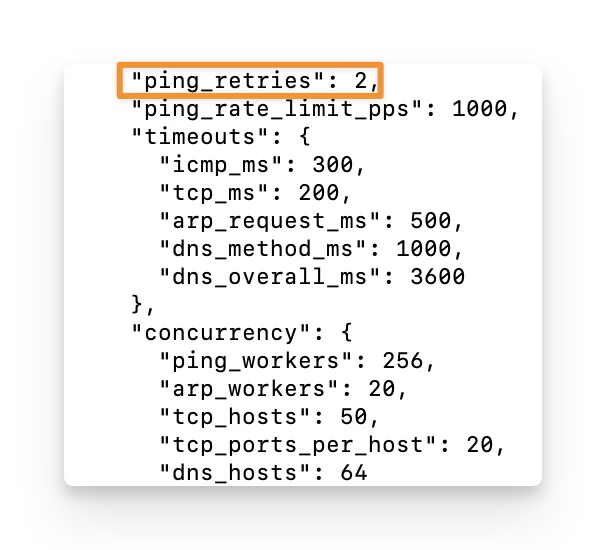
A higher value gives devices more opportunities to respond, which may help on unstable or slower networks. However, it can also make the discovery process take longer.
You can keep the default setting unless you are seeing devices that respond inconsistently to ping.
2. Ping Rate Limit
ping_rate_limit_pps controls how quickly the scanner sends ICMP ping requests, measured by packets per second.
Default: "ping_rate_limit_pps": 1000
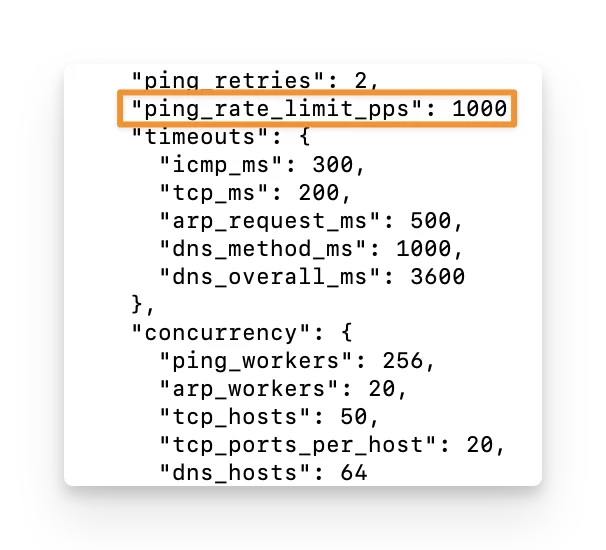
A higher value sends more ping requests per second, which can make discovery faster. A lower value sends fewer ping requests, which reduces network traffic.
You can consider lowering this setting if you want the scan to have less impact on the network, especially on busy or bandwidth-sensitive networks.
3. Timeouts
timeouts control how long the scanner waits for a response before moving on. The values are measured in milliseconds.
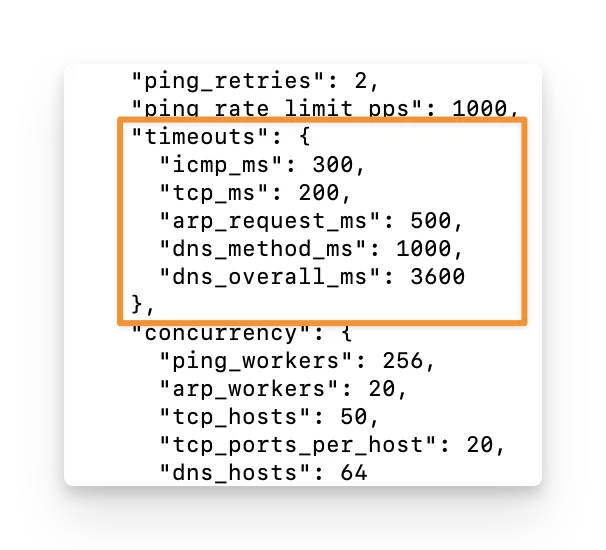
Default settings:
| Setting | What it controls | Default |
|---|---|---|
icmp_ms | How long to wait for each ICMP ping response. | 300 ms |
tcp_ms | How long to wait when trying to connect to a TCP port. | 200 ms |
arp_request_ms | How long to wait for an ARP response. | 500 ms |
dns_method_ms | How long each hostname lookup method can take. | 500 ms |
dns_overall_ms | Maximum time allowed for hostname discovery for one device. | 1800 ms |
You can keep the default timeout values for most scans.
- Increase the timeout if devices are slow to respond or are connected through a higher-latency network. This gives the scanner more time to wait for a response.
- Lower the timeout if devices usually respond quickly and you want the scanner to move on sooner when there is no response.
Increasing timeout values may help detect slower devices, but it can also make the overall scan take longer.
4. Concurrency
Concurrency controls how many discovery checks the scanner can perform at the same time.
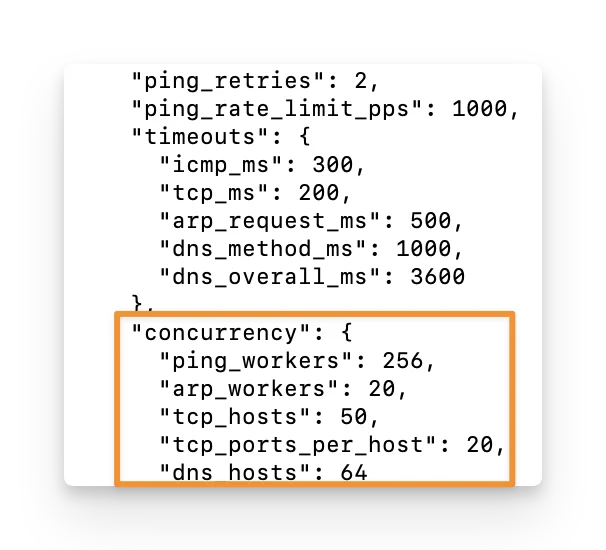
Default settings:
| Setting | What it controls | Default |
|---|---|---|
ping_workers | Number of devices that can be checked with ICMP concurrently. | 256 |
arp_workers | Number of ARP checks that can run concurrently. | 20 |
tcp_hosts | Number of devices that can be checked with TCP concurrently. | 50 |
tcp_ports_per_host | Number of TCP ports that can be checked at the same time for each device. | 20 |
dns_hosts | Number of devices that can go through hostname lookup concurrently. | 64 |
When Should You Change Concurrency?
Higher concurrency can make discovery faster, but it also creates more network and system activity. Lower concurrency makes discovery slower but reduces the amount of work happening at one time.
You can keep the default concurrency values for most scans.
- Lower concurrency if you want the scan to generate less activity on the network or use fewer resources on the scanner host.
- Keep or increase concurrency if the network and scanner host can handle more simultaneous checks, and you want the scan to complete faster.