Checkout/checkin Components
Learn how to checkout and checkin components
Each component in AssetLoom is tracked by its available quantity. When a component is checked out, the system automatically reduces the available quantity based on the assigned amount. Once components are checked back in, the quantity is returned to the available stock.
To avoid running out of stock, set a minimum quantity threshold for each component. AssetLoom will automatically notify you when the available quantity reaches or falls below the specified threshold.
Components can only be checked out to assets, allowing you to easily track which asset they are attached to.
How To Checkout Components
Step 1: Navigate to the Components Screen:
From the Resources → Components, navigate to the components you want to check out.
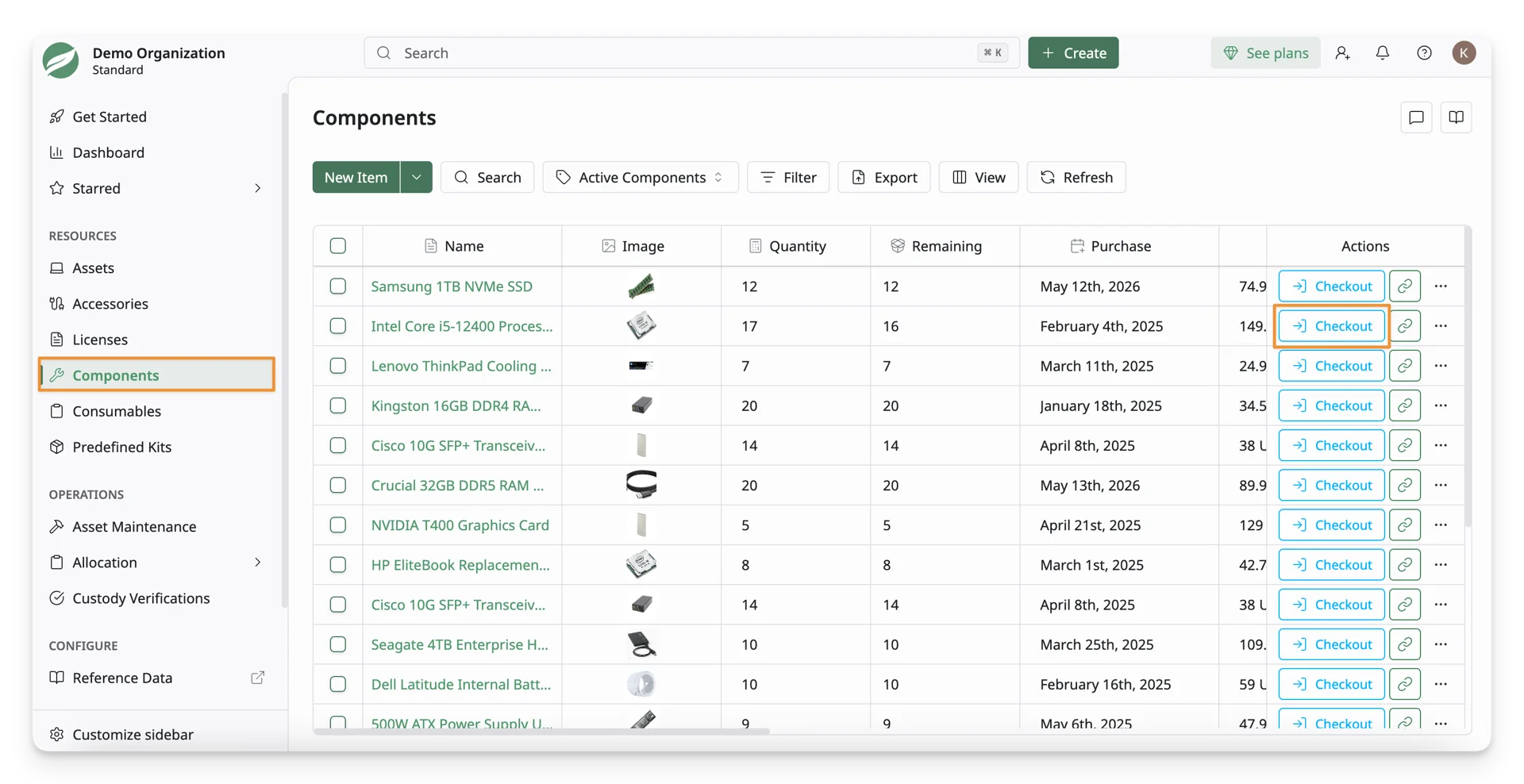
In the Actions column, click the “Checkout” button.
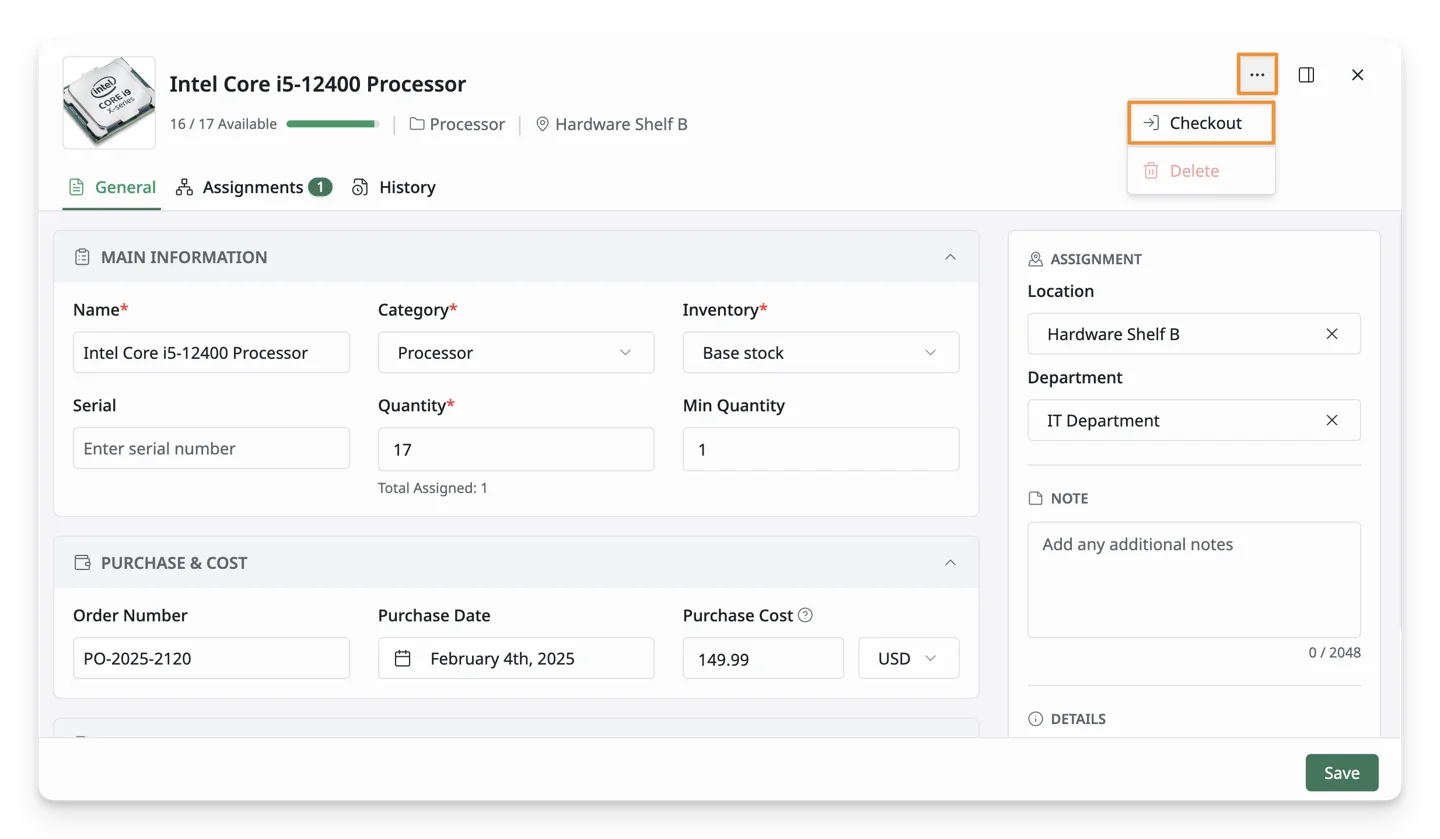
You can click the Checkout button in any tab of the Component Details screen to open the checkout screen quickly.
Step 2: Checkout Component Screen:
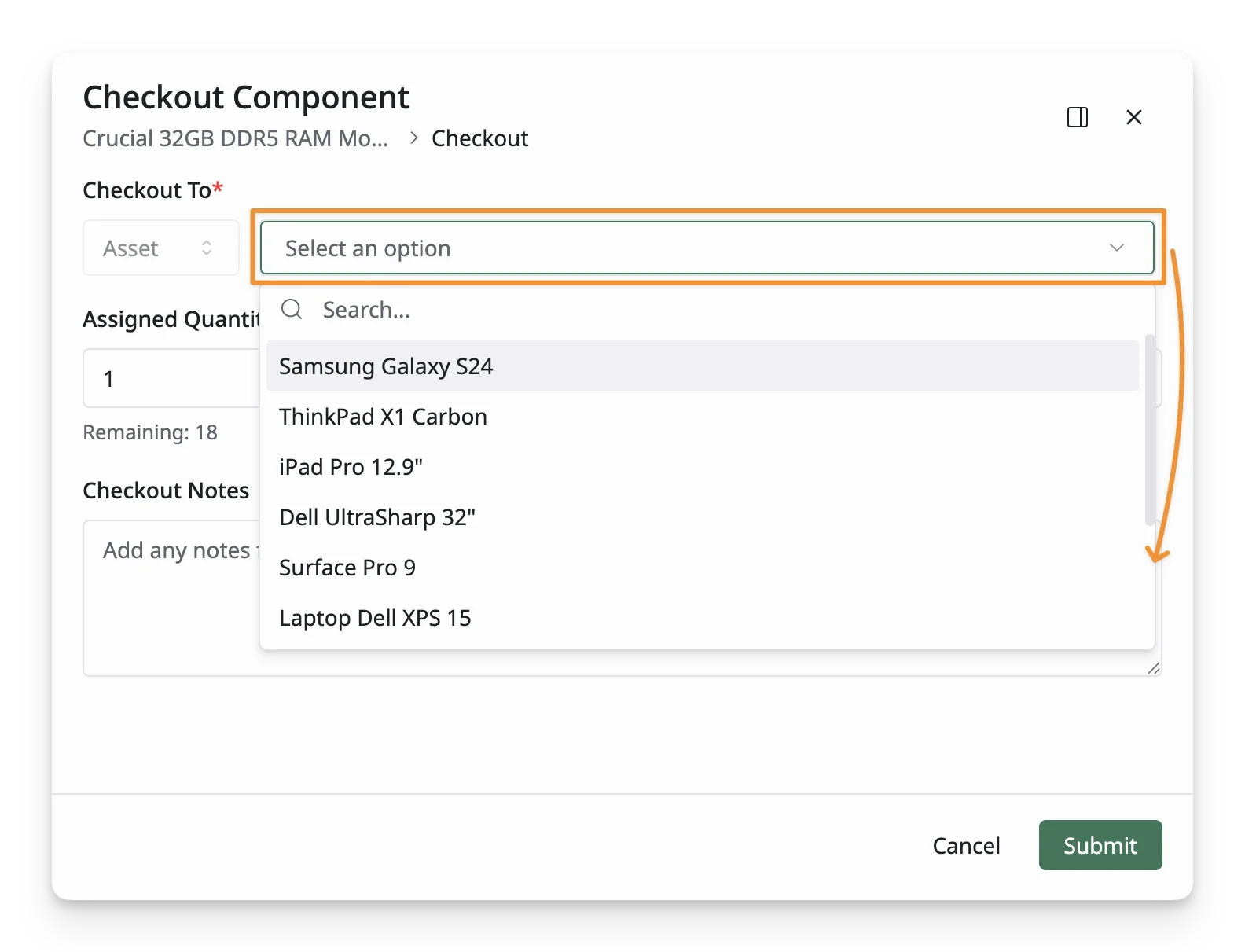
A Checkout Component Screen will appear. Follow the steps below to complete the checkout process:
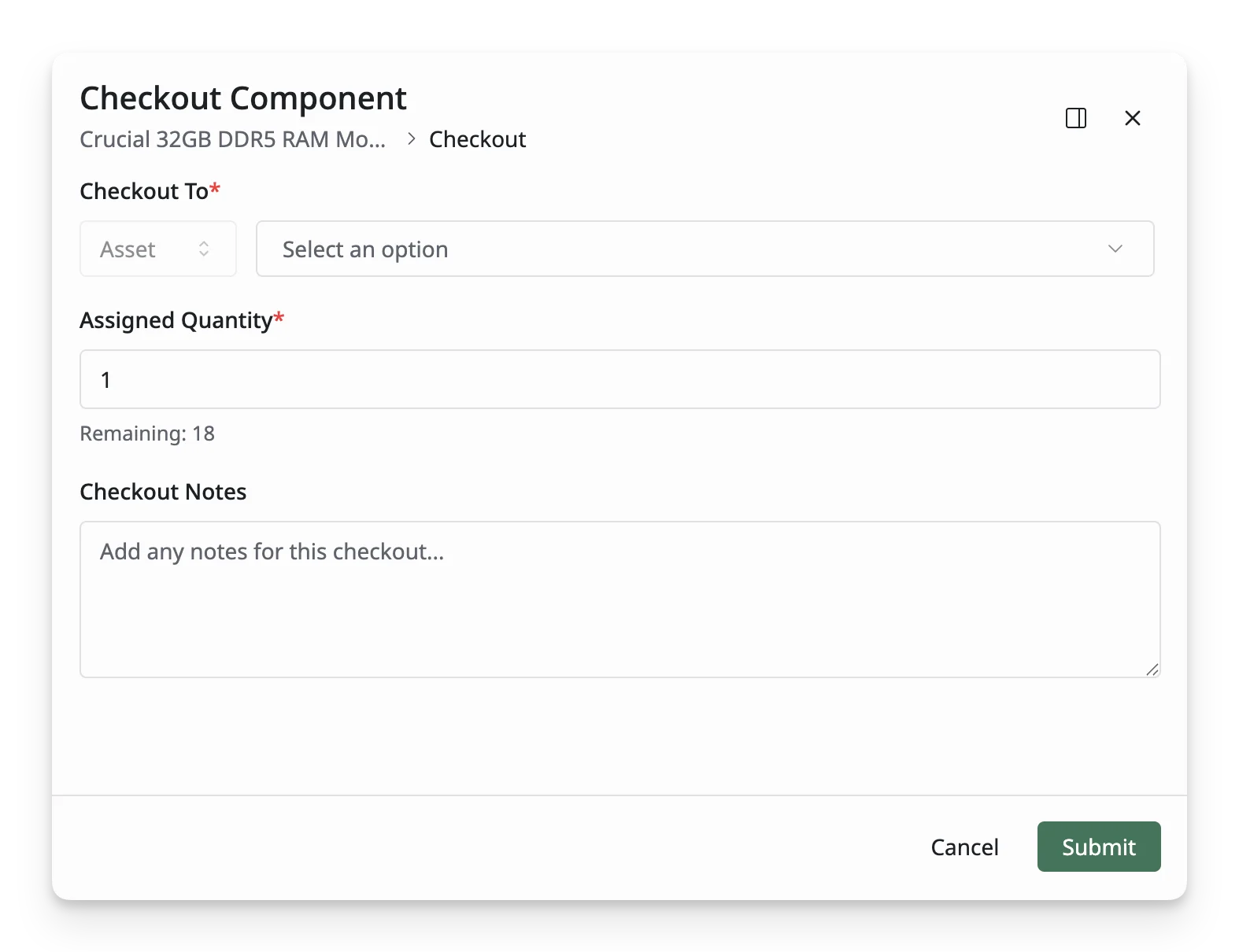
- Checkout To: Choose an available asset from the dropdown list
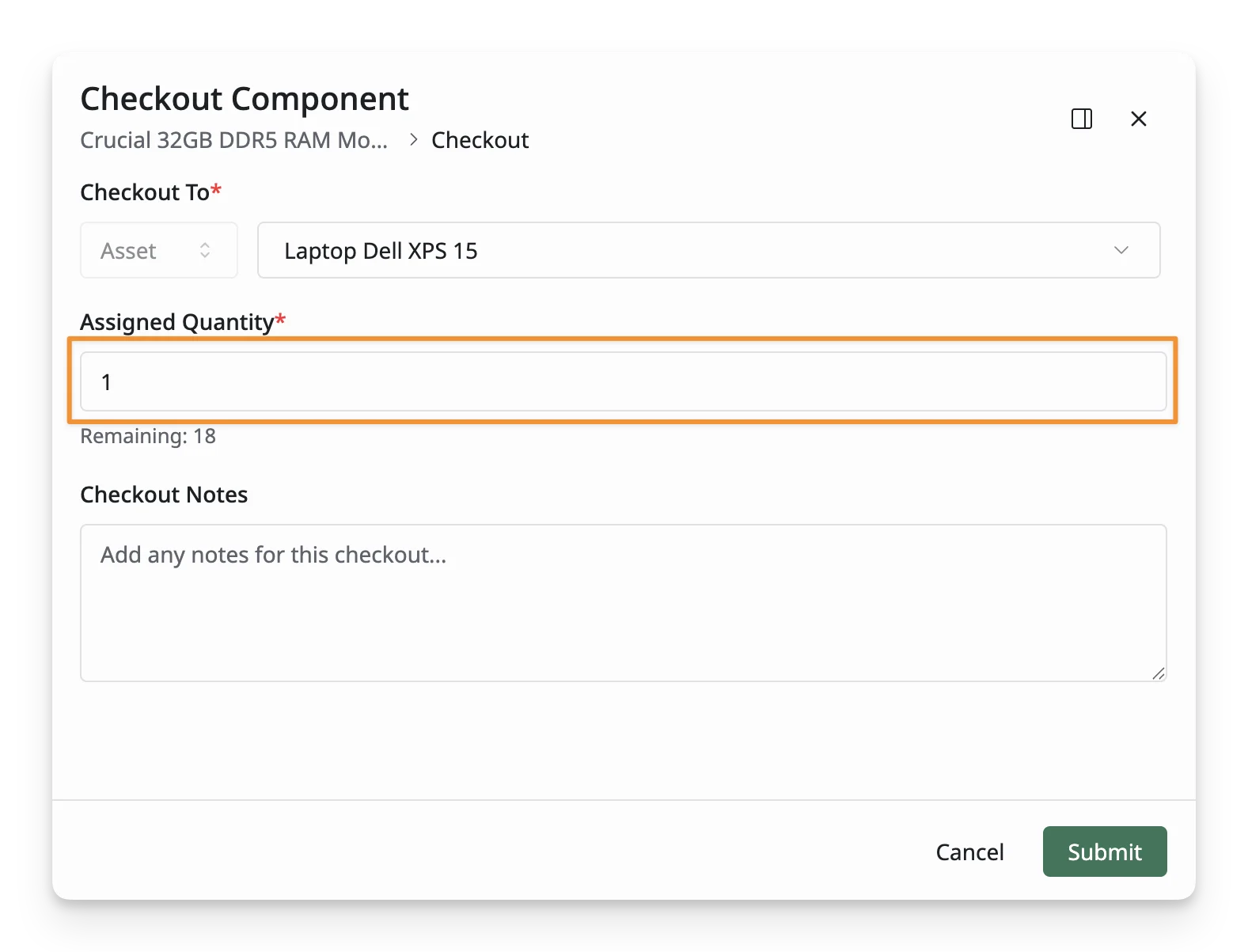
- Assigned Quantity: Enter the quantity of the component to check out. The quantity cannot exceed the currently available stock.
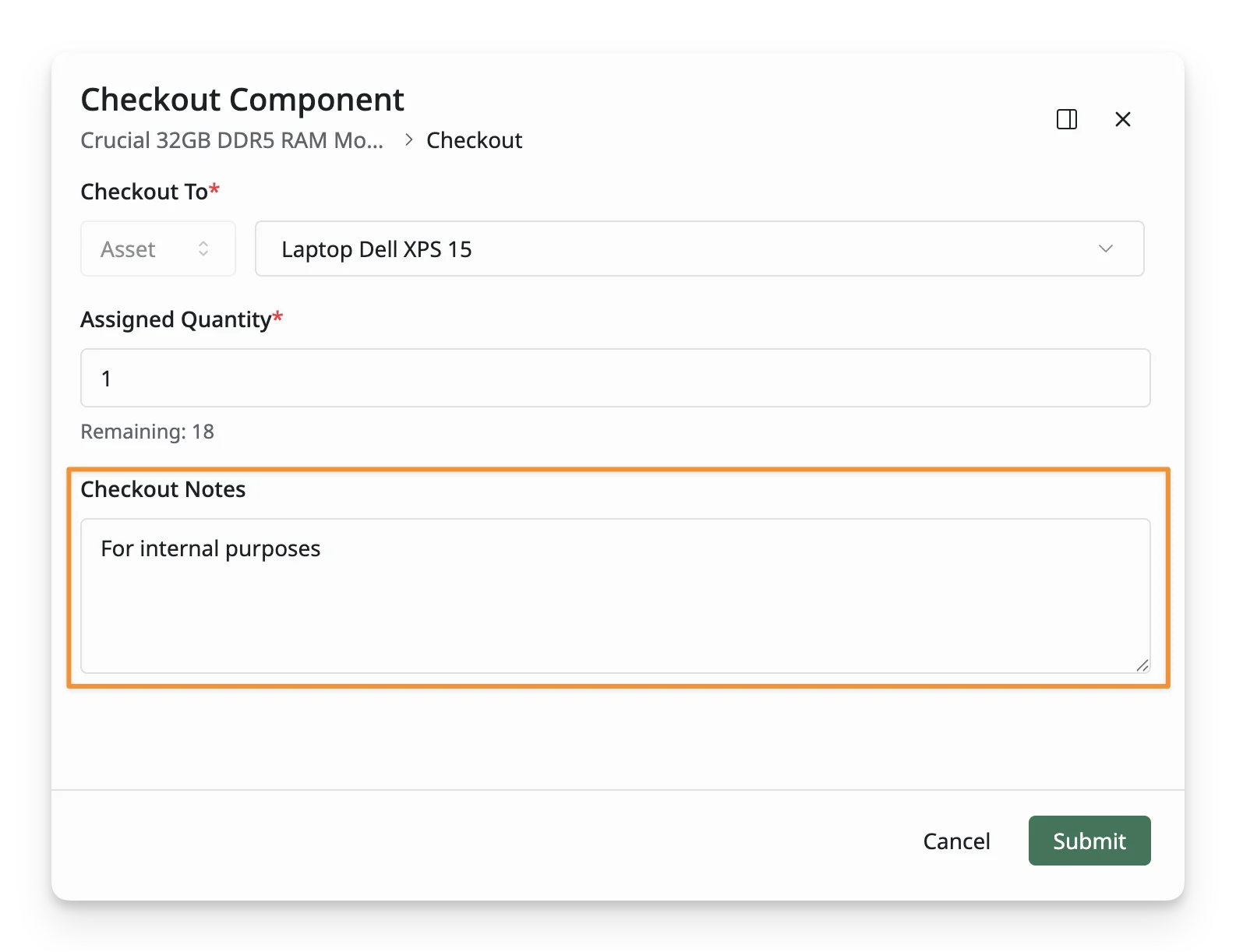
- Checkout Notes: Add any additional notes or remarks related to the checkout, such as the purpose, event, or assignment details.
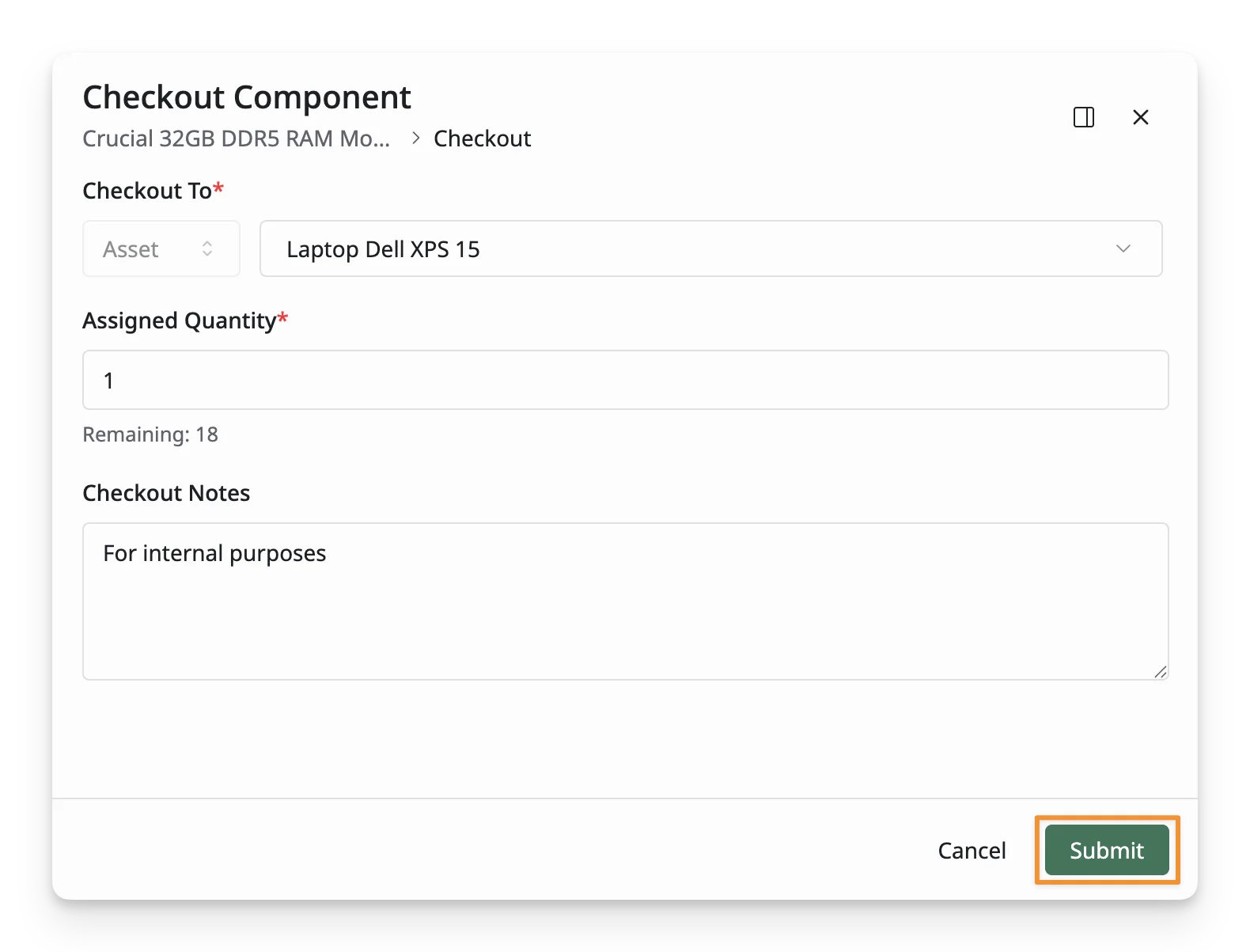
Click “Submit” when you have finished entering details.
How To Check In Components
To check in a component that has been previously checked out, you can follow these steps:
Step 1: Navigate to the Component Screen:
From the Resources → Components, navigate to the component you want to check in.
Open the Component Detail Screen, choose the Active checkouts tab, and you can see the “Checkin” options
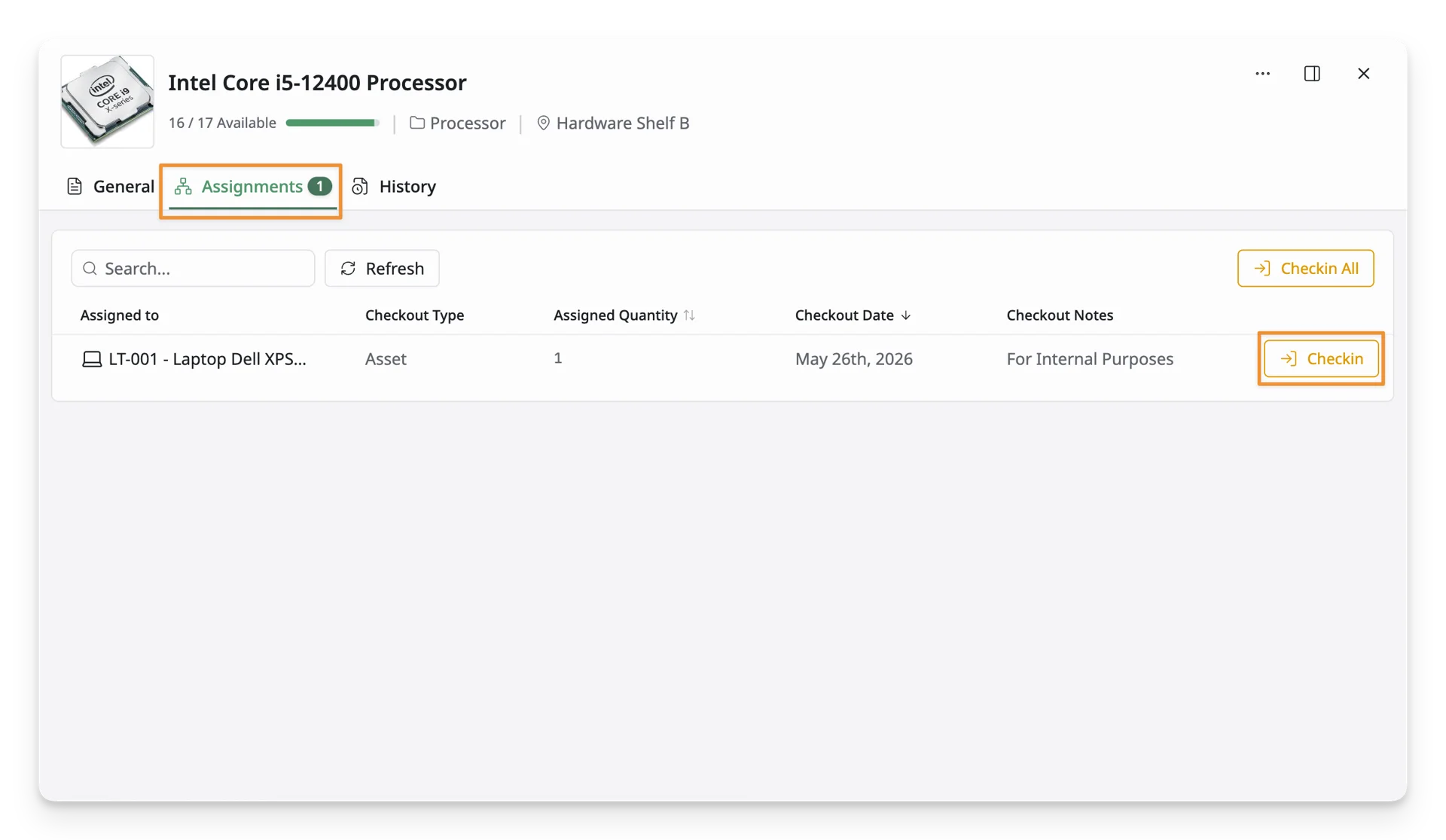
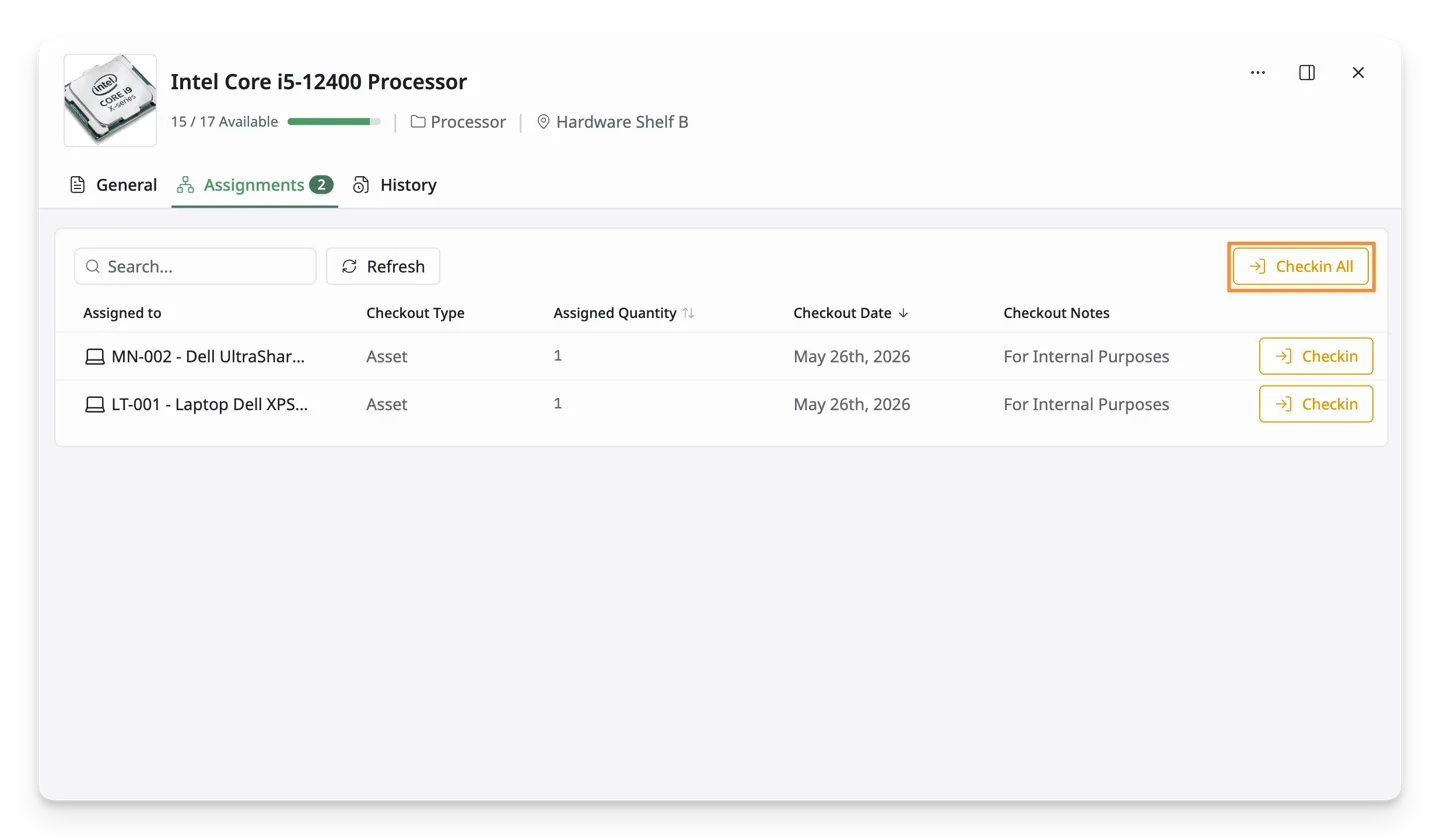
You can click the “Checkin All” button to restore all components to inventory.
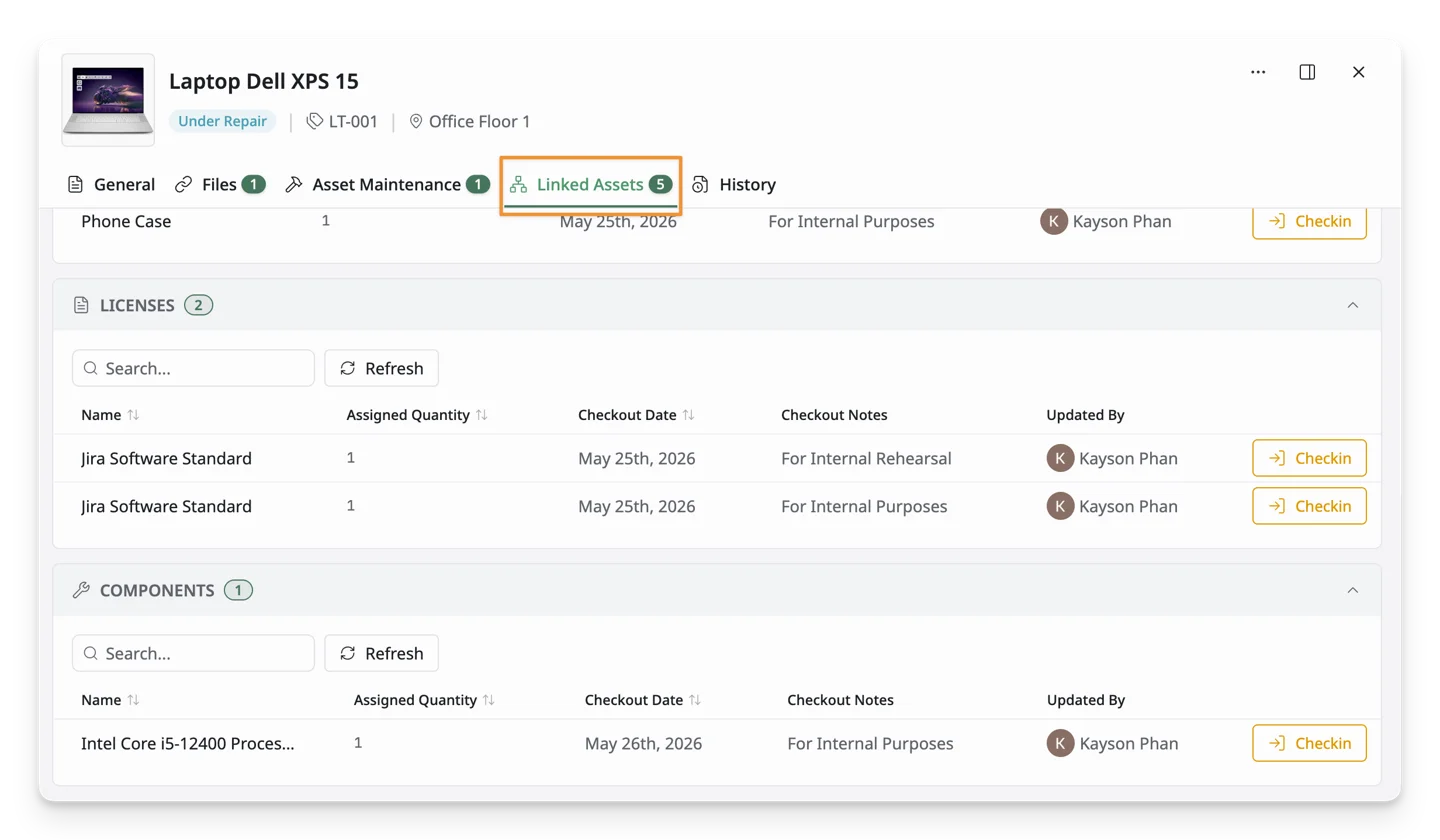
You can also go to Resources → Assets → Asset Detail Screen → Linked Assets tab to perform the Checkin action.
Step 2: Checkin Component Screen
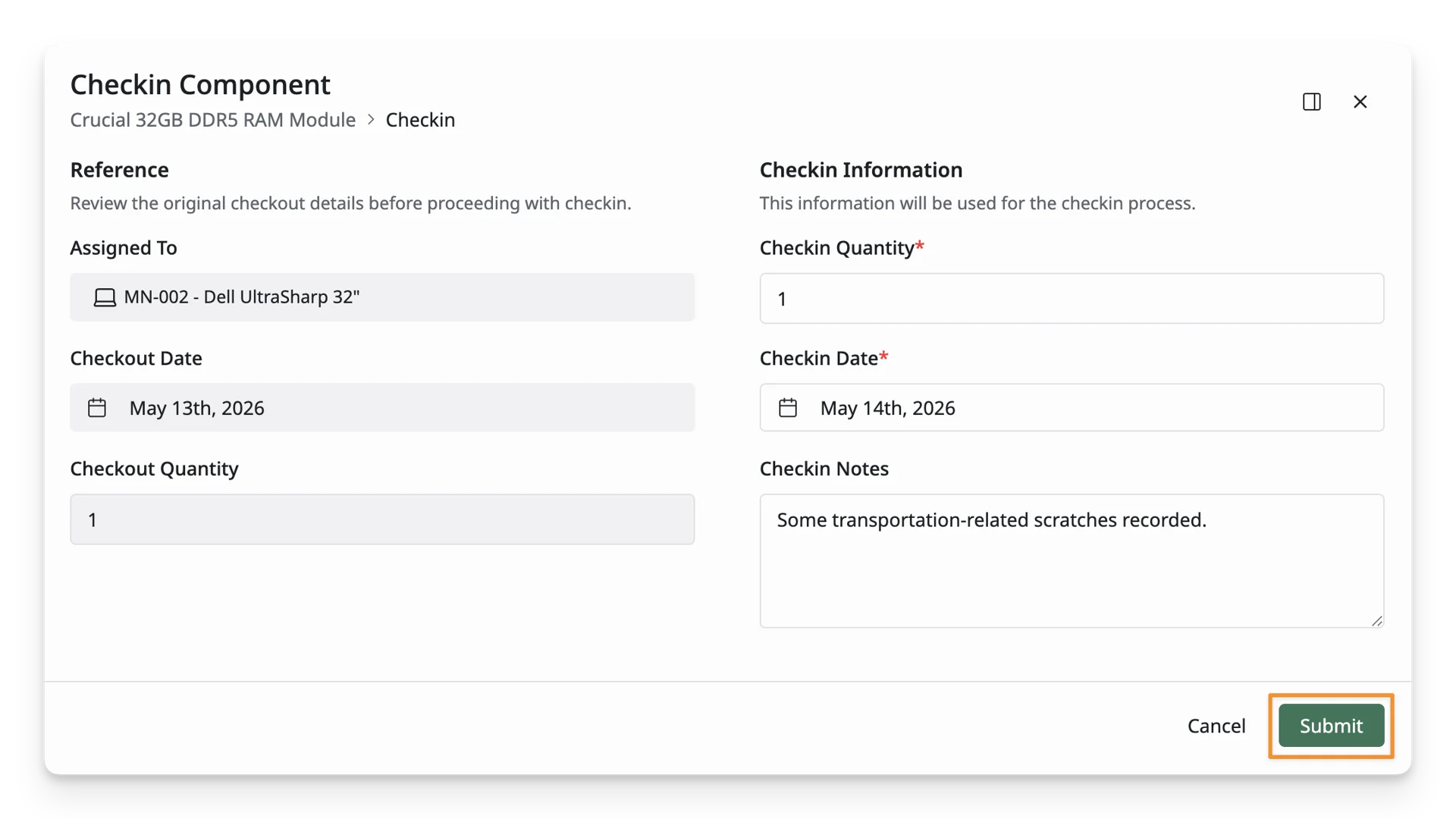
A Checkin Component screen will appear for you to enter check-in information, similar to the checkout process.
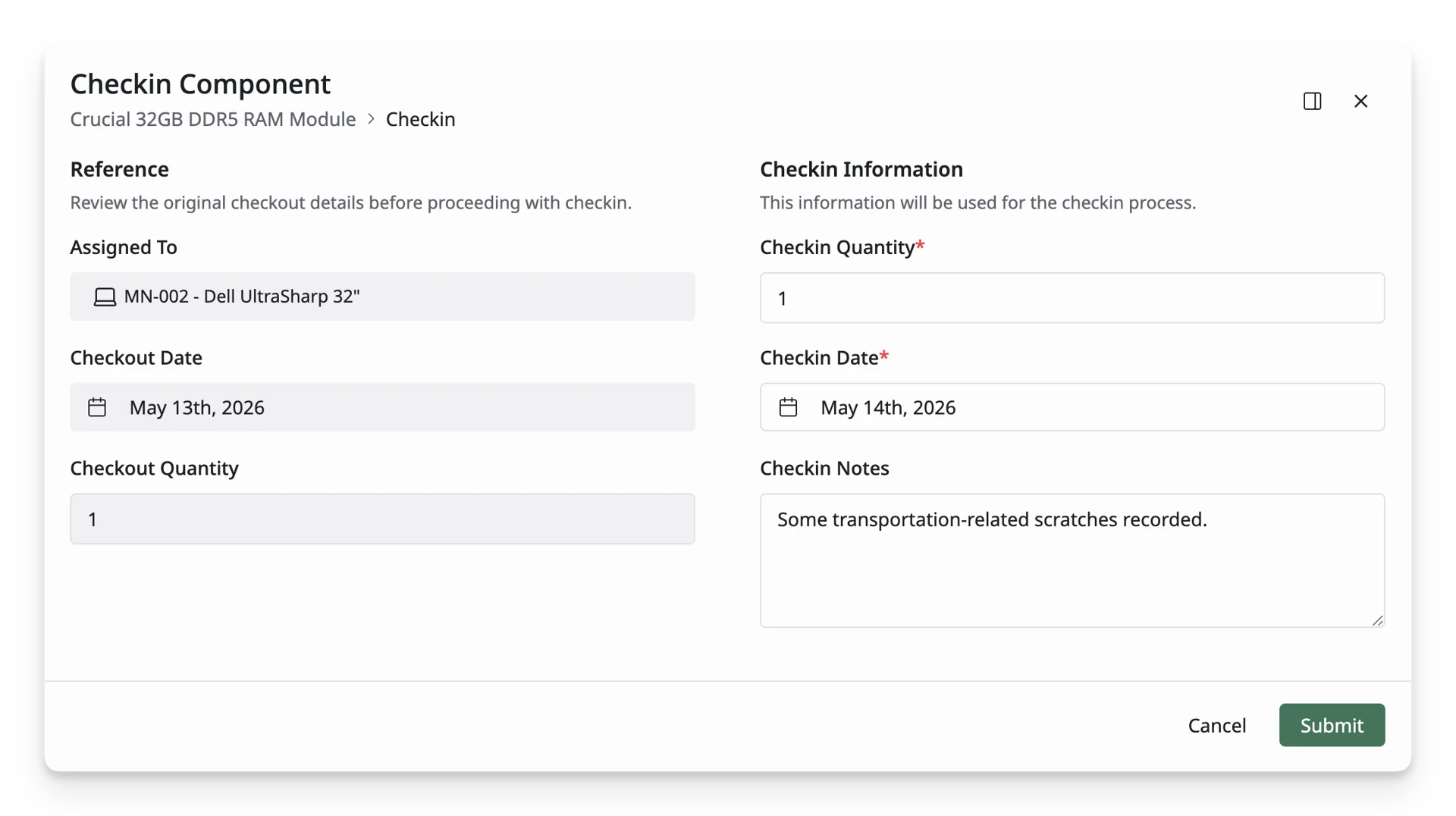
This screen has 2 parts:
- Checkout information: displays the original checkout details of the component. These records are for reference only and cannot be modified during the checkin process. The information includes:
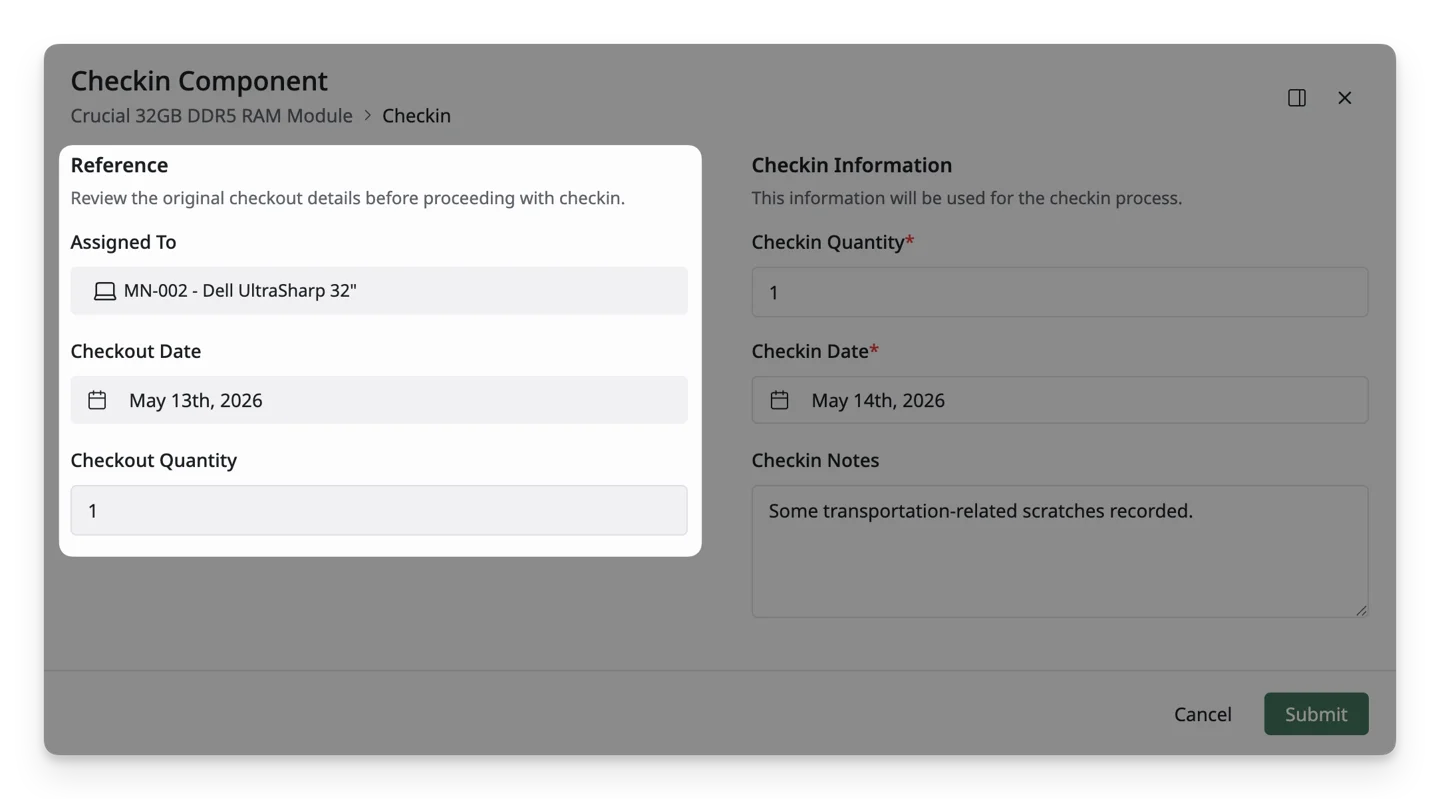
- Assigned To: Displays the asset currently assigned to the component.
- Checkout Date: Shows the date when the component was checked out.
- Quantity: Displays the quantity originally checked out.
- Checkin Information: contains the information you can update before submitting the checkin.
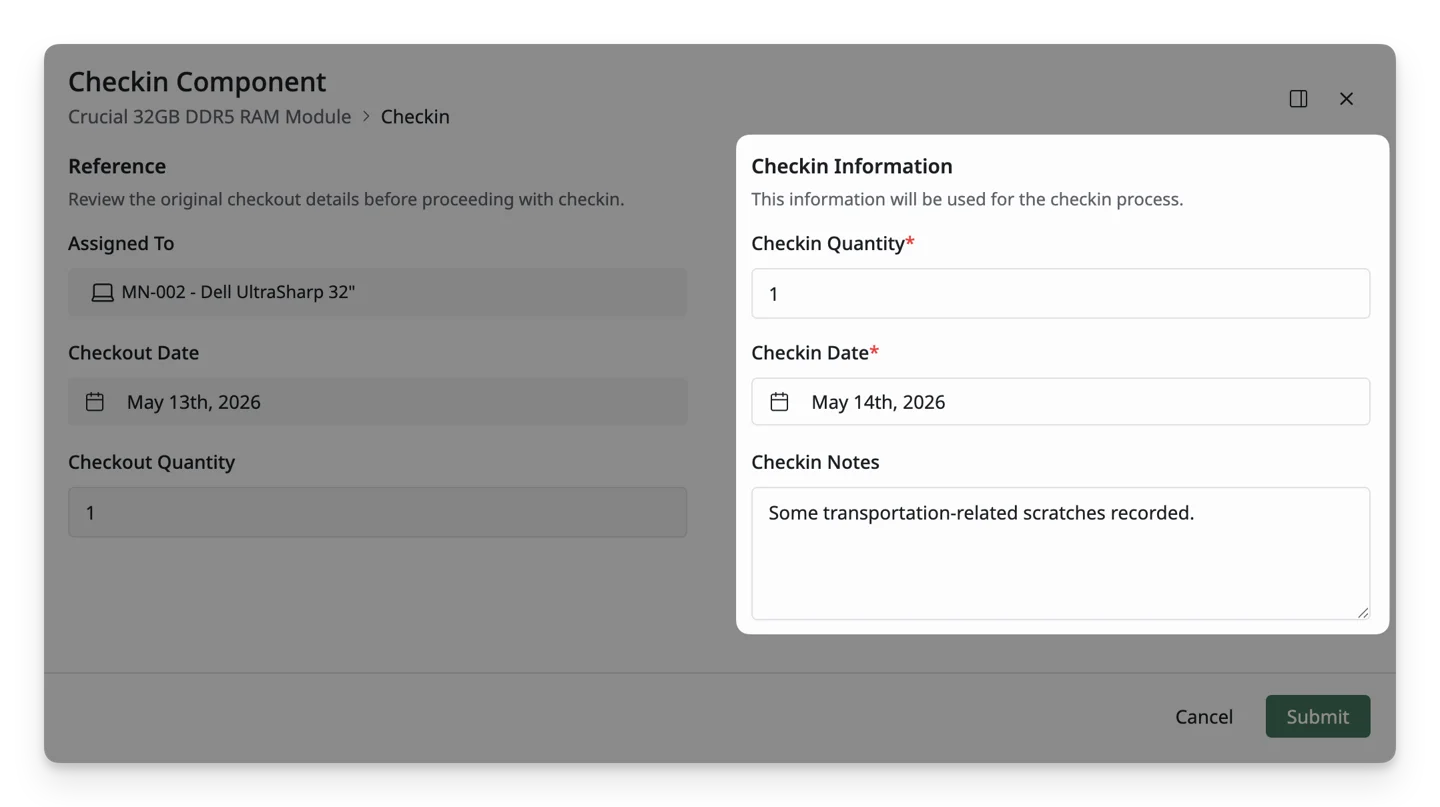
- Checkin Quantity: Enter the quantity to return to inventory.
- Checkin Date: Select the date when the component is being checked in.
- Checkin Notes: Add any additional notes or remarks related to the checkin process, such as item condition or return details.
Click “Submit” when you have finished entering details. This action will return the component to the stock and update the available quantity for the component.