Categories
Learn how to manage Category as one type of reference data
1. What Are Categories
Categories are one type of reference data used to classify and organize assets, accessories, licenses, components, and consumables in AssetLoom. They help group similar items together, making it easier to search and manage different types of resources.
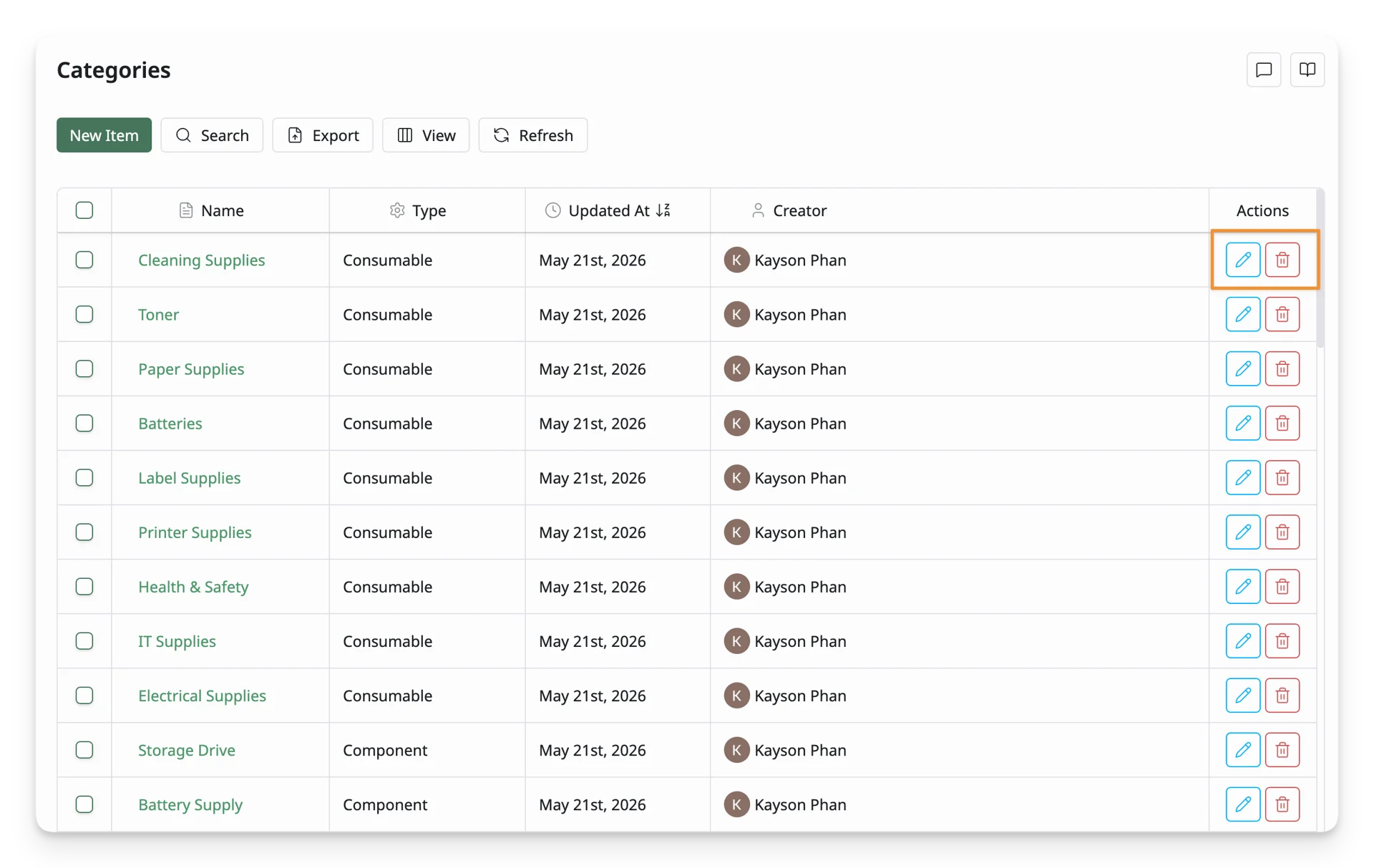
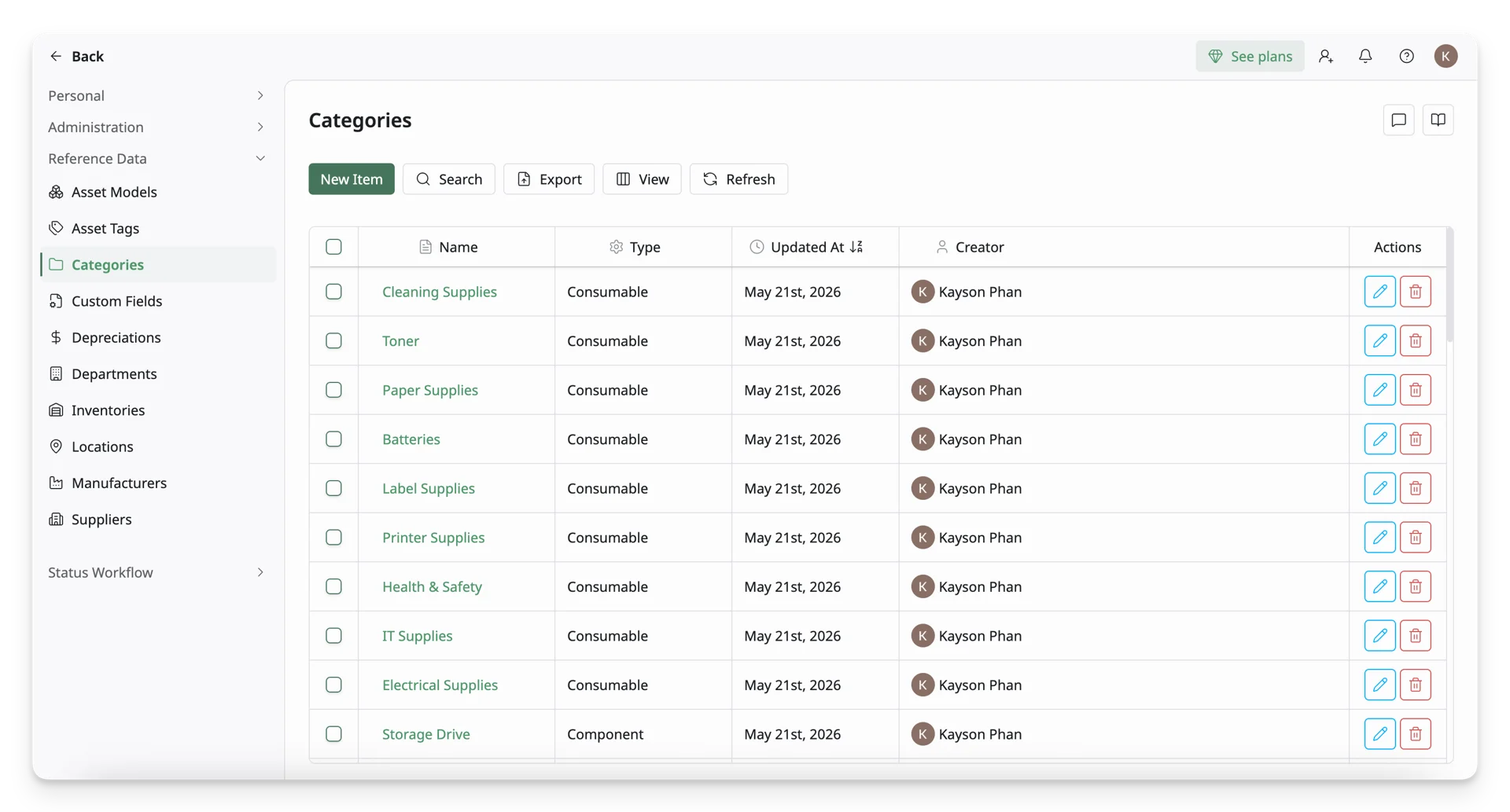
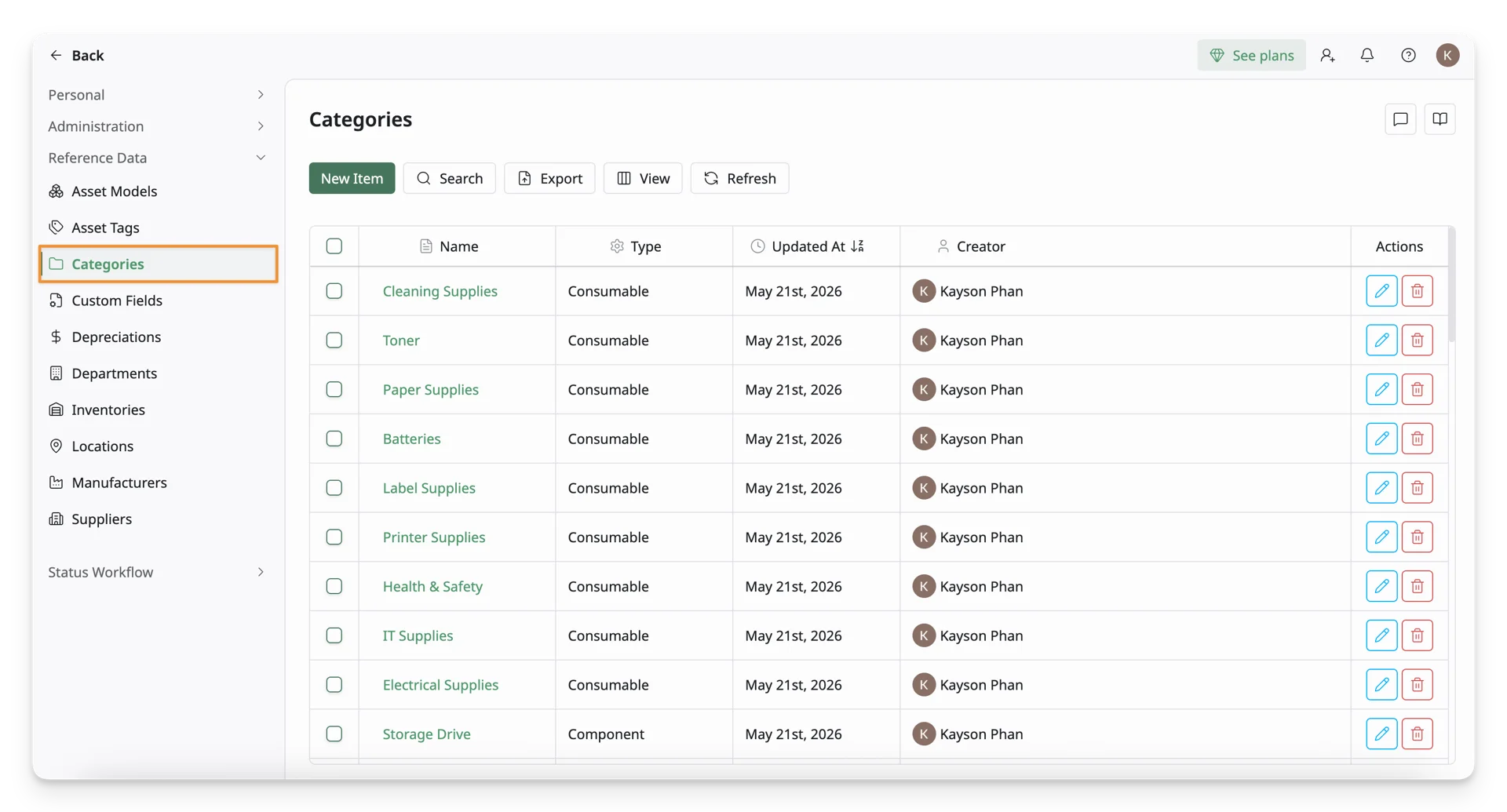
The Category is located under the Reference Data section in the Personal Settings page. This page displays all categories of all resource types in the system and serves as the central place for managing them.
2. How To Set Up Categories
Step 1: Navigate To The Categories Screen
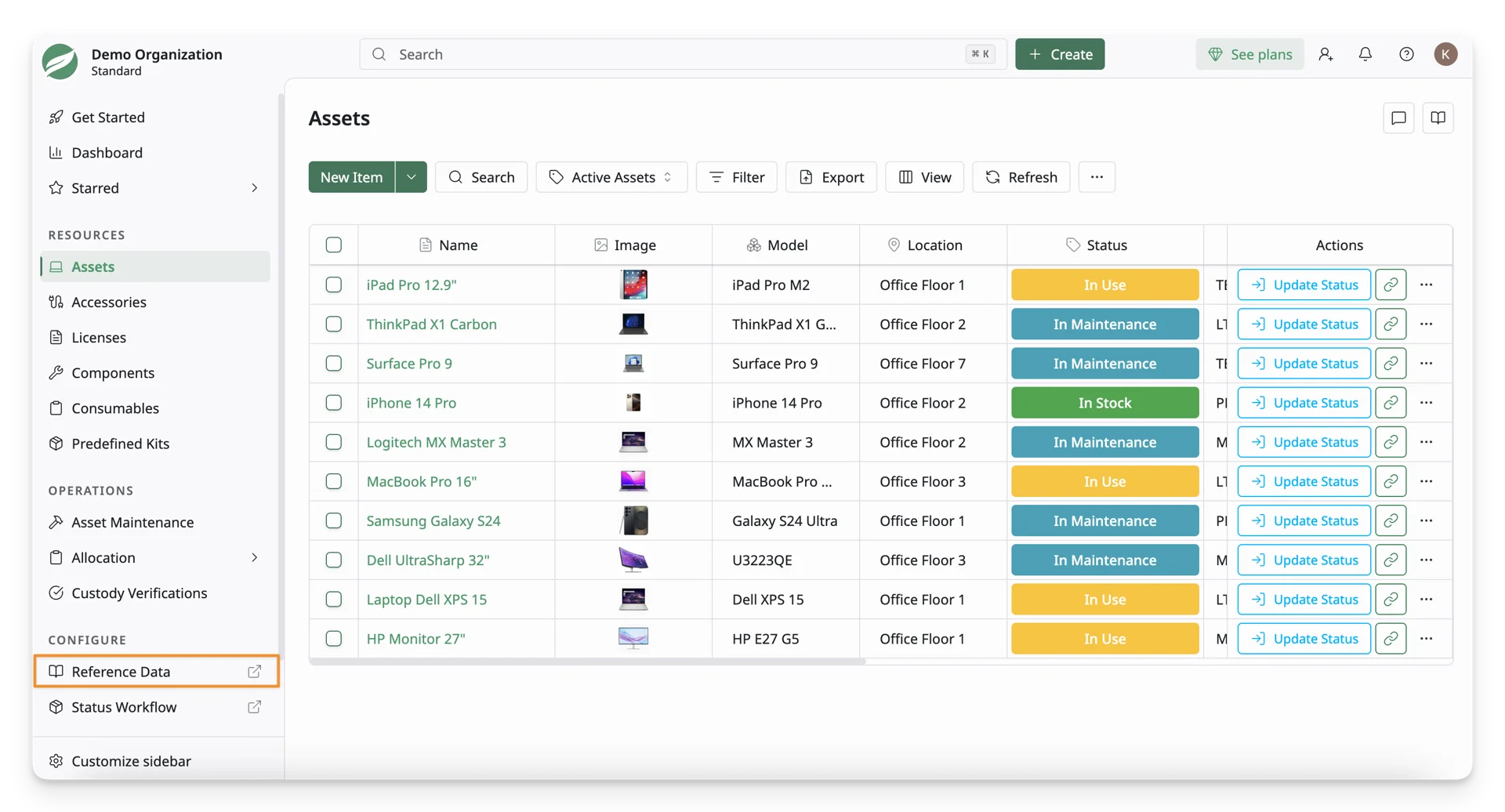
Select the Reference Data in the Configure section on the left-hand side menu sidebar.
On the left menu sidebar, you can view the Categories under the Reference Data.
Step 2: Fill In The Category Form
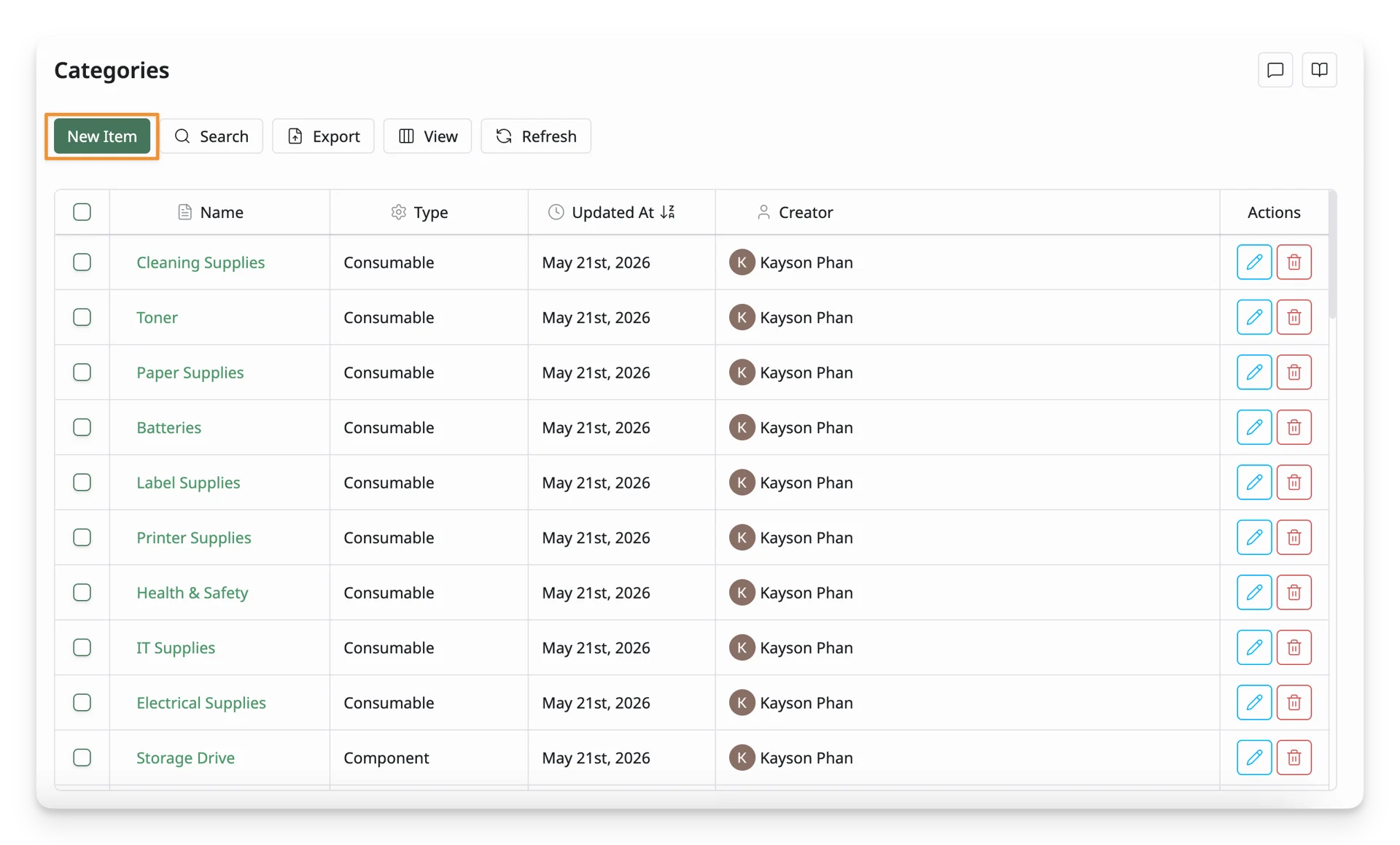
Click the “New Item” button to open the Category Form
Now you can fill in the Category Form. Below are some key fields:
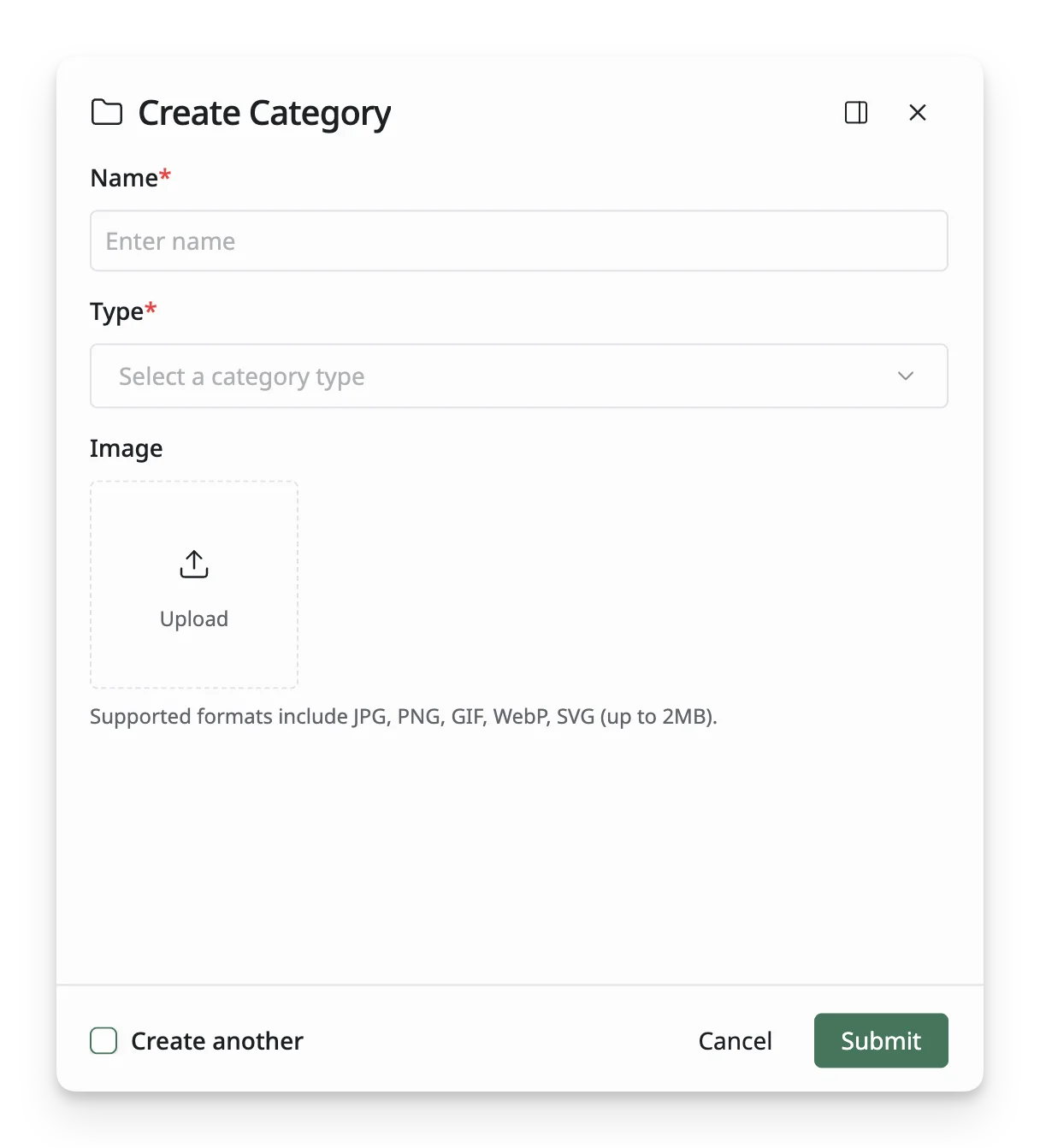
- Name: Name the category to classify resources by functions or types (Laptop, Monitor, etc)
- Type: Select what this category is used for (Asset, Accessory, License, Component, or Consumable).
- Image: A visual reference for the category, helping users quickly recognize and organize related items.
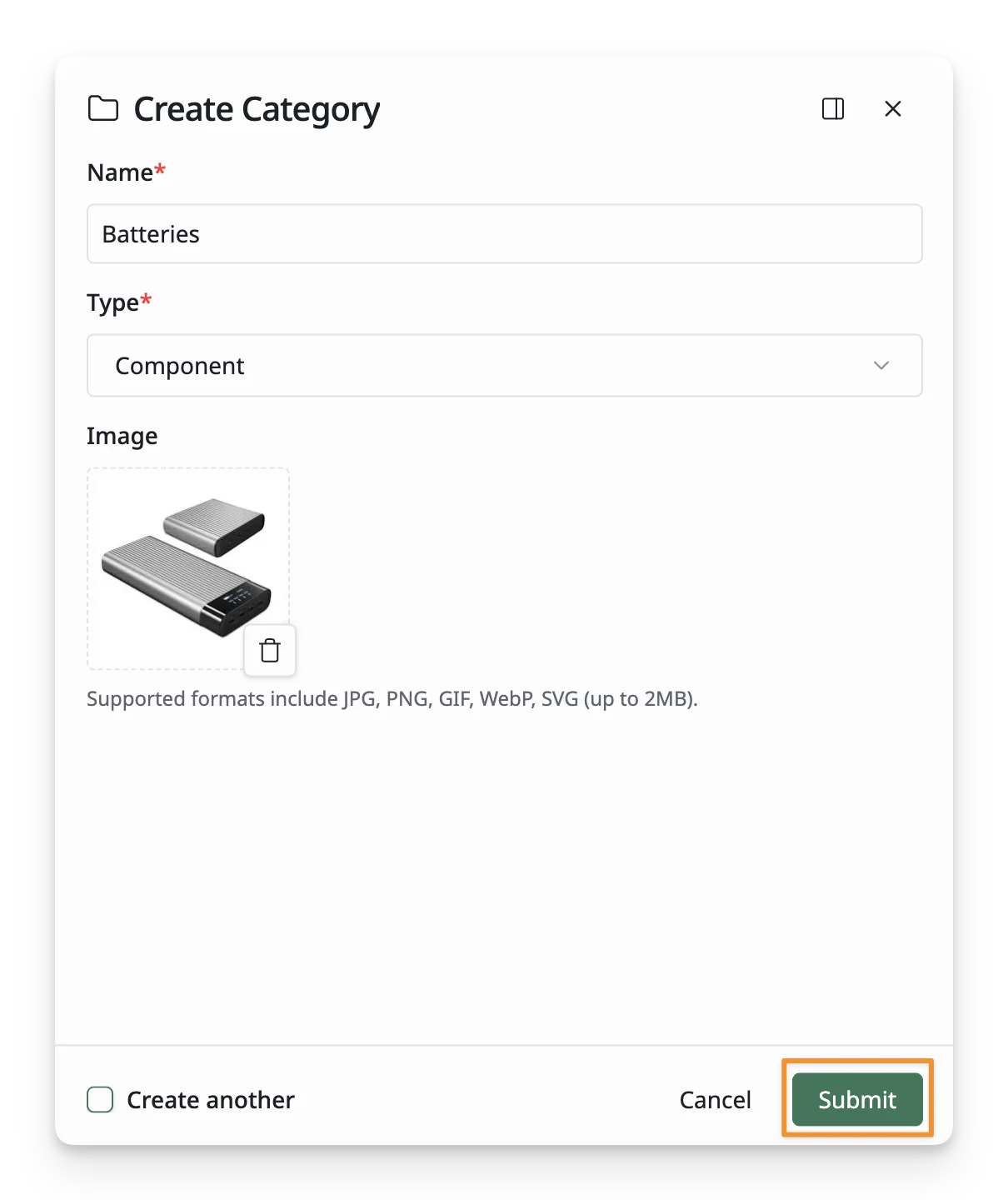
Step 3: Save The Categories
Once all required fields are filled, click the Create button at the bottom of the form to save the category to the system.
Step 4: Review Your Categories
After creating the categories, you will be redirected to the Category List, where you can view and manage all your categories. If any information needs to be updated, simply click on the categories and modify the details as needed.
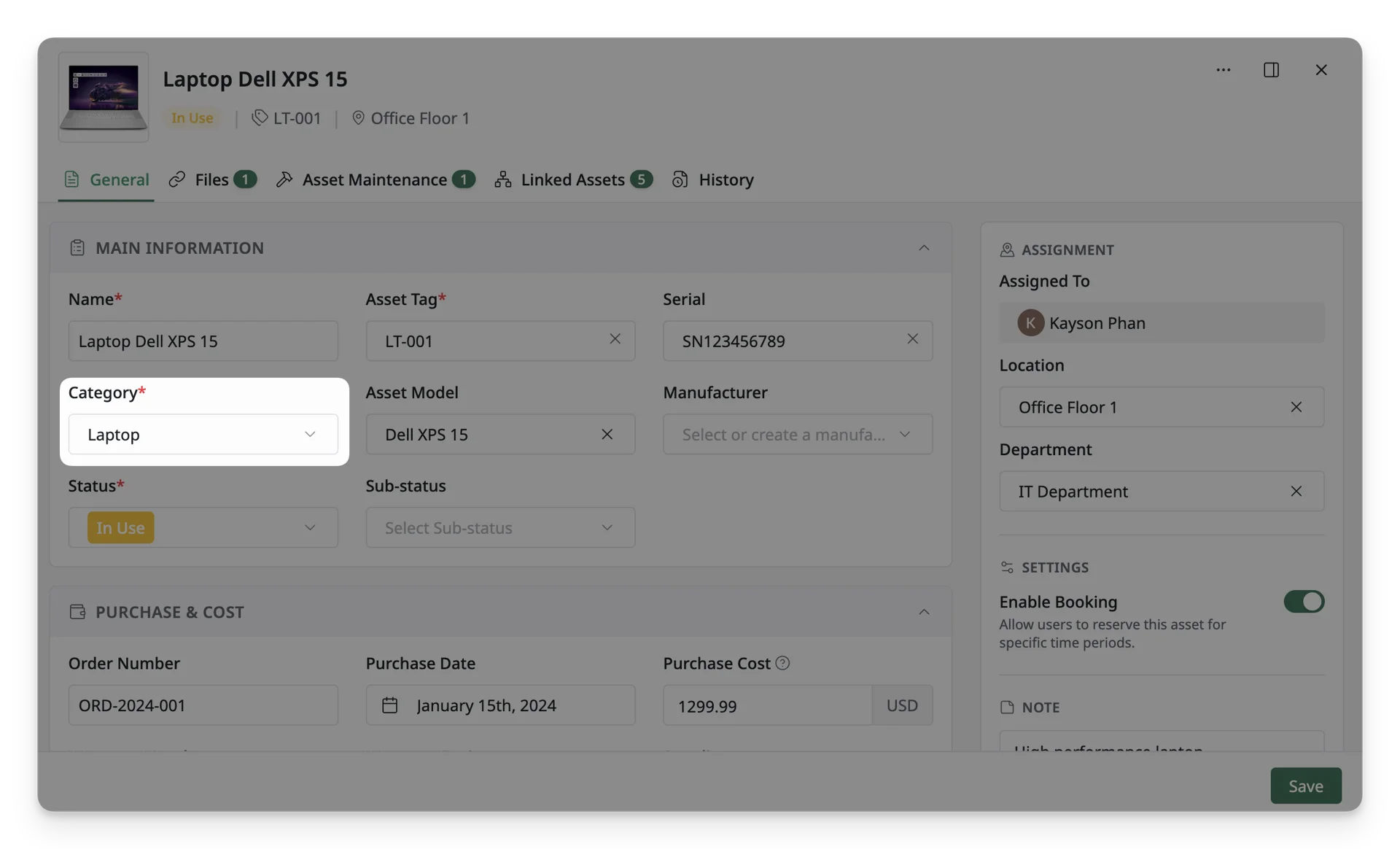
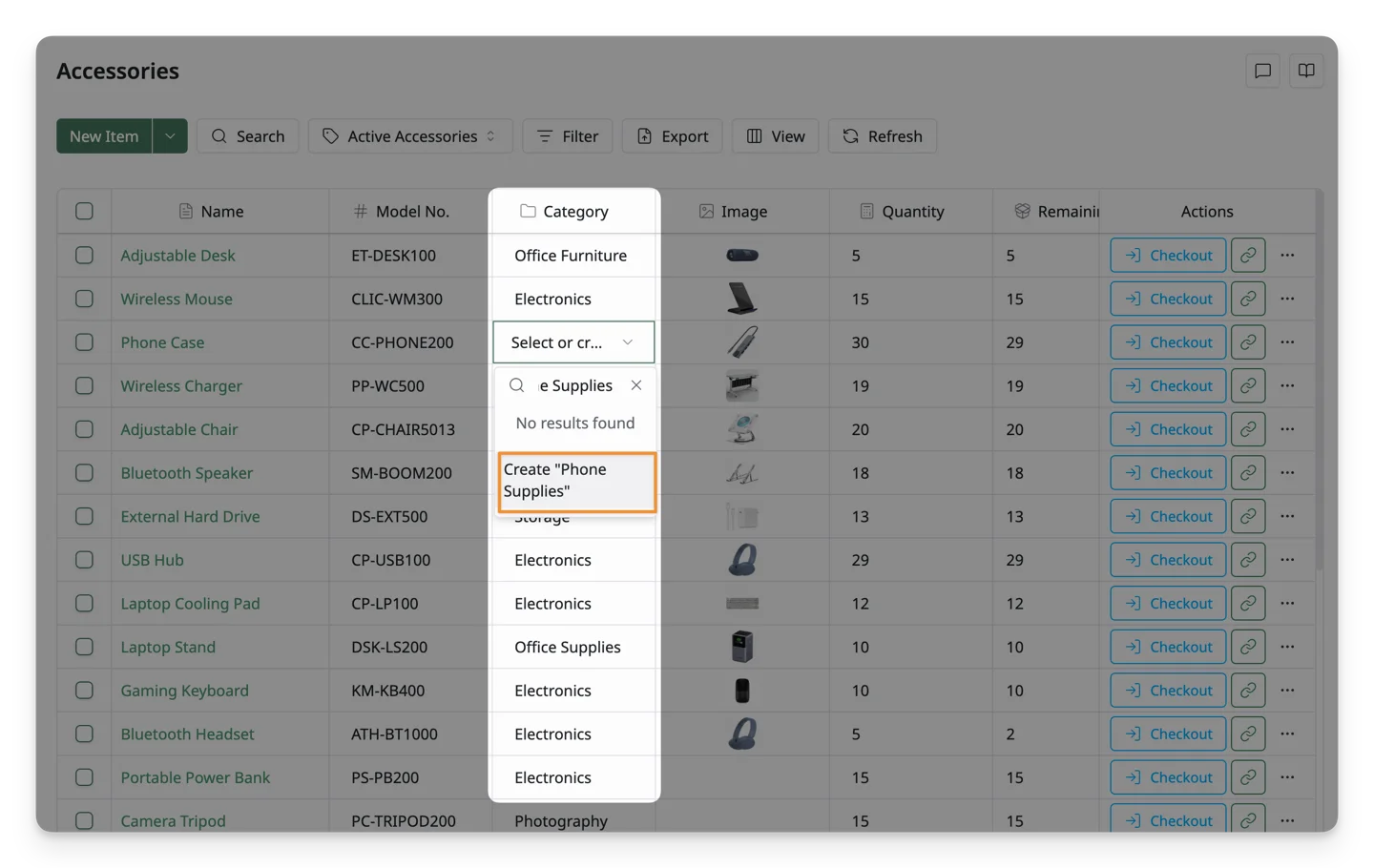
You can quickly create a new category in the Asset, Accessory, License, Component, and Consumable lists by entering one in the Category column.
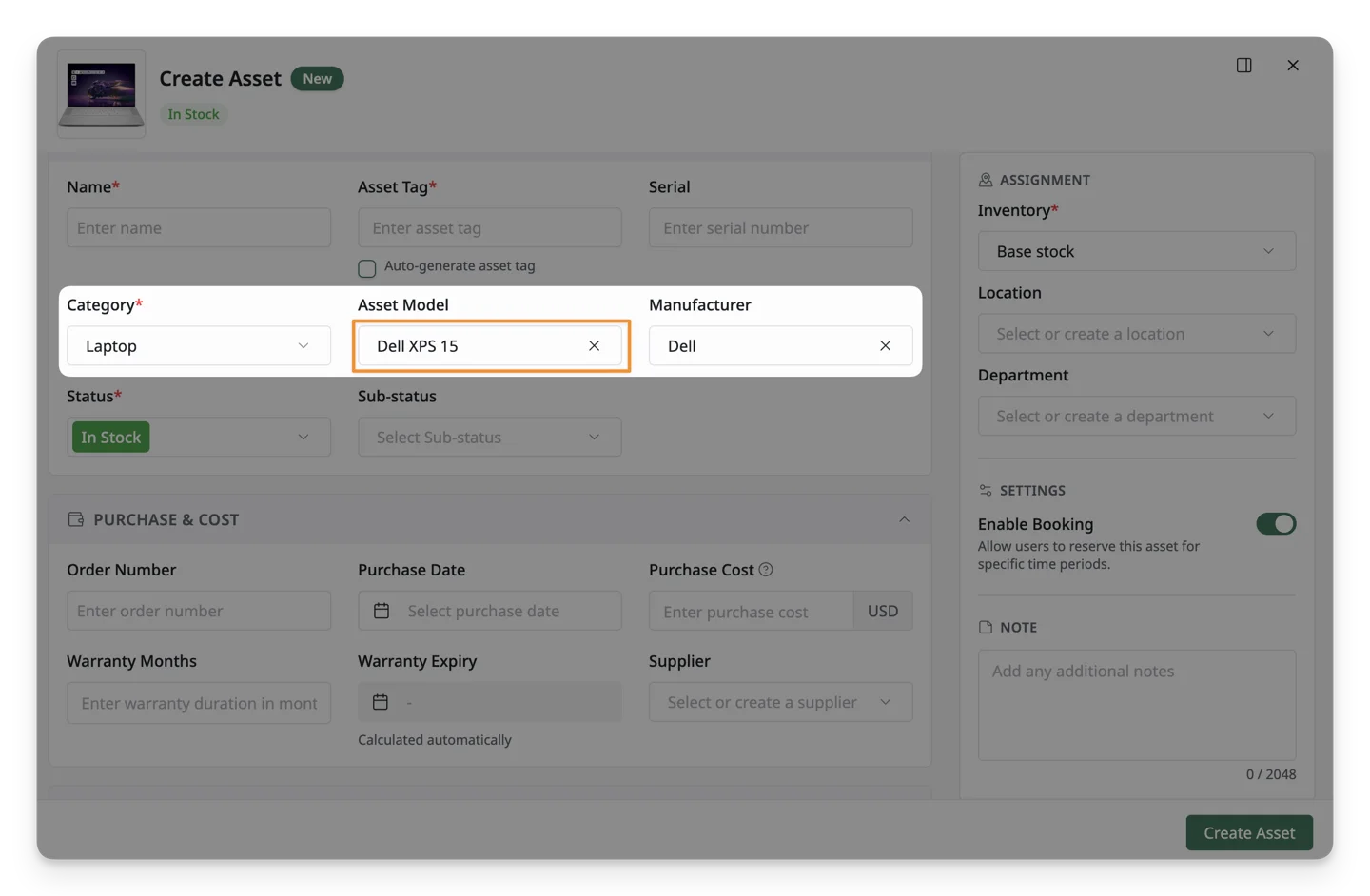
When creating a new asset, if your Asset Model includes Category information, this field fills automatically.
3. Actions With Category List
After creating the categories, you can perform some actions with the list:
- Edit: Update the Category’s details
- Delete: Remove a Category that is no longer needed.