Assign A Kit
Learn how to assign predefined kits to your team members
Each predefined kit in AssetLoom is tracked by its available quantity. When a kit is checked out, the system reduces the available quantity of associated resources (assets, accessories, licenses, consumables) based on the assigned amount.
Predefined kits can only be checked out to users, allowing you to easily track who is using the linked resources.
Step 1: Navigate to the Predefined Kit Screen:
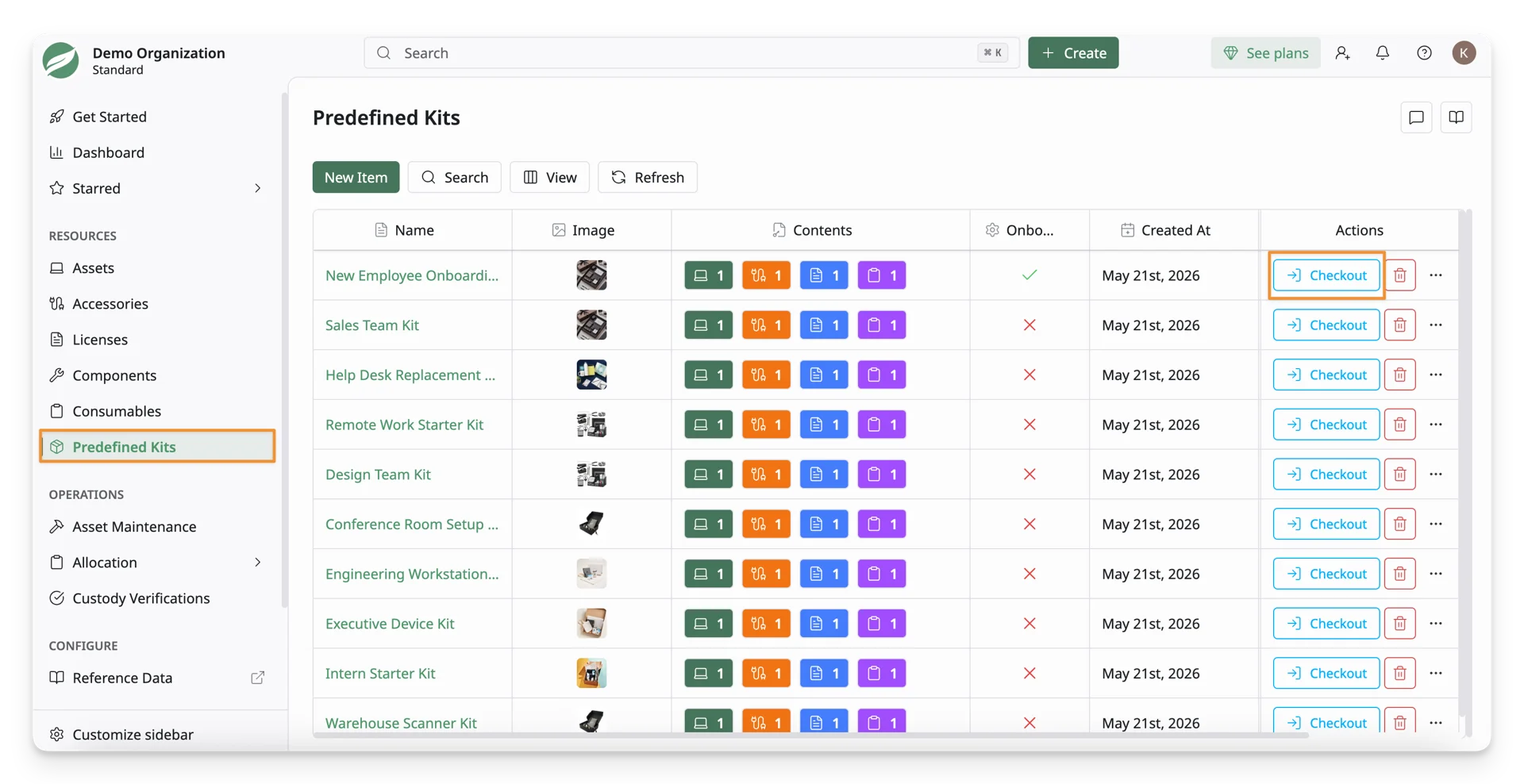
From the Resources → Predefined Kits, navigate to the kit you want to check out.
In the Actions column, click the “Checkout” button.
Step 2: Checkout Predefined Kit Screen:
A Checkout Predefined Kit Screen will appear. This screen allows you to check out a kit to a specific user. Follow the steps below to complete the checkout process:
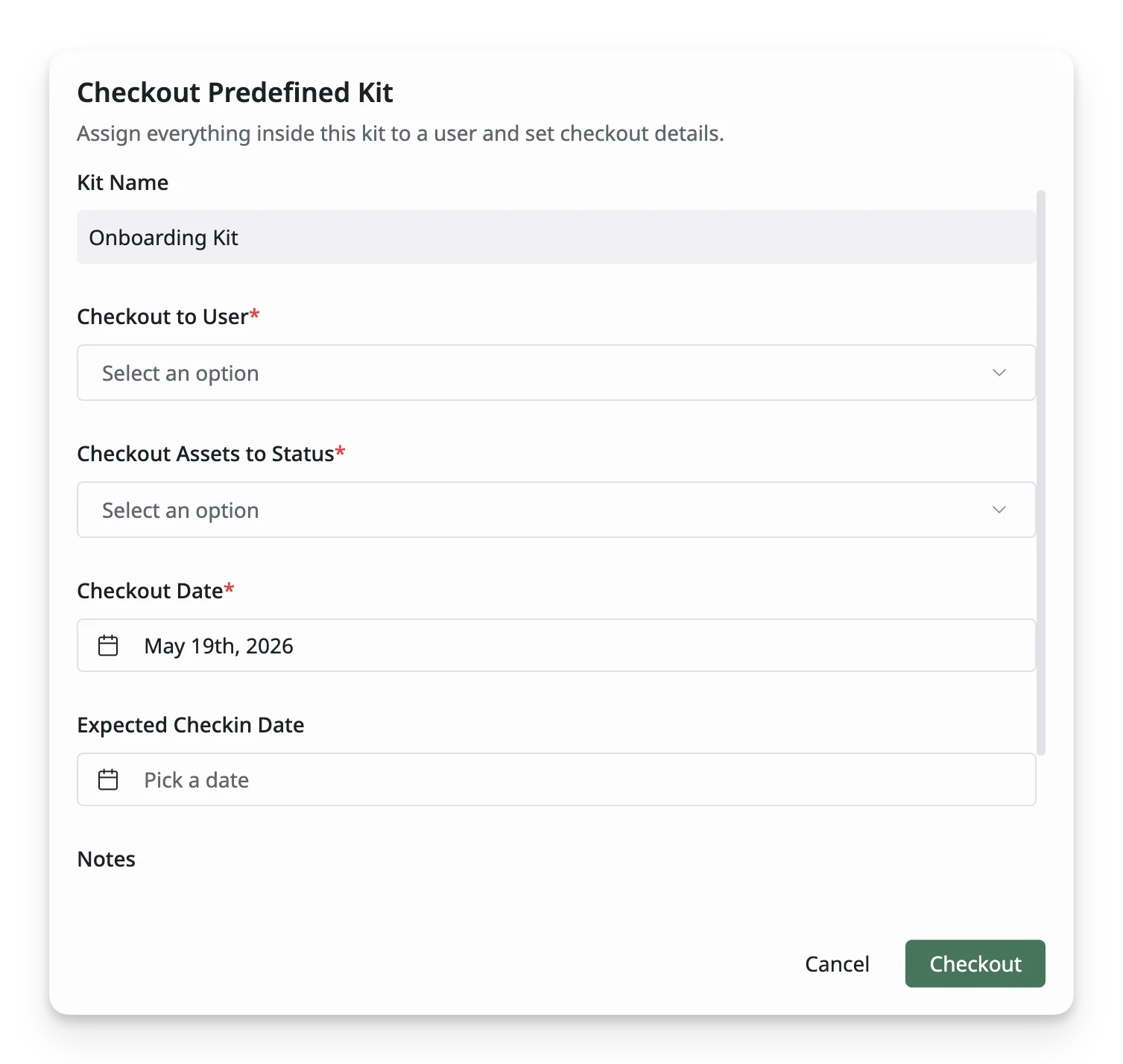
- Kit Name: Double-check the name of the predefined kit you are checking out.
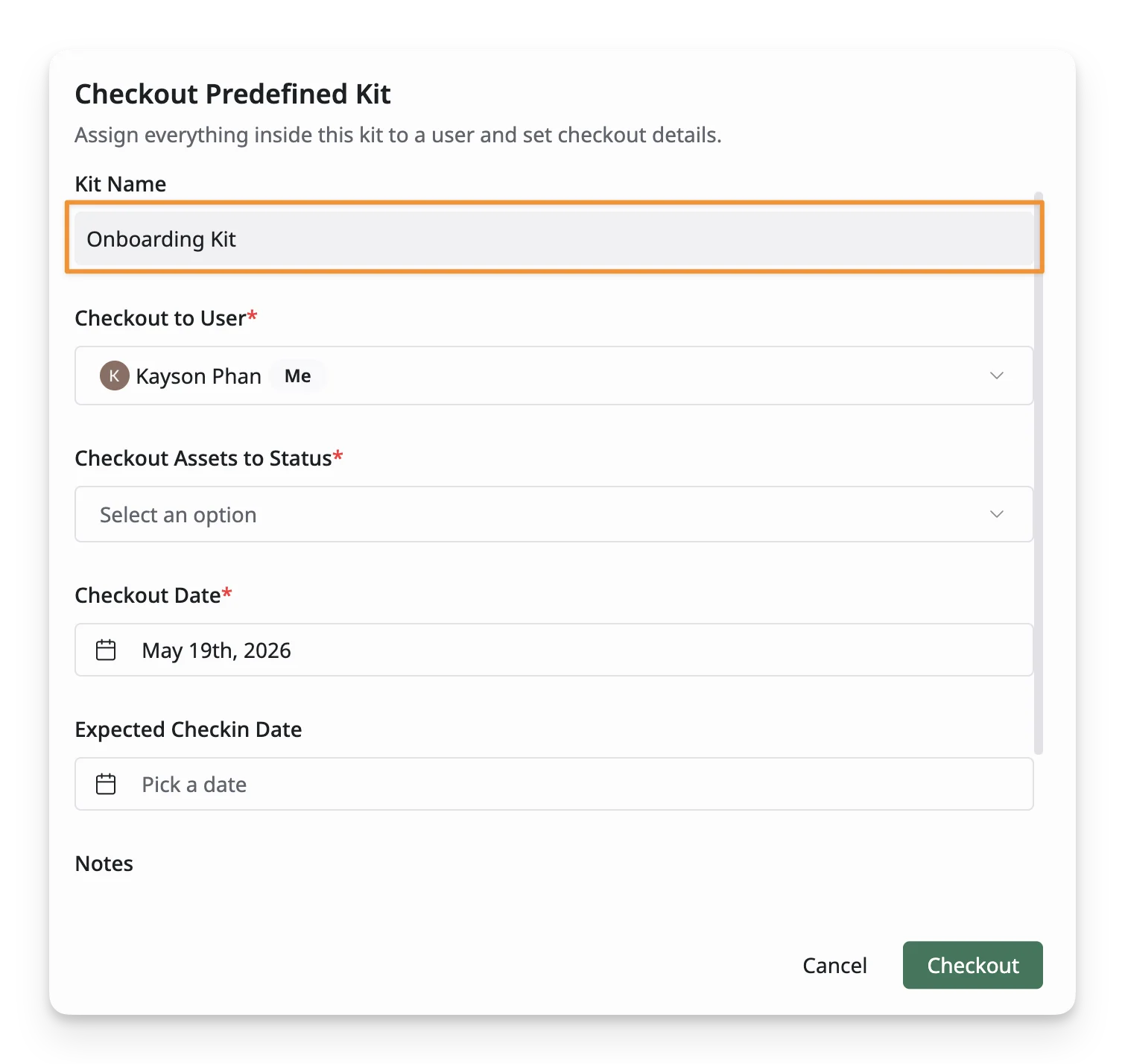
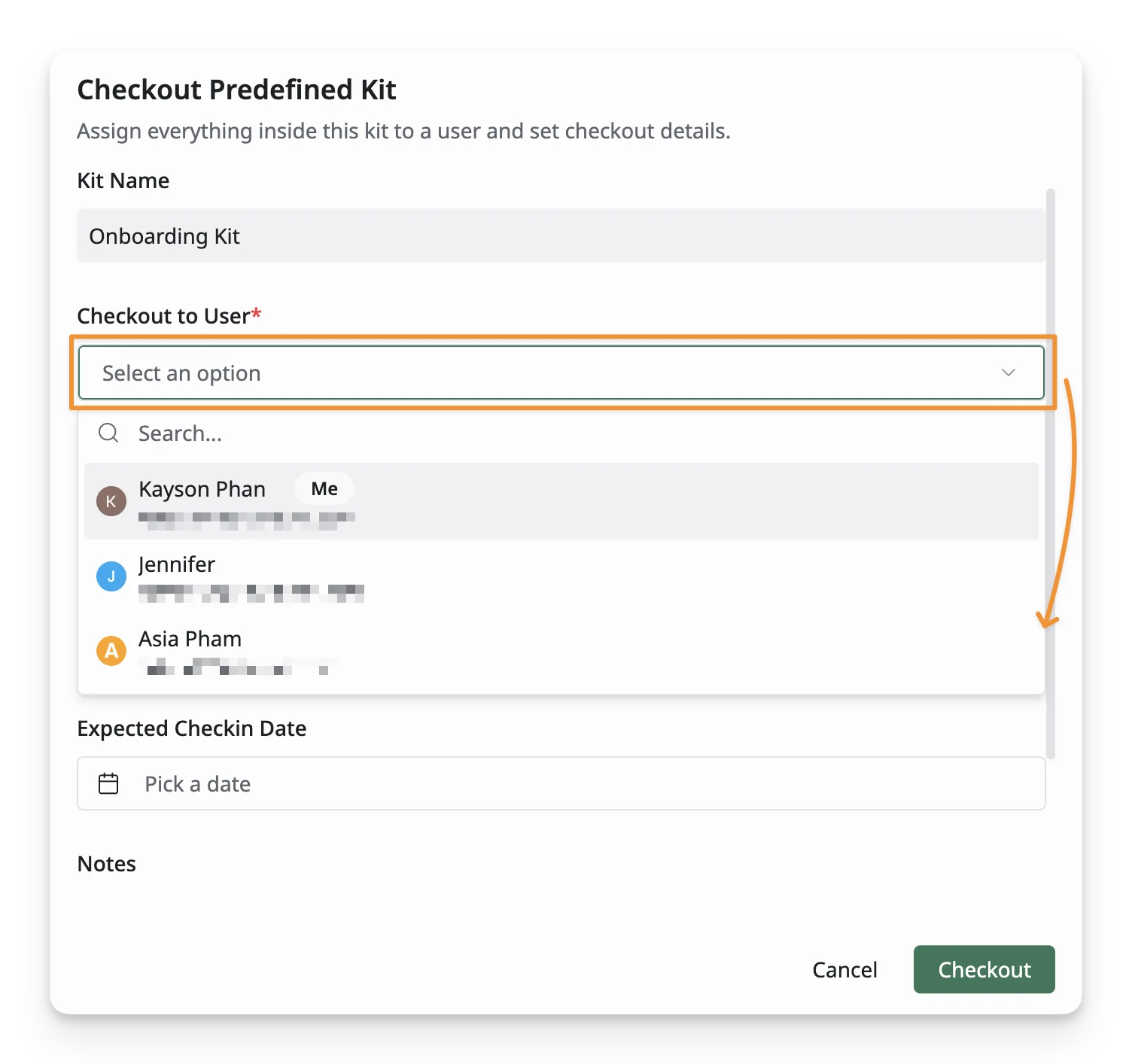
- Checkout to User: Select the user who will receive this kit.
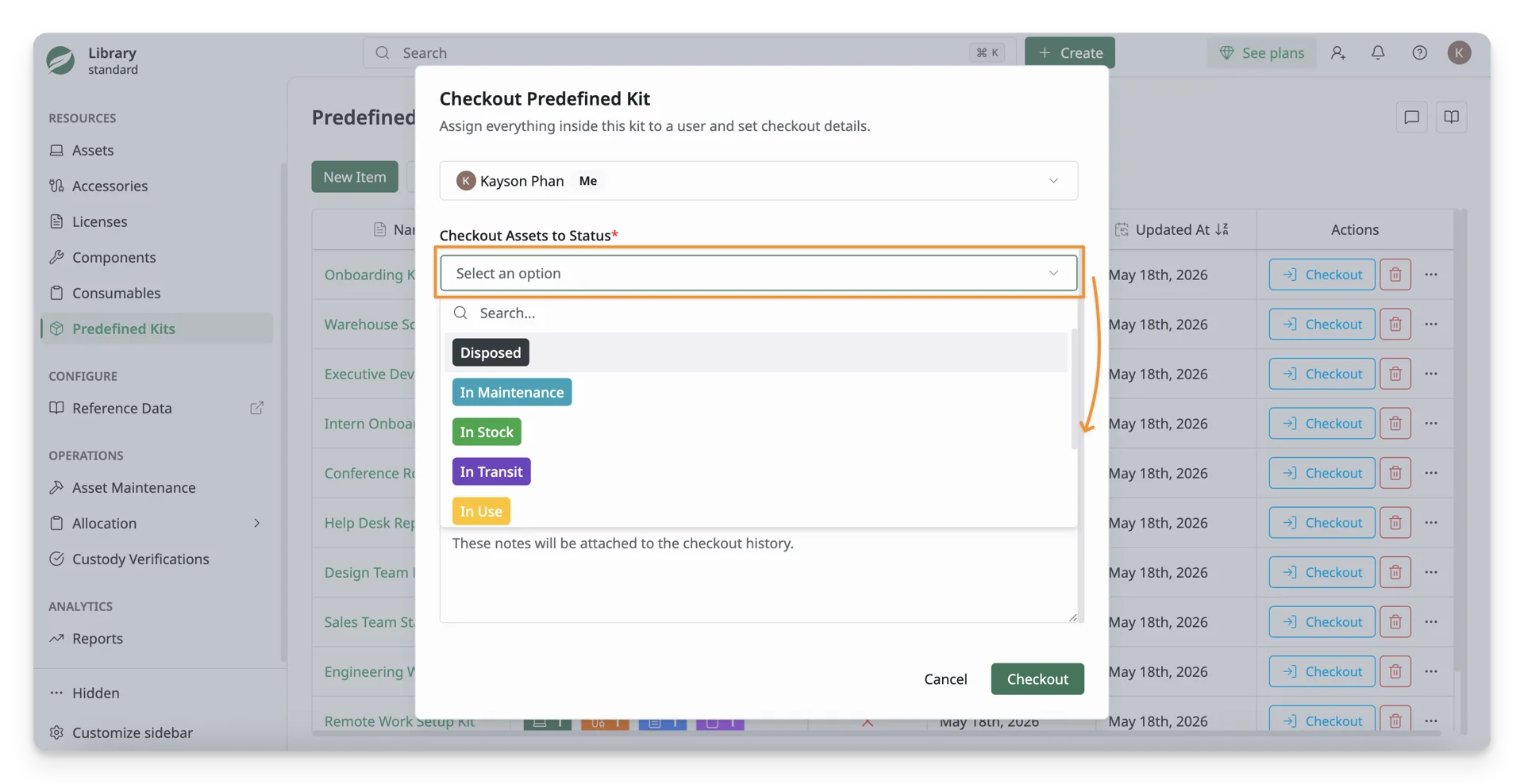
- Checkout Assets to Status: Select the status that should be applied to the assets included in this kit after checkout.
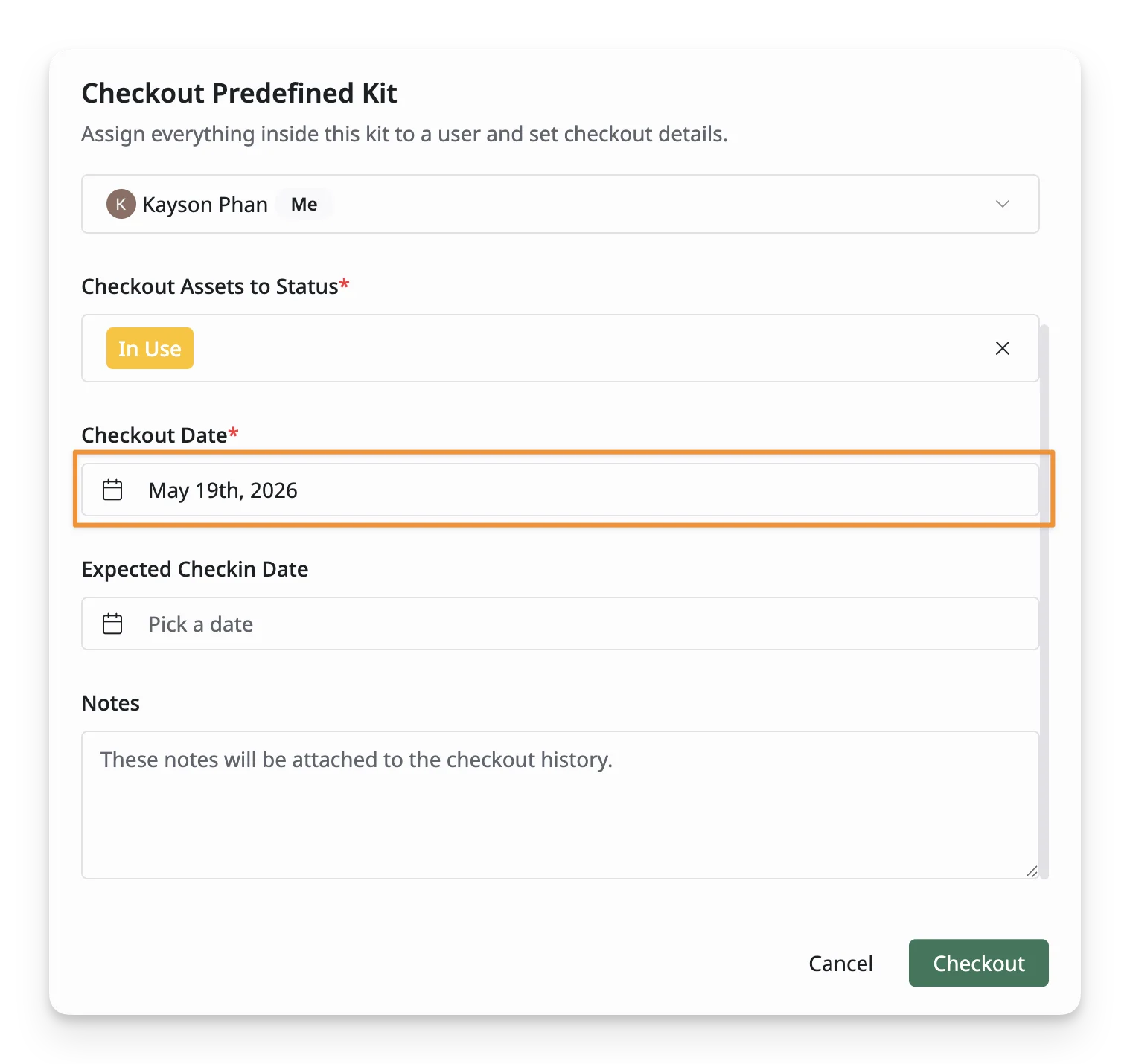
- Checkout Date: Select the date when the kit is checked out to the user.
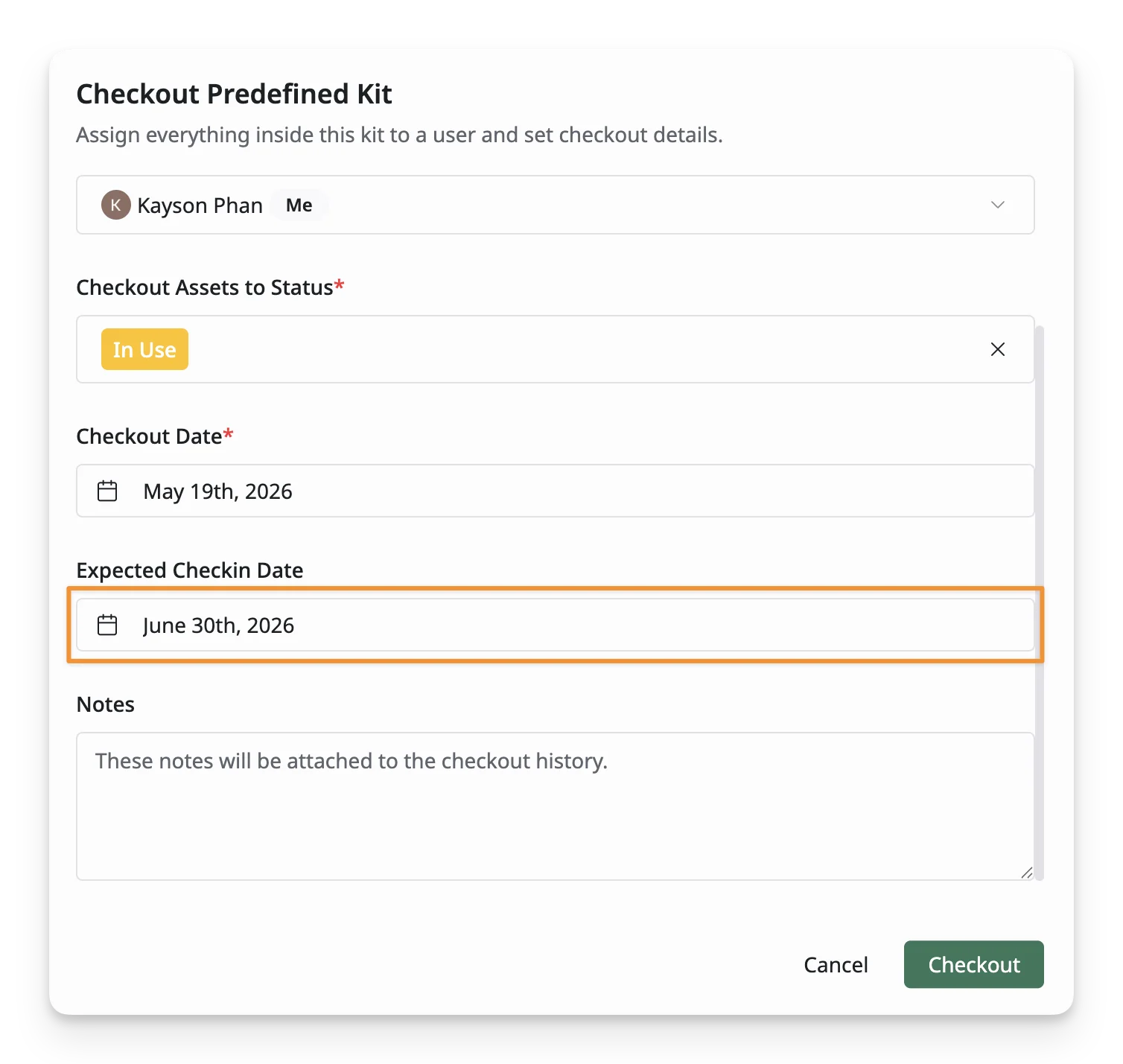
- Expected Checkin Date: Select the expected return date for the kit, if applicable.
- Notes: Add any additional information related to the checkout, such as setup instructions, internal references, or special handling notes.
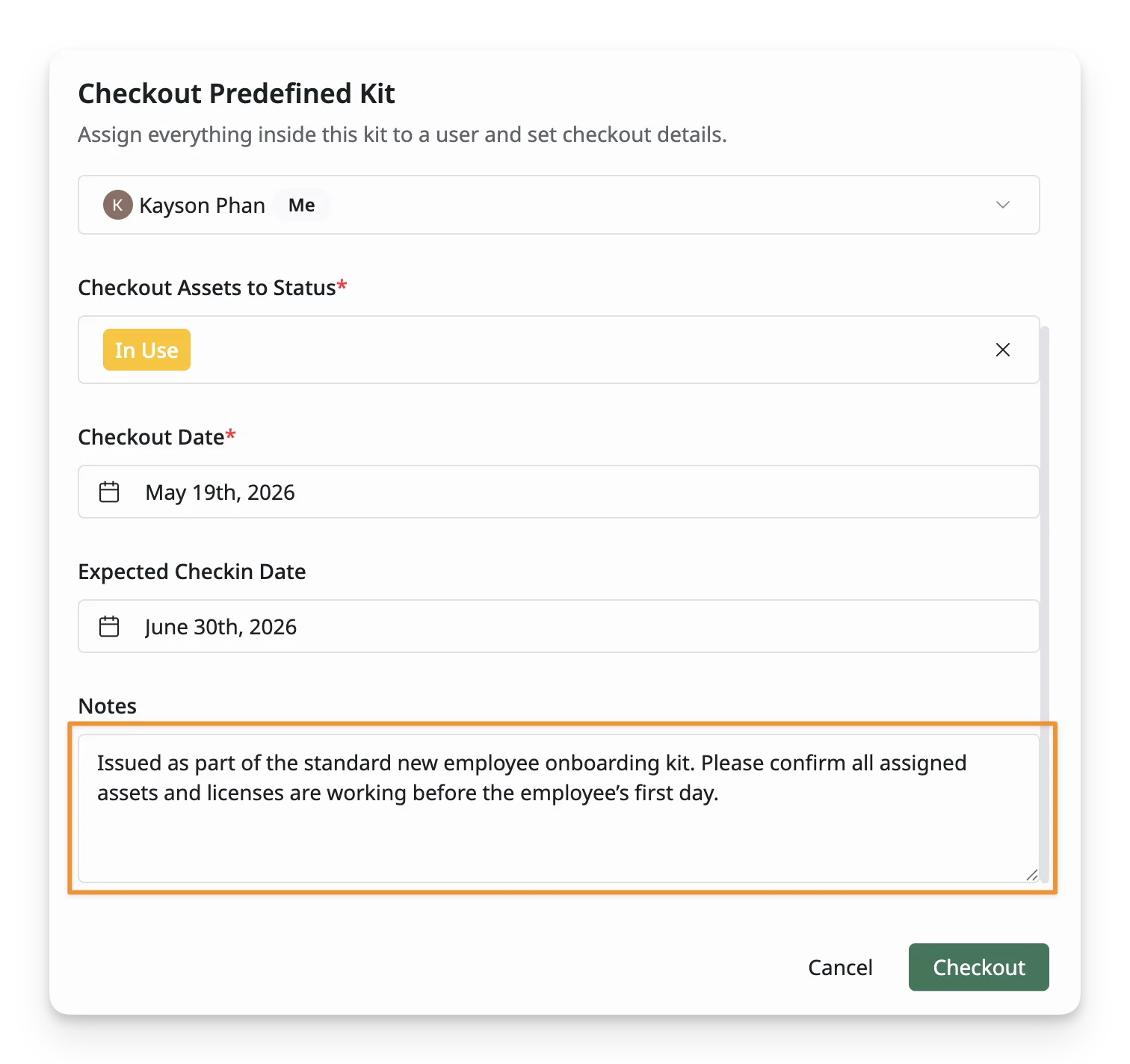
Step 3: Submit Checkout Predefined Kit Form
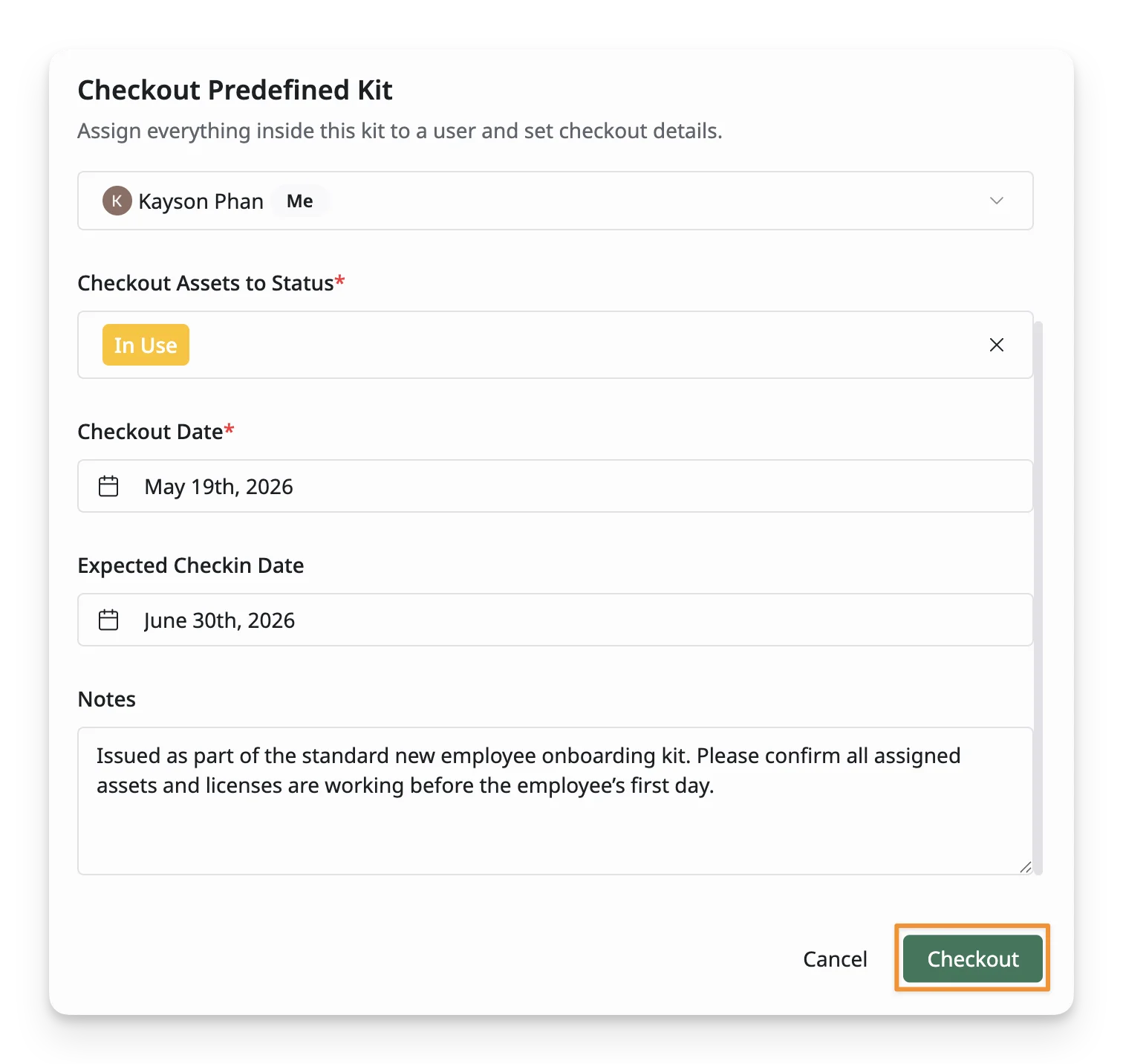
Click “Checkout” when you have finished entering details.
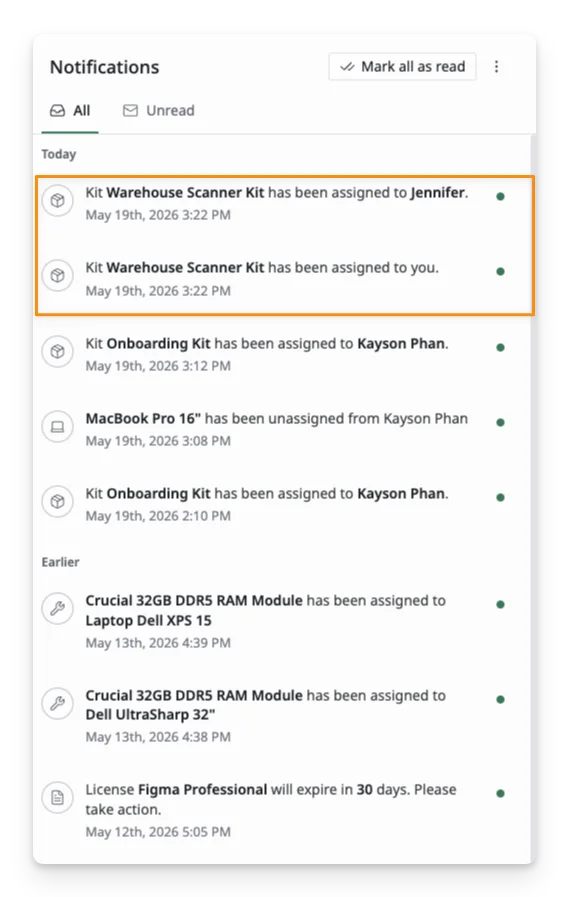
Assigned users and admins receive notifications via email, in-app, and browser when you check out a kit for them.
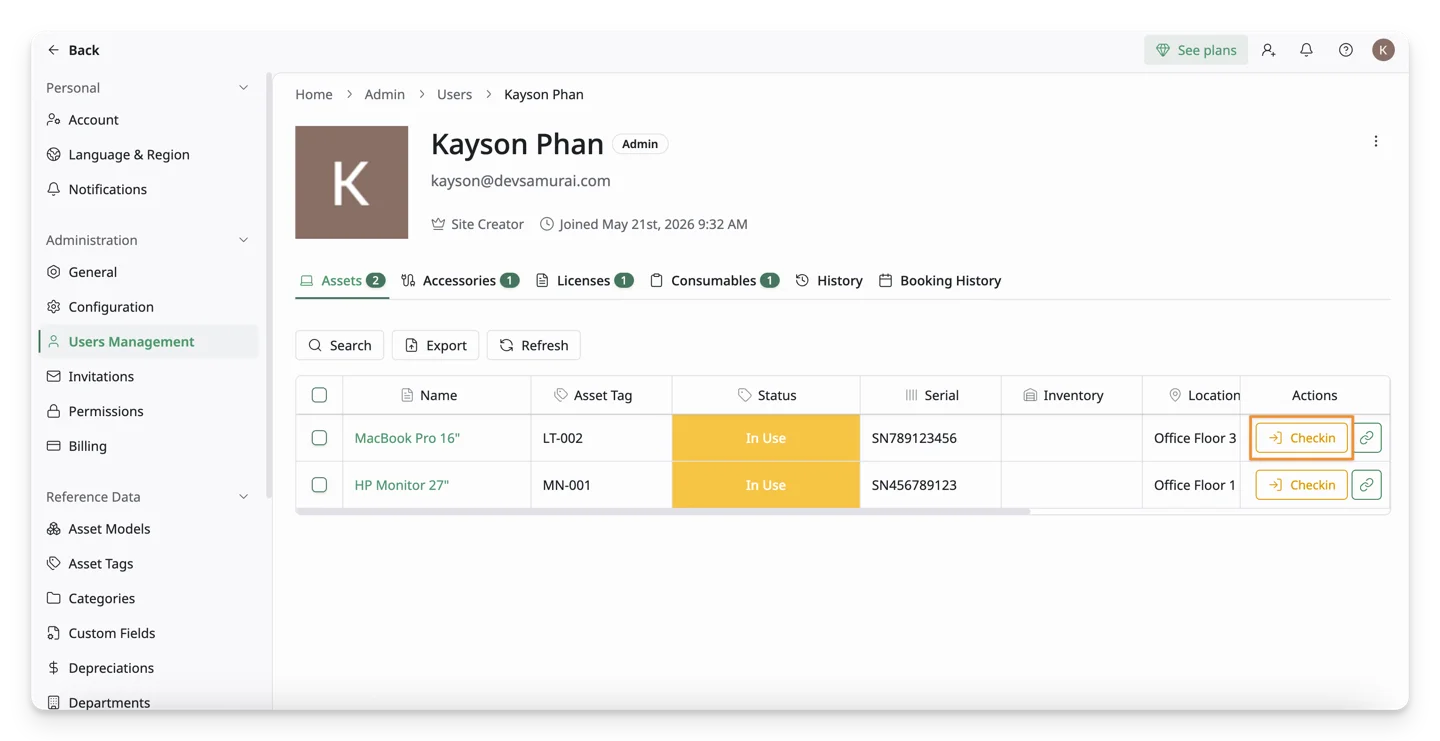
You can go to Personal Settings → User Management → User Profile → Select Specific Resources tab to perform the Checkin action.