Understanding Reports in AssetLoom
This guide help you understand how reports work in AssetLoom
Reports in AssetLoom help you turn asset data into useful views for tracking inventory, lifecycle activity, assignments, licenses, maintenance, and other operational insights. You can use reports to monitor what is happening across your IT estate, review key records, and share useful information with your team.
To access Reports, go to the left sidebar and select Reports under the Analytics section. This opens the Reports page, where you can view existing reports, create new reports, filter reports by tags, and access reports that are private, public, shared, starred, recent, or scheduled.
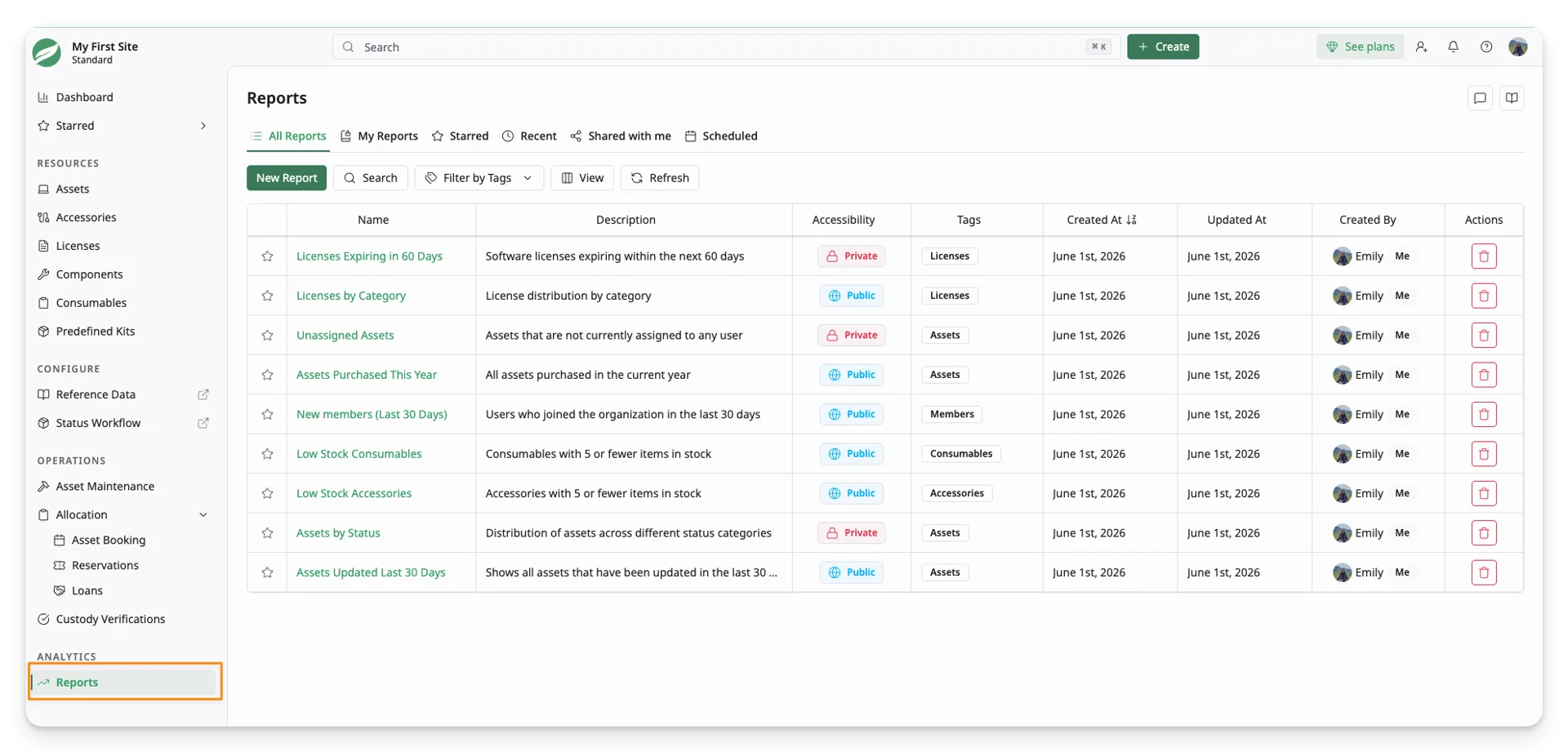
All site members can open Analytics > Reports and create reports. Only the report creator can edit their own reports.
What you can see in a report depends on two conditions: the report’s visibility and the user’s permission to view the related dataset.
- Public reports are visible to all site members who have the required dataset permission.
- Private reports are visible only to the report creator and selected shared members, provided they also have the required dataset permission.
Report tabs
At the top of the Reports page, you can switch between different report tabs, in which:
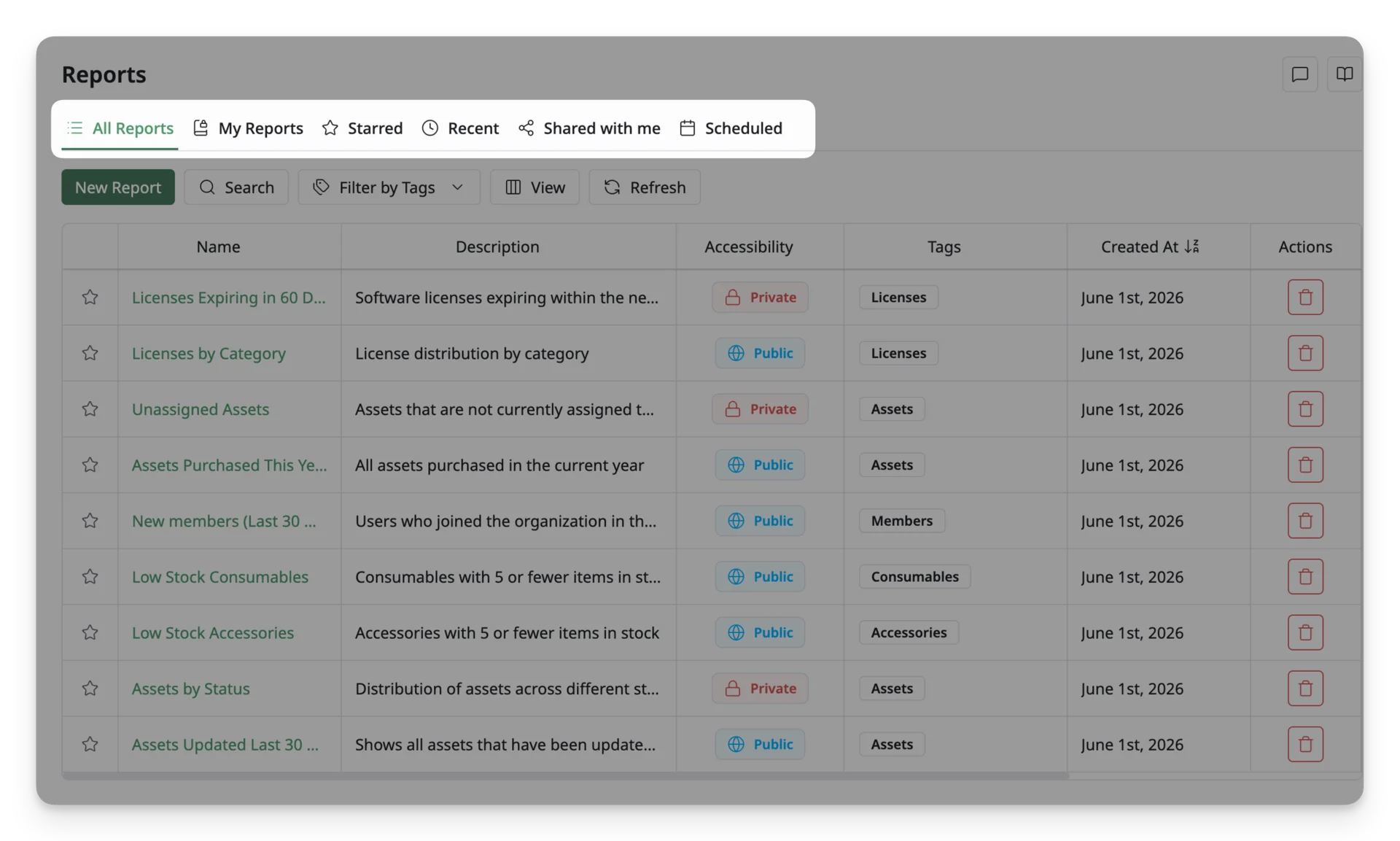
- All Reports: Shows all reports available to you.
- My Reports: Shows reports created by you.
- Starred: Shows reports you have marked as important.
- Recent: Shows reports being created in the last 7 days.
- Shared with me: Shows reports that other users have shared with you.
Report list
The Reports page displays saved reports in a table. Each row represents one report, with the following details:
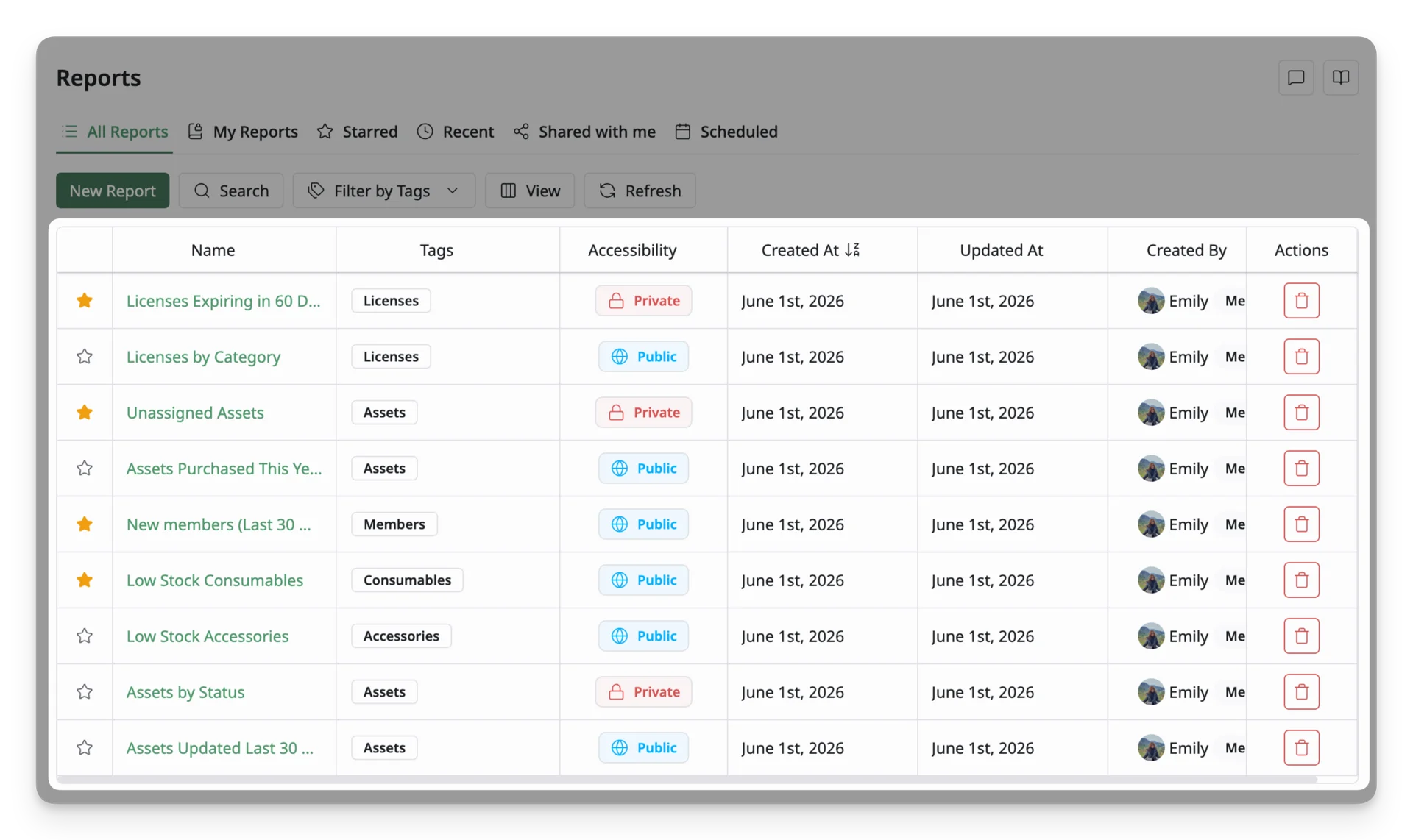
- Star: Marks a report as important. Starred reports will appear under the Starred tab.
- Name: Displays the report name set by the creator. Click the name to open the report.
- Description: Provides a short summary of what the report shows.
- Visibility: Shows whether the report is Public or Private.
- Public reports are visible to all site members with the required dataset permission.
- Private reports are visible only to the report creator and selected shared members, if any.
- Tags: Custom labels used to organize and filter reports. Click this field to select an existing tag or create a new one for the report.
- Created At: Shows the date the report was created.
- Updated At: Shows the date the report was last changed.
- Created By: Shows the user who created the report.
- Delete Action: Permanently deletes the report. Only delete a report when you no longer need it.
Reports toolbar
Use the toolbar above the report list to create, find, filter, and adjust how reports are displayed.
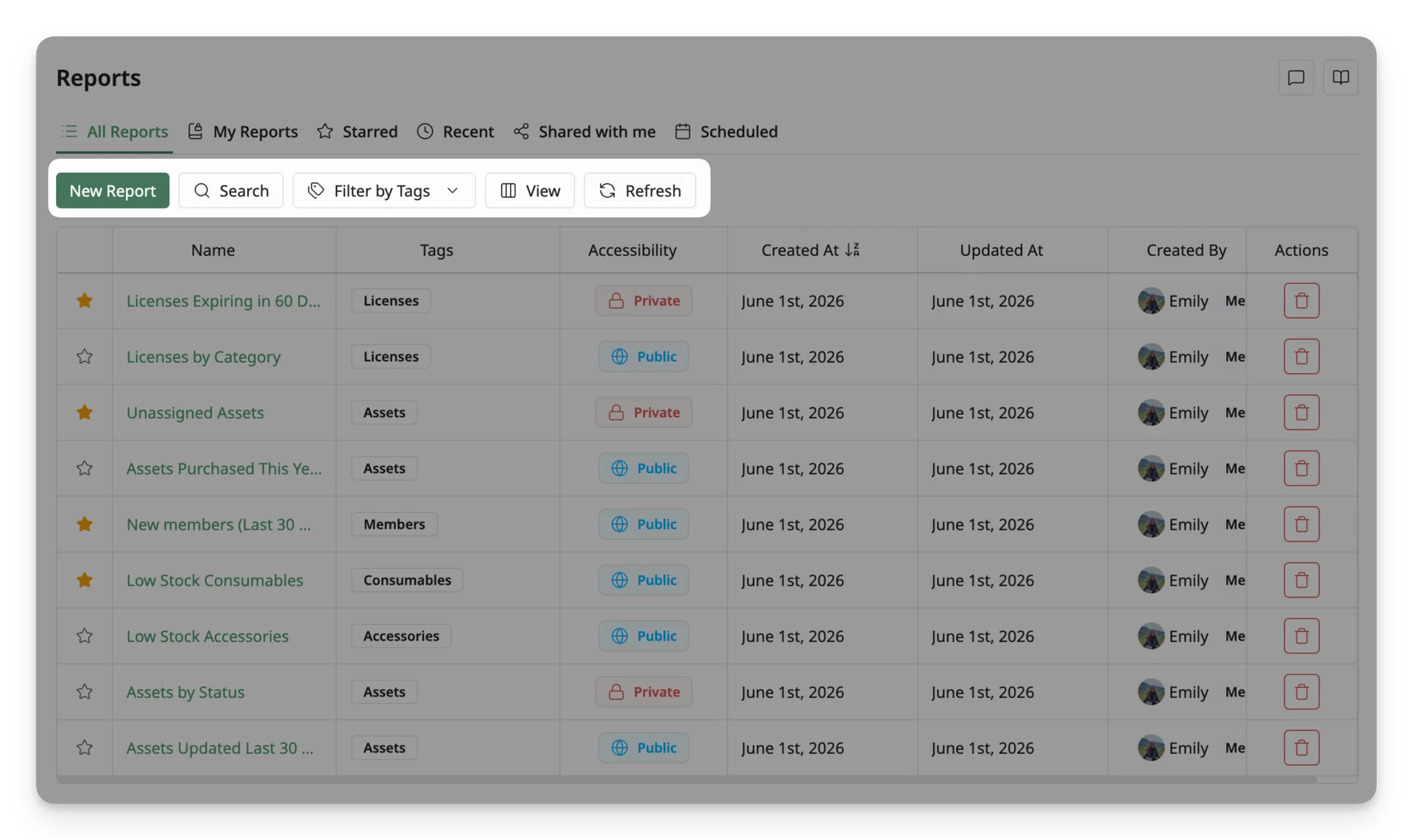
- New Report: Opens the report creation flow. You can create a custom report or start from a report template.
- Search: Searches reports by name or description.
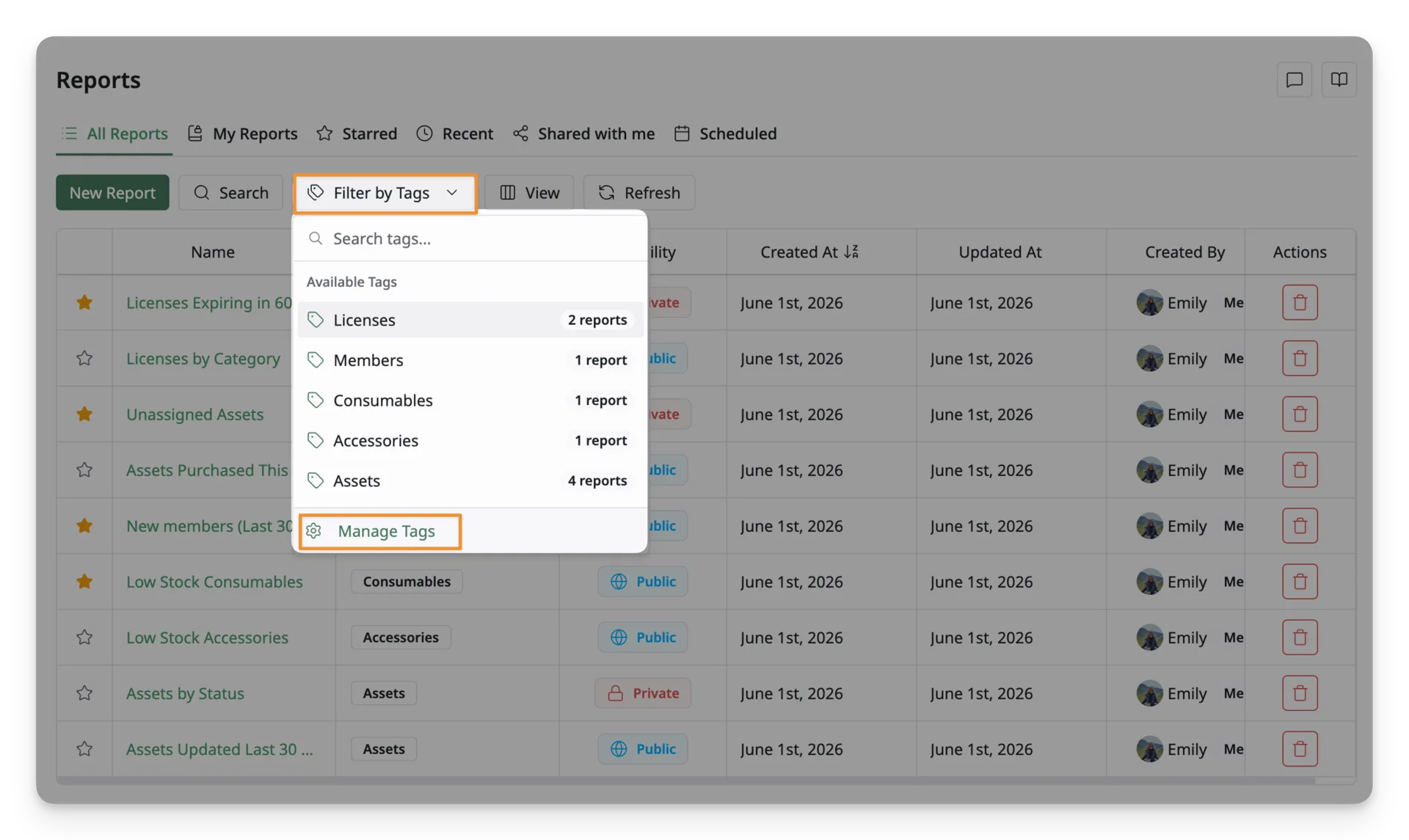
- Filter by Tags: Filters the report list by selected tags. Use this when you want to view reports related to a specific resource type, team, or purpose. You can also manage tags from the Filter by Tags menu. Select Manage Tags to create, rename, or organize tags used for reports.
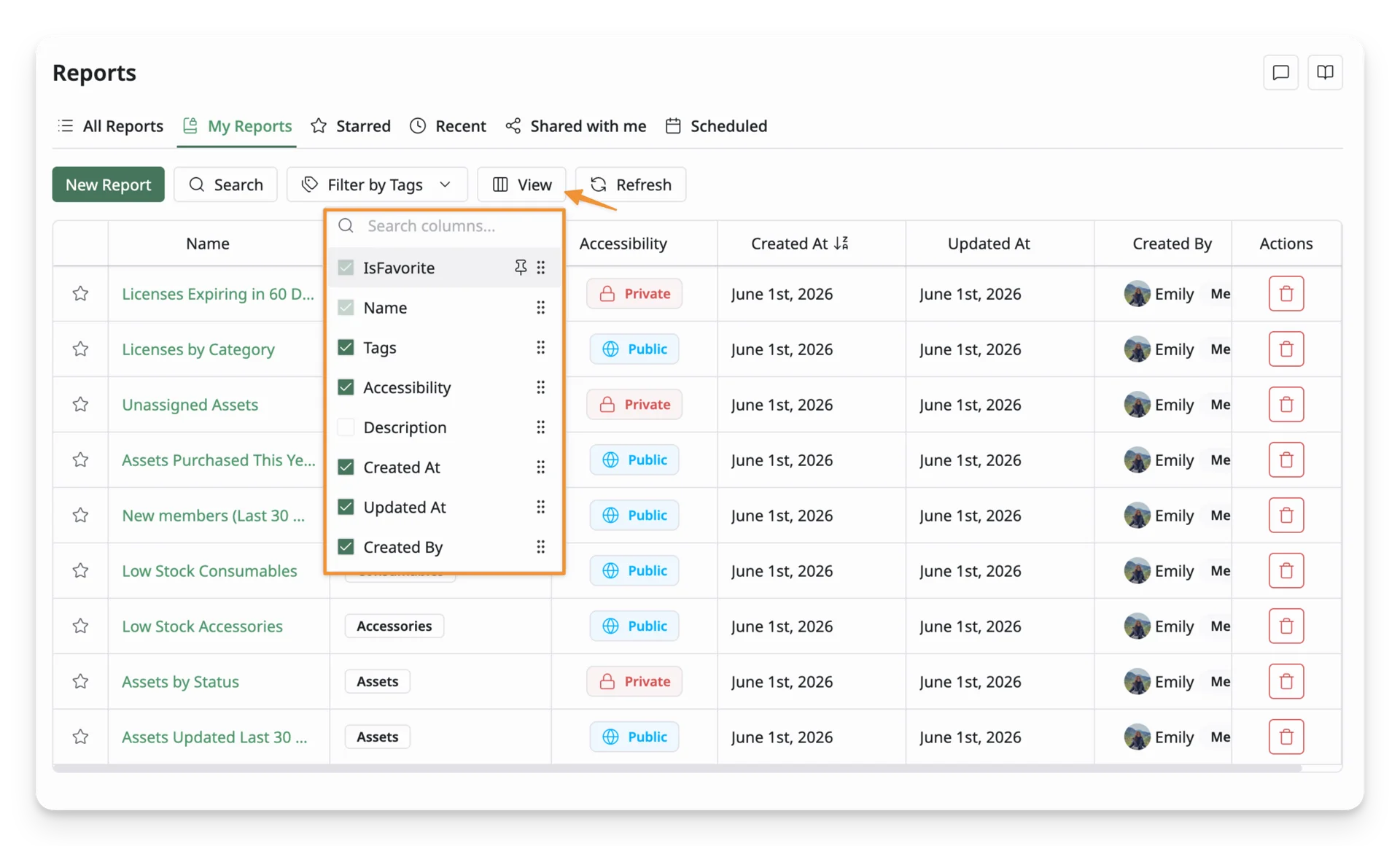
- View: Lets you customize which columns are shown in the report list. You can show, hide, pin, or reorder columns based on the information you want to see.
- Refresh: Reloads the report list to show the latest changes.