Manage Asset Loans
Understand how AssetLoom helps you manage your asset loans
The Loans page gives you an overview of all assets that are currently assigned. From this page, you can see who has each asset and check the asset back in when it is returned. You can also track when the asset is due to be returned, whether it is due today or overdue.
To access this page, go to Allocation → Loans.
Only users with the Admin Role can manage asset loans.
Loan Types
There are 2 types of asset loans: Direct and Booking
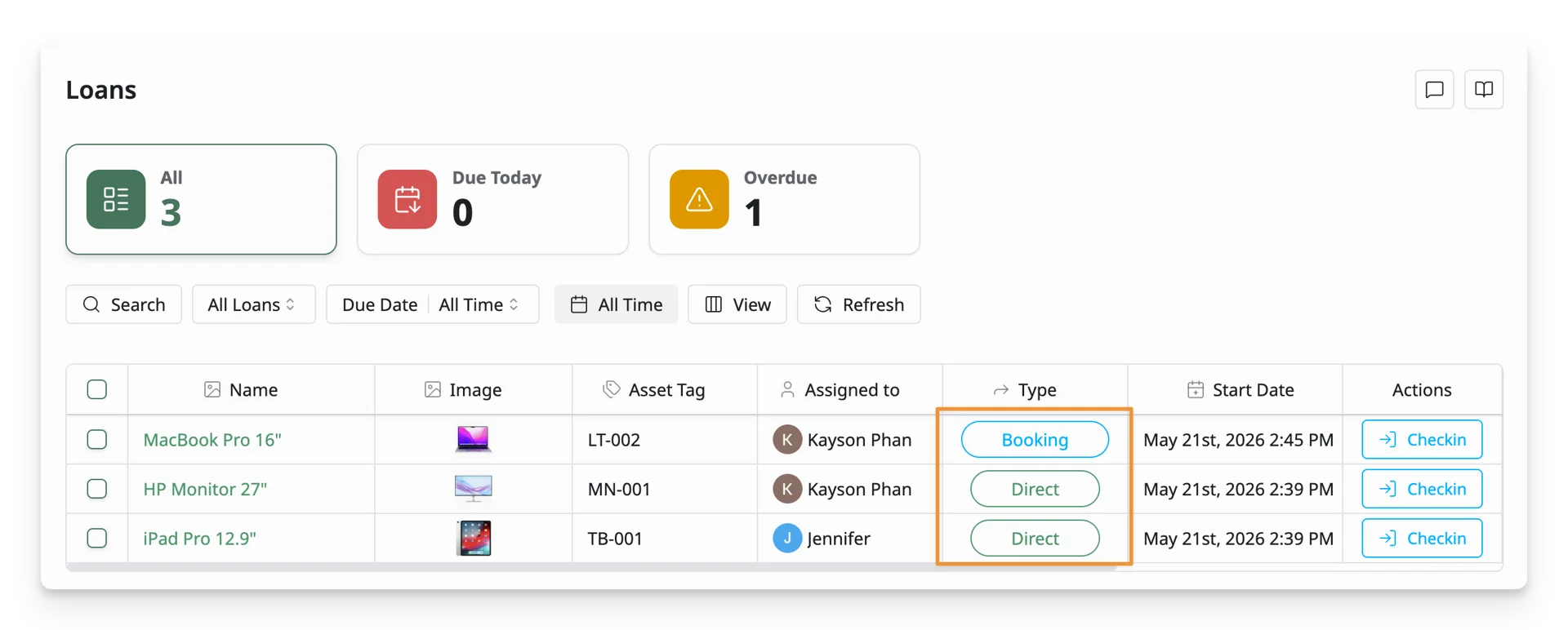
- A Direct loan means the asset was checked out directly without going through the booking request and reservation approval process. For example, an asset checked out from the Asset List appears as a Direct loan.)
- A Booking loan indicates loans that came from approved asset reservations. The asset was first requested through the Asset Booking page, approved from the Reservations page, and then checked out as a loaned asset.
Loan Categories
The cards at the top of the Loans page organize checked-out assets into categories.
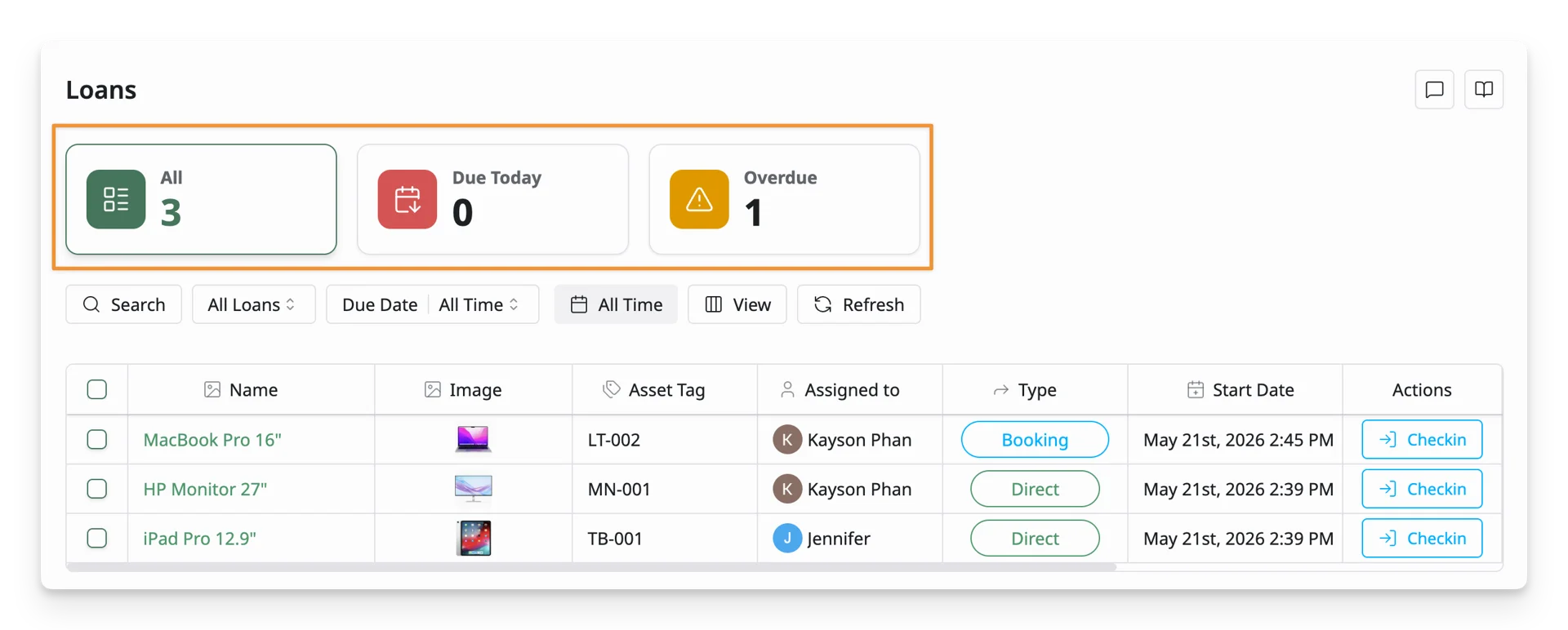
- All Loans: displays all assets that are currently checked out. Use this to view the full list of active loans.
- Due Today: shows assets that are scheduled to be checked in today. Use this to follow up on assets that are expected to be returned before the end of the day.
- Overdue: shows assets that have passed their due date. Use this to identify assets that need immediate follow-up or checkin.
You can customize reminder alerts for overdue asset checkins in Notification Settings.
Loans Toolbar
The toolbar at the top of the Loans page helps you search, filter, customize, and refresh the loan list.
Search
Use Search to find a specific loan record. You can search by asset name or asset tag.
Filter Loans by Status
Use the All Loans filter to view loans by category.
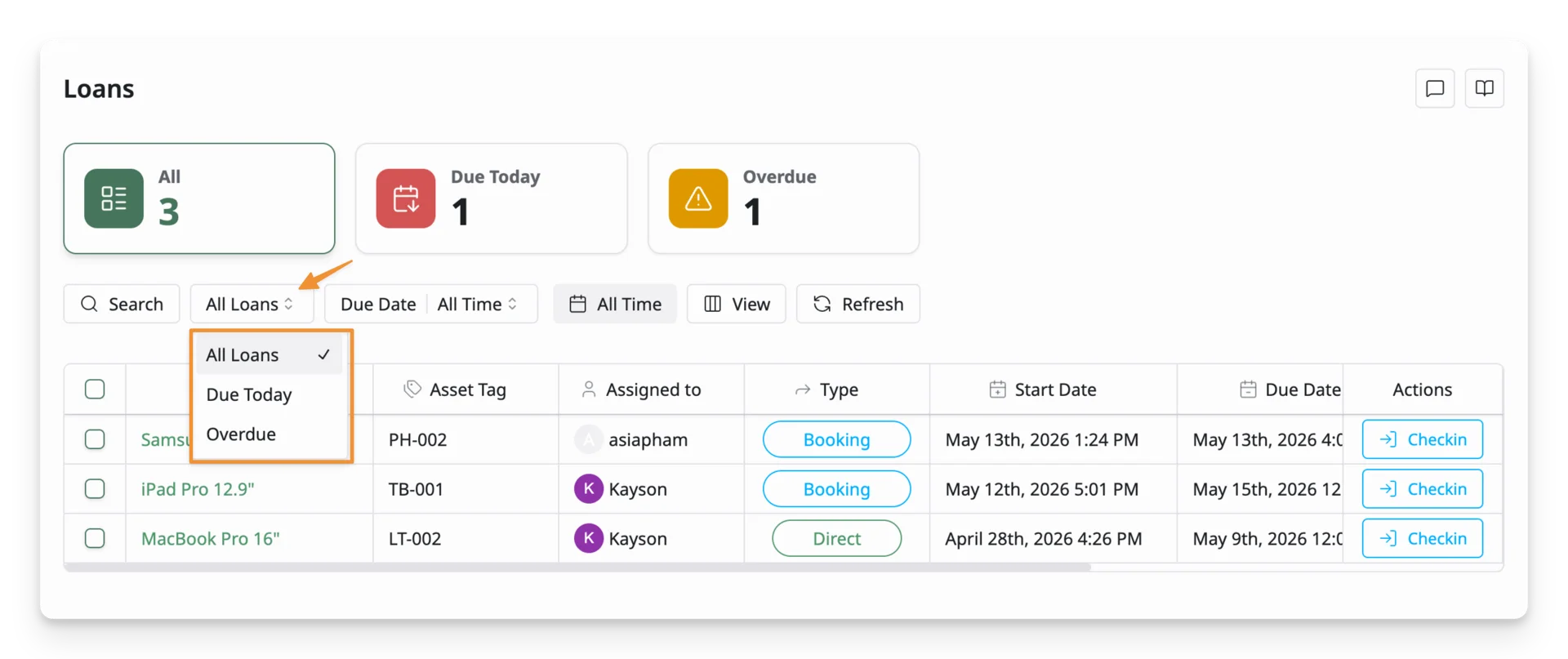
The available options are:
- All Loans — displays all checked-out assets.
- Due Today — displays assets scheduled to be checked in today.
- Overdue — displays assets that have passed their due date.
Filter Loans by Due Date
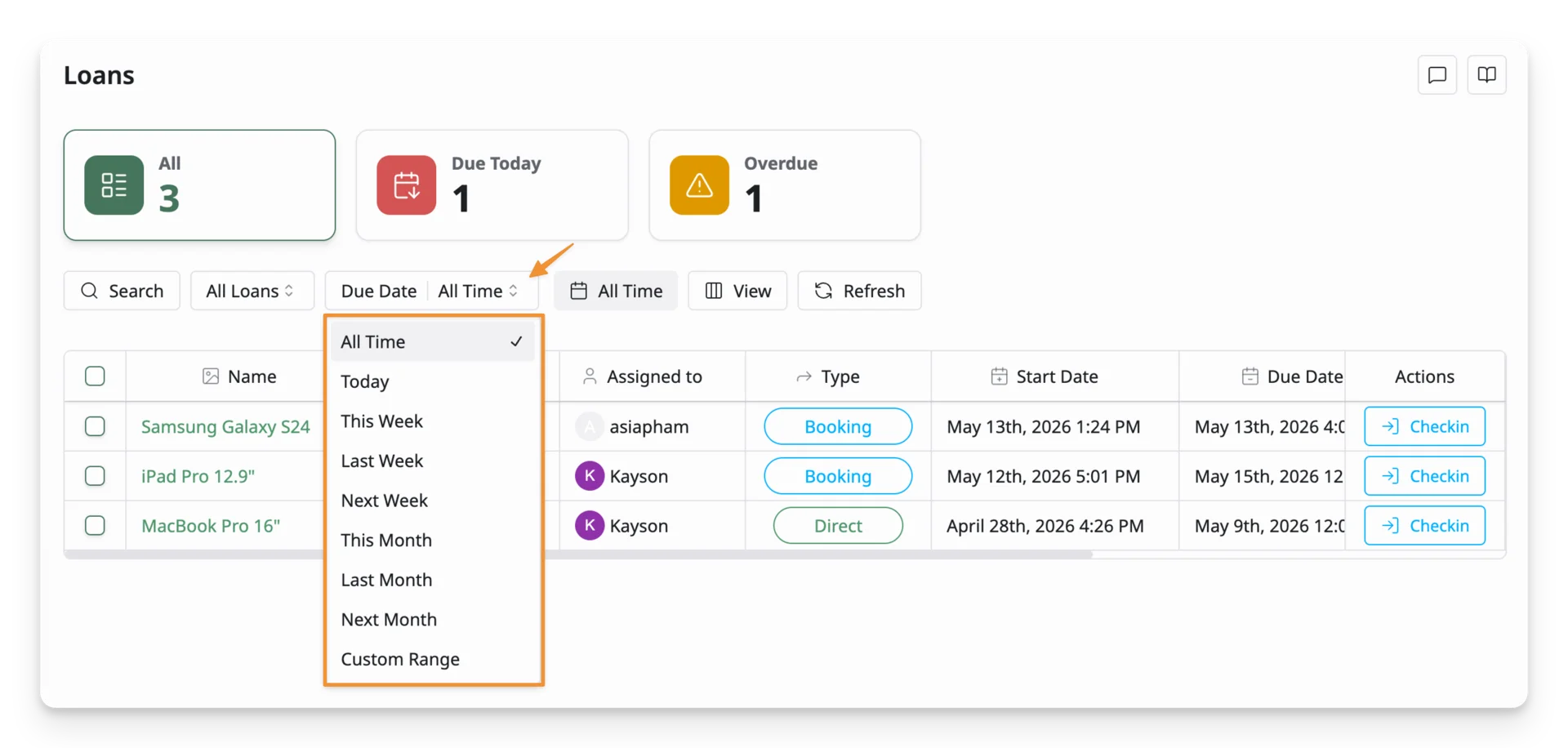
Use the Due Date filter to find loans with a due date in a specific time range.
Customize the Loan Table
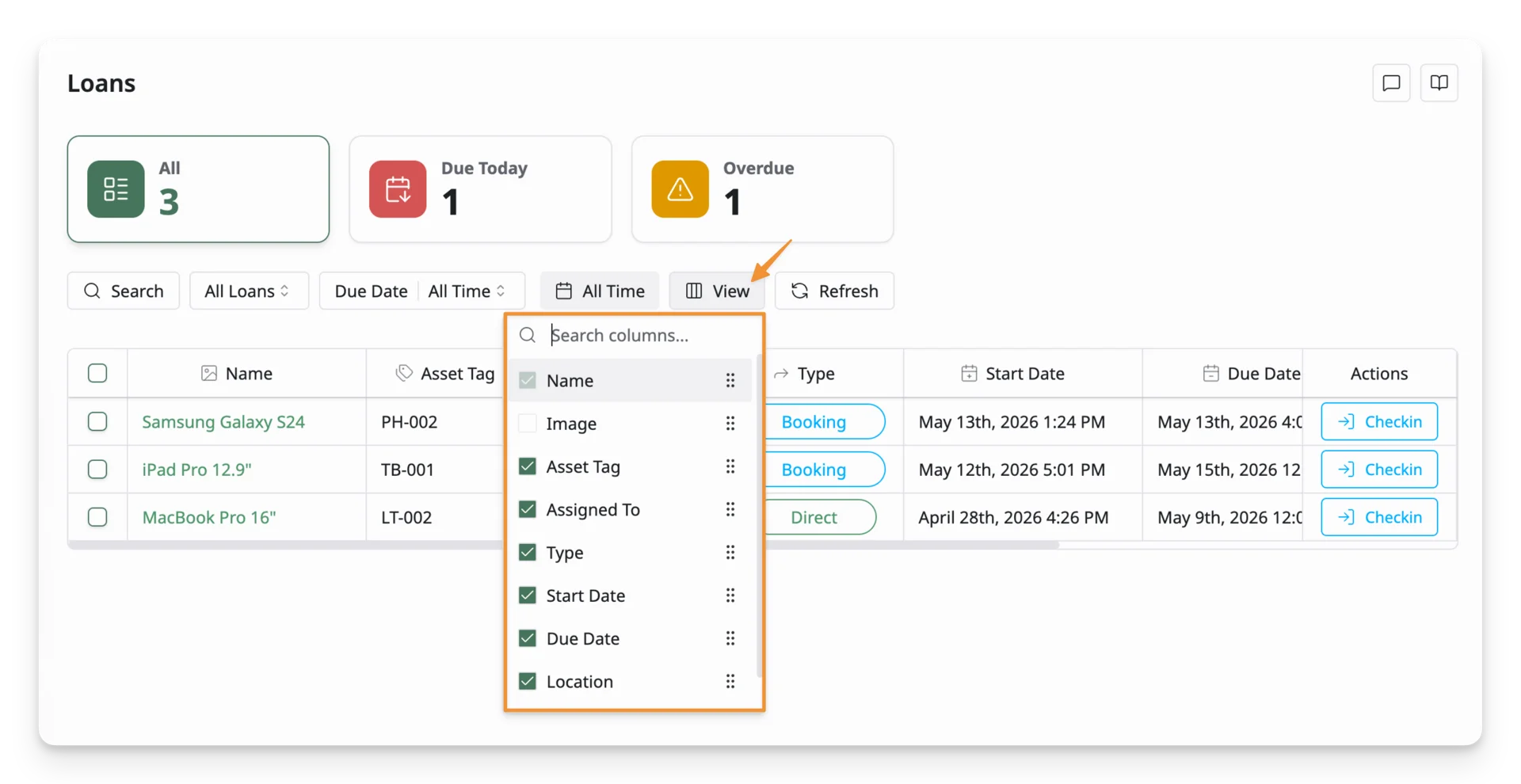
Click View to choose which columns appear in the loan list or reorder the columns on the list. Use this option to customize the table based on the information you want to review.
Refresh
Click Refresh to reload the loan list. Use this after an asset has been checked in or when you want to view the latest loan information.
Check In an Asset Loan
Use Checkin when an asset has been returned and needs to be checked back into the system. To checkin an asset loan:
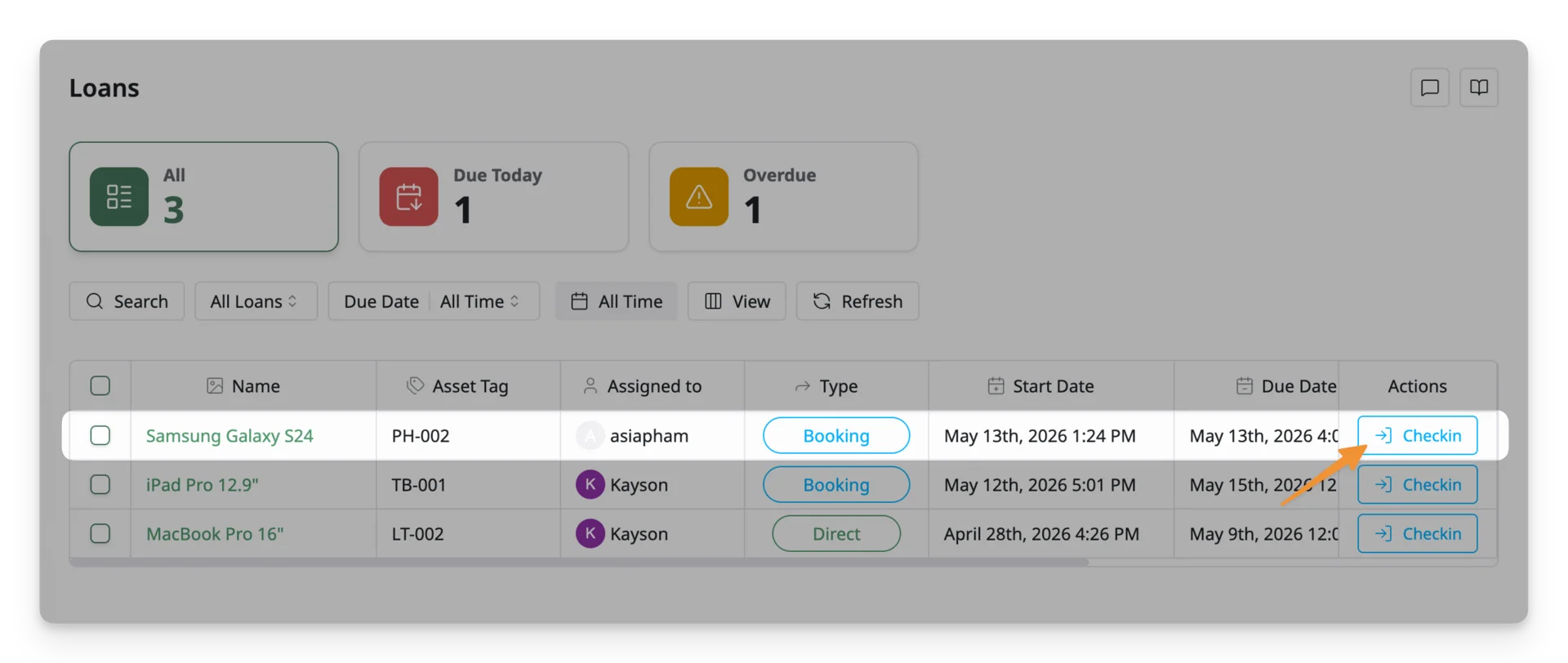
- Find the asset loan you want to check in on the Loans page and click Checkin in the Actions column. This will open the Update Asset Status panel.
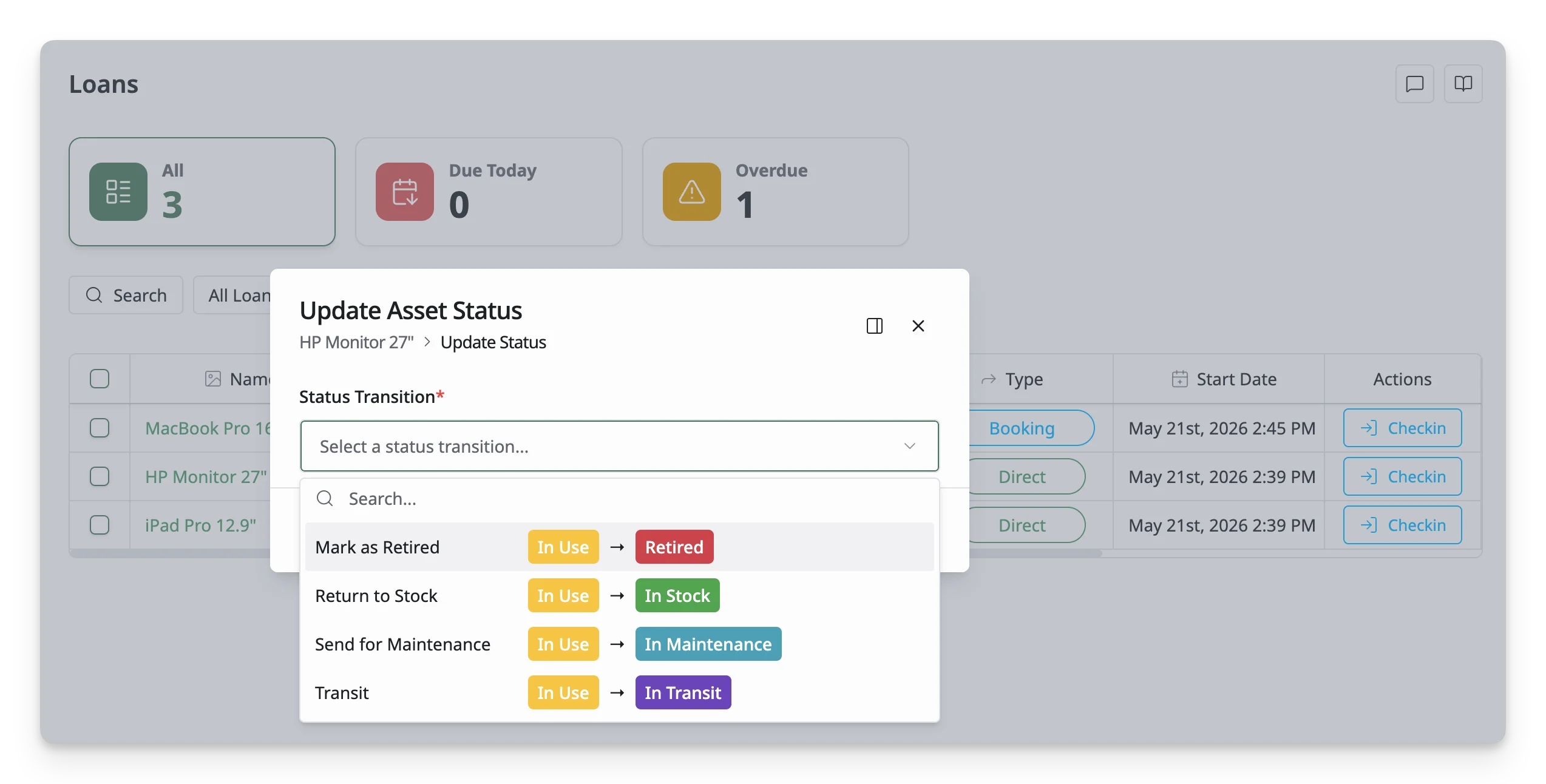
- Select a Status Transition that includes a checkin rule. For example, you may select Return to Stock, which changes the asset from In Use to In Stock. Select a Sub-status if needed.
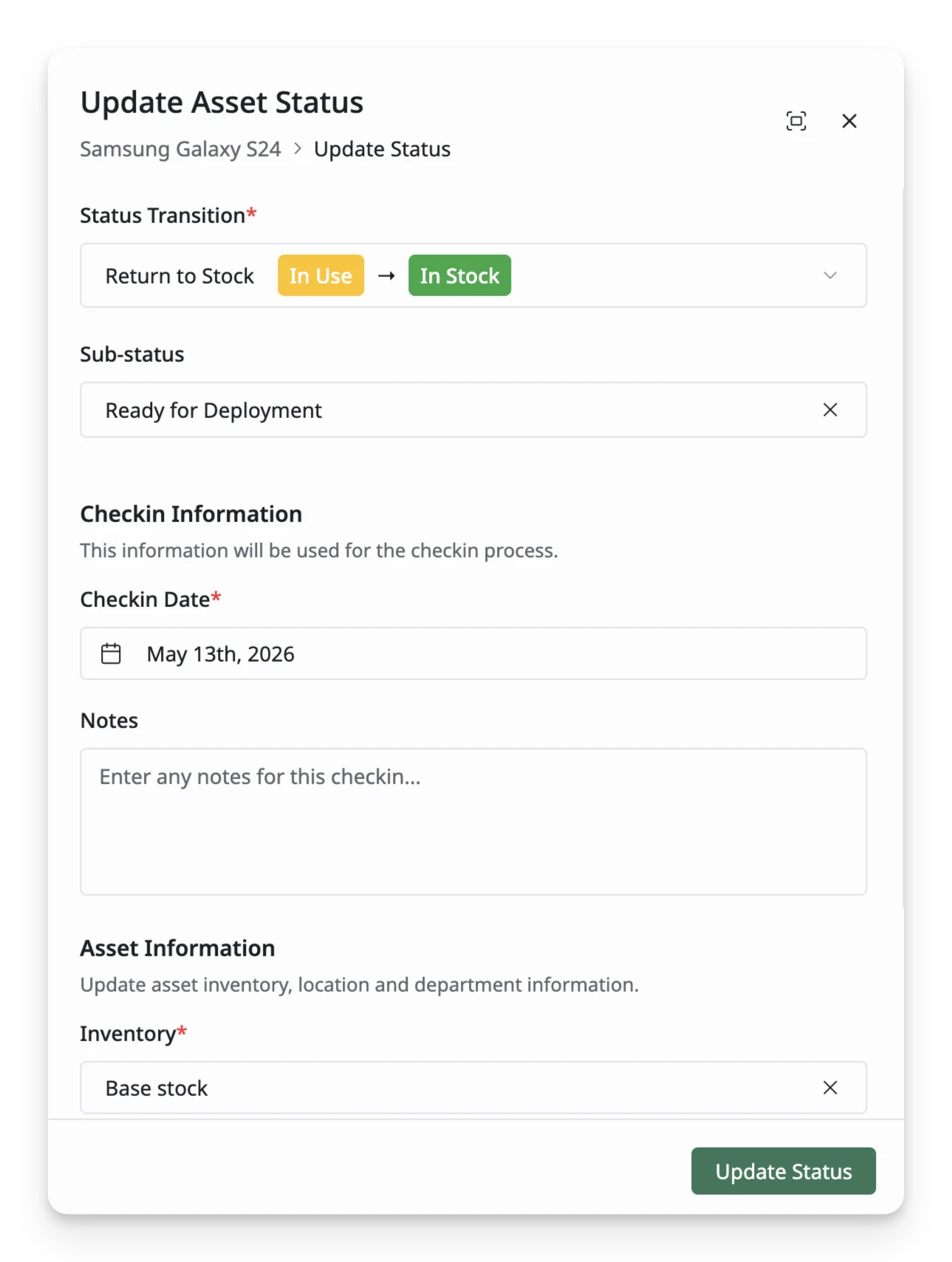
- Review the Checkin Information.
- Confirm the Checkin Date.
- Add any checkin notes, if needed.
- Review and update the Asset Information.
- Make sure an Inventory is selected.
- Adjust the Department or Location if needed.
- Click Update Status to finish the check-in.
Once the status is updated, the asset is checked into the inventory and stays available for checkout or assignment again.
Bulk Checkin
Use Bulk Checkin when you want to checkin multiple loaned assets at the same time.
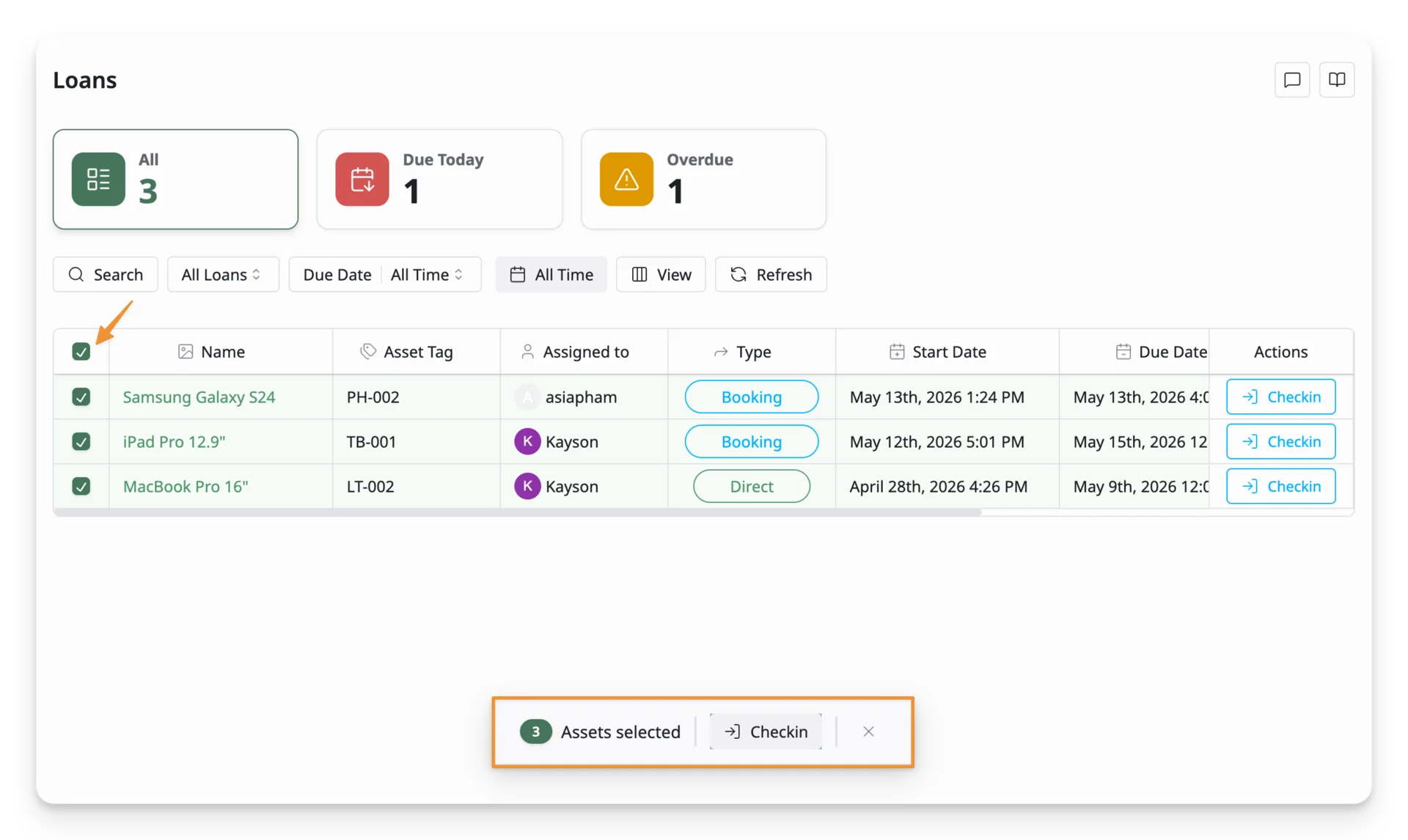
To bulk checkin assets:
- Select the checkbox beside each loan you want to check in.
- After selecting one or more loans, the bulk action bar appears at the bottom of the table. Click Checkin to proceed.
- Select the status you want to move the selected assets to. For example, select In Stock if the assets are being returned to available inventory.
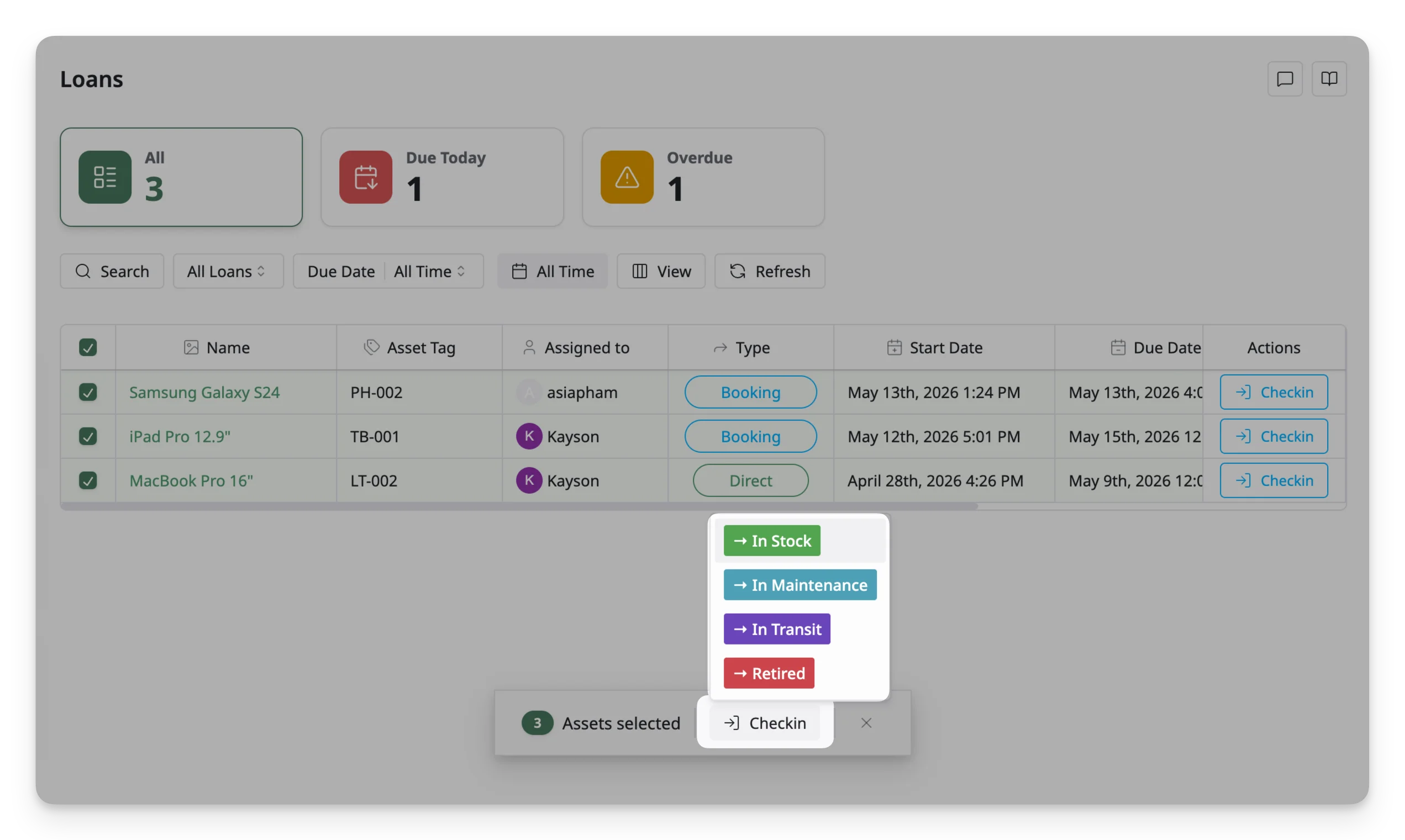
- Review and update the checkin details. Changes will apply to all selected assets.
- Click Update Status to complete the bulk checkin.
Once completed, the selected assets are checked in and removed from the active loans list.