Create an Accessory Using the Creation Form
In this guide, you’ll learn how to manually create an accessory by filling out the necessary fields in the Accessory Creation Form.
AssetLoom allows you to create new accessories in two ways:
- Bulk Import: Upload multiple accessories at once via CSV file.
- Manual Setup: Create accessories individually by filling out the Accessory Creation Form.
In this guide, you’ll learn how to manually create an accessory by filling out the necessary fields in the Accessory Creation Form.
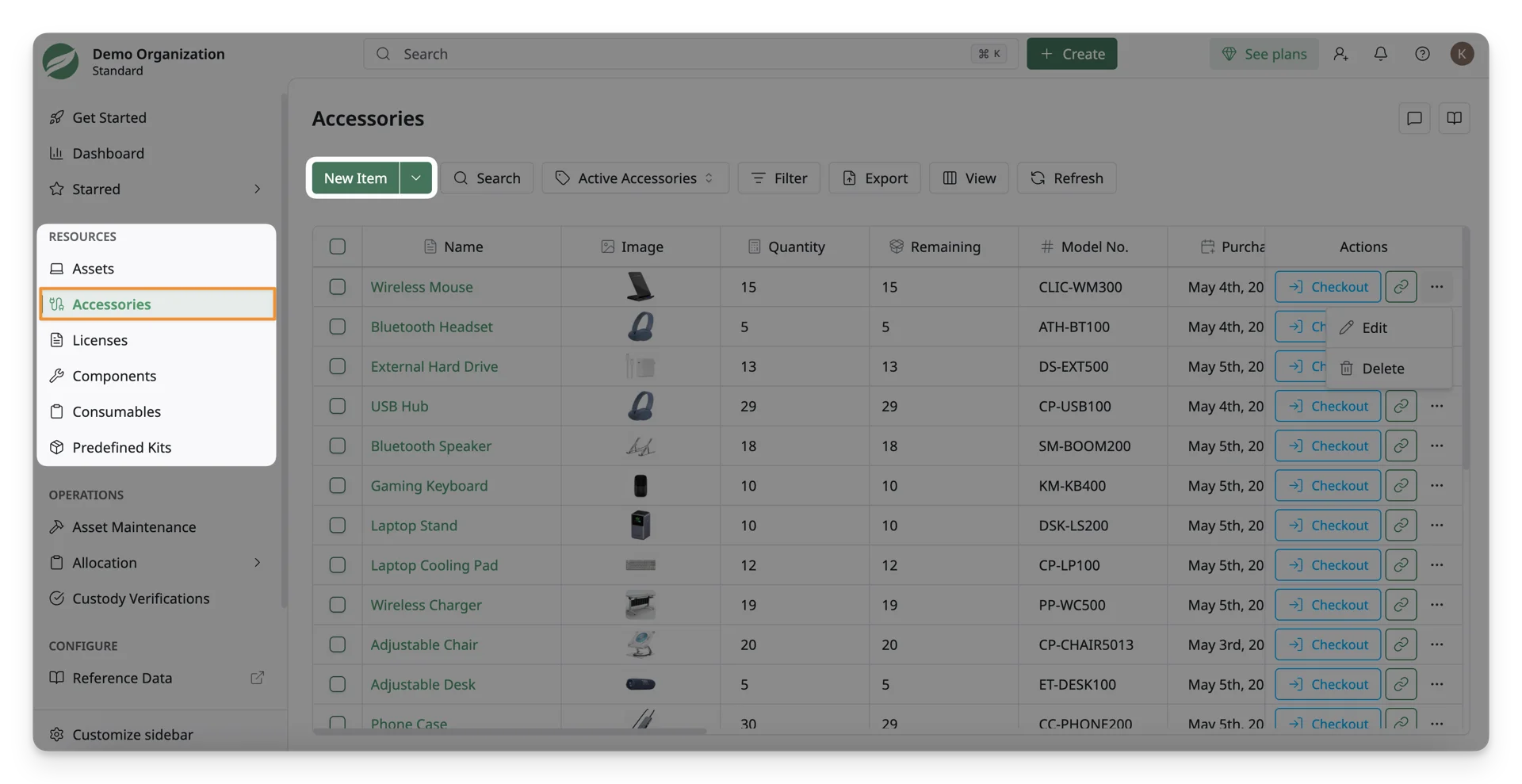
Step 1: Access the Accessory Form
- Navigate to Resources -> Accessories in the side menu.
- Click on the Create button at the top right of the screen to open the Accessory Form.
Step 2: Fill Out the Accessory Details
The form consists of several sections that need to be filled out to create the accessory. 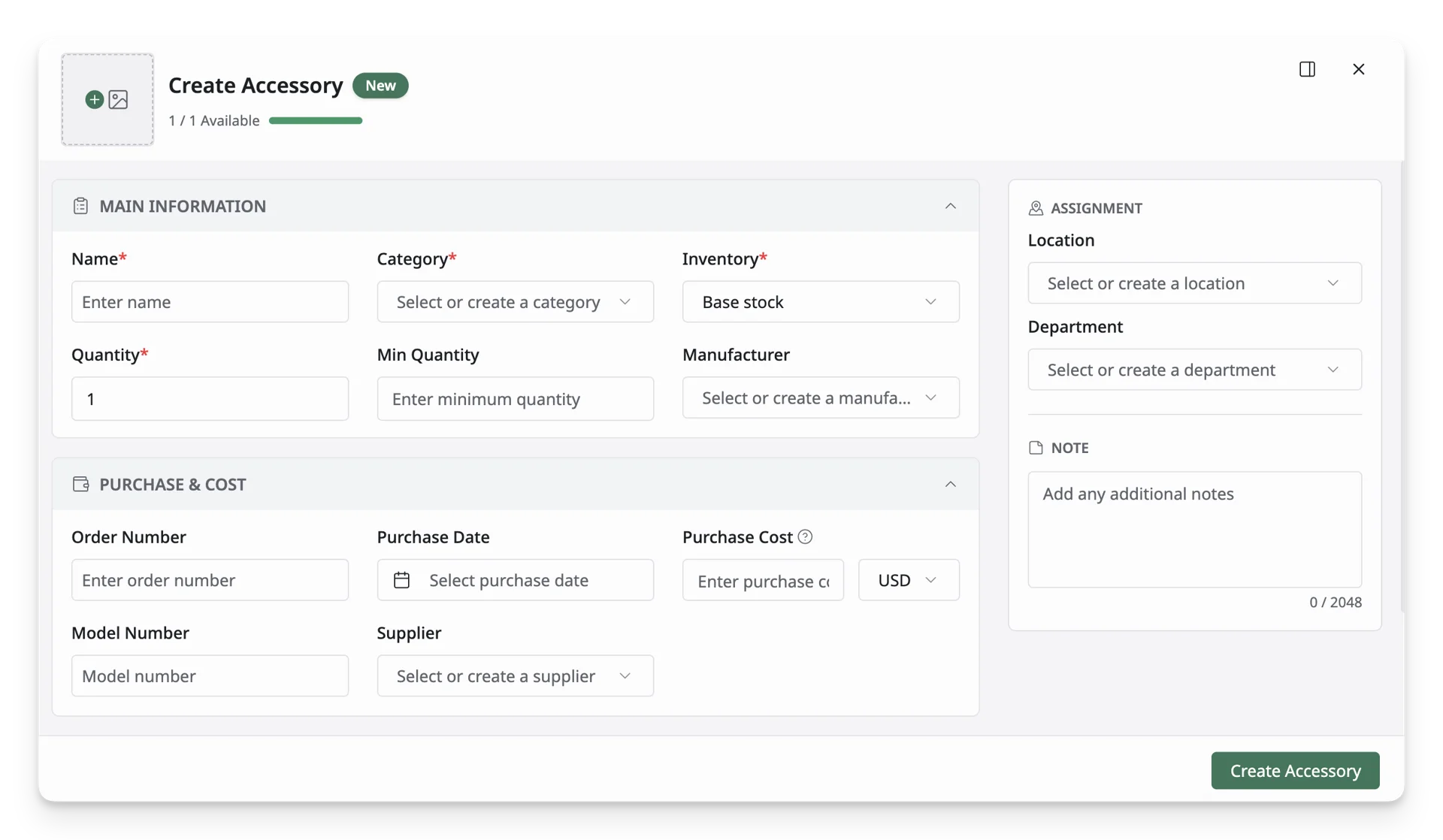
Below is an overview of the key fields:
1. Summary
This section summarizes key accessory information from other sections and images. 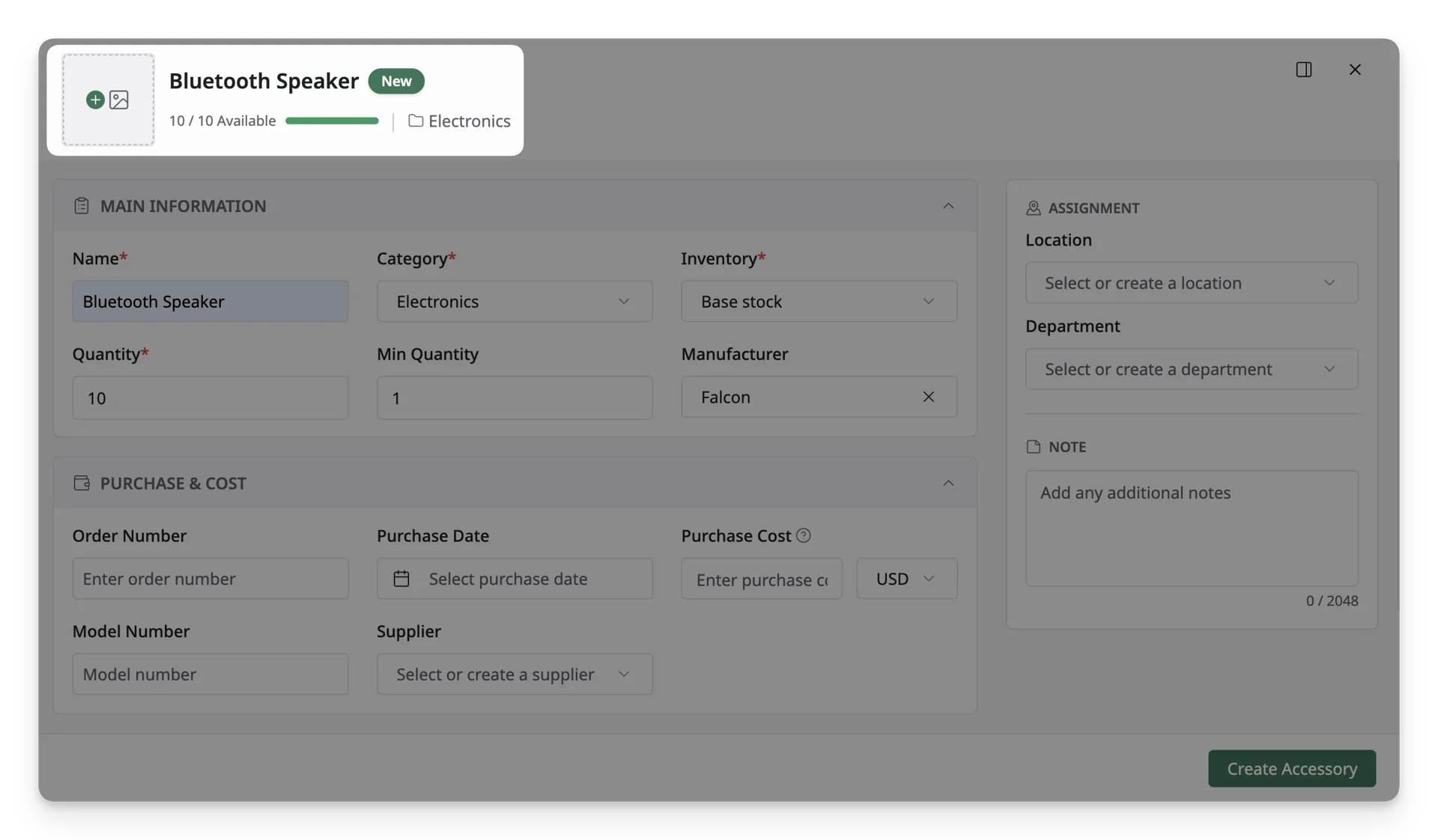
2. Main Information
This section is for the core details that define the accessory. 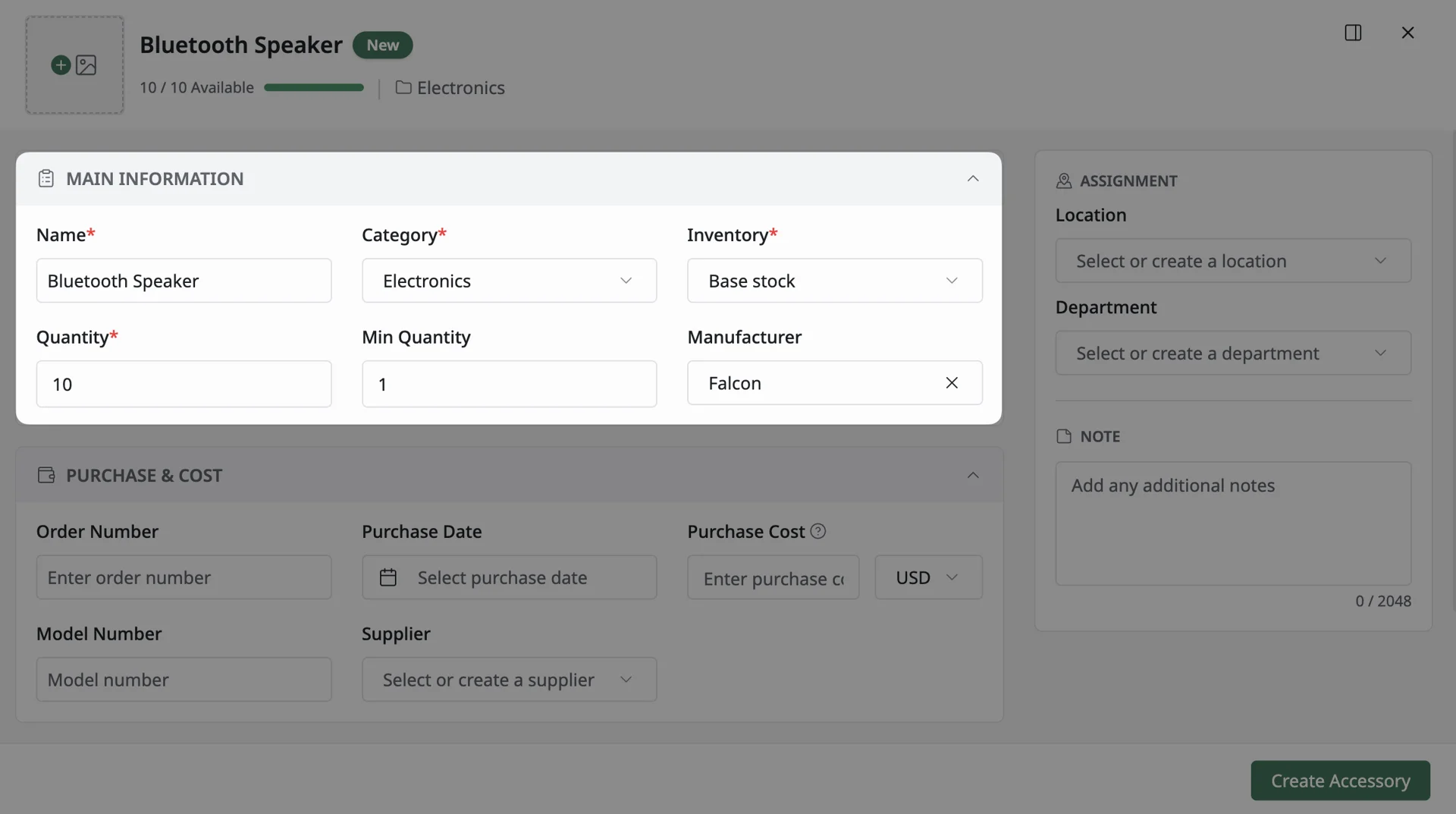
- Name: Enter a name for the accessory. (e.g.:
USB Hub) - Quantity: Enter the total quantity available for this accessory
- Category: Categories help group your accessories for easy management.
- Select a category that best describes the accessory, such as
Electronics,Office Supplies, etc - You can also type to create a new category if it does not already exist in the system.
- Select a category that best describes the accessory, such as
- Min Quantity: Set the minimum quantity threshold for the accessory. When the available quantity reaches this value, you can receive a notification to restock or refill the accessory quantity.
- Inventory: Select the inventory where the accessory belongs, such as Base Stock, or add other locations configured in your system.
- Manufacturer: Manufacturers help identify the brand or maker of the accessory. Select a manufacturer for your accessory from the dropdown list or simply type to create a new one if the model is not yet in the system.
3. Purchase & Cost Information
This section is essential for tracking the financial details and lifecycle of your accessory. 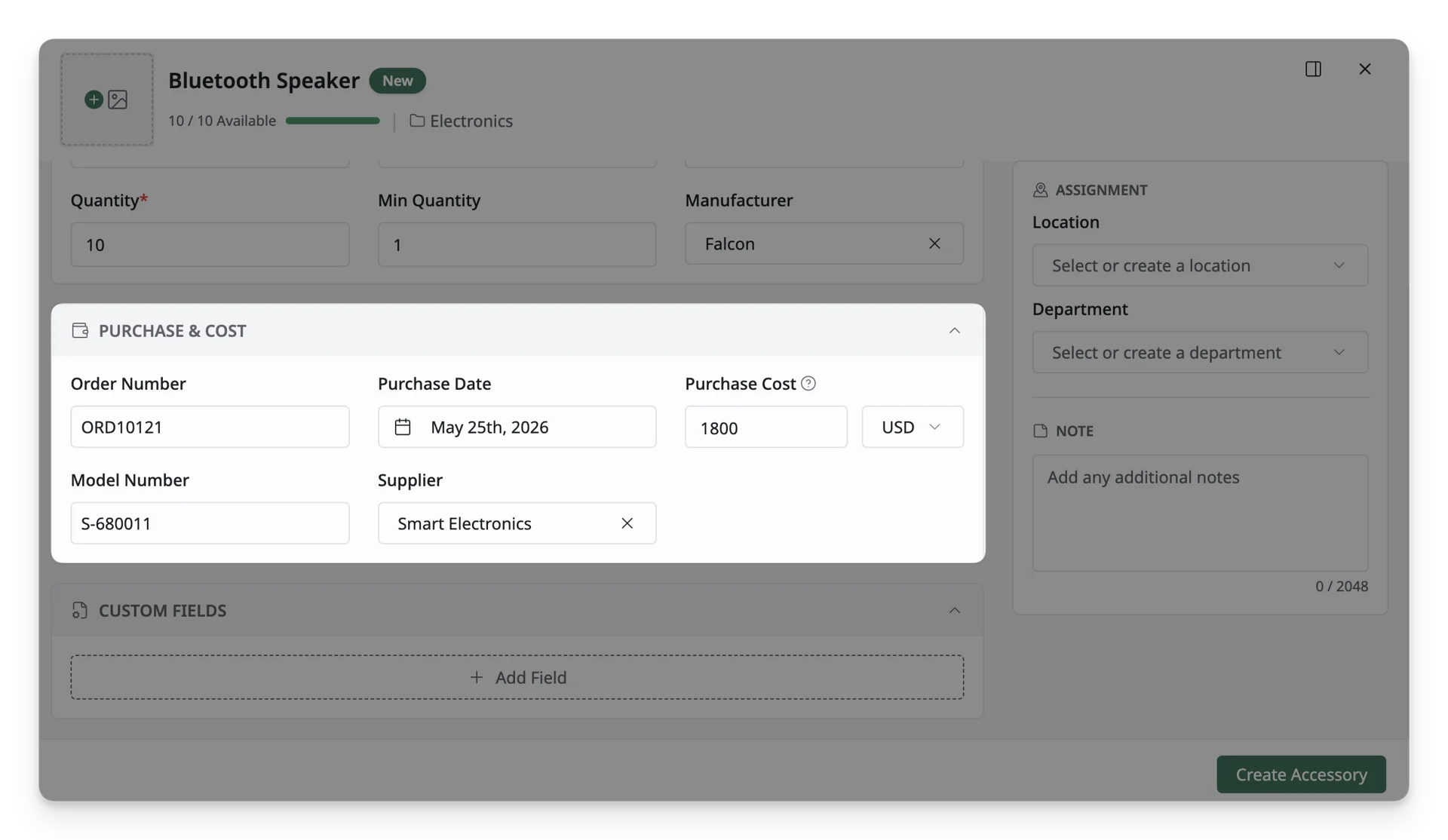
- Order Number: Enter the order number associated with the accessory’s purchase.
- Purchase Date: Select the date when the accessory was purchased. The purchase date helps track the accessory’s lifecycle and plan for replacements or upgrades.
- Purchase Cost: Enter the accessory’s purchase cost. This is crucial for AssetLoom to track the accessory performance and value over time.
- Model Number: Enter the model number associated with the accessory. This helps identify and differentiate accessories with similar names.
- Supplier: The supplier from which the accessory was purchased
4. Other Information
This section includes additional details about the accessory. You can either select from the dropdown list of existing values or type to create a new one if needed. 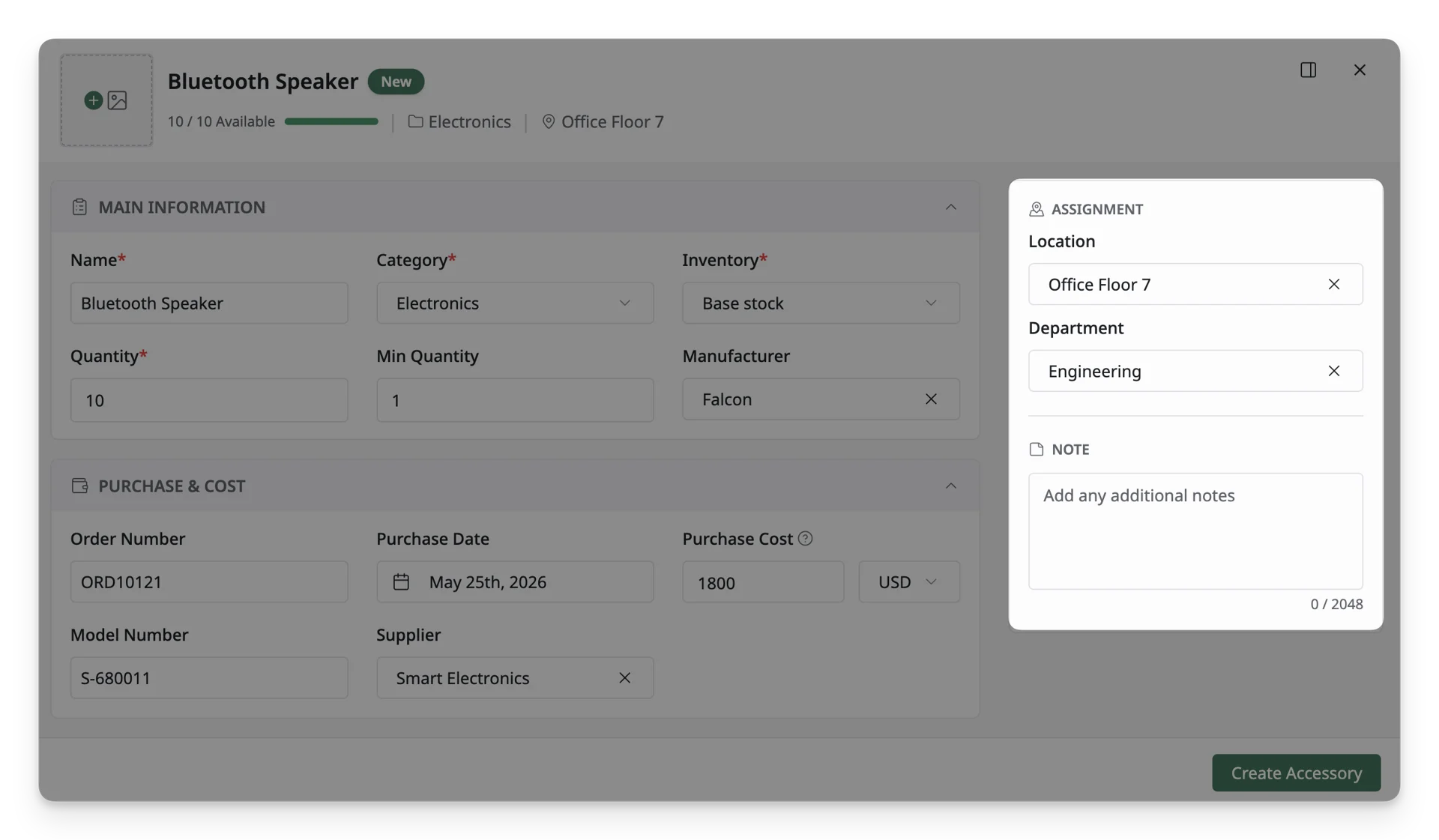
- Location: The geographical location where the accessory is deployed or assigned. (e.g.
7th Floor, orServer Room 1). - Department: The department that is responsible for or using the accessory (e.g.,
Engineering,Sales). - Notes: Add any additional information or remarks related to the accessory( internal references, conditions, or handling instructions).
5. Custom Fields
If you need to track additional information specific to this accessory, click Add to include extra fields for tracking unique data about the accessory (e.g., condition, version, or any other specific details). 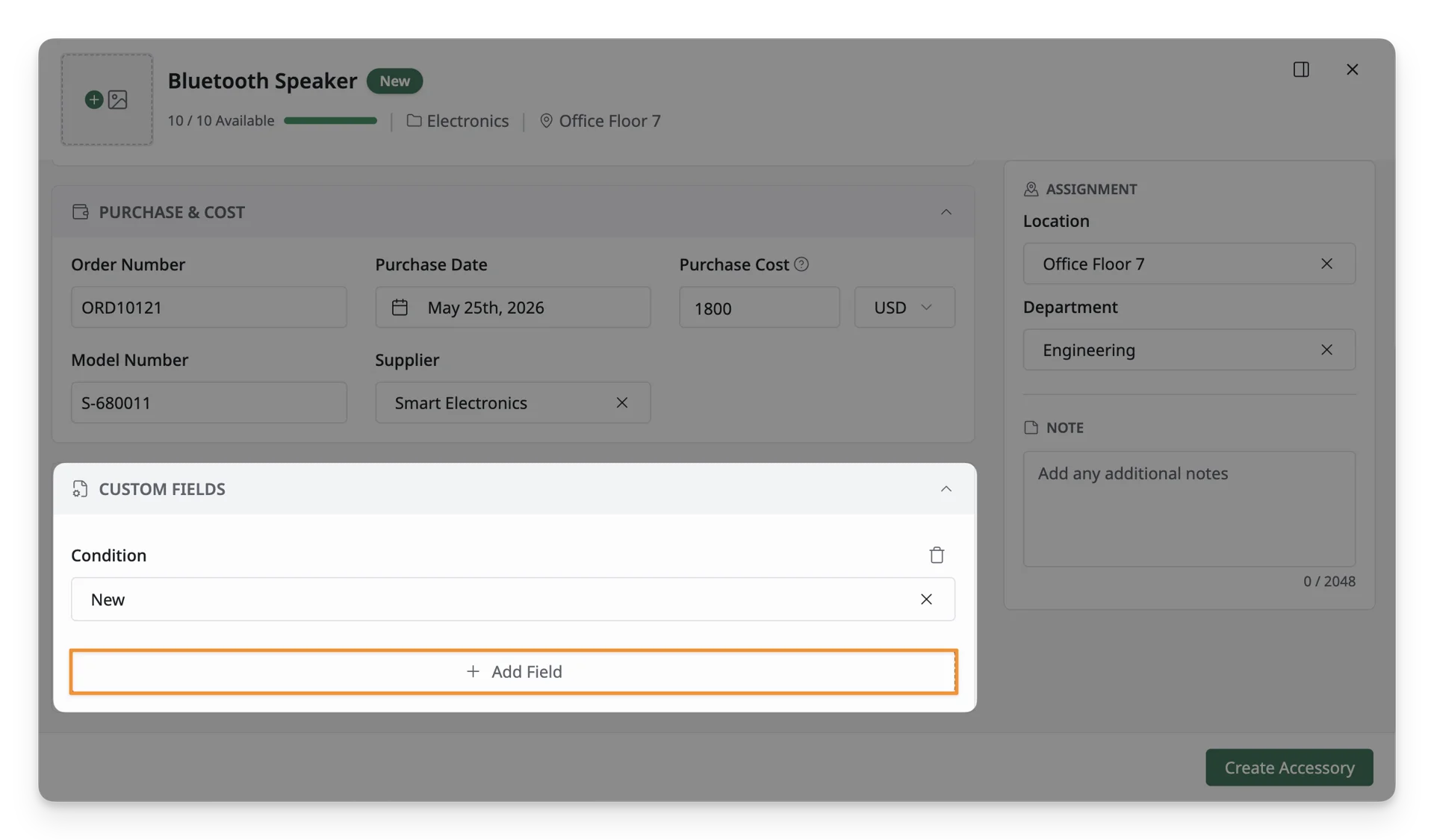
Custom fields must be created in advance in Reference Data > Custom Fields. If no custom fields have been set up, you won’t see any options to add them in this form.
Step 3: Save the Accessory
Once all required fields are filled, click the Create button at the bottom of the form to save the accessory to the system.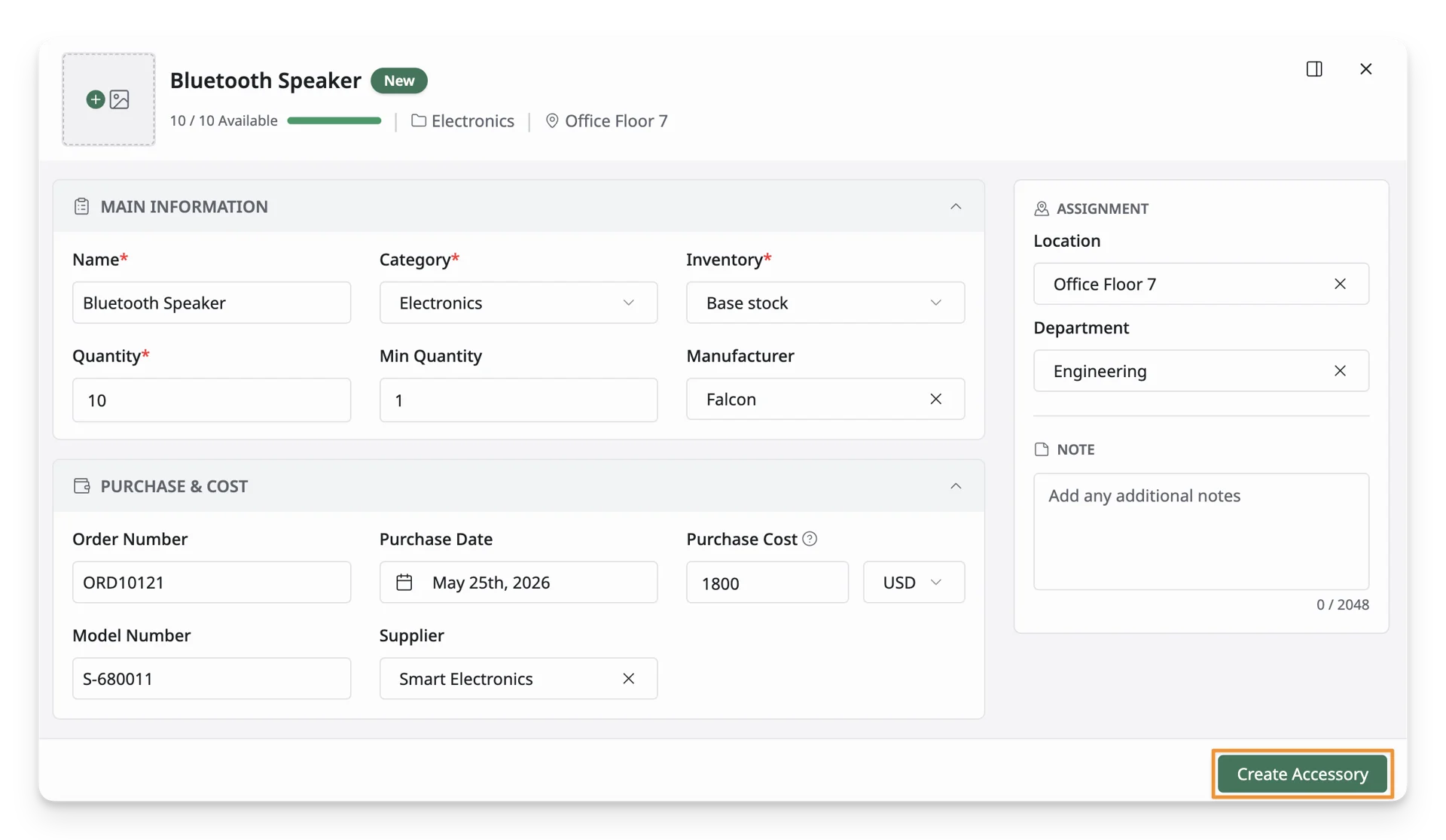
Step 4: Review Your Accessory
After creating the accessory, you will be redirected to the Accessory List, where you can view and manage all your accessories. If any information needs to be updated, simply click on the accessory and modify the details as needed.
What’s Next?
- Import New Accessories: Explore how to import your accessories from CSV files to AssetLoom