QR Code Solutions for Asset Management: Practical Tips From Tagging to Retirement
Practical tips for using QR code solutions for asset management at every lifecycle stage, from tagging and check-out to audits, offboarding and retirement.
Choosing good QR code solutions for asset management is less about the label and more about what happens after the scan. We see it in audits all the time. The scan works perfectly, then opens a spreadsheet row naming an owner who left eight months ago. The code did its job. The process behind it did not.
Once you manage more than 50 devices, a free QR generator stops being enough. You need a tool that builds codes from real records, updates custody with one phone scan, and keeps accessories and licenses linked to the device they belong to.
In this guide, we follow one laptop from arrival to retirement, share practical tips for each stage, and show where AssetLoom fits.
Stage 1: Intake and Tagging
Sixty laptops arrive on Tuesday. New hires start Monday. The fastest option looks like a free online QR generator. Three weeks later, its 14-day trial quietly ends and every label becomes a dead link on the same afternoon. Nobody notices until the first audit.
Most QR problems start here, so this stage deserves the most care.
- Tag at the door, not later. Label devices during receiving, before they reach a desk. A laptop that ships untagged usually stays untagged. Use MDM records where you can, and tag unenrolled laptops from the packing list.
- Know what your code holds and where it points. Static codes never change. Dynamic codes work only while someone pays, so never print codes from a trial account. Encode an asset ID, not personal data, so a curious visitor in the lobby learns nothing.
- Choose the right format and size. Use CODE128 for internal barcodes. EAN13 is a retail format with a fixed 13-digit length, so it rarely fits IDs like LT-0421. In our experience, QR codes under 2 cm (0.8 in) cause most “my scanner is broken” tickets.
- Test one label, then print the batch. Scan it with two phones first. Place labels on flat surfaces away from hinges, use laminated or polyester material, and print the asset ID as text beside the code. You can read our guide about asset tag labels for more detail.
Where AssetLoom Fits at Intake
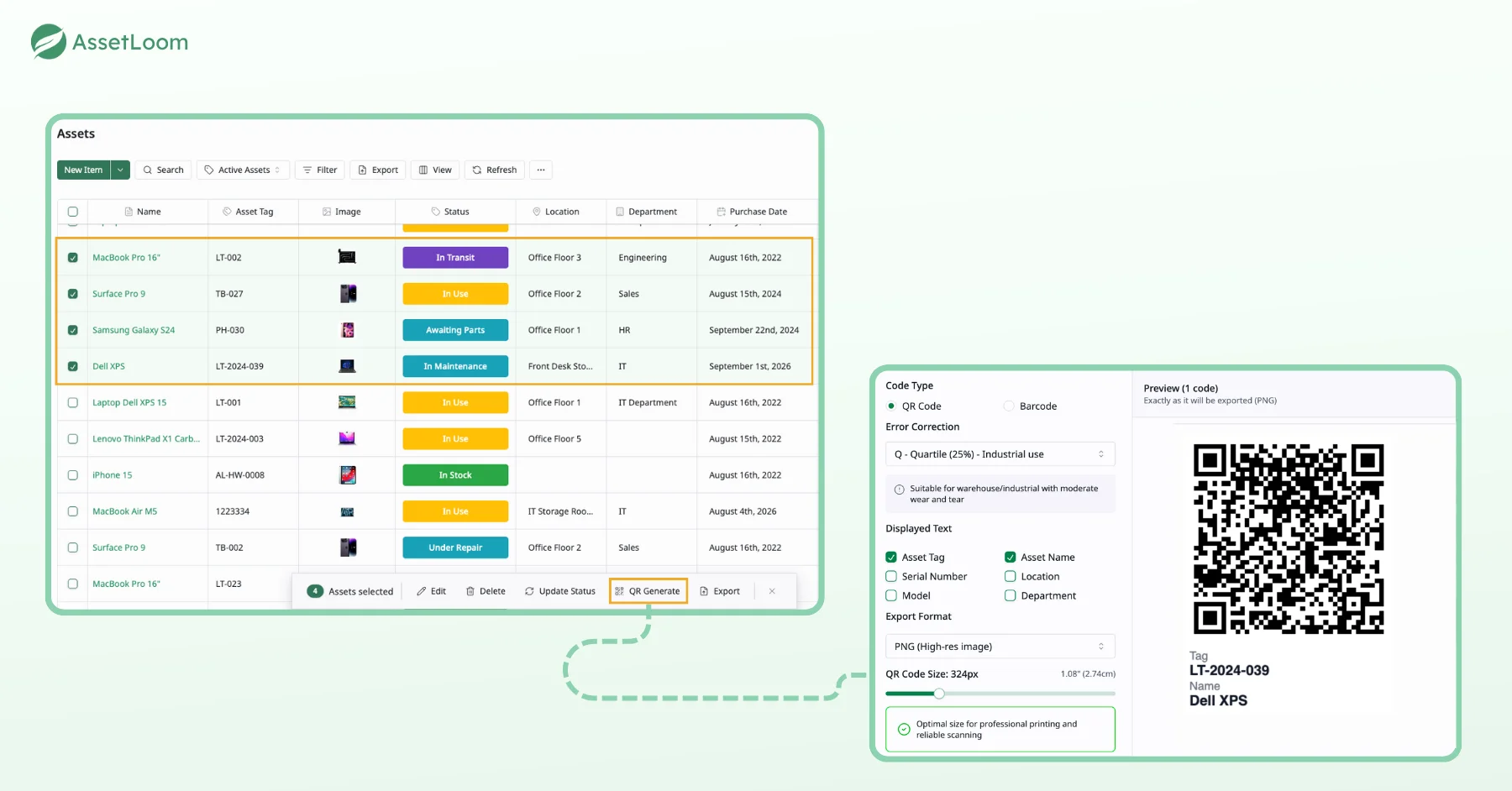
AssetLoom generates QR codes and CODE128, CODE39, and EAN13 barcodes straight from asset records. You can add custom fields to each label and export label sheets as PNG, SVG, or PDF for your printer. Device data syncs from Microsoft Intune and Jamf Pro, so your team works from MDM data instead of retyping serial numbers.
Stage 2: Assignment and Check-Out
The laptop goes to a new designer, along with a charger, a dock, and a software license. IT is busy that morning and plans to update the sheet later. Later never comes, so the records still say the laptop is in storage.
- Scan it when you hand it over. Update the record at the moment the laptop changes hands. If you plan to do it later, you probably never will.
- Assign everything that goes with the laptop. Link the charger, dock, and license to the same person. Items that are not linked to anyone are the ones that go missing.
- Write names the same way every time. We once saw one laptop listed under “Sarah K.”, “S. Kim”, and “skim@company.com” as three different owners. They were all the same person. Choose one format, such as the work email, and always use it.
- Ask the employee to confirm they received it. A signature or a quick acknowledgment is enough. When the person leaves, it is much easier to ask for things back if they already confirmed they had them.
Where AssetLoom Fits at Assignment
AssetLoom handles check-out through mobile scanning, so the record updates while the laptop is still in your hands. Because it tracks accessories, licenses, components, and consumables alongside hardware, the charger, dock, and license live in the same system as the laptop instead of three separate lists.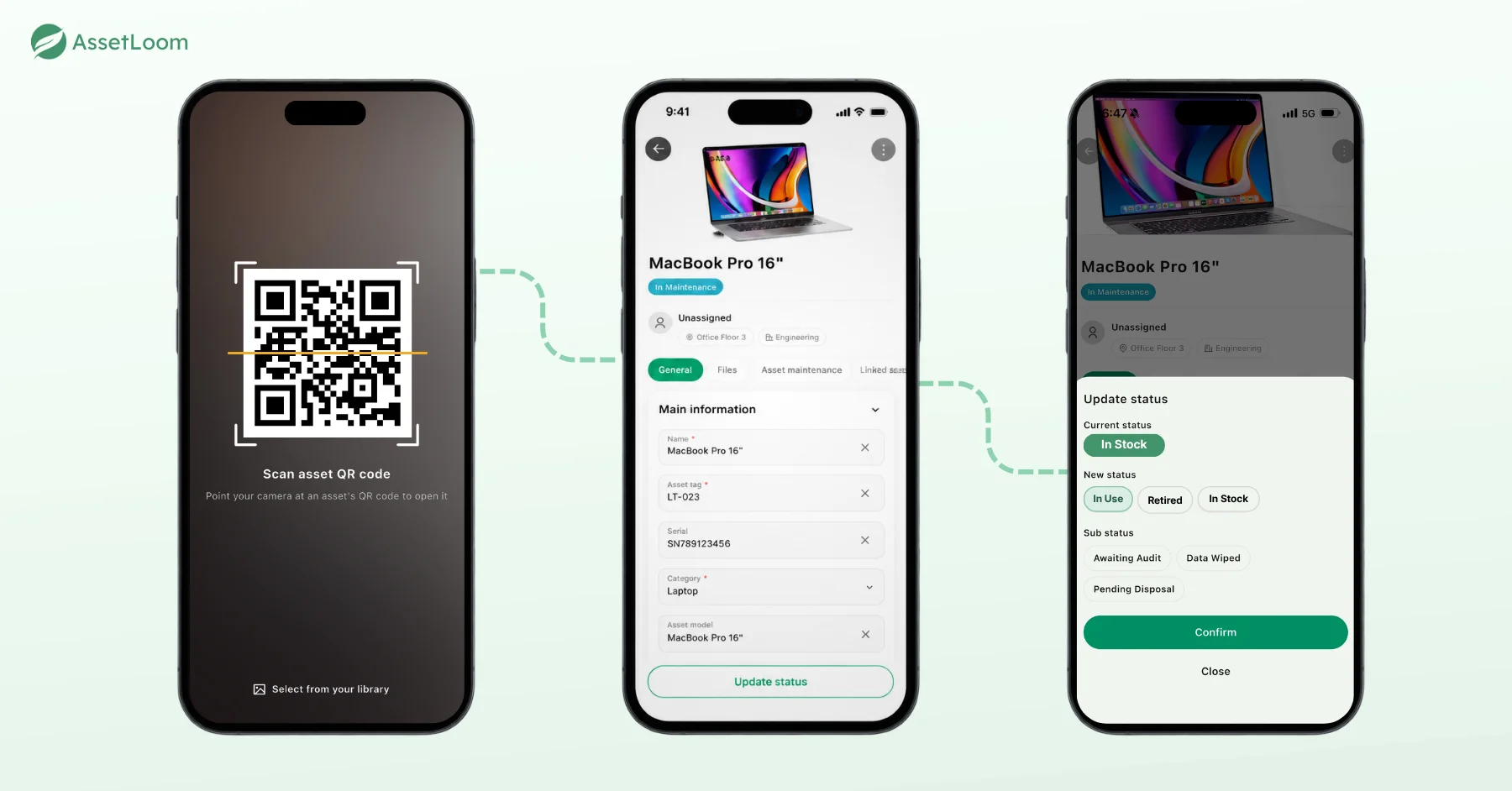
Stage 3: Daily Use, Swaps and Loans
Eight months in, the designer swaps laptops with a teammate whose screen flickers. It is only temporary, so nobody tells IT. Later, the laptop joins the loaner pool and comes back from a trade show without its charger.
- Record every swap, even short ones. If logging a swap takes longer than the swap itself, people will skip it. Good IT asset tracking software turns it into one phone scan. Record temporary swaps too, because they often become permanent.
- Show the status of every loaner. Mark each loaner as available, on loan, or in repair. When everyone can see the status, two people will not take the same device.
- Check the small items when a device comes back. Scan the charger back in, not only the laptop. Keep a count of cables, mice, and keyboards too. They disappear slowly, and nobody notices until a new hire has no keyboard.
- Have a plan for remote laptops. Remote staff rarely bring their laptops to the office. Use the daily MDM check-in to confirm the laptop still exists. Scan it when the person visits or returns the device.
- Scan devices out to repair and back in. Repair vendors often replace the lid or case, and your label goes with the old part. When the laptop returns, check the label. If it is missing, print a new one from the record.
Where AssetLoom Fits During Daily Use
Mobile check-in and check-out in AssetLoom turn a swap into a quick scan instead of a task for later. Consumables have their own tracking, so the cable drawer stops being a mystery. One honest limit. AssetLoom tracks custody and lifecycle, not real-time location, so it will not show where a loaner is on a map.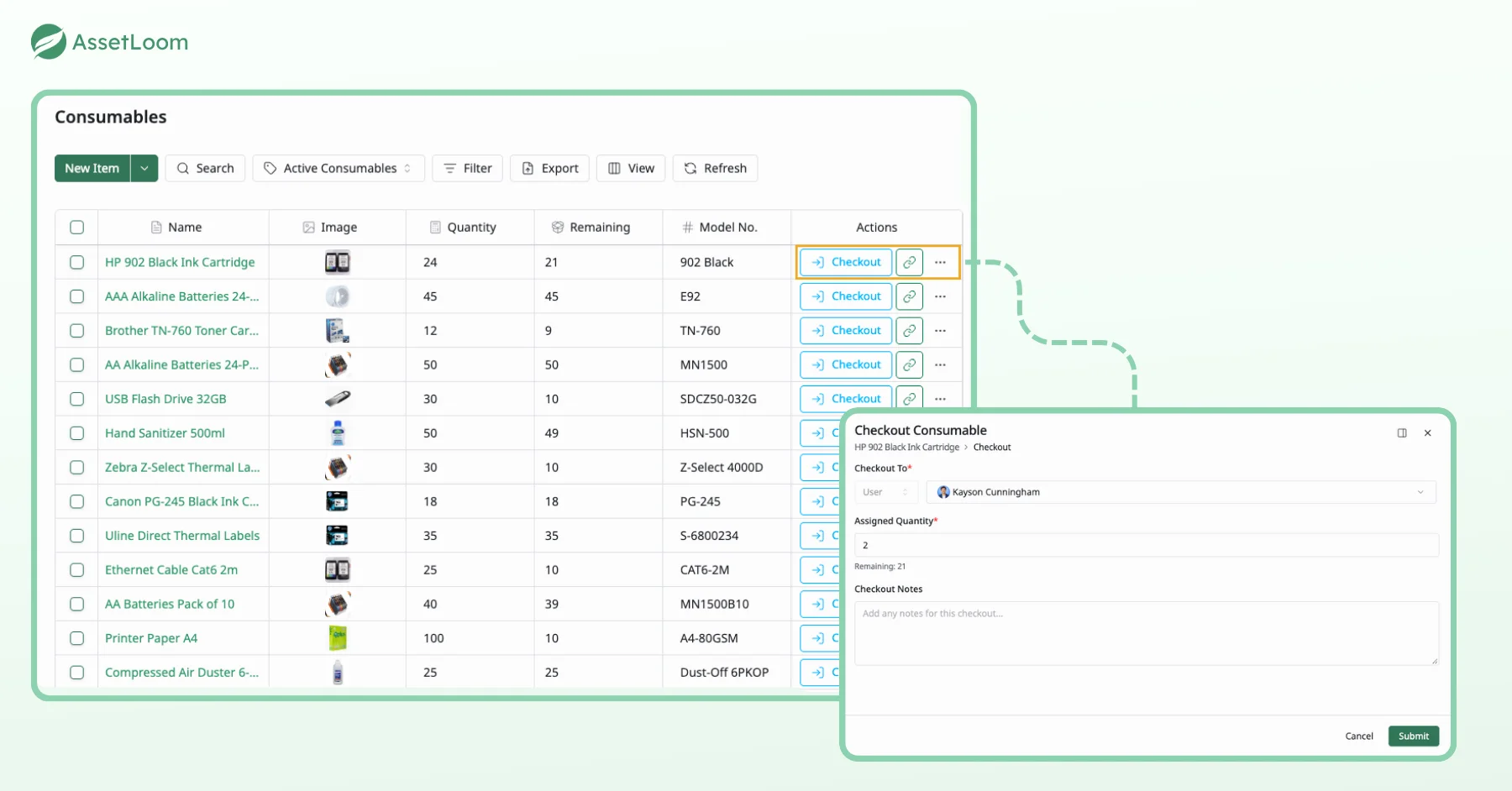
Related article: How Inventory Check-In Works
Stage 4: Audits and Verification
Audit day. The system says 200 laptops. The floor says 183. When the team asks who was supposed to keep records current, three people point at each other.
- Make one person responsible for each office. When a job belongs to everyone, it usually belongs to no one. Choose one data owner per office so there is always a clear answer to “who updates this?”
- Prepare before audit day. Audit desktops yearly, loaners after every trade show, and most other devices quarterly. If some devices still carry old barcodes, decide how to handle them before you start.
- Walk each room and fix records as you go. Do not audit from a list. Go room by room, scan everything you see, and then look for what is missing. Correct wrong records right away, because an audit that only produces an error report means doing the work twice.
- Compare your scans with MDM data. If a laptop checks in with Intune every day but never shows up in a scan, it is probably at someone’s home. It is not lost, but its record needs a note.
Where AssetLoom Fits in Audits
In AssetLoom, device data from Intune and Jamf Pro sits in the same place your team scans. You can check what the MDM reports against what is physically in the room, so missing devices stand out faster.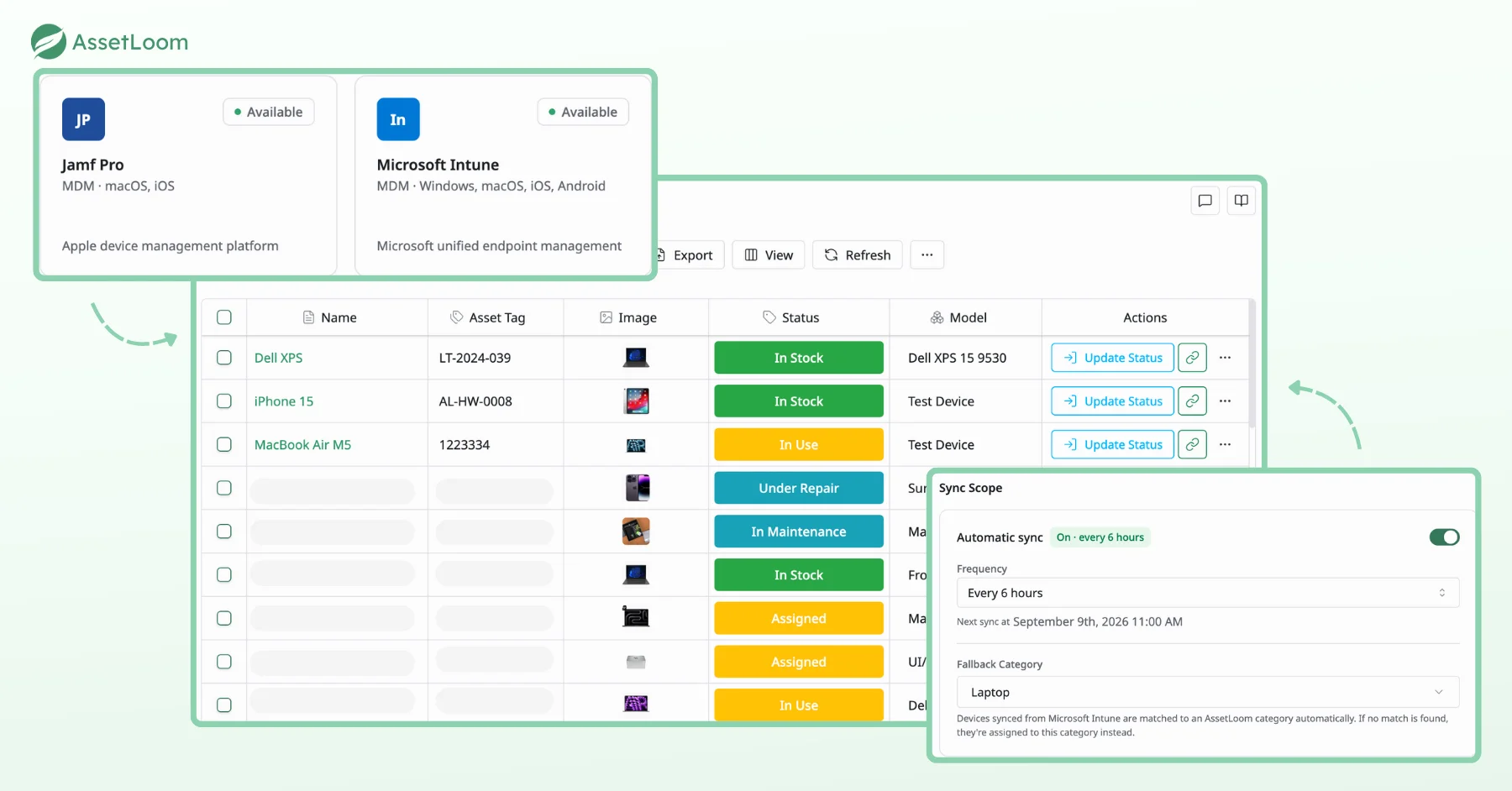
Stage 5: Offboarding and Retirement
The person holding the laptop resigns. Their last day is Friday. The laptop is at home, somewhere, and the software license keeps billing. Years later, the laptop retires, and around the same time the company outgrows its QR tool. Every label encodes the old vendor’s web address.
- Make a list before the last week. Pull everything assigned to the person, including the laptop, accessories, and licenses. Take back licenses on their last day. A license left on a former employee is money leaving every month.
- Scan the laptop in when it comes back. This way, the record ends with IT, not with someone who no longer works at the company.
- Write down why and how each device retired. Note if it was broken, outdated, or lost to guide your next purchase. Before it leaves, record the data wipe with the date, method, and who did it, and keep the vendor’s certificate. Auditors will ask for it.
- Plan your exit before you need it. Ask any QR vendor if you can export your asset IDs and keep your own tag numbers. If you cannot, you may need to re-label everything later. At two minutes per device, re-labeling 900 devices takes 30 hours of technician time.
Where AssetLoom Fits at Offboarding and Retirement
AssetLoom tracks custody for each asset, so you know who holds a device before their last week starts. Licenses and accessories sit next to the hardware, which makes the offboarding list faster to build. A mobile check-in scan closes the loop when the laptop comes back.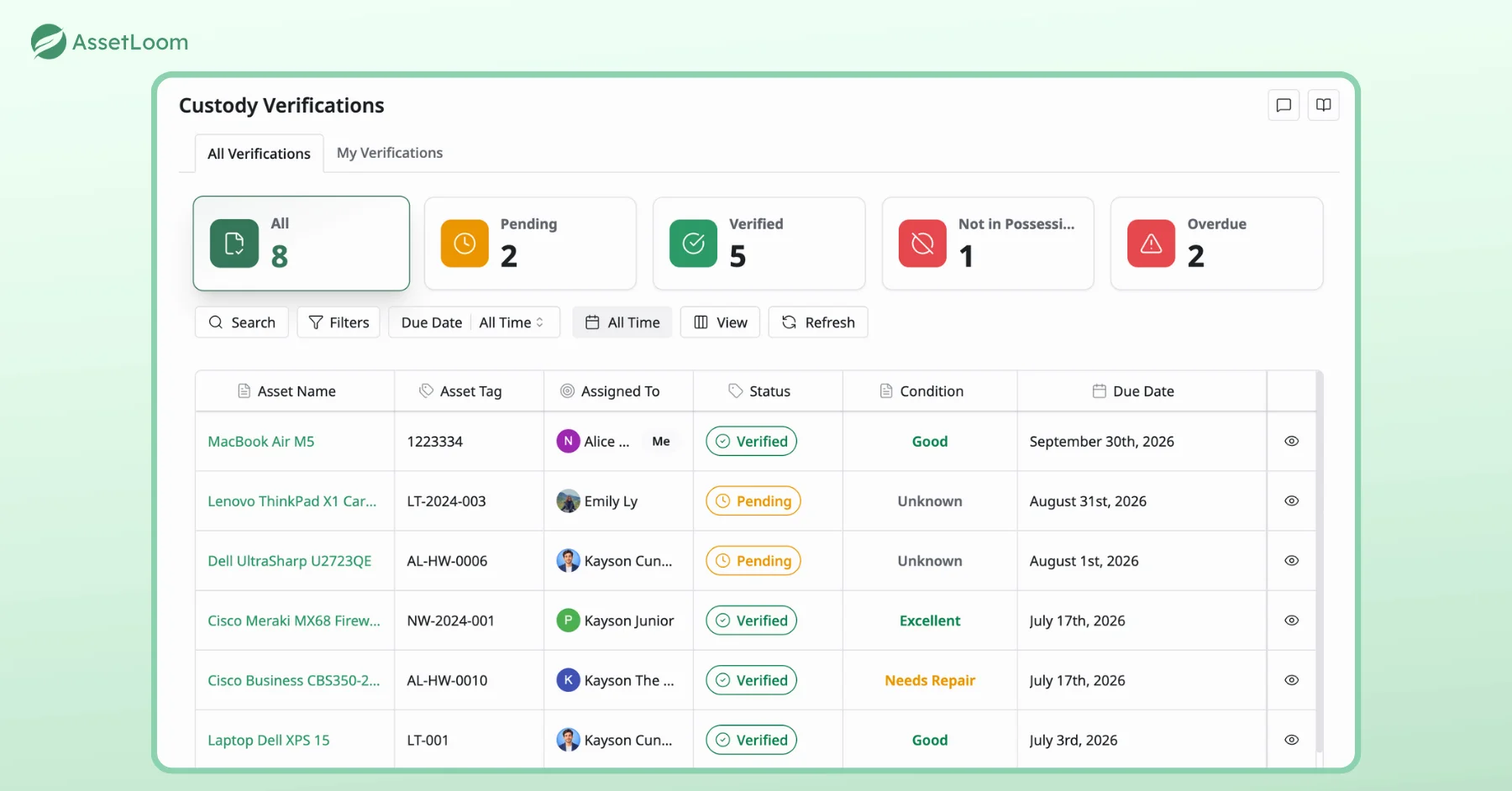
The Lifecycle Test: 9 Questions to Ask Any QR Tool
Use these questions during any free trial, with five real devices. Each one maps to a stage and helps you compare QR code solutions for asset management fairly.
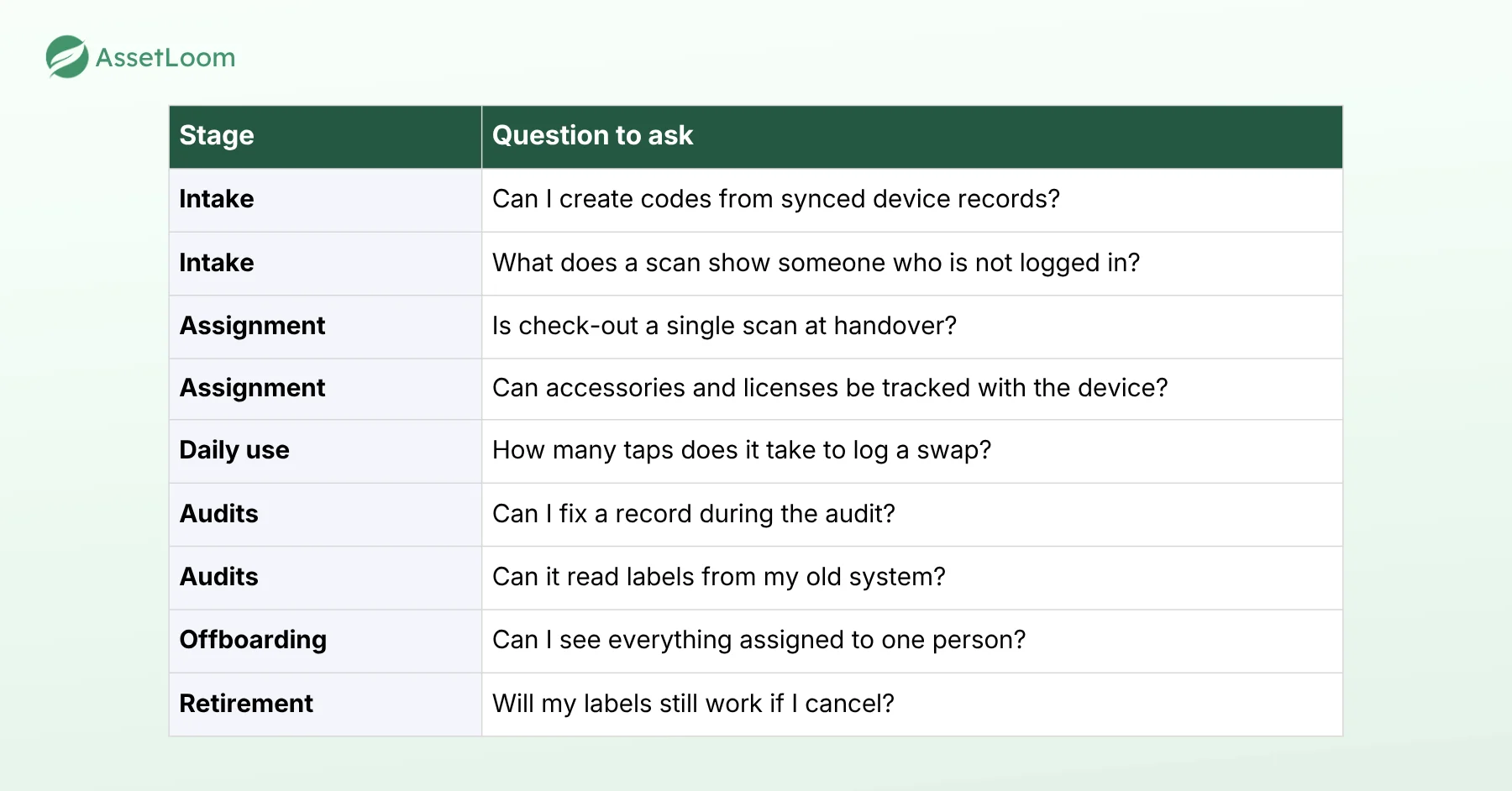
No tool needs a perfect score. It needs to pass the stages that hurt your team most. Know your weak spots before the demo, not after the audit.
FAQs About QR Code Solutions for Asset Management
1. Can I use a free QR code generator for asset tags?
Yes, if you track fewer than about 50 devices in one office and they rarely move. Beyond that, you need dedicated QR code solutions for asset management, because a generator only creates the code. It cannot record who has the device, log swaps, or keep a history. Also check whether your codes depend on a trial account that might expire.
2. Do QR codes for asset tracking expire?
Static QR codes never expire, because the data is stored in the code itself. But if a static code holds a web address, it only works as long as that address does. Dynamic codes point to a link managed by a provider, so they stop working if that account or subscription ends. Before printing, check which type you have and who controls the link.
3. What information should a QR asset tag contain?
Keep it simple. The code should hold an asset ID or a link to the asset record, and the label should show the same ID as readable text. Avoid putting owner names, locations, or serial numbers directly in the code, since anyone with a phone camera can scan it.
4. Can QR codes track the real-time location of assets?
No. A QR scan only shows where an asset was the last time someone scanned it. That is enough for most office IT, where custody matters more than coordinates. For vehicles or equipment on job sites, you need GPS or Bluetooth trackers. AssetLoom focuses on custody and lifecycle tracking, not GPS.
5. Do I need a special scanner to read QR asset tags?
Usually not. Most modern QR asset tools work with a smartphone camera, which is what most IT teams use every day. AssetLoom supports mobile scanning for check-in and check-out. Dedicated handheld scanners mainly make sense when you scan large volumes daily, such as in a warehouse.
Final Takeaway
Printing a QR label is the easy part. The real value comes from what happens after each scan. In our experience, the teams that stay audit-ready are not the ones with the fanciest labels. They tag devices at intake, check them out at every handover, scan each swap, fix records during audits, and plan their exit before they need it.
AssetLoom brings these stages together in one place. It tracks laptops alongside accessories, licenses, and consumables, and it syncs with Intune and Jamf Pro. Start on the free tier and run the lifecycle test with five real devices before choosing among the best QR code solutions for asset management.