Mac Patch Management: What to Do, What Not to Do, and the Tools That Actually Help
Mac patch management best practices, common mistakes IT teams make, top tools compared, and how AssetLoom connects your MDM data to full asset operations.
Mac patch management is the process of monitoring, deploying, and verifying updates for both the macOS operating system and the applications running on it. Done well, patch management reduces vulnerabilities, minimizes downtime, and ensures IT teams can keep fleets of Macs aligned with organizational policies.
If you own a Mac, you know that updates pop up regularly. For an individual user, hitting “Install Now” is usually enough. But in a workplace with dozens or hundreds of Macs, updates can be a lot more complicated.
Some updates fix security problems, others add new features, and some arrive unexpectedly. If every Mac installs them at different times, IT teams can lose track of who’s protected and who isn’t. Even worse, a single unpatched computer could put the whole company at risk.
In this article, we’ll look at:
- How Apple structures Mac updates and what that means for IT teams
- Best practices for managing patches in 2026
- A detailed review of five widely used tools: Jamf, NinjaOne, Munki, Automox, and Pulseway
The goal is straightforward: give you a clear picture of what Mac patch management looks like today and help you evaluate which tools might best fit your environment
Understanding How Apple Handles Mac Patching
Before looking at patch management tools, it’s important to understand one key fact: Apple controls the update process on macOS.
Unlike Windows, where IT teams have more direct control over patches, macOS updates are tightly managed by Apple. Every third-party patch management tool you’ll use — Jamf, NinjaOne, Automox, Pulseway, or even open-source options like Munki — works within Apple’s rules.
Types of Apple Updates
Apple ships three types of updates:
- Major updates (e.g., macOS Sonoma → macOS Sequoia)
- Minor updates (e.g., macOS 14.4 → 14.4.1)
- Rapid Security Responses (RSRs) — small, urgent security fixes
Learn more: Patch Level Meaning
Admins can influence these updates through Mobile Device Management (MDM). The main levers are:
- Deferrals – delay a new update for 1–90 days so you can test before rollout.
- Enforcement – force a device to download and install a specific update by deadline.
Why This Actually Matters
Here’s the thing about unpatched software: the window between “vulnerability disclosed” and “exploit in the wild” keeps getting shorter. We’re talking days sometimes. And for a team where half the fleet is running an old macOS version because nobody pushed the update, that’s a lot of exposure sitting there quietly.
Beyond security, there’s the compliance angle. If your company is in healthcare, finance, legal, or really any regulated industry, patch status isn’t optional. Auditors ask about it. Frameworks require it. Saying “we trust users to update” is not going to hold up.
And then there’s the operation. Outdated apps crash more, conflict with other software, and create support tickets that didn’t need to exist. You may estimate a not-insignificant chunk of the week troubleshooting issues that are basically just “this app is three versions behind, and nobody noticed.”
We don’t get hired to chase down patch failures all day. But without a real system, that’s what happens.
Best Mac Patch Management Software 2026
1) Jamf (Jamf Pro)
Jamf is the best-known tool in the Apple management space. It’s designed specifically for macOS and iOS, so it works closely with Apple’s update system.
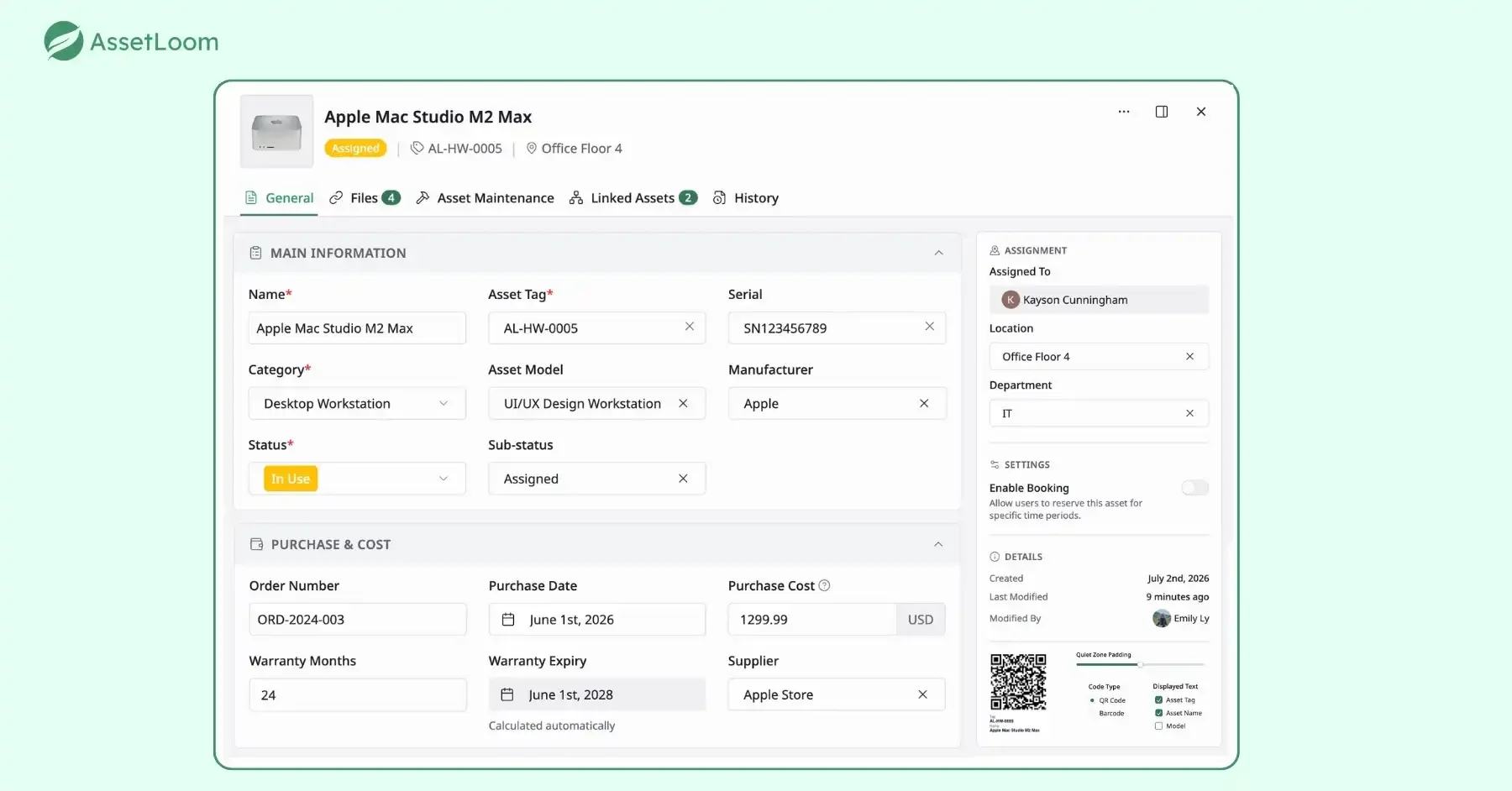
Apple devices managed in AssetLoom after syncing
- How it handles updates: Jamf uses Apple’s official MDM commands to enforce updates. You can set deferrals (delay an update for testing) and force installs when deadlines hit.
- Apps and third-party software: Jamf maintains a catalog of common apps (like Zoom, Chrome, and Slack) and keeps them updated automatically. This saves IT teams from manually packaging installers.
- Pros: Deep Apple integration, strong app catalog, trusted by large enterprises.
- Cons: Can feel complex, and its two methods for app patching (App Installers vs. Patch Policies) may confuse new admins.
- Best fit: Organizations that are mostly Mac and want maximum control with Apple-first features.
Related article: Jamf Asset Management Review: Features, Benefits and Limitations
2) NinjaOne
Intune started as a Windows-first MDM, but it’s grown into a genuinely capable cross-platform tool. If your organization already runs on Microsoft 365, it saves you from managing two separate systems.
- How it handles updates: Intune uses Apple’s MDM framework to push macOS updates. You can configure update schedules and set enforcement windows, though it’s a bit less granular than Jamf on the Apple-specific side.
- Apps and third-party software: App deployment works through the Intune portal, with options for DMG and PKG installs. It doesn’t have as deep a native app catalog as Jamf, so some apps require more manual setup.
- Pros: Unified management for Windows and Mac in one place, strong identity and compliance integration for Microsoft environments.
- Cons: Mac support, while solid, still feels like a secondary priority. Teams with complex Apple-specific needs may hit its limits.
- Best fit: Mixed Windows and Mac environments already invested in the Microsoft ecosystem.
Learn more: Microsoft IT asset management
3) Kandji
Kandji is a newer player but it’s picked up a real following, especially in fast-moving tech companies. It’s Apple-only and built around automation from day one.
- How it handles updates: Kandji uses its “blueprints” model to assign update policies to device groups. Its auto-update library handles a wide range of macOS updates automatically, with very little manual config needed.
- Apps and third-party software: Kandji’s auto-update library covers a solid list of popular apps and keeps them current without IT having to manually manage packages. It’s one of the more hands-off approaches for app patching.
- Pros: Fast to set up, strong defaults out of the box, clean interface, good for teams without a dedicated Apple admin.
- Cons: Newer platform, so some advanced or niche features are still catching up to what Jamf offers.
- Best fit: Growing companies that want solid Apple management without the complexity overhead.
Learn more: What Is Asset Management IT Open Source?
4) Automox
Automox takes a cloud-first, agent-based approach and supports Windows, Linux, and Mac. It stands out for its automation and scripting power.
- How it handles updates: The Automox agent can install macOS updates, though on Apple silicon it may require a one-time user approval for system access.
- Apps and third-party software: Automox has one of the largest published catalogs—hundreds of titles—and you can also write custom “Worklets” (scripts) to patch almost anything.
- Pros: Broad catalog, strong automation, works well for remote devices outside the corporate network.
- Cons: Extra steps needed on Apple silicon; niche apps may still require custom scripts.
- Best fit: Companies with mixed fleets and remote workers that need automation and flexibility.
5) Pulseway
Pulseway is another RMM platform that includes Mac patch management and other operating systems.
- How it handles updates: You can create patch policies that push both macOS updates and app patches to your devices.
- Apps and third-party software: Pulseway’s catalog covers hundreds of applications and continues to grow.
- Pros: Easy policy setup, expanding app catalog, unified with other IT management features.
- Cons: Catalog for Mac is still maturing; reporting isn’t always as detailed as Jamf or Automox.
- Best fit: MSPs and IT teams already using Pulseway who want to include Macs in their existing patching setup.
Mac Patch Management Best Practices
What to Do
Know exactly what you have before you do anything else
You can’t patch what you don’t know exists. And I mean this more literally than it sounds. Shared laptops, recently returned devices, the spare MacBook sitting in a cabinet somewhere since 2022. These all count. Get a complete and current inventory first. Device model, macOS version, installed apps, last check-in. Everything.
Set a policy with actual timelines
Not “we try to stay current” real deadlines. Something like: critical security patches within 48 to 72 hours, regular security updates within 14 days, major OS versions within a tested window. Write it down. Make it official.
Always test before you push broadly
Most teams learned this the hard way when a patch broke a plugin that like eight designers depended on for their daily workflow. They pushed it to everyone at once. Now they have a small test group, a handful of devices running patches through first, and wait a couple of days before going fleet-wide. It may feel slower for now, but slower is surely better than disruption.
Roll out in stages
Same idea as testing. Don’t push to 200 machines at once. Start with a smaller group, watch for issues, then expand. If something breaks, you’ve limited the blast radius.
Give people a heads-up, then enforce it
Users respond to reminders. Give them a nudge when an update is available, then a firmer nudge as the deadline approaches, then just… make it happen. The grace period builds goodwill. The enforcement makes sure things actually get done.
Track whether patches are actually installed
Deploying an update is not the same as confirming it installed successfully. You need to actually check. Some devices will fail silently. Those are the ones that’ll come back to bite you.
Keep records of everything
What got patched, when, how, on which devices. This sounds tedious, but when an incident happens, or an auditor shows up, you will be very glad you have it.
What Not to Do
Don’t leave it up to users
This one deserves to be first. Individual users will defer updates indefinitely. “I’ll do it after this meeting.” Then after dinner. Then after the weekend. Then six months later you’ve got a fleet of devices that are all slightly different versions of out-of-date, and you have no idea which ones. Self-service patching without enforcement is not a strategy. It’s wishful thinking.
Don’t treat major macOS upgrades like regular patches
Going from one macOS version to the next is a different kind of lift. There are app compatibility questions, workflow changes, and enough potential for disruption that you really do need to test it properly. Rushing a major upgrade is how you break things for a lot of people at once.
Don’t ignore third-party apps
macOS system patches get most of the attention, but honestly the apps are where a lot of the risk lives. An old browser or an outdated collaboration tool can be just as exploitable as an OS vulnerability. Patch everything, not just the operating system.
Don’t let patch failures just sit there
If a device keeps failing to receive patches, that’s a signal. Could be a storage issue, could be the device is barely ever online, could be a config problem. Chase it down. Don’t just accept failure as part of the process.
Don’t forget about the devices nobody’s using right now
Spare laptops, shared workstations, machines that got returned during offboarding and are waiting to be reassigned… these are almost always the most out of date. And then someone picks one up and plugs it into the network, and suddenly you’ve got a problem.
AssetLoom: What Happens After the Patch Goes Out
Here’s something that doesn’t get talked about enough. MDM tools are really good at deploying patches. What they’re less good at is helping you understand the full picture around each device - who owns it, what department it’s in, where it is in its lifecycle, and what contracts are attached to it. That’s the gap AssetLoom fills.
What AssetLoom actually does
AssetLoom is an IT asset operations platform that integrates and syncs with your MDM, giving you the operational context your patch tools don’t have. You now have a central place to see all hardware, software, licenses, ownership, lifecycle status, TCO, etc. Within one system, you can still look at all devices and monitor current status by pulling from the systems you’re already using.
With Jamf
AssetLoom syncs with Jamf to bring device inventory and patch compliance data directly into your asset records. So when something falls out of compliance in Jamf, you can see it in AssetLoom alongside everything else you know about that device: owner, department, age, warranty status. One place to look, one place to act.
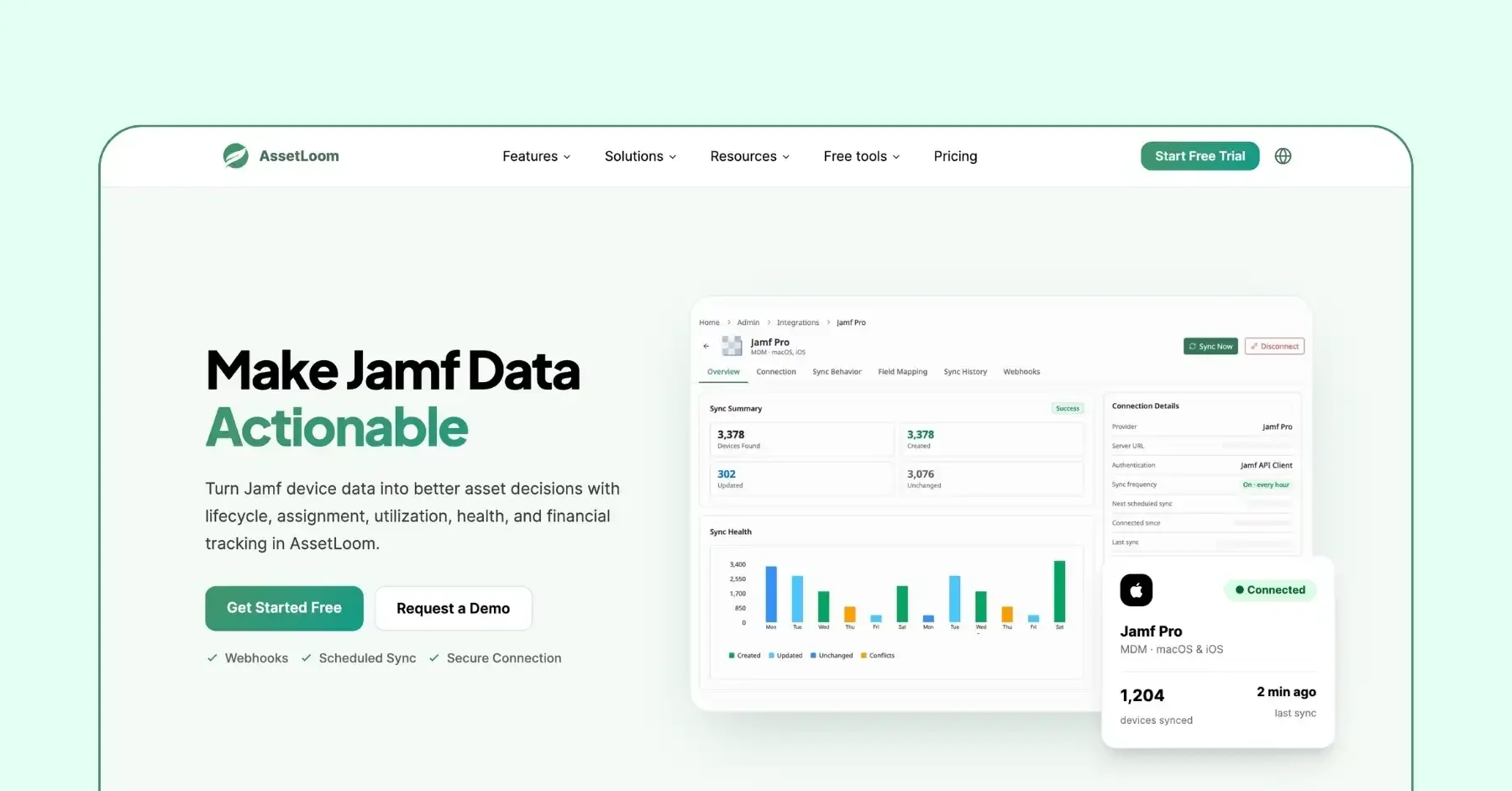
Explore Jamf integration here: AssetLoom Jamf Integration
With Intune
For mixed Windows and Mac environments, AssetLoom bridges the gap between your Intune data and your asset management workflow. You get patch status, ownership, and contract details for every managed endpoint without having to live in the Intune portal or manually reconcile data across systems.
Explore Intune integration here: AssetLoom Microsoft Intune Integration
What this looks like in practice
AssetLoom is an IT asset management platform that connects to the MDM tools you’re already using Mobile Device Management (MDM) systems like Jamf, Intune, and Kandji. Then, AssetLoom turns the device data you’ve already enrolled into a full picture of your asset operations.
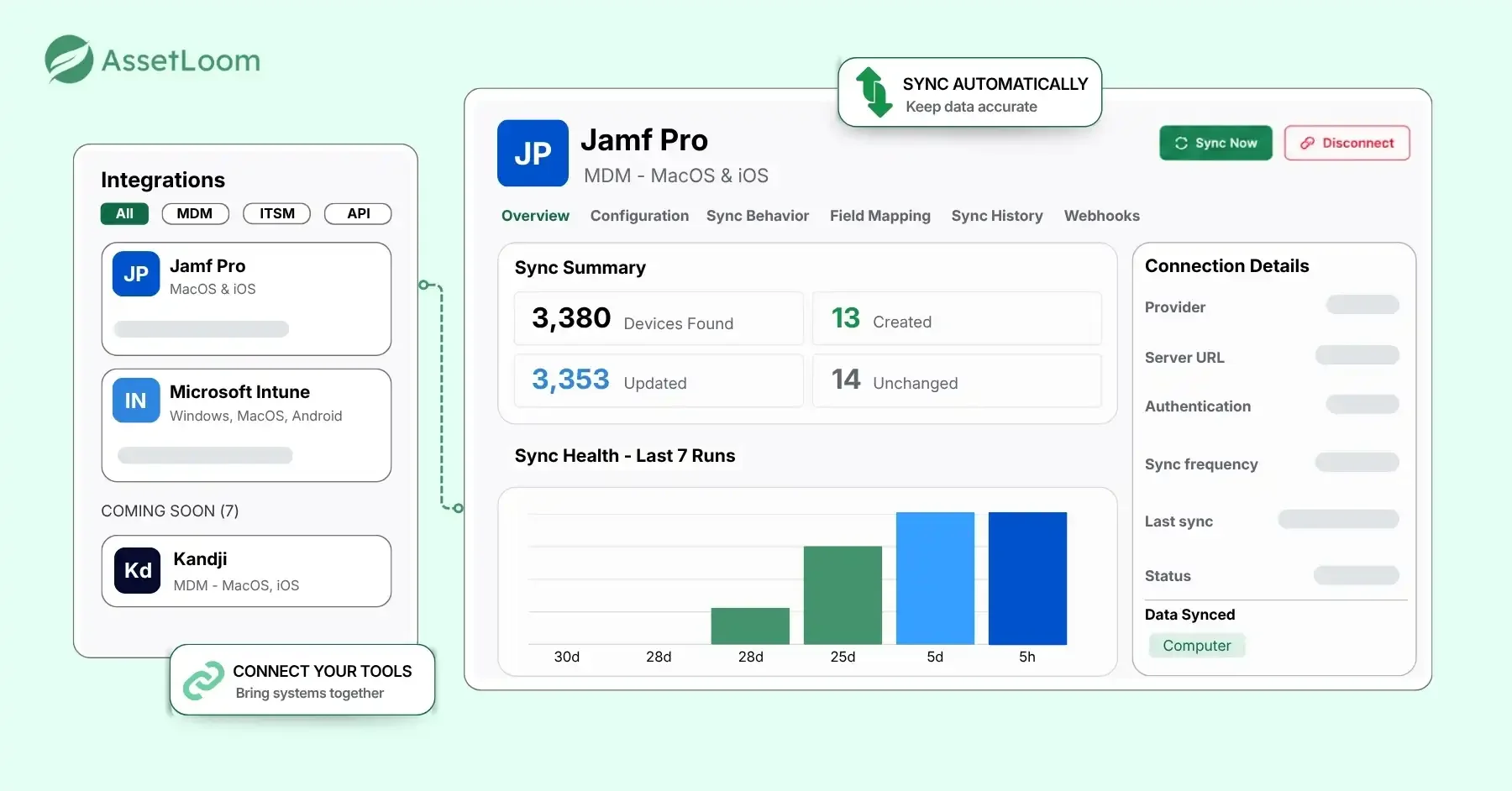
When you integrate with Jamf, for example, AssetLoom pulls in what Jamf already knows about each enrolled device:
- Device name, serial number, and model
- Hardware specs, OS version, and security status
- Owner and location
- Order-related information
That’s data you already have. AssetLoom takes it and makes it operational. From there, you can:
- Assign, unassign, check in, and check out assets without juggling separate systems
- Track ownership history and see how assets are actually being used across your team
- Manage the full lifecycle of each device, from procurement through maintenance to refresh
- Track cost, depreciation, warranty status, and current asset value
So instead of “this device is running macOS 13.2,” you get the full story. Who has it, how long they’ve had it, what it cost, whether it’s still under warranty, and whether it’s even worth pushing another major update onto given where it is in its lifecycle.
The same integration logic applies whether you’re running Intune or Kandji. The enrolled device data flows into AssetLoom, and your MDM stays focused on what it’s good at: enforcement, policy, and deployment, while AssetLoom handles the asset side of the house. It’s not a replacement for your MDM. It’s what makes the data your MDM collects actually useful beyond just patch reporting.
Try AssetLoom and connect your Apple Devices for free
Conclusion
Mac patch management isn’t complicated in theory. It’s just easy to let slip in practice, especially when you’re relying on manual processes, user self-service, or tools that don’t talk to each other. The teams that do it well have clear policies, automated enforcement, and actual visibility into what’s happening across their fleet. The teams that struggle are usually doing one of the things on the “don’t” list above and have been meaning to fix it for a while.
If you’re somewhere in the middle, that’s probably the most common place to be. Pick one thing to tighten up. Usually it’s the inventory, or the enforcement, or actually chasing down the devices that keep failing. Start there.
And if you want patch compliance to mean something beyond just “did the update go out,” it’s worth looking at how AssetLoom connects that data to the rest of what your IT team needs to know.