Laptop Tracking Software: Top 5 Must-Have Features
Laptop tracking software keeps your device safe. Discover 5 powerful features for this hardware asset tracking solution to ensure security.
Laptops are now inevitable for work, education, and personal use. This also means that losing a laptop is terrifying, as it can result in significant financial and data security risks. This is where laptop tracking software comes in.
The purpose of laptop tracking tools is to offer users peace of mind by helping locate, manage, and secure their devices. For businesses, such software doubles as a tool for hardware asset management and IT asset management, ensuring efficient tracking of company-owned devices.
Choosing the right laptop tracking software requires understanding the key features that make it effective. In this article, we’ll explore five must-have features, explaining how they work and why they matter. Whether you’re an individual user or an IT manager, these insights will help you pick a solution that meets your needs.
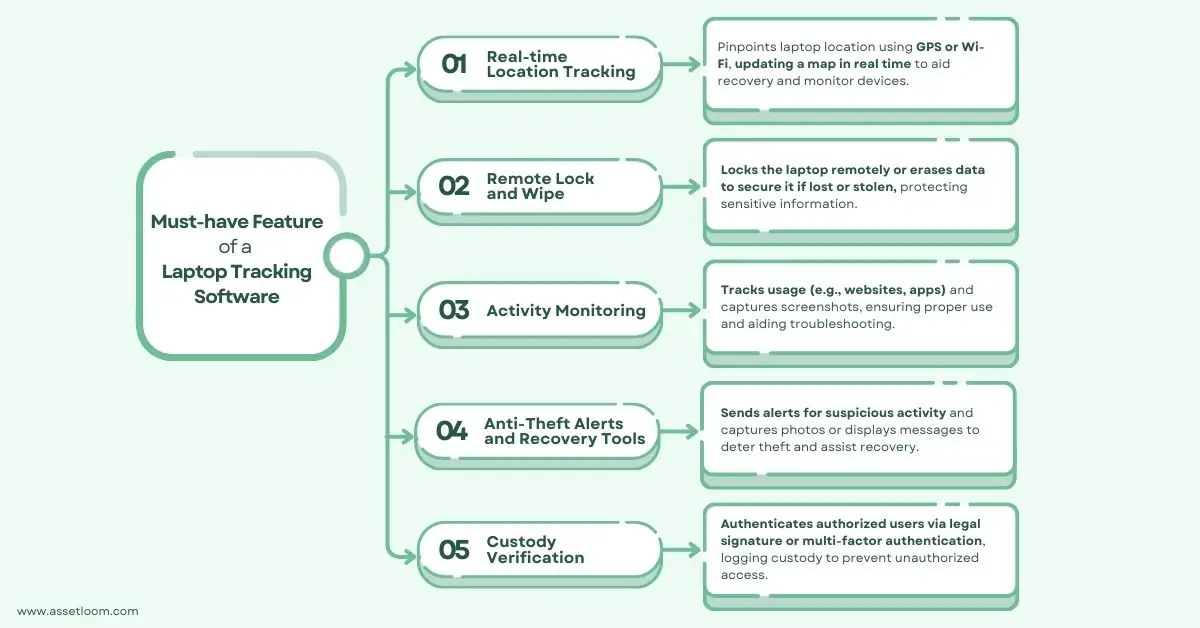
1. Real-Time Location Tracking
Real-time location tracking is the core feature of any laptop tracking software. It uses GPS, Wi-Fi triangulation, or IP address data to pinpoint your laptop’s location. Once installed, the software runs in the background, periodically sending location updates to a secure cloud server. Users can access this data through a web portal or mobile app, viewing their laptop’s location on a map in real time.
If a laptop is stolen or misplaced, the software can provide precise coordinates, helping you or law enforcement recover it. Some advanced solutions even allow you to set geofencing alerts, notifying you if the laptop leaves a designated area.
Why It Matters?
Real-time tracking ensures you can act quickly in case of loss or theft. For businesses managing multiple devices, this feature supports hardware asset management by keeping tabs on where laptops are at all times, whether they’re with remote employees or in the office. It minimizes downtime and reduces the risk of unauthorized use.
2. Remote Lock and Wipe Capabilities
Remote lock and wipe features allow you to secure your laptop’s data if it’s lost or stolen. Through the software’s online portal, you can send a command to lock the device, requiring a password to regain access. If recovery seems unlikely, you can initiate a remote wipe, which erases all data on the laptop, preventing unauthorized access to sensitive information.
These features rely on the software maintaining an active internet connection with the laptop. Even if the device is offline, the command is queued and executed as soon as it connects to the internet.
Why It Matters?
Data breaches can be catastrophic, especially for businesses handling customer information or proprietary data. Remote lock and wipe capabilities protect your privacy and comply with data protection regulations. This feature ensures that company data remains secure, even if a device is no longer in your possession.
3. Activity Monitoring and Screenshots
Activity monitoring tracks how a laptop is being used, capturing details like websites visited, applications opened, and files accessed. Some laptop tracking software also takes periodic screenshots or records keystrokes, storing this data securely for review. This feature is particularly useful for businesses that need to ensure employee laptops are used appropriately.
The software operates discreetly, and users typically can’t disable it without administrative privileges. Data is encrypted and sent to a centralized dashboard, where IT managers or individual users can analyze it.
Why It Matters?
For individuals, activity monitoring can help identify unauthorized access if someone else uses your laptop. For organizations, it’s a critical part of hardware asset management, ensuring devices are used for their intended purposes. It also aids in troubleshooting technical issues by providing a record of recent activity.
4. Anti-Theft Alerts and Recovery Tools
Anti-theft features in laptop tracking software include alerts triggered by suspicious activity, such as multiple failed login attempts or the laptop being powered on in an unfamiliar location. Some solutions take it a step further by capturing photos or videos using the laptop’s webcam when unauthorized access is detected. These images are sent to the software’s server, helping identify the thief.
Recovery tools may also include a “lock screen message” feature, where you can display a custom message on the laptop’s screen, urging the finder to return it and providing contact details.
These features increase the chances of recovering a stolen laptop while deterring thieves from using or selling it. For businesses, they enhance IT asset management by reducing the financial impact of lost devices and ensuring accountability.
5. Custody Verification
Custody verification ensures that a laptop is in the possession of its authorized user or within a trusted environment. The software authenticates the user or device through methods like biometric login, multi-factor authentication, or legal signature. It logs custody details, such as who is using the laptop, when, and where, storing this data in a secure dashboard.
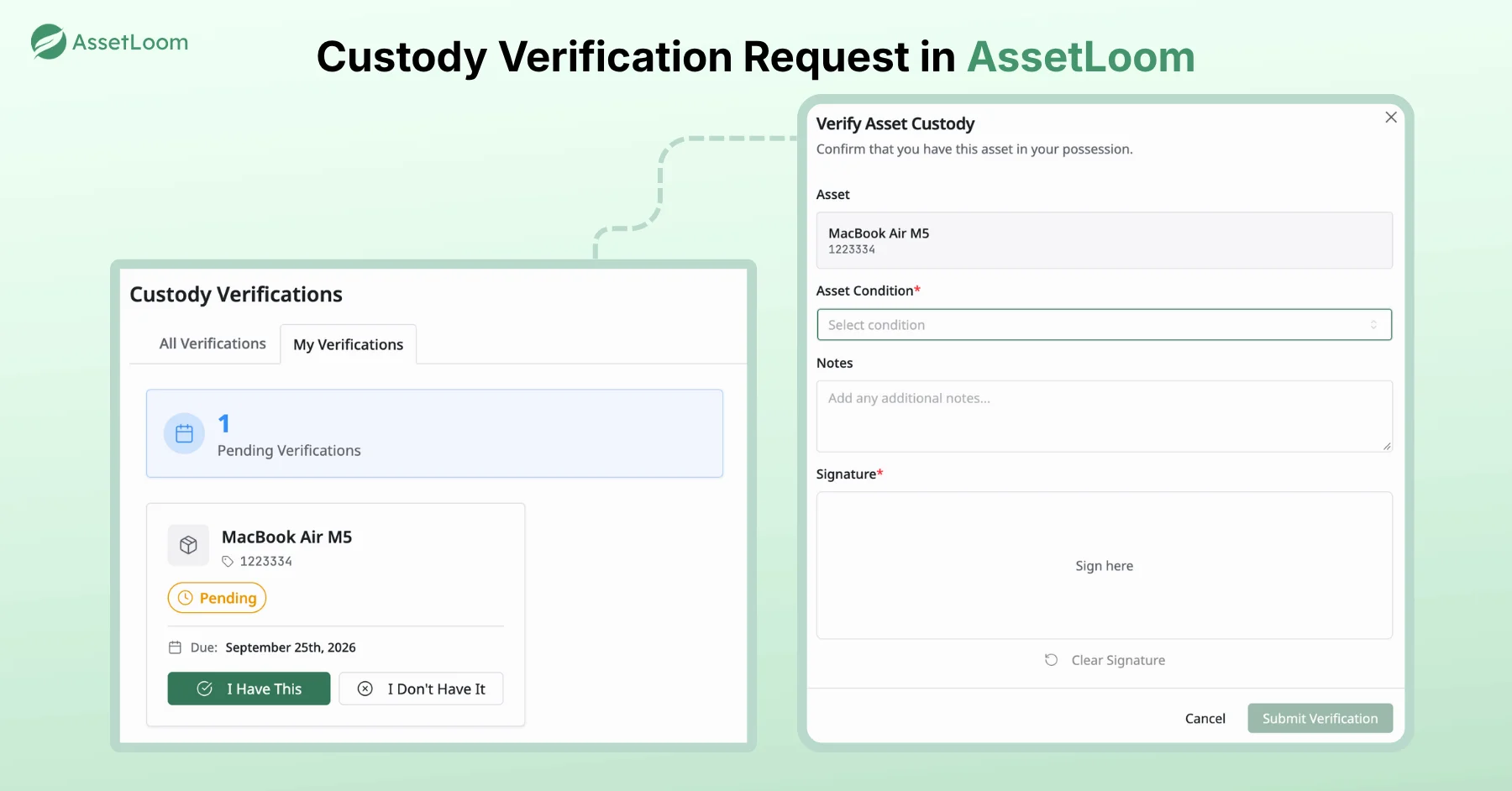
Custody Verification Request in AssetLoom
If an unauthorized user attempts to access the laptop, the software can lock the device or send an alert to the owner or IT team. For businesses, custody verification integrates with hardware asset management systems, maintaining a clear record of which employee is assigned to each laptop and flagging any discrepancies.
Why It Matters?
Custody verification is critical for preventing unauthorized access and ensuring accountability. For individuals, it adds a layer of security, confirming that only trusted users can access the laptop. For organizations, it’s a cornerstone of IT asset management, helping track device assignments and detect misuse. This feature is especially valuable for companies with remote or hybrid workforces, where laptops may be used outside the office.
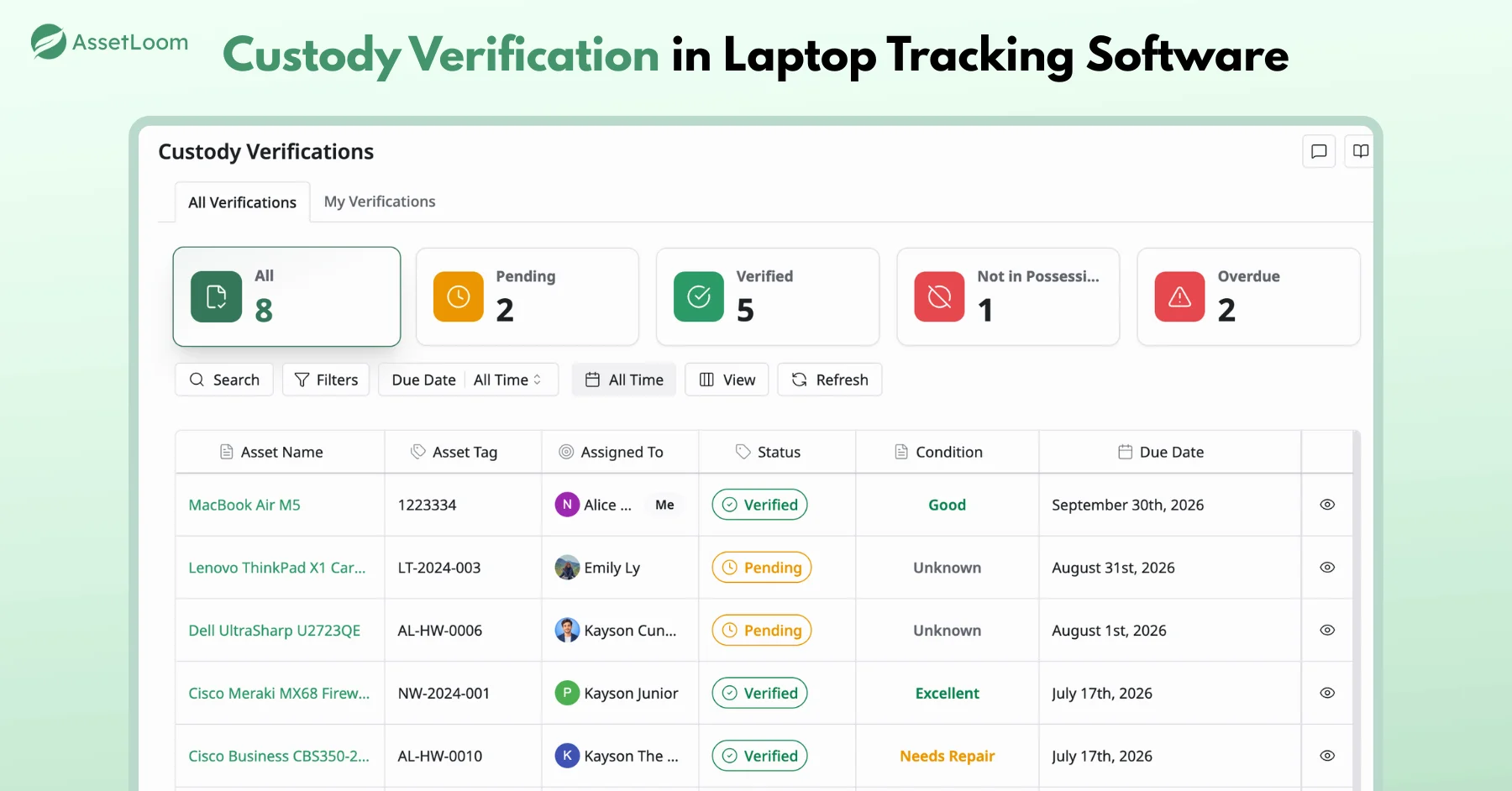
It also supports compliance with data protection regulations by ensuring only authorized personnel have access to sensitive information. By maintaining a chain of custody, businesses can audit device usage and resolve disputes about who was responsible for a laptop at a given time.
Why Choose the Right Laptop Tracking Software?
Investing in laptop tracking software is a proactive step toward protecting your devices and data. The right tool saves time, money, and stress, whether you manage one laptop or a whole fleet.
When comparing options, check ease of use, operating system support (Windows, macOS, or Linux), and customer support. Businesses should also look at scalability and integrations. Test a free trial before you commit.
Most IT teams need two tools. MDM handles location, lock, and wipe. An IT asset management platform handles custody, assignments, and lifecycle records. That second part is where AssetLoom stands out as one of the best laptop tracking software options for accountability.
- One reliable inventory. Import laptop data from spreadsheets or legacy tools in minutes.
- Full lifecycle tracking. Follow each laptop from purchase to disposal.
- Booking and assignment. Assign or loan laptops with conflict detection and approval workflows.
- Custody verification. Users confirm possession, report condition, and sign digitally.
- No-code automation. Automate onboarding, warranty alerts, and decommission reviews.
- Complete audit trail. Every action is logged, and AssetLoom integrates with Microsoft Intune and Jamf Pro.
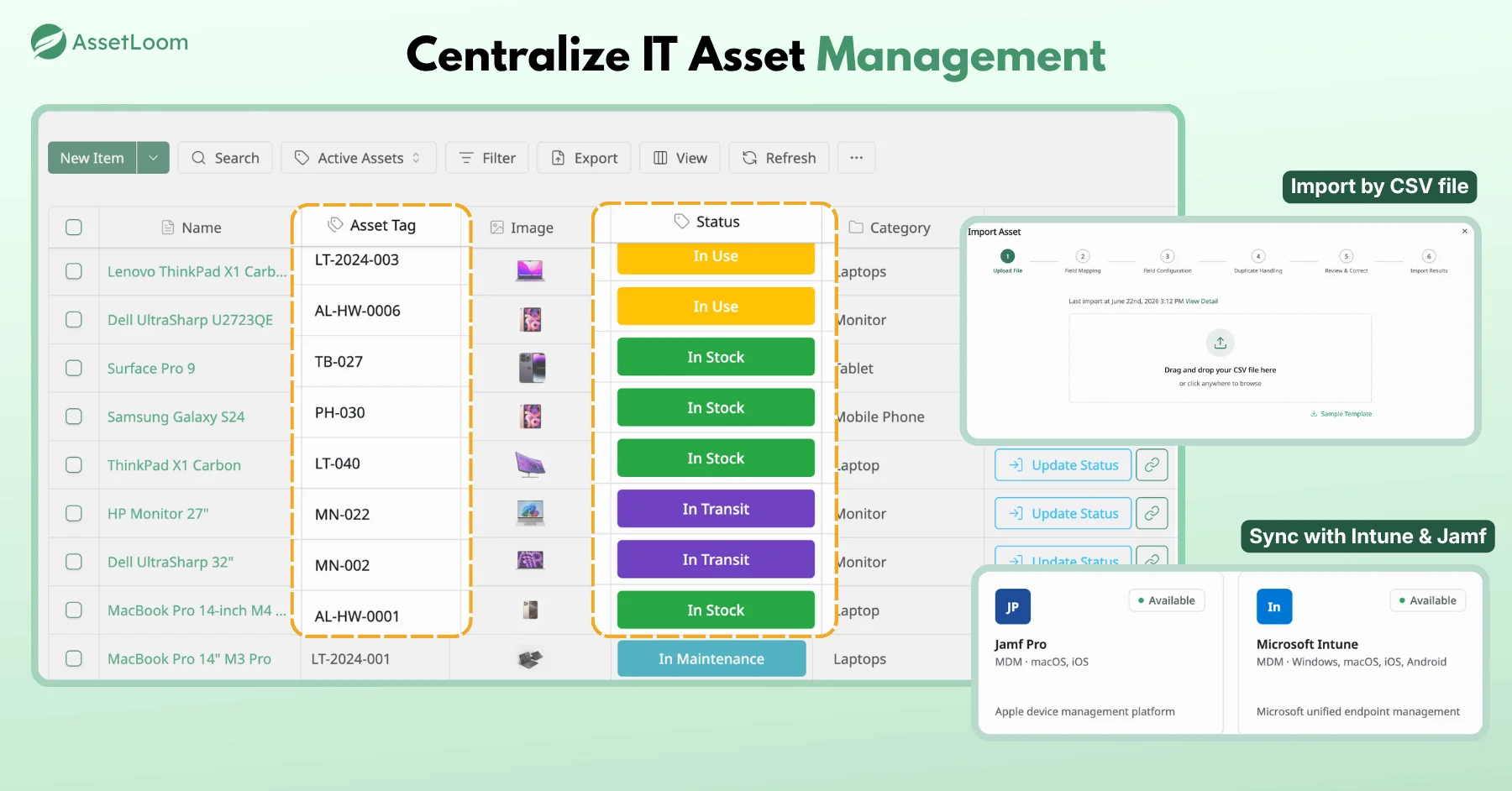
The result is fewer missing laptops and far fewer surprises at audit time.
Conclusion
Laptop tracking software is more than just a tool for finding lost devices. It’s a complete solution for securing data, managing assets, and maintaining peace of mind. By focusing on the five features discussed, whether for personal use or IT asset management, the right software empowers you to protect your laptops and stay in control.
Ready to know who has every laptop? Start with AssetLoom’s free plan, send your first custody verification request, and download the mobile app to scan QR labels at your next audit. Don’t wait until it’s too late. Secure your devices today with AssetLoom laptop tracking software.
FAQ
What is laptop tracking software?
Laptop tracking software helps you locate, secure, and manage laptops. Some tools focus on device location and remote lock or wipe, usually through MDM. Others focus on accountability, recording who has each laptop, its condition, and its assignment history. Most businesses need both.
Can laptop tracking software find a stolen laptop?
Sometimes. Location tracking only works if the laptop is powered on, online, and enrolled before it went missing. Most laptops have no GPS chip, so location often comes from Wi-Fi or IP data. Your best protection is full-disk encryption plus remote wipe.
Is it legal to track employee laptops?
Tracking company-owned laptops is common, but the rules depend on your country and what you collect. Location tracking, screenshots, and keystroke logging often require employee notice or consent. Check with HR and legal first, and tell employees clearly what is collected and why.
Does AssetLoom track laptop location in real time?
No. AssetLoom does not provide GPS or real-time location tracking. It records where each laptop is supposed to be, who is responsible for it, and its full custody history. For live location and remote wipe, use an MDM tool like Microsoft Intune or Jamf Pro.
How is custody verification different from location tracking?
Location tracking shows where a laptop is. Custody verification confirms who has it and what condition it is in. In AssetLoom, users confirm possession, report condition, and sign digitally. That gives you dated records for audits, even when laptops are spread across home offices.