Excel Asset Tracking Template Free Download
Download free Excel asset tracking template to manage your assets. Explore Excel formulas to track asset status, asset lifecycle, budgets.
Asset tracking is crucial for managing your company’s resources, whether they’re physical or digital. One of the most effective ways to manage these assets is by using an Excel asset tracking template. It’s affordable, straightforward, and easy to customize to fit your business needs. In this guide, we will walk you through the steps to create a simple, yet effective asset tracking system in Excel.
Understanding an Asset Tracking Template
An asset tracking template in Excel is a pre-built framework that helps you track and manage your company’s assets. These could be office equipment, IT resources, machinery, furniture, or even software licenses. IT asset tracking allows you to organize the details of each asset, such as its name, value, location, and status, all in one place.
With the right template, you can easily track when assets are purchased, who’s using them, where they’re located, and when they need maintenance or replacement. You’ll be able to keep your operations running smoothly and avoid losing track of your valuable resources.
Why Use an Excel Asset Tracking Template?
Using an Excel template for asset tracking comes with many benefits:
- Low Cost: Excel is affordable and often comes bundled with other software like Microsoft Office 365), which makes it a cost-effective solution for small and medium-sized businesses.
- Customization: You can modify the template to fit your unique needs without being limited by complicated software.
- Simplicity: You don’t need to be a tech expert to create and manage your asset tracking template. Excel’s intuitive interface makes it easy for anyone to get started.
📁Asset List Template Free Download
Structure of Your Excel Asset Tracking Template
The asset tracking template should include several key sections that capture different aspects of the asset lifecycle. Here’s a breakdown of the main sections to include in your asset management template Excel:
1. Core Information
The core information section will contain the basic details about each asset. This is the foundation of your tracking system and helps you identify and categorize your assets easily. Here are the columns to include:
- Asset ID: A unique identifier for each asset. It can be a number or an alphanumeric code to make each asset easy to track.
- Asset Name: The name of the asset.
- Asset Type: The category or classification of the asset (e.g., “Computer,” “Furniture,” “Tool”).
- Asset Status: The current condition or status of the asset (e.g., “In Use,” “Under Maintenance,” “Retired”).
📁Download Free Excel Asset Tracking Template
2. Assignment Information
In this section, you will track where the asset is located, who is using it, and any related permissions. This helps keep track of assets that are assigned to employees or departments, as well as the terms of use. Here are the columns to include:
- Assigned To: The name of the person or team using the asset.
- Department: The department or team that the asset is assigned to.
- Location: The physical location of the asset (e.g., “Office 1,” “Warehouse,” or “Employee A”).
- Supplier: The supplier or vendor from whom the asset was purchased.
- Booking Permission (Yes/No): This column indicates whether the asset requires permission to be booked or used by others.
3. Purchase Information
Tracking the purchase details of each asset is critical for understanding its cost, warranty period, and depreciation over time. You can set up the following columns:
- Order No.: A reference number for the purchase order.
- Purchase Cost: The original cost of the asset when it was purchased.
- Purchase Date: The date the asset was acquired or ordered.
- Warranty Expiry Date: The date when the warranty on the asset expires.
- Current Value: The current value of the asset, which you can calculate using a depreciation rule.
Building the Template in Excel
Now that we’ve outlined the key sections, let’s walk through how to actually create your Excel asset tracking template.
Step 1: Set Up the Spreadsheet Structure
Open a new Excel workbook and set up columns for each of the sections we discussed. Here’s a simple template layout:
Step 2: Add Data Validation and Drop-down Lists
For columns like Asset Type, Asset Status, Booking Permission, and Department, it’s helpful to use data validation and drop-down lists. This ensures consistency across your entries and reduces errors.
Here’s how to add drop-down lists in Excel:
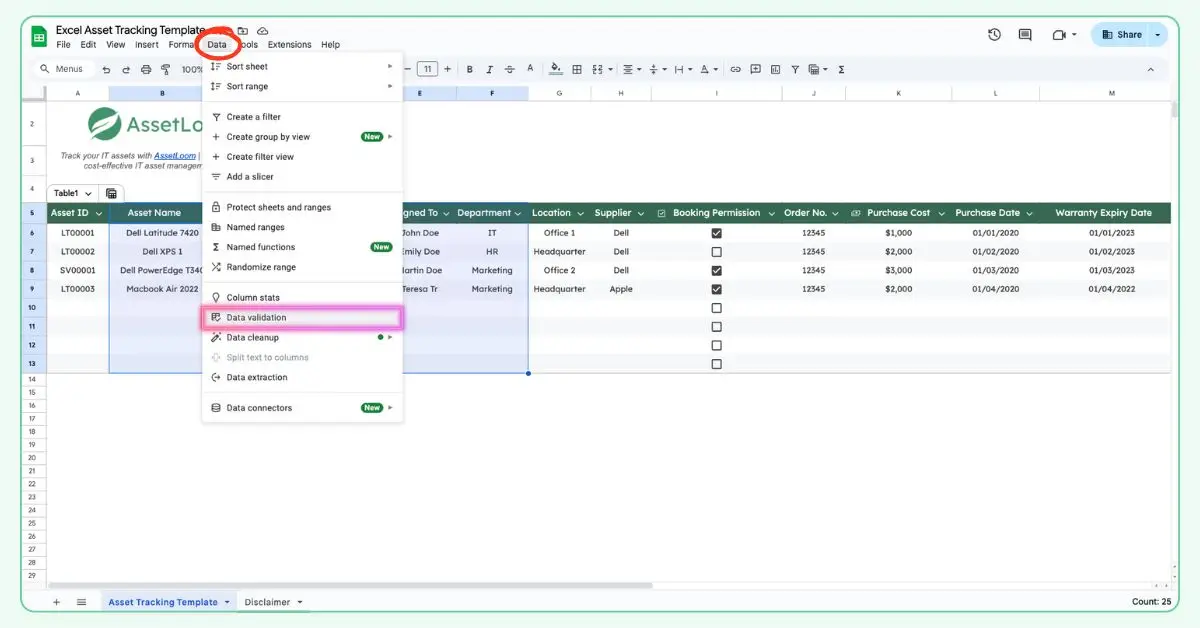
- Highlight the cells where you want the drop-down list.
- Go to the Data tab and click on Data Validation.
- Select List from the drop-down menu.
- Enter the options you want for each list, separated by commas (e.g., for Asset Status: “In Use, Under Maintenance, Retired”).
Step 3: Add Formulas for Depreciation and Current Value
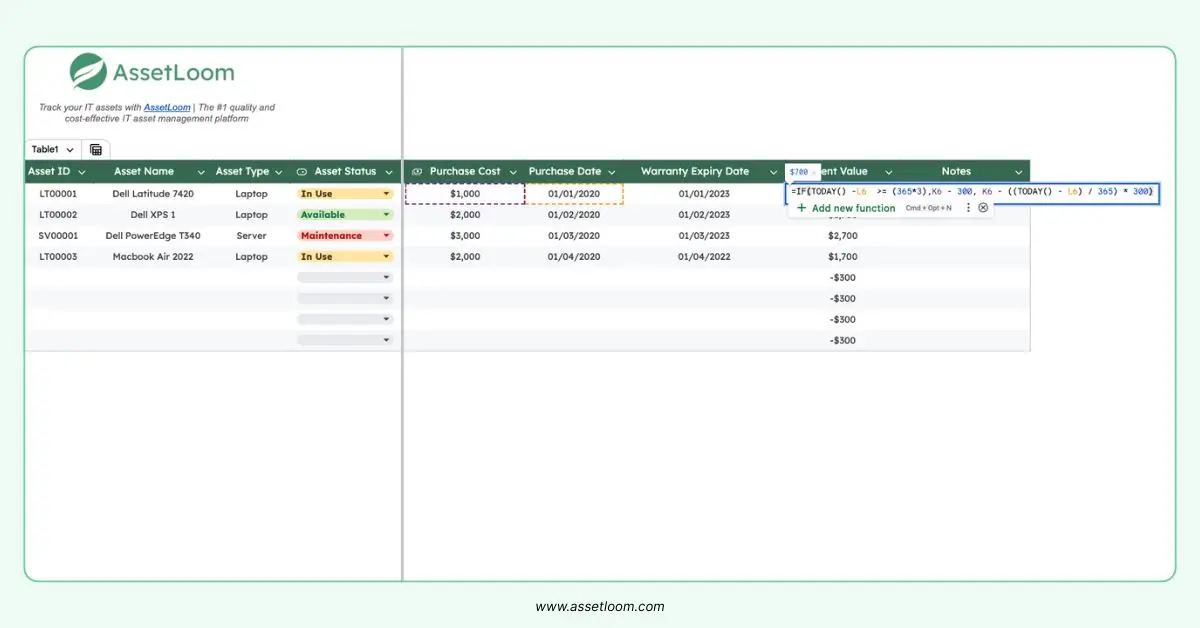
To track depreciation, enter a formula that calculates the current value based on the purchase cost, useful life, and depreciation expense. Here’s how to do it:
- Add the depreciation formula under the Current Value column.
- Use Excel’s IF function to automatically adjust the value based on the number of years since the purchase.
For example, with the Straight-line Depreciation Method, we will have this formula:
=IF(TODAY() - [Purchase Date] >= (365 * [Useful Life]), [Purchase Cost] - [Depreciation Expense], [Purchase Cost] - ((TODAY() - [Purchase Date]) / 365) * [Depreciation Expense])In the formula, Depreciation Expense represents the annual depreciation amount for the asset, which is calculated based on the asset’s initial purchase cost, its expected useful life, and its salvage value (if any).
The formula for calculating Depreciation Expense using the Straight-Line Depreciation method is:
Depreciation Expense = (Purchase Cost - Salvage Value) / Useful Life
Where:
* Purchase Cost: The original cost of the asset. * Salvage Value: The expected value of the asset at the end of its useful life (this is optional and might be set to 0 if you assume no residual value). * Useful Life: The number of years the asset is expected to be in use before it is either sold, disposed of, or no longer useful.
Step 4: Add Conditional Formatting
Conditional formatting helps highlight important data. For example, you could:
- Highlight assets that are approaching their warranty expiration date.
- Flag assets that have a low current value.
Here’s how to add conditional formatting:
- Select the cells where you want to apply formatting (e.g., Warranty Expiry Date).
- Go to the Home tab and click on Conditional Formatting.
- Choose a rule, such as Highlight Cells Rules > Less Than and enter a date range to highlight upcoming expirations.
Step 5: Regular Updates and Maintenance
Your asset tracking template is only useful if you regularly update it. Be sure to:
- Add new assets as they’re purchased.
- Remove or archive old assets when they’re retired or disposed of.
- Update the status of assets if they’re reassigned or under maintenance.
Move Beyond Manual Asset Tracking with AssetLoom
An Excel asset tracking template is a practical starting point for small inventories. However, as your organization grows, manually maintaining asset records can become time-consuming and difficult to keep accurate.
New devices are purchased, employees change roles, assets move between locations, and outdated spreadsheets can quickly create gaps in visibility. AssetLoom helps IT teams reduce manual data entry by combining IT asset management with automated discovery capabilities.
Automatically Discover IT Assets
Instead of manually adding every device into a spreadsheet, AssetLoom Network Scanner helps teams identify devices across their environment and maintain more accurate inventory records.
With agentless discovery, IT teams can discover connected assets without installing software agents on every device. This reduces the effort required to collect device information and helps keep inventory records updated with less manual work.
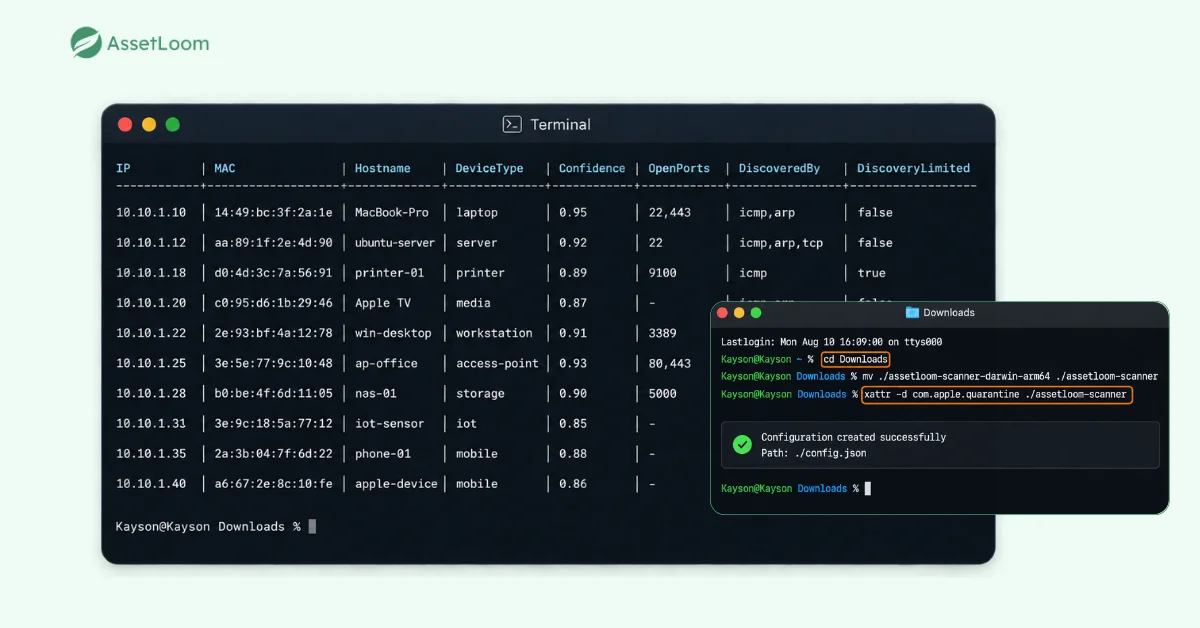
This helps teams reduce tasks such as:
- Manually collecting hardware details from each device
- Searching for unknown devices across the network
- Updating multiple spreadsheets when asset information changes
- Comparing inventory records with actual devices
Explore more about 5 Best Automated Network Scanning Tools for IT Asset Discovery
Manage Complete Asset Information in One Place
After discovery, teams can export collected asset information as a CSV file and import it directly into AssetLoom. The imported assets can then be managed throughout their complete lifecycle, from purchase and assignment to maintenance, depreciation, and retirement.
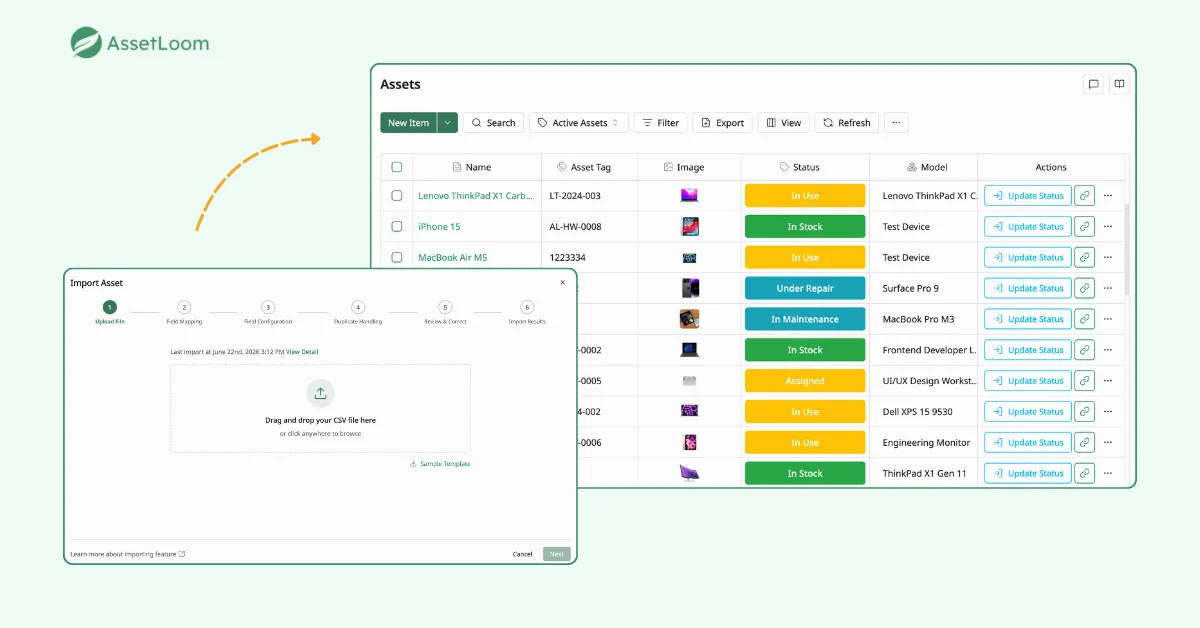
Each asset record can include important details such as:
- Device information and specifications
- Asset ownership and assignment
- Location
- Purchase details
- Warranty information
- Maintenance history
- Depreciation information
- Current status
This gives IT teams a centralized view of their technology environment instead of relying on separate spreadsheets and manual updates.
FAQs
1. How many assets can an Excel asset tracking template handle?
Excel can work well for small inventories with a limited number of assets. However, as the number of assets, users, and locations increases, maintaining accurate records becomes more difficult. Large inventories often require dedicated asset management software to automate updates, improve visibility, and reduce manual work.
2. How can I prevent duplicate or incorrect asset records in Excel?
To reduce errors, use consistent asset IDs, predefined dropdown values for fields like status and asset type, and regularly review records against physical assets. Data validation and standard naming rules can help keep information consistent as more people update the spreadsheet.
3. How do I move my Excel asset tracking data to an asset management system?
Most asset management platforms support importing existing spreadsheet data. Typically, teams export their Excel file as a CSV, map the columns to the new system’s fields, and import the asset records. This allows organizations to keep existing inventory information while moving to a more automated workflow.
4. Can Excel automatically discover devices on my network?
No. Excel can only track information that users manually enter or import. It cannot automatically identify connected devices, collect hardware details, or detect unknown assets. Organizations that need automatic inventory discovery usually use IT asset discovery tools that can collect device information with less manual effort.
5. What information should be included in an asset tracking spreadsheet?
A good asset tracking spreadsheet should include basic identification details, ownership information, location, purchase details, and lifecycle information. Common fields include asset ID, asset name, asset type, status, assigned user, department, purchase date, warranty expiry date, purchase cost, and current value.
Including the right information from the beginning helps businesses maintain accurate records and makes it easier to manage assets as they grow.
Conclusion
Creating an Excel asset tracking template is a practical and simple way to manage your company’s resources. By following these steps, you can build a custom system that helps you track your assets’ core information, assignments, and purchase details. Regular updates, proper tracking of depreciation, and ongoing maintenance of your template will ensure that your business runs smoothly and your assets are always accounted
Discover your devices with the free AssetLoom Network Scanner and manage your complete IT asset lifecycle with AssetLoom